







Still downloading templates?
There’s an easier way. Try a free AI Agent in ClickUp that actually does the work for you—set up in minutes, save hours every week.
Sorry, there were no results found for “”
Sorry, there were no results found for “”
Sorry, there were no results found for “”
Many teams today rely on AI tools. But without standardized prompts, they report wildly inconsistent outputs that require extensive rework.
Deloitte’s State of AI report backs this up: 37% of organizations still use AI at the surface level, with little or no process change.
This article breaks down what AI prompt workflow templates actually are and why they’re the missing layer between your team and reliable AI output. It also walks you through 10 ready-to-use options spanning content, project management, engineering, HR, finance, and more.
| Template name | Download link | Ideal for | Best features |
| AI Prompt & Guide for Blog Posts by ClickUp | Get free template | Content marketing teams on a recurring publishing schedule | Pre-filled fields for topic, audience, tone, and SEO keywords linked to ClickUp Tasks for drafting, review, and publish tracking |
| ChatGPT Prompts for Project Management by ClickUp | Get free template | Project managers and team leads | Structured blanks for project briefs, status updates, risk registers, and epic breakdowns with executive-ready output formatting |
| ChatGPT Prompts for Product Management by ClickUp | Get free template | Product managers and product ops teams | Prompts organized by product lifecycle stage with industry-standard user story formatting built in |
| ChatGPT Prompts for Engineering by ClickUp | Get free template | Software engineers, eng managers, and DevOps teams | Language and framework blanks with numbered-output constraints for scannable, actionable code review feedback |
| ChatGPT Prompts for HR by ClickUp | Get free template | HR managers, recruiters, and People Ops teams | Bias-prevention guardrails (gender-neutral language, essential-only requirements) baked into every prompt |
| ChatGPT Prompts for Finance by ClickUp | Get free template | Finance analysts, controllers, and FP&A teams | Executive narrative structure with blanks for reporting period, currency, and audience seniority |
| ChatGPT Prompts for Writing by ClickUp | Get free template | Marketing teams, comms professionals, and anyone who writes at work | Style-mimic pattern that matches your brand voice from a pasted sample instead of abstract tone descriptions |
| Gemini Prompts by ClickUp | Get free template | Teams using Google Gemini | 600 ready-to-use prompts across multiple business functions in a collaborative ClickUp Doc |
| Email Automation with ClickUp | Get free template | Client-facing teams and account managers | Emails auto-draft when a task status changes, pulling real task data into the prompt with zero manual input |
| Copilot Prompts Gallery by Microsoft | Download the template | Organizations on Microsoft 365 | Prompts pull live context from your actual emails, meetings, and documents, no copy-paste needed |
📚 Also Read: ClickUp PromptOps Templates for AI Workflows
An AI prompt workflow template is a reusable document that pairs a tested prompt structure with the workflow steps around it. It includes placeholders for things like role, context, constraints, and output format—so you’re not writing prompts from scratch every time you need AI output.
Without standardization, we’ve seen teams where the same request—’write a project update email’—produces outputs ranging from 50 to 500 words, with wildly different tones and levels of detail. Nobody knows which prompts actually work.
A good AI prompt workflow template packages three things together:
🎥 Before diving into workflow templates, it’s helpful to understand the fundamentals of asking AI questions effectively. This video walks through the essential techniques for getting better responses from AI tools:
Every team uses AI in the workplace now. But most skip the step of agreeing on how to use them—McKinsey found that less than one-third of organizations follow the proper gen-AI adoption and scaling practices.
Using AI prompt templates offers many benefits:
📮ClickUp Insight: Half of our respondents struggle with AI adoption; 23% just don’t know where to start, while 27% need more training to do anything advanced.
ClickUp solves this problem with a familiar chat interface that feels just like texting. Teams can jump right in with simple questions and requests, then naturally discover more powerful automation features and workflows as they go without the intimidating learning curve that holds so many people back.
Some of these templates are built for ClickUp, some for ChatGPT or Copilot, and one organizes prompts using Microsoft Lists. Pick what fits your stack. 👀
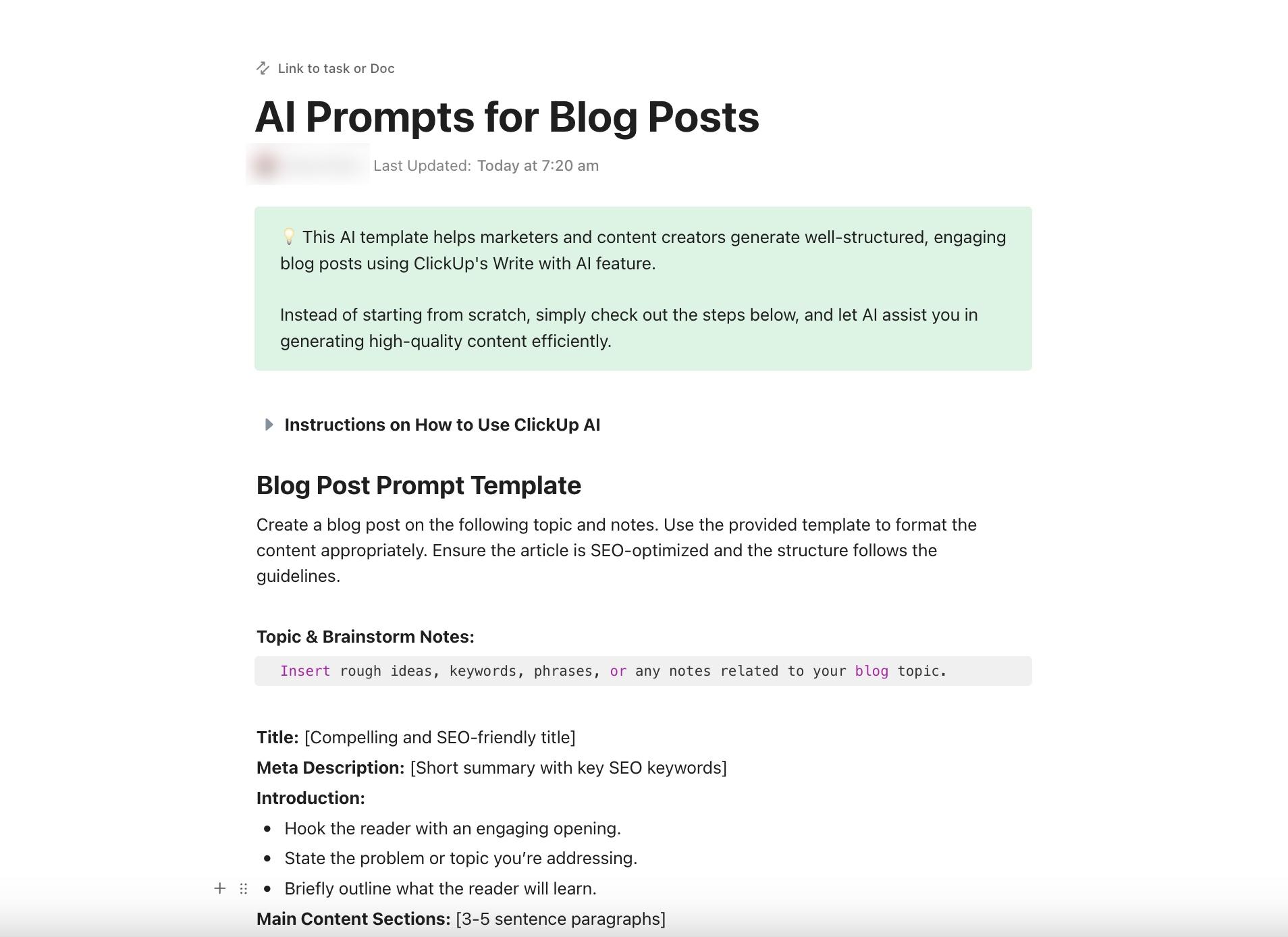
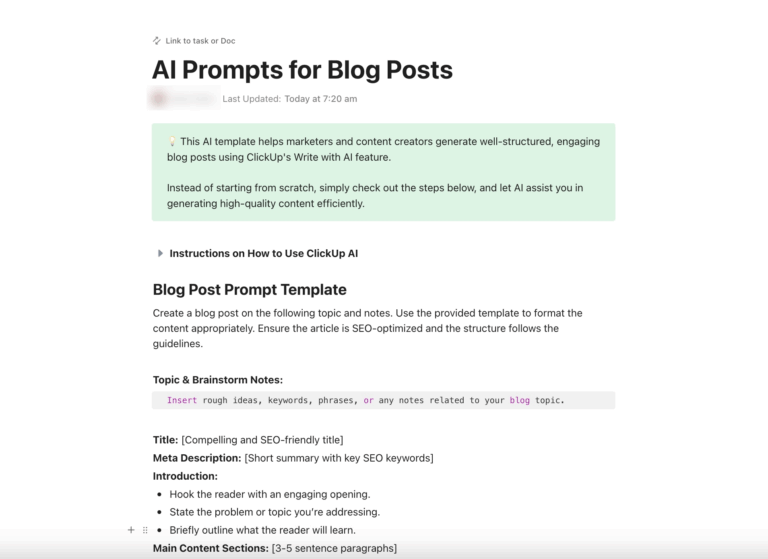
This AI Prompt & Guide for Blog Posts Template by ClickUp gives content teams a repeatable prompt workflow for blog outlines, drafts, and briefs.
👀 Example prompt: “You are a senior content strategist. Write a 1,200-word blog post outline for [TOPIC] targeting [AUDIENCE]. Use a conversational tone. Include an H1, five H2 sections, and a concluding CTA to [ACTION]. Prioritize actionable advice over theory.”
Why you’ll like this template:
🚀 Ideal for: Content marketing teams on a recurring publishing schedule.
📚 Also Read: Free AI Usage Policy Workflow Templates
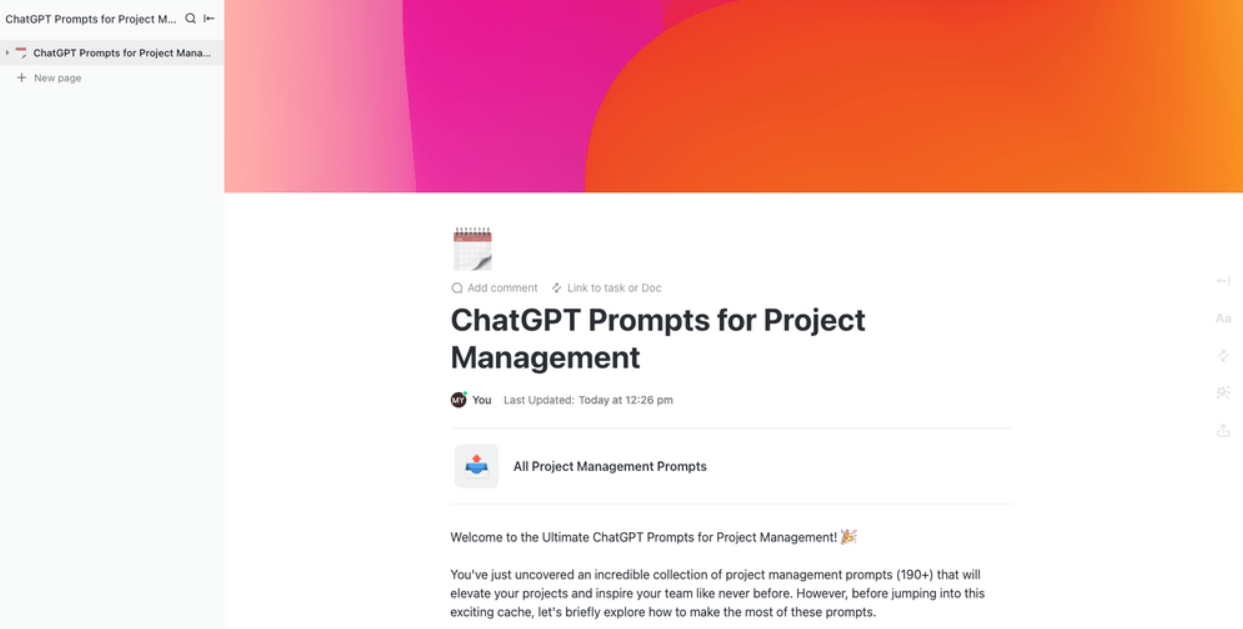
ClickUp’s ChatGPT Prompts for Project Management Template gives you pre-built ChatGPT prompts for writing project briefs, summarizing status updates, building risk registers, and breaking epics into tasks. Each prompt includes blanks for project name, timeline, team size, and deliverables.
👀 Example prompt: “Act as a project manager. Summarize the following project update in three bullet points for an executive audience. Highlight: (1) progress against milestones, (2) top risk, (3) next week’s priority. Project update: [PASTE UPDATE].”
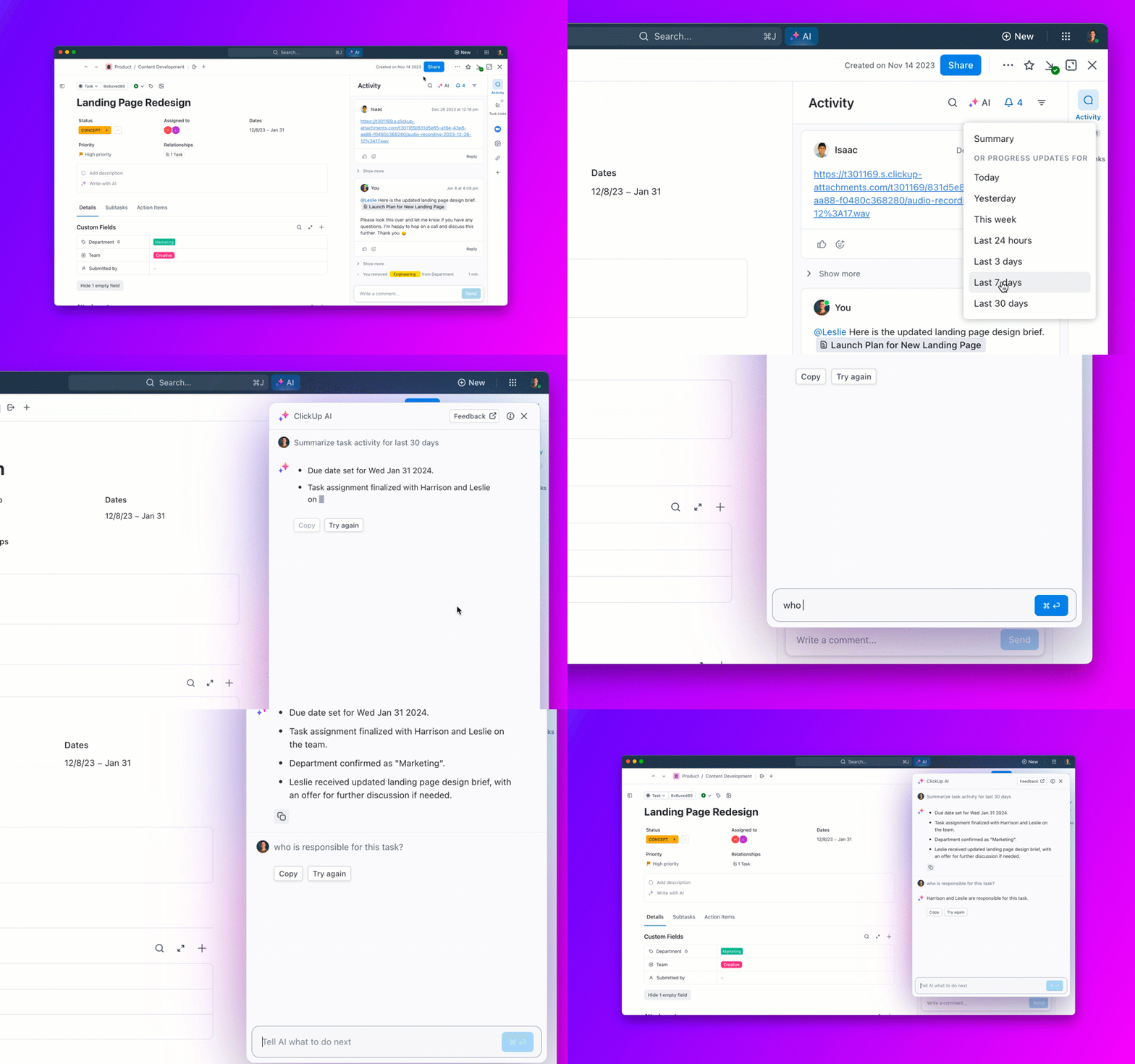
Structured blanks force you to give AI the context it needs, which means the first output is usable instead of vaguely generic. And if you want to skip the copy-paste step entirely, ClickUp Brain can generate summaries and task breakdowns directly from existing task data.
Why you’ll like this template:
🚀 Ideal for: Project managers and team leads who use ChatGPT alongside their PM tool
💡 Pro Tip: Skip the blanks entirely with ClickUp Brain.
Every template on this list has [BLANKS] you fill in manually: project name, audience, timeline, and deliverables. It works, but it’s slow, and you’re doing the context-gathering yourself.
ClickUp Brain already knows your task names, assignees, due dates, descriptions, and data from connected apps. Instead of pasting context into a prompt, Brain pulls it directly from your workspace. A status update prompt that takes five minutes of copy-paste in ChatGPT takes seconds in ClickUp because the context is already there.
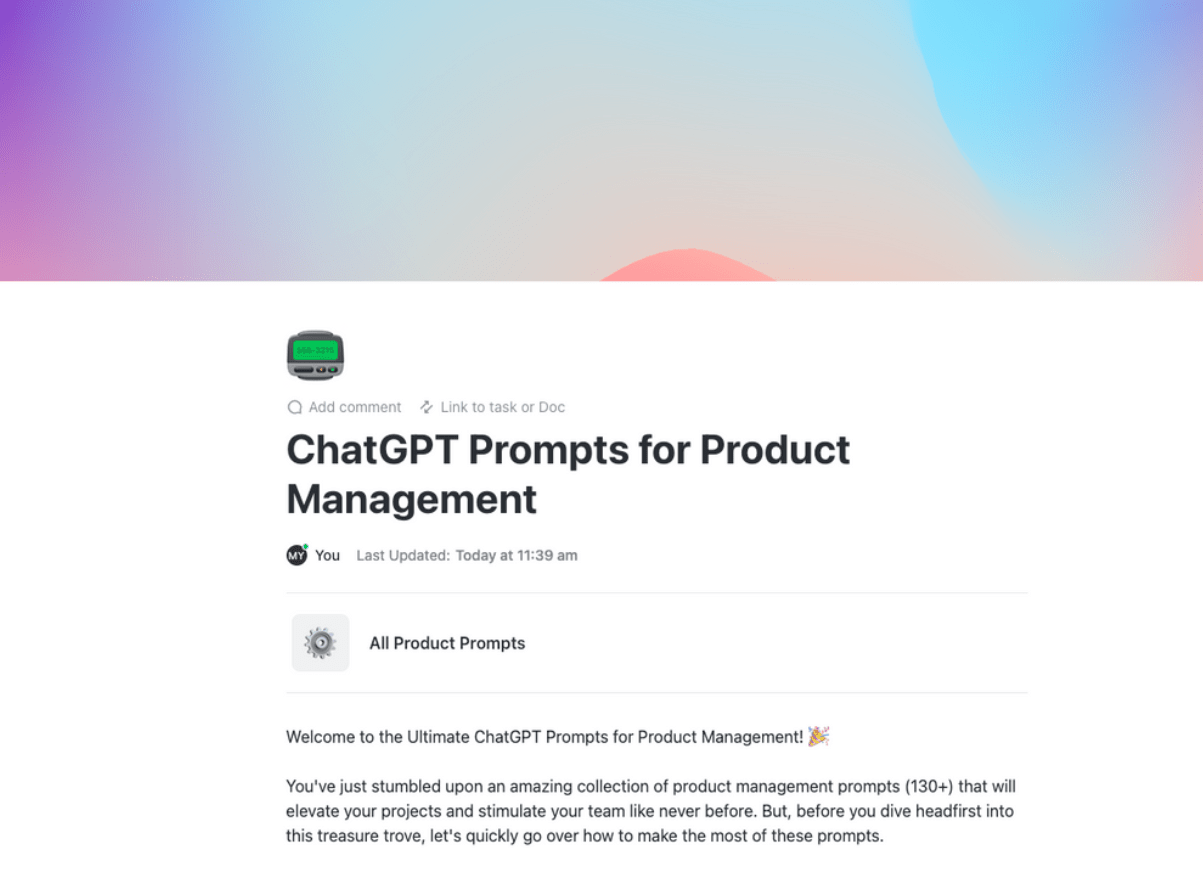
The ChatGPT Prompts for Product Management Template by ClickUp covers PRDs (product requirements documents), user story drafts, customer feedback themes, and release notes. Prompts are organized by product lifecycle stage, so you don’t have to scroll through a flat list to find the right one.
Each prompt has role context baked in, and the “As a… I want… So that…” user story format is already a standard for AI prompts for product managers. Embedding it into the template means the output arrives in a structure your team already uses, no reformatting required.
👀 Example prompt: “You are a product manager. Draft five user stories in the format ‘As a [user type], I want [action] so that [outcome]’ for a feature that [FEATURE DESCRIPTION]. Prioritize by estimated user impact.”
Why you’ll like this template:
🚀 Ideal for: Product managers and product ops teams managing backlogs and roadmaps.
🚀 These AI prompts help PMs think better, move faster, and avoid starting from scratch every time.
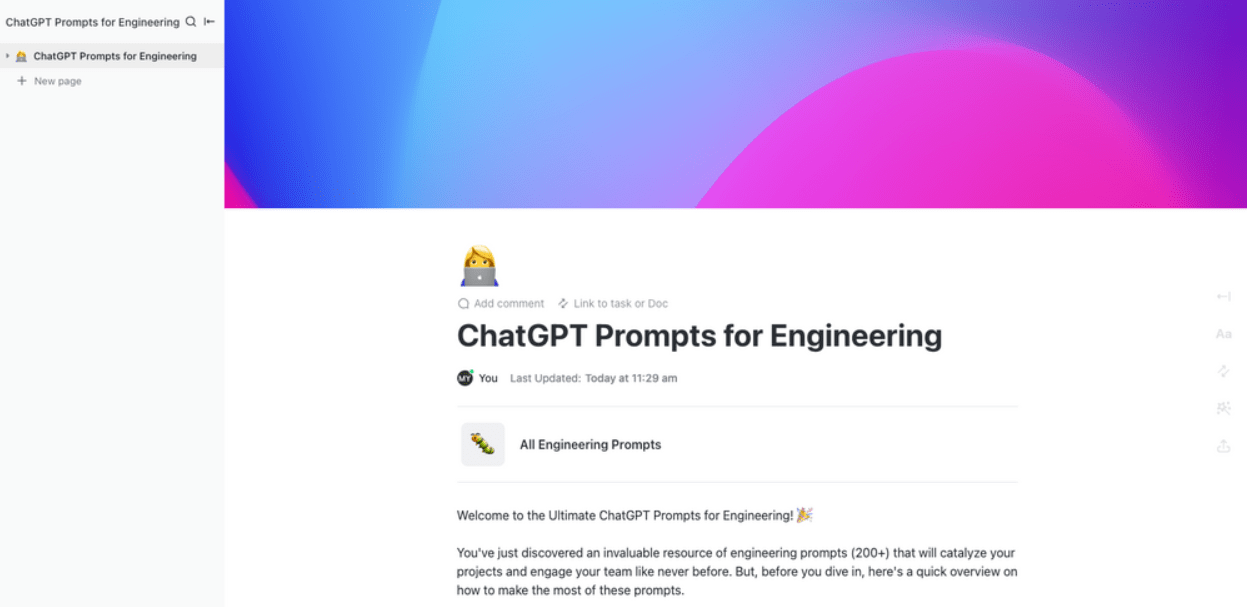
The ChatGPT Prompts for Engineering Template by ClickUp covers code review checklists, technical documentation, bug report templates, and architecture decision records. Each prompt includes blanks for language, framework, and audience technical level, so the output matches your actual stack.
The numbered-output constraint in prompts like the one below forces scannable, actionable feedback instead of a wall of text. That’s the difference between AI output you actually use and AI output you skim and close.
👀 Example prompt: “Review the following code snippet for [LANGUAGE]. Identify: (1) potential bugs, (2) performance concerns, (3) readability improvements. Explain each finding in one sentence. Code: [PASTE CODE].”
Why you’ll like this template:
🚀 Ideal for: Software engineers, engineering managers, and DevOps teams.
💡 Pro Tip: Prompt from anywhere (even by voice) with ClickUp Brain MAX.
Prompt templates are only useful if you can reach them when inspiration hits, not just when you happen to have the right browser tab open.
Brain MAX is a desktop AI companion that lives in your system tray and launches with a single hotkey. Use it to run prompts, search across ClickUp and connected apps like Google Drive, GitHub, and SharePoint, and get answers without switching windows.
And if typing out a detailed prompt feels like a chore, Brain MAX’s Talk to Text lets you dictate prompts naturally. Just speak the way you’d explain the task to a coworker, and the AI handles the rest.
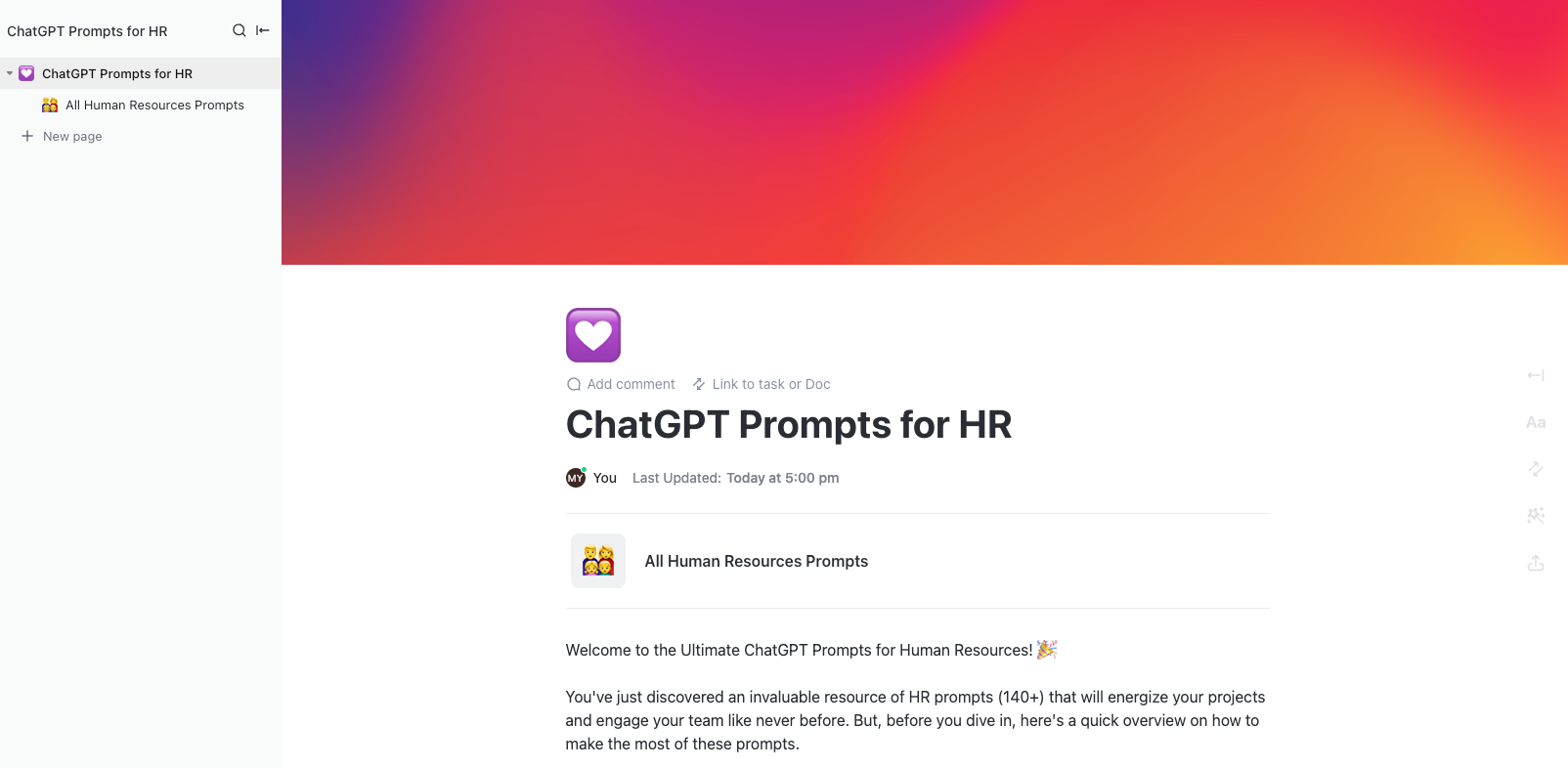
This ChatGPT Prompts for HR Template by ClickUp handles core human resource processes like job descriptions, interview question banks, onboarding checklists, and employee survey summaries. It includes guardrails like “Use gender-neutral language” and “Avoid requirements that aren’t strictly necessary for the role.”
The bias-guardrail instruction helps overcome common AI challenges by preventing AI from defaulting to exclusionary language patterns—something that happens more often than you’d think without it.
👀 Example prompt: “Write a job description for a [ROLE TITLE] at a [COMPANY SIZE] [INDUSTRY] company. Include: role summary, five key responsibilities, required qualifications, and preferred qualifications. Use gender-neutral language throughout.”
Why you’ll like this template:
🚀 Ideal for: HR managers, recruiters, and People Ops teams.
ClickUp’s ChatGPT Prompts for Finance Template handles budget variance explanations, executive narrative summaries, expense categorization rules, and vendor comparison matrices. Each includes blanks for reporting period, currency, and audience seniority.
The paragraph-by-paragraph output instruction in prompts like the one below mirrors the project financial management format teams already present to leadership. Instead of reworking a block of AI text into something presentable, you get a structured narrative you can drop straight into a deck.
👀 Example prompt: “Summarize the following quarterly budget data into a three-paragraph executive narrative. Paragraph 1: overall performance vs. plan. Paragraph 2: top three variance drivers. Paragraph 3: recommended actions. Data: [PASTE DATA].”
Why you’ll like this template:
🚀 Ideal for: Finance analysts, controllers, and FP&A teams.
💟 Bonus: Turn your best prompt into an always-on Super Agent!
Once you find a prompt that works, like a weekly status summary or a bug triage checklist, stop running it manually. Build a ClickUp Super Agent around it instead.
Super Agents are AI-powered teammates that live inside ClickUp with full workspace context. They can run multi-step workflows 24/7, triggered by task status changes, schedules, or a simple @mention.
You control which tools and data sources they access, who can trigger them, and what guardrails they operate within. It’s the difference between a prompt you remember to use and an autonomous process that never forgets.
Learn more about Super Agents here 👇
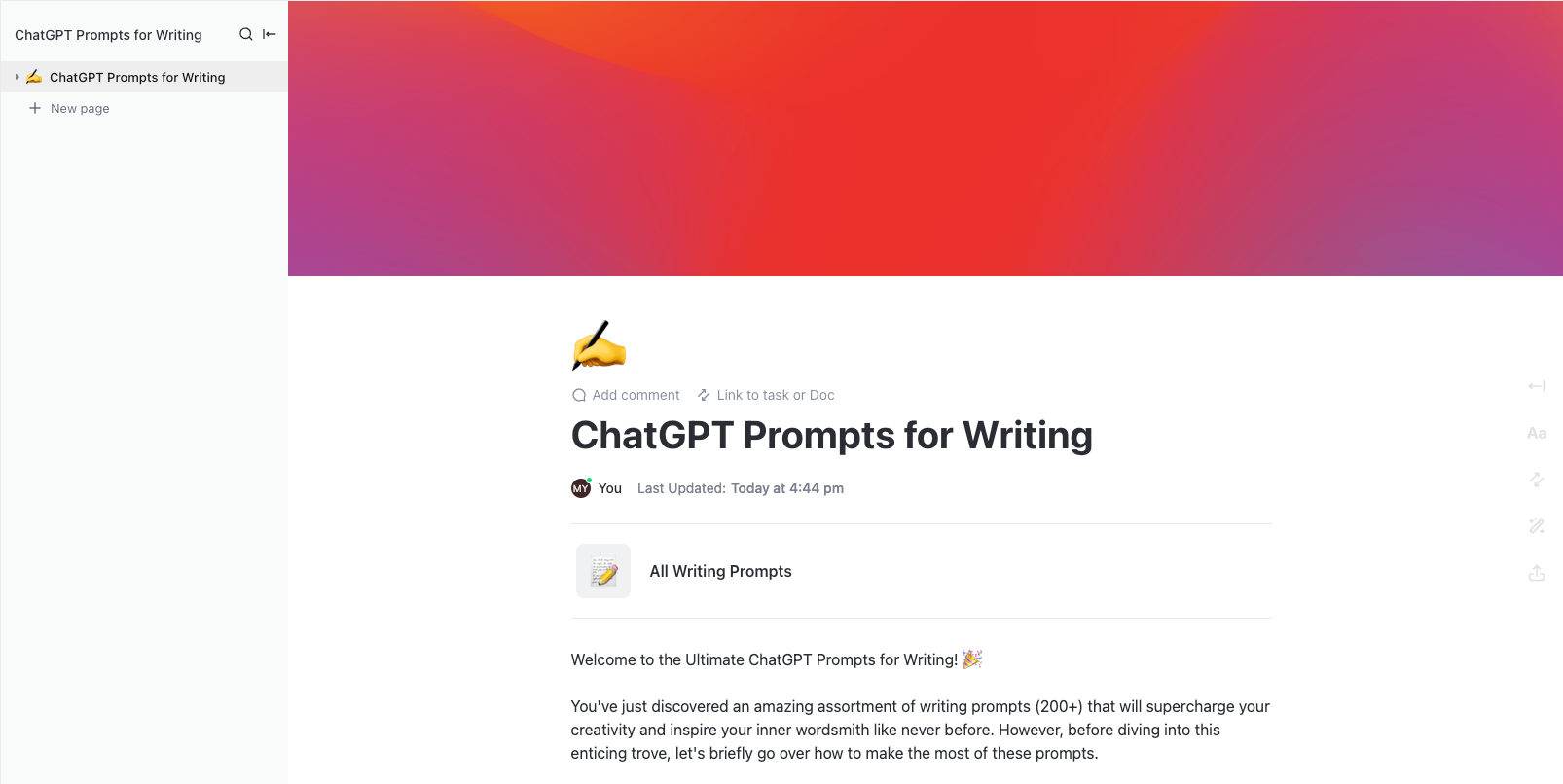
The ChatGPT Prompts for Writing Template by ClickUp goes beyond basic content creation to cover emails, social copy, internal memos, and proposal narratives. It includes a “style mimic” pattern where you paste a sample of your brand voice and ask AI to match it.
Style mimicking is the most underused trick for building brand recognition with AI. Instead of describing your voice in abstract terms like “professional but friendly,” you show AI what it looks like. The output is closer to on-brand from the first draft.
👀 Example prompt: “Write a [FORMAT: email / LinkedIn post / internal memo] about [TOPIC] for [AUDIENCE]. Tone: [TONE]. Length: [WORD COUNT]. Match the writing style of this sample: [PASTE SAMPLE].”
Why you’ll like this template:
🚀 Ideal for: Marketing teams, communications professionals, and anyone who writes at work.
📚 Also Read: Claude vs. Gemini vs. ChatGPT for Work
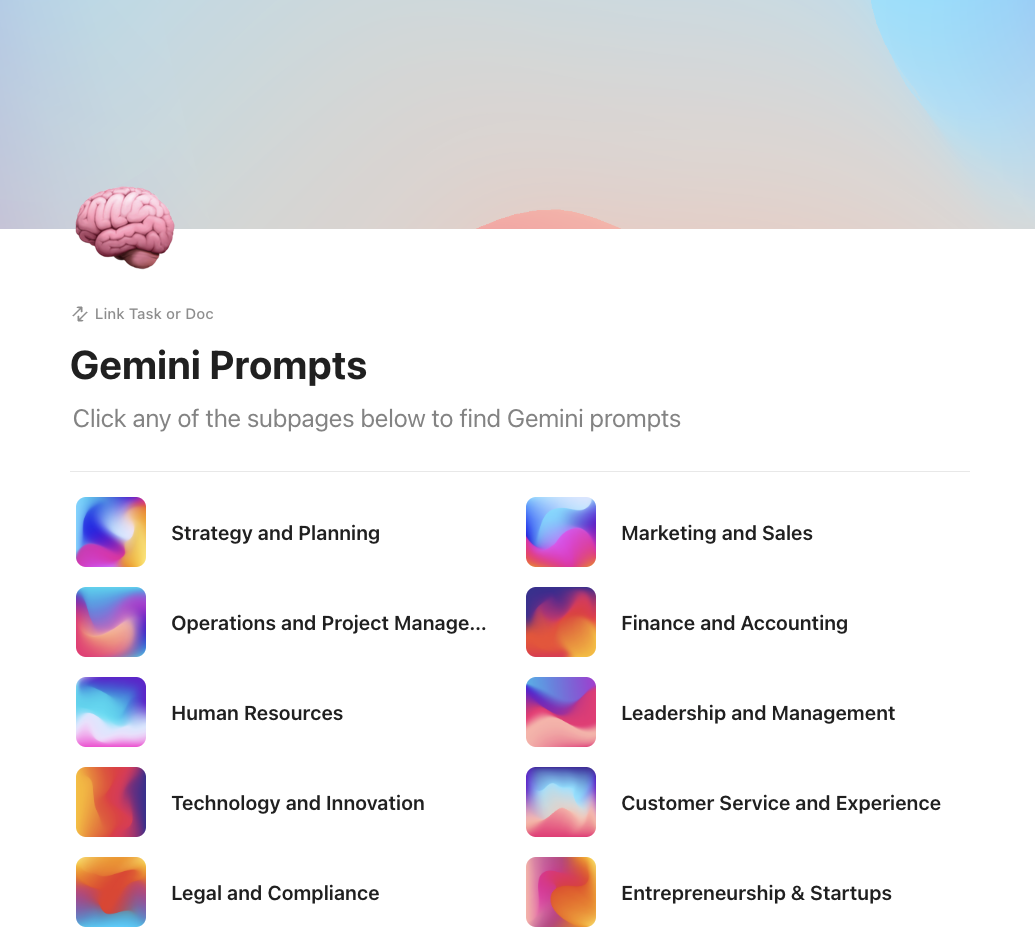
The Gemini Prompts Template by ClickUp is a ready-to-use ClickUp Doc packed with 600 pre-written prompts for Google Gemini, organized by business function.
Whether you need help with marketing copy, data analysis, project planning, or customer communication, there’s a prompt you can grab and run with instead of writing one from scratch.
And since it lives in a ClickUp Doc, your team can collaboratively edit, add notes, and build on the prompts that work best for your workflows.
👀 Example prompt: “Analyze the following customer feedback data and identify the top five recurring themes. For each theme, provide a one-sentence summary and rate its sentiment as positive, neutral, or negative. Data: [PASTE FEEDBACK].”
Why you’ll like this template:
🚀 Ideal for: Teams using Google Gemini who want a large, organized prompt library they can customize over time.
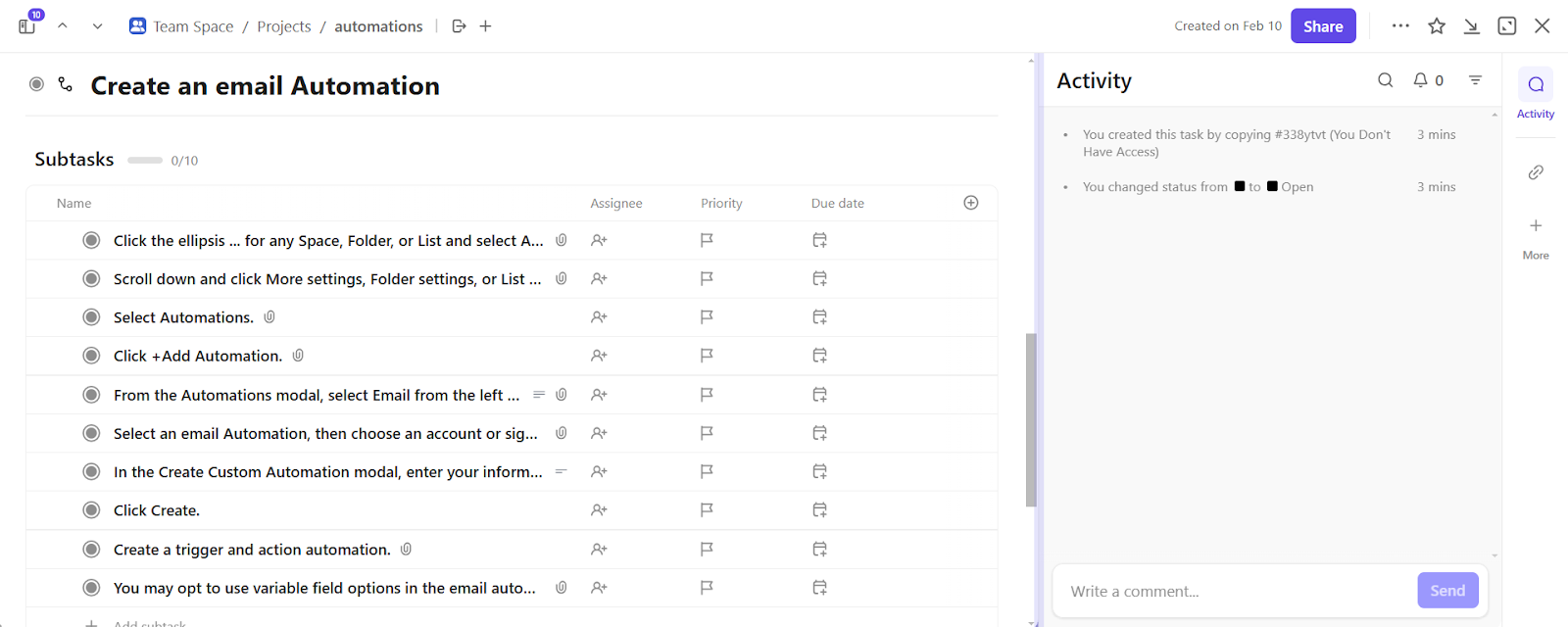
This Email Automation with ClickUp Template pairs AI prompt workflows with ClickUp Automations. Automations are built on triggers, conditions, and actions, and this template shows you how to wire email automation into your existing task workflow. ✨
When a task status changes to Complete, an automation triggers ClickUp Brain using the task’s name, assignee, and description as context, and the drafted email lands in a linked ClickUp Doc for review.
Nobody has to remember to write the update email because it writes itself when the status changes.
👀 Example prompt: “Using the task name, assignee, completion date, and description below, draft a professional client update email. Confirm completion, summarize what was delivered, and state the next milestone. Tone: warm but professional.”
Why you’ll like this template:
🚀 Ideal for: Client-facing teams and account managers who send repetitive update emails
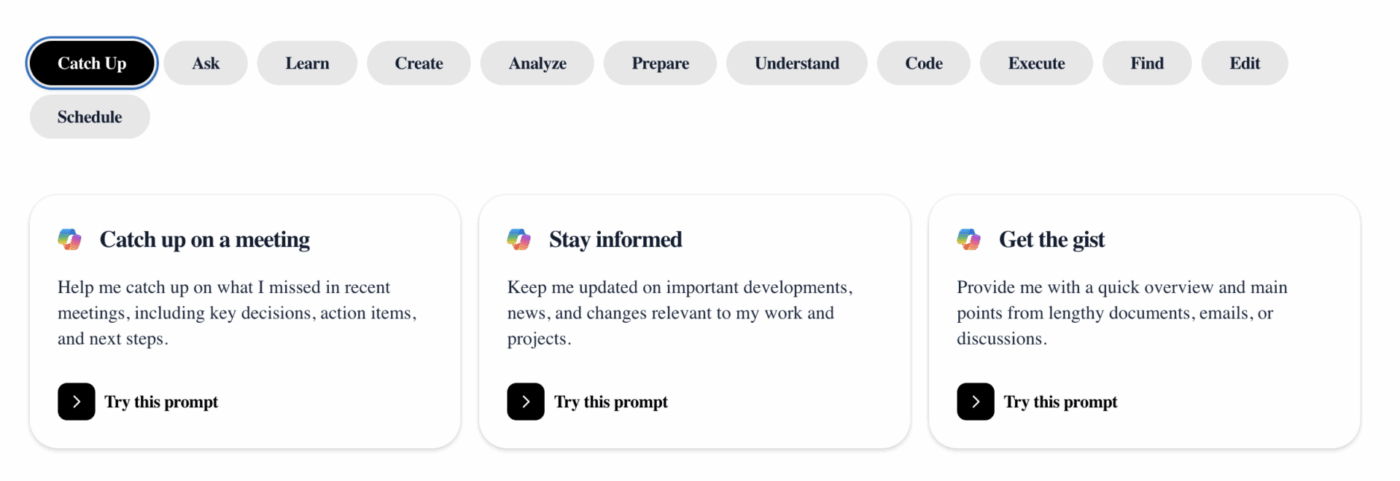
The Copilot Prompts Gallery by Microsoft is a browsable library of ready-to-use prompts for Microsoft 365 Copilot, organized by workflow: Catch Up, Create, Analyze, Code, Execute, Schedule, and more. Instead of staring at an empty chat box, you pick a task-based prompt, and Copilot runs it against your emails, meetings, documents, and projects.
These prompts automatically pull context from your Microsoft 365 data. A “catch up on a meeting” prompt summarizes decisions and action items from your actual calendar. A “get emails pending reply” prompt scans your real inbox. The prompts gather context for you.
👀 Example prompt: “Help me catch up on what I missed in recent meetings, including key decisions, action items, and next steps.”
Why you’ll like this template:
🚀 Ideal for: Organizations already using SharePoint or Microsoft 365.
📮ClickUp Insight: 62% of our respondents rely on conversational AI tools like ChatGPT and Claude. Their familiar chatbot interface and versatile abilities—to generate content, analyze data, and more—could be why they’re so popular across diverse roles and industries.
However, if a user has to switch to another tab to ask the AI a question every time, the associated toggle tax and context-switching costs add up over time.
Not with ClickUp Brain, though. It lives right in your Workspace, knows what you’re working on, can understand plain text prompts, and gives you answers that are highly relevant to your tasks! Experience 2x improvement in productivity with ClickUp!
You’ve got the templates. Now here’s how to make them actually stick across your team. 👀
💡 Pro Tip: Eliminate context-switching between your chat window and project board—store prompts inside ClickUp Docs, link them to ClickUp Tasks, and run them with ClickUp Brain, all in one workspace.
Prompt templates are a great starting point, but they’re still manual. The real shift happens when your prompts have context baked in, run on triggers instead of memory, and chain together without you babysitting each step.
This is where ClickUp’s converged AI workspace takes the win.
ClickUp Brain pulls your work context automatically, so prompts are smarter from the first output. Brain MAX lets you run them from anywhere on your desktop, by keyboard or voice. And when you find a prompt worth repeating, Super Agents turn it into an always-on teammate that executes entire workflows while you focus on the work that actually needs a human.
The teams that overcome AI adoption challenges aren’t the ones with the fanciest models. They’re the ones who’ve standardized how they talk to AI—and baked that into the same place where work gets done.
Get started for free with ClickUp. 🙌
A prompt template helps you write AI prompts by providing a single reusable structure with placeholders you fill in for a specific task. A prompt library is a collection of many templates, organized and categorized so teams can find the right one for any use case—the filing cabinet vs. the individual document inside it.
Yes. Most prompt templates are tool-agnostic and work with ChatGPT, Copilot, Gemini, Claude, or ClickUp Brain. Use data entry automation to eliminate manual copy-pasting when referencing work data—ClickUp Brain runs inside your workspace with full access to your tasks, docs, and project context.
Build a scalable knowledge transfer process by storing templates in a shared, centralized location that every department can access—like a ClickUp Doc or a Microsoft Lists Prompt Library Template. Tag each template by department and use case so people can filter to what’s relevant.
Effective AI prompting techniques matter more than model choice for most business tasks, but some models handle certain output formats like tables, code, or long-form narrative better than others. Test your templates across models and document the results in the template itself.

© 2026 ClickUp

There’s an easier way. Try a free AI Agent in ClickUp that actually does the work for you—set up in minutes, save hours every week.