

Sorry, there were no results found for “”
Sorry, there were no results found for “”
Sorry, there were no results found for “”
Most people assume they have to choose between using powerful AI tools or keeping their data private. But you can actually have both. Running AI locally means the data never leaves your hardware. You maintain full control over your information while still automating your most repetitive tasks.
This guide shows you how to use local AI for secure workflows using tools like Ollama. You’ll learn how to select open-source models that fit your specific hardware specs. And build automated workflows that process private documents locally.
We’ll also look into centralizing workflows in a unified space like ClickUp. 😎
Local AI means you run large language models (LLMs) entirely on your own hardware—like your laptop or an on-premises server—instead of sending your data to external cloud services. This is suitable for any team that handles sensitive information, from engineering and product design to legal and finance departments.
With most cloud-based AI tools, your prompts, documents, and data travel to third-party servers. You lose control over how that information is processed, stored, or used.
Conversely, local AI keeps your data within your environment. You remain in complete control over security and data protection for your workflows.
Of course, there’s a trade-off. Setting up local AI requires more technical effort and an upfront hardware investment. However, it completely eliminates your dependency on external providers. With on-device inference, your information stays exactly where you want it.
🔎 Did You Know? Only 1 in 10 consumers is willing to share sensitive information, such as financial, communication, or biometric data, with AI-driven systems.
This hesitation reflects a growing reality for B2B teams. With cloud-based AI, you’re essentially handing your company’s intellectual property to a third party. For legal, finance, or HR teams, this creates a massive liability.
Local AI changes this dynamic by moving the AI onto your own hardware. Here is why that matters for your day-to-day operations:
By integrating local AI with your existing tools, you can automate your work without compromising your security.
⚠️ However, it’s important to remember that this problem can get worse. Your team might want to adopt multiple AI tools, leading to AI sprawl—the proliferation of AI tools without oversight or strategy. This can lead to wasted money, duplicated effort, and security risks.
Ultimately, it widens your security threat model and makes work harder to track.
📮ClickUp Insight: Low-performing teams are 4 times more likely to juggle 15+ tools, while high-performing teams maintain efficiency by limiting their toolkit to 9 or fewer platforms. But how about using one platform?
As the everything app for work, ClickUp brings your tasks, projects, docs, wikis, chat, and calls under a single platform, complete with AI-powered workflows. Ready to work smarter? ClickUp works for every team, makes work visible, and allows you to focus on what matters while AI handles the rest.
Summarize this article with AI ClickUp Brain not only saves you precious time by instantly summarizing articles, it also leverages AI to connect your tasks, docs, people, and more, streamlining your workflow like never before.What Do You Need to Run Local AI?
You don’t need a specialized supercomputer to run AI locally. Recent shifts in how models are built let you get started with the hardware you already have. All it has to do is meet a few specific criteria.
Your hardware dictates the size and speed of the AI models you can use. While a powerful machine lets you run more complex reasoning models, smaller models have become surprisingly capable.
🔎 Did You Know? Building a PC is significantly more expensive than it was just a few months ago. Earlier, a 32GB DDR5 memory kit cost under $130, but now, those same kits spiked over $400. This shift has made 32GB the new bare minimum for any serious local AI work, as you need enough headroom to run models without your system performance collapsing.
Software acts as the bridge between your hardware and the AI. You no longer need to be a developer to get this running.
We’re seeing an explosion of open-weight models that you can download for free. These are developed by companies like Meta (Llama), Mistral, and Alibaba (Qwen). Unlike closed systems, these models allow you to see exactly how they work and where your data is going.
When choosing a large language model, look at the software license. Most use the Apache 2.0 or MIT, which allows you to use them for business operations without a monthly subscription fee. Because these models live on your hardware, they integrate directly into your private workflows.
For instance, you can use a local model to draft internal emails, summarize meeting transcripts, or analyze proprietary datasets. This keeps your most sensitive project details and strategic notes on your machine.
🧠 Fun Fact: Apple’s M-series chips offer a unique architectural advantage for privacy-focused teams. Mac’s Unified Memory allows the AI to use the entire pool of system RAM as if it were dedicated graphics memory.
This means a MacBook equipped with 128GB of RAM can run massive, highly sophisticated models that would normally require specialized enterprise hardware costing upwards of $10,000.
To find the right model, match the model’s strengths to your team’s tasks and hardware capabilities.
These are the workhorses of your local setup. Use them for drafting emails, summarizing project updates, or brainstorming creative ideas.
Use these when you need the LLM agents to solve multi-step problems, follow complex logic, or act as an autonomous agent within your workflows.
Sometimes, a specialized tool is more efficient than a general assistant. These models are optimized for one specific part of your workflow.
📚 Also Read: LLM Search Engines: AI-Driven Information Retrieval
You no longer need to be a software engineer to run models on your own machine. Several user-friendly applications now handle the technical setup for you in a few minutes.
Ollama is suitable if you want speed and flexibility. It runs in the background and manages your model library through a simple interface.
While it starts as a basic tool, most people pair it with OpenWebUI. This adds a polished chat experience in your browser that looks and feels like the cloud-based tools you already know. It also creates a local bridge for other apps on your computer to communicate securely with your AI models.
If you prefer a traditional desktop application, LM Studio is an excellent alternative. It acts like an app store for AI. You can use it to search for, download, and chat with a new model in just a few clicks.
The app includes built-in hardware detection, so it automatically configures your settings to match your specific GPU or RAM. This makes it a great starting point if you want to experiment with different models without ever touching a line of code.
For teams focused solely on privacy and document analysis, GPT4All is a reliable, simple solution. It works on almost any computer, including older laptops that might not have a dedicated graphics card.
Its most useful feature is the ability to chat with your local files directly. You can point the app to a folder on your hard drive, and the AI will answer questions about those specific documents. All without ever uploading them to a third-party server.
📚 Also Read: Best AI Agents for No-code Users
This walkthrough uses Ollama because it’s a widely supported tool for building secure, local AI workflows.
Download the installer from the official website for your specific operating system. While earlier Windows versions required manual setup of the Linux subsystem, the current version installs as a native application.
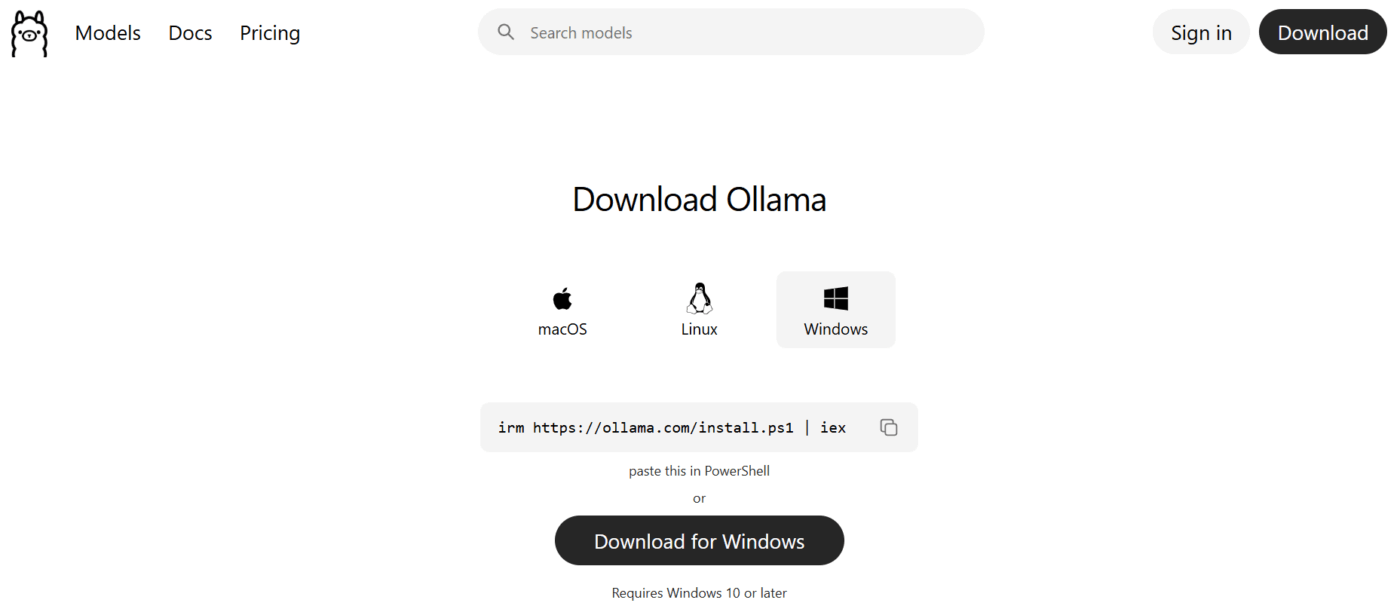
The installation should only take a few minutes. Once the installation is finished, open your terminal or command prompt and type ollama --version to confirm it is ready to go.
To start using an AI, you need to pull its weights to your machine. For your first test, try a compact but powerful model like Llama 3.2 (3B) or the latest Mistral.
Use the command ollama run llama3.2 to begin the download.
Depending on your internet speed, this usually takes a few minutes. Once the download finishes, you can type a prompt directly into the terminal to get an immediate response from the model on your hard drive.
The real value of local AI comes from integrating it into your daily tasks. When Ollama is running, it automatically starts a local server at http://localhost:11434. This creates a secure bridge for other applications to talk to your model.
Since this server is compatible with standard OpenAI protocols, you can connect it to automation platforms or internal scripts by simply swapping the API address. For example, you can point a local document search tool to this address. This lets it summarize private files without ever sending that text to the cloud.
Running AI locally is a major step forward for privacy. However, storing data locally means you are now responsible for protecting it. While you’ve eliminated the risk of a third-party cloud breach, you still need to secure your hardware and the way your team interacts with the models.
Follow these best practices:
🔎 Did You Know? Prompt-based manipulations are no longer a theoretical threat. A recent Gartner survey found that 32% of organizations experienced a malicious prompt attack on AI applications in the last year. These attacks can manipulate your local model into generating biased or unauthorized output.
Once your local server is running, you can integrate it into your daily work. This turns a simple tool into a private productivity engine. The most effective way to do this is through Retrieval-Augmented Generation (RAG).
This process connects your local AI to a private database of your own files. You can answer questions using your specific company context without ever uploading a single byte to the cloud.
You can also design human-in-the-loop workflows where the AI’s work is reviewed by human team members. This ensures accuracy while significantly speeding up your output.
Here are a few practical examples:
📮ClickUp Insight: Our AI maturity survey shows that access to AI at work is still limited—36% of people have no access at all, and only 14% say most employees can actually experiment with it.
When AI sits behind permissions, extra tools, or complicated setups, teams don’t get the chance to even try it in real, everyday work.
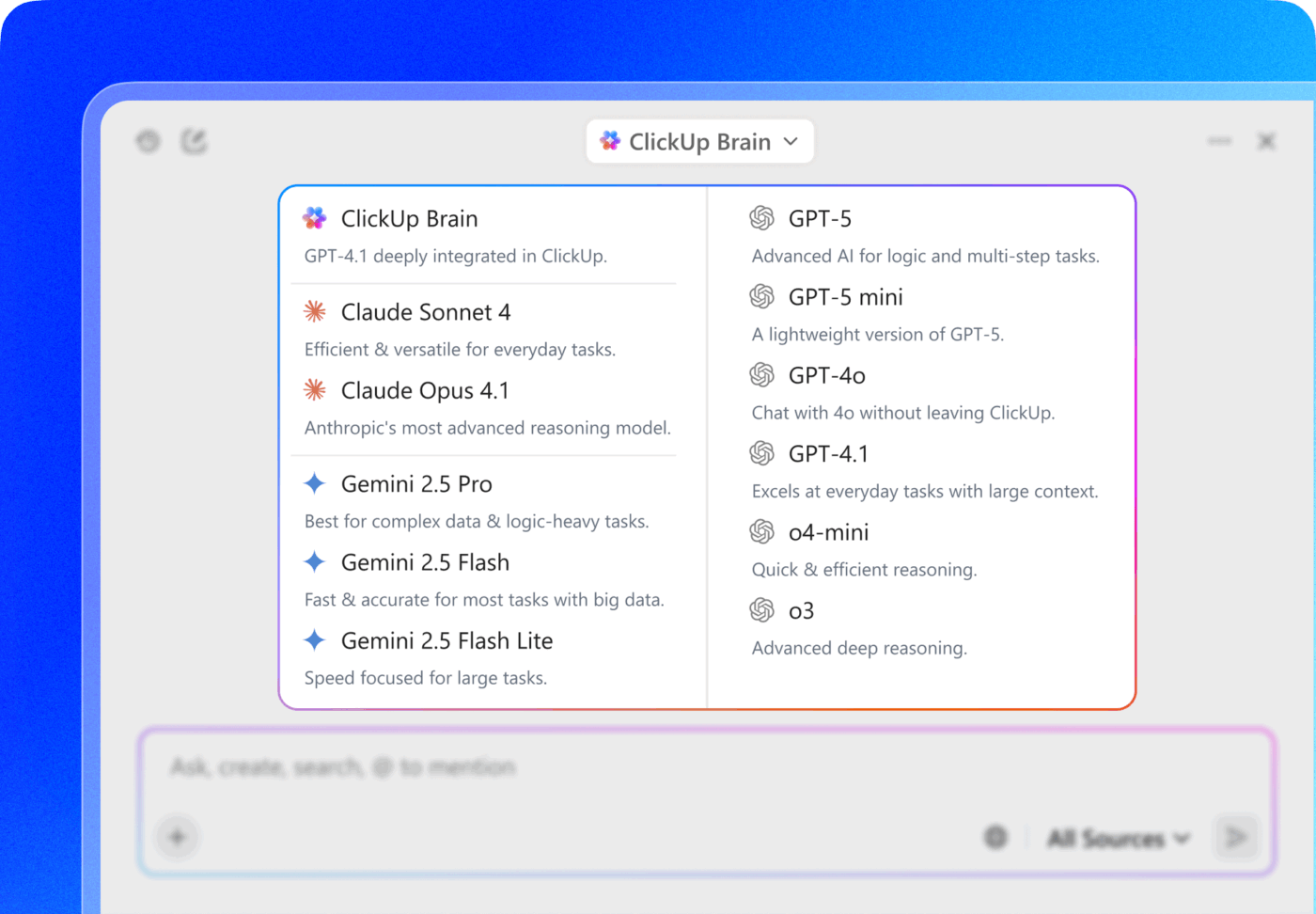
ClickUp Brain takes all that friction away by putting AI directly inside the workspace you’re already using. You can tap into multiple AI models, generate images, write or debug code, search the web, summarize docs, and more—without switching tools or losing focus.
It’s your ambient AI partner, easy to use and accessible to everyone on the team.
Local AI is a powerful tool, but it is not a magic fix for every problem. Understanding its constraints helps you decide when to keep a task on your own hardware and when to use the cloud. For some teams, the technical and financial trade-offs might outweigh the privacy benefits.
Many teams use a hybrid approach: local AI for sensitive data, cloud AI for less sensitive tasks requiring maximum capability. Here’s a quick overview of the comparison between the two:
| Factor | Local AI | Cloud AI |
|---|---|---|
| Data privacy | Full control | Data sent to provider |
| Setup complexity | Higher | Lower |
| Ongoing costs | Hardware + electricity | Per-token fees |
| Model capabilities | Good, improving | State-of-the-art |
| Maintenance | Self-managed | Provider-managed |
Most teams today are stuck in a tradeoff: use powerful cloud AI and worry about where your data is going, or set up local models and deal with ongoing overheads. ClickUp sidesteps that dilemma by acting as a converged AI workspace—where the AI already lives inside the system your work lives in.
ClickUp Brain is the AI layer built directly into ClickUp’s workspace, designed to understand your tasks, docs, and team communication in one place. It delivers AI assistance with full context—no separate tools, no fragile integrations.
For teams aiming to build secure AI workflows, that combination of context and control is the difference between experimentation and real adoption.
🌟 ClickUp is also SOC 2 compliant and adheres to ISO 42001 standards for responsible AI management. This ensures your data is never used to train third-party models, allowing you to automate your work with the same confidence as an on-premise setup.
Once your data is secured within the workspace, ClickUp Brain extracts value from your tasks and docs in real-time.
Because the AI is embedded, it avoids the context gap that slows down local setups. You can ask it questions that require a full view of your project history to answer accurately:
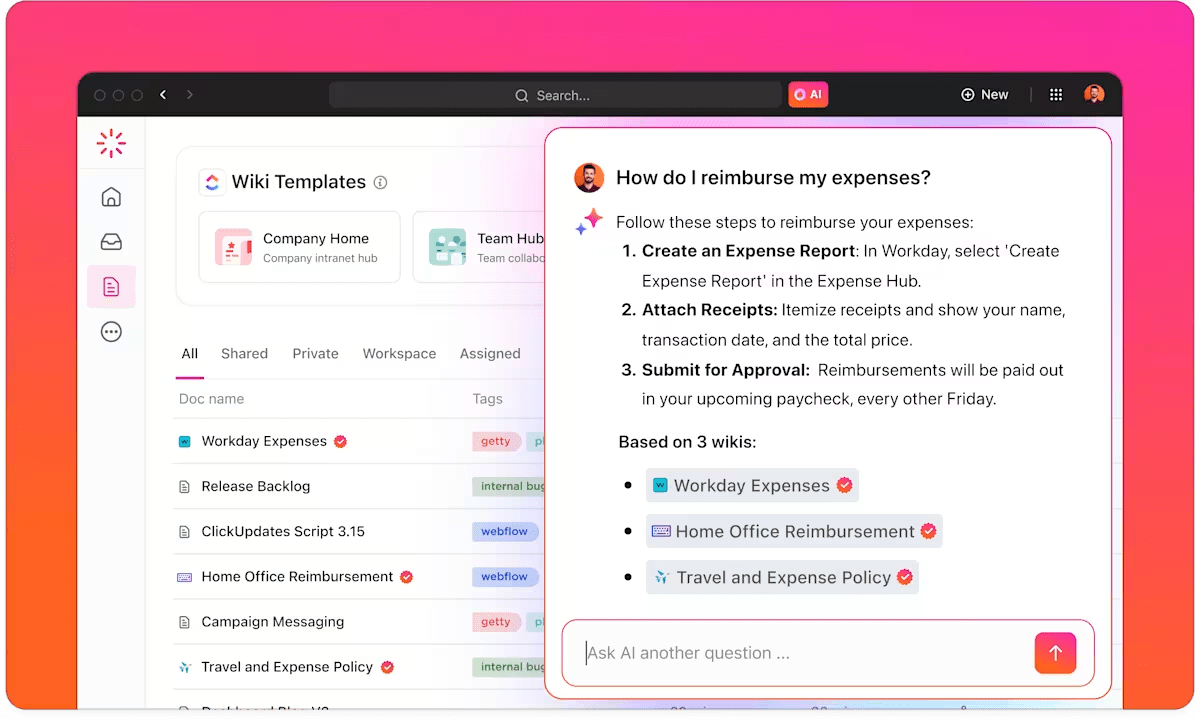
ClickUp Brain generates answers grounded in your workspace data by analyzing the specific content within your Docs, tasks, and chats. This ensures that as your project evolves, the AI always has the latest context.
This allows your team to build on insights without manually re-explaining the project history or moving data between disconnected tools.
💡Pro Tip: You can extend your workspace’s context even further by using Enterprise AI Search to pull information from all your external tools.
For example, ask a deep question like ‘Show me all open deals in the pipeline,’ and ClickUp Brain will search across your connected apps, including Slack, Google Drive, and Gmail, to deliver a real-time, trusted answer with citations.
This turns fragmented data across multiple platforms into a single, searchable intelligence layer where you can find any file, message, or task without ever leaving your workspace.
ClickUp Brain doesn’t just assist passively—it actively works within your task system. It can:
It can also update task statuses, summarize long comment threads into clear next steps, and flag blockers before they slow down execution.

When paired with ClickUp Automations, this becomes a closed-loop system: AI can trigger workflows (like assigning tasks, notifying stakeholders, or updating priorities) based on changes inside your workspace.
For example, when a Doc is finalized, tasks can be auto-created and assigned without anyone manually moving data between tools.
💟 Bonus: Turn ClickUp Brain MAX into your “decision memory.”
Use it to:
Over time, this creates a living layer of institutional knowledge that Brain MAX can reference. So instead of answering prompts in isolation, it starts responding with awareness of past decisions, priorities, and patterns.
That’s when AI shifts from being helpful to being reliable—especially in secure AI workflows where context and traceability matter.
ClickUp’s Super Agents take ClickUp Brain a step further—from assisting with work to actively driving it. These agents can be configured to monitor workflows, take actions, and orchestrate tasks across your workspace based on predefined rules and real-time context.
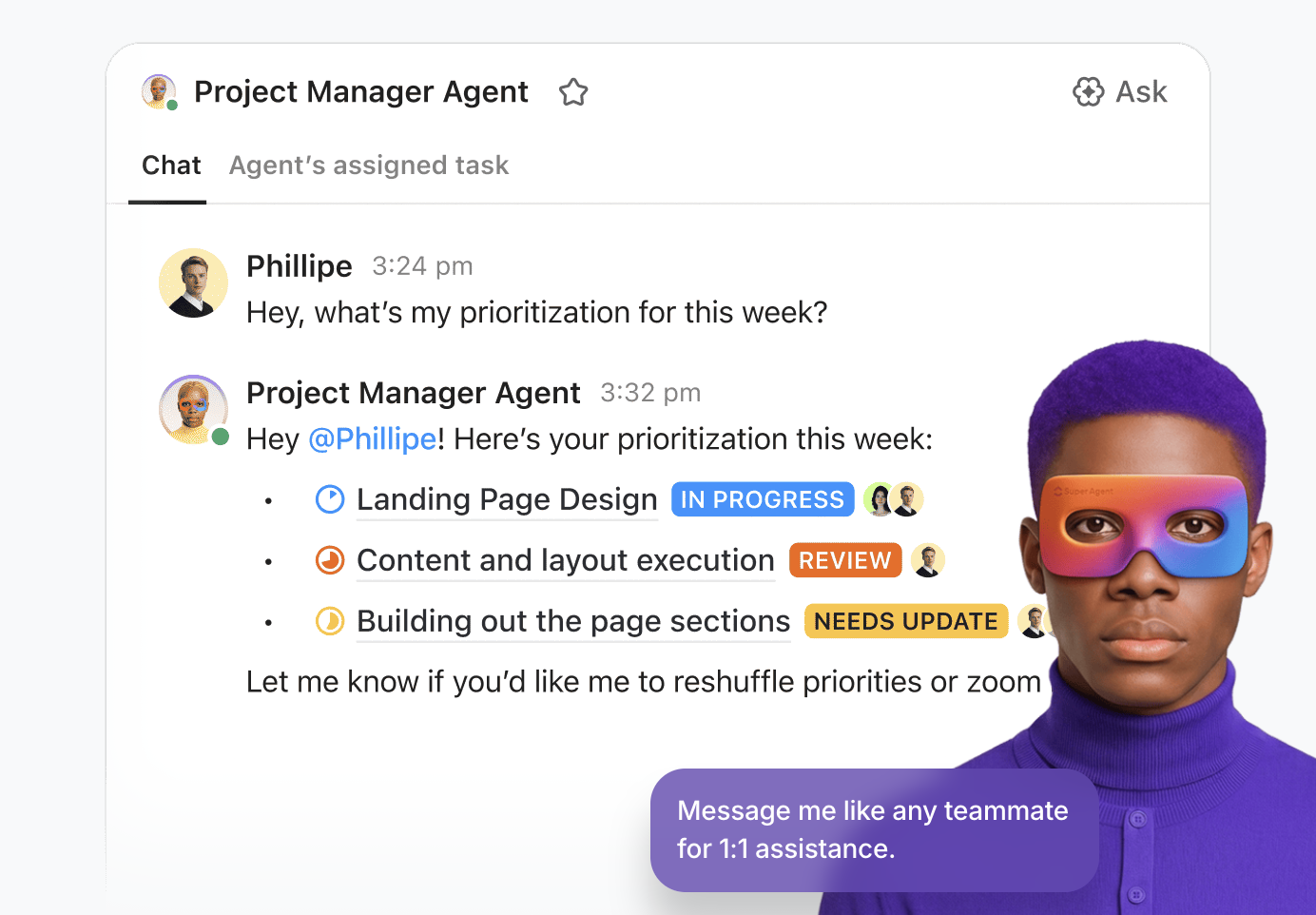
For example, a Super Agent can:
These agents run entirely within ClickUp’s unified workspace, with full awareness of your tasks, Docs, and Permissions structure. That means:
Learn more about working with Super Agents:
With ClickUp Docs, AI assistance is embedded directly into your documentation workflows. Teams can draft project briefs, summarize long reports, extract action items, or rewrite content for different audiences—all without leaving the platform.
This matters for secure AI workflows because one of the biggest risks comes from copying and pasting sensitive information into external tools. In ClickUp, you minimize data movement and maintain full control over access through Permissions.
Local AI harnesses artificial intelligence while maintaining complete control over data privacy and compliance. However, this path requires a significant investment in hardware, technical setup, and ongoing maintenance.
Security practices remain critical whether you’re using local or cloud AI. The most effective strategy often involves a hybrid approach: using local AI for the most sensitive operations while leveraging managed, secure solutions for everyday productivity.
It’s crucial to consider trade-offs—for many teams, the overhead of a DIY solution may not be the right choice.
For those who want powerful AI productivity without the infrastructure burden, managed solutions like ClickUp Brain offer a compelling middle ground. It provides enterprise-grade security with zero setup complexity.
Get started with ClickUp for free and explore secure, contextual AI-powered workflows for your team.
Local AI runs entirely on your own hardware, ensuring data never leaves your internal network, while cloud-based AI sends prompts to third-party servers for processing. Local setups provide total data sovereignty and offline access, whereas cloud services offer higher computational power and ease of use at the cost of direct data control.
Teams can use local AI to process sensitive documents, proprietary code, and financial records by pointing the model to private on-premise directories. Because the inference happens on-device, you can perform tasks like automated summarization, data extraction, and internal knowledge searches without risking exposure to public LLM training sets.
Many open-source local models, such as Llama 3 and Mistral, are now highly capable of handling routine work tasks like drafting, coding, and summarization. While top-tier cloud models like GPT-4o still lead in ultra-complex reasoning, local models offer comparable performance for 90% of daily business operations with significantly better privacy.
The primary tradeoff is choosing between complete data privacy with local AI versus the zero-maintenance scalability of cloud AI. Running AI locally requires an upfront hardware investment and technical expertise, but eliminates recurring API fees and data leakage risks. Cloud AI is faster to deploy but involves ongoing subscription costs and third-party data dependencies.

Praburam Srinivasan
Max 10min read

Manasi Nair
Max 22min read
Manasi Nair
Max 24min read

© 2026 ClickUp




