
Sorry, there were no results found for “”
Sorry, there were no results found for “”
Sorry, there were no results found for “”
Most Google Docs projects don’t fail at kickoff. They fail around week three. The brief still holds, and the meeting notes are all there, but the status update on page 12 hasn’t been touched in ten days, and the answer to “Did the design review happen?” is “Let me check chat.”
The doc isn’t the problem. Someone typed task status into a sentence, and sentences don’t update themselves.
The rule that keeps a document-led project alive: Docs hold what the team decides; a tracker holds what the team does. We show you how to draw that line inside Google Docs itself, and the point where it stops holding.
TL;DR: Six steps: split one Google Doc into tabs (Brief, Plan, Decisions, Meeting notes, Risks), lock the agreed scope with Approvals or Suggesting mode, put task status in the task tracker block or dropdown chips, keep a four-column decision log, generate meeting notes from the calendar event, and move dates to Google Calendar and Sheets with a live-linked chart back in the Plan tab. The later sections cover the four ways these setups go wrong, and where Sheets or a dedicated tool should take over.
A shared Google Doc is good for the parts of a project you write once and reread often. This can include the brief, scope, decision record, and meeting notes. It’s a poor home for anything that changes daily. Task status, owners, and due dates need to be filtered, sorted, and rolled up, and a paragraph can’t do any of that.
Trying to mix the two leads to disappointment. Even Google avoids that trap in its own tutorial on running a project in Workspace. The team talks in Groups and Chat, files sit in Drive, and the plan goes into a spreadsheet with columns for tasks, owners, due dates, and status. Docs barely get a mention.
Documents hold reasoning well, though. Six weeks in, nobody remembers why the launch date moved or why the second vendor was dropped, and a task board has no field for that. Amazon runs its meetings on the same preference for prose over slides. In his 2017 letter to shareholders, Jeff Bezos wrote:
We don’t do PowerPoint (or any other slide-oriented) presentations at Amazon. Instead, we write narratively structured six-page memos. We silently read one at the beginning of each meeting in a kind of ‘study hall.’
Bezos has argued that writing in full sentences forces clearer thinking than slides do. A project doc gets that same effect, plus one thing he doesn’t mention: the argument is still there to reread when someone questions the decision.
That gives you a test for every piece of information in a document-led project. If it changes when someone finishes work, it belongs in a tracker. If it changes only when the team changes its mind, it belongs in the doc. The test holds whether your tracker is a spreadsheet, Google Tasks, or a dedicated project tracking system.
Running a project in Google Docs takes six steps: build one doc and split it into tabs, write a brief that names what’s out of scope, put status in fields instead of sentences, keep a decision log, generate meeting notes from the calendar, and move dates out of the document entirely.
Note: Everything below works on a free Google account unless a step says otherwise. Five features need a Google Workspace plan, and each one is flagged where it appears.
Start with a single document. Open a new Doc, then click Show tabs & outlines in the top left to open the left panel. Click Add tab for each section you need.
To nest one tab under another, drag it onto the parent, or open Tab options on the parent and pick Add subtab. Tabs can go three levels deep, and a doc can hold up to 100.
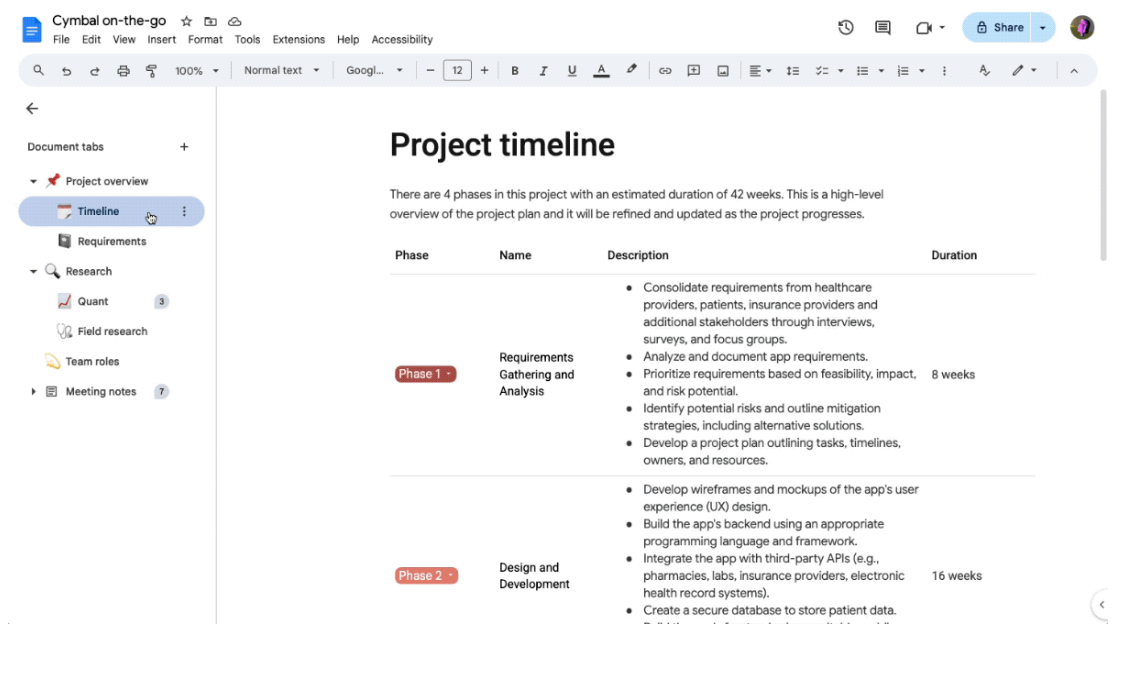
A layout that works for most projects:
Rename each tab from Tab options > Rename. Add an emoji from Tab options > Choose emoji if you want the panel scannable at a glance.
Each tab has its own link. Click Tab options > Copy link and send a stakeholder straight to the Decisions tab.
Pro Tip: Don’t create a fresh doc from the Template Gallery. Open your project doc, go to File > New > From a template, and browse the gallery from inside it. Google’s project roadmap and business proposal templates are inserted as new tabs in your doc.
As stated, the Brief tab carries four things: goals, constraints, deliverables, and non-goals. If you’d rather start with a structure that already has those sections, scope-of-work templates built for Google Docs can help.
Write every owner as a people chip. Type @ followed by a colleague’s name and pick them from the list, or type @me for yourself. The chip includes their email and profile card, so readers can hover to see who to follow up with. One catch: mentioning someone in a chip doesn’t give them access to the doc. You still have to share it.
For fields that someone else needs to fill in later, type @ and choose Placeholder chip, then pick the type of information you expect. The placeholder sits in the doc as an empty chip until the right person completes it, which is more visible than a ‘TBD’ buried in a sentence.
Caveat: Once the brief is agreed, the scope section shouldn’t drift through casual edits. On Business Standard, Business Plus, and Enterprise plans, open the file in Drive, right-click, and choose Approvals to send it to named reviewers.
Tick Lock file, and nobody can edit, comment, or suggest until every approver signs off. If any edit lands afterward, all approvals reset, and everyone has to re-approve.
On a free account, the closest equivalent is switching the doc to Suggesting mode for anyone who isn’t the maintainer. This way, scope changes arrive as suggestions you accept or reject.
Anything that changes when work gets done goes into a table column, never into a paragraph. Google Docs gives you two ways to do that, and which one you get depends on your account.
On Google Workspace or Workspace Individual: the task tracker block. Go to Insert > Building blocks and pick Task tracker, or type @ and search for it. Docs inserts a table with title, assignee, due date, and status as typed columns.
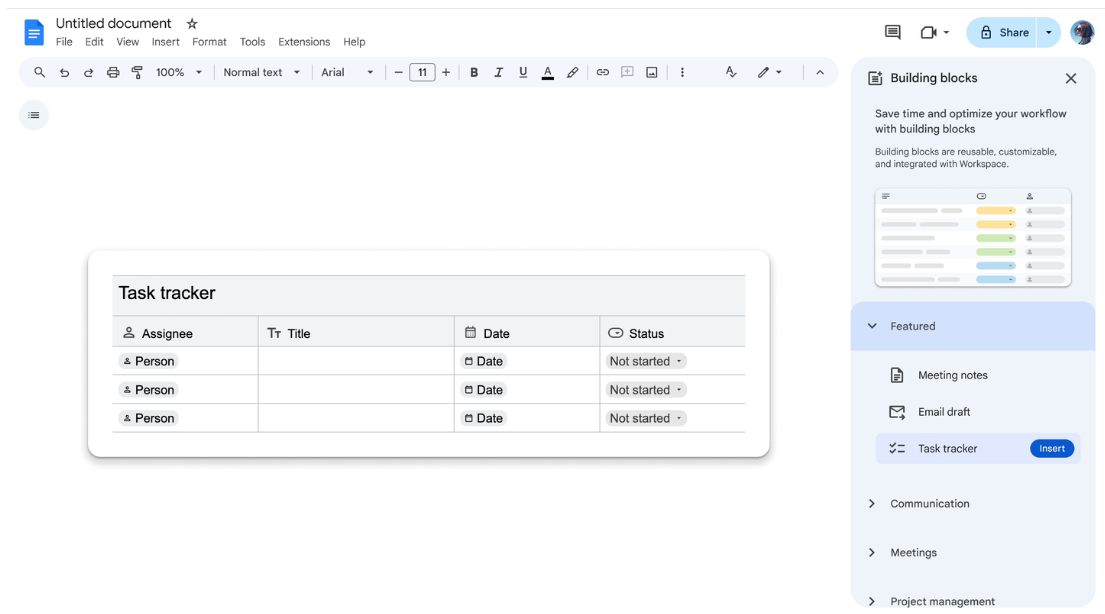
Each column enforces its type. A date column warns you when someone types ‘TBD’ in it. Hover over a row to push that task to Google Tasks, or sync the whole table at once. Every assignee sees their tasks in Tasks and, if dated, on their Google Calendar.
Two things to check before you rely on the sync:
On any account, including free Gmail: dropdown chips. Insert a plain table from Insert > Table with columns for task, owner, due date, and status. In the status column, type @dropdown or go to Insert > Dropdown.
Docs ships two presets: Project status (Not started, Blocked, In progress, Complete) and Review status (Not started, In progress, Under review, Approved). Click the New dropdown to build your own with custom options and colors.
Fill the owner column with people chips and the due date column with date chips (type @today, @tomorrow, or @ and a date). You lose the Google Tasks sync, but you get status as a real field that can’t be mistyped.
To change the options in a dropdown you’ve already placed, click the chip and pick Add / Edit options. Docs asks whether to apply the change to just that cell or to every chip built from the same dropdown. Choose Apply to all to keep the column consistent.
Pro Tip: The Building blocks menu holds more than the task tracker. Product roadmap, Review tracker, Project assets, and Launch content tracker are prebuilt tables with status dropdowns already wired in. The Contact list gives you a stakeholder register with name, role, and email as columns. Open Insert > Building blocks > View more to preview them in a sidebar before inserting.
Give decisions their own tab with four columns: open questions, calls, owners, and dates. Start with Insert > Building blocks > Decision log, then adjust the columns to match. Fill the owner with a people chip and the date with a date chip. This keeps both filterable later.
This tab exists because of one quirk in how Docs handles comments. Most project decisions get argued out in comment threads, and once someone clicks Resolve, that thread leaves the document body. The decision survives in comment history, but nobody reading the doc a month later will find it.
Version history has the same problem in reverse: it shows precisely what changed and says nothing about why. The decision log is updated manually, and it’s the only place you’ll find context.
Log a decision as soon as it’s made, not at the end of the week. Write it as one line:
On a Workspace or Google AI plan, click Ask Gemini at the top right and type the question. The side panel reads the whole doc, including every tab, and answers from the Decisions tab in seconds. It also shows a summary of the doc when the panel opens. You can even highlight any section and ask for a summary of just that part.
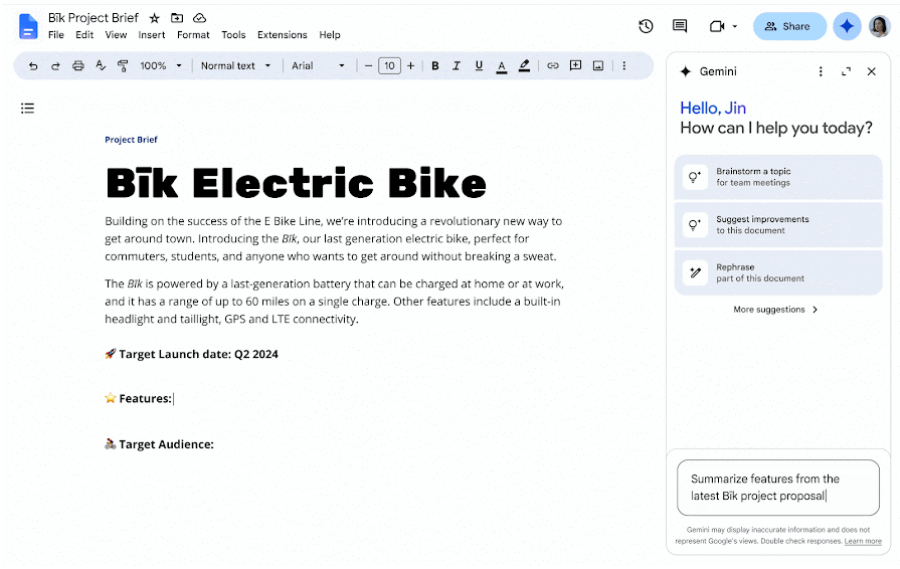
In Drive, a Catch me up badge appears next to docs with new edits or comments since your last visit, and clicking it summarizes what changed. Gemini in Docs isn’t on free personal accounts, so on Gmail, the log is still the answer; it’s just a log you search yourself.
Don’t start meeting notes on a blank page. In the Meeting notes tab, type @meeting or go to Insert > Building blocks > Meeting notes, then pick the event. Type next to grab the next meeting on your calendar, or search by event name.
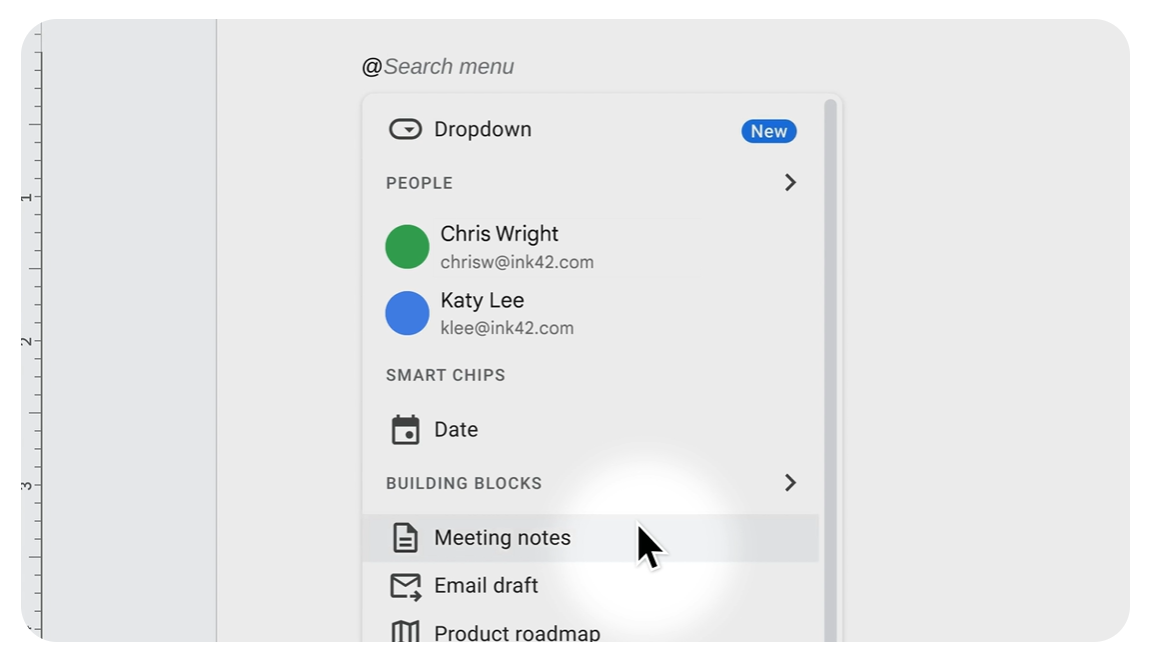
Docs drops in the date, the event title, every attendee as a people chip, and any files attached to the invite. Then gives you a notes section and an action items checklist underneath.
If you’re the meeting organizer, a prompt offers Share & attach, which shares the doc with attendees and links it from the calendar event. If you’re not the organizer, you get Share only; the doc won’t attach to the event.
Assign action items inside the checklist—type @ and the person’s name to tag them. On a work or school account, hover to the left of a checklist item and click Add to Tasks to set an assignee and a date. The item lands in their Google Tasks and, if it has a date, on their Calendar. On a free account, the tag is a chip with no notification behind it, so say the assignment out loud before the meeting ends.
Caveat: The link between the notes and the event is one-way. Add a guest to the doc’s attendee list, and they aren’t invited to the meeting. Change the meeting time in Calendar, and the doc keeps the old one. Treat the attendee list as a record of who was invited when you inserted the block, and add a line for who actually showed up.
Google Docs has no schedule object. There’s no date field a view can sort by, and no dependency between two rows. Slipping one task tells you nothing about the three behind it. Dates need a home that understands them, and the doc becomes where you view them.
Three things leave the doc:
The timeline still shows up in the Plan tab. Build the Gantt chart in Sheets, then in the doc, go to Insert > Chart > From Sheets. Pick the spreadsheet, select the chart, and leave Link to spreadsheet checked before you click Import.
The chart appears in the doc as a live-linked object. When dates change in the sheet, click Update at the top right of the chart. Or go to Tools > Linked objects > Update all to refresh every linked chart and table at once.
The same works for a linked task list table, with one limit: tables over 400 cells paste unlinked. Keep the embedded view to the current phase. If you’d rather keep a hand-drawn timeline inside the document, we cover making a timeline in Google Docs separately, trade-offs included.
Pro Tip: Put the linked chart directly under the task tracker in the Plan tab, so status and timeline sit on one screen. Anyone who opens the tab sees where the project is and where it’s supposed to be, without opening the sheet.
No, Google sells no product built for project management, and the one time it tried, it retired the result. Tables, an Area 120 experiment that tracked work in rows with automations and forms, launched in 2020 and was shut down five years later.
Its features live on in AppSheet, Google’s no-code app builder; the closest thing Workspace now has to a task database. AppSheet Core is included with many Workspace editions, but it’s a platform for building an app.
Workspace does include Google Tasks, a personal to-do list that syncs with Calendar and Gmail, and receives tasks from the task tracker block in Docs. Tasks holds the owner and the date, Sheets holds the plan, Docs holds the reasoning, and Google avoids stitching those together.
The confusion usually comes from the Google Project Management Certificate. It’s a program hosted on Coursera, with roughly 240 hours of study. Graduates come out knowing how to write a charter and run a retrospective. They don’t come out with a Google app to do it in.
For more structure without leaving the ecosystem, the Google Workspace Marketplace lists add-ons that put boards, Gantt charts, and dependency tracking over files in Drive. Most established project tools also connect to Workspace directly: sign in with Google, attach Drive files, sync deadlines to Calendar.
Google Docs covers everything about a project except task status. Sheets picks up where it left off, because you can filter and total owners and dates in cells. A dedicated tool only becomes necessary once someone asks a question that spans more than one project.
| Approach | Best for | Where it taps out | Skip it if |
|---|---|---|---|
| Google Docs | Briefs, decision logs, meeting notes, anything explained in sentences | Status lives in chips and tables; you read one doc at a time, with nothing that sorts or totals across them | You need to sort or filter anything |
| Google Sheets | Task lists with owners and dates, simple Gantt views, budget tracking | Dependencies are formulas you maintain by hand, so one date change means editing every row behind it | Nobody on the team will own the formulas |
| Dedicated project tool | Several projects at once, dependencies, workload across people, automated rollups | Statuses, fields, and hierarchy have to be set up before it’s useful | You’re running one short project with under a dozen tasks |
Moving up a tier doesn’t mean starting over. The doc stays where it is, because briefs and decision logs don’t improve when you move them. What migrates is the tracker table. From Docs to Sheets, select the task table, paste it into a new sheet, and re-add the dropdown in the status column. People and date chips paste as plain text, so expect to redo those two columns by hand.
From Sheets to a dedicated tool, export the sheet as a CSV and import it. Most tools map task, owner, due date, and status columns automatically, and the rest arrive as custom fields. Link the new tracker from the Plan tab so the doc keeps its job as the front door, and name a version in the doc. This way, anyone reading an old status table knows it’s frozen.
Google Docs projects break in two places. The first is habits: sharing settings, duplicate files, comment threads, and ownership, all fixable inside the doc. The second is the format itself, which has no answer for a question that spans two projects or a tracker that five people edit. Fix the first kind. Treat the second as the signal to move the tracker.
Everyone gets Editor access. The scope statement reads differently than it did at kickoff, and nobody remembers changing it. A stakeholder tidied a sentence, and the brief drifted one harmless edit at a time. Sharing the folder with the whole team as Editor is the default move, and it’s what makes this possible.
The fix: Give Editor access to the maintainer and the people who update the tracker. Everyone else gets Commenter status. They can still ask questions and suggest changes; they can’t accidentally rewrite the scope. In the share settings, untick Editors can change permissions and share, so access stays where you set it. On Business Standard and above, right-click any passage and choose Show editors to see who wrote it.
Copies instead of one source. Two files called Project Plan and Project Plan v2 Final, both edited this month. Someone duplicated the doc to preserve the kickoff version, or shared the file instead of the folder, so a late joiner got an emailed copy instead of a link. Now two versions are live, and each reader thinks it’s the current one.
The fix: Use named versions instead of copies. Open File > Version history > Name current version and call it ‘Kickoff, approved’. A doc holds up to 40 named versions, and the Only show named versions toggle hides everything else. The history reads like a changelog. Move anything superseded into an Archive subfolder and stop it from appearing in search.
Assigned comments used as the task list. The manager scrolls the comment panel to work out what’s still open. Assigning a comment emails the person and feels like handing off a task. The doc fills up with dozens of them. Then the work gets done, the thread gets resolved, and it takes the record with it. Delete the sentence a comment was anchored to, and the comment goes with it, finished or not. By month two, nobody can say which action items were completed and which just vanished.
The fix: Tasks go in the tracker table, where a row stays visible after it’s done, and status is a field. On a work or school account, type @task to create one that syncs to Google Tasks and stays put even if the surrounding text changes. If you inherit a doc full of assigned comments, the follow-up counter at the top right lists the open ones. You can migrate them before they’re resolved away.
Nobody owns the doc. The plan was accurate for three weeks, then the Last edit stamp froze. Everyone assumed someone else was updating it, so it turned into a record of what the team believed at kickoff. Readers keep opening it anyway and make decisions based on stale information.
The fix: Name one maintainer in the Brief tab, as a people chip. Give them a recurring 20-minute calendar slot to update the tracker, log the week’s decisions, and archive anything dead. Hover over Last edit before any meeting where the doc is referenced; if it’s older than the review cadence, the doc isn’t current and shouldn’t be treated as such. If the real problem is that stakeholders want a weekly read-out, a separate project status report is a better artifact than a longer doc.
Everything above is a habit. What follows is the format.
Google Docs holds up fine for a single project. The cracks show when you add a second one. Two project docs can’t be combined into one view; a document doesn’t know the other one exists. So when someone asks whether anyone has room for the launch tasks next week, the answer sits in two disconnected task tables, and the only way to get it is to open both and check. Dependencies never made it into the doc at all. Step 6 sent them to Sheets, and the comparison table above covers what happens there.
The other ceiling is people. Nobody runs out of storage: a Google Doc holds up to 1.02 million characters, and a Sheet holds 10 million cells. What runs out is coordination. Once five or more people change the tracker between reviews, rows get overwritten, status chips get flipped back by someone working from an older mental picture, and the table stops matching reality until someone resets it.
Most teams are already behind. Wellingtone’s latest State of Project Management Report found that only 36% of organizations always or mostly complete projects on time. A doc-per-project setup doesn’t cause that, but it does make sure you’re the last to find out.
That’s the line. Fix the habits, and a Google Doc runs one project well. Hit the format, and you need a place where the brief and the tracker can read each other.
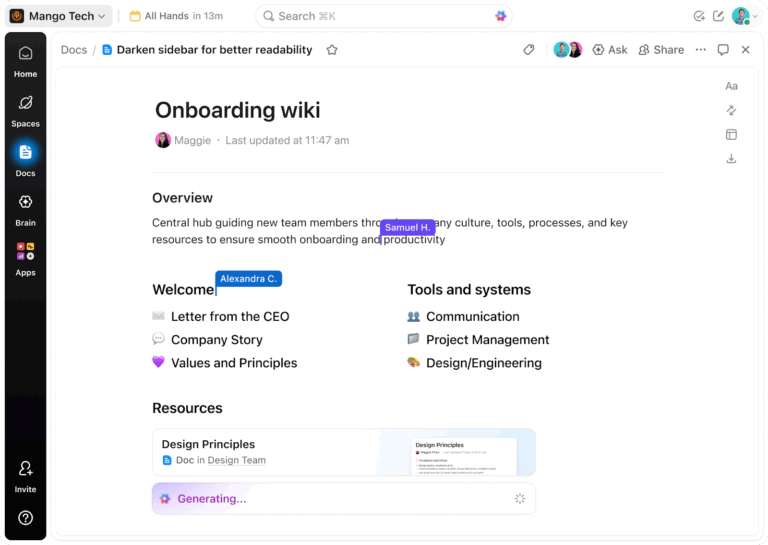
ClickUp is a project management platform where the document and the task list share the same system, so the brief and the status can’t drift into separate files.
This walkthrough shows what it looks like when the brief, the tasks, and the timeline live in one workspace from the start.
/task command. Type it inside any ClickUp Docs page and embed a live Task list, Board, or Table View directly in the document. When someone marks a task “In Review” from their own task list, the Doc reflects the change immediately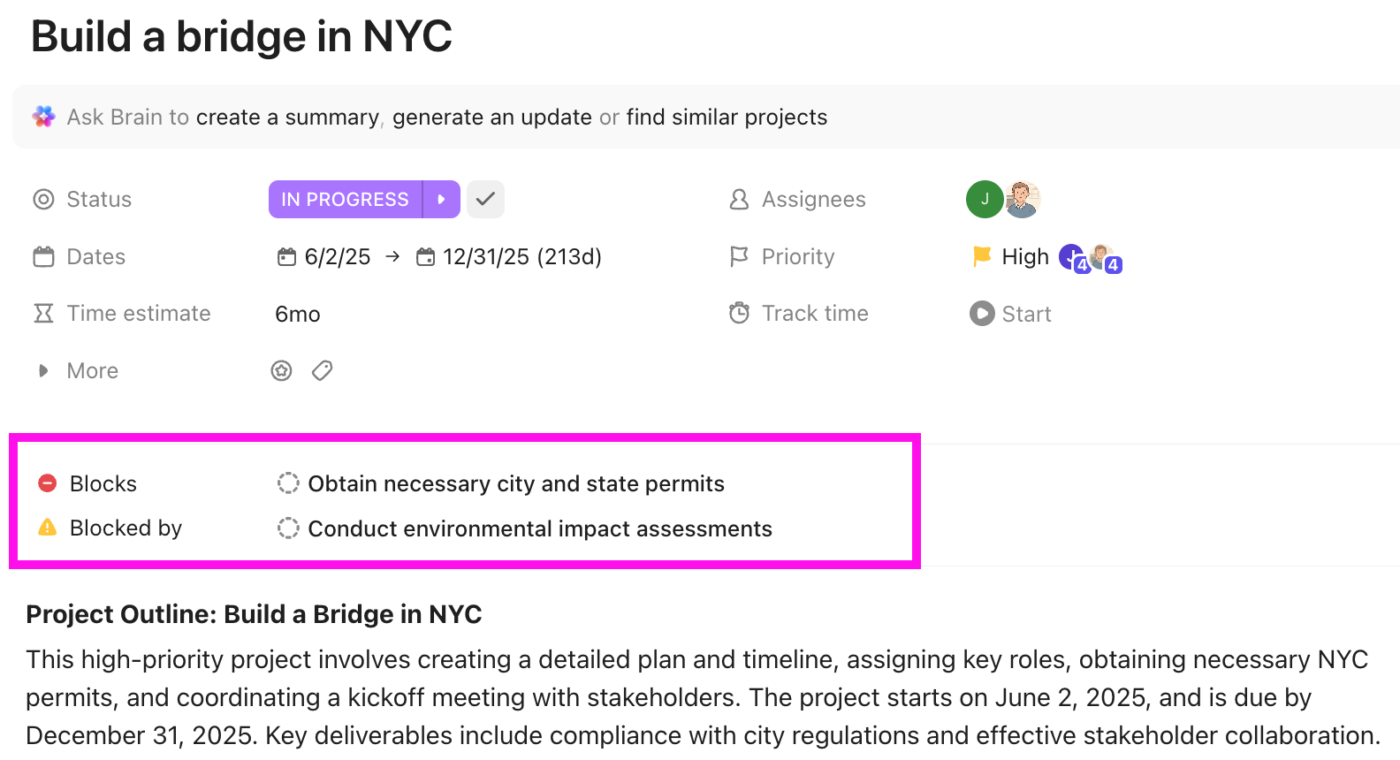
Pharmacy Mentor used to manage client delivery across Google Docs, Google Workspace, and Trello, juggling scattered folders, redundant meetings, and a CRM that couldn’t keep up. After consolidating into ClickUp, the team doubled its productivity, reduced the need for meetings, and saw client form responses jump from 20% to 80% because intake and follow-up finally lived next to the work.
The head of Client Relations at Pharmacy Mentor described how they use ClickUp for project management:
We communicate inside ClickUp, and everyone who is part of a project is added as a Watcher from day one. We also have Master Client Cards, and if someone works on something for a client away from this card, they then make a note and backlink the activity so the account executives can see everything that goes on.
Honest limitations: ClickUp asks more of you at setup than a blank document does. A team coming from Google Docs has to define statuses, custom fields, and a hierarchy of spaces and lists before the workspace becomes useful. For a single project where alignment matters more than sequencing, a shared Google Doc with the task tracker block and a linked calendar handles it well.
Who it’s for: ClickUp fits best when you’re running several projects at once, need dependencies that reschedule themselves, or want one view of who’s carrying what across every active initiative.
Google Docs is a reasonable home for running one project with a small team, where the hard part is alignment rather than sequencing. Use tabs and the task tracker block, keep a decision log, and put the dates in Calendar. A project charter template will cover the opening section.
If you’re wondering every week about workload and deadlines, you’ve already outgrown the document. A spreadsheet or a dedicated tool will serve you better. One way to decide: see whether the thing you check most often is a paragraph or a field.
If you want to see how documents, tasks, and timelines behave when they live in one place, get started with ClickUp for free.
Google Workspace covers documents, storage, calendars, and chat well, and many teams run projects on it for years. It starts to strain when you need visibility across several projects at once, schedules that understand dependencies, or a view of who’s overloaded. At that point, most teams keep Workspace for content and add a project tool alongside it. Google’s own project tutorial already splits the work this way: Docs for documents, Sheets for the plan, Calendar for dates.
A free personal Google account includes Docs, Sheets, Calendar, Tasks, and Chat, which covers a basic document-led setup. Business Starter is $7 per user per month on an annual plan ($8.40 flexible) and adds shared drives and admin controls. The task tracker building block needs any Workspace plan; Approvals with Lock file and Show editors need Business Standard at $14 per user per month.
Not on its own. A date chip in a Google Doc is display only; nothing fires when the date passes. Reminders happen only when a task leaves the doc: the task tracker block or an assigned checklist item syncs to Google Tasks, which surfaces the date in Google Calendar and the Tasks app. Both require a Google Workspace account. On free Gmail, the date in the doc is the only record.
Only as a lookalike. A three-column table labeled To do, In progress, and Done with a dropdown chip per row gives you the layout, but cards don’t drag between columns, and nothing counts what’s in each one. Google Sheets gets closer with filters and conditional formatting. For a board people actually move cards on, a dedicated tool like ClickUp or Trello is better.
No. The Google Project Management Professional Certificate is delivered through Coursera on a subscription of roughly $49/month, with financial aid and a 7-day free trial available. It is a training credential, not the PMP® certification issued by the Project Management Institute (PMI), and Google does not sell a project management product alongside it.
Up to 100 people can work in a Google Doc at the same time. Beyond that, only the owner and a few editors keep editing access. The practical ceiling for a project tracker is much lower. Once five or more people change the same table between reviews, rows get overwritten, status chips get flipped back, and someone has to reset the table by hand.
Notion wins if you want databases and boards next to your notes. Docs wins if your team already lives in Workspace and the main job is writing together in real time. Docs has no native database or dependencies, so Notion is better for structured tracking, while Docs works for frictionless collaborative writing inside Google’s ecosystem.

Manasi Nair
Max 22min read
Manasi Nair
Max 15min read

Praburam Srinivasan
Max 16min read
© 2026 ClickUp