
Sorry, there were no results found for “”
Sorry, there were no results found for “”
Sorry, there were no results found for “”
Your pick for the best AI Gantt chart software comes down to what you need after the first draft.
GanttPRO and GanttChart.ai build a full timeline from a short description in under a minute. For a one-off schedule, that speed is often all you need.
ClickUp, monday.com, Asana, Wrike, and Smartsheet ask for more setup but give you more back. They connect the chart to your tasks, docs, and reports, and they move the linked tasks and dates when a deadline shifts. Your plan will survive a changing project with them.
The real question was never which AI is smartest. It’s what happens to the chart after the AI is done.
| Tool | Best for | Standout feature | Starting price* | Honest limitation |
|---|---|---|---|---|
| GanttPRO | Teams that want the strongest dedicated AI Gantt experience | AI Gantt Chart Maker turns plain-English prompts into phases, tasks, and dependencies in under a minute | $9/mo per user (Core) | No free tier, thinner export and customization than enterprise suites |
| ClickUp | Teams that want AI Gantt planning inside a broader work-management stack | AI-generated timelines with dependencies recalculate the critical path whenever a date shifts | Free forever; Paid from $7/member/mo | Stronger after planning than during setup, heavier than specialist tools for quick charts |
| monday.com | Cross-functional teams that need AI help without a steep learning curve | Auto-dependency logic shifts related milestones on its own when one task moves | Free; Basic from $12/mo per user | Gantt view starts on Standard plan, boards get busy with many columns |
| Asana | Teams that need polished timeline planning and executive visibility | AI status roll-ups turn a live timeline into a short summary with risks flagged | Free (Personal); Starter from $13.49/mo per user | Timeline sits behind a paid plan, time tracking and resource tools run thin |
| Wrike | Resource-heavy teams running multi-team projects | Capacity planning and workload views built for balancing people across a full portfolio | Free; Team from $10/mo per user | Depth comes with a learning curve, strongest capacity features sit on custom-priced tiers |
| Smartsheet | Spreadsheet-native teams that need serious scheduling depth | Grid on the left, Gantt on the right, updates as you type | Pro from $12/mo per user | AI leans toward formulas, not prompt-to-chart; large linked sheets can slow down |
| TeamGantt | Small teams that want a simple visual schedule | The chart is the workspace itself, no separate tab to switch into | $24/mo per user (Basic) | Reporting and integrations lighter than full PM suites |
| GanttChart.ai | People who want the fastest prompt-to-chart workflow | One sentence in, full timeline with critical path back in ~30 seconds | Free; Pro from $5/mo per user | Collaboration and execution depth stay thin, fits drafts more than systems of record |
*Please check the tool’s website for the latest pricing.
Our editorial team follows a transparent, research-backed, and vendor-neutral process, so you can trust that our recommendations are based on real product value.
Here’s a detailed rundown of how we review software at ClickUp.
Judge an AI Gantt tool on four things: prompt-to-plan quality, dependency and rescheduling logic, resource and portfolio visibility, and execution depth.
These four tests are why the list runs the gamut. Some tools excel at AI generation; others at execution. A one-off client schedule fits GanttChart.ai or GanttPRO. A plan that needs approvals, docs, dashboards, and cross-team work points to an all-in-one platform.
Eight AI Gantt Chart tools made this list: GanttPRO, ClickUp, monday.com, Asana, Wrike, Smartsheet, TeamGantt, and GanttChart.ai. Some are better at generating a plan from a prompt; others are better at keeping that plan alive once work starts. Find your fit based on what’s important to you.
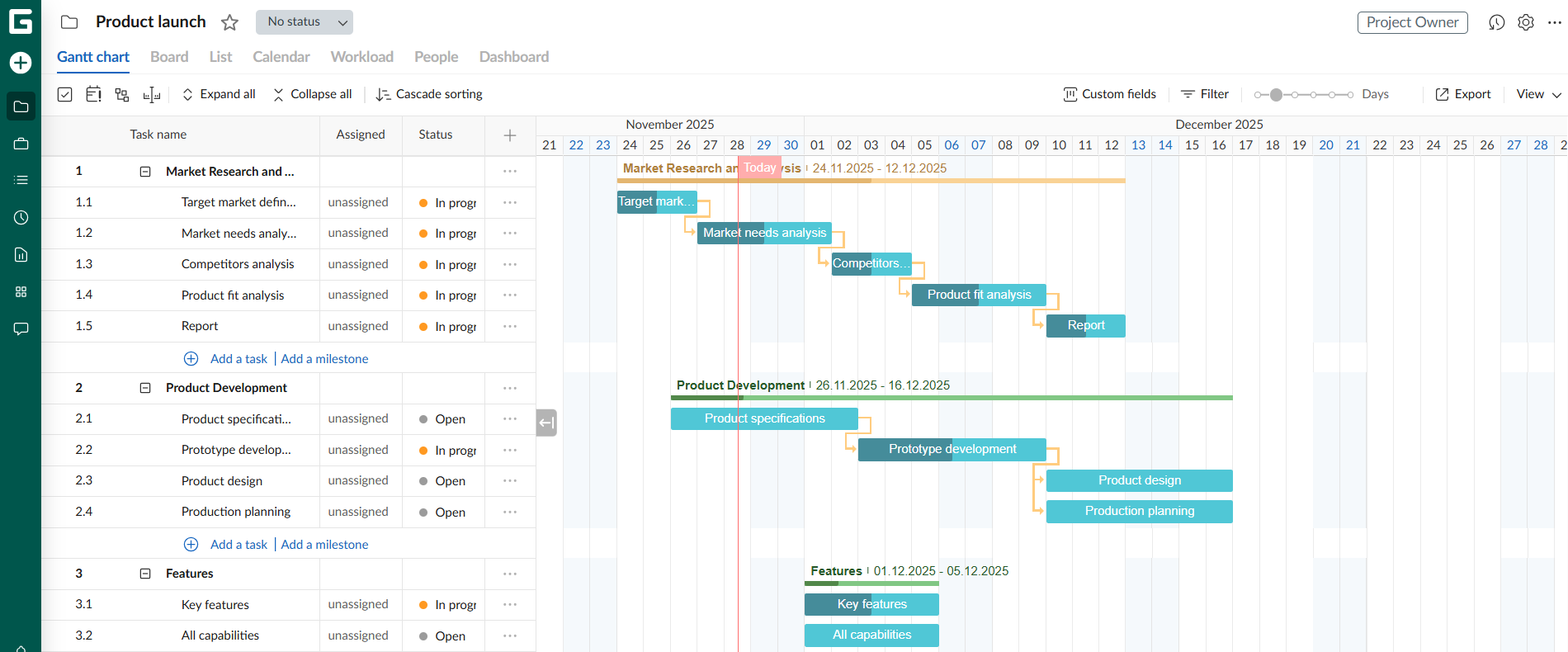
GanttPRO turns a plain brief into a working schedule in under a minute. Its AI Gantt Chart Maker reads your project notes, then returns phases, tasks, links, and milestones. It also spots your project type and applies a fitting layout, which few prompt-to-chart tools even try.
The payoff shows up after the first draft. The chart is the whole product here, not an add-on, so task links and drag-and-drop edits feel built in. Move one date, and the tool shifts every linked task with it. That keeps the plan true to real timelines.
Note: For a team of 5 members
Where GanttPRO falls short: There is no free tier, so it fits committed buyers more than casual planners. Export and customization options also run thinner than full enterprise suites, a point that comes up often in user reviews.
Skip GanttPRO if: You need the schedule to also run docs, chat, and cross-team work from one place.
See how a G2 reviewer uses GanttPro:
I like GanttPRO’s simple interface, clear Gantt charts, and easy task management. It helps me stay organized and keep projects on schedule. The setup was straightforward and user-friendly, allowing me to start planning projects and creating schedules within minutes.
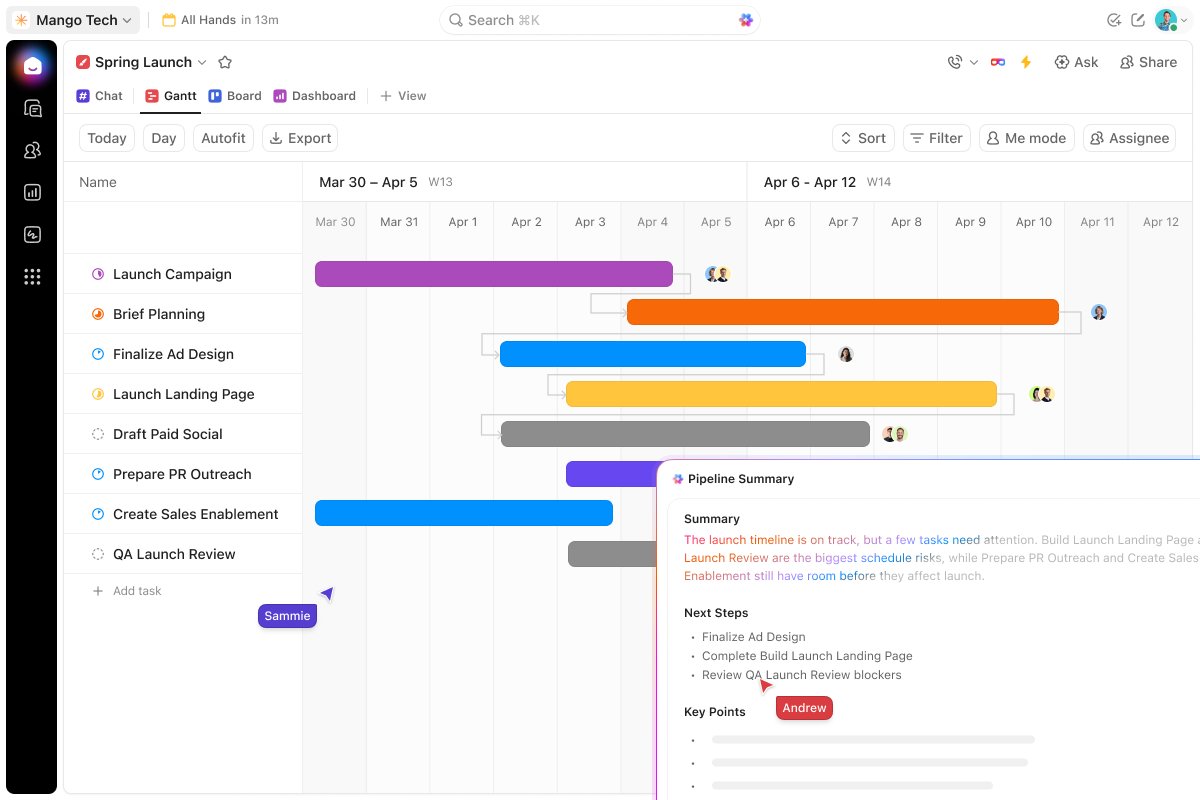
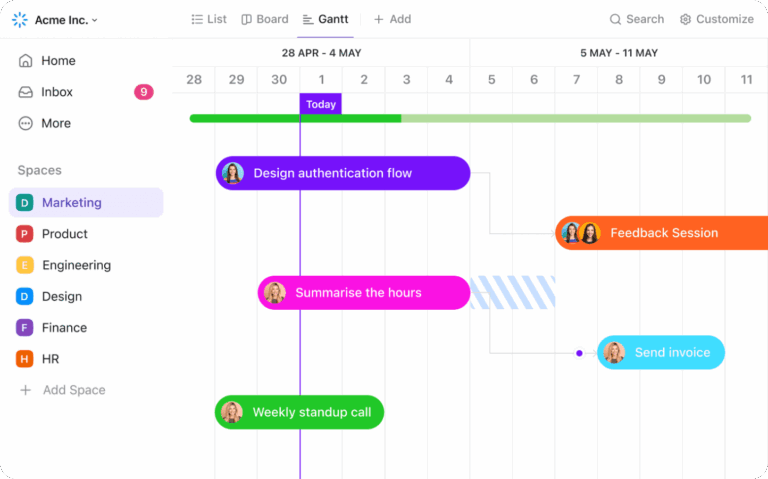
ClickUp Gantt Chart View exists right next to your tasks, docs, and dependencies. Its native AI can turn a project description into a timeline with phases, milestones, and task links in seconds. The Gantt View builds on that and recalculates the critical path whenever a date changes. This keeps the schedule up to date without manual cleanup.
Tasks on the chart include assignees, custom fields, checklists, and linked docs. This saves project managers from rebuilding context in a second tool. ClickUp Automations can trigger when a status changes or a due date passes, which keeps dependent work moving independently.
Where ClickUp falls short: ClickUp is stronger after planning than during initial setup. Teams that only need a quick chart may find the platform heavier than a specialist tool.
Skip ClickUp if: You only need a fast, disposable timeline and have no plans to run execution in the same tool.
Why a G2 reviewer likes ClickUp:
The sheer flexibility of Views is the biggest upside for me. I prefer the Gantt Chart to see timelines, while my designers live in the Board View. The fact that we can look at the same data in different ways without messing up each other’s workflow is a game-changer. Plus, Custom Fields let us track exactly what we need, like budget or priority level, rather than being forced into a rigid structure.
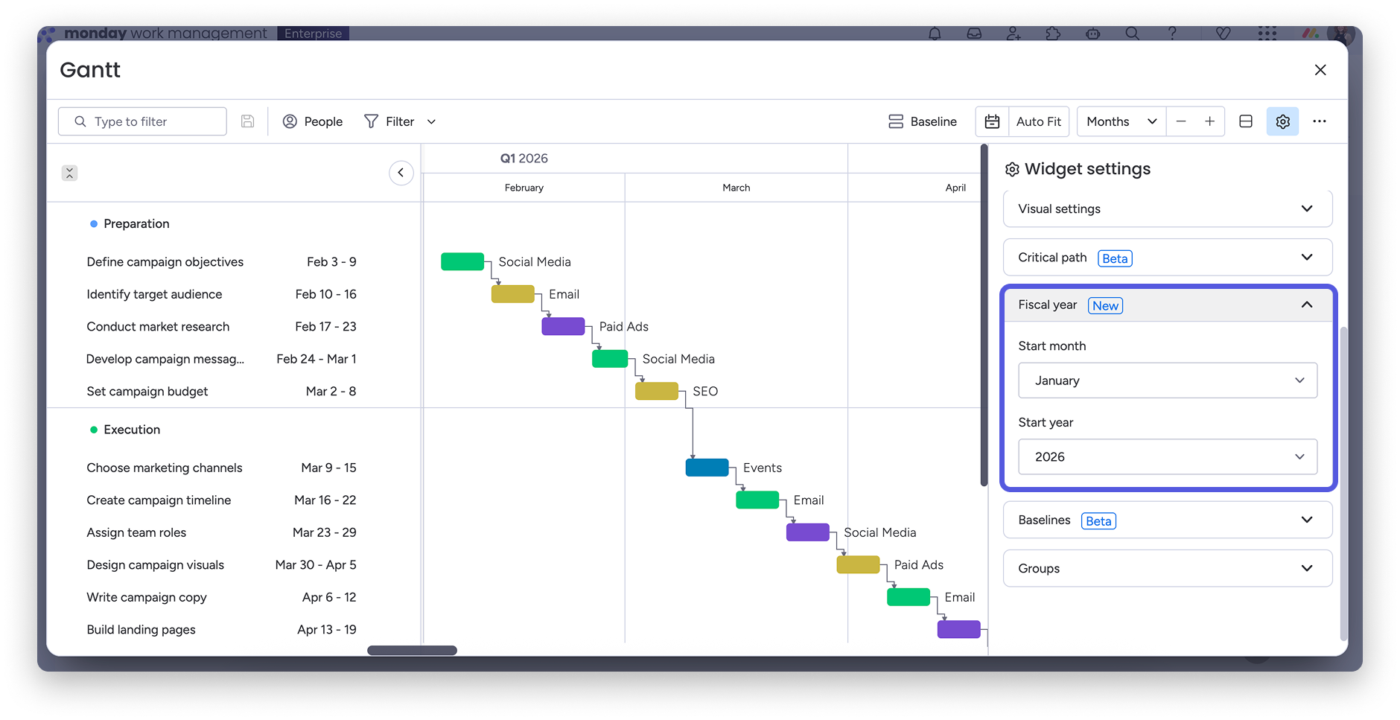
If you mostly use spreadsheets to track a shared plan, monday.com will feel like a relief. It is the most approachable option here for teams that want AI help without wrestling with a heavy tool. The Work OS manages dependencies for you, so when one task moves, related milestones shift on their own.
Auto-resequencing saves significant time on a plan you use every day. Color-coded timelines read clearly even for non-PMs, so a marketer or ops lead can scan status without a tutorial.
Where monday.com falls short: The Gantt and timeline view starts on the Standard plan, so the free and Basic tiers will not cover it. Boards can also feel busy once they hold many items and columns, which suits lighter plans better than dense, dependency-heavy ones.
Skip monday.com if: You run complex construction or engineering schedules that lean hard on a deep critical-path engine, where Smartsheet or Wrike scale better.
Hear about monday.com from a G2 reviewer:
What stands out most is how visual and intuitive the boards are. Our team was up and running within a day — no lengthy onboarding or training sessions needed. The ability to switch between Kanban, Gantt, calendar, and timeline views depending on who’s looking at the data has been a game-changer for us. The integrations with tools like Slack and Google Drive keep everything connected in one place.
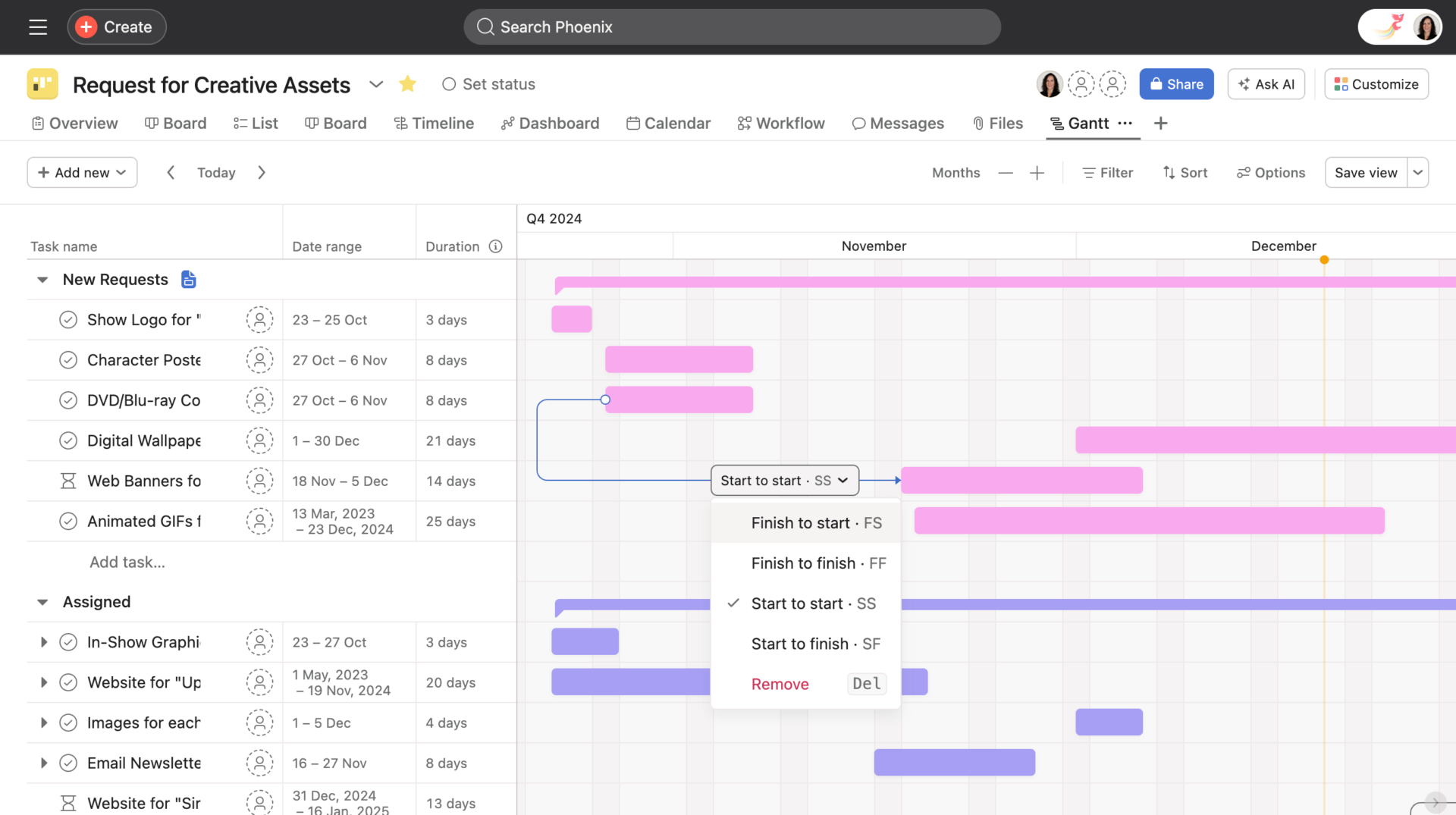
Asana competes on one thing: a project plan that reads clearly. Its Timeline view puts tasks, dependencies, and milestones on one shared map, so a stakeholder can scan it in seconds. The AI then summarizes that map. If your week ends with an executive status update, Asana can take it off your plate.
A product or ops lead can share a live timeline as a clean story, without rebuilding it into slides. The summary can flag gaps and highlight priorities. The plan also stays readable as it grows past a few dozen tasks, which is the point where busier tools start to blur.
Where Asana falls short: Timeline and Gantt view sit behind a paid plan, so the free tier will not cover them. Time tracking and resource tools also run thin next to Wrike or Smartsheet, which suits update-led teams more than capacity-led ones.
Skip Asana if: You need capacity forecasting for a team short on people, where Wrike pulls ahead.
Find out about Asana from a G2 reviewer:
I appreciate that Asana lets us view projects in different ways, like using a kanban board for new marketing requests, a Gantt chart for campaign timelines, and a calendar for email and social media schedules. The ability to multi-home tasks in multiple projects without copying them is a game-changer for keeping everyone updated through a single task entry.
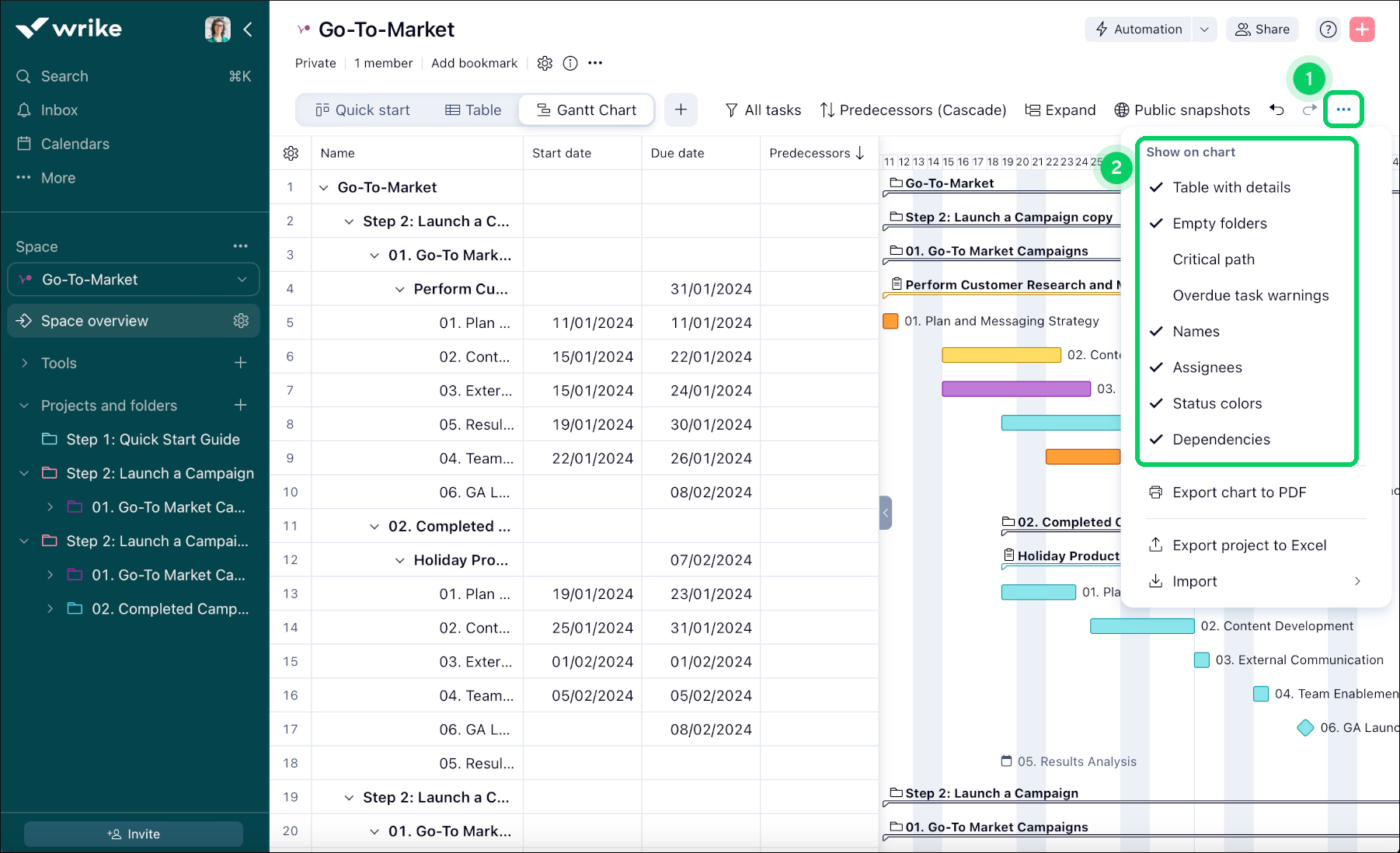
Wrike works well for large projects with too many people and not enough hours in the schedule. The Gantt chart is only one piece of a wider system that adds capacity planning, workload views, and enterprise reporting built for scale. A resource manager can use the software to balance people across an entire project portfolio.
Wrike’s AI sits on the Team tier and above, where it speeds onboarding, edits content, and surfaces at-risk work. None of that depth matters for a quick one-off timeline. It earns its keep when ten projects compete for the same overworked team.
Where Wrike falls short: The depth comes with a learning curve, since blueprints, automations, and rules take time to set up. Its strongest capacity and resource planning also sit on custom-priced tiers, so the features that justify Wrike cost more to reach.
Skip Wrike if: You run a small team that just wants a quick AI-built timeline, where TeamGantt or GanttChart.ai stay simpler.
This is what a G2 reviewer thinks about Wrike:
I like the different options for viewing, like the Gantt chart, which makes it flexible for team members to choose whatever view works best for them. I also find the new automations helpful. Wrike serves as a single source of truth, providing visibility into work status and keeping us on track.
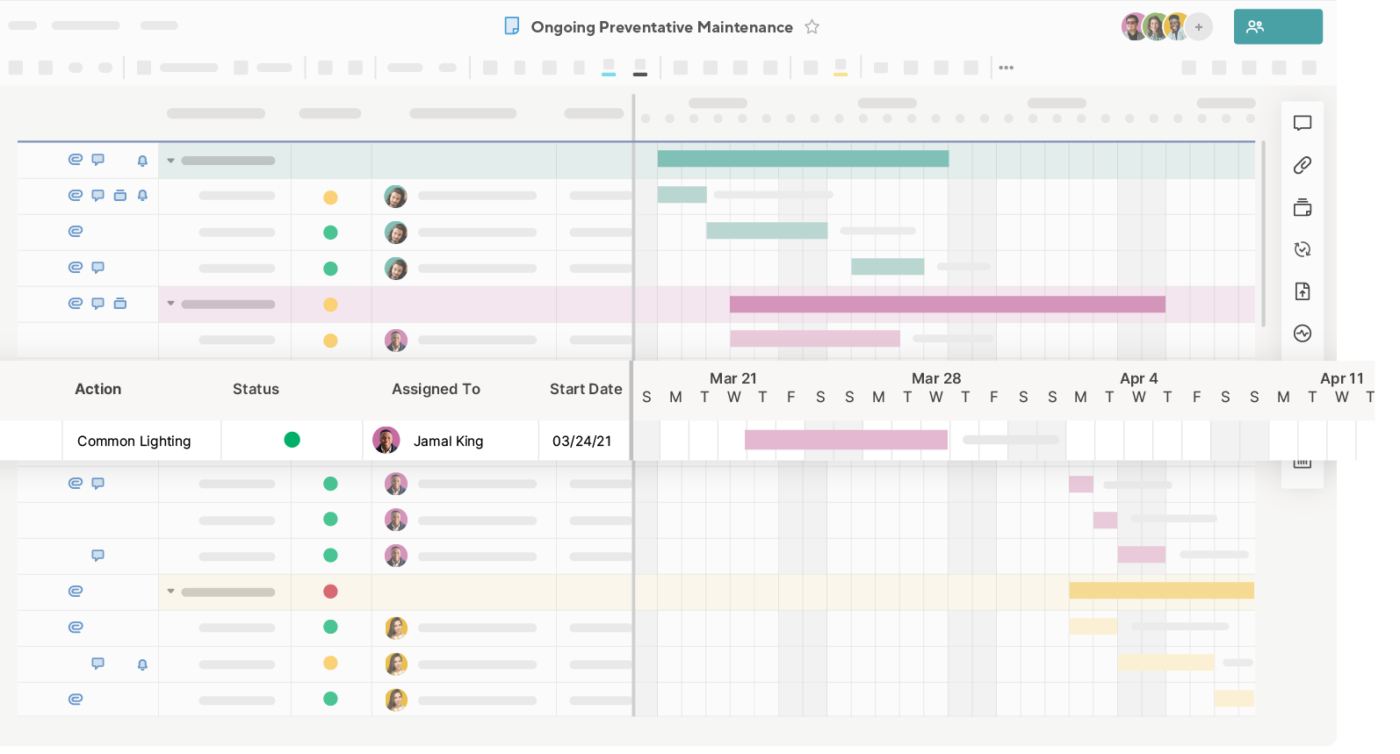
If your team already works with rows and formulas, Smartsheet will feel like homecoming. The screen splits in two. You find a grid on the left that works like a spreadsheet, and a Gantt chart on the right that updates as you type.
Teams migrating away from Excel can keep the same habits and gain scheduling capability on top. Enable dependencies, flag the critical path with one filter, and set baselines to compare planned dates against completion.
Where Smartsheet falls short: Its AI leans toward formulas and data work, not chart-building from a single prompt. Very large or heavily linked sheets can slow down too, so it fits structured, mid-size plans better than sprawling ones.
Skip Smartsheet if: You want a fast, conversational prompt-to-chart workflow, where GanttChart.ai or GanttPRO better fits.
Listen to this G2 reviewer when considering Smartsheet:
I use Smartsheet to track my projects in a nice and neat visual way, and I like sharing this with my managers so they can assist in prioritizing tasks if needed. It makes it much easier and quicker to create a nice visual table, and it instantly shows it in other views, like a Gantt chart. I appreciate the ease of use, especially because conditional formatting is very simple to set up and all the possible variables are listed, making the setup very fast.
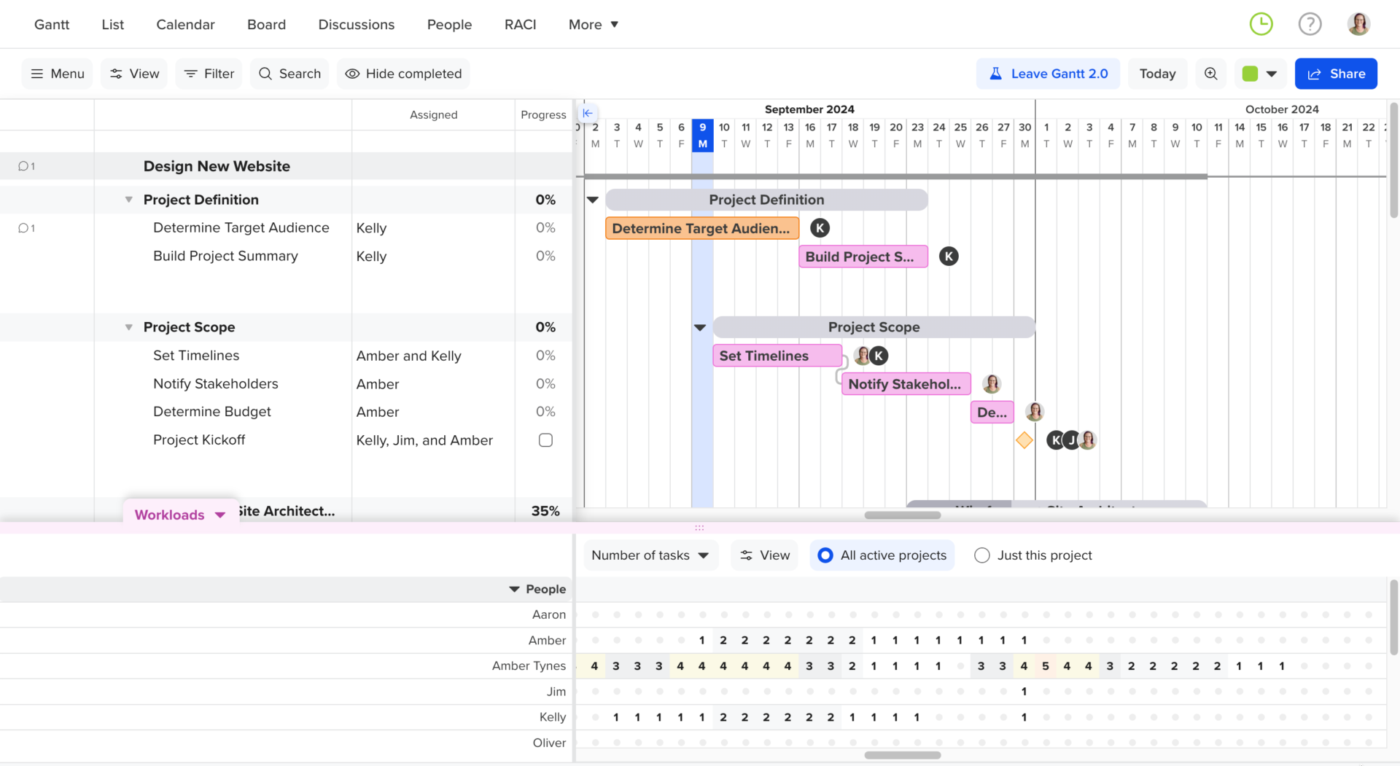
TeamGantt suits people who want a clean schedule and nothing that takes a week to learn. The whole product is organized around the timeline, so the chart is the workspace itself. You don’t have to switch into a separate tab. Drag a task to reschedule it or drag a line to link it; the plan stays legible even for someone who has never run a project.
Its AI can draft a starting plan from a prompt or a pasted work breakdown. However, that capability is lighter than what GanttPRO or GanttChart.ai offer. The reason to pick TeamGantt is accessibility, not deep automation. For a small team or a freelancer running a few projects at once, that simplicity can work.
Where TeamGantt falls short: Reporting and integrations are lighter than those of ClickUp, Wrike, or Smartsheet, which suit simple plans better than complex portfolios.
Skip TeamGantt if: You run resource-heavy portfolios or want AI to draft and manage the whole plan for you.
Here’s how a G2 reviewer uses TeamGantt:
I really like the list view of the tasks. I create a WBS using this format and then it fits perfectly into the Gantt view. I like the fact that there are training videos ready to teach you during each phase. Also this software is very easy to use not super confusing but it really flows and lakes sense (sic).
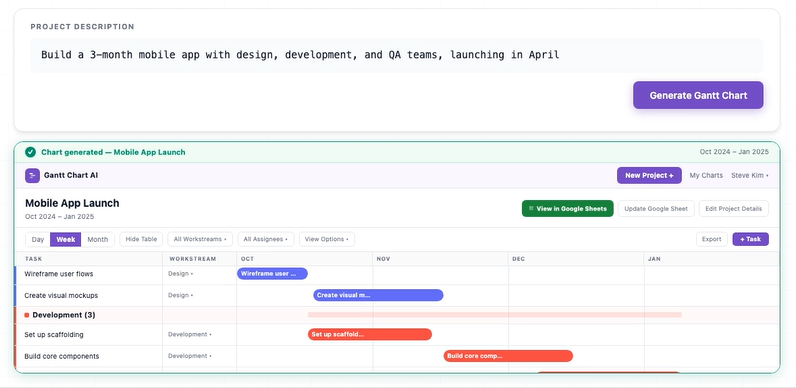
GanttChart.ai is the most literal answer to your search query. Write a sentence like ‘build a 3-month mobile app with design, development, and QA teams,’ and it returns a complete timeline with tasks, dependencies, milestones, and the critical path in roughly 30 seconds.
You get a fast first draft, then push it into Excel, CSV, JSON, or Google Sheets to finish the execution elsewhere. As a disposable starting point that saves an hour of manual setup, it does one job and does it quickly.
Where GanttChart.ai falls short: It is a generator first, so collaboration and execution depth stay thin. That fits a quick draft more than a system of record your whole team runs on.
Skip GanttChart.ai if: You need one durable system where a team runs the whole project, not just a quick first draft.
Ingantt (MS Project depth in-browser), Motion (calendar-aware auto-scheduling), and Miro (Gantt inside a whiteboard) are strong prompt-to-chart options that fall outside this list’s all-in-one focus.
Here’s a quick framework you can use to decide which tool serves you best:
Also Read: Gantt Chart Alternatives to Manage Work
Don’t trust a demo. Run the same 30-minute test on any tool before you commit:
Pick for the scheduling problem you actually have: draft speed, dependency logic, or execution depth.
If your work focuses more on using the Gantt chart to manage tasks, docs, and updates, try ClickUp for free. AI drafts the timeline from your project description, then the same plan runs as tasks with dependencies, docs, and dashboards in one workspace.
The best AI Gantt chart software depends on what you need after the first draft. GanttPRO is strongest for dedicated AI chart generation, while ClickUp is stronger when you need the timeline tied to tasks, docs, and reporting. Wrike and Smartsheet are better for resource-heavy portfolios, and GanttChart.ai is best for fast draft creation.
An AI Gantt chart is a project timeline generated from a plain language description instead of being built by hand. You type something like “3-month app launch with design, dev, and QA,” and the tool returns tasks, durations, dependencies, and a critical path in under a minute. GanttChart.ai, GanttPRO, and ClickUp all support this.
Not directly. ChatGPT can’t render a visual Gantt chart, but it can generate the underlying data, such as a task table or Mermaid syntax, that you paste into a tool that draws the chart. For a true prompt-to-chart workflow, dedicated tools like GanttChart.ai or ClickUp build the editable timeline themselves.
Yes, several tools can turn a plain-language prompt into a draft Gantt chart with tasks, durations, and dependencies. GanttPRO, GanttChart.ai, and ClickUp all support this workflow in different ways. The draft still needs review, because AI can miss realistic sequencing, resource constraints, and deadline risk.
ClickUp, monday.com, Wrike, and Smartsheet are better fits for teams because they connect timelines to broader workflows. That means dependencies, reporting, automations, and workload data can stay in sync as work changes. Solo users who only want a quick chart may prefer GanttPRO, TeamGantt, or GanttChart.ai instead.
Some do, and that feature matters more than prompt generation. ClickUp, monday.com, GanttPRO, and Wrike can automatically resequence dependent tasks when dates change, keeping the schedule running after kickoff. Tools that only generate the chart once are less useful for active projects.
Yes, but the limits vary by vendor. ClickUp includes Gantt charts on its free plan, while Wrike and Smartsheet offer free tiers with restrictions. GanttPRO offers a trial instead of a permanent free plan, and monday.com requires the Standard plan for Gantt views. Always check whether the free tier includes the timeline features you need.
AI-generated timelines are useful starting points, not final schedules. They are good at drafting phases, milestones, and obvious dependencies, but weaker at handling edge cases such as team capacity, approval delays, and cross-project conflicts.
Usually, yes. Most major tools support exports to formats like PDF, Excel, or CSV, and GanttChart.ai also supports JSON and Google Sheets. Export support matters if you plan to draft the schedule in one tool and execute it in another. Always verify how much formatting and dependency logic survives the export.

Manasi Nair
Max 26min read

Arya P Dinesh
Max 18min read
Arya P Dinesh
Max 20min read

© 2026 ClickUp




