Sorry, there were no results found for “”
Sorry, there were no results found for “”
Sorry, there were no results found for “”
Most document reviews don’t fail inside the document. They fail around it. An Adobe survey of more than 1,000 workers found that 58% say conflicting feedback from several people slows them down. Another 57% say feedback works best when it shows up right inside the doc.
The problem, partly, is that document collaboration software is no longer one category. Google Docs and Microsoft 365 win the writing and redlining. Notion and Confluence keep knowledge alive after you hit publish. ClickUp Docs connects pages to the work they describe; Superhuman turns docs into apps. Zoho WorkDrive and Dropbox own approvals and file review.
This guide compares all eight on how they handle teamwork, plus pricing, user reviews, and the limits worth knowing before you move your docs in.
| Tool | Best for | Standout feature | Starting price* | Where it taps out |
|---|---|---|---|---|
| Google Docs | Low-friction co-authoring across teams | Real-time editing, Suggestion mode, approvals, eSignature, Gemini, and simple external sharing | Free; paid from $7/user/mo | File governance gets messy at scale, and a resolved comment thread is where the trail ends |
| Microsoft 365 | Redline-heavy and regulated documents | Track Changes, legal blackline comparison, assigned comments, Document Inspector, SharePoint versioning, and Copilot | Paid from $5.40/user/mo without Teams | Best inside the Microsoft stack; external reviewers face more friction, and version controls depend on the SharePoint setup |
| ClickUp | Turning document decisions into tracked work | Real-time Docs, assigned comments, task conversion, page history, protected pages, guest access, and Brain | Free; paid from $7/user/mo | More system than needed if you only want a shared document editor |
| Notion | Docs and a team wiki in one system | Databases, page verification, synced blocks, relations, AI, and Enterprise Search | Free; paid from $10/user/mo | Flexible structure needs ongoing ownership, or large workspaces become harder to navigate |
| Confluence | Engineering knowledge bases at scale | Live docs, Jira integration, content statuses, synced blocks, analytics, page history, and Rovo | Free; paid from $5.42/user/mo | Strongest inside Atlassian and less suited to polished client-facing documents |
| Superhuman Docs | Documents that behave like apps | Tables, formulas, buttons, automations, Packs, cross-doc actions, and Docs AI | Free; paid from $12/Doc Maker/mo | Sophisticated docs can feel more like configuring an app than editing a document |
| Zoho WorkDrive | Structured document review and approval workflows | Review stages, approval routing, Team Folders, DLP, merge templates, and workflow automation | Paid from $2.50/user/mo | The workflow works best when the wider process already lives inside Zoho |
| Dropbox | File-centric collaboration on creative assets | Replay, timestamped feedback, file locking, watermarking, Dash, Transfer, Paper, and built-in eSign | Free; paid from $9.99/mo | Strong for file review and feedback, but live text co-authoring is not the core experience |
Our editorial team follows a transparent, research-backed, and vendor-neutral process, so you can trust that our recommendations are based on real product value.
Here’s a detailed rundown of how we review software at ClickUp.
Document collaboration software lets several people write, edit, review, and approve the same document at once. A team works on one shared file, so nobody emails versions back and forth. Edits show up as they land, and comments, suggestions, and version history make it clear what changed and who changed it.
It’s easy to mix these tools up with a document management system. That kind of system is built to store, index, and keep finished files. Collaboration tools cover the stage before that, while the team is still hashing out what the document should say. Both kinds of tools store your files in the cloud.
Look for eight things beyond live editing, comments, and permissions, since every tool here handles those. Four are commercial: how far version history reaches, what happens to that history on an upgrade, who controls the version cap, and whether reviewers cost a seat. Four are structural: guest rules, what a doc decision turns into, whether sync runs both ways, and how AI gets priced and audited.
The eight strongest options are Google Docs, Microsoft 365, ClickUp, Notion, Confluence, Superhuman Docs, Zoho WorkDrive, and Dropbox. Each one wins a different job, from fast co-writing to formal redlines to media review. The entries below cover standout features, pricing, real user reviews, and where each tool taps out.
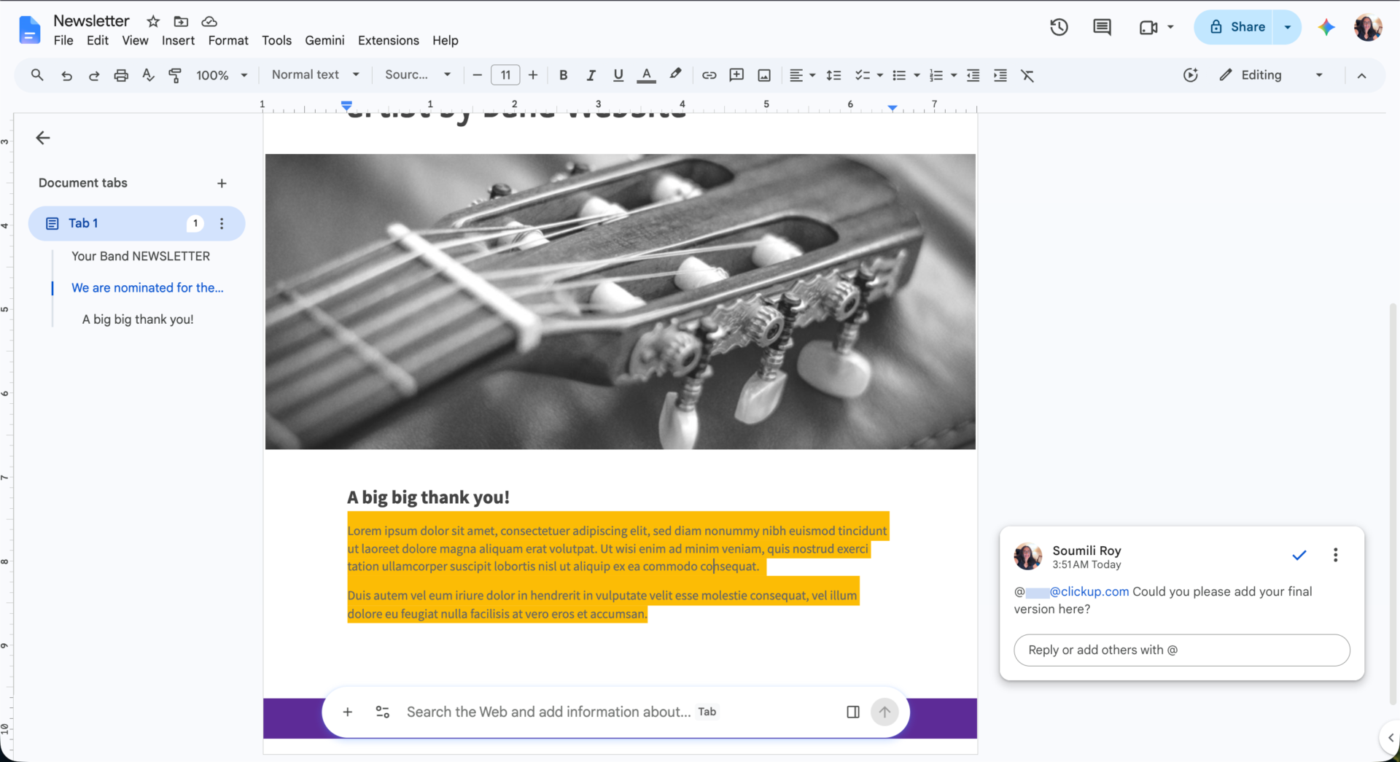
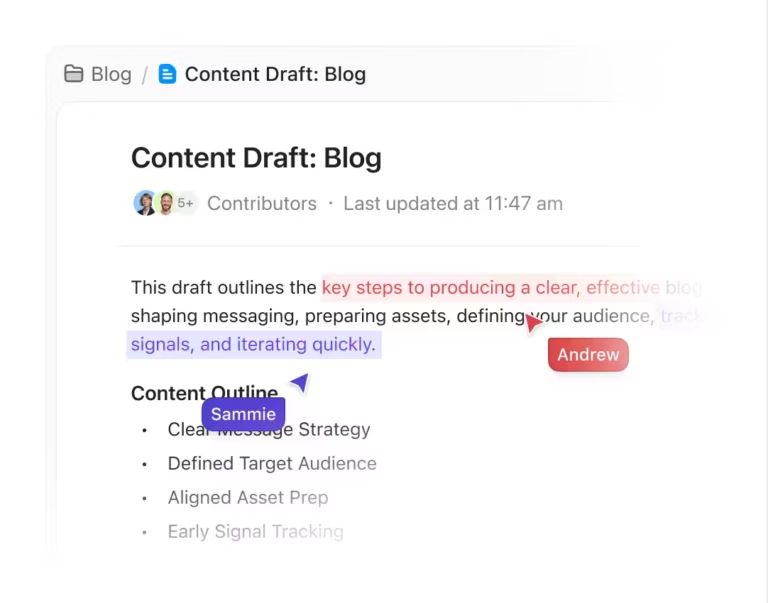
Google Docs is the browser-based word processor inside Google Workspace, and it fits freelancers and teams that write with people outside their own org chart. Anyone with a link can open the same file and start typing, and most external reviewers already know how it works.
Document tabs hold a brief, a draft, research notes, and an alternate version inside one file, and each tab gets its own link that you can send. When a comment thread stalls, anyone can start a Google Meet call from the doc and present the tab in question.
Multiple people with access can edit simultaneously and, when needed, share primary ownership of the file within seconds. Version history also lets you name a version, so the client-approved draft stays easy to find several weeks later.
Note: G2 reviews Google Workspace as a suite rather than Google Docs as a standalone product, so the G2 score reflects Workspace overall.
A Capterra user said:
My overall experience with Google Docs has been very positive. It’s a user-friendly, dependable tool that makes writing, organizing, and collaborating much easier. For everyday documents, work projects, and personal use, it’s one of the most convenient tools available.
Where it taps out: Drive gets hard to govern once files spread across personal Drives, shared Drives, and folders nobody maintains. A doc shared with too many people can slow down or lock up. Most teams end up writing their own naming and ownership rules.
Best for: Teams that need writing, review, and sign-off in one file that outside collaborators can open instantly.
Skip it if: Your review needs to end with an owner and a deadline, not a resolved thread.
Want to explore more alternatives to Google Docs? We’ve a video walkthrough for you:
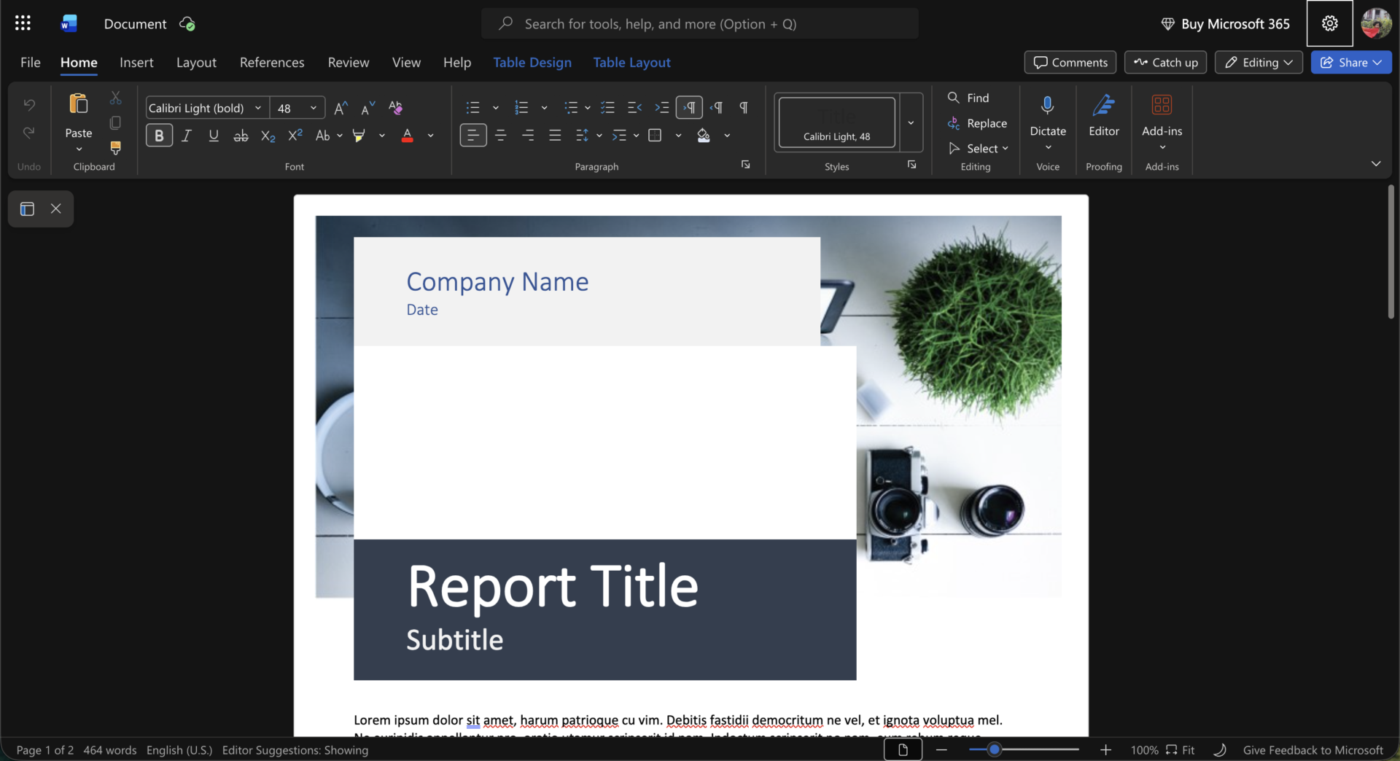
Microsoft 365 is the suite where Word, OneDrive, and SharePoint work as a single system. Word edits the .docx files, while OneDrive and SharePoint store them. It’s ideal for legal and finance teams who pass a contract file through five reviewers before it’s signed.
Send that contract out, and the controls get specific. You can limit the file so that each reviewer’s edits appear as colored markup, and set a password to prevent tracking from being disabled. Restrict it a step further, and outside counsel can leave notes but can’t touch a word of the text. When their marked-up copy lands in your inbox, Word compares it against your draft as a legal blackline and builds a third file listing every add and cut. Over in the SharePoint library, checking the doc out locks it to one editor while a partner does a last read.
OneNote earns its spot on the messy end. Park a notebook in the same SharePoint site as the contract library, and the call notes and open questions sit next to the file.
A G2 user said:
I like how Word, Excel, PowerPoint, Teams, and Outlook work together as one system, especially the real-time collaboration and automatic cloud saving. Excel stands out the most for me: it’s powerful enough for serious reporting, yet familiar and approachable enough that almost anyone can use it.
Where it taps out: Microsoft 365 is built for the Microsoft stack, so it’s less useful once your reviewers sit outside it. An encrypted file asks them to sign in first. Version history also depends on the library a file lives in, so an admin has to set that up before the trail is worth trusting.
Best for: Legal, finance, and procurement teams whose documents pass several reviewers before anyone signs.
Skip it if: You want reviewers to open a file in one click with no account, and reviews to end at sign-off while follow-up work lives elsewhere.
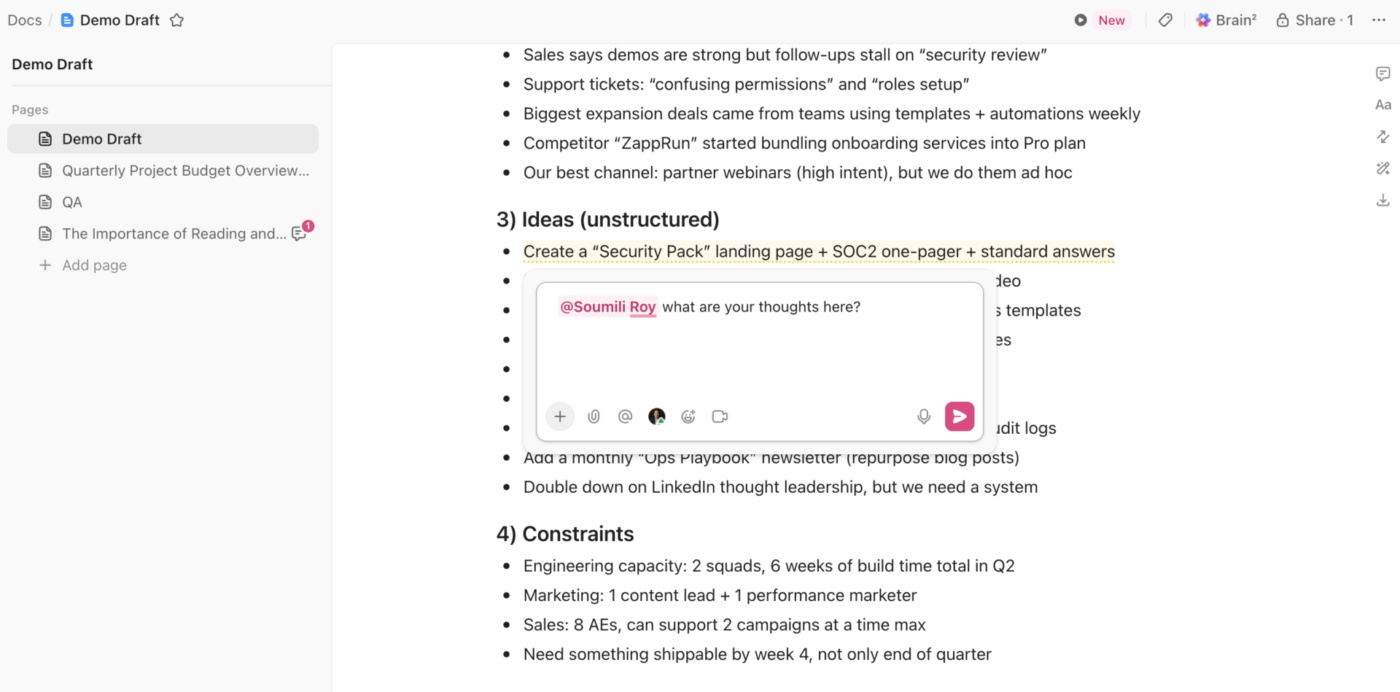
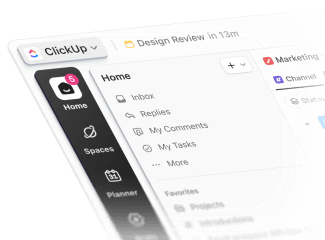
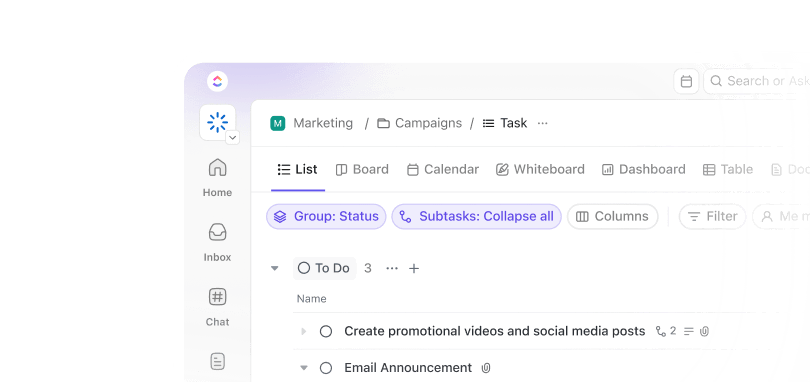
ClickUp Docs live in the same workspace as the work they describe, so an SOP sits beside the project it governs. It’s perfect for product, operations, and agency teams who need a review to end in assigned work.
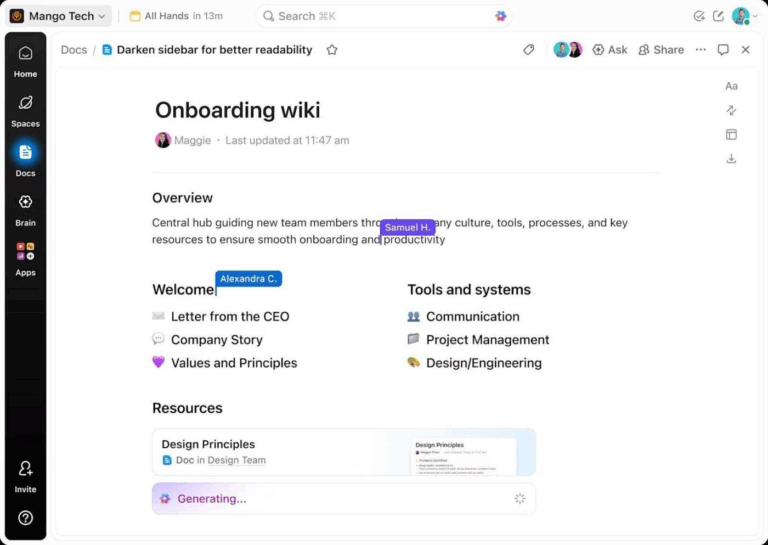
Several people can write, edit, and comment in the same Doc at once. Assign a comment, and it lands in that person’s Inbox as their own work, even if they weren’t part of the review. From there, the comment can become a task carrying a due date, tags, Custom Fields, and tracked time. Docs Hub shows a count of comments assigned to you on each Doc, and you can read open, assigned, and resolved threads without opening the file.
A public link adds its own controls: whether search engines can index it, whether readers can duplicate it, and when the link expires. Page history tracks who changed what and lets you restore an earlier version. ClickUp Brain sits on top of the same permissions. It answers questions about your docs and related work in real time, pulling information from across your workspace.
A G2 user described:
What I like most about ClickUp is how it brings project management, documentation, and team collaboration into one platform. It helps reduce context switching, keeps work organized, and offers enough flexibility to adapt to different workflows, whether for creative projects, design, or product teams.
Where it taps out: ClickUp is a work platform that also includes a document editor. If all you need is a shared page for two people, it’s more system than the job requires.
Best for: Product, operations, engineering, and agency teams whose briefs, specs, and SOPs lead directly to assigned work.
Skip it if: Your documents are usually the final deliverable and you don’t need them tied to tasks, projects, or workflows.
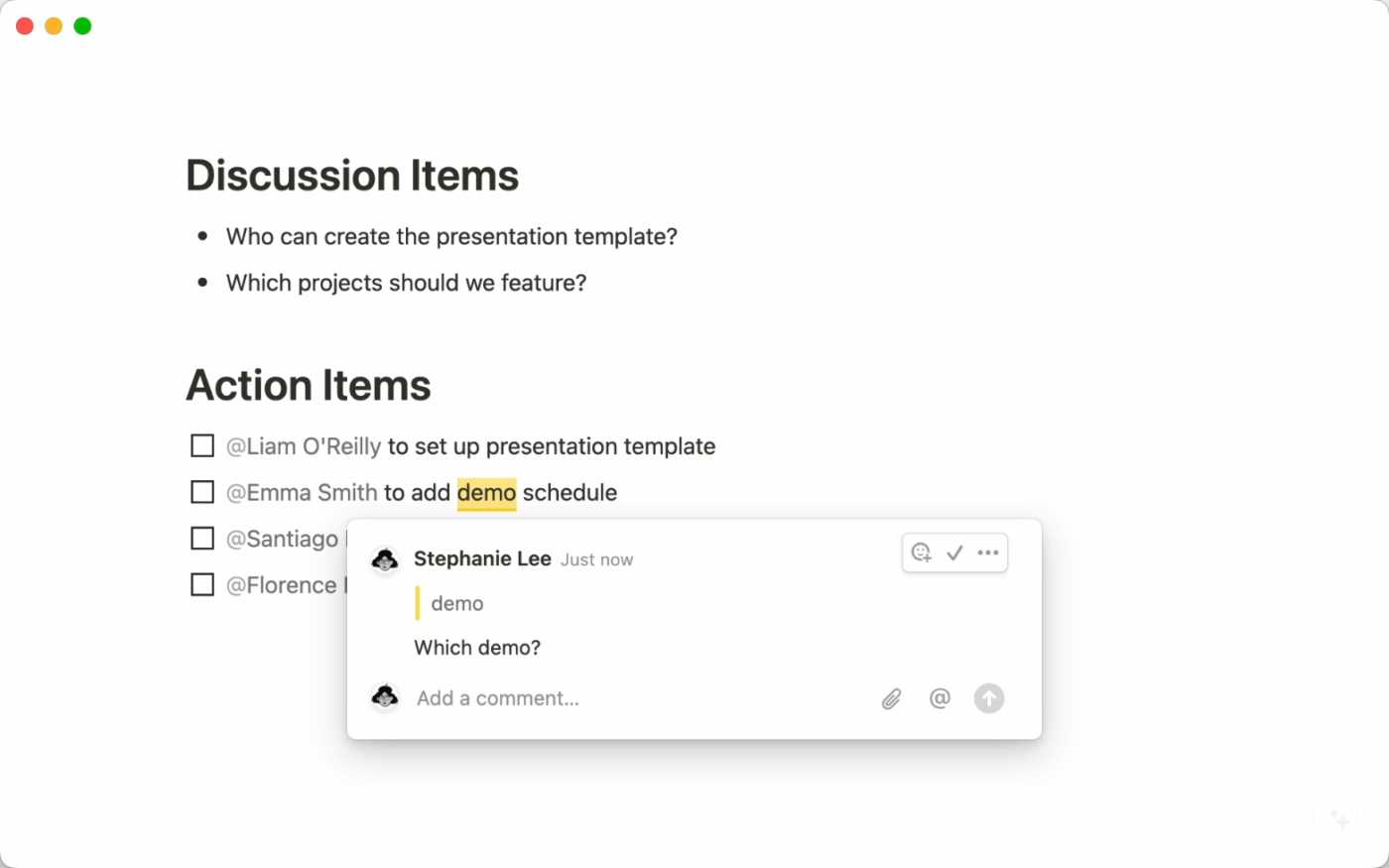
Notion works well when your documents need structure beyond a folder tree. Teams can co-write pages in real time, leave comments, and share pages with different permission levels. But unlike a conventional document editor, those pages can also reside in databases with properties like owner, status, team, review date, and content type.
That suits teams building a knowledge base next to their day-to-day docs. You can nest pages into a company wiki, link related pages with relations, and use synced blocks when one policy or update has to appear in several places. Verified pages tell a reader an article is still current, and the badge can be set to expire.
Collaboration runs on the page itself: live editing, comments, mentions, and sharing set per page. Because docs live in databases, a team can sort hundreds of pages by who owns them and when they were last reviewed, not by where someone filed them.
@ to link another Notion page inline, such as a project brief, policy, meeting note, or product spec. If that page is renamed later, the linked title updates automatically everywhere it’s mentionedA G2 user mentioned:
What I like best is the flexibility and the team collaboration. I can build docs, databases, and project trackers all in one shared space, which makes cross-functional working easy. Everything stays clean, structured, and connected, so we have one central place for all the important things.
Where it taps out: Notion gives teams a lot of freedom to build their own structure, which also means someone has to maintain it. Large workspaces can become harder to browse when page hierarchies, databases, and permissions grow without clear ownership.
Best for: Startups and growing teams that want shared documents, a company wiki, and structured knowledge in the same workspace.
Skip it if: You want a conventional file-and-folder system, or nobody on the team will own the workspace structure.
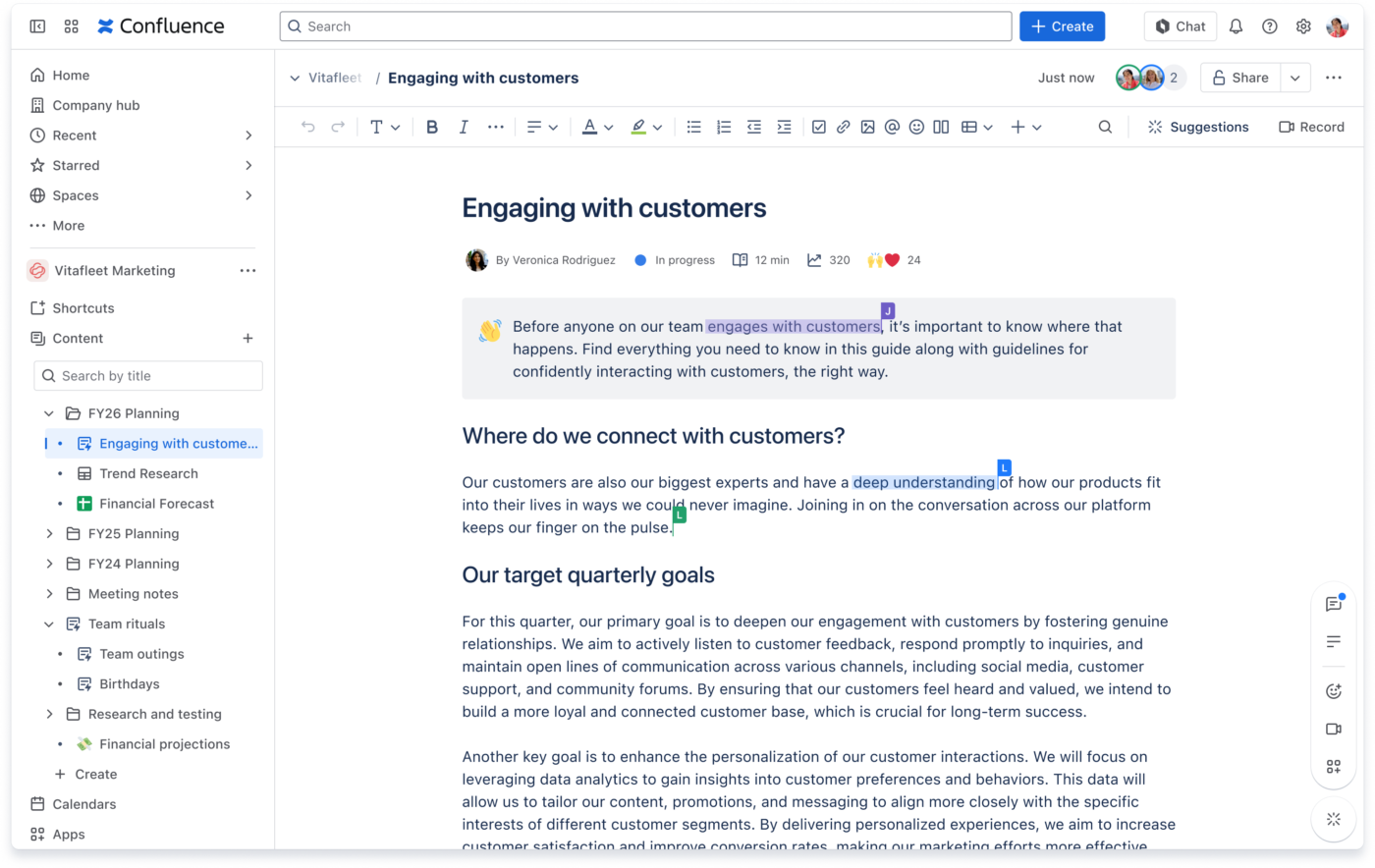
Confluence, Atlassian’s wiki, works great when several people draft, review, and maintain the same set of technical docs. Teams co-edit pages and live docs, leave inline comments, and tag reviewers by name. You can restrict a page while a design note or incident report is still taking shape, then open it up once the details settle.
The edge here is how close those pages sit to Jira. An action item on a page can become a Jira work item, and Jira issues, fields, lists, and charts can show up back on the page. An RFC or incident review stays useful after the writing is done, because the follow-up work sits right next to the decision that caused it.
Reviews leave a trail, too. Inline comments attach to the exact line they question, while page history holds every version. Anyone who needs to track a page can watch it and get notified on every edit. On a bigger team, spaces, page trees, named owners, statuses, and reusable blocks keep all of that from turning into a pile of stray pages.
A G2 user mentioned:
What I like most about Confluence is that it centralizes all of our project documentation and technical specs in one place, so everything is easy to find and reference. It also integrates seamlessly with Jira, which makes it straightforward to link requirements directly to tickets and follow development progress. On top of that, the real-time collaborative editing is a big plus—it’s much easier for the team to brainstorm together and keep documentation current without running into version-control headaches.
Where it taps out: Confluence is strongest inside the Atlassian stack. But teams that don’t already use those tools can end up paying for a knowledge system whose best integrations sit elsewhere.
Best for: Engineering and technical teams that need a long-lived knowledge base tightly connected to Jira work.
Skip it if: Your documentation is mostly client-facing, design-heavy, or meant to be polished as a final deliverable. Confluence is better at maintaining internal knowledge than producing finished documents.
Also Read: Confluence Alternatives
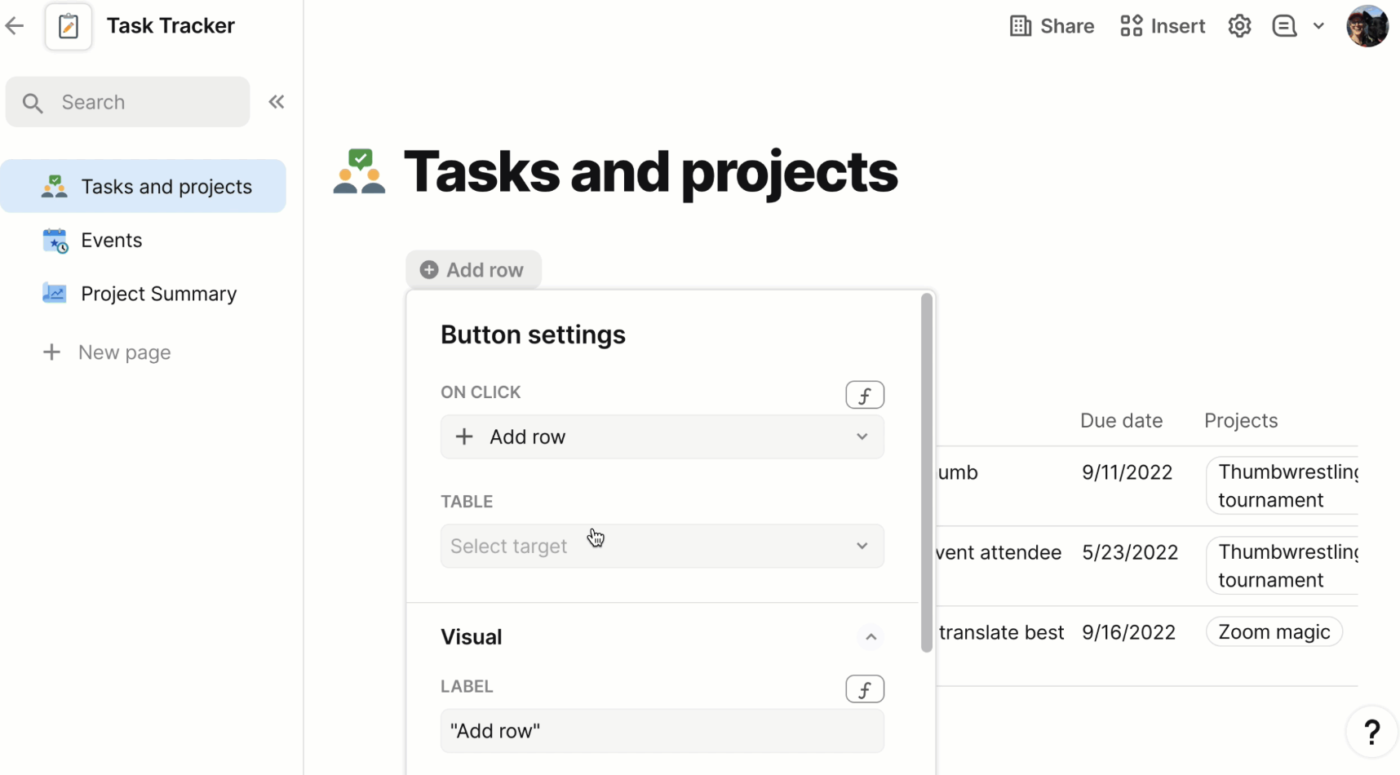
Superhuman Docs, formerly Coda, reads like a normal doc until you notice the page can hold live tables, formulas, buttons, and forms next to the writing. It’s made for operations and product teams whose documents are frequently updated.
Several people can open a single doc, each working from a different view of the same dataset. One view filters to their team, another lays the rows out as a board, and every edit lands in the same source.
Packs, the platform’s integrations, pull live data and actions from Jira, Slack, Figma, Asana, Gmail, and Teams into the page, which cuts out the check-the-ticket-and-come-back shuffle.
And the rest of the collaboration kit is retained as well. A doc can be broken into pages and subpages, and specific pages can be hidden from people who don’t need them. Suggest mode tracks proposed edits for approval, comments attach to a paragraph or a single table row, and a settled process can be locked against stray edits.
A G2 user said:
We use Coda on a daily basis to create SOP’s, guides, policies, and more. It’s a one-stop for the entire company; we use it to collate data and simplify it for all teams. It blends multiple workflows like spreadsheets and custom software applications. You can find an important document or update with one click of a search; you can easily highlight important facts/info; you can edit and tag your fellow co-workers. Great working space without breaking the bank and the actual document.
Where it taps out: Superhuman Docs gets more powerful as you add tables, formulas, Packs, and automations, but that also raises the learning curve. Building a sophisticated doc can start to feel closer to configuring a lightweight app than editing a conventional document.
Best for: Operations and product teams where a few people build interactive docs and trackers for a much larger group.
Skip it if: You want polished long-form writing, formal redlining, or files that leave the platform looking conventional.
Also Read: Coda Alternatives
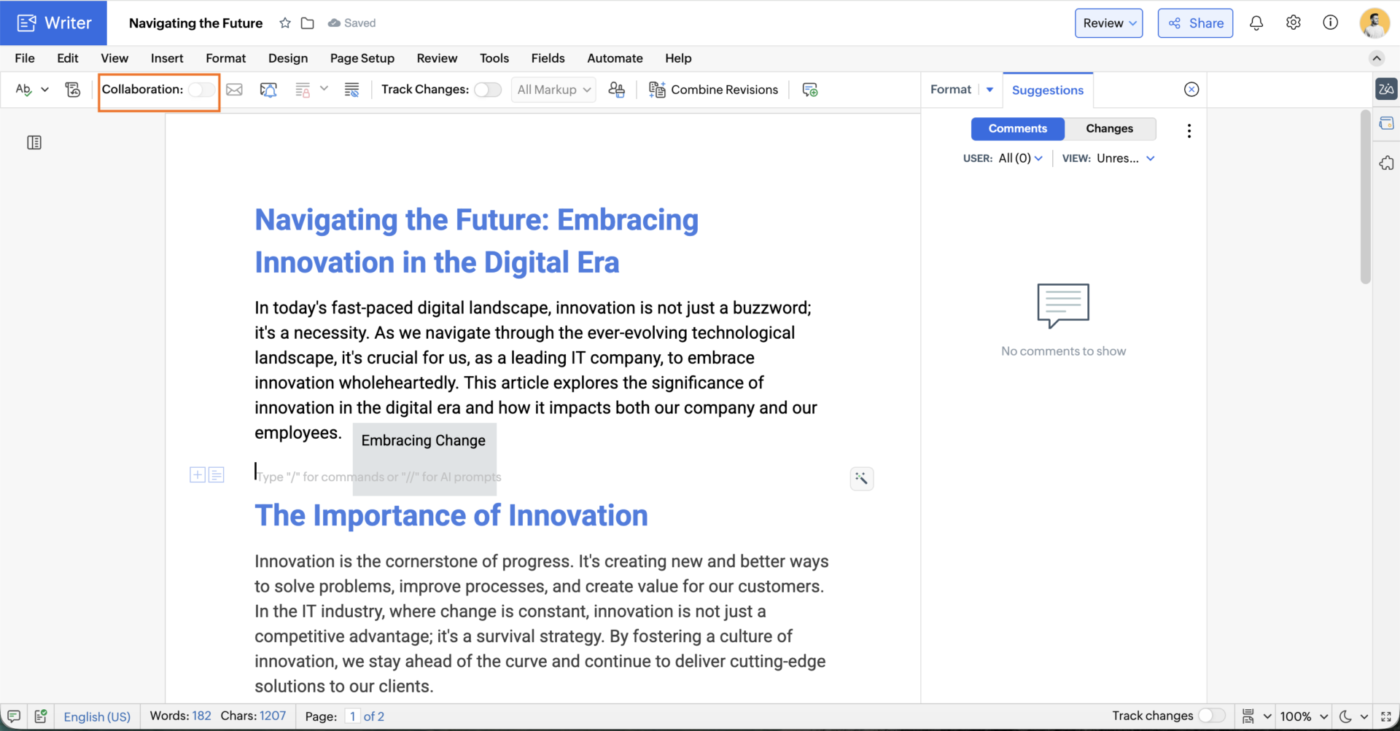
Zoho WorkDrive is the file storage and collaboration layer of the Zoho suite, with Zoho Writer as its word processor. Its angle on collaboration is control: who reviews what, in which order, and how much of the document they can touch.
Open a file in Writer and assign it a review workflow, an approval workflow, or both. Name up to 10 reviewers, set a deadline per stage, and Writer emails the reminders you would otherwise chase yourself. Further, the file itself shows which round it’s on and whom it’s waiting on, so nobody needs to send follow-up messages asking about status. Pause the workflow when the draft changes shape, then restart it.
External reviewers can comment on and review shared Writer documents without creating a Zoho account, while teams can keep tighter control over who can edit, download, or redistribute files. And when a finished document needs a signature, it can be sent to Zoho Sign without leaving the broader Zoho suite.
A G2 user described:
What I appreciate most about Zoho WorkDrive is its ease of use and excellent management of team collaboration. File sharing, folder organization, and permission management are easy to set up, allowing documents to be centralized while ensuring their security.
Where it taps out: The routing pays off when the whole process lives in Zoho. Reviewers on the outside can comment and see tracked edits, but the workflow, the reminders, and the signature step all assume a Zoho account behind them.
Best for: Small consultancies, professional services firms, and ops teams that need tracked reviews, approval routing, and controlled file access.
Skip it if: Most of your document work runs through clients already inside Google Workspace or Microsoft 365, and you want zero friction for them.
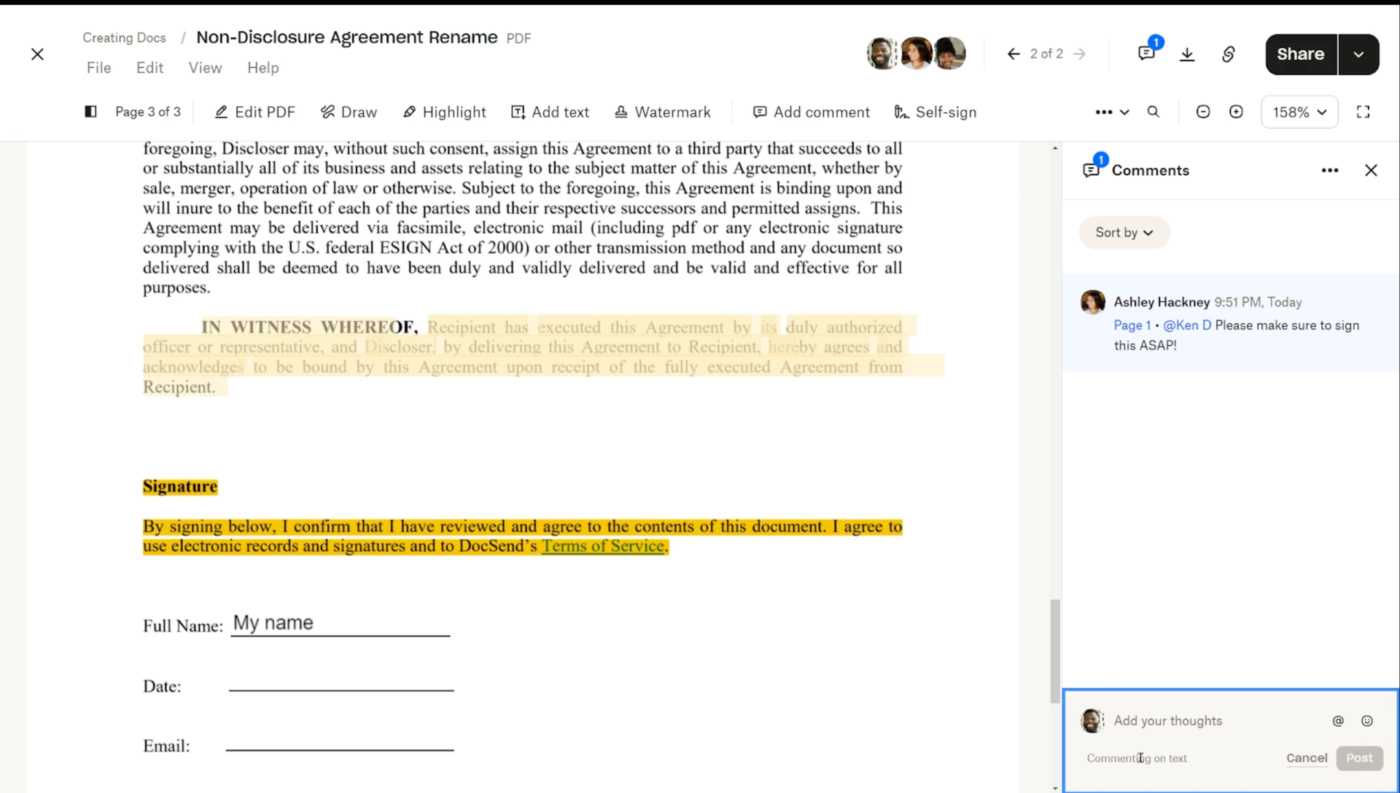
Dropbox is cloud storage with a review layer on top. It belongs here because plenty of collaborative documents are PDFs, images, audio, and video cuts. Comments attach to a precise point, a selected area, or a run of text. Feedback on audio or video pins to a timestamp.
Dropbox Replay is where media teams review. A reviewer draws over a single video frame, and comments sit against the version they were left on. A live review session puts everyone on the same playhead while they mark up together, and anyone in the session can control playback. Replay also works inside Premiere Pro, After Effects, Final Cut Pro, DaVinci Resolve, and Pro Tools. An editor reads the comments as timeline markers without leaving the cut.
Around those files, the sharing controls do the heavy lifting. Lock a file while someone edits it, check who has viewed it, watermark it, block downloads, password-protect the link, and set it to expire. File requests let a client drop assets into a folder you choose without signing up for anything.
A G2 user described:
It’s a very convenient cloud-based way to store and share files within an organization, or even with specific individuals you invite. You can share files with the right permissions, and benefit from its security features that help keep your files protected. I can also say it’s user-friendly software, with integration that connects to your other accounts like Google, etc. Its intelligent features make sharing and storing files faster and more straightforward.
Where it taps out: Dropbox is built first for file sync, storage, and review. Comments and Dropbox Replay handle feedback well, but live co-authoring isn’t the core experience.
Best for: Creative agencies, video teams, architects, and production groups whose clients review large media and PDF files without owning the source software.
Skip it if: Most of your collaboration is people drafting and reworking text together in real time.
Choose based on what happens inside the document and what needs to happen after it. Some teams need fast co-writing, others need formal review, structured knowledge, tracked work, approval flows, or feedback on large creative files.
| If your main need is… | Start with |
|---|---|
| Fast co-writing with clients, freelancers, or outside reviewers | Google Docs |
| Formal redlines, legal review, and controlled document history | Microsoft 365 |
| Turning briefs, specs, and SOPs into assigned work | ClickUp |
| Building shared docs and a company wiki in one workspace | Notion |
| Maintaining technical documentation beside Jira work | Confluence |
| Building interactive docs with tables, formulas, and workflows | Superhuman Docs |
| Routing documents through structured review and approval stages | Zoho WorkDrive |
| Reviewing PDFs, images, audio, video, and other creative files | Dropbox |
Whether the text and files arrive is the easy part. The real risk is losing the context around them: comments, hierarchy, permissions, links, and revision history.
Before you move a full workspace, export a real document with the messiest structure you have and open it in the destination workspace. Then check:
Build this test into your document management workflow before cutover. Ten minutes with one hard document will surface the gaps while they’re still inexpensive to fix.
Document collaboration software now has to serve people and AI systems. Gartner found that only 17% of organizations had deployed AI agents in 2026, but more than 60% expected to do so within two years.
That changes what makes a good document. A stale page or loose permission can now become source material for an AI-generated answer.
When you compare tools, check whether AI:
Document governance now includes deciding which files AI can treat as reliable company knowledge.
Take a 12-person marketing team running quarterly planning in a shared doc. Everyone edits it live; comments get resolved; the revision trail holds. Six weeks later, nobody can say which of the 11 decisions actually shipped. The document worked. What broke was everything after it.
That gap costs more than a missing feature. A Gartner survey of 5,141 employees found that only 23% of digital workers were fully happy with their work apps.
Paul Leonardi, Duca Family Professor of Technology Management at UC Santa Barbara, wrote a book on what app-hopping takes out of people:
Switching from a Zoom meeting to Microsoft Teams, then hopping over to Google Meetup means reorienting yourself to the small differences (how to share your screen, even mute yourself) each time. That might not sound like much but each of those shifts, interactions and reorientations is mentally exhausting.
So when you compare tools, count how many times someone has to rebuild context as a doc moves through writing, review, approval, and tracked work.
Eight tools, eight different collaboration models. If your team mostly writes together, Google Docs or Microsoft 365 will get you there faster. If the document needs to become shared knowledge, Notion or Confluence makes more sense. And if the “document” is really a media file, Dropbox is built for that job.
ClickUp fits a different workflow. It works best when a brief, spec, SOP, or meeting note needs to be turned into assigned and tracked work afterward. Comments can become tasks, decisions can stay tied to owners and due dates, and the document lives beside the project it supports.
Get started with ClickUp for free.
Not usually. Most of these tools stop at the document: you write, review, approve, and the work that follows lives somewhere else. ClickUp is the exception here, since a line in a Doc converts into a task with an assignee and a due date. Confluence gets close by creating Jira work items from a page. For the rest, plan on a second tool and a handoff between them.
Yes, several, but read the limits. Google Docs, ClickUp, Notion, Superhuman Docs, and Dropbox all have free tiers, and Confluence is free for up to 10 users. The catches are specific. For example: Notion Free keeps only 7 days of page history and caps guests at 10; Confluence Free has no space or page permission settings; and ClickUp’s granular guest permission controls start on paid plans. Google Docs comes mostly free with a Google account. Microsoft 365 has no permanent free plan, offering trials instead.
Check this before you trust the trail. For example, Notion keeps 7 days of history on Free, 30 days on Plus, 90 days on Business, and unlimited history on Enterprise. Dropbox keeps 180 days on Standard and 365 days on Advanced, but its standard version history doesn’t cover web-based files such as Google Docs. SharePoint is configurable: libraries can retain a fixed number of versions, add an expiry period, or use Microsoft’s automatic limits. AutoSave and co-authoring can also create versions every few minutes, so a count-based limit may disappear faster than expected.
Usually, but the controls you need often sit above the entry tiers. Audit logs unlock in Enterprise plans in Notion, ClickUp, and Superhuman Docs, while Zoho WorkDrive reserves its Admin Audit Trail for the Business plan. Dropbox limits deeper file-level activity reporting to its higher tiers, while Microsoft includes Purview Audit Standard across its Microsoft 365 business plans. HIPAA support, data residency, DLP, and other governance controls can also be plan-gated. Zoho, for example, reserves DLP policies for WorkDrive Business.
Nextcloud Office is one of the most comprehensive open-source options for teams that want self-hosted file storage and real-time editing in a single system. It supports collaborative editing across documents, spreadsheets, and presentations, including Microsoft Office formats. Further, ONLYOFFICE Docs is another alternative when Microsoft Office compatibility matters most, while CryptPad stands out for end-to-end encrypted collaboration. All three give you more control over hosting and data than a typical SaaS editor, but you take on more setup, maintenance, and support work.
SharePoint is the storage and version-control layer of Microsoft 365’s collaboration system, not a standalone editor. Co-authoring happens in Word, Excel, and PowerPoint; SharePoint handles version history rules, check-in/check-out locking, retention policies, and eDiscovery holds at the organization, site, or library level. Teams that need redlines and a defensible edit trail use the pieces together. Teams that only need live co-writing can skip SharePoint’s admin overhead entirely.
Google Docs is better for fast, open, cross-company co-editing; Microsoft 365 is better for formal, regulated, redline-heavy documents. Google wins on real-time smoothness and external sharing. Microsoft wins on true track changes, document compare, and compliance controls like Purview Audit, which it lists as standard across its business tiers. Teams exchanging marked-up .docx contracts should stay on Microsoft; teams drafting with clients should default to Google.
Yes, every tool in this guide supports simultaneous multi-user editing with live cursors and conflict handling. The practical limits are in the fine print. A single Google Doc can be edited from only 100 open tabs or devices at once and caps at 1.02 million characters, and Microsoft files synced to the desktop can still throw sync conflicts during live co-authoring. Web-based editing is the most reliable path for large groups.

Manasi Nair
Max 24min read

Praburam Srinivasan
Max 22min read
Manasi Nair
Max 27min read

© 2026 ClickUp