
Sorry, there were no results found for “”
Sorry, there were no results found for “”
Sorry, there were no results found for “”
A fillable form in Microsoft Word sounds simple because, technically, it is.
Turn on the Developer tab, drop in text fields, checkboxes, date pickers, or dropdowns, then lock the document so people can fill it in without rearranging your carefully built layout.
This guide walks you through each of those steps. We’ll touch on how to pick the right content control for every answer, protect the parts people shouldn’t touch, and test the form before it goes out.
Fair warning, the hard part begins when the forms come back. One completed Word file is fine. But when it spans 20 separate documents to download, rename, open, and dig answers out of, it gets dreary.
TL;DR: Word’s form tools have a few quirks that aren’t obvious from the Developer tab alone.
.dotx template so nobody overwrites the originalIf those limitations don’t affect your use case, Word can handle the form itself.
You need the desktop version of Word to build a form.
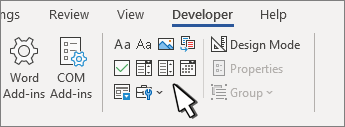
That distinction can save you a fair bit of head-scratching. Microsoft hides its form-building tools under the Developer tab, which is available in desktop Word but is turned off by default.
Word for the web is the exception. Microsoft says you can’t create fillable forms in the browser version. You can open a form built in desktop Word, and plain text and rich text fields will work if the document isn’t protected. Dropdowns, date pickers, and checkboxes won’t. A document protected with “Filling in forms” opens read-only in the browser. So, always test in Word for the web before sending.
| Word version | Developer tab | Can it build a fillable form? |
|---|---|---|
| Word for Windows | Yes, once enabled | Yes |
| Word for Mac | Yes, once enabled | Yes |
| Word for the web | No | Plain text and rich text fields in unprotected documents can be filled. Dropdowns, date pickers, and checkboxes are not supported. Protected forms open read-only. |
For this walkthrough, use Word for Windows if you have it. Microsoft’s Windows version gives you the broadest set of content controls, including plain and rich text fields, checkboxes, dropdowns, combo boxes, date pickers, and picture controls.
Before you start building, turn on the Developer tab:
Once Developer appears in the ribbon, you’re ready to build the form.
To insert a fillable field in Word, start with the questions, then build the form around them.
Draft the whole form as plain text first. Every question, instruction, heading, and section break goes in before a single field does.
You can tweak wording later without rebuilding controls, but settling the questions up front means you skip the cycle of dragging fields around, resetting properties, and testing the same form twice. It also forces you to answer whether a certain field needs to exist at all.
Forms specialist Caroline Jarrett calls this the “conversation” layer of form design:
In the end, a form is really a series of questions and answers.
Her three-layer model splits a form into relationship, conversation, and appearance. Get the conversation right before you worry about the cosmetics. And if your organization already has a piece of information, show it for confirmation instead of asking for it again.
Want labels on the left and answers on the right? Use a two-column table and hide the borders when you’re done.
Tabs, spaces, and rows of underscores look fine while the form is blank. Then someone types a long answer, and the whole page shifts. A table gives Word real structure to hold onto. Rows expand as answers grow, and each label stays glued to its field.
That said, simpler forms often work better without a table. A vertical layout with the question above its field is easier to maintain and usually more accessible. Microsoft recommends avoiding tables when possible in accessible Word documents. If you do need one, keep it simple and skip merged, split, or nested cells.
For multi-page forms, use section breaks wherever headers, footers, orientation, or page numbering need to change.
Click where the answer belongs, then go to Developer > Controls and insert the control that matches the response you’re expecting.
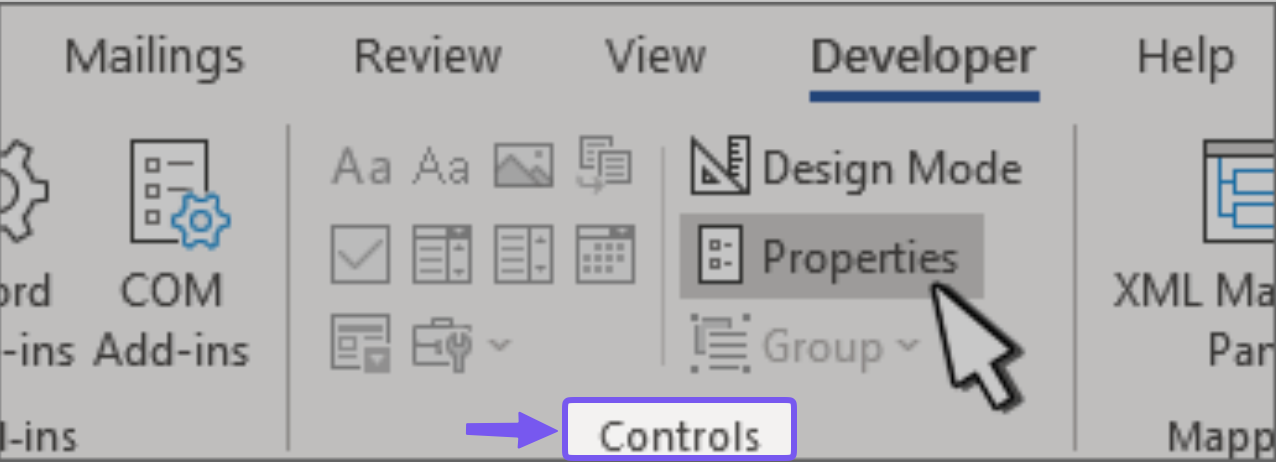
Microsoft supports content controls, including text fields, checkboxes, combo boxes, dropdown lists, date pickers, and picture controls.
Let the answer type choose the control for you.
| Control | Use it for | Watch out for |
|---|---|---|
| Plain Text | Names, IDs, reference numbers, short answers | Best when respondents don’t need text formatting |
| Rich Text | Comments and longer, multi-paragraph answers | Allows formatting that can change the layout |
| Drop-Down List | A fixed set of choices with one answer | Respondents can only choose an option you provide |
| Combo Box | Suggested answers plus the option to type another | Free-text answers are harder to standardize later |
| Check Box | Yes/no questions or select-all-that-apply lists | Use a separate control for each choice; Insert > Symbol only creates a character |
| Date Picker | Dates | Word for the web doesn’t support every content control type, including date pickers |
| Picture | Photos, logos, or scanned images | Large images can increase the document size quickly |
| Legacy Form Fields | Older templates, character limits, or fields that trigger calculations | They work differently from modern content controls and usually require form protection |
Microsoft keeps legacy controls for compatibility with older versions of Word, and they hang on to a few tricks modern controls never adopted. Legacy text fields can enforce a maximum character length, for instance, and the CalculateOnExit property can recalculate dependent fields the moment someone leaves a field.
For a new form, though, stick with modern content controls unless you have a specific reason to reach for the legacy system. Mixing the two makes protection and editing behavior harder to predict.
Select a control and choose Developer > Properties.
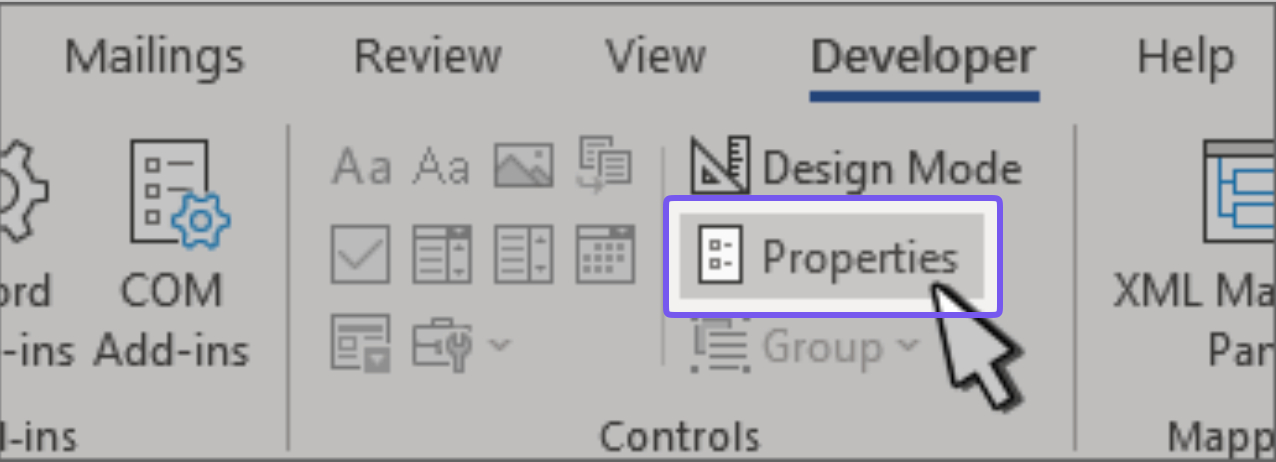
Start with the Title field. Give every control a short, descriptive name: “Employee name,” “Start date,” “Project status.”
Microsoft’s Accessibility Checker recommends that content control fields have titles because assistive tech uses those titles to tell users what a field contains and what it’s asking for.
Next, turn on Design Mode and swap the generic “Click or tap here to enter text” for something that actually helps.
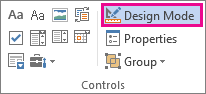
Microsoft lets you customize the instructional text inside a content control:
Keep the actual question outside the field. Placeholder text clarifies the expected answer and disappears as soon as someone starts typing.
Set the Locking options while you’re here:
Don’t enable Contents cannot be edited on a field you expect someone to fill in.
For date pickers, set the display format now. 03/04/2026 is March 4 in one country and April 3 in another. Word lets you set the date format in the control’s properties.
Once the fields are in, save the master copy as a Word Template (.dotx).
Word can save a document as a .dotx template, which creates fresh documents while leaving the master untouched. That beats passing a blank .docx around until somebody fills it in and overwrites the original (somebody always does).
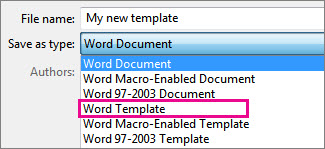
Keep the .dotx somewhere respondents can’t reach it, and distribute the .docx copies it generates. The same principle applies whenever you build reusable document templates.
One printing quirk: Microsoft notes that the boxes around content controls won’t print.
If the paper version needs a visible box, line, or writing area, build it into the document with table borders, paragraph borders, or another printable element.
Once the form is ready, protect the parts respondents shouldn’t be able to change.
For content controls, select a set and use Developer > Group > Group. Microsoft documents grouping as a way to protect a group of content controls while keeping their fields fillable.
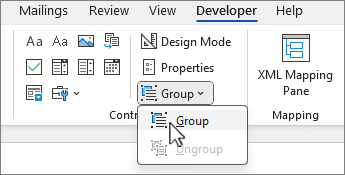
For the whole form, use Restrict Editing. On Windows, go to Developer > Restrict Editing, choose the editing restrictions you want, then select Yes, Start Enforcing Protection. Microsoft also lets you protect only selected sections, which is useful when part of the document should remain editable.
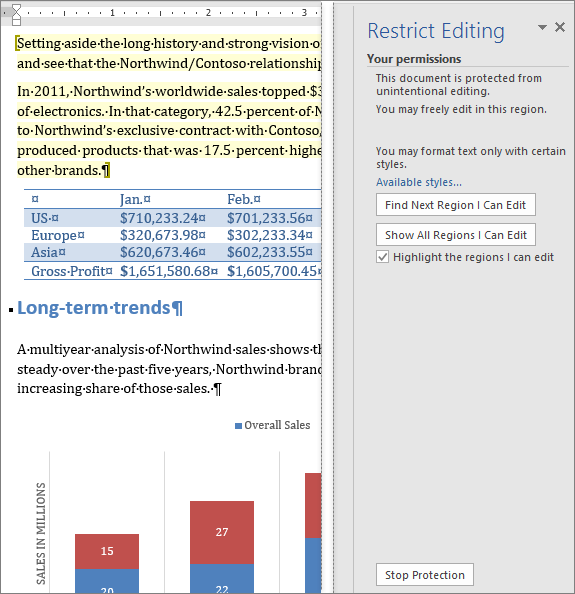
On Mac, go to Developer > Protect Form. Once protection is on, test the file as a respondent would to make sure the fields still accept input while the surrounding labels, headings, and layout stay protected.
If you’re using legacy form fields, this step matters most. Those controls were built around Word’s older form workflow and expect protection to be on.
Then test the exact version you plan to send. Tab through every field. Type an answer three times longer than anyone reasonably would. Try deleting a control, opening every dropdown, picking a date, and ticking every checkbox. Print it, then export it to PDF.
If respondents might open it in Word for the web, test there, too. Microsoft says the browser version doesn’t support every content control type.
Turning an existing Word document into a fillable form is mostly a cleanup job. Keep the questions and layout that still work. Strip out anything pretending to be an input field. Replace it with real content controls.
Here’s the quickest way through it:
.dotx template before you change a single fieldCopying a content control gives you a second, independent control. Type a client name on page one, and the copied field on page four stays blank until someone fills it in separately.
To make repeated fields update together, the controls need to share one source. Word supports mapping content controls to XML data, which lets several controls read the same value. For a lighter option, Insert > Quick Parts > Document Property gives you built-in properties like Title and Author that stay in sync wherever you place them.
Catch: Quick Parts > Document Property gives you a predefined set of properties, and “Client Name” isn’t one of them. You can repurpose one, such as Title or Subject, to hold a repeated value. Just remember that you’re also changing that document property’s actual metadata.
Label the field clearly so the next person editing the form knows why, for example, Title is storing a client name.
Reach for this shortcut when a name, project title, or account number repeats across a long form.
And if the document you’re converting is a common format, check for a ready-made template before you retrofit anything. Our roundup of client intake form templates for Word covers several standard formats. One of them may save you the rebuild entirely.
A fillable Word form gives you the document, but very little help with what happens after someone completes it.
Word has no submit button, confirmation screen, response dashboard, or central place for every answer to land. Microsoft’s own guide stops at users filling out, saving, or printing the form, while Microsoft Forms includes a dedicated Collect responses workflow.
That missing return path is where the manual work starts.
Send the same .docx to 30 people, and you still have to decide how those 30 files come back. One person attaches the completed document to an email; another pastes the answers into the message body. Then you track who responded, save each file, and dig out anything you want to compare.
Ask what happens after the form comes back: Does anyone need to compare its answers with other responses?
If yes, the answers are the deliverables, and a form builder can collect them in one place. If the completed document itself needs to be signed, filed, printed, archived, or handed to someone, Word has the stronger case. Think liability waivers, consent forms, inspection sheets, contract schedules, and other records that need to keep their page-based format.
So “just use a form builder” is just broad advice here, as in not helpful. Word still makes sense when you need to keep the completed document. The trade-off is that you usually collect, compare, and act on those responses somewhere else.
Yes, with one catch: Save as PDF only does half the job.
Word’s content controls and PDF form fields are two different systems. Export a Word form to PDF, and the layout carries over, but the interactive fields usually stay behind. The W3C warns that authoring tools with form-design features might not fully retain fillable form fields during PDF conversion, especially in complex forms.
So if a fillable PDF is the final deliverable, plan on three steps: design the page in Word, export it to PDF, then add the interactive fields in a PDF editor.
In Adobe Acrobat Pro, for example, All tools > Prepare a form can automatically identify static form fields and turn them into editable text fields. From there, you add checkboxes, buttons, signature fields, and anything Acrobat missed.
For a short form, rebuilding the fields takes a few minutes. For a dense multi-page form, budget time to check every field, its label, and its tab order before you send it out.
If you know from the start that the final file will be a fillable PDF, build the Word document with the conversion in mind. Keep the layout clean and leave enough room for each answer. And then build any visible boxes or writing lines with table or paragraph borders so they survive the PDF conversion.
For most people, a web form builder is easiest: no Developer tab, no protection step, and every answer lands in one place. Word is the easier choice only when the finished page itself is the deliverable.
Here’s how the options map:
| Approach | Best for | Where it taps out |
|---|---|---|
| Word form (Microsoft Word) | Documents that get signed, printed, filed, or attached to another document | No built-in submission workflow or response dashboard |
| Fillable PDF (Adobe Acrobat Pro) | Forms where the page layout needs to stay fixed across devices | Field setup takes extra work, and responses still arrive as separate files |
| Web form builder (Google Forms, Microsoft Forms, Typeform, Jotform, ClickUp Forms) | Requests, applications, intake, surveys, and anything you need to collect or sort | Less suited to cases where the finished page itself is the record |
| Shared spreadsheet (Google Sheets, Microsoft Excel) | Small groups entering predictable data into known columns | Easy to overwrite cells, break formulas, or expose responses to other editors |
Within the web-form category, the differences are pretty straightforward.
Google Forms and Microsoft Forms work well for simple data collection. Google Forms can send responses to Sheets, while Microsoft Forms can open responses in Excel.
Typeform emphasizes the respondent experience. Jotform goes further with payments and integrations. Lastly, ClickUp Forms shines when a submission needs to turn into work, since each response can create a task and feed into an existing workflow.
Some Word form mistakes only show up after the file leaves your hands. A field behaves differently than expected, the layout shifts, or protection blocks something you still need to edit.
These are the ones worth catching before you send the form out.
.doc fileA form can be perfect in .docx and lose the very features you built the moment somebody saves it in an older Word format.
Modern content controls require Word’s Open XML file format, which means .docx, .dotx, or another current format. The old Word 97–2003 .doc format predates them entirely.
The fix: Keep the working form as .docx and the master template as .dotx. If someone asks for a .doc, treat it as a compatibility request. You may need to rebuild the form with legacy fields to honor it.
A combo box and a dropdown look almost identical on the page, but they collect different kinds of data.
A dropdown makes respondents choose from the options you’ve provided. A combo box lets them choose an option or type their own answer.
That freedom becomes a problem when you expect consistent values. Ask for “Department,” and you may get Marketing, Mktg, and Growth Marketing from three people.
The fix: Use a dropdown when the valid answers are known. Save the combo box for questions where an answer outside the list is genuinely acceptable.
Rich Text supports formatting and multiple paragraphs, which offers more flexibility than many form fields require. Someone can paste bold text, different fonts, or other formatting that you never designed the form to support.
The fix: Default to Plain Text for names, IDs, short explanations, and other controlled answers. Reach for Rich Text only when the respondent actually needs formatting or longer structured content.
Expense items, dependents, assets, attendees, and previous employers: these are all cases where you have no idea how many entries someone will need.
A pile of blank rows wastes space for one respondent and still leaves another with too little room. Word has a Repeating Section Content Control for this exact pattern. It can repeat a block that contains other controls, including a table row.
The fix: Use a repeating section when the same group of questions can occur an unknown number of times. Let respondents add another entry when they need one, and skip the guesswork about the maximum.
Protection can stop people from dismantling the form. It can also stop you from editing your own master six months later.
Microsoft says Word can’t recover a lost document password. If the file belongs to your organization, IT may be able to help, but only if a recovery tool was set up before the password went missing.
The fix: If you add a password, store it in your team’s approved password manager or documentation system. And keep an unprotected master somewhere with controlled access.
The form should be hard for a respondent to break and easy for its owner to maintain. If achieving the first makes the second impossible, the protection has gone too far.
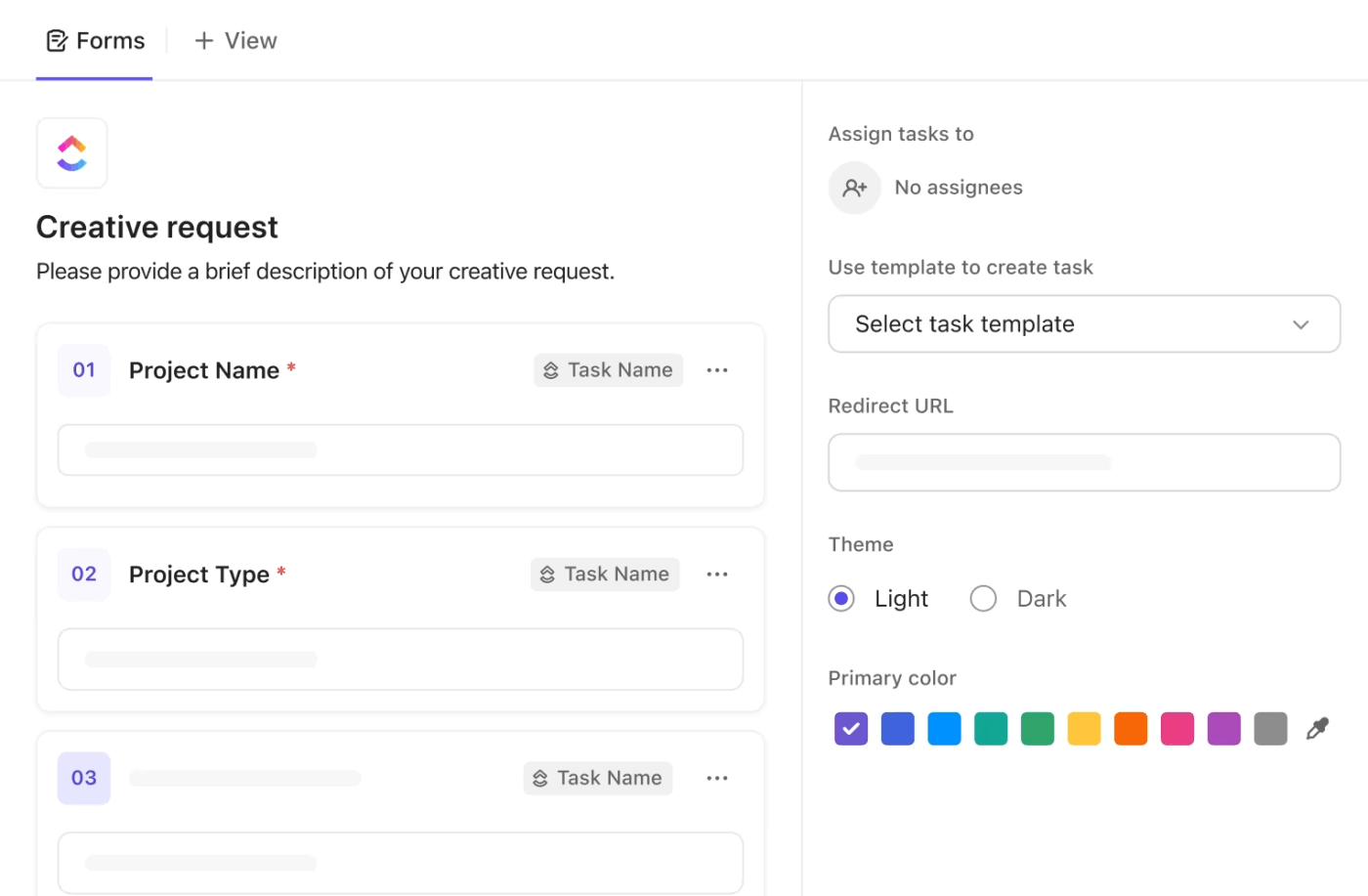
We use ClickUp Forms when a submission needs follow-up work. Each response can land directly in the List where the team assigns, discusses, and tracks it.
Here’s how that setup works for us:
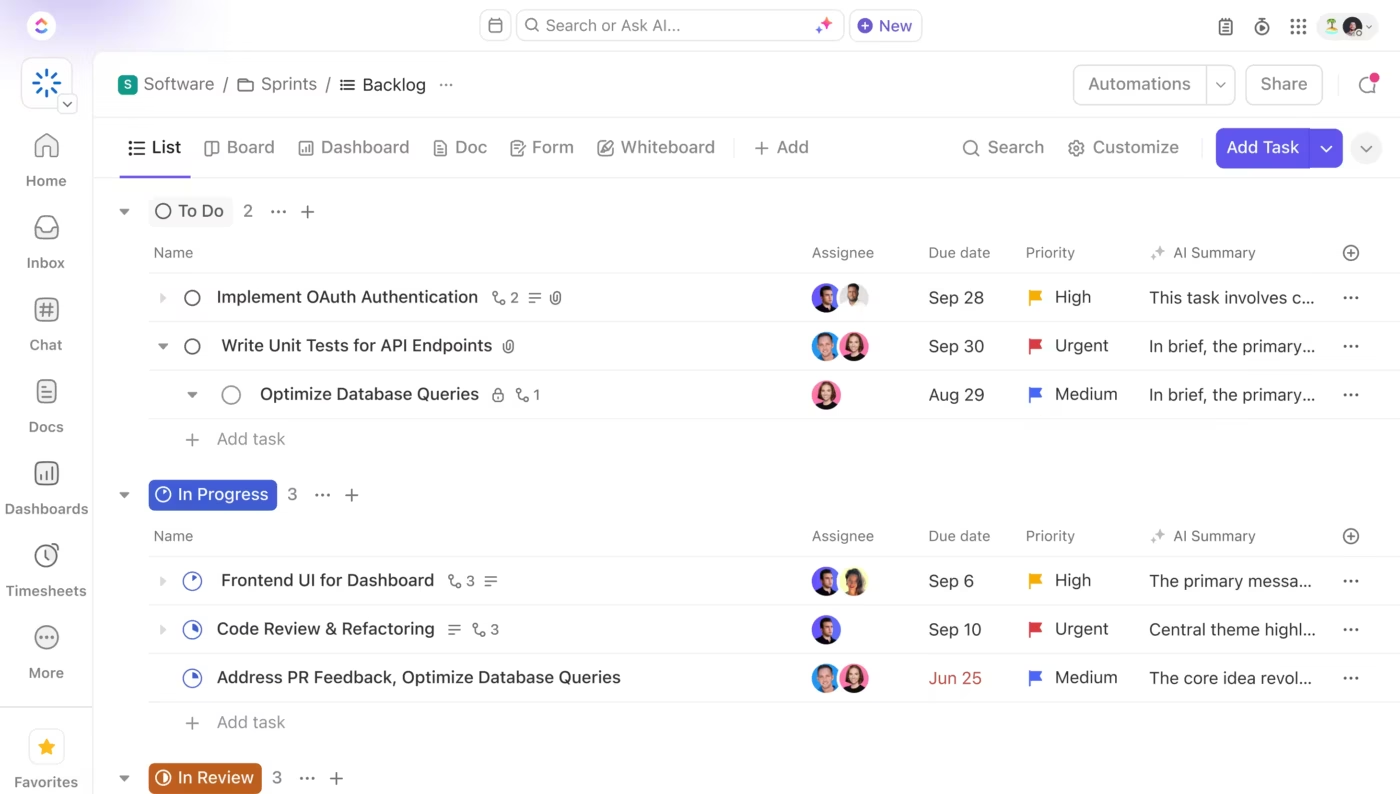
Once submissions start piling up, we can use Brain², ClickUp’s native work AI, to spot recurring requests, summarize changes, and surface patterns across the intake List.

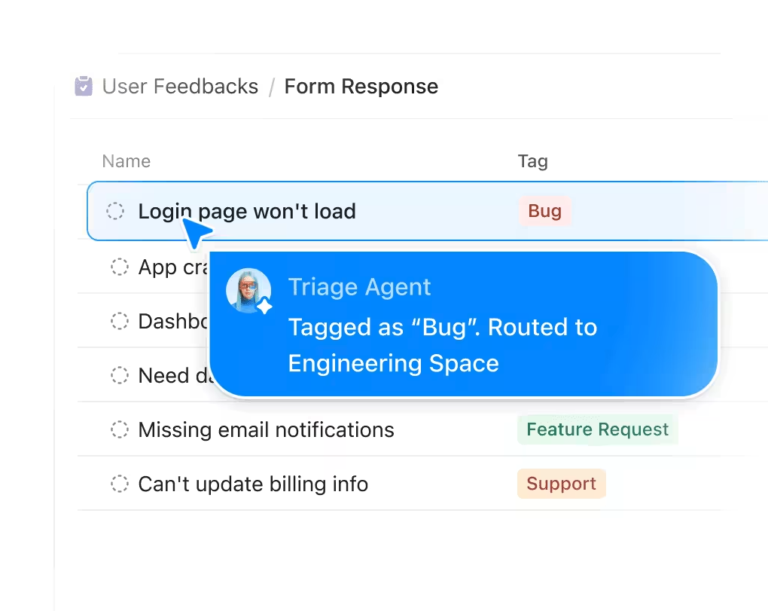
Going further with Super Agents: Once submissions start flowing in, a Super Agent can act on them automatically. Set one up to triage incoming requests (assign priority based on the form answers), route submissions to the right team, draft a first response, or flag anything that’s been sitting unassigned for more than 24 hours. The agent runs in the background, so a form submission at 2 AM still gets triaged before anyone opens ClickUp in the morning.
Setting it up takes a few steps: create the Form, choose the destination List, add the questions, and configure the submission settings.
Here’s a better look at ClickUp Forms’ intake process:
When every request needs the same checklist, subtasks, or supporting fields, we apply a task template to incoming submissions so each one arrives ready to work. For more complex intake, we use conditional logic to show relevant follow-up questions or add fields to the resulting task based on earlier answers.
Best for: Intake, requests, approvals, and recurring submissions that need an owner, follow-up work, or context from the rest of the Workspace.
Skip it if: You only need a one-off document to print, sign, file, or send back as a finished artifact.
Word gives you more control than it first appears to have. With the right content controls, protection settings, and template setup, you can build forms that stay tidy.
A quick test before sending usually catches the awkward bits: fields that don’t behave as expected, answers that push the layout around, or controls that work differently in another version of Word.
It’s also worth keeping the unprotected master separate from the copy people will actually fill in.
If those submissions need to move into an ongoing workflow afterward, try ClickUp for free and turn each response into trackable work your team can assign and follow up on.
Not through the standard content control settings. Word doesn’t offer a simple “Required” switch for modern content controls that prevents someone from leaving a field blank. If you need mandatory fields, you’ll have to add validation with VBA. Word’s ContentControlOnExit event can check a value when someone leaves a control and stop them from moving on when the entry doesn’t meet your rules.
Yes. Desktop Word lets you add a signature line that someone can sign by typing their name, adding an image, or using ink on a supported device. A digital signature does more than place a name on the page. Once you digitally sign a document, Word makes it read-only to help protect the signed content from later changes.
Not in the way they can with a web form. Word includes a Picture Content Control, so someone can insert an image into a designated spot. There isn’t an equivalent general-purpose control for attaching a PDF, spreadsheet, ZIP file, or other arbitrary file. If attachments are part of the intake itself, you’ll need another collection method.
Not from Word’s normal form-building controls. A dropdown can hold different answers, but selecting one doesn’t automatically reveal a different set of questions. You can build that behavior with VBA because Word exposes events for entering, exiting, adding, and updating content controls. At that point, though, you’re maintaining VBA logic as well as the form, which adds another layer of upkeep.
Use a web form. Microsoft Forms is built for surveys, quizzes, and polls and lets you see responses as they come in. Google Forms does the same and can send responses to Google Sheets for analysis. Word makes more sense when you need to keep the finished document.
Use ClickUp Forms. Every submission can automatically become a task, with the destination List, assignee, priority, and Custom Fields already set. That makes it a better fit for intake forms, creative requests, bug reports, IT requests, and other cases where somebody has to act on the response.
Use a one-cell table with only a bottom border, then put a Plain Text Content Control inside it. Microsoft recommends turning on the bottom border for fillable lines because the border stays separate from the text you enter. Avoid building the line from underscores. They’re characters, so typing around them can push or reflow the line. Underlined tabs work better for printed blanks, but for a field someone will complete on screen, the table-border method is more reliable.
Not through the standard content control settings. Word doesn’t offer a simple “Required” switch for modern content controls that prevents someone from leaving a field blank. If you need mandatory fields, you’ll have to add validation with VBA. Word’s ContentControlOnExit event can check a value when someone leaves a control and stop them from moving on when the entry doesn’t meet your rules.
Yes. Desktop Word lets you add a signature line that someone can sign by typing their name, adding an image, or using ink on a supported device. A digital signature does more than place a name on the page. Once you digitally sign a document, Word makes it read-only to help protect the signed content from later changes.
Not in the way they can with a web form. Word includes a Picture Content Control, so someone can insert an image into a designated spot. There isn’t an equivalent general-purpose control for attaching a PDF, spreadsheet, ZIP file, or other arbitrary file. If attachments are part of the intake itself, you’ll need another collection method.
Not from Word’s normal form-building controls. A dropdown can hold different answers, but selecting one doesn’t automatically reveal a different set of questions. You can build that behavior with VBA because Word exposes events for entering, exiting, adding, and updating content controls. At that point, though, you’re maintaining VBA logic as well as the form, which adds another layer of upkeep.
Use a web form. Microsoft Forms is built for surveys, quizzes, and polls and lets you see responses as they come in. Google Forms does the same and can send responses to Google Sheets for analysis. Word makes more sense when you need to keep the finished document.
Use ClickUp Forms. Every submission can automatically become a task, with the destination List, assignee, priority, and Custom Fields already set. That makes it a better fit for intake forms, creative requests, bug reports, IT requests, and other cases where somebody has to act on the response.
Use a one-cell table with only a bottom border, then put a Plain Text Content Control inside it. Microsoft recommends turning on the bottom border for fillable lines because the border stays separate from the text you enter. Avoid building the line from underscores. They’re characters, so typing around them can push or reflow the line. Underlined tabs work better for printed blanks, but for a field someone will complete on screen, the table-border method is more reliable.

Manasi Nair
Max 26min read
Manasi Nair
Max 20min read

Arya P Dinesh
Max 23min read

© 2026 ClickUp