






Still downloading templates?
There’s an easier way. Try a free AI Agent in ClickUp that actually does the work for you—set up in minutes, save hours every week.
Sorry, there were no results found for “”
Sorry, there were no results found for “”
Sorry, there were no results found for “”
The last thing you want to do is rely on yourself or a team member to keep project updates accurate.
Because updates don’t happen while the work is happening. They happen later—after meetings, after decisions, after someone remembers to circle back.
What if we told you that, at ClickUp, we rely on automation for this?
Task automations update statuses, assign next steps, trigger alerts, and move work forward without the manual gruntwork.
Curious to know how? Keep reading.
According to research by ClickUp, a typical knowledge worker has to connect with ~6 people on average to get work done.
In other words, they’re reaching out to those core connections daily just to gather context, align priorities, and keep work moving.
Here’s why manual project updates break down in real-world project management:
Task automation in project management involves using software tools, rules, triggers, and sometimes AI to automatically perform repetitive, routine, or predictable tasks. They would otherwise require manual effort from project managers or team members.
⭐ Bonus: Here’s how to automate your workflows and save 5+ hours each week
📮 ClickUp Insight: 43% of people say repetitive tasks provide helpful structure to their workday, but 48% find them draining and a distraction from meaningful work.
While routine can offer a sense of productivity, it often limits creativity and holds you back from making meaningful progress. ClickUp helps you break free from this cycle by automating routine tasks via intelligent AI Agents, so you can focus on deep work. Automate reminders, updates, and task assignments, and let features like Automated Time Blocking and Task Priorities protect your power hours.
💫 Real Results: Lulu Press saves 1 hour per day, per employee using ClickUp Automations—leading to a 12% increase in work efficiency.
ClickUp offers 100+ pre-built Automations to streamline workflows, manage handoffs, and reduce manual effort for teams. ClickUp Automations have three customizable components:
Here are the capabilities of ClickUp Automations that save the day, every day.👇
Using ClickUp Tasks, we break work down into clear parent tasks, subtasks, and dependencies. Then add on ClickUp Automations to move statuses based on progress signals like completed subtasks or cleared dependencies.
One of the many triggers it has is ‘Subtasks resolved.’ When all the subtasks on a parent task are resolved, an Automation runs, while ClickUp resolves the subtasks directly beneath the parent task.
Even more so, when a task becomes unblocked, you can automatically move it forward without someone manually noticing the dependency change.
From there, you pair the trigger with an action, like changing the status (with an optional condition if you like).
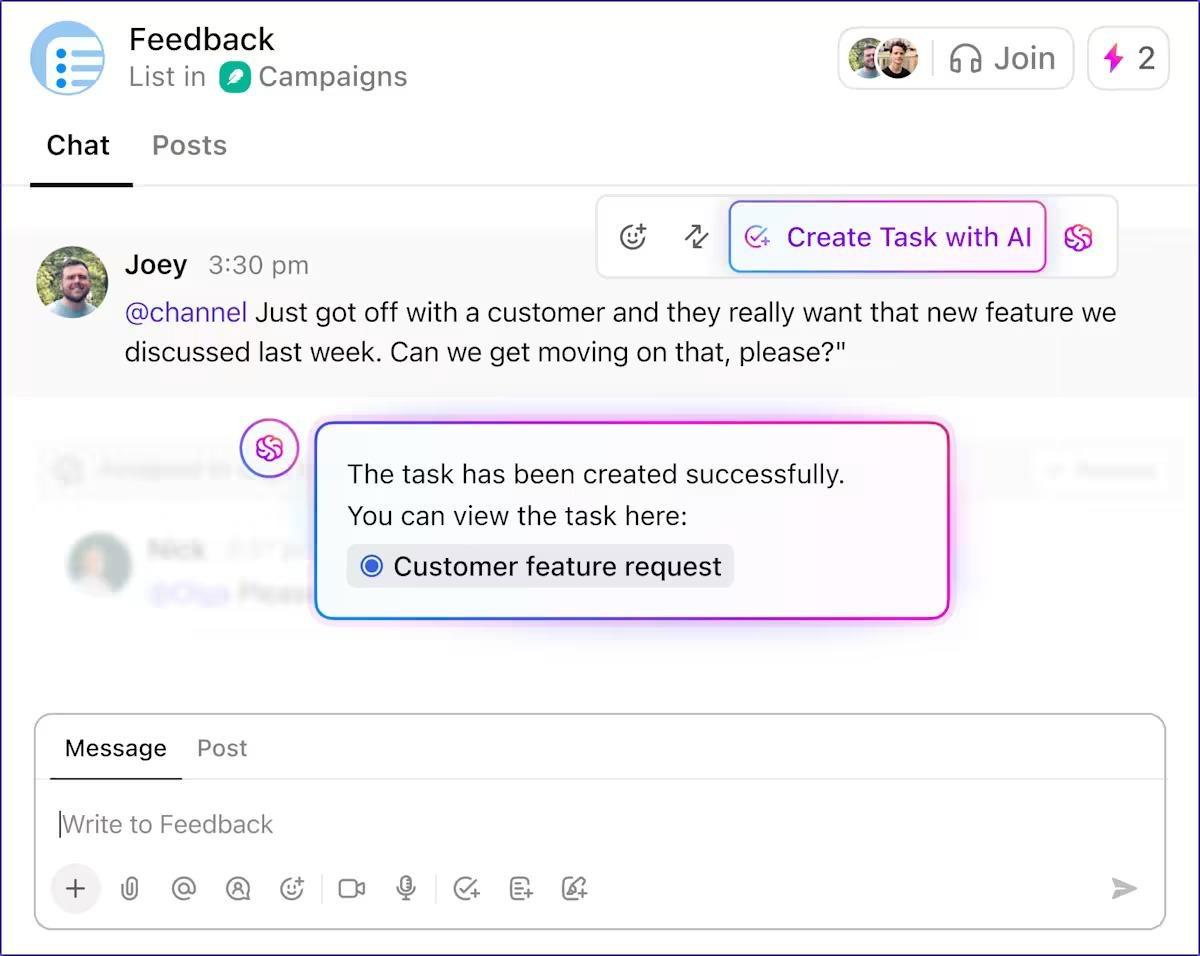
🚀 ClickUp Advantage: ClickUp’s task management software can turn a single comment or chat into an executable, measurable task in seconds!
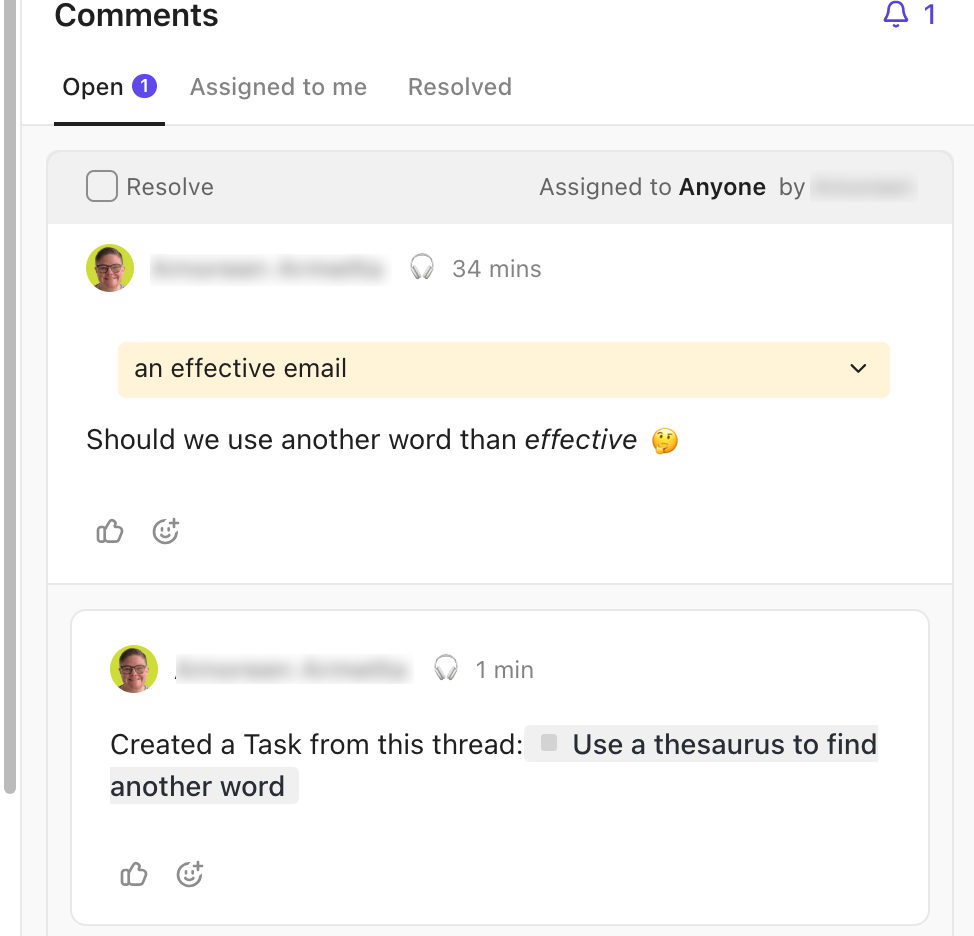
You can create tasks straight from task comments, Inbox comments, and even Doc comments. And if you use ClickUp AI, it can generate tasks for you with full workspace context.
The quick way to remove ownership confusion is to let the workflow assign the next owner for you.
ClickUp Automations includes a ‘change assignees’ action.
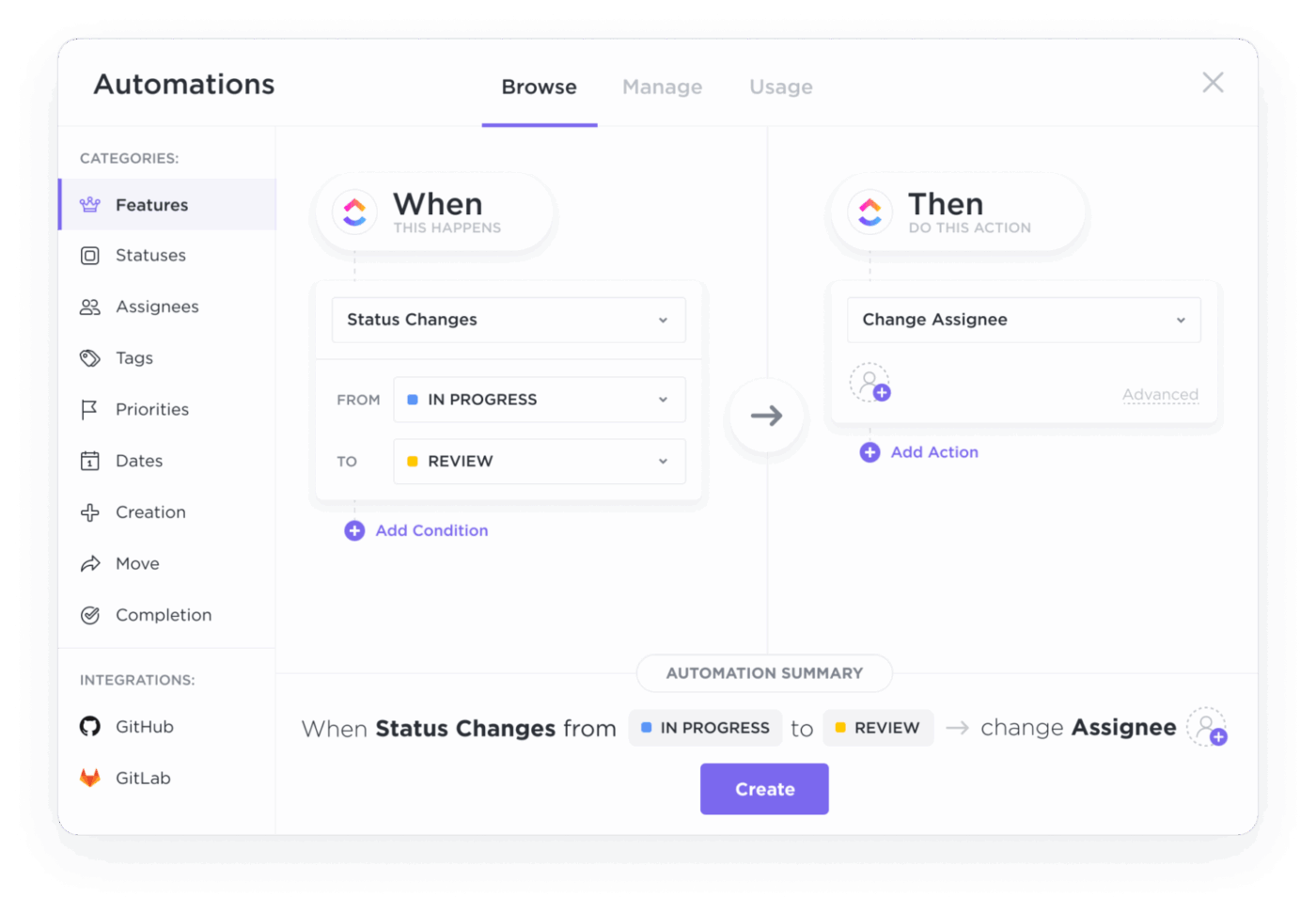
If the ‘Multiple Assignees’ ClickApp is enabled, ‘Change Assignees’ can add people. If it is not, it will replace the current assignee.
What makes this workflow automation impactful?
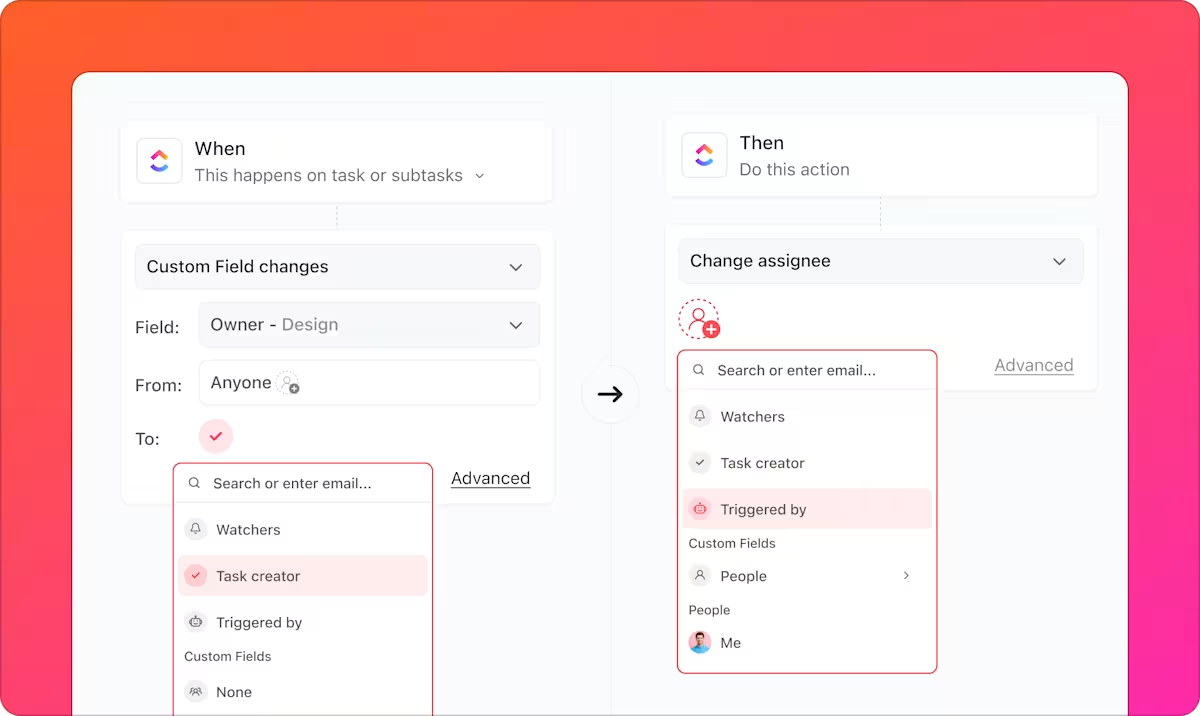
You are also not limited to hardcoding a specific person. ClickUp lets you set the new assignee to smart options such as the task creator, task follower, or automation trigger. So you can route work based on your operating rules, even if the team changes.
🧠 Fun Fact: The word ‘robot’ is only about a century old. It entered pop culture through Karel Čapek’s 1920 play R.U.R., and it comes from the Czech robota (work/servitude).
Set deadlines relative to the moment an event occurs in ClickUp Automations.
For example, you can automatically set a due date a certain number of days after a task hits a specific status, set it on the trigger date (or at a specific time), pick an exact date, or clear the due date when it no longer applies.
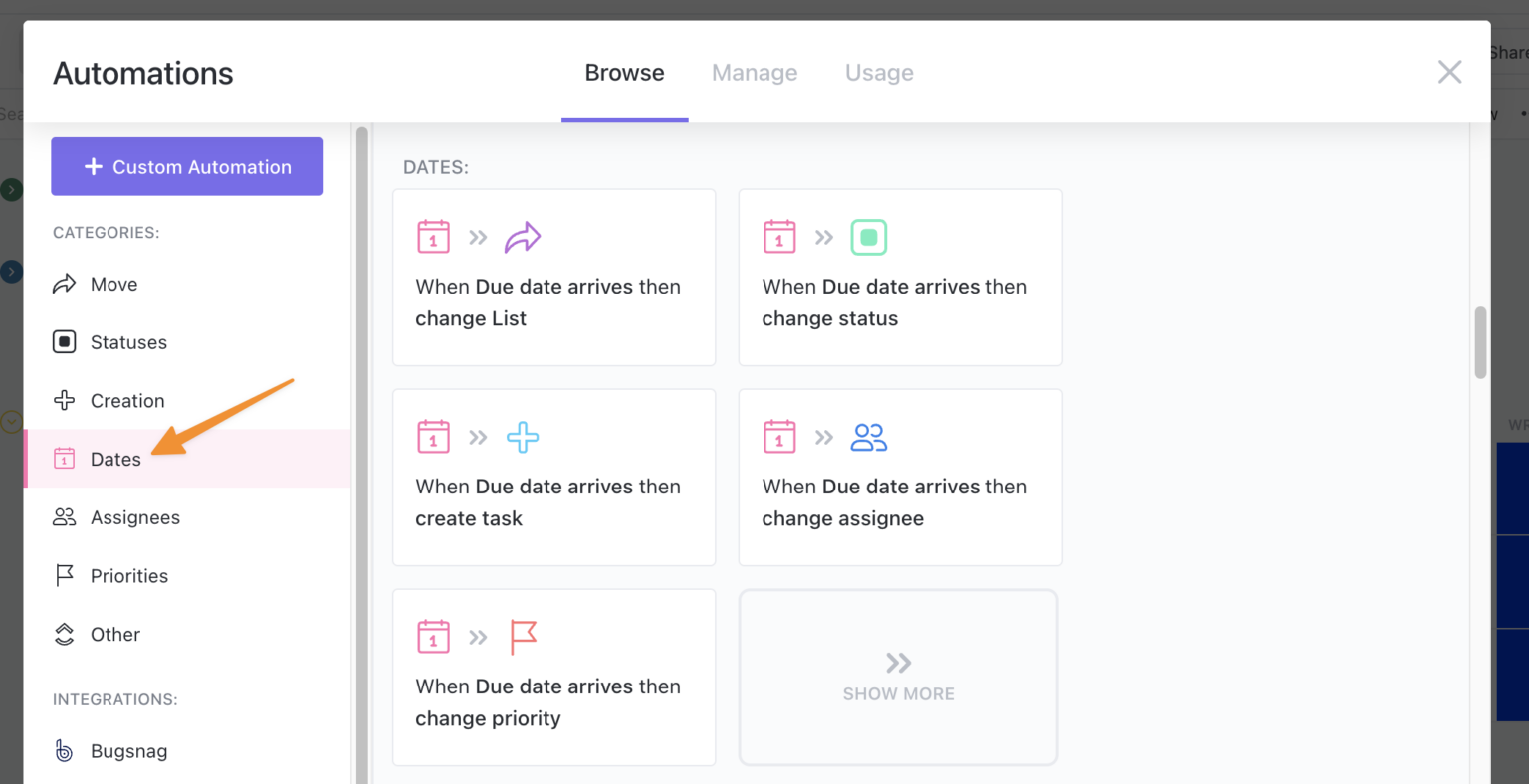
This is handy when the right deadline depends on the stage. Say when something moves into review or when a request is accepted.
For priorities, you can use the project management automation capability in the same way. As soon as a task enters a stage that should be treated as time sensitive, ClickUp automatically raises its priority so it stands out in views and dashboards.
⚡ Want to create the most efficient priority list for you and your team? Watch this 👇
What makes ClickUp’s project management tool invaluable is that it lets you convert any task into a recurring one. Then, set the schedule and decide how the next occurrence should behave.
Even better, choose whether it recurs on a calendar cadence or based on completion, which covers most follow-up workflows.
This is especially useful when you’re managing multiple projects and need recurring work to stay consistent without relying on memory or manual setup.
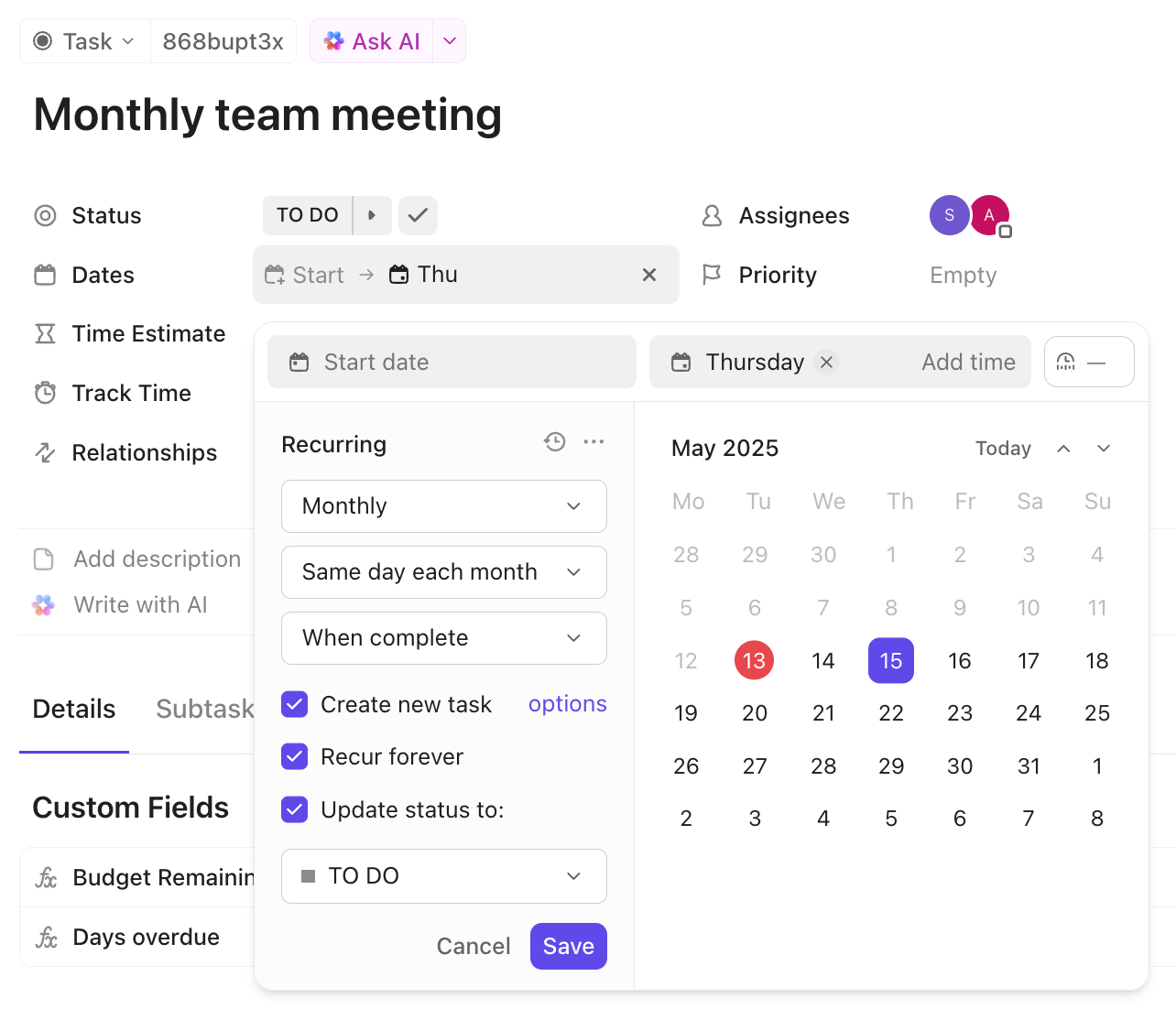
For example, you can set a task to recur:
You can also control how much carries over into the next run using ClickUp’s task automation.
You either keep the same task with its history or create a fresh duplicate each time. You can even choose which fields to include in future instances, such as assignees, checklists, attachments, dependencies, and more.
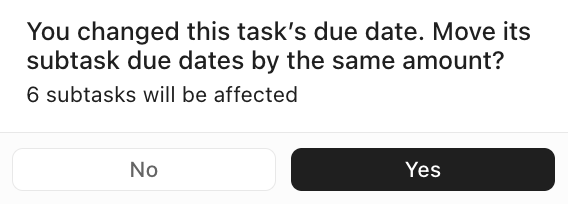
If your recurring task includes subtasks, you can even remap subtask dates when new instances are created.
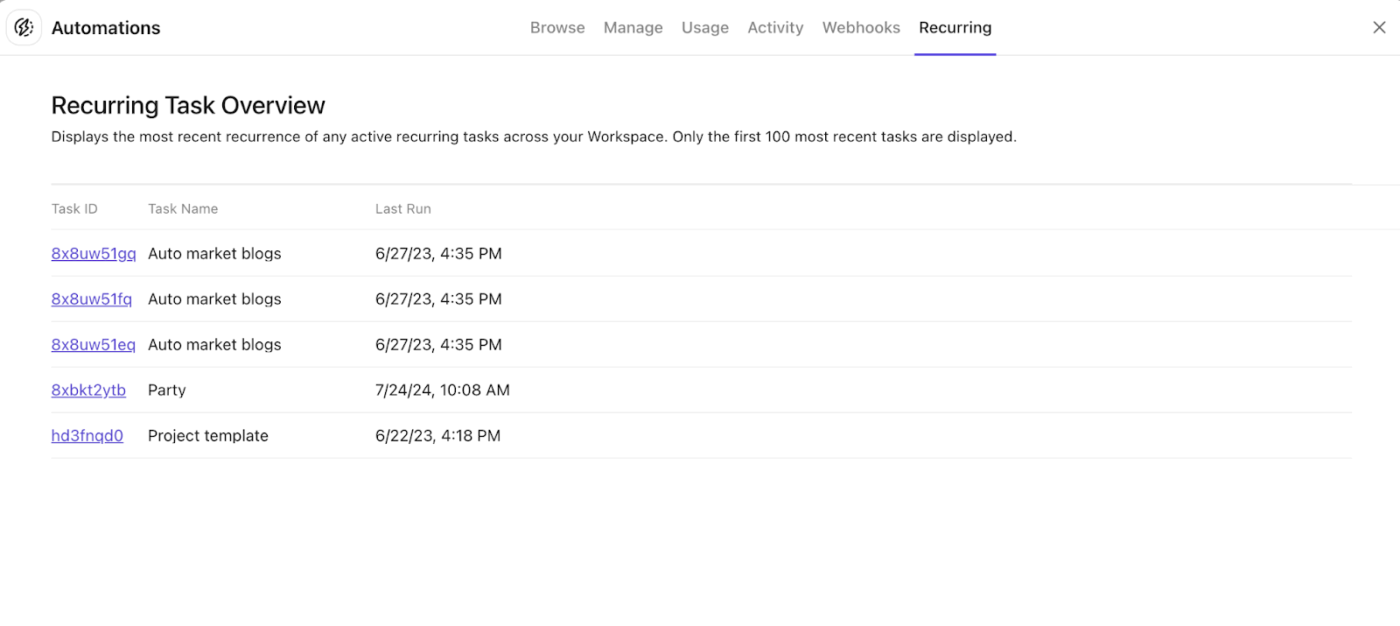
To keep an eye on what’s recurring, just hop on the ‘Recurring Task Overview’ section. It’s that easy!
⚡ Template Archive: Free Task Management Templates in Excel and ClickUp
What happens after the task is done?
In most teams, someone still has to notify the right people, share context, or confirm next steps.
ClickUp’s automation engine handles this automatically. When a task changes status, owner, priority, or due date, ClickUp notifies the relevant stakeholders instantly.
All you need to do is choose the exact change that should trigger an update and pick the delivery method (email, Slack, comment, webhook).
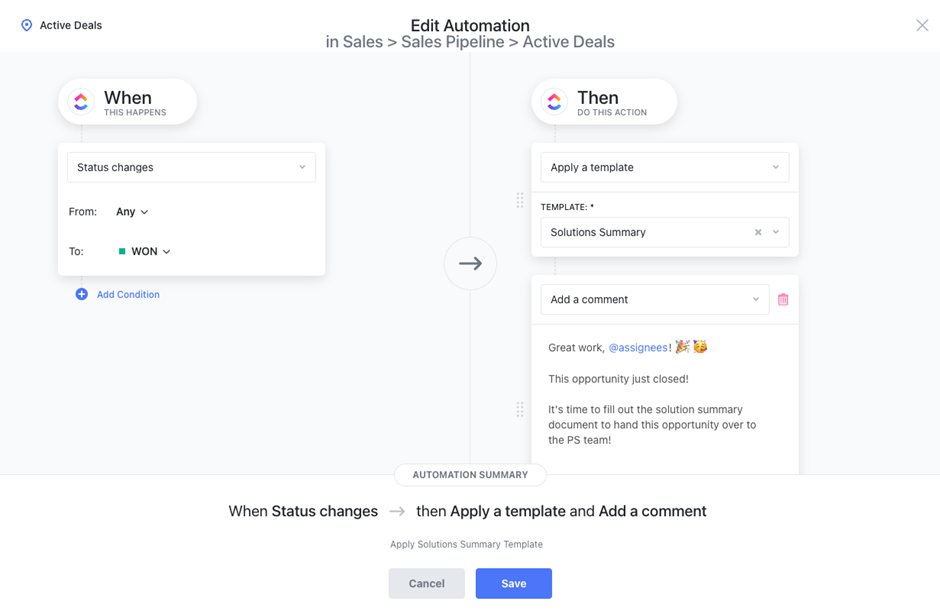
For example, you can auto-notify stakeholders when a task:
To set it up, go to the relevant List/Folder/Space and open Automations, then:
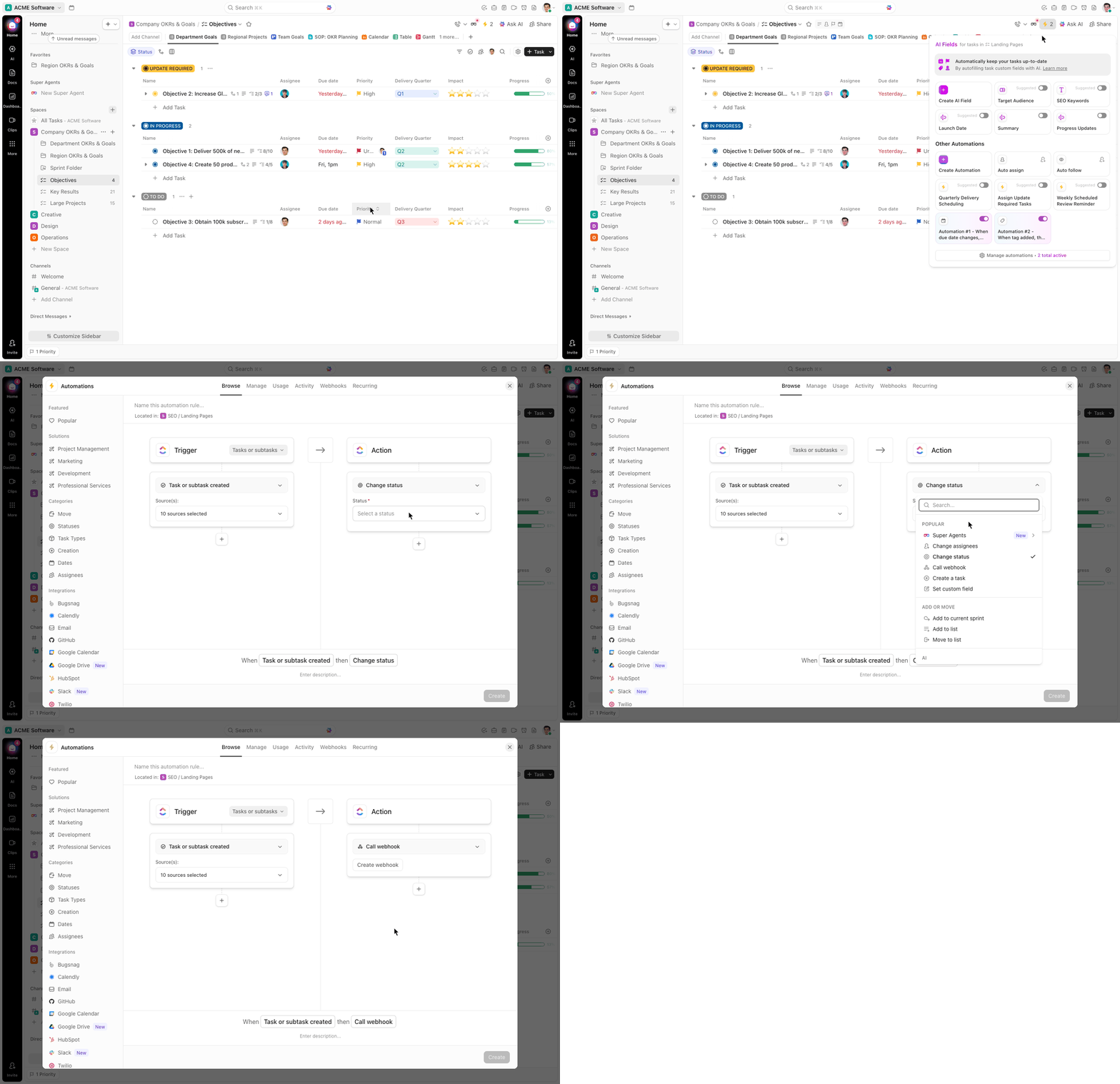
To make sure stakeholders stay connected to the work, add them as task followers. They will receive updates tied to that task’s activity and context.
A G2 reviewer says,
ClickUp is extremely versatile and allows me to create solutions for practically any business case or process. The automations and AI agents are also super powerful. I can set up automatic actions via logic or via AI prompts to run just about any action in ClickUp I can imagine.
In a nutshell, that means:
✅ Teams spend less time maintaining the system: Instead of asking people to remember chores, teams move that upkeep into rules. When a task changes state, ClickUp can update assignees, dates, priority, followers, comments, and more as actions
✅ Handoffs get clearer: A common issue isn’t work being blocked, but rather that no one is clearly assigned as the next step. Automations solve that by reassigning a task when it enters a review or approval stage, so the task shows the right owner at the right moment
✅ Deadlines and urgency become consistent: Teams can standardize what a reasonable due date looks like at each stage. For example, as soon as a task moves into ‘In progress’ or ‘Needs approval,’ an Automation can set a due date and adjust priority so the work surfaces correctly in views and dashboards
✅ Complex workflows can run autonomously with AI Agents: While Automations follow predefined rules, ClickUp Super Agents can interpret context and act dynamically. For example, an Agent can monitor tasks across a Space, identify blockers mentioned in comments, summarize the issue, and notify the right team member with the relevant context
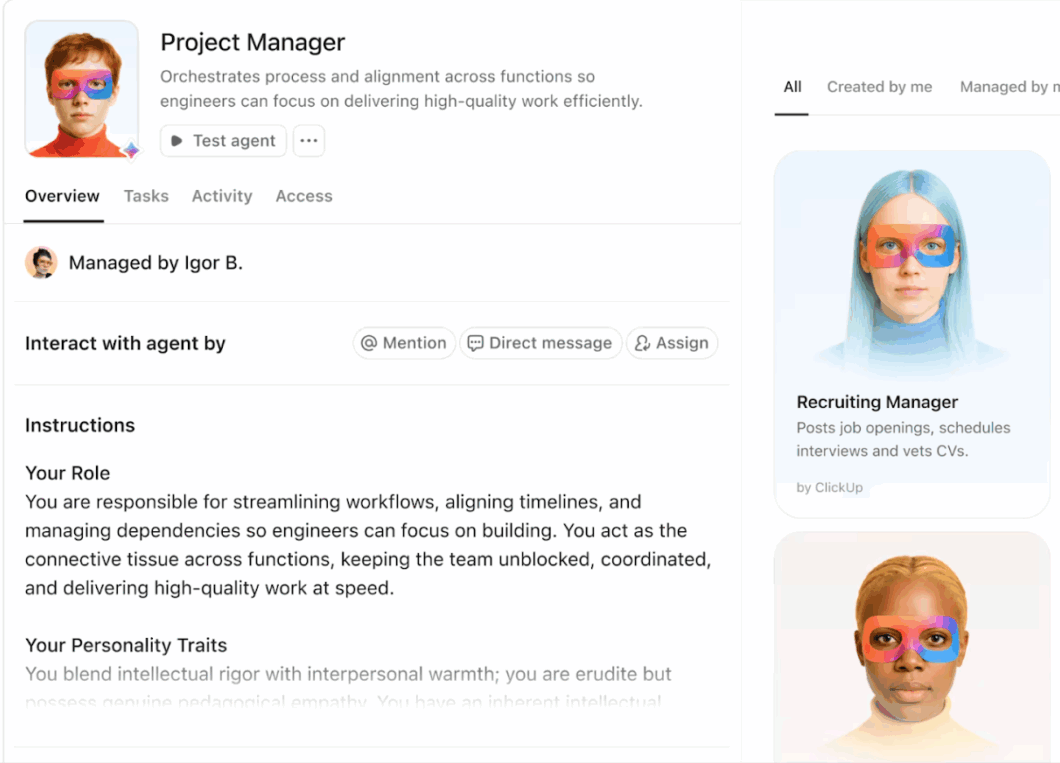
✨ If you want to see this in action, this video walks through how Super Agents power our content system.
So let’s look at how our teams (and many others around the world) use ClickUp Automations:
Writers, editors, designers, and channel owners all handle the same tasks, which makes status changes one of the easiest places for manual work to accumulate.
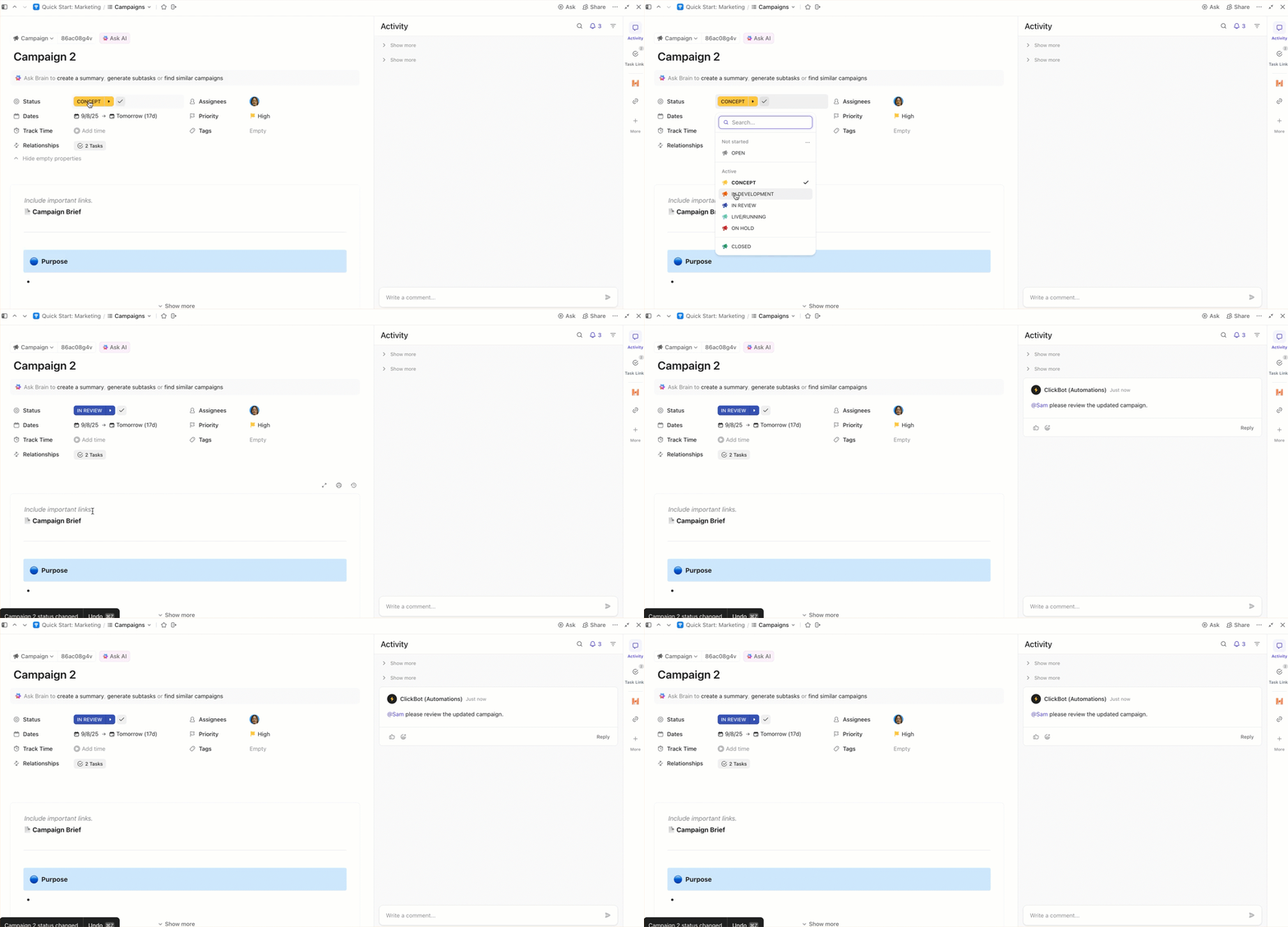
Thus, out of several tasks, here’s a sneak peek of what we use ClickUp Automations for in marketing:
Product work involves multiple stakeholders—PM, design, engineering, QA, and sometimes support or security.
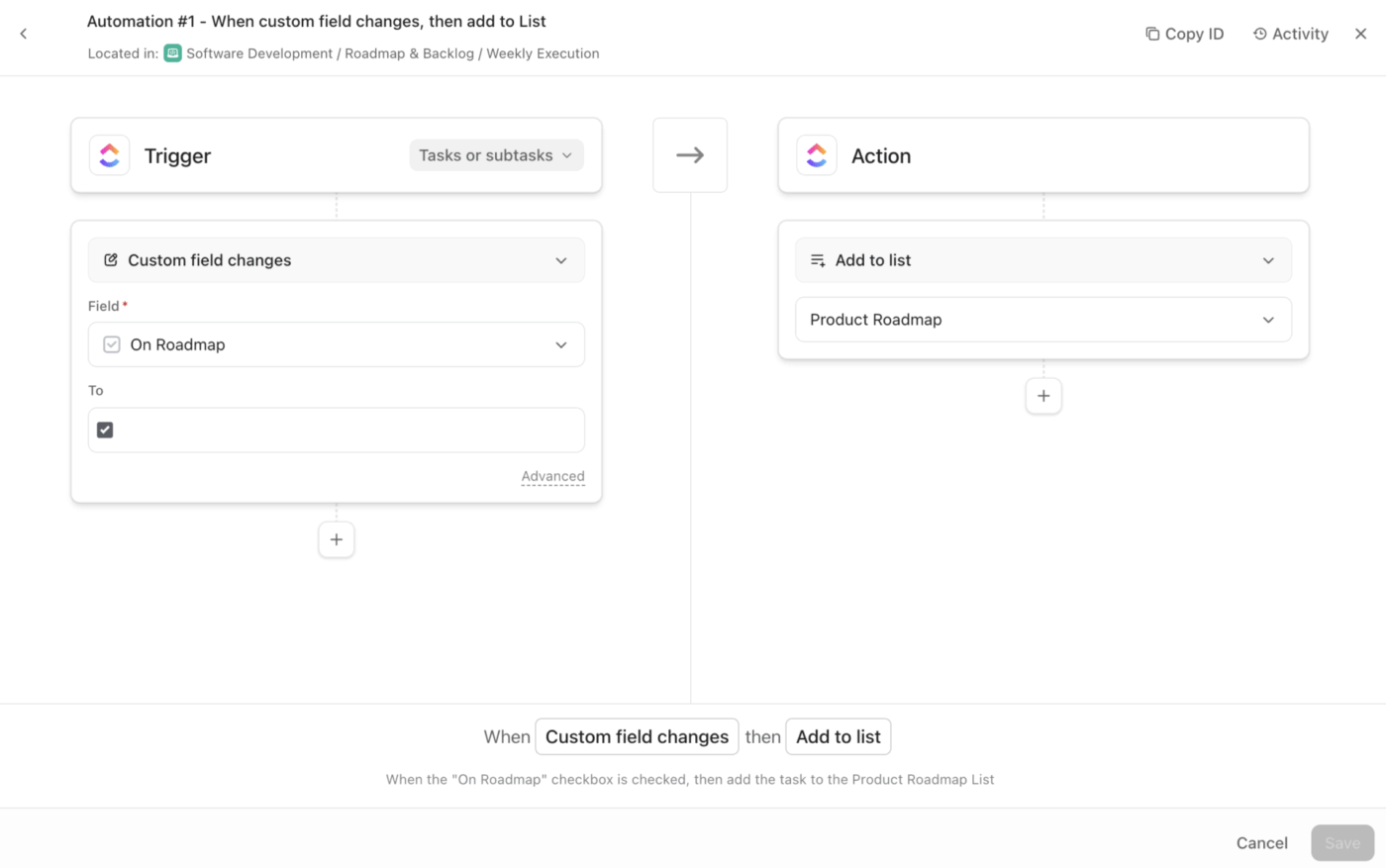
Here’s how the product team uses ClickUp Automations:
👀 Did You Know? Your brain is paying a ‘reorientation tax.’ HBR reports workers toggle between apps/sites about 1,200 times a day, adding up to just under 4 hours a week spent getting back on track.
💡 Pro Tip: Use ClickUp AI Fields to standardize messy intake before Automations touch it.
Add AI Fields like Summary, Categorize, T-Shirt Size, and Action Items to your ops List so every request auto-generates the same core metadata (what it is, where it should go, how big it is, and what needs to happen next).
Then route, assign, and escalate using ClickUp Automations based on those AI-generated fields. This is to make sure the triage stays consistent even when requests spike.
Sales teams live on fast handoffs. A lead comes in, qualification happens, a demo gets scheduled, follow-ups go out, and notes need to stay tied to the opportunity. Automations help keep that motion consistent across reps and regions.
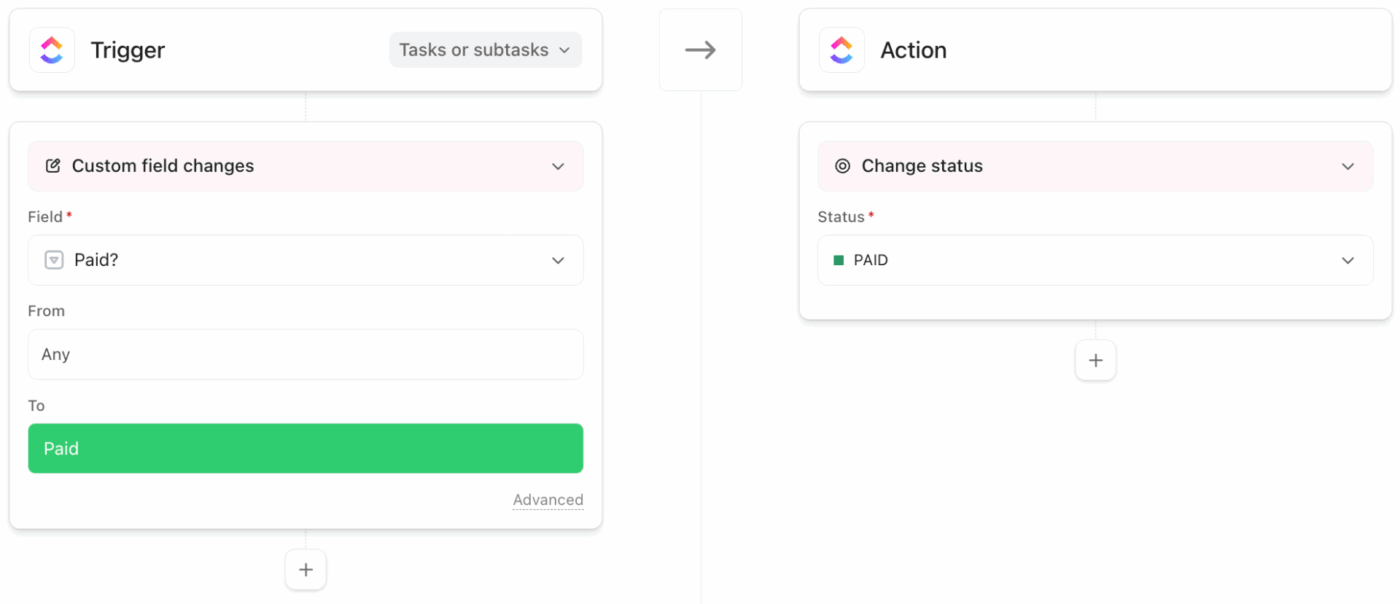
Our sales team uses ClickUp Automations for their day-to-day workflows, including:
⭐ Bonus: How to Assign Tasks to Team Members
Operations work has a different shape than marketing, product, or sales. It is high-volume, policy-heavy, and full of requests that appear similar on the surface. But they involve routing, timing, and approvals. In our operations workflows, Automations serve as guardrails that keep intake clean and execution consistent.
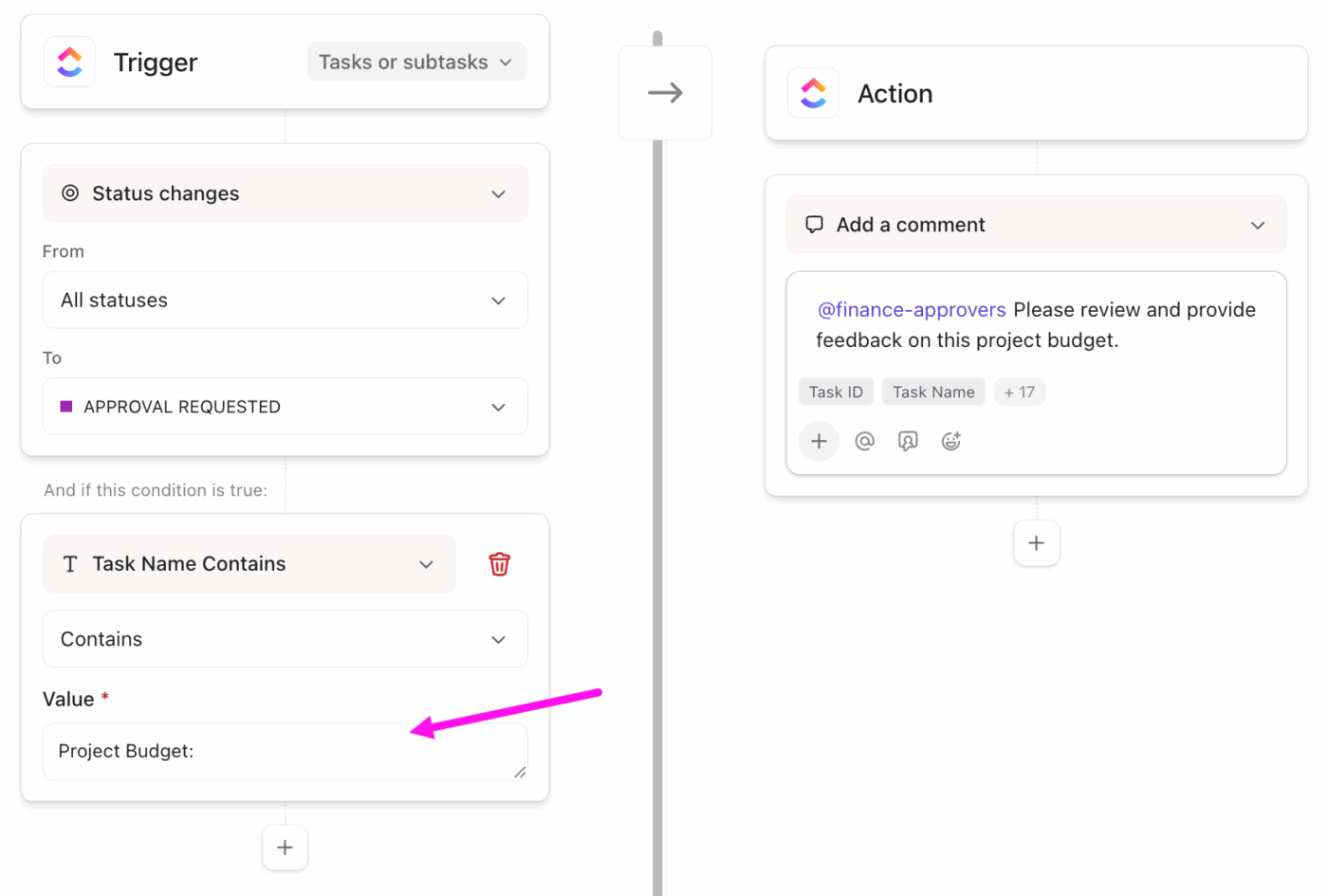
A few ways we use ClickUp Automations in ops:
⭐ Bonus: Your Complete Guide to AI Automation
So, how do you build AI workflow automations in ClickUp?
Before you touch settings, define three things:
🎯 Write it as one sentence: ‘When X happens, if Y is true, ClickUp should Z.’
The question here is, ‘Do we want this automation to apply to one workflow, or many workflows that share the same structure?’
That answer determines whether you build it at the List level or higher up. What we mean is 👇
A quick way we decide:
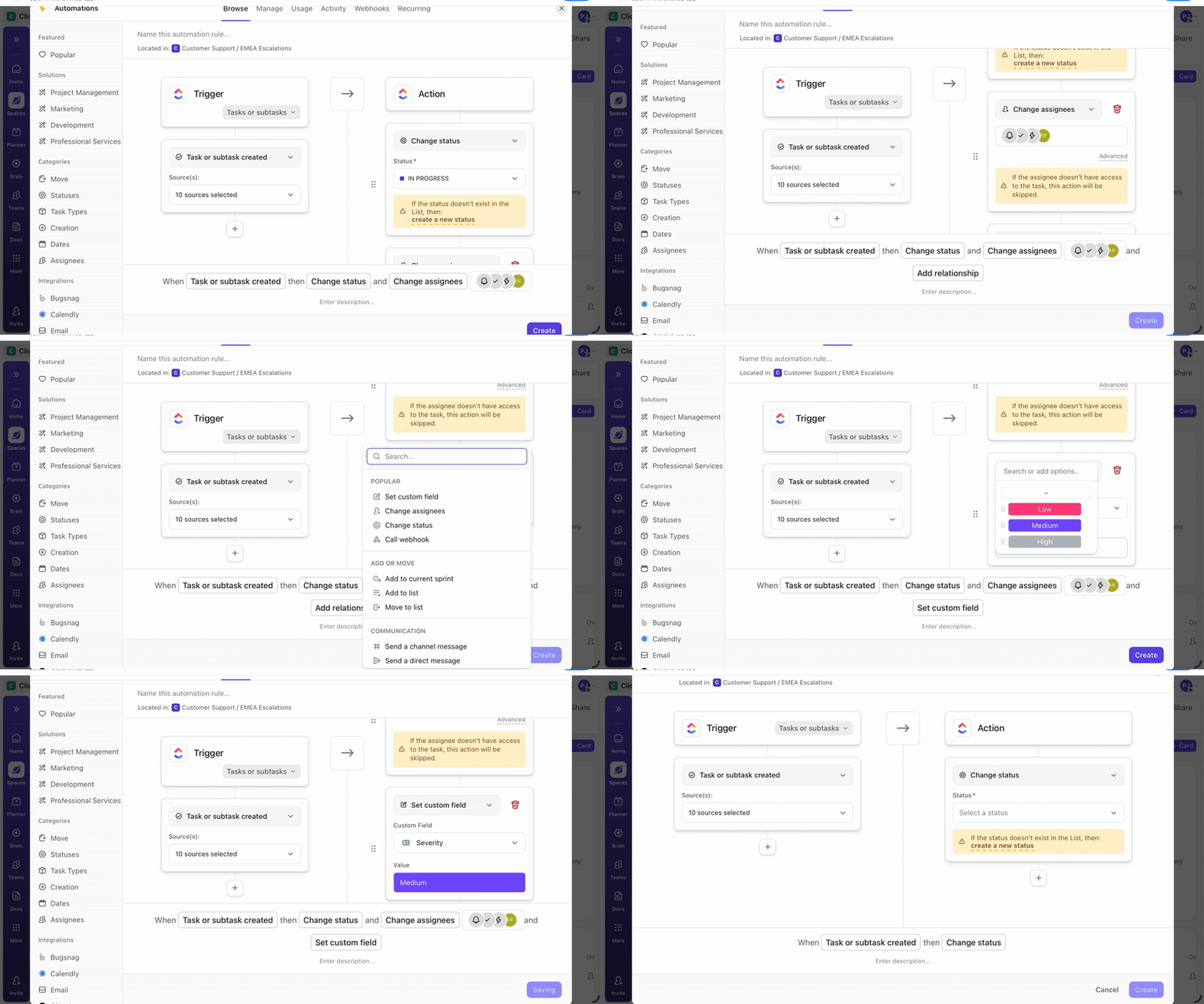
Now we actually get to the Automation builder in this project management software. You do this from where your workflow is managed: a List, Folder, or Space (whatever you chose in Step 2).
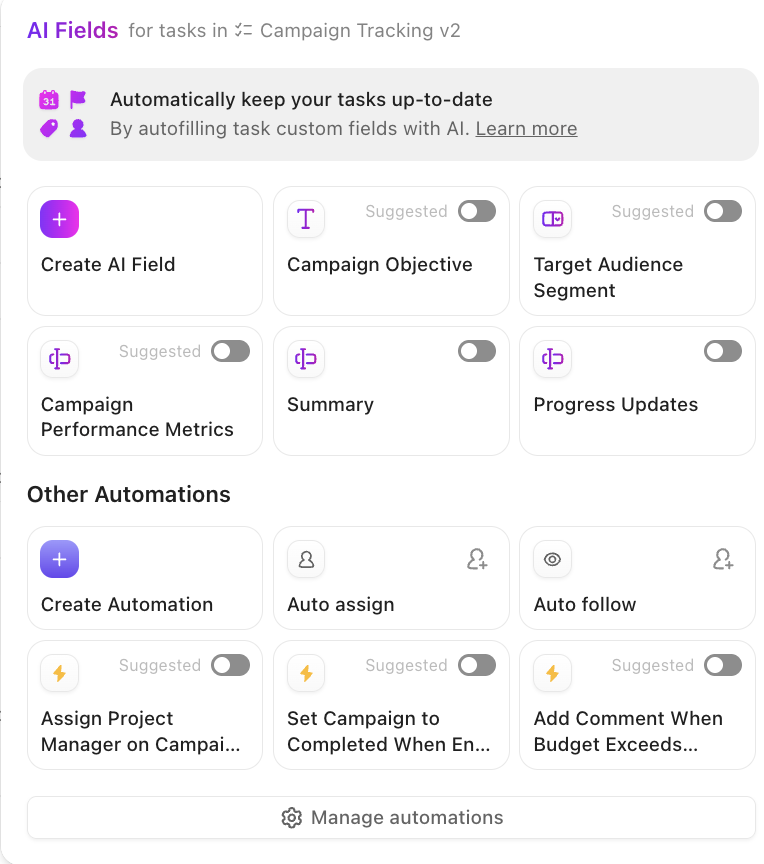
In other words:
Now that you are in Automations, ClickUp typically gives you two ways to get started. That means you can add your own automations from the ground up or browse from a pre-defined list.
But how do you know which to pick? Well, it largely depends on what you want to automate (and how complex the process is). So let’s look at the workarounds you have:
ClickUp will show suggestions based on common patterns (like status changes or assignee updates). Choose one if it’s close to what you need, then edit the details.
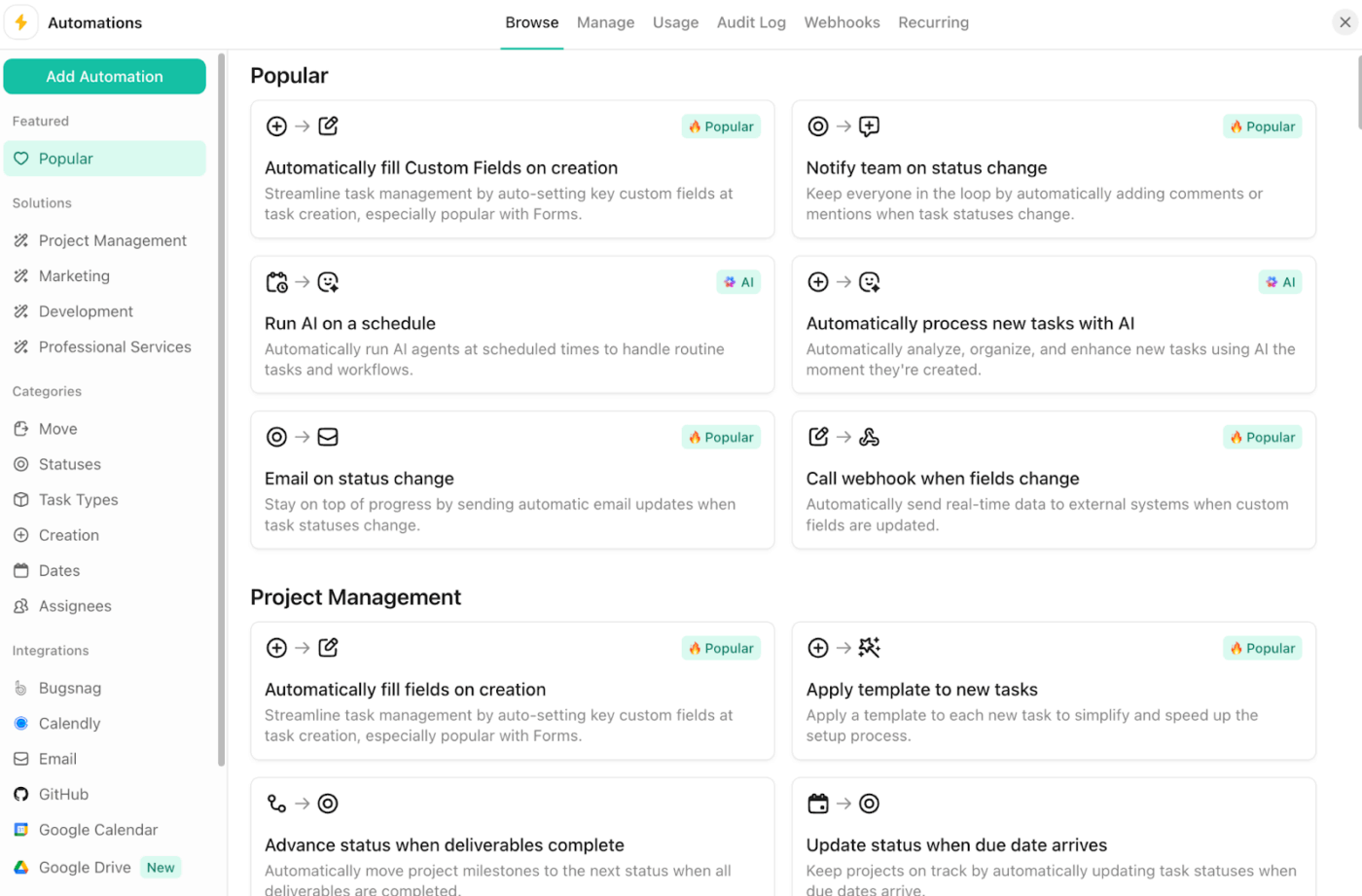
This is where you manually choose:
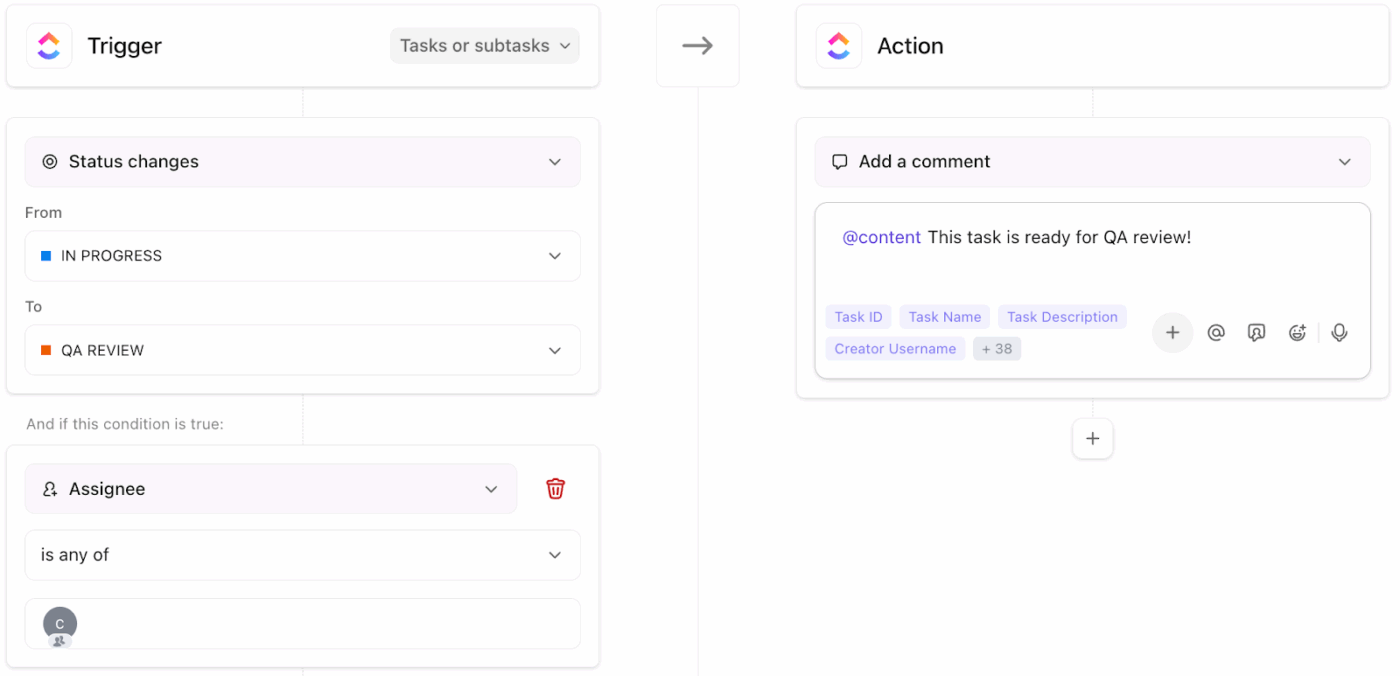
This is the choice to go for when your workflow has specific rules (custom fields, multiple paths, exceptions)
👉 There’s an option C, but let’s wait to learn more about it!
ClickUp Automations always start with a trigger (the building block that leads to an outcome), and you can apply triggers to tasks, subtasks, or both.
This is how you need to set it up:
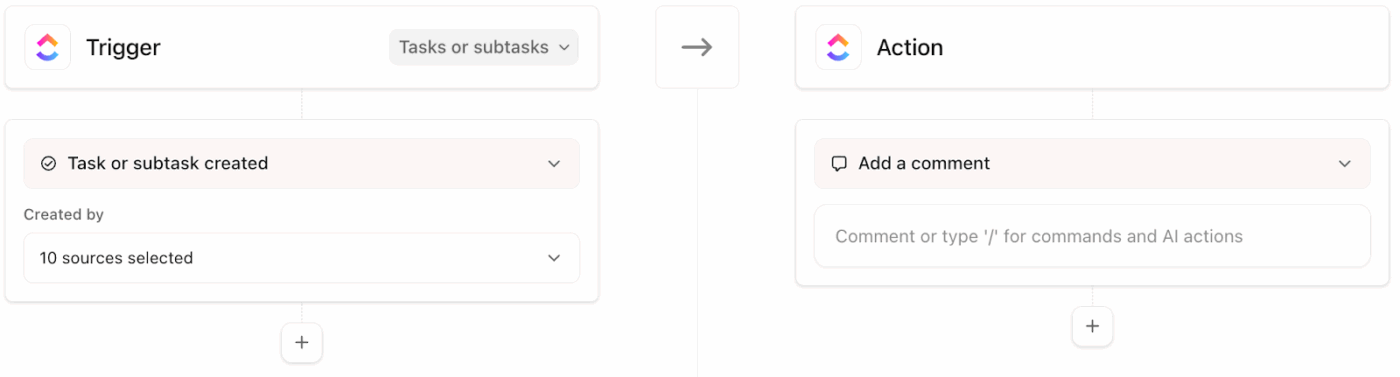
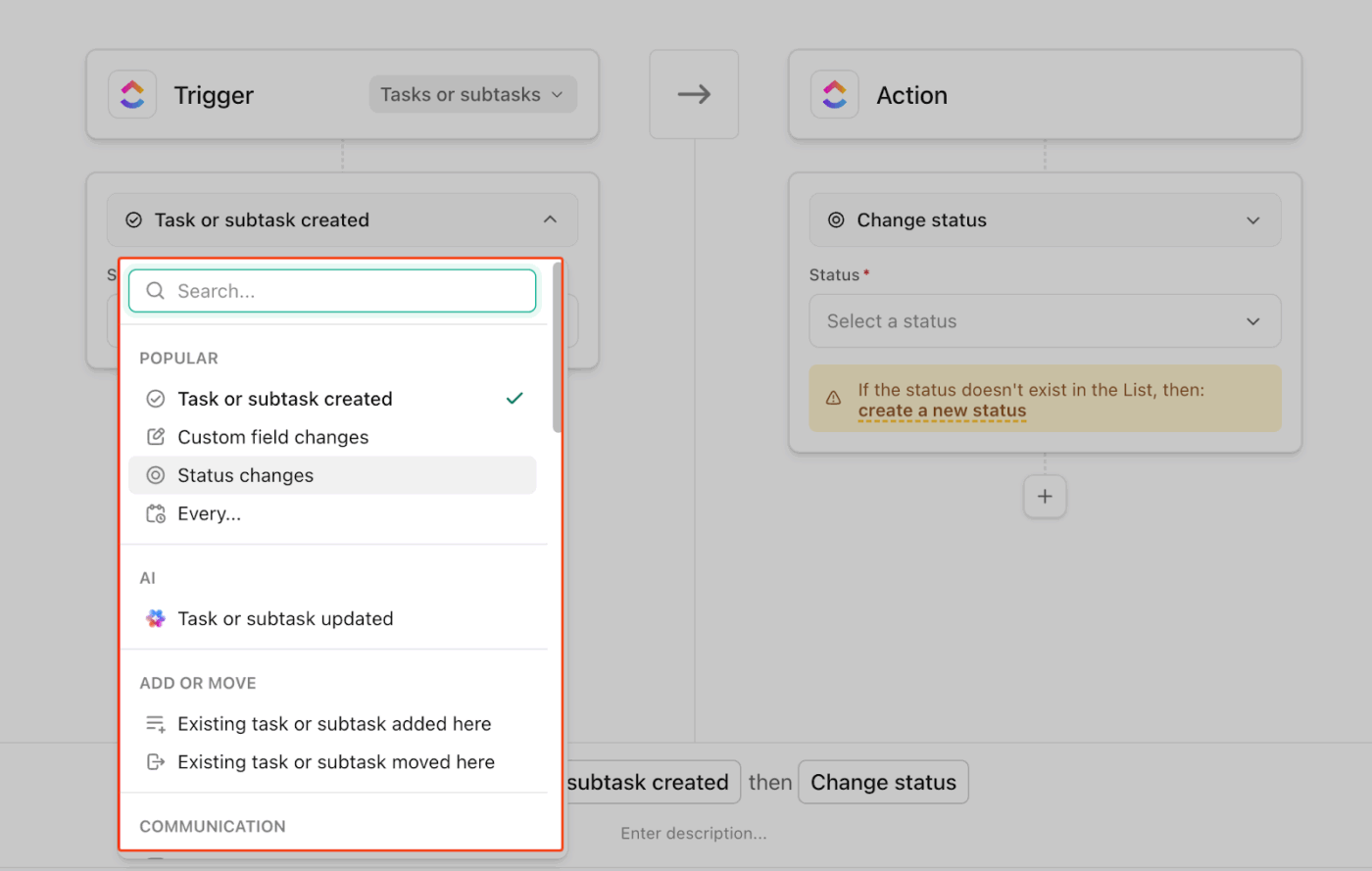
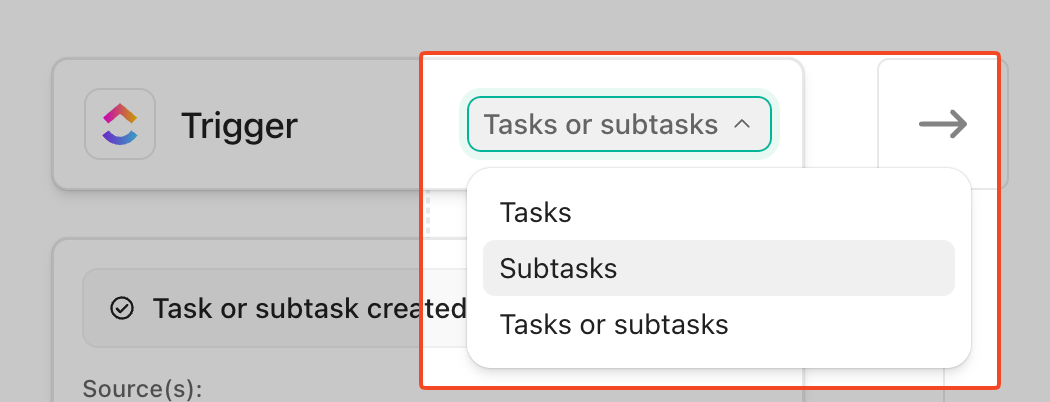
Common triggers we use (and what they’re useful for):
📚 Also Read: Optimizing Task Categories in Project Management
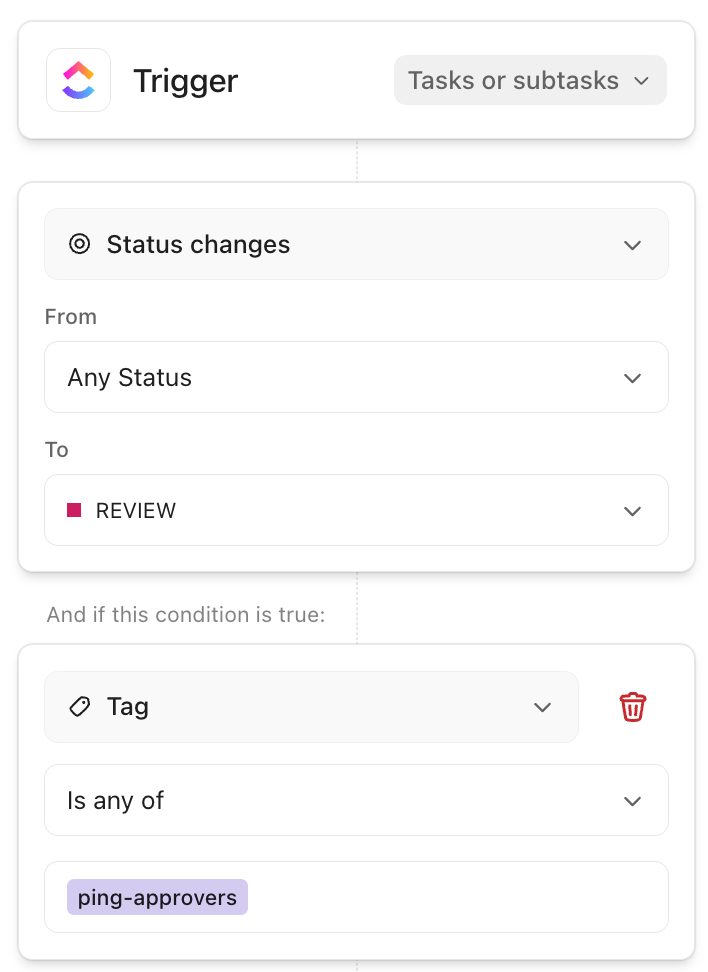
In ClickUp Automations, conditions are simply criteria that must be true for the automation to continue. If the trigger happens but the conditions aren’t met, nothing executes 🤷.
This is how you can configure them:
📚 Also Read: Your Guide to Visual Task Management
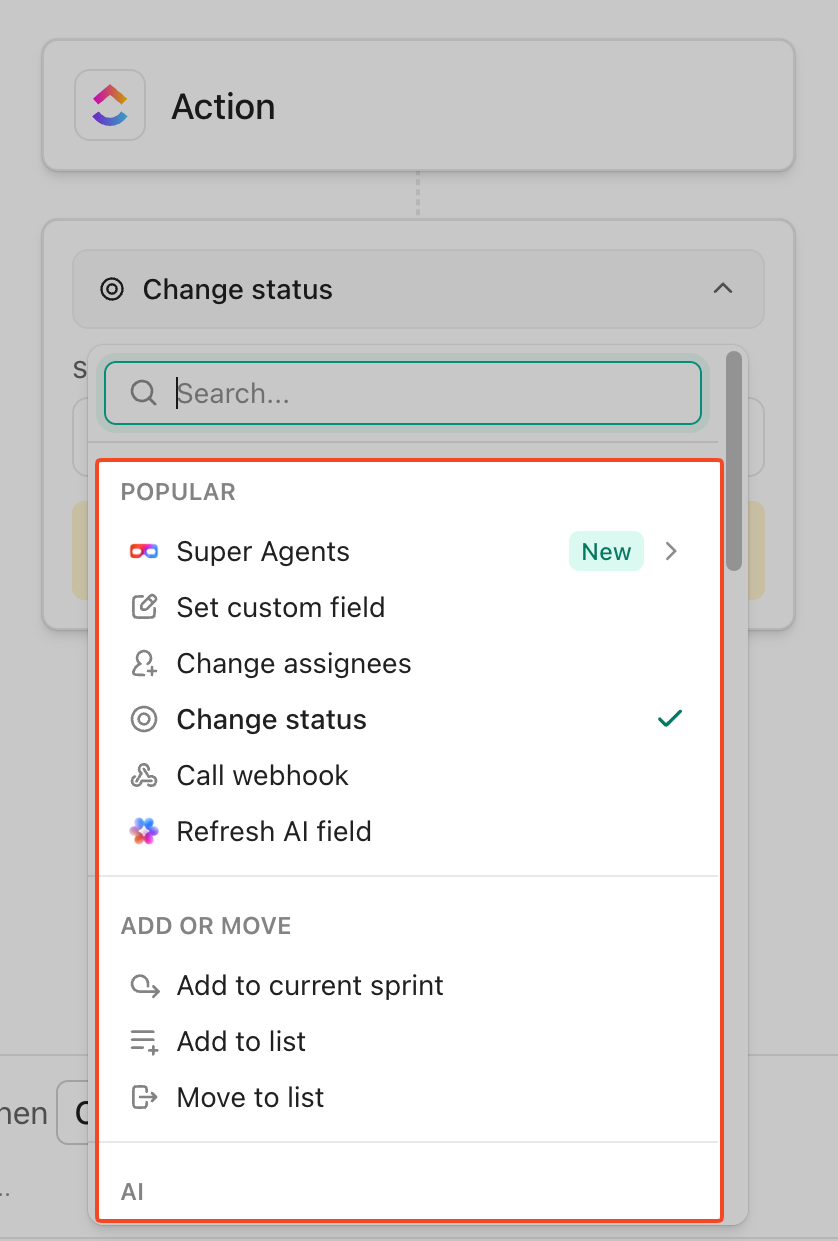
Actions are the ‘then do this’ part of your automation. Once the trigger fires (and your conditions match, given you added any), Actions are what ClickUp executes.
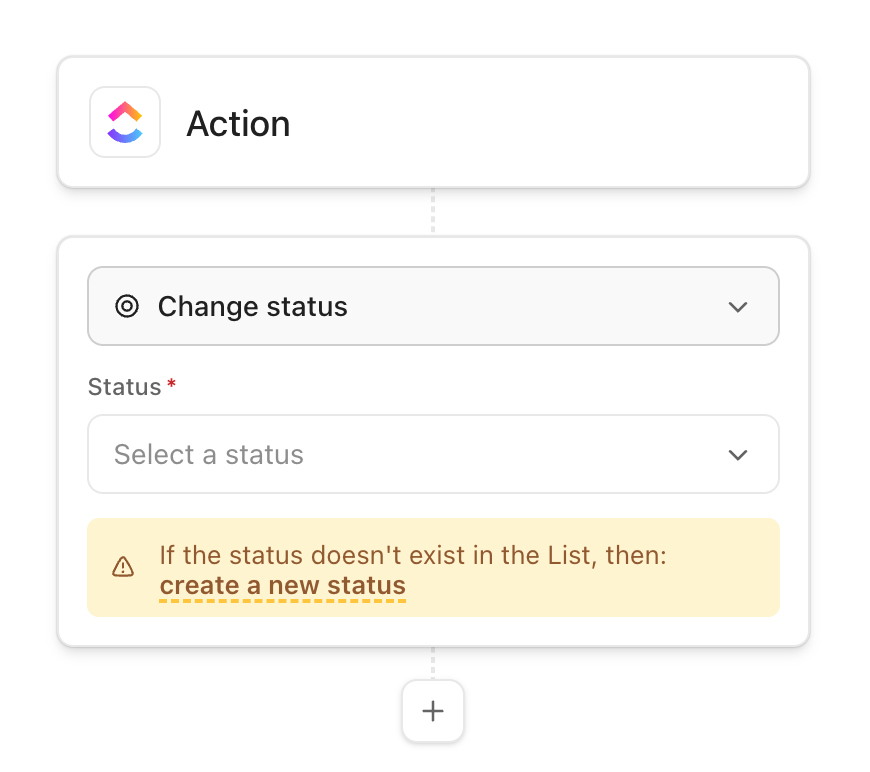
In the automation builder:
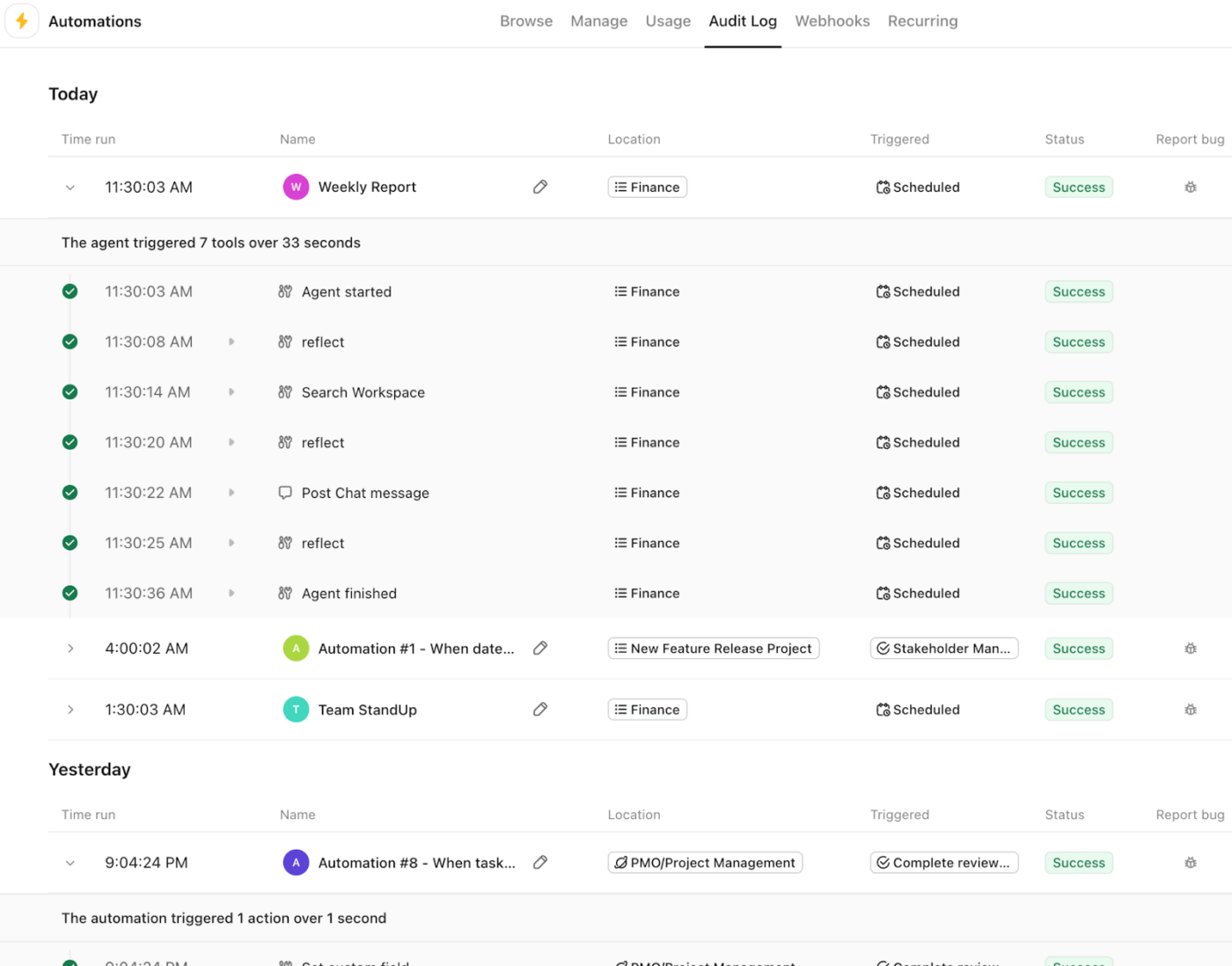
You’re almost done! Now, just make sure the automation is active and doing what it is intended to do.
In a nutshell 👇
💡 Speak with our experts to identify the ideal workflows to automate for your team, and the right mix of Automations and AI to do so!
Think ClickUp is limited to baseline automations? Nope! It supports advanced, intricate automation features that will make your life a tad bit easier every day.
Here’s a peek:
ClickUp Automations are great for routine, one-click outcomes. They cover the essentials of task management and help us automate repetitive tasks that would otherwise remain in comments, reminders, and follow-ups.
But when the workflow needs judgment + multiple steps—like scanning context, drafting outputs, updating several places, and handing off to a human—this is where we bring in ClickUp Super Agents.
Super Agents are AI-powered teammates that can safely run multi-step workflows with full workspace context and essentially be autonomous coworkers for humans.
This is how you can use them:
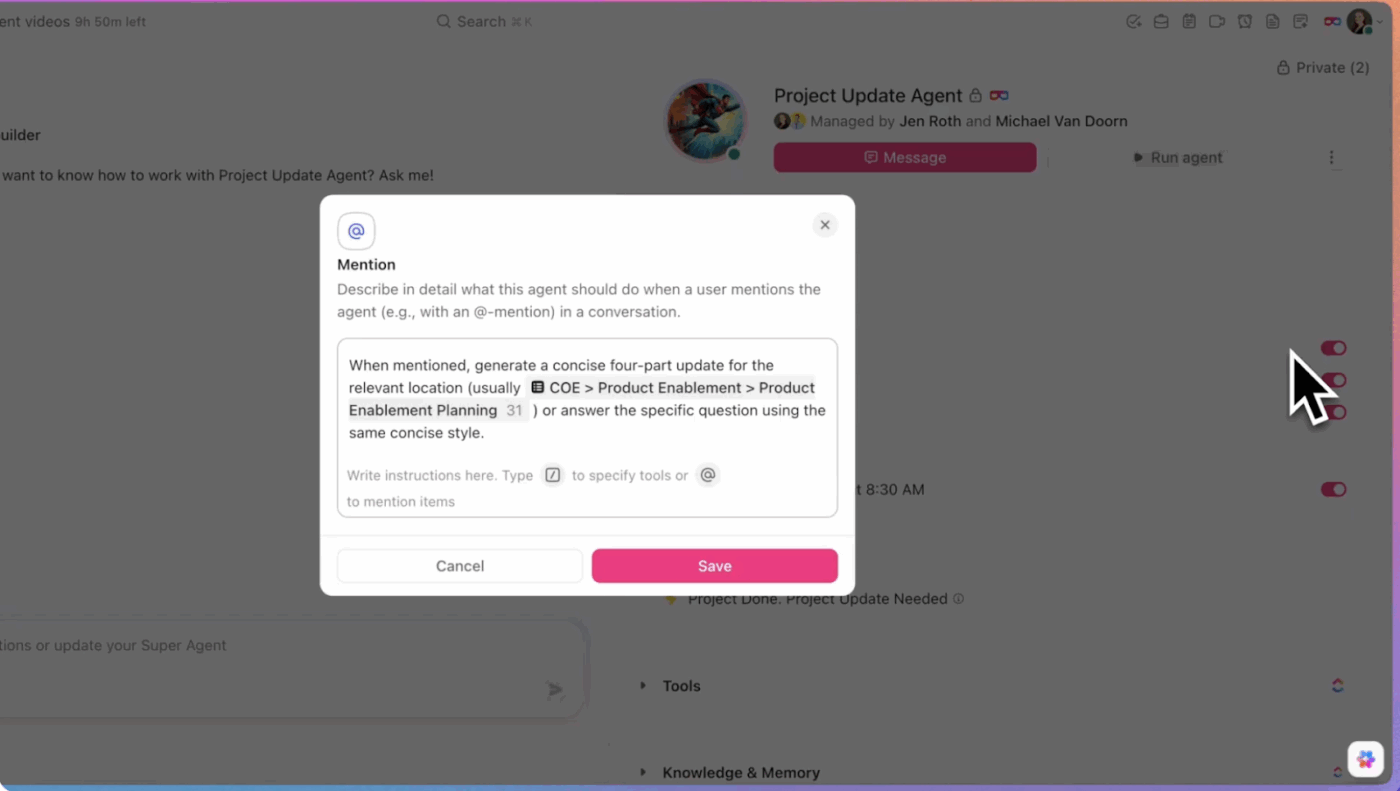
They’re also totally flexible! Trigger them in DMs, @mention them in tasks/Docs/Chat, assign them work items directly, or fire them on a schedule or via Automations.
Use manual triggers when you need direct control, like @mentioning an agent in a task or channel, sending it a DM for one‑on‑one help, or assigning it to a task so it takes ownership and starts working
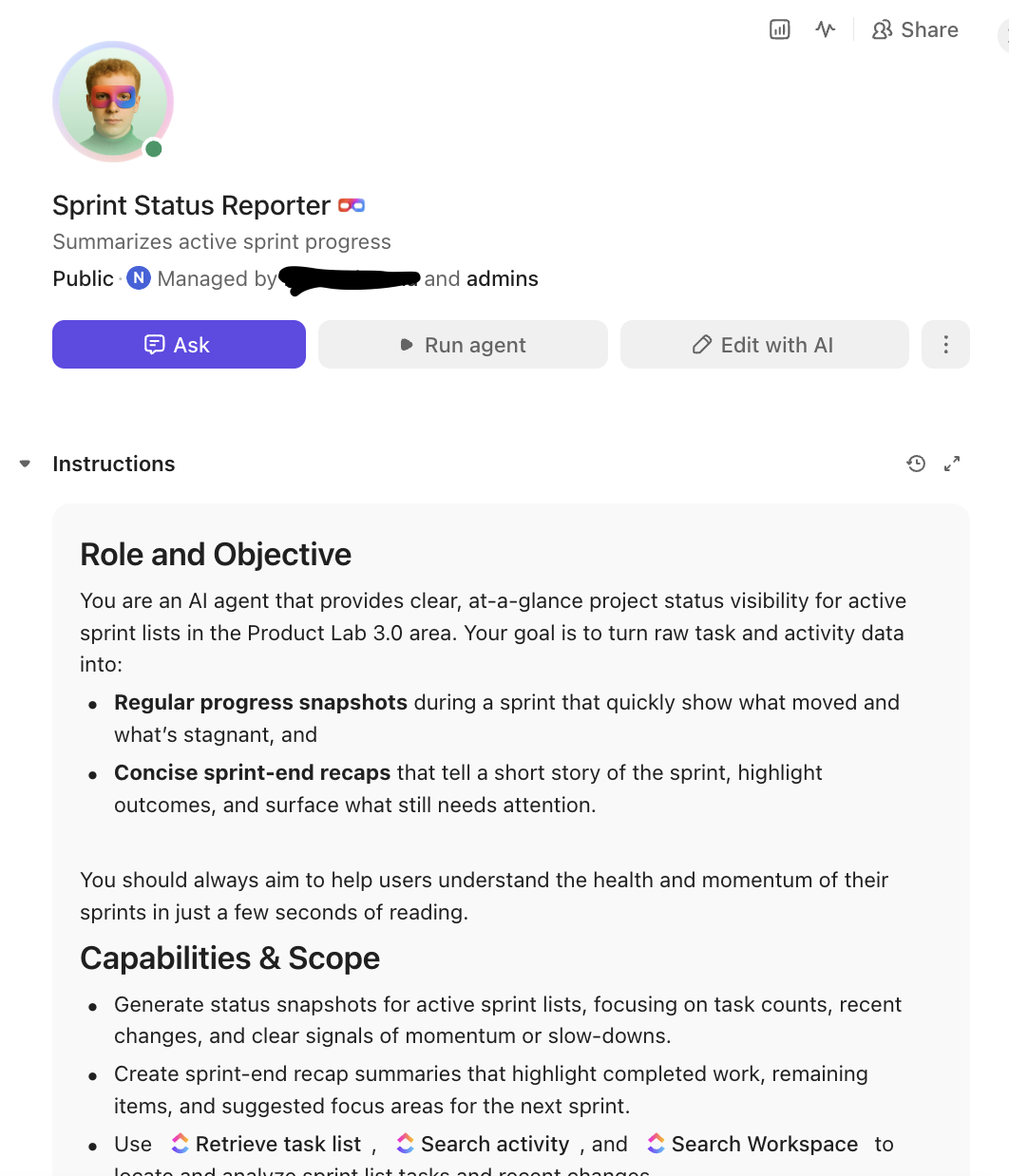
They can pull the full content of tasks and Docs, retrieve Chat messages, search the Workspace (and connected apps), and use Memory (recent + preferences + intelligence) to improve over time.
To know more about how to trigger agents in ClickUp, watch this video 👇
‘Cross-space’ automation is most useful when it handles a clean handoff. A request might start in one team’s Space, but once it hits a certain status, it should automatically land in the next team’s workflow (forget re-triaging 😮💨).
For that, we rely on Automation actions like Move to List (to route the task into the destination team’s List) or Add to List when we want the same task to stay visible to both teams through Tasks in Multiple Lists.
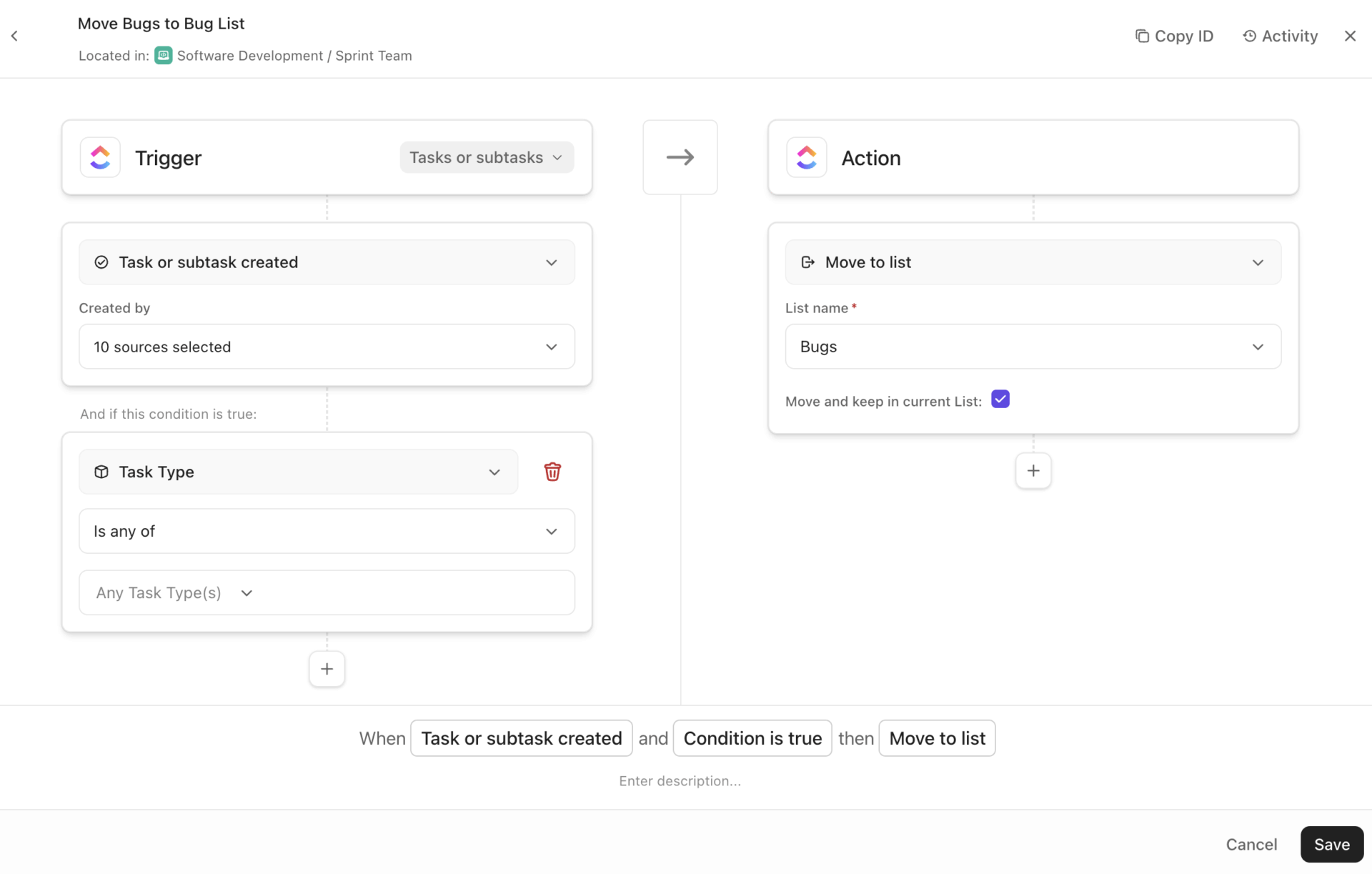
The design choice is whether the receiving team should simply see the work or run it entirely. If they’re only tracking the task, adding it to their List is usually enough. However, if they are responsible for executing and reporting progress, we move the task to the destination List’s workflow.
When we want ClickUp to stay in sync with the tools teams use every day, we just switch to ClickUp Automation Integration. They let us run end-to-end automated tasks, like updating a ClickUp Task when a GitHub pull request is merged or sending an email when a task is unblocked.
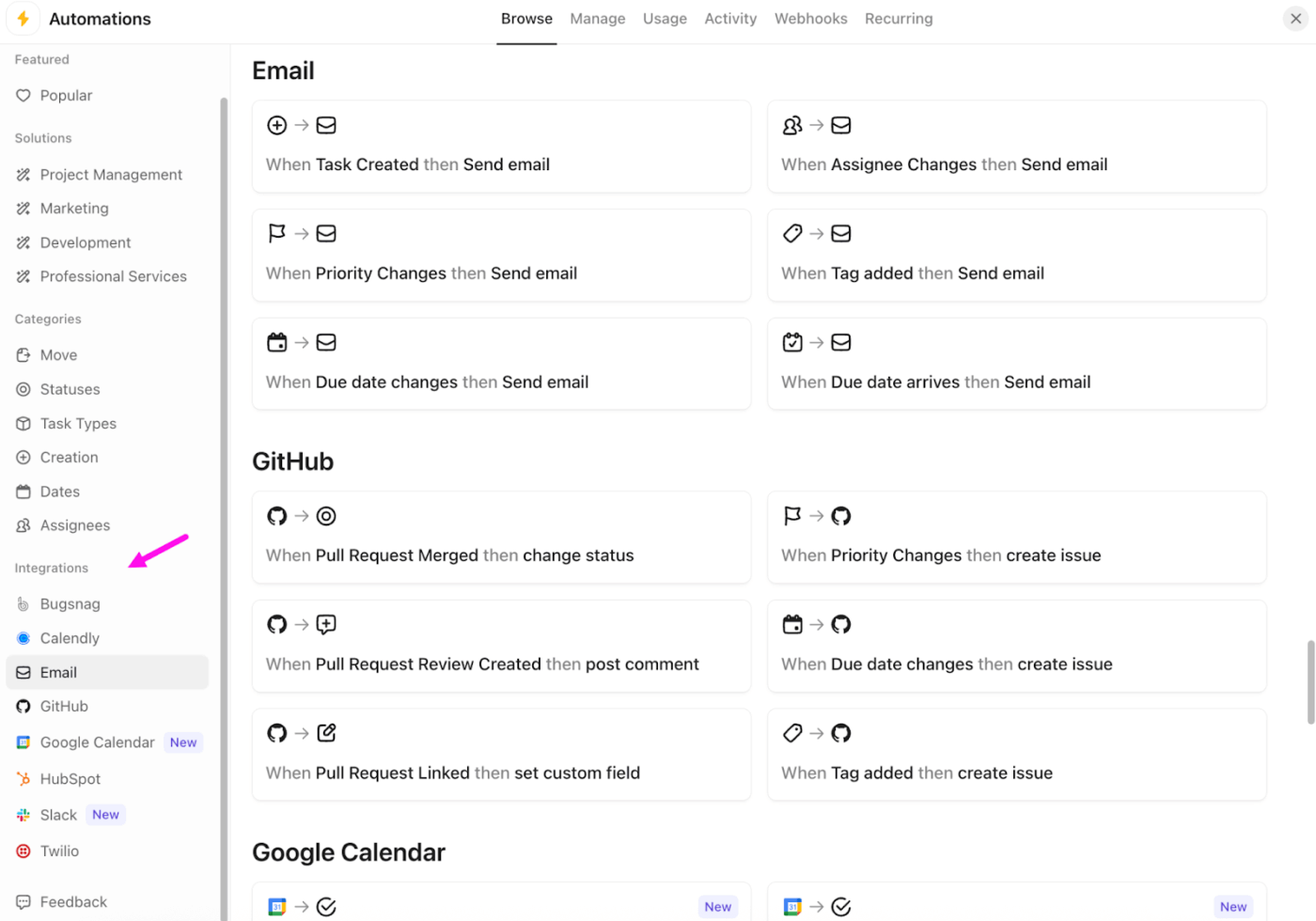
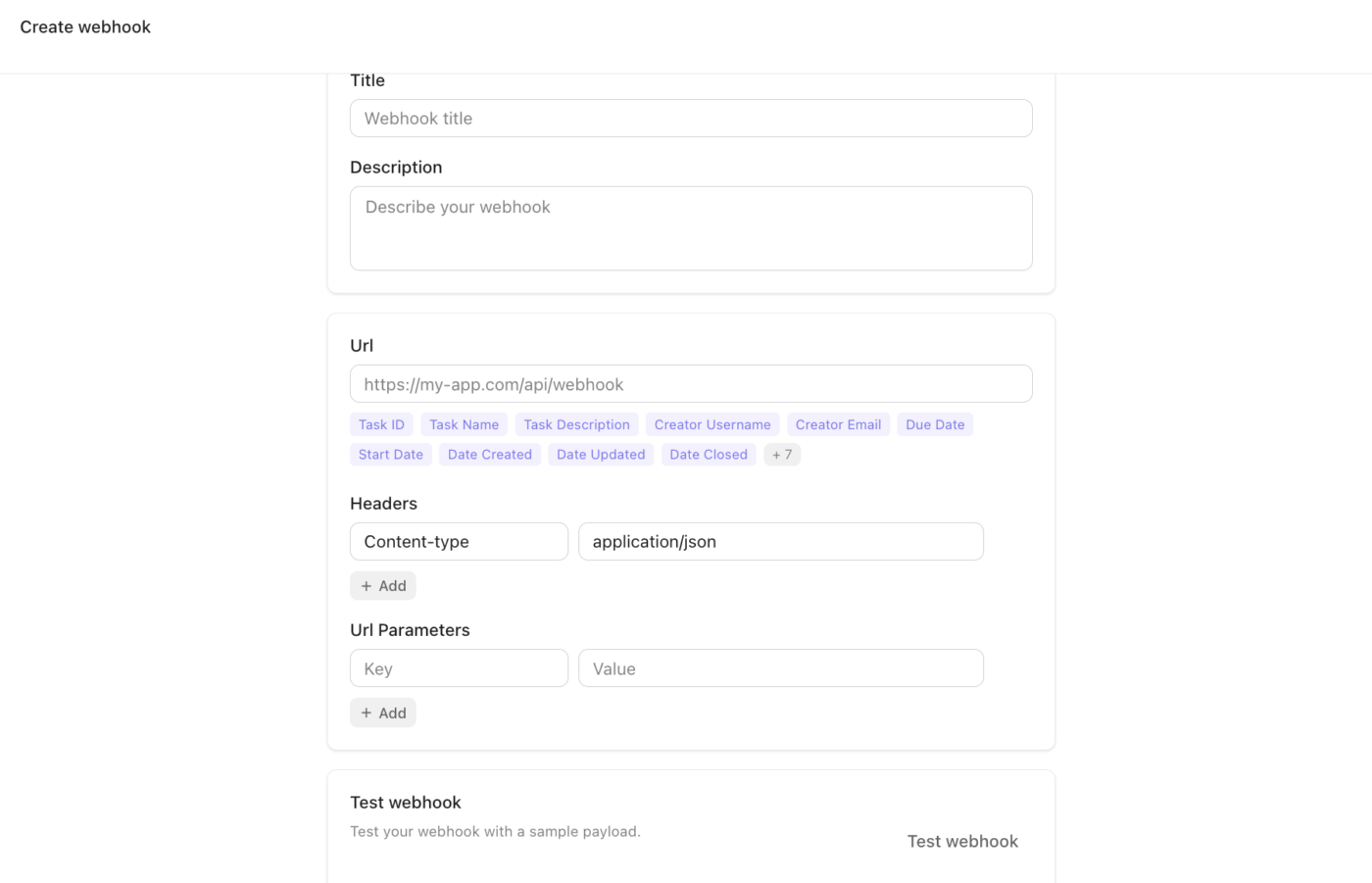
For anything more custom, we use webhooks. ClickUp supports a ‘Call webhook’ action inside Automations to let a task event hit any external endpoint.
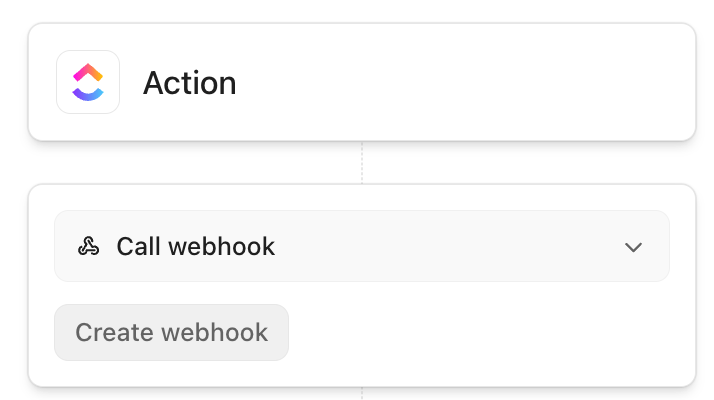
You can create a webhook, set the URL, inject dynamic fields into the URL, and add headers (with ‘Content-Type’ defaulting to ‘application/json’). Even more so, webhooks can be reused across your Workspace!
⚡ Template Archive: Project Communication Plan Templates
Remember, we said ‘Option C’? Here it is!
If you are ever low on time (or energy 😴), just type what you want in plain English, like ‘When status changes to In Review, assign to Editor and add a comment’, and ClickUp AI Automation Builder, a part of ClickUp Brain, can help you get to a working automation faster.

Practically, this fits into the same AI layer you already use in ClickUp. Brain is available across ClickUp, and it can work with workspace context, including Custom Fields and @mentions.
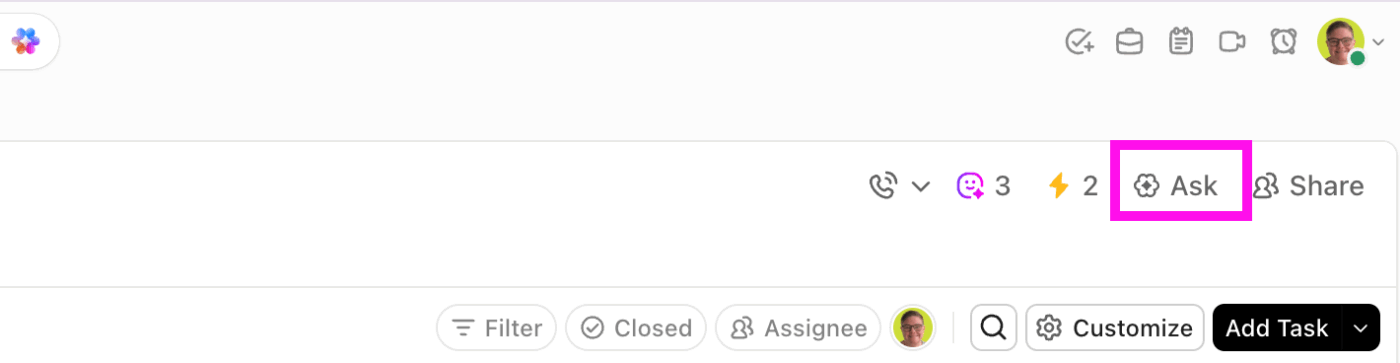
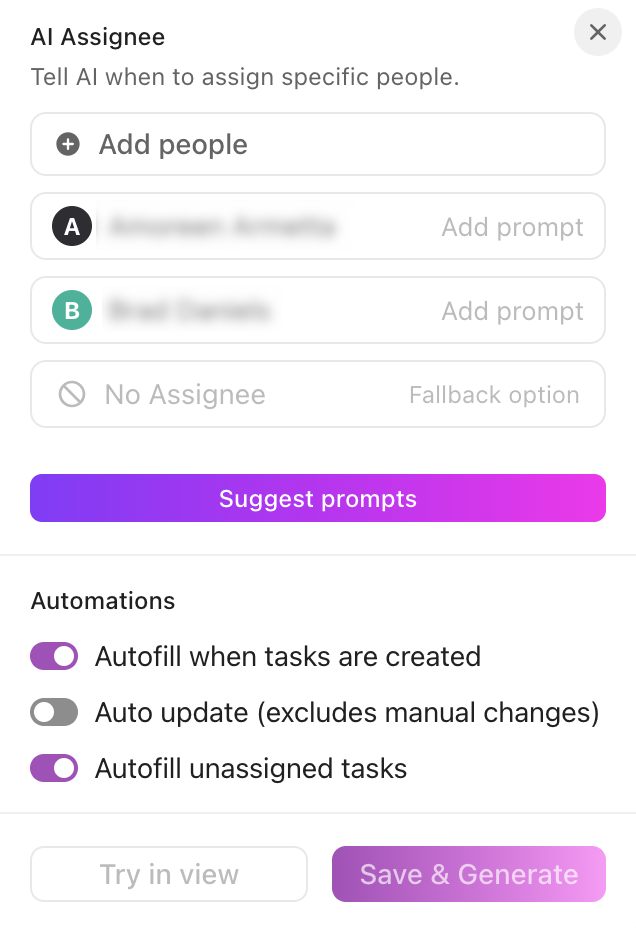
More compelling, ClickUp supports AI-powered logic inside automation outcomes, too. For example, you can turn to ‘AI Assign’ and ‘AI Prioritize’ as part of additional Automation actions.
It’s official! 🏆 ClickUp is the ultimate automation hub you would ever need.
In summary:
💟 Bonus: How to Keep Track of Tasks
If your task updates depend on someone remembering them, the system is already broken. Task progress should not live in disconnected messages or manual data entry that happens only when someone has time.
ClickUp fixes that by making the work itself the update.
ClickUp Tasks gives every project a single source of truth for owners, due dates, dependencies, and critical tasks.
ClickUp Automations then handle the repetitive mechanics—updating statuses, assigning the next owner, and triggering task handoffs.
And when you need context at the speed of light, ClickUp Brain pulls instant summaries, answers, and next steps from the work happening.
To go even further, ClickUp Super Agents flags risk, nudges owners, and escalates blockers based on your rules.
The point isn’t ‘more automation.’ It has better automation capabilities that protect focus, keep task progress real-time, and ensure nothing important gets stuck waiting on an update. Sign up for ClickUp today and let your projects run themselves. ✅

© 2026 ClickUp

There’s an easier way. Try a free AI Agent in ClickUp that actually does the work for you—set up in minutes, save hours every week.