
Sorry, there were no results found for “”
Sorry, there were no results found for “”
Sorry, there were no results found for “”
Ask a team how they track a new project, and the answer is often “there’s a sheet for that.”
Google Sheets project management grows out of that habit: you can plan, assign, and track project work in one shared file. And for many projects, that’s enough.
That tracker usually starts with four columns: Task, Owner, Due date, and Status. Everyone already has access, and the setup needs little explanation. You can sketch the plan in 10 minutes, share the link, and have the team update the same file.
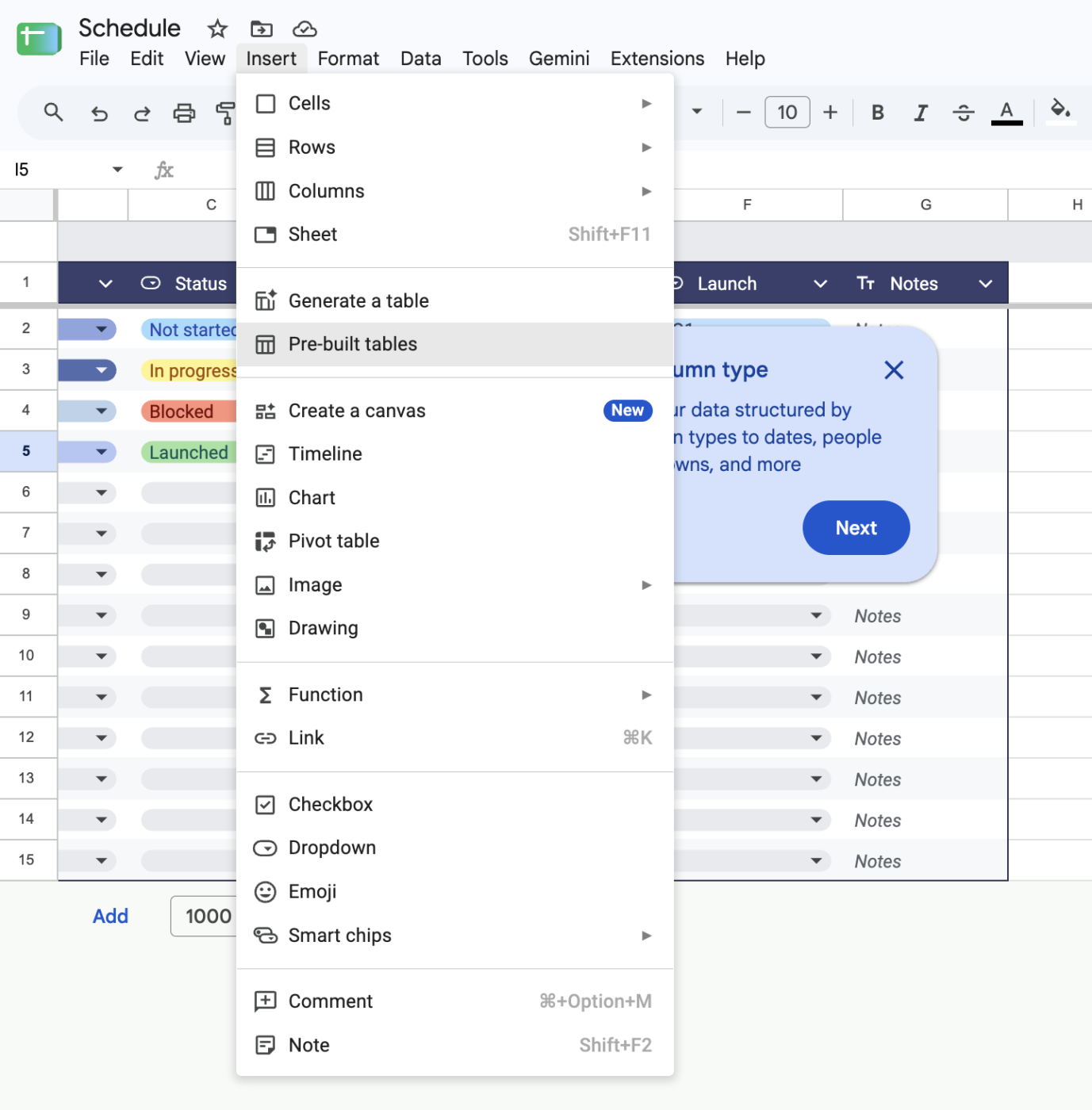
Sheets now goes well beyond a basic task list, too. Tables give project trackers structured column types, dropdowns, people chips, and saved views. Google also offers pre-built tables for project tracking, and eligible Workspace users can map dated work in Timeline view.
Those features blur the line between a spreadsheet and a project management tool. That brings us to the real question: how far can Sheets take your project before it starts slowing you down? This guide walks through how to set up Google Sheets for project management, which templates are worth starting with, and when to stop using one for your projects.
Google says you can edit a Docs, Sheets, Slides, or Vids file on up to 100 open tabs or devices at once. For most project teams, that’s plenty of headroom, so the number of people in the file is rarely what strains a tracker.
The real pressure shows up after someone changes a cell. Google Sheets project management gets expensive to maintain when one update should set off another action:
If those chain reactions happen occasionally, a well-built tracker can carry the project. Once they happen daily, keeping the spreadsheet current becomes a job in itself.
Yes, and for many projects, it’s the right call. A five-person team running a six-week website refresh can plan the whole thing in one sheet. Each row holds a task, its owner, and its due date. A status dropdown lets the owner mark the work as Not Started, In Progress, or Done as it moves along. On eligible Workspace plans, Timeline view can then lay those dates out as a visual schedule.
Collaboration is simple, too. Everyone edits the same file at the same time, so you don’t have to ask which version is current. On work or school accounts, you can tag a teammate in a comment and assign them the follow-up. Cell edit history (right-click the cell and select Show edit history) shows who changed a due date and when.
The trouble starts when tasks depend on each other.
Your design review slips from Tuesday to Friday. The development start date three rows down still says Wednesday, because Sheets has no idea the two are connected. You can link them with a formula like =WORKDAY(F5,1), but every link is one more thing to set up, remember, and repair whenever the sheet gets reorganized. On a project where dates shift every week, that maintenance adds up quickly.
Sheets appeals to teams for reasons that go beyond the spreadsheet itself. The bigger advantages are low setup friction, flexible structure, straightforward sharing, and keeping project data easy to move and report on. In more detail:
QUERY formula can pull overdue tasks or spending by phase into a reporting tab and keep it current as the underlying data changesFormulas handle the math in a project tracker, from due dates to percent complete. The features below help when several people share the tracker: they keep the structure intact and give each person the view they need.
Also Read: Google Sheet Hacks
A reliable tracker starts with one source table. Every view, timeline, and dashboard in the steps below pulls from it, which in turn keeps dates, owners, and totals consistent.
Every view, timeline, and dashboard later in this guide reads from a single task table, so set that up first. Use these 11 columns in this order, since the formulas in later steps refer to their letters:
| Column | Header | Column type | What it holds |
| A | Task ID | No type needed | A permanent code such as T-001 |
| B | Task | No type needed | One task per row |
| C | Workstream | Dropdown | Design, Content, Development, or your own streams |
| D | Owner | People chip | The one person responsible |
| E | Start | Date | First working day of the task |
| F | Due | Date | Last working day of the task |
| G | Working Days | Number | Calculated in Step 3 |
| H | Status | Dropdown | Set up in Step 2 |
| I | Progress | Percentage | How much of the task is done |
| J | Depends On | No type needed | The Task ID this task waits on |
| K | Notes | No type needed | Context that doesn’t fit elsewhere |
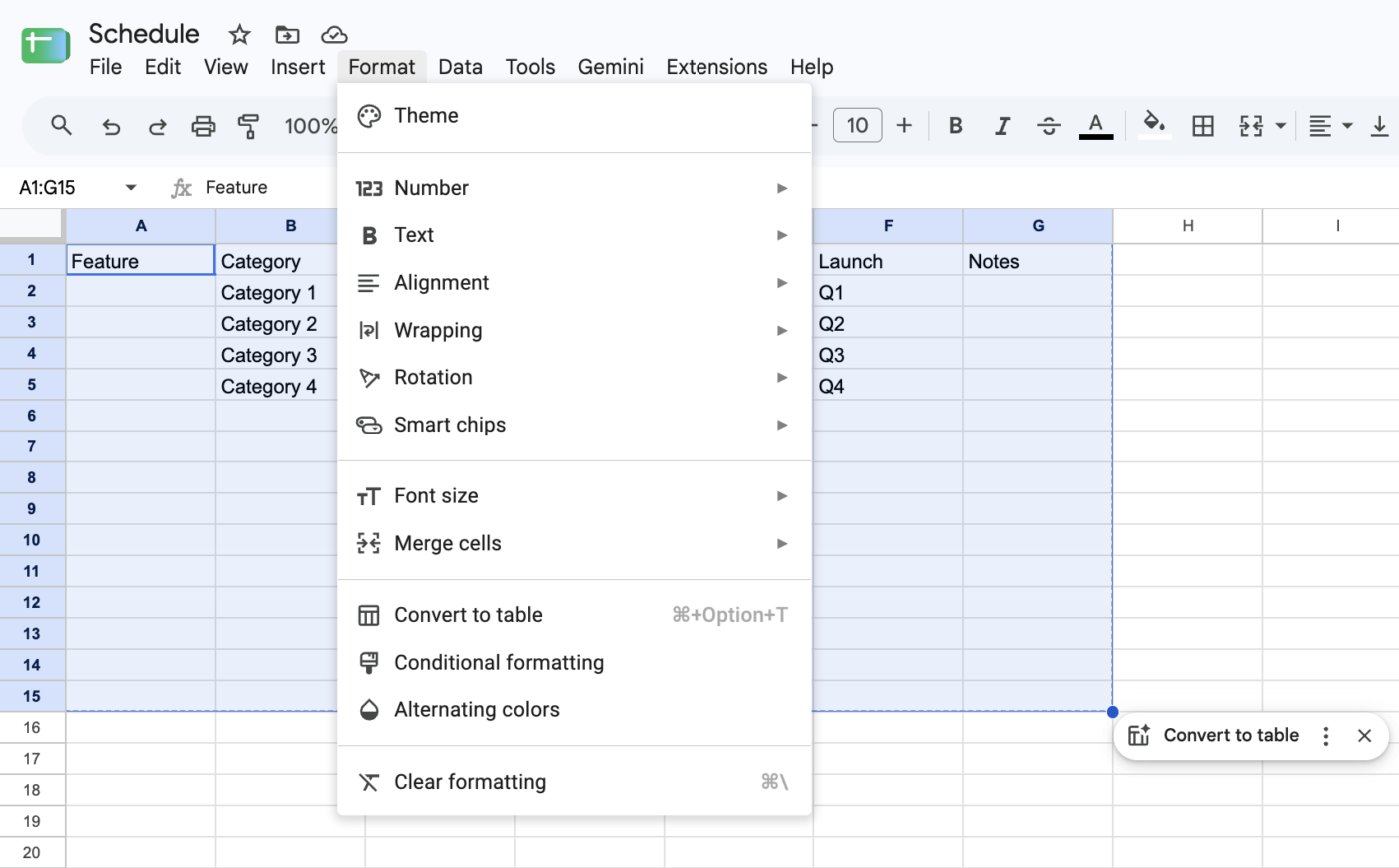
Type the headers in row 1, select the range, and go to Format > Convert to table. Then set each column’s type from its header menu. Typed columns keep entries consistent once more people start editing.
Skip merged headers and blank spacer rows. Instead of a merged “Design” row above a block of tasks, enter Design in the Workstream column of each task. Grouping the table by Workstream then gives you those section headers without breaking sorts or formulas.
Name the tab Tasks, since the formulas in later steps refer to it by that name. Now, Sheets doesn’t create task IDs, so type one for each task as you add it, like T-007, for example. Your Depends On should always point to an ID, never a row number. Sort by Due, and T-007 might move from row 8 to row 3, but its ID moves with it.
Free-typed status values quietly wreck reporting. To a formula, In progress, In Progress, and WIP are three different things, even when the team means the same thing.
Set Status as a dropdown and start with four options:
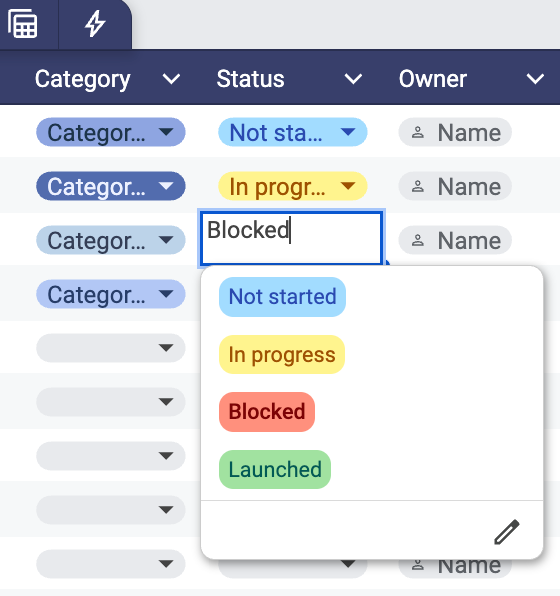
Add a new status only when it changes what someone does next. Labels like “Nearly done” or “Waiting” can feel precise, but they make filters and summaries harder to read unless each one triggers a different action.
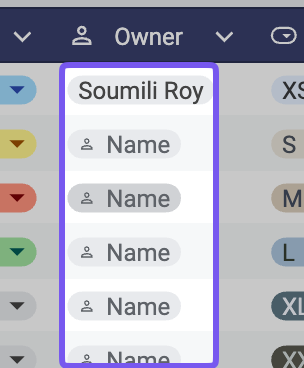
For Owner, use the People chip column type. Names stay consistent, and hovering over a chip shows more details about that person.
For richer visual rules around status, priority, or deadlines, see our guide to color coding in Google Sheets.
A three-day task that starts on a Thursday, with Friday as a public holiday, should end the following Tuesday. Simple date math says Saturday. Working-day formulas close that gap.
List your team’s non-working dates in column A of a tab named Holidays. To calculate the due date from a duration, enter the number of working days in Working Days and use this in Due:
=WORKDAY(E2,G2-1,Holidays!A:A)
WORKDAY counts forward from the start date, so -1 makes the start date day one. Without it, the task above would end on Wednesday.
If you’d rather type the due date yourself, count the working days in between instead:
=NETWORKDAYS(E2,F2,Holidays!A:A)
For the same task, this returns 3.
Use one formula per tracker. If Due calculates from Working Days and Working Days calculates from Due, each formula waits on the other, and Sheets shows a circular dependency error.
For teams with a different weekend, switch to the .INTL versions and add a weekend code. For a Friday and Saturday weekend, use =WORKDAY.INTL(E2,G2-1,7,Holidays!A:A). Our Google Sheets formulas reference covers the wider function set.
The Owner column records who holds a task. A handoff needs one more step.
On work or school accounts, select the task cell and add a comment. Type @ followed by the person’s email, check Assign to, and click Assign. The assignee gets an email, and the action item stays open until the item is marked as done.
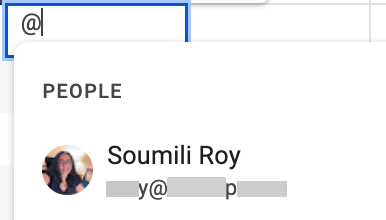
Save this for real handoffs, approvals, and follow-ups. Assigning every row through comments floods inboxes fast. Use the Owner column to track responsibility, and use assigned comments for moments when someone needs to act.
A shared tracker can still give each person a focused view of it.
Go to Data > Create filter view, then filter by Owner, Workstream, Status, or any other field. Sorting and filtering inside a filter view only affect that view, though editing a cell still changes the shared sheet. One teammate can sort their tasks by due date while another looks only at blocked work.
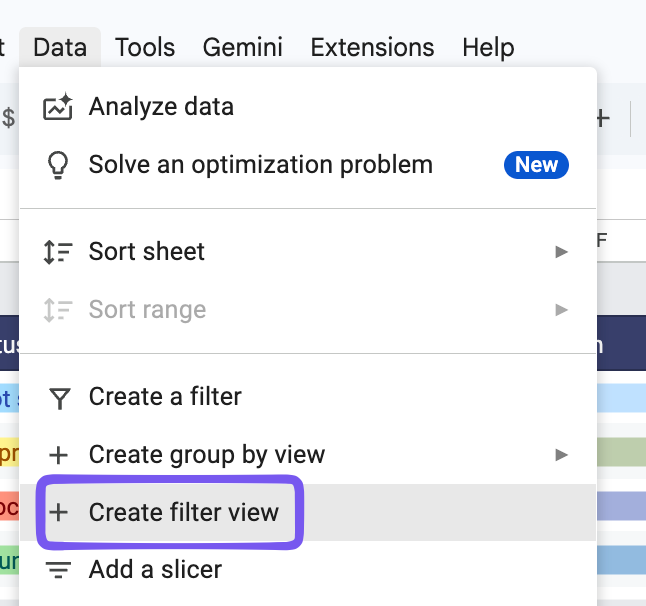
Save the views people return to often, such as:
To share a view, open it and copy the URL from your browser. Anyone with access to the sheet who opens the link sees the same filtered view, making it easy to drop into a recurring review or status update.
Once your formulas and column types work, protect them from accidental edits.
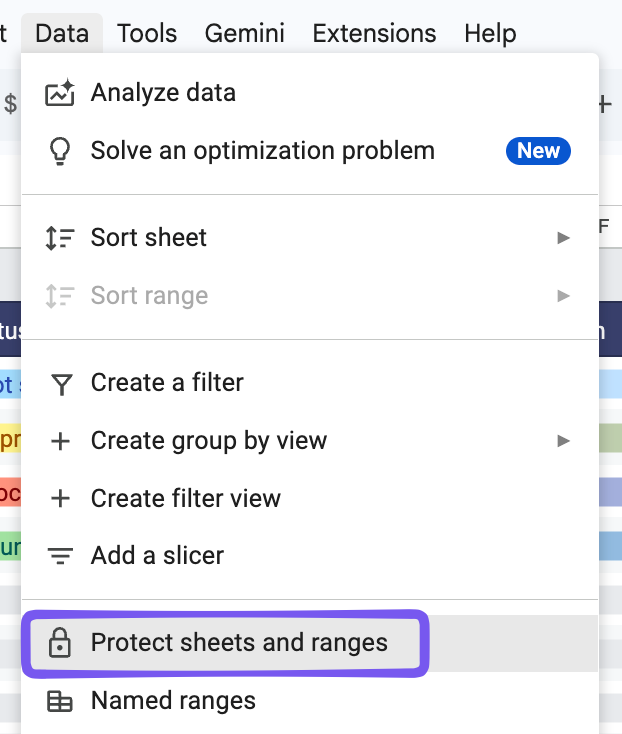
Select Working Days and any other formula-driven ranges, then go to Data > Protect sheets and ranges. You can restrict editing or show a warning before someone changes the range. A warning is often enough when teammates still need the freedom to fix small mistakes themselves.
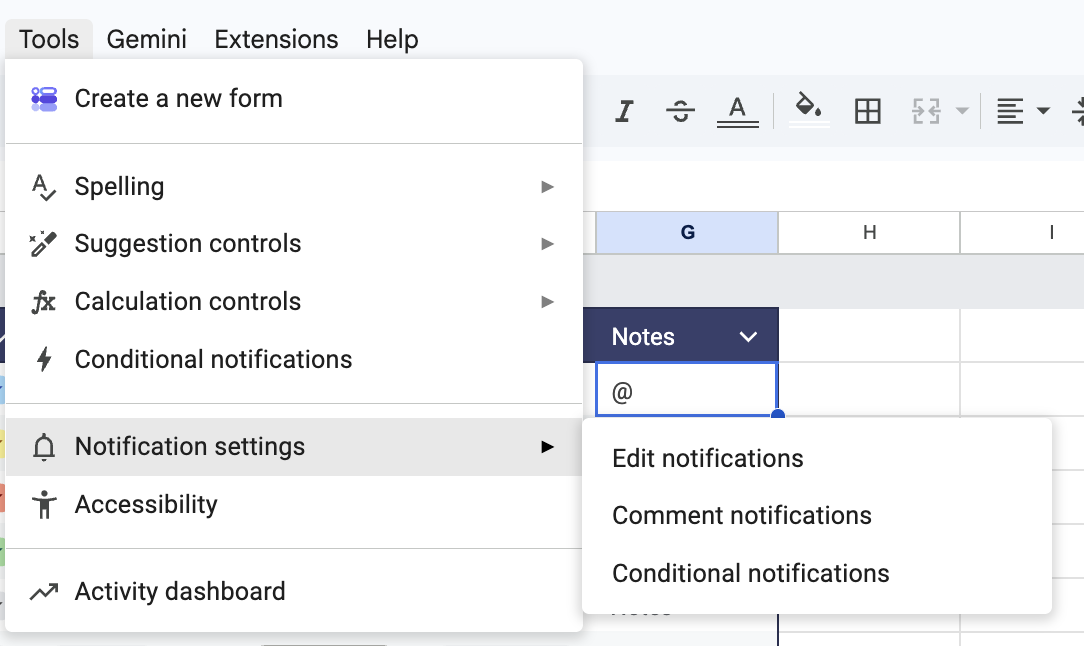
Next, open Tools > Notification settings > Edit notifications. Sheets can email you when someone else changes the spreadsheet, either immediately or in a daily digest. These settings apply only to your own alerts.
Use version history as your last line of defense. At each major milestone, go to File > Version history > Name current version. A named checkpoint is much easier to find and restore than a timestamp in a long list.
Timeline view is the quickest way to see the schedule. It’s included in most Workspace business, enterprise, and education editions, but not in personal Google accounts.
Go to Insert > Timeline and select your task table. In the setup panel, choose Task as the card title, Start as the start date, and Due as the end date. Then set Workstream or Owner as the card group, so each one gets its own lane. The timeline opens in its own tab, and you can switch between day, week, month, quarter, and year.
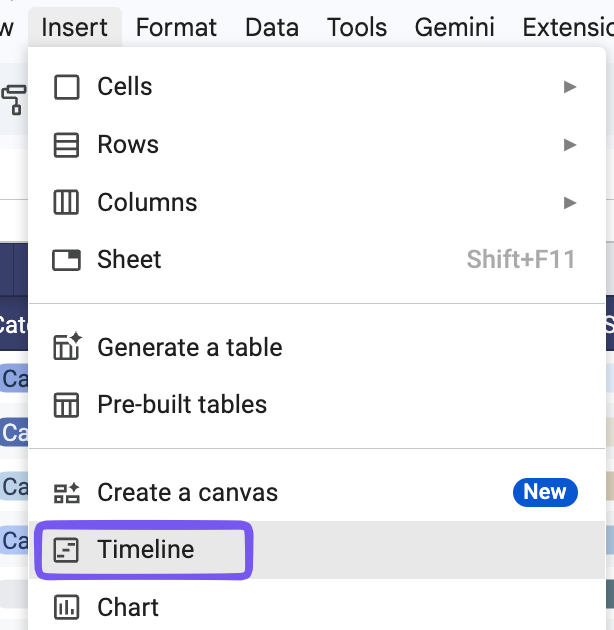
Without Timeline view, a stacked bar chart can stand in for a Gantt chart: chart each task’s start date and duration, then hide the start-date bars. Our guide to building a Gantt chart in Google Sheets walks through the setup.
Put the dashboard on its own tab and calculate every headline number from the source table. If someone updates a task and then retypes the result on the dashboard, the two will eventually disagree.
With the column structure above, start with:
=COUNTIF(Tasks!H2:H,"Done")/COUNTA(Tasks!A2:A) in B2, formatted as a percentage, for the share of tasks completed=SPARKLINE(B2,{"charttype","bar";"max",1}) next to it, for a progress bar that fills as that share grows=QUERY(Tasks!A:K,"select A, B, D, F where F < date '"&TEXT(TODAY(),"yyyy-mm-dd")&"' and H <> 'Done' and F is not null order by F",1) for a list of overdue tasks, oldest first=QUERY(Tasks!A:K,"select D, count(A) where H='In Progress' group by D label count(A) 'Tasks'",1) for in-progress work by ownerQUERY filters, sorts, and groups in a single formula, which makes it the workhorse for project summaries. When people want to slice the data themselves, a pivot table is easier to maintain.
When each project lives in its own spreadsheet, IMPORTRANGE can pull their task tables into one portfolio sheet for reporting. Before you build the rollup, add Project as column L in each source table. Otherwise, two projects can each have a task called T-001, and the combined view won’t show which project each one belongs to.
Connect each source file on its own first:
=IMPORTRANGE("spreadsheet_url","Tasks!A2:L")
The first time you connect a file, the cell shows a #REF! error with an Allow access prompt. Click it once per source.
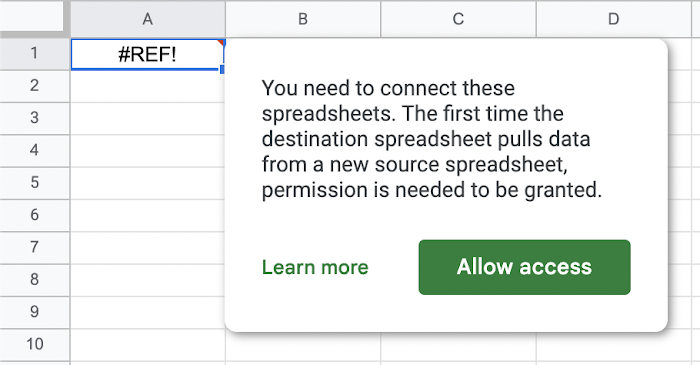
After that, stack the ranges into one dataset and drop the empty rows:
=QUERY(
  VSTACK(
    IMPORTRANGE("project_1_url","Tasks!A2:L"),
    IMPORTRANGE("project_2_url","Tasks!A2:L"),
    IMPORTRANGE("project_3_url","Tasks!A2:L")
  ),
  "select * where Col1 is not null", 0)
Each open-ended range brings in every blank row below its last task. The QUERY wrapper filters those out, which keeps the projects stacked tightly. Inside QUERY, refer to columns as Col1, Col2, Col3, and onward, since the stacked data no longer carries the original column letters. To pull only blocked tasks, for example, change the query string to "select * where Col8 = 'Blocked'". To count tasks by project, use "select Col12, count(Col1) where Col1 is not null group by Col12".
Treat the rollup as a read-only report. IMPORTRANGE pulls a live copy of the source data, and the copy only updates in one direction. If someone types in a cell the import needs, the whole import stops and shows a #REF! error until that cell is cleared. Any change to a task still has to happen in the project file that owns it.
Performance is the other limit. IMPORTRANGE fetches data over the internet, caps each request at 10 MB of received data, and can slow down when several spreadsheets depend on each other. Google recommends importing smaller ranges, summarizing data in the source file first, and keeping chains of linked spreadsheets short.
That makes the approach a good fit for a portfolio summary someone checks weekly. Once people expect the rollup to work like a live project database, the delays and one-way updates start getting in the way.
Your project tracker stays reliable only as long as the data inside it stays consistent. These five mistakes can break filters, formulas, ownership, and reporting once the team starts using the sheet every day.
| Mistake | What goes wrong | The fix |
|---|---|---|
| Building the presentation into the source data | Merged headings, blank rows between phases, and hand-placed totals make the sheet easier to scan at first and harder to filter later | Keep task data in one structured table, then build charts, timelines, and reports from it |
| Adding fields nobody maintains | Columns like Cost, Risk, or Estimated Hours stay blank week after week and clutter every view | Ask whether each field changes a decision. If it doesn’t, delete it |
| Sorting the shared data for your own view | A standard sort rearranges the sheet for every collaborator at once | Use filter views or Table views for personal sorting |
| Treating ownership as a handoff | A name in the Owner column records responsibility, but it tells you nothing about whether that person has seen the task | Use assigned comments for handoffs and approvals, and agree on when people check their own filter view |
| Letting nobody own the tracker | Formulas keep working while status definitions, references, and stale tasks drift out of date | Name one person to own the system: statuses, formula changes, archiving, and review cadence |
Google Sheets works well for a single project with a stable plan. The limits show up when a change in one place should update something else, such as a date, a person’s workload, or a report.
Dates stay where you typed them. The Depends On column from Step 1 stores a Task ID as plain text. If T-004 slips three days, T-005 keeps its original start date until someone edits it. Timeline view will show T-004’s new dates, but T-005’s bar stays where it was.
Alerts follow the file, not the task. Notification settings email you about changes anywhere in the spreadsheet. Conditional notifications can watch specific cells, but only on some work and school accounts. Beyond those two features and assigned comments, Sheets has no way to tell one person that a specific task needs them. Each teammate’s task list is a filter view they open on their own.
Every connection adds calculation work. Sheets supports up to 20 million cells per spreadsheet, but the cell count says little about speed. Volatile functions like TODAY(), open-ended ranges like A2:A, conditional formatting rules and IMPORTRANGE links each add work every time the sheet recalculates. A tracker with a dashboard and a portfolio rollup already uses three of them.
Shared capacity sits in separate files. The rollup from the previous section can list every task one person owns across projects. Sheets won’t flag overlapping dates or more hours than that person has unless you build formulas for it. The rollup is also read-only, so moving work to someone else means opening each project file. Once several projects share the same people, resource planning becomes a spreadsheet model of its own.
A formula-driven dashboard handles the counting, but someone still has to explain what changed and what the team should do next.
For an ongoing team project, start with the Project tracking template. For schedule-heavy work with overlapping phases, start with the Gantt chart.
Google Sheets gives you two built-in starting points. The Template gallery holds full spreadsheets for planning and tracking a project.
The Project Management section of the Template gallery currently has four dedicated templates: Gantt chart, Project timeline, Project tracking, and Event marketing timeline.
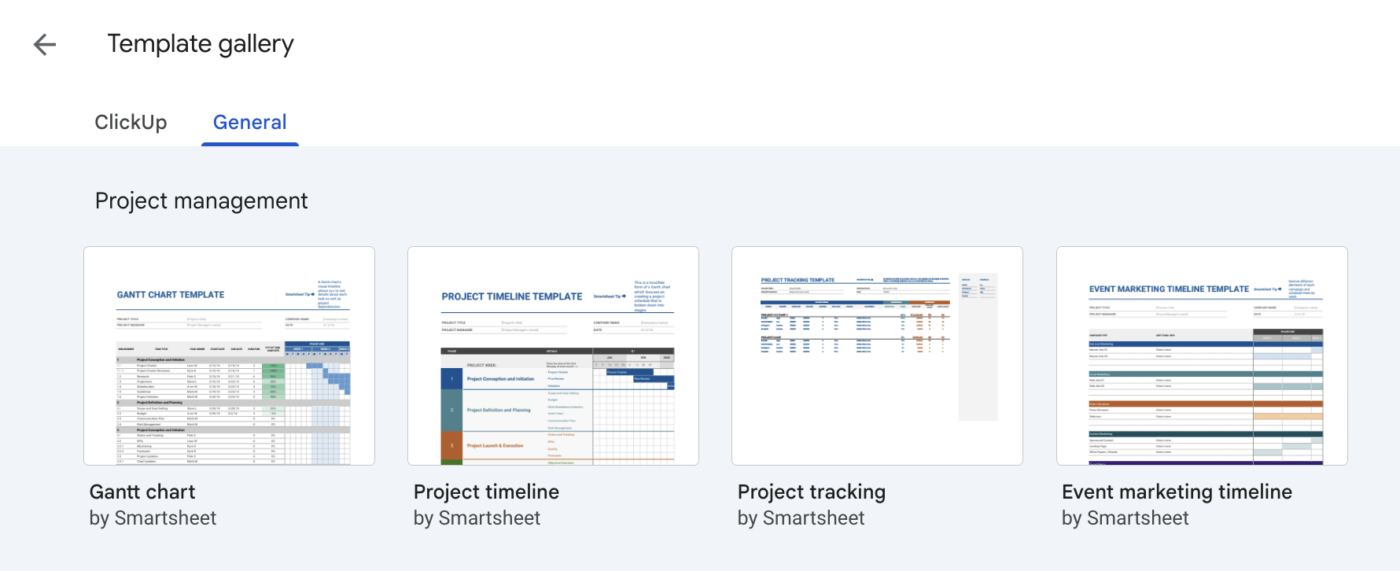
To find them, open sheets.google.com, select Template gallery, and scroll to Project Management. From an open spreadsheet, go to File > New > From template gallery.
| Template | Best for | What you get | Change first |
|---|---|---|---|
| Gantt chart | Detailed schedules with phases and overlapping work | WBS numbers, owners, dates, duration, % complete, and a timeline grid | Add working-day logic if weekends and holidays affect the schedule |
| Project timeline | Phases, milestones, and stakeholder updates | A visual project schedule organized across a timeline | Pair it with a task tracker for detailed status updates |
| Project tracking | Ongoing task, cost, and effort tracking | Status, priority, dates, assignee, % complete, costs, and estimated vs. actual hours | Delete fields the team won’t maintain |
| Event marketing timeline | Campaigns, launches, and event rollouts | Campaign lanes mapped across four phases and 12 weeks | Rename the lanes and phases around your project |
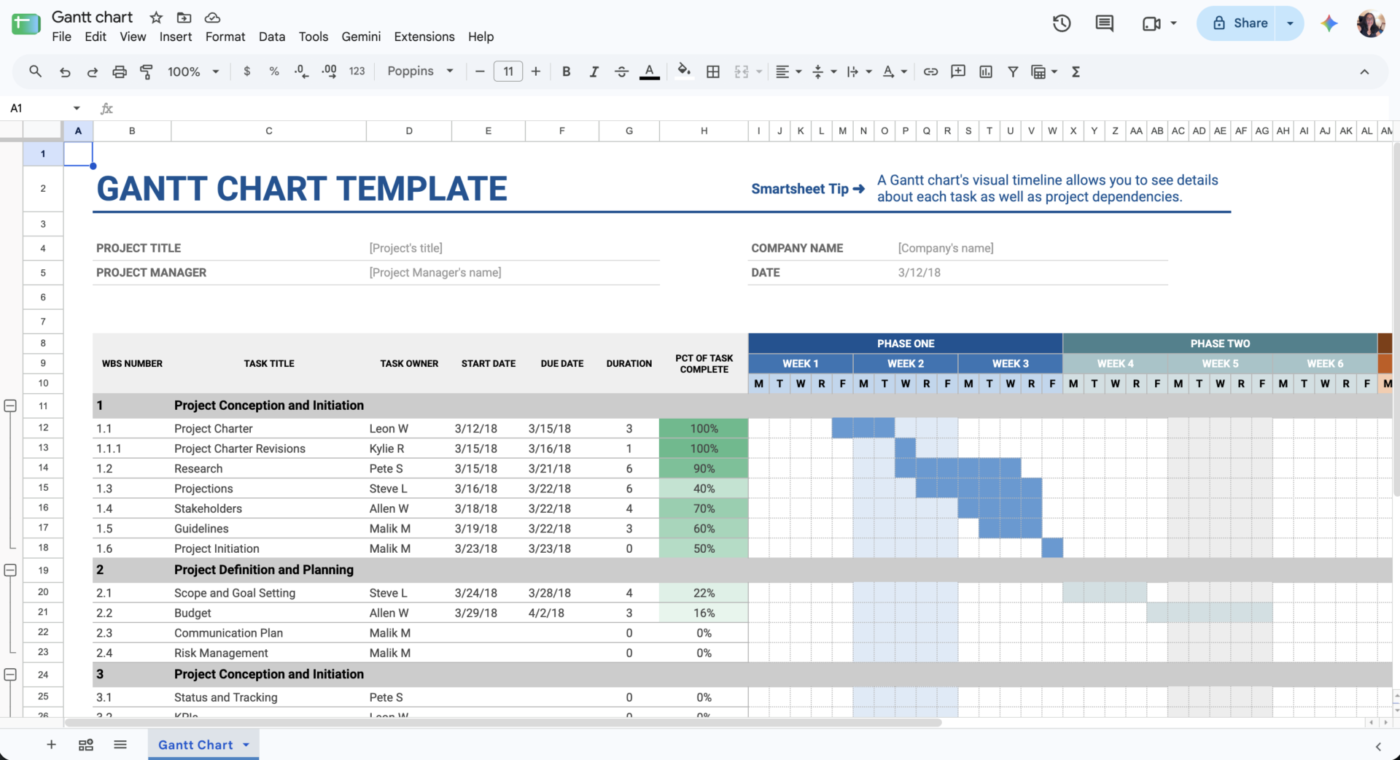
The built-in Gantt chart is a detailed, grid-based schedule. Each row carries a WBS number, task title, owner, start and due dates, duration, and percent complete. A week-by-week grid on the right shows where tasks overlap.
It’s a strong starting point when sequence and timing matter. If your team plans in working days, adjust the duration logic first. Weekends and holidays need separate handling, and the template leaves downstream tasks in place when an earlier date slips.
Best for: Project teams managing overlapping phases, deadlines, and workstreams that need to see how tasks line up across a schedule.
Skip it if: You’re managing a short checklist or a project where task sequencing and timeline visibility don’t affect delivery.
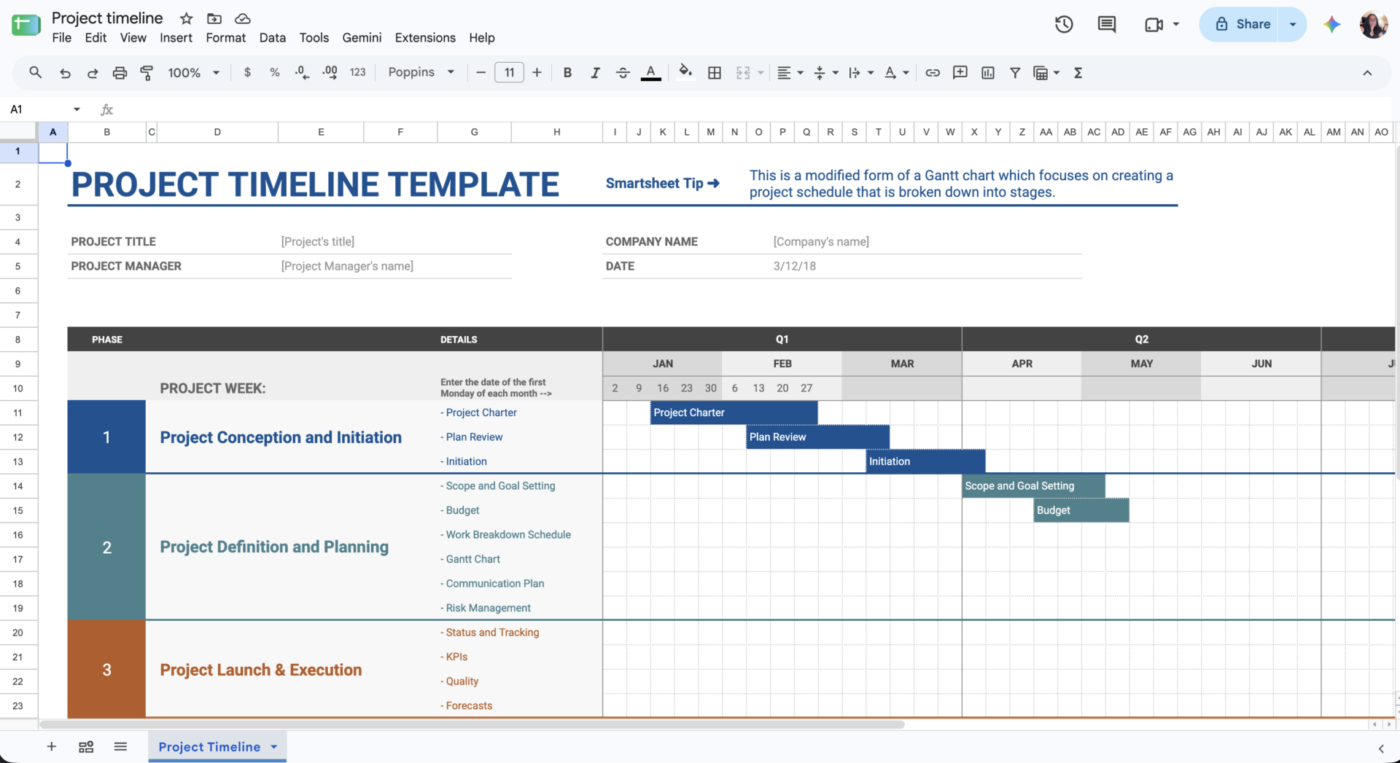
The Project timeline template keeps the schedule at a higher level. Phases, major activities, and milestones are laid out on a visual timeline, and task-level detail stays out of the view.
Stakeholder updates, launch planning, and milestone reviews are where it fits best. For day-to-day execution, pair it with a task tracker that holds owners, statuses, blockers, and smaller deliverables.
Best for: Teams that need a high-level view of project phases, milestones, and dates for stakeholder updates or planning reviews.
Skip it if: You need to manage individual assignments, blockers, and day-to-day task progress from the same view.
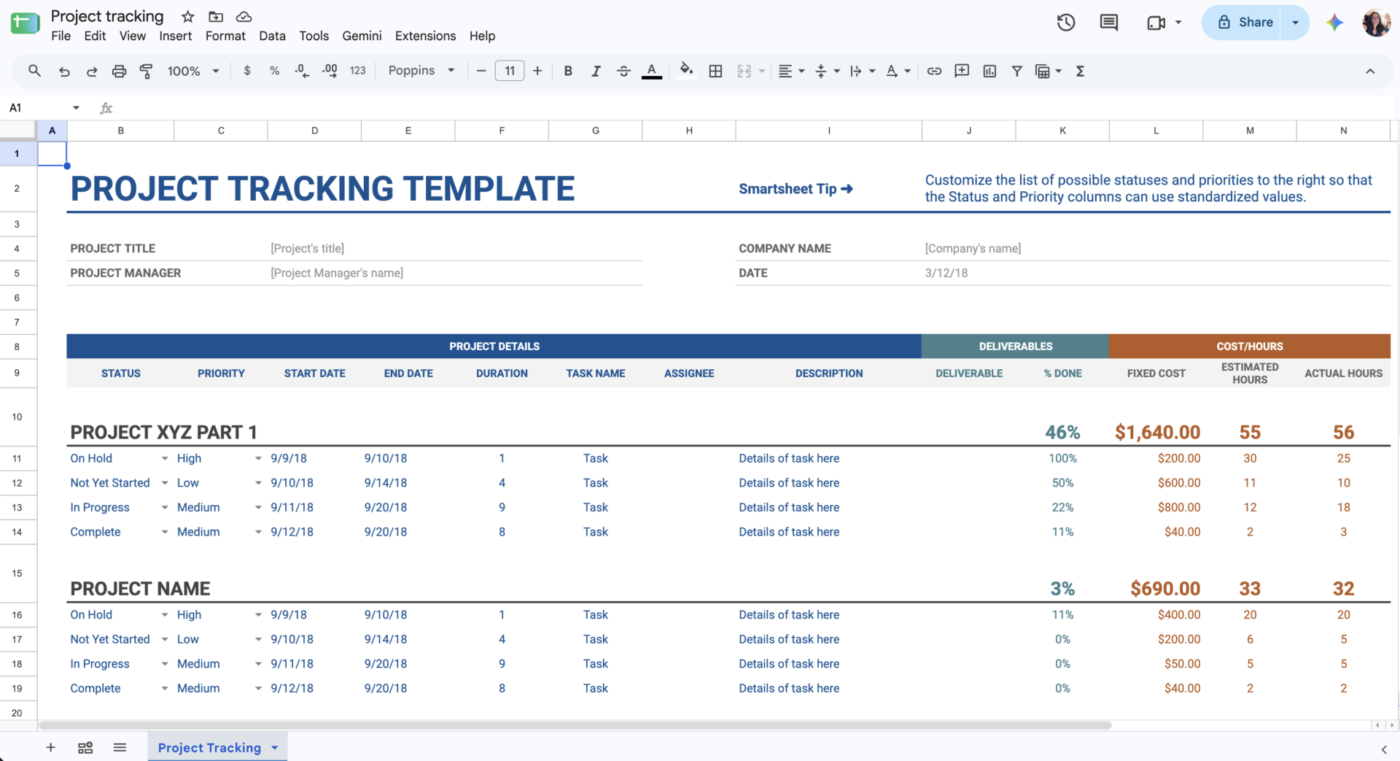
This is the closest of the four to a full working tracker. It comes with fields for status, priority, start date, end date, duration, task name, assignee, description, deliverable, percent complete, fixed cost, estimated hours, and actual hours.
A small project will rarely need all of that. Before you invite the team in, delete the fields you don’t need. Then agree on a fixed set of status and priority choices. What’s left gives you delivery, effort, and cost data in one place.
Best for: Teams that want task progress, ownership, effort, and costs in one tracker for recurring project reviews.
Skip it if: You only need a lightweight schedule and won’t maintain fields like estimated hours, actual hours, costs, or percentage complete.
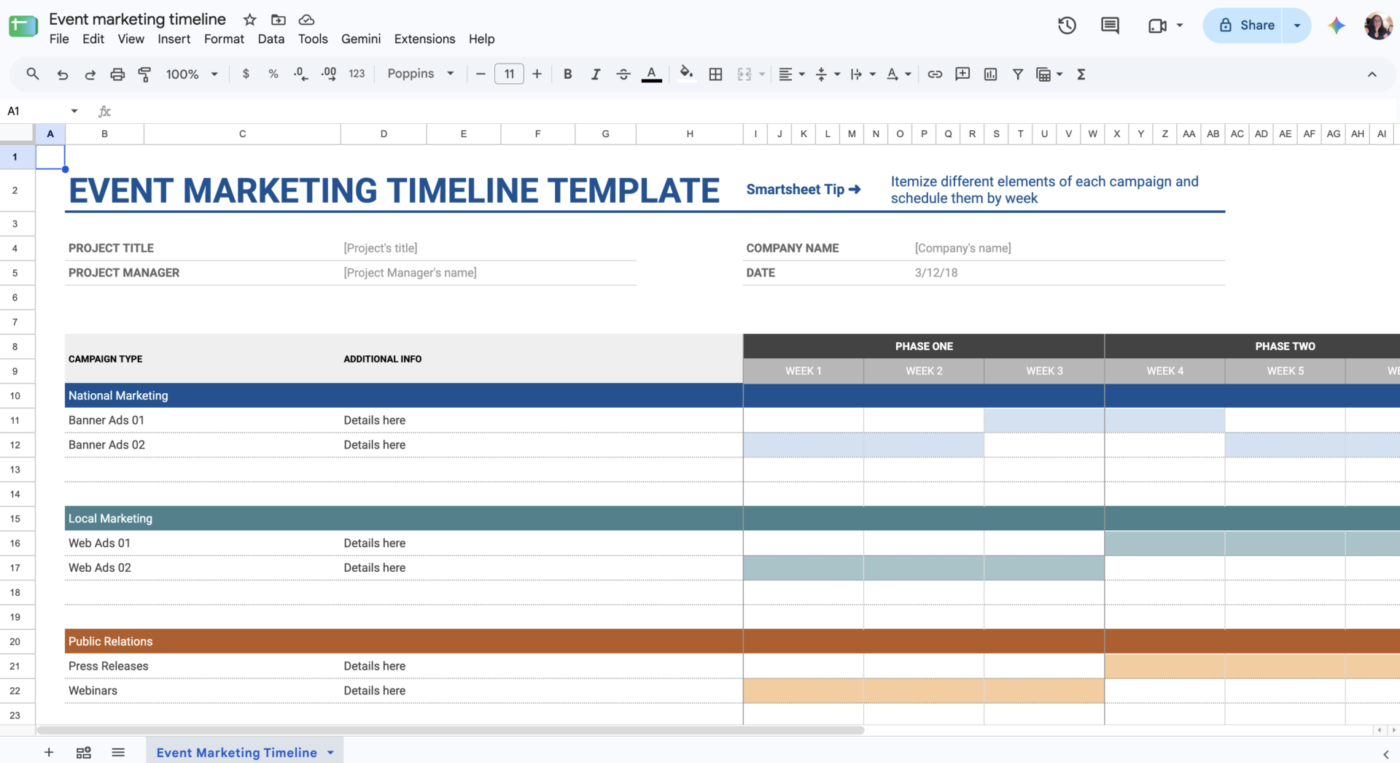
This template maps campaign types across four phases and 12 weekly periods, which makes parallel streams of activity easy to spot.
Rename the campaign types after your own workstreams. The sheet can then handle product launches, conferences, content campaigns, or any project with a fixed rollout window. It carries less task-level detail than the Project tracking template and works better for sequencing than for individual ownership.
Best for: Marketing and operations teams coordinating launches, campaigns, or events across several workstreams and fixed phases.
Skip it if: Your project doesn’t follow a phased rollout, or you need detailed task ownership and status tracking rather than a timeline view.
Three templates from the wider gallery can support parts of a project, even though they’re filed outside the Project Management category:
For a wider set of ready-made options, including templates built outside Google’s gallery, see our roundup of Google Sheets project management templates.
If you want to see how those tasks, owners, dates, and milestones come together in a high-level project plan, this walkthrough builds one from scratch in under 30 minutes.
How often the plan changes matters more than team size. A 15-person team can run a stable project in Sheets for months, while a 4-person team whose dates and owners change every day can outgrow the sheet quickly. Use the table to see which column describes your project today.
| Signal | Stay in Google Sheets if | Consider project management software if |
| When a date slips | You update the few tasks that follow it by hand in a few minutes | Every slip means checking the Depends On column and editing several rows |
| How people learn about new work | Assigned comments and a regular look at their filter view are enough | Each person needs their own queue and an alert whenever a task is assigned to them |
| How many project files | One sheet holds the project, or a weekly IMPORTRANGE rollup covers the portfolio | Shared people work across several files, and you need to reassign work from one place |
| Who needs access | Viewer, Commenter, and Editor access on one file covers the team, clients, and contractors | Some people should see only their own tasks, or clients need a separate space |
| Your Google plan | Your Workspace edition includes Timeline view and conditional notifications, or you can work without them | You’re on personal accounts and need a visual schedule and task-level alerts |
| Budget and modeling work | Budgets, forecasts, and what-if scenarios are a large part of the project | Most of the work is tasks, handoffs, and dates, with little modeling |
| Upkeep | Fixing formulas, views, and protected ranges is an occasional job | Keeping the tracker accurate has become a regular part of someone’s week |
You can also use both. Keep the budget, the forecast, and one-off analysis in Sheets, and move tasks, dates, and assignments to the project tool. Decide which file owns each date and number before you split them, so the two never hold different versions of the same deadline.
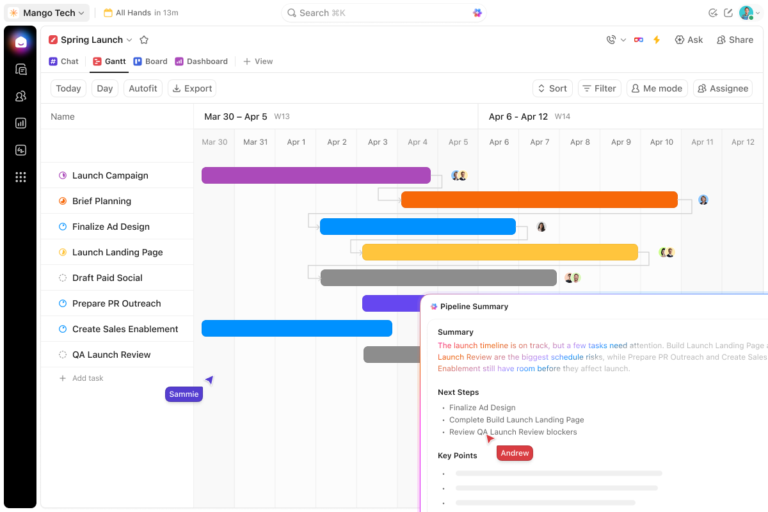
If the spreadsheet still works, keep using it. The case for project management software grows when dependencies, workload, capacity, and reporting all need to be updated with each change. At that point, a work and project management platform like ClickUp can take on the jobs that Sheets leaves to formulas and manual upkeep. It brings planning, resource management, reporting, and AI into one workspace, while still letting you view the work as a table.
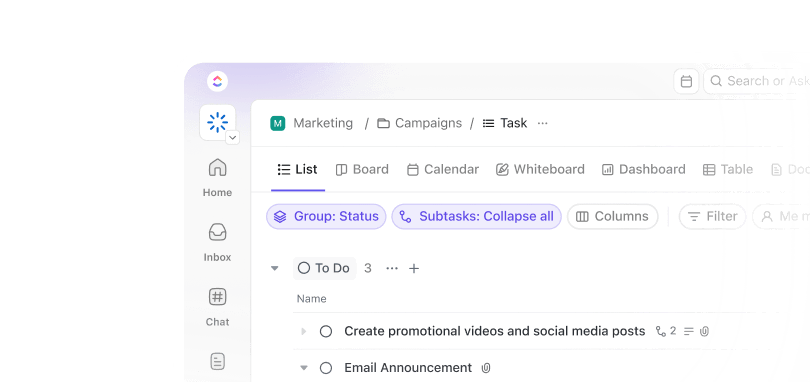
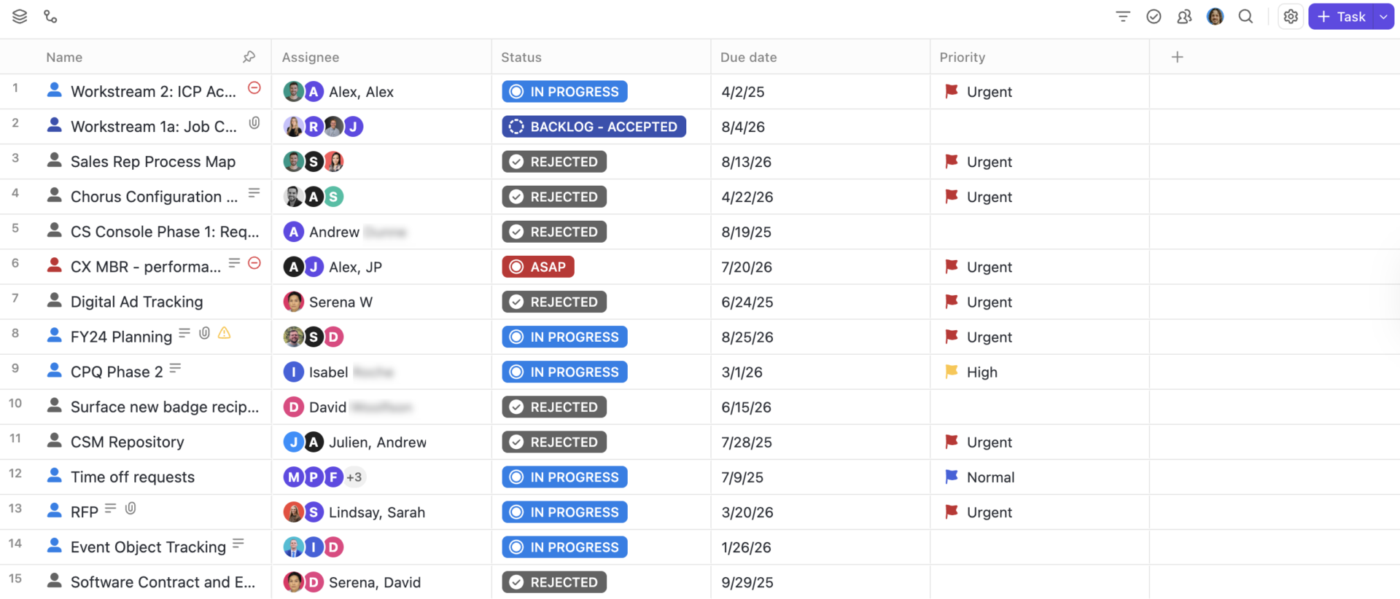
ClickUp Table View most closely resembles a spreadsheet. Tasks appear as rows and fields as columns, with built-in filtering, grouping, Custom Fields, and bulk editing. Each row is a ClickUp Task with its own assignee, dates, status, and dependencies, and any Docs you link to it. Change the row in Table View, and the same task updates in every other view.
And these further cover the coordination work a tracker struggles with:
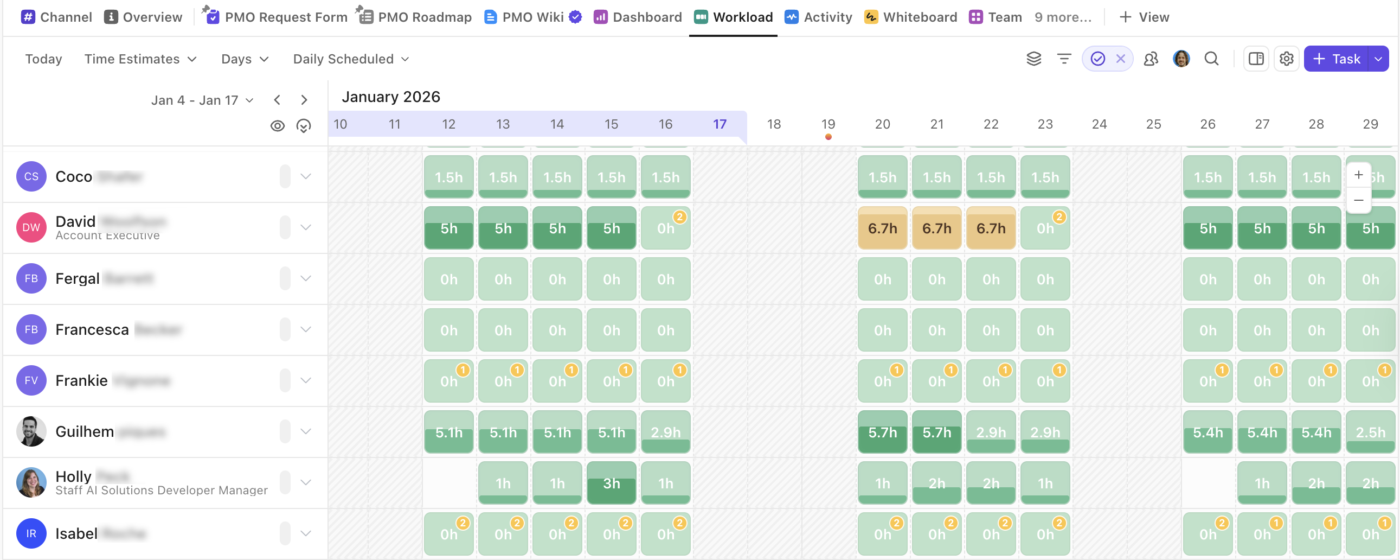
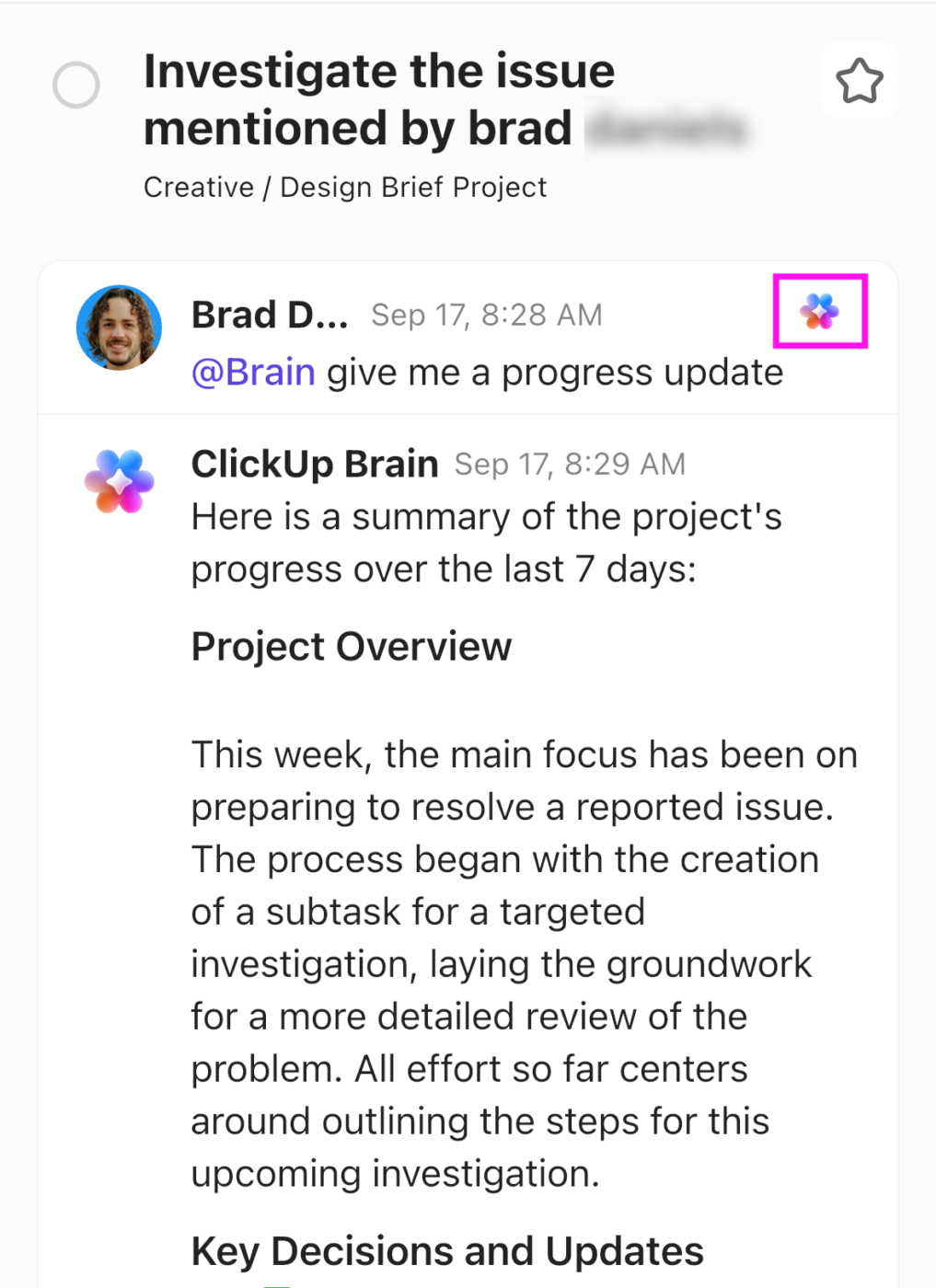
ClickUp Super Agents can take over recurring checks that often land on the project manager. The Workload Risk Assessor Agent checks whether the team has enough capacity for a set time window before you commit to a deliverable. The Resource Allocation Manager Agent scans active work for uneven allocation and recommends where tasks could move.
And during execution, the Blocker Identification Agent looks for stalled tasks, handoffs, and dependencies, then points the right people toward them.
The goal is to cut down the project logic your team maintains by hand. You can still work from a table when that view fits, while dependencies, capacity, reporting, and follow-up stay connected to the work itself.
If you’re moving a Sheets tracker into ClickUp, these templates give you a ready-made starting point:
ClickUp is built around tasks, so it won’t replace a spreadsheet for open-ended analysis. ClickUp Formula Fields calculate values from the fields on each task, such as days remaining or cost per hour. Work that spans many rows, such as a forecast built on a range of cells or a what-if scenario on a separate tab, still fits better in Sheets.
Switching tools also takes effort. Everyone on a Google Workspace team can already open a sheet, and clients can view it with a link. Moving the tracker into ClickUp means inviting the team, setting up statuses and fields, and replacing the habit of opening one shared file.
Best for: Teams managing multiple projects, shared resources, dependencies, and recurring reporting that need project data to stay connected across planning, execution, and capacity decisions.
Skip it if: You only need a lightweight tracker for one stable project and your team can comfortably manage dates, ownership, and reporting inside Google Sheets.
The tracker in this guide gives you one source table, standard statuses, working-day dates, filter views, and a dashboard that updates itself. For a single project with a stable plan, that setup works.
To check whether it will still work three months from now, track three things for the next two weeks.
Count how often you move a date by hand because an earlier task slipped, and how often you remind someone about a task they missed. Then look at the time, how long it takes to put the weekly status update together. If those numbers stay small, keep the sheet. If they grow each week, move the project into a tool that handles those updates for you.
In ClickUp, a slipped task can shift the tasks that depend on it, and new assignments appear in each person’s own work. Dashboards report from the same tasks your team updates, and Table View keeps the rows-and-columns layout for anyone who prefers it.
Not as a built-in feature. Sheets has no setting that repeats a row on a schedule. Google Apps Script can do it with a time-driven trigger, such as a short script that adds a new “Weekly review” row every Monday. Someone on the team has to write that script and fix it when the sheet changes.
Yes. You can connect a Google Form to a spreadsheet and send every response into a linked Google Sheet. That works well for project requests, creative briefs, bug reports, or work intake because each submission becomes a new row that you can then classify, assign, or report on. Google now formats linked response data as a table, too.
Not securely within one shared spreadsheet. Filter views can give each person a cleaner view of their own work, but they don’t create row-level access permissions. Protected ranges control who can edit cells; they aren’t designed to hide sensitive data from people who already have access to the spreadsheet. If you need to prevent users from seeing one another’s work, separate files or a system with record-level permissions is safer.
Yes, on eligible Google Workspace or Google AI plans. Sheets canvas can turn spreadsheet data into an interactive Kanban board, dashboard, heat map, or other mini app using Gemini. Changes made in the canvas stay synced with the underlying spreadsheet data. That gives Sheets a stronger visual project layer than a standard grid, although availability depends on your plan and account.
Yes, with an eligible Google Workspace or Google AI plan. Gemini in Sheets can create tables, formulas, dropdowns, checkboxes, filters, pivot tables, charts, and formatting, and it can perform broader edits across an existing spreadsheet. You should still define the project structure first. AI can build the sheet faster, but it can’t decide which statuses, ownership rules, dependencies, or reporting fields your team needs.
Google Sheets is better for browser-first collaboration, shared updates, comments, and filter views. Excel is stronger for heavier modeling, larger datasets, and more complex analysis. For a shared project tracker, Sheets is usually the simpler choice. For analysis-heavy project work, Excel gives you more headroom.

Manasi Nair
Max 14min read
Manasi Nair
Max 9min read

Arya P Dinesh
Max 17min read
© 2026 ClickUp