Sorry, there were no results found for “”
Sorry, there were no results found for “”
Sorry, there were no results found for “”
Most project schedules survive about a week. Then one task slips, a dependency nobody mapped comes due, and the plan drifts while the team keeps working off dead dates. Wellingtone’s research puts it bluntly: only about a third of organizations finish projects on time.
The usual roundup compares project scheduling software tools on how the Gantt chart looks. Wrong test. You should look into what happens the first time a task slips. Does the timeline reschedule itself, or do you fix it by hand while the plan rots?
This list runs on that split. Dedicated scheduling tools draw timelines; platforms keep the schedule wired to the work. Here’s which side each of the 10 tools lands on.
| Tool | Best for | Standout feature | Pricing* | Where it taps out |
| Microsoft Project | Traditional, dependency-heavy enterprise scheduling | It runs critical-path scheduling and resource leveling across entire portfolios tied into Power BI | $679.99 one-time (Standard); $1,129.99 one-time (Professional); Cloud via Planner Premium | Steep learning curve, high switching cost, and weaker live web collaboration than newer cloud tools |
| ClickUp | Connecting the schedule to the work | Its Gantt tasks carry assignees, subtasks, and docs, so a slipped date ripples through work, not just a chart | Free; paid plans start at $7/user/mo | More surface area than a solo planner needs; learning curve coming from a single-purpose Gantt tool |
| Smartsheet | Spreadsheet-style scheduling at scale | It wraps a scheduling engine inside a familiar grid and rolls many sheets into live summaries | $12/user/mo (Pro); $24/user/mo (Business); Enterprise is custom | Grid-first interface; setup time for advanced links |
| Wrike | Resource scheduling in agencies and larger teams | It builds resource allocation directly into its Gantt charts for cross-client rebalancing | Free; paid plans start at $10/user/mo | Heavy upfront admin work; your team can’t just log in and schedule on day one |
| monday.com | Visual, easy-to-read schedules | Its color-coded layout makes one board readable for both managers and executives in a single click | Free; paid plans start at $12/user/mo (3-seat minimum) | No native resource leveling, no baseline tracking, and won’t auto-reschedule to fix clashes |
| Asana | Task-driven schedules | It builds the schedule from tasks up, so your to-do list becomes the timeline automatically | Free; paid plans start at $13.49/user/mo | Skips formal critical-path logic and can’t track slips against a locked master plan |
| GanttPRO | Fast, dedicated Gantt charts | Its autoscheduler recalculates every downstream date the second you move one bar | Free trial; paid plans start at $9/user/mo (5-seat minimum) | No native docs, wikis, or team chat; solo users forced onto annual billing |
| Zoho Projects | Work within the Zoho ecosystem | It offers coded Schedule Functions that run complex backend jobs on a set cycle | Free; paid plans start at $5/user/mo | Information-dense; advanced automation needs coding in Deluge |
| TeamGantt | Simple, shareable Gantt charts for small teams | It shares a live schedule with anyone via link, no login required | Free trial; paid plans start at $24/month | No native docs, chat, or deep automation; complex imports often trip up |
| Resource Guru | Resource and capacity scheduling | It schedules people, rooms, and equipment with the same clash-detection logic | Paid plans start at $6/user/mo (no free tier) | No task work, doc editing, or checklists; must pair with a separate task tracker |
Our editorial team follows a transparent, research-backed, and vendor-neutral process, so you can trust that our recommendations are based on real product value.
Here’s a detailed rundown of how we review software at ClickUp.
Look for these seven things in a strong project scheduling tool: automatic dependency mapping, a real critical path, multiple views, resource planning, connected work, AI scheduling, and honest free-tier limits.
Here’s what to check in detail:
Ten tools made this list: Microsoft Project, ClickUp, Smartsheet, Wrike, monday.com, Asana, GanttPRO, Zoho Projects, TeamGantt, and Resource Guru.
If you need one quick decision framework, use ClickUp when the schedule has to drive the actual work, Microsoft Project for formal critical-path and portfolio planning, GanttPRO for a fast standalone Gantt, and Resource Guru for pure capacity scheduling. The rest of this list helps you choose based on your bottleneck: dependencies, resourcing, views, or how tightly the plan connects to the work.
Every pick below gets the same breakdown: what it does best, where it taps out, and who should skip it.
If your team thinks in work breakdown structures, Microsoft Project will suit you. It is built for classic, desktop-grade scheduling, not light task planning. That makes it the default pick when you run complex portfolios with tightly linked tasks. It also ties your schedule into the wider Microsoft 365 and Power BI stack. You can map resource limits and balance hundreds of timelines at once.
The friction is in how you buy it. Microsoft sells cloud access through Planner Premium subscriptions (Plans 1, 3, and 5), which give you web-based project roadmaps and live collaboration. The one-time desktop licenses skip the monthly fees but cut you off from real-time shared schedule updates, a real problem for scattered teams.
In practice: A construction PMO uses Project to model a 400-line portfolio, level engineers across three active builds, and push a variance report into Power BI for the weekly steering review.
Where Microsoft Project taps out: It’s built for structured PMOs, so its depth and desktop roots reward teams that live inside the Microsoft ecosystem and feel heavy for fast-moving cloud teams. Deep cross-project reporting also assumes everyone stays on a paid Microsoft plan, which raises the switching cost as you scale.
Skip Microsoft Project if: You want a fast, collaborative scheduling tool with a gentle learning curve for rapid team onboarding.
This is what a G2 reviewer likes about MS Project:
The ability to manage projects (primarily portfolios, resources, and costs), generate Gantt charts, assign programmers to projects, along with the native integration with other Microsoft tools is great (Power BI). Additionally, I can group several municipal Smart Cities initiatives into a single unified vision. Being Microsoft, the support is always exquisite.
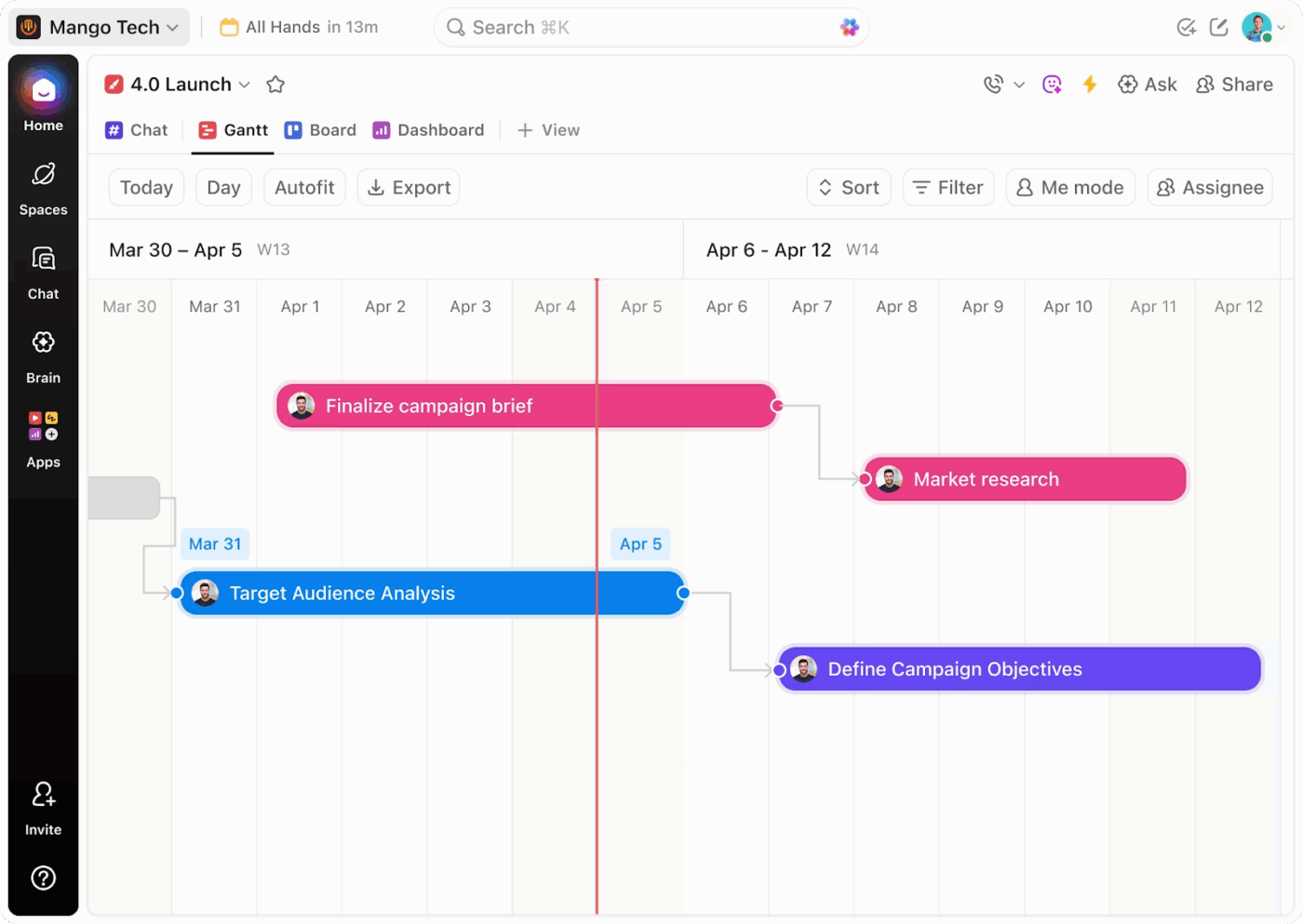
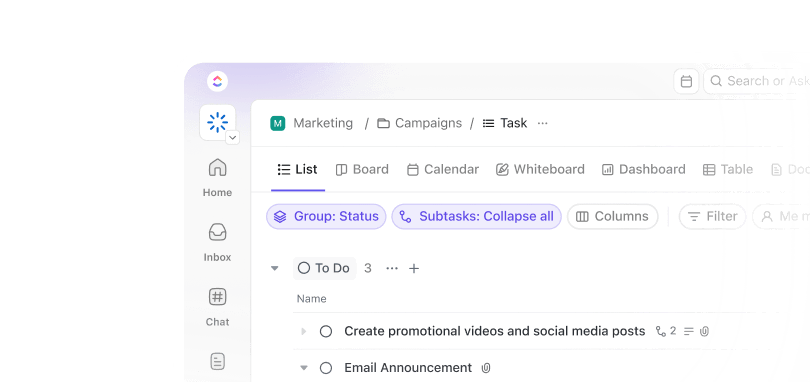
ClickUp is a full AI work management platform with native scheduling views, not just a chart you export and forget. The ClickUp Gantt Chart View handles the heavy scheduling logic. You draw dependency lines between tasks and set lag or lead time. In turn, the platform auto-reschedules every downstream date when an upstream bar moves.
Toggle on the critical path to see the exact chain of tasks that controls your end date. Unlike in a standalone Gantt tool, those tasks already carry assignees, subtasks, comments, and linked ClickUp Docs. So a slipped date ripples through the overall work, not just a timeline drawing.
Say a design task slips two days: the dev tasks it blocks shift automatically, the owner gets pinged, and the delay shows up in Workload before anyone’s overbooked.
Where ClickUp taps out: There is a learning curve coming from a single-purpose Gantt tool. It is more than a solo planner needs and is best suited to teams whose schedules must drive multiple work scenarios.
Skip ClickUp if: You only need a standalone Gantt chart with zero collaboration, docs, or task management layered on top.
This G2 reviewer appreciates ClickUp’s all-in-one flexibility:
What I love most about ClickUp is that it truly is one tool for everything. I used to jump between various tools for tasks, Google Calendar for deadlines, etc., now it’s all inside ClickUp. The multiple views are a game‑changer: I can manage sprints with the Board view, track long‑term milestones on the Gantt chart, and see my weekly schedule in Calendar, all without re‑entering any data. Yes, there’s a learning curve at first, but once you set it up the way you like, productivity skyrockets. Highly recommended!
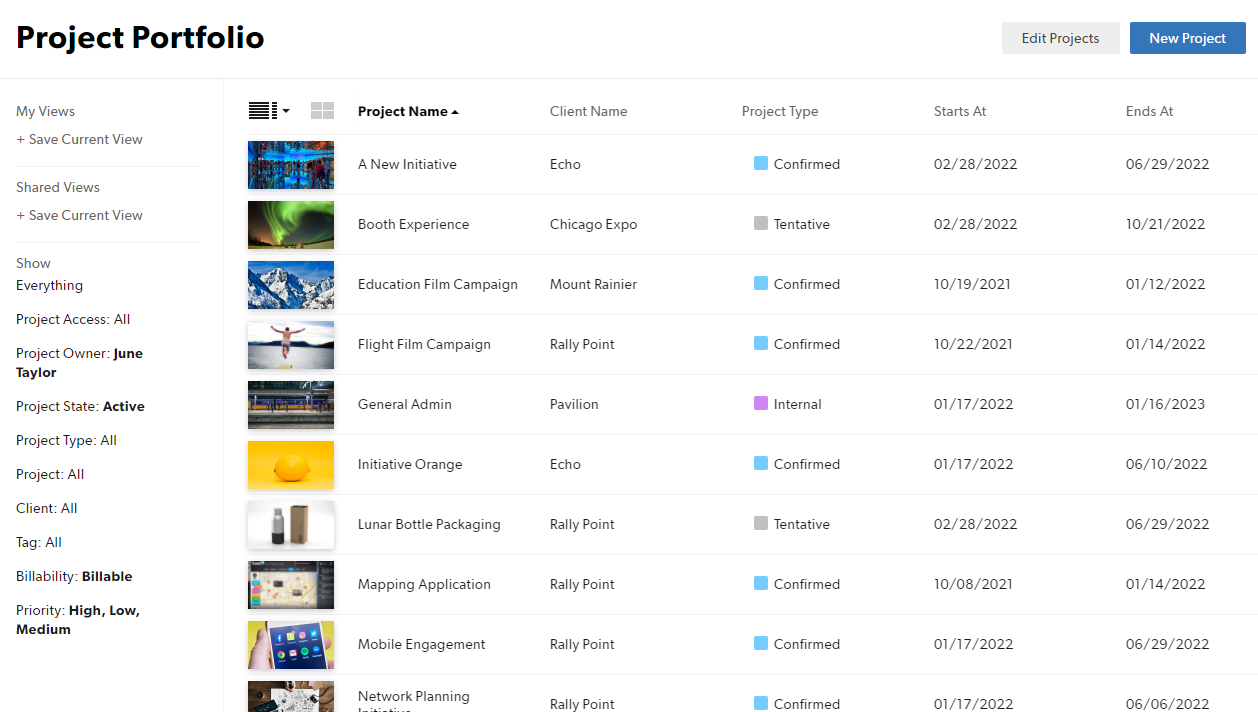
Smartsheet is good if you keep hitting the wall in Excel due to manual file sharing. It wraps project scheduling inside a familiar grid of rows and columns, so adoption is almost seamless. The workflow is simple: map out a schedule in a plain sheet, flip on a visual Gantt chart in one click, and set hard task dependencies. Nobody needs to learn a strange new interface.
For example, an operations lead can build a workback schedule from a fixed launch date, then roll twelve regional sheets into one live executive summary that updates as each region logs progress. The tool scales well from a single tracking sheet to a huge portfolio-level system.
Where Smartsheet taps out: Its grid-first interface rewards spreadsheet-native teams but feels dense to those who want a visual layout out of the box. Advanced formulas, layered dashboards, and cross-sheet links take setup time to get right. Its pricing also suits organizations with many view-only stakeholders. External viewers are free, but seat costs climb once those people need to edit tasks, shift timelines, or build dashboards.
Skip Smartsheet if: You want an intuitive, visual schedule manager that requires zero spreadsheet formulas or structural blueprint design to set up.
See which features this G2 reviewer uses in Smartsheet for project schedules:
Smartsheet has been a valuable tool for managing projects, tracking tasks, and improving collaboration across our team. The features we use most often are automated workflows, dashboards, and reporting. Automations have eliminated many manual follow-up tasks by sending reminders, approvals, and status updates automatically, which saves time and helps keep projects on schedule.
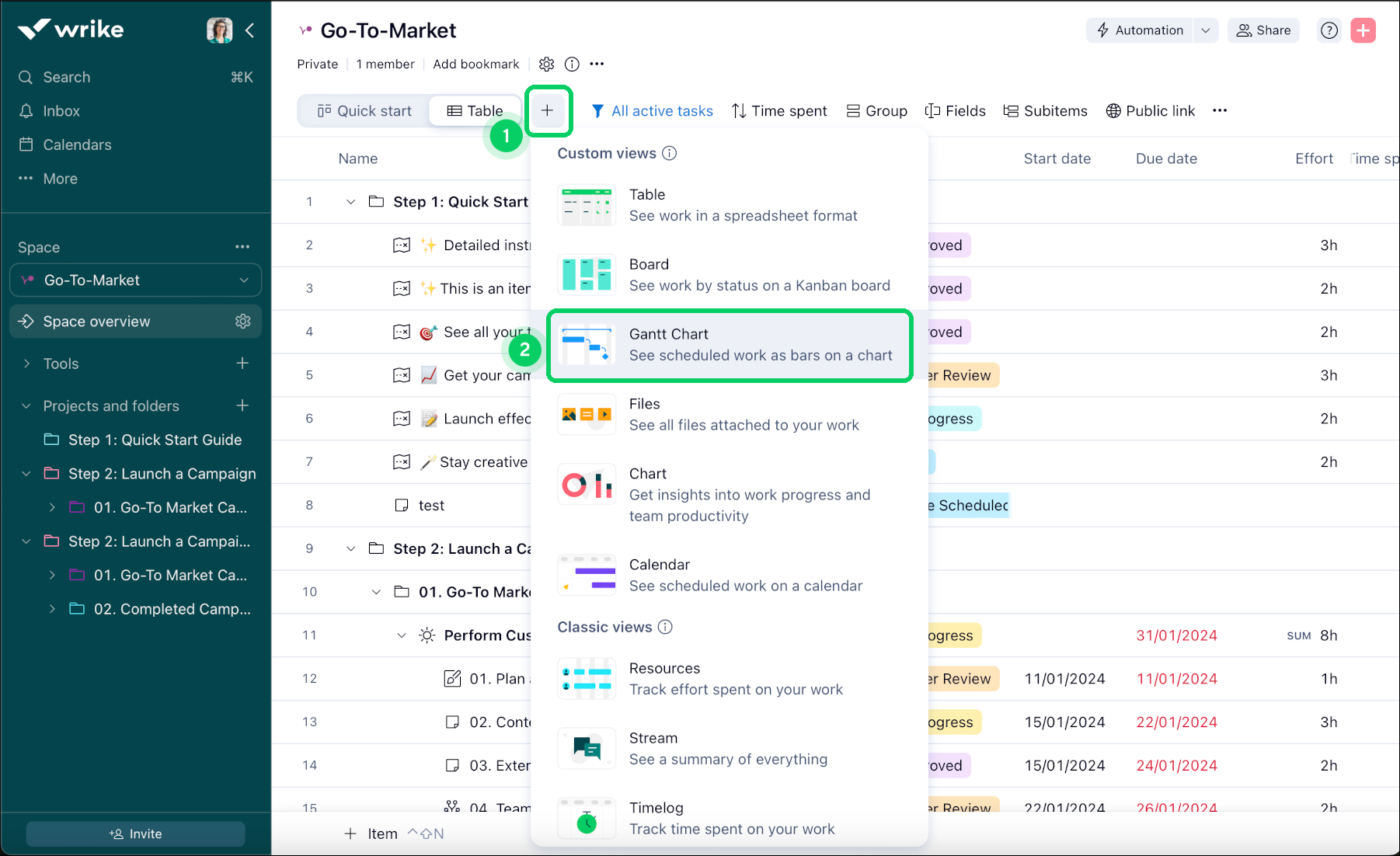
For agencies or large internal teams, the struggle isn’t about mapping tasks, but juggling the same people across ten different client files at once. Wrike builds a resource allocation system right into its Gantt charts for this. When a creative asset or an engineering sprint backlog gets stuck on one account, you can see the ripple effect across your other active projects and rebalance before deadlines slip.
Picture a 40-person agency where one senior designer is booked across six retainers. Wrike’s workload grid flags the overload, and you reassign hours before two of those clients miss their launch dates. The platform pulls time tracking, proofing, and custom request forms into the active schedule, so timelines feed straight into reports and billing.
Where Wrike taps out: Standing up Wrike’s enterprise setup takes a lot of upfront admin work. Your team can’t just log in and schedule well on day one. The crowded interface also feels like overkill if you only want to build quick, simple project timelines. Also, Wrike locks its heavy resource scheduling and time tracking behind the premium tiers. You have to budget for the Business plan or higher to use the workload views that make it worth buying.
Skip Wrike if: You want a lightweight schedule manager that your team can learn organically without a week of forced setup and onboarding.
Hear about Wrike from this G2 reviewer:
I really like the schedule view in Wrike because it’s very easy to see and edit. I can easily change the time of projects, and add or remove items from this view, which helps me stay organized for the day and week. This feature allows me to plan and organize my schedule effectively, letting me know how long things are expected to take and making it easy to adjust plans as needed.
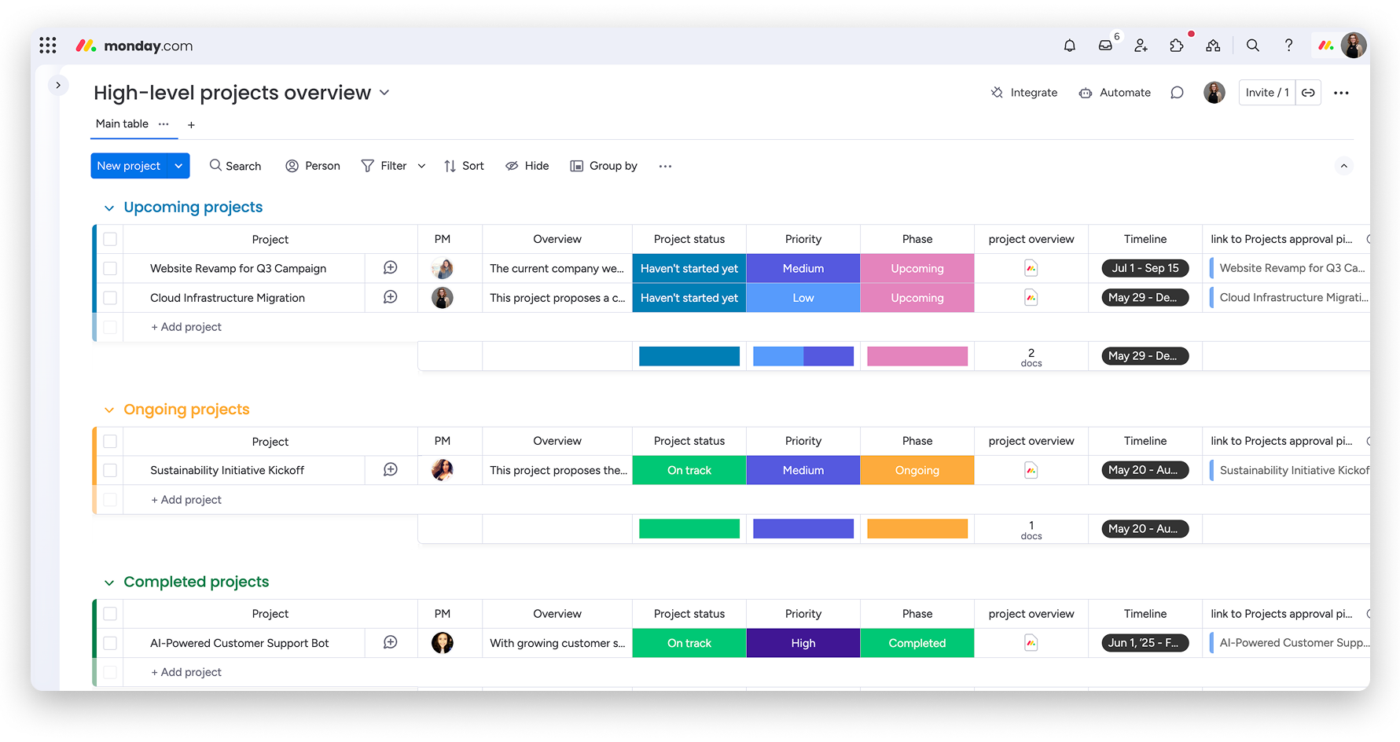
monday.com skips the intimidating interface of legacy tools with a clean, color-coded layout that shows task status at a glance. Build the schedule in a flexible main grid, then flip it into a calendar, timeline, or Gantt view in a single click. Put simply, a single board can give a manager deep detail while it gives executives a quick read on the key dates.
For example, a marketing team can run a campaign board where the manager tracks every subtask, while the VP glances at the same timeline view and instantly sees the launch date. That readability is the whole point.
Where monday.com taps out: It’s a visual board at heart, not a scheduling engine. The system lacks native resource leveling and formal project baseline tracking. It can flag when a worker is overloaded, but won’t automatically reschedule tasks to fix the clash. You can’t snapshot your original schedule to analyze where your timeline slipped, either.
Skip monday.com if: You are managing heavy infrastructure, construction, or engineering projects that require strict, mathematically locked schedules or lead/lag times.
See how this G2 reviewer uses monday.com in their work as an Account Executive:
As an Account Executive, Monday helps me organize all of my deals and daily tasks. I schedule reminders for myself, track notes, and love that I can see a snapshot of everything I’m working on, all in one place. It’s a clean easy to digest view and a million times better than the spreadsheet I was previously trying to use.
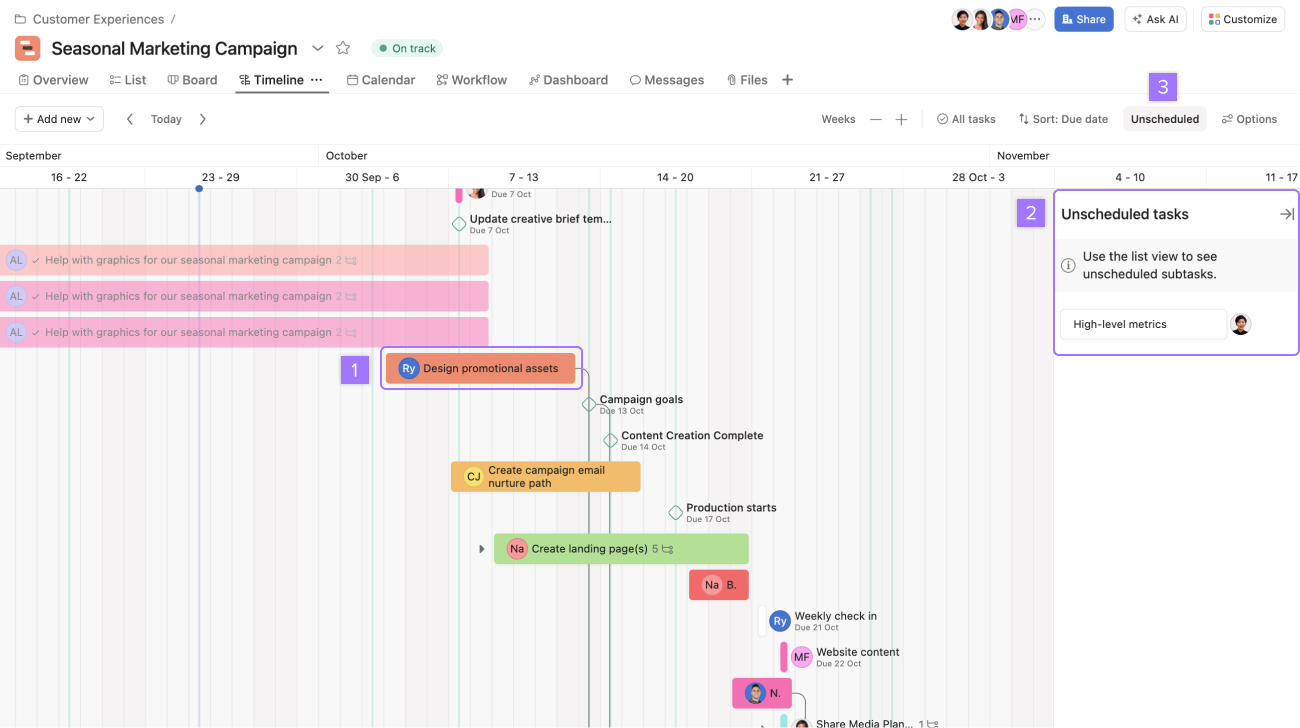
Asana builds a schedule from the individual task up. This helps when your team keeps losing the thread between the big roadmap and the daily work.
Map the work first as plain lists, subtasks, and Kanban boards, then let the Timeline view turn that structure into a Gantt-style schedule. You draw links between dependent milestones that adjust as the daily work shifts, no dependency math required upfront.
Think of a content team running an editorial calendar: writers manage tasks in List view, and the managing editor flips to Timeline to see how a slipped draft pushes the publish date. Same data, two lenses.
Where Asana taps out: Deep, dependency-heavy scheduling is not the strong suit here. It skips the classic work breakdown math and advanced time estimates. It also lacks the formal critical path logic that big engineering plans lean on. It can’t track complex slips against a locked master plan.
Skip Asana if: Critical-path scheduling, engineering-grade dependency logic, and formal master plan baseline tracking are the primary requirements of your job.
See what this G2 reviewer loves about Asana:
I love the clear visuals for every task and the ability to schedule with a global project calendar. Assigning tasks helps us focus and understand everyone’s responsibilities. I appreciate task assignments, dependencies, and milestone messaging as they help track and review projects, plus plan the workload ahead. Using Asana AI has also been a huge help in refining our project templates.
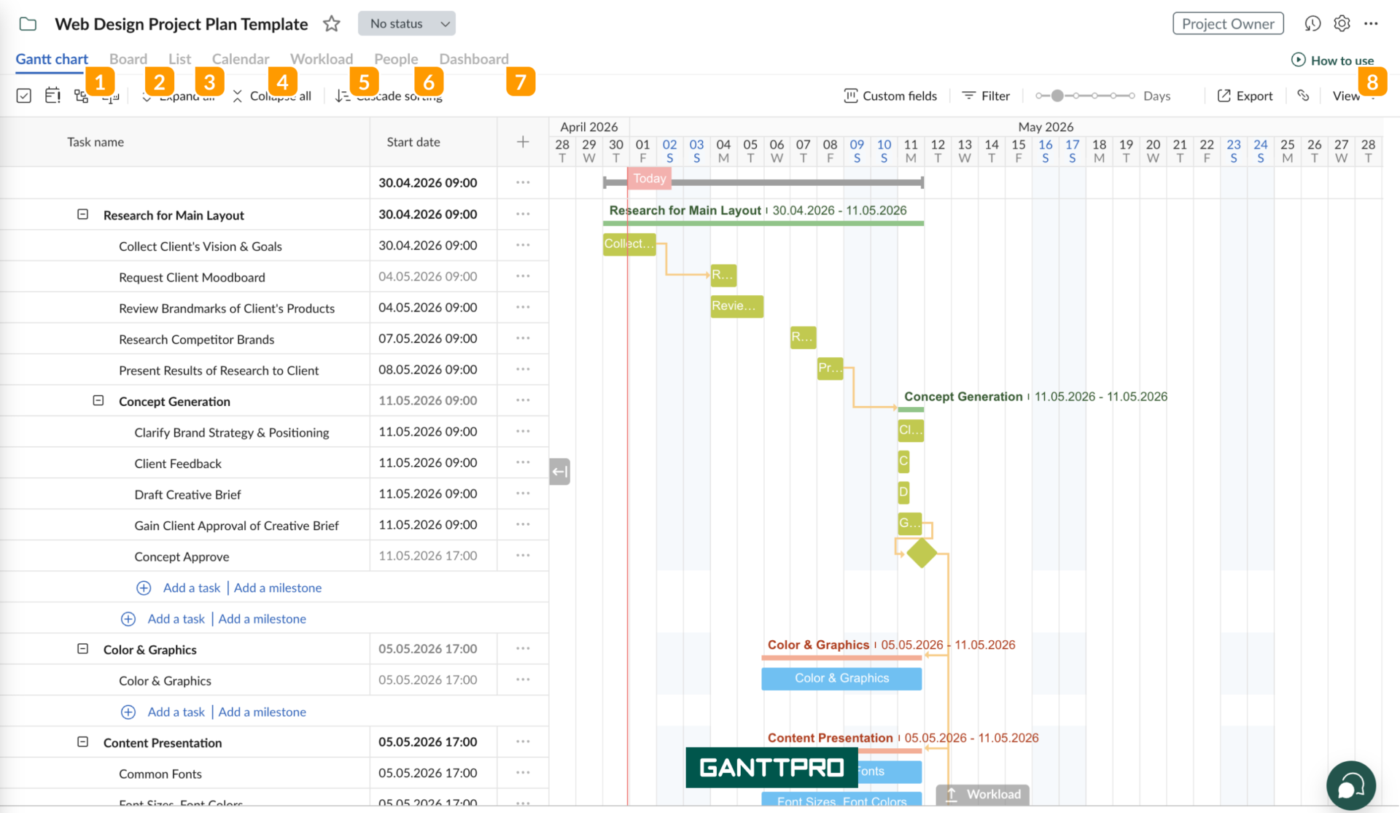
If you want a precise timeline without burning hours in a general-purpose work tracker, GanttPRO gets you there faster. It strips out the clutter of broad chat-and-docs platforms and puts all its weight on the timeline. Lay out task hierarchies, set milestones, and link dependencies on a self-updating chart, all by drag-and-drop.
Say a marketing lead is planning a six-week product launch. They block out the phases, link “creative approval → asset production → campaign live,” and set a two-day lag on legal review. The moment approval slips a day, GanttPRO’s autoscheduler pushes every downstream date automatically.
It handles all four classic dependency types with exact lead and lag times, so the chart always reflects reality instead of the original guess.
Where GanttPRO taps out: It is a dedicated scheduler, not a full workplace, so it skips native docs, long-form wikis, and team chat. And since it doesn’t handle general work outside timelines, you can’t easily park daily cross-team threads right next to the schedule. In addition, the paid plans force a five-user minimum for monthly and annual pricing. Plus, as an individual, you can only opt for an annual plan. So freelancers and pairs pay a premium for empty seats they don’t need.
Skip GanttPRO if: You operate as a solo professional or small duo. Or if your workflow requires native text documents, conversational chat logs, and decentralized collaboration in the same workspace.
Hear about GanttPRO from this G2 reviewer:
I like that GanttPRO allows easy scheduling and sharing as it is web-based and allows collaboration. The easy dashboard management and clear layout are also a big plus for me. It’s easy to learn and start scheduling tasks right away without any prior experience creating Gantt charts. The initial setup was simple, making it easy to jump start.
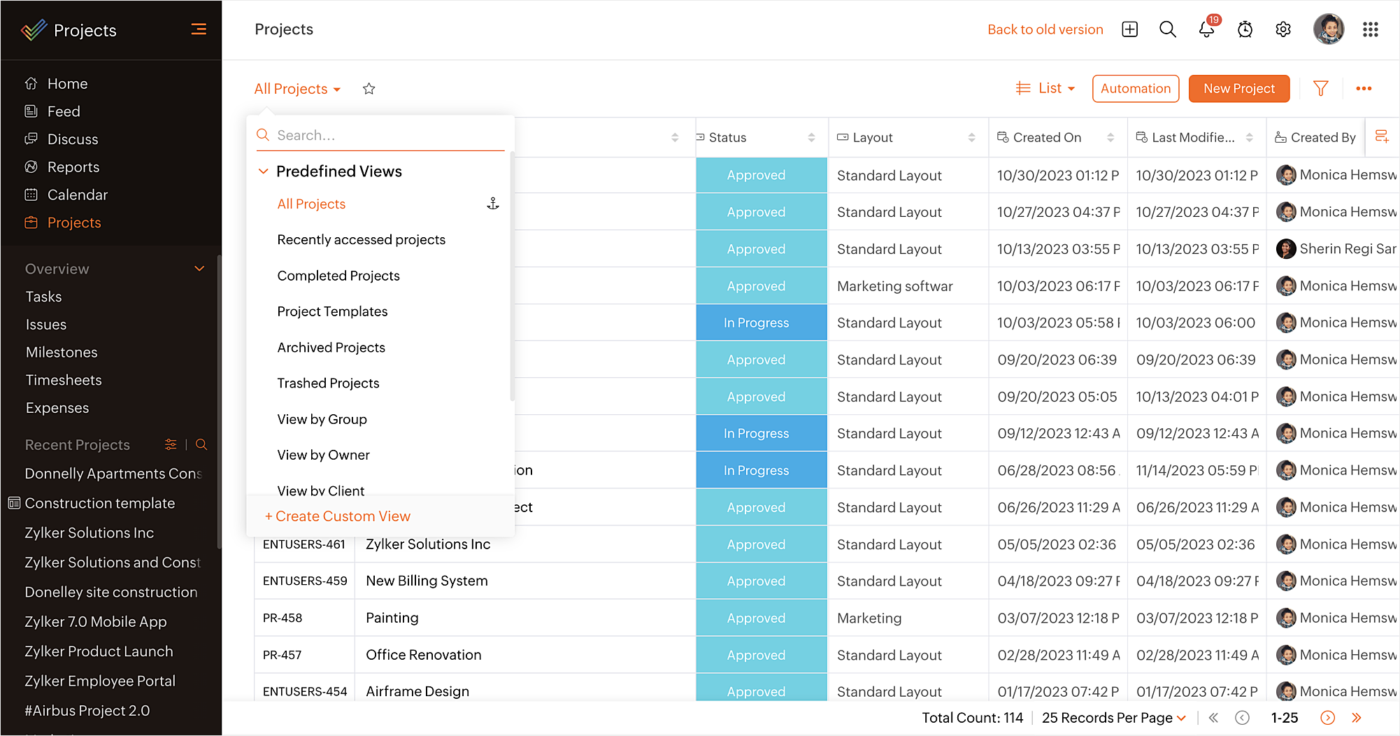
Zoho Projects gives you deep scheduling at a fraction of what the high-end tools charge per seat. It offers interactive Gantt charts, milestone tracking, and task dependencies. And if you already run on Zoho, it plugs right into your CRM, invoicing, and helpdesk.
Picture an agency that already lives in Zoho CRM. A closed deal auto-creates a project, tasks carry billable hours that flow into invoicing, and a support ticket from Zoho Desk drops directly onto the project timeline, no third-party connectors.
Its edge is the coder-level automation layer: a Developer Space with Schedule Functions written in Zoho’s own scripting language, Deluge. You can trigger time-based jobs like backups or set rules around company holidays to run in the background.
Where Zoho Projects taps out: Its depth comes with an information-dense interface, so it suits teams willing to invest in setup. Its most powerful automation also lives in Zoho’s Deluge scripting language, which means the best backend workflows fit teams with some coding capacity on hand.
Skip Zoho Projects if: You lack the internal technical resources to use code-based automation tools.
Listen to this G2 reviewer talk about Zoho Projects:
I can organize my activities in detail, schedule them in the calendar, generate tasks and notifications, and also share them with the rest of the team to evaluate, delegate, or solve problems with different and very intuitive visualization models.
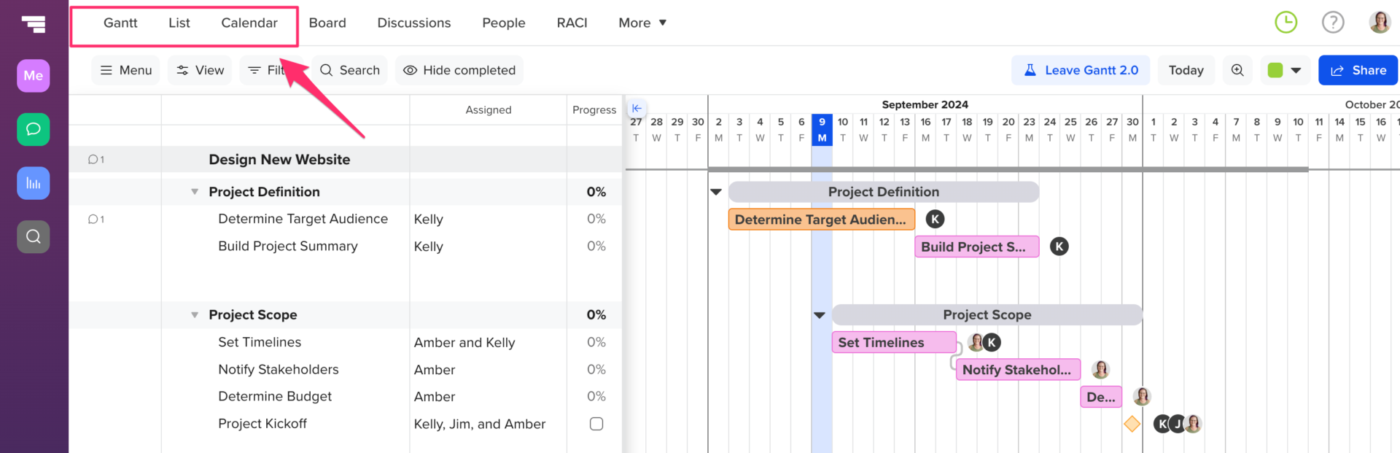
TeamGantt is built around one idea: quickly build a clean, presentable timeline, with no enterprise formulas or PMO jargon in the way. It sticks to visual, schedule-first planning. You can sketch task durations and map basic dependencies with a smooth drag-and-drop web timeline.
Its real strength shows in client work. A construction PM running a site fit-out can share a live, read-only link with subcontractors and the client, so everyone reads the same lookahead without logging in or learning the tool. As the plan shifts, the shared view updates for all of them.
For teams with physical workflows like construction, manufacturing, or events, the Builder Edition layers on long-lead material tracking and multi-week lookahead filters.
Where TeamGantt taps out: TeamGantt keeps its focus on the timeline. It goes light on broader workspace tools like native doc editors, team chat, and deep automation. Its import tool can also stumble over complex data from legacy enterprise schedulers, occasionally leaving you to re-enter task hierarchies by hand to get the plan right.
Skip TeamGantt if: Your enterprise portfolios require native internal wiki creation or automated cross-app database recipes.
Why this G2 reviewer finds a project schedule in TeamGantt helpful:
I find a project schedule in TeamGantt very helpful in managing and organizing construction activities effectively to achieve the current project schedule’s critical path. It assists in managing scopes of work daily to meet project deadlines. I also appreciated that the initial setup was straightforward.
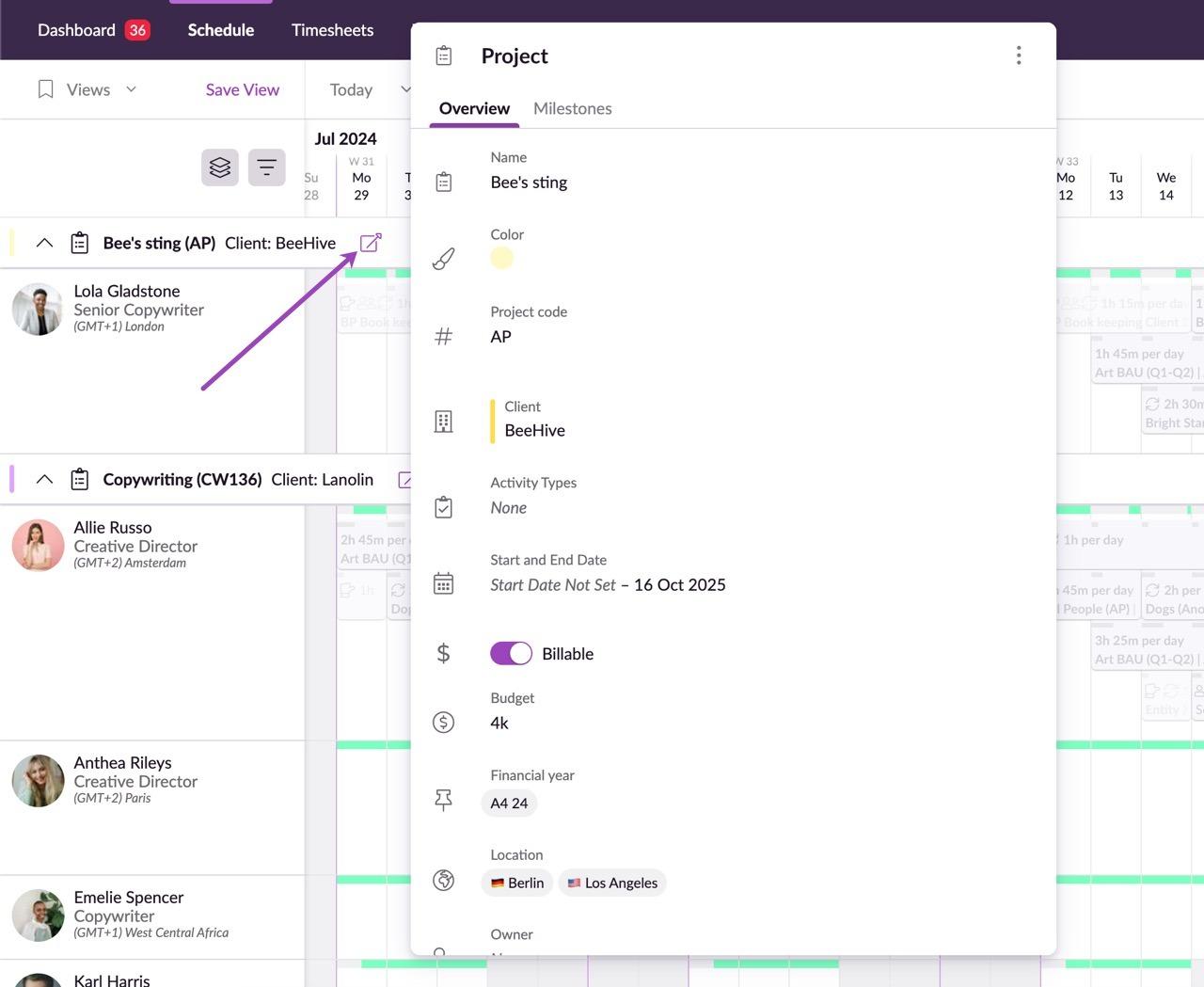
Resource Guru zeroes in on who is available and how loaded they are. See team workloads at a glance on one drag-and-drop availability calendar. It helps you spot open capacity before you assign the next phase.
Take a studio juggling five photo shoots in a month. A producer books a photographer, an editing suite, and a company van for the same shoot day, and Resource Guru’s clash engine flags the double-booked van in the background and drops the overload onto a short waiting list. It treats non-human assets (rooms, gear, studios, vehicles) with the same logic as people, so the whole capacity picture lives in one calendar.
Where Resource Guru taps out: Resource Guru is built for people and asset scheduling, not execution. It has no task work, doc editing, or detailed checklists to run a deliverable end to end. You’ll need to pair it with a separate task tracker for the actual work, which means a second tool and one more sync point to maintain.
Skip Resource Guru if: Your workflow requires built-in task checklists, long-form internal documentation, and formal critical path Gantt planning.
How this G2 reviewer uses work allocation in Resource Guru:
I can easily track who’s in and out each day and review the work allocation for each of my colleagues. This helps me quickly see who I can ask for assistance or delegate critical, urgent tasks to.
Two tools didn’t make the main list but deserve a look depending on your workflow:
The difference shows up the first time a task slips, not on day one. Oxford megaproject researcher Bent Flyvbjerg calls it the ‘iron law of megaprojects’:
“Over budget, over time, under benefits, over and over again.”
His research found that 9 out of 10 large-scale projects run major cost and schedule overruns. The plan almost always survives the kickoff, but not the contact with reality.
Every tool here can draw a tidy Gantt chart. The harder question is what the tool does when a date moves. This is where AI-powered scheduling is starting to change the math. McKinsey & Company notes that generative scheduling lets contractors test thousands of possible build sequences and accelerate timelines by up to 20%. It treats the schedule as something to resolve on the fly rather than a static chart to defend.
This is how you should judge any scheduler: on its second week, not its first. The dedicated chart tools (GanttPRO, TeamGantt) and resource schedulers (Resource Guru) are excellent. But they leave the rest of the work somewhere else.
The platforms (ClickUp, monday.com, Wrike, Smartsheet, Asana, Zoho Projects) keep the schedule wired to the tasks. A missed date ripples through dependencies and shows up in everyone’s view.
The truth is, the best schedule is one that almost no one opens on purpose. If keeping it accurate depends on someone remembering to drag bars every Friday, it’s already dead. The tools that survive week two are the ones where the timeline updates itself as a side effect of people just closing their tasks.
So ask three things:
A beautiful timeline that no one updates is just a screenshot of good intentions.
Judge project scheduling software on six things: workflow fit, how it handles a slip, visibility, resourcing, what it automates, and price as you scale. Here are detailed questions to brainstorm with your team:
If your hardest problem is keeping the schedule and the work in sync, ClickUp gives you dependencies, a visible critical path, Workload capacity, and AI schedule drafting in one workspace. Plus, ClickUp’s Free Forever plan lets you test a full scheduling workflow without paying or picking a tier first.
Start building your project schedule in ClickUp!
Build a project schedule in five steps: list deliverables and tasks, sequence them by dependency, estimate durations, assign owners and resources, then map it on a Gantt chart or timeline and lock a baseline. Tools like ClickUp, GanttPRO, and Microsoft Project automate the dependency and critical-path math. Linked tasks reschedule when one slips. For simple plans, you can start in a spreadsheet and graduate to a dedicated scheduler once dependencies get complex.
Yes. General schedulers like Microsoft Project, Smartsheet, and ClickUp handle construction timelines, while Procore and Buildertrend specialize in field and look-ahead planning. Construction teams typically need critical-path scheduling, crew and equipment resource leveling, and shareable Gantt views for subcontractors. McKinsey found that large construction projects run an average of 20% over schedule, which is why dependency-aware rescheduling matters more here than a tidy chart.
Project scheduling is important in project management because it turns a task list into a sequenced, resourced plan with a realistic end date. It also exposes risk early instead of in a status meeting. A good schedule reveals the critical path, flags overbooked people, and reschedules dependent work automatically when dates move.
Schedule variance (SV) shows whether a project is ahead of or behind plan in earned-value terms. Calculate it as SV = Earned Value (EV) − Planned Value (PV): negative means behind schedule, positive means ahead, and zero means on plan. It comes from earned value management as defined in the PMI PMBOK Guide. Microsoft Project and Smartsheet compute SV against a saved baseline, so you can catch drift before it compounds.
A project plan is the full strategy that includes scope, budget, resources, risks, and stakeholders. On the other hand, a project schedule is the timeline piece of that plan, covering tasks, sequence, durations, and dates. The schedule answers ‘when,’ while the plan answers ‘what, why, and how.’ Every schedule lives inside a plan, but a plan covers far more than dates.
Yes, Excel can build a basic project schedule with task rows, dates, and a manual Gantt-style bar chart. It’s fine for small, low-dependency plans. But it can’t auto-reschedule linked tasks, calculate a critical path, or flag overbooked people. Once dependencies or resourcing get real, a dedicated scheduler like ClickUp or Smartsheet saves the manual rework.
ClickUp, Asana, Wrike, and Zoho Projects all offer functional free tiers with Gantt or timeline views for small teams. ClickUp’s free plan includes dependencies and multiple views; GanttPRO and Smartsheet offer free trials rather than permanent free plans. Free tiers usually cap seats, storage, or advanced features like resource leveling, so confirm the limits before you commit a growing team.

Manasi Nair
Max 26min read
Manasi Nair
Max 26min read
Manasi Nair
Max 20min read

© 2026 ClickUp