Sorry, there were no results found for “”
Sorry, there were no results found for “”
Sorry, there were no results found for “”
If you’re searching for the best note-taking apps, you probably already have three. At the very least, a phone full of screenshots that were supposed to become notes.
Getting a thought down was never the hard part. Every app on this list does that well. The real question is which one closes the gap between writing something down and being able to actually find it and use it later.
Apple Notes and OneNote win the first three seconds and lose ground once the library passes a few hundred notes. Notion and Obsidian are built for finding and connecting, and both make you build the structure first. Goodnotes solves handwriting and Granola solves meeting capture, and both stop there.
I rated all eight apps on the same question: how much manual work sits between writing a note and either finding it a year later or handing it to a colleague as work they can easily pick up.
Short version: If you only use Apple devices and don’t share notes with a team, use Apple Notes and stop reading. If you’re on Windows or Android and want a free notebook with no note caps, use OneNote. Everyone else is here because their notes keep producing work that dies inside a document. In Microsoft’s Work Trend Index survey, 55% of people said next steps at the end of a meeting are unclear, and that’s with someone in the room taking notes. If the gap between a meeting note and an assigned task is your problem, ClickUp is where a line in a Doc becomes a task with an owner without copy-pasting.
Tell us the tool you’re evaluating, and we’ll tell you if it’s the right fit, backed by data from 10,000+ teams who already made the call.
See what actually works for your team size, so you can decide with confidence.
| Tool | Best for | Standout feature | Pricing* | Where it falls short |
|---|---|---|---|---|
| Microsoft OneNote | Windows and Android users who want a free notebook with no note caps | Its infinite canvas takes typed text, ink, images, and audio anywhere on the page, and a recording timestamps the words you typed while it played | Free; Microsoft 365 from $1.99/mo | Notebooks share your 5 GB OneDrive quota and cap at 2 GB each, so audio-heavy notebooks hit the ceiling early |
| Apple Notes | People who live entirely on iPhone, iPad, and Mac | Its Quick Note opens over any app from a corner swipe of the Pencil and keeps a link back to whatever you were reading | Free with an Apple device | Windows and Android get browser access only, so a mixed-device user loses Pencil input, Quick Note, and Apple Intelligence |
| ClickUp | Teams whose meeting notes need owners and dates | Its AI Notetaker writes the summary into a Doc and turns action items into assigned tasks in the workspace the team already uses | Free Forever; paid plans available | Spaces, Lists, and permissions greet you before your first note, so a solo user from a notes app spends the first week learning where things live |
| Notion | Teams building a wiki other people need to browse later | Its databases turn a page of notes into a row with properties, relations, and rollups, so meeting notes filter by project without moving anything | Free; paid from $10/member/mo | Offline works only in the apps, and a downloaded database holds just 50 rows, so quick capture on a train is where it stumbles |
| Obsidian | Researchers and writers who want to own their files and link their thinking | Its backlinks pane lists every note that points to the one you’re reading, including notes that mention it without a link | Free; Sync from $4/user/mo | No built-in sync or AI, so the phone and laptop hold different vaults until you add a sync service yourself |
| Goodnotes | Apple Pencil users who need searchable handwriting and PDF markup | Its searchable handwriting recognition indexes every stroke for search natively, which is the reason people buy it | Free; paid from $11.99/year | The free plan stops at three files, and cross-platform library sync sits on the higher plan, so a Windows-plus-iPad setup costs extra |
| Granola | People in back-to-back calls who don’t want a bot in the room | It listens to your computer’s audio, then merges your rough typed notes with the transcript into a finished summary after the call | Free; paid from $14/user/mo | Built for live meetings only, so it can’t import a recording and keeps no audio to check a summary against |
| Evernote | Heavy web clippers and long-time users with a decade of notebooks | Its Web Clipper saves a full article, simplified view, or screenshot into a chosen notebook, and search reaches inside PDFs, photos, and handwriting | Free; paid from $8.25/user/mo | The free plan caps at 50 notes and there’s no freehand handwriting canvas, so stylus users and new libraries go elsewhere |
Our editorial team follows a transparent, research-backed, and vendor-neutral process, so you can trust that our recommendations are based on real product value.
Here’s a detailed rundown of how we review software at ClickUp.
Note-taking apps are software for capturing ideas and storing them somewhere you can find them again. The simplest ones (Apple Notes, OneNote) replace a paper notebook. The more ambitious ones (ClickUp, Notion) double as knowledge management tools where capture and retrieval share the same system.
The distinction matters now because AI can record every meeting you attend.
A transcript is a record, but a note is a thought you processed. That makes the app choice about what happens after capture: a note-taking app that stops at storing text is a nicer notebook. In contrast, a notetaker that connects your notes to search, tasks, and the people who need to act on them is bringing you an end-to-end workflow: capture, retrieval, and handoff.
Did You Know? A review in the journal Life pulled together 30 neuroimaging studies. It found that handwriting activates a broader network of motor, sensory, and cognitive brain regions than typing. In simple terms, writing something in your own words equates to processing.
Score every app against these six criteria before you compare features: capture speed, retrieval depth, the path from note to task, file ownership, sync across your actual devices, and AI that reads your notes. Together, they predict whether you’ll still use the app in six months.
Six general notebooks, one handwriting app, and one meeting notepad, each evaluated on capture, retrieval, handoff, ownership, sync, and AI.
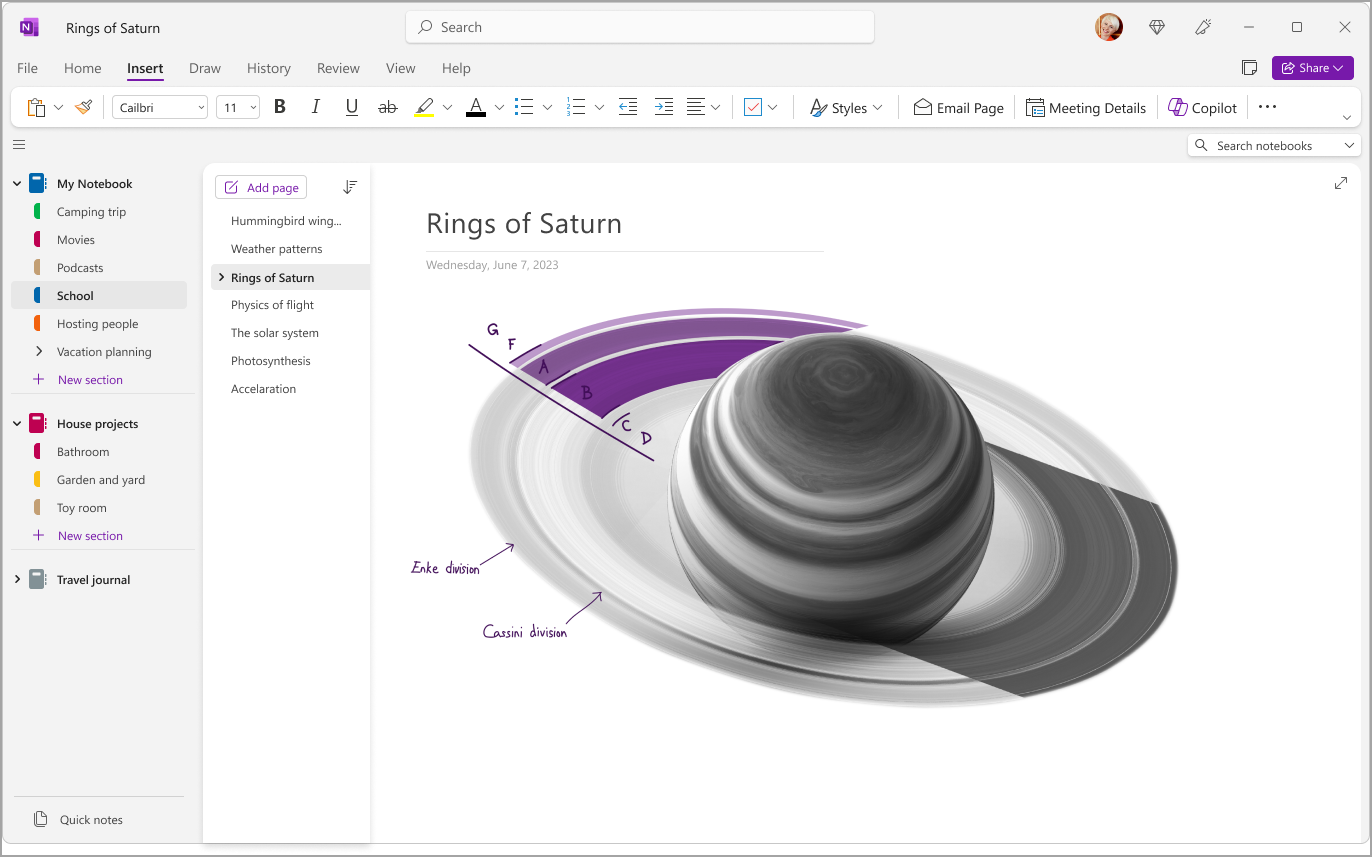
OneNote treats every page like an infinite desk. Click anywhere and start typing; drop a photo next to it, sketch a diagram below, pin a voice recording in the corner. The notebook splits into sections and pages, like a ring binder, which is why students, consultants, and anyone taking long discursive notes feel at home here.
Where it gets useful is during playback. Record audio while you type, and each line gets a timestamp tied to that moment in the recording. Need to revisit what was said when you wrote “revisit pricing”? Click the line. Handwriting on a Surface or iPad converts to typed text or a live equation that Math Assistant solves and graphs. Tag any line as To Do or Question, and a tag summary collects every tagged line from the entire notebook onto one page.
Subscribers get Copilot inside the app. It summarizes a section, drafts a task list from a page of meeting notes, or rewrites a messy paragraph. Copilot Notebooks take it further: you gather pages, files, and links into one notebook, and Copilot answers questions grounded in that material.
Where it falls short: Storage is shared with everything else in OneDrive, and each notebook is capped at 2 GB. Audio- and image-heavy notebooks hit the ceiling early. Handwriting-to-text is unavailable in the web app.
Skip it if: You want AI on a free notebook, or your notebooks are mostly recordings and scans.
A G2 reviewer talks about using Microsoft OneNote at work:
At work, I use Microsoft OneNote as my central workspace for maintaining engineering documentation, project research, sprint planning, meeting discussions, and technical references. I organize information into notebooks, sections, and pages for different initiatives, making it easy to revisit earlier decisions, track ongoing work, and prepare formal project documentation. It has become an important part of my daily workflow because everything related to a project stays organized in one place.
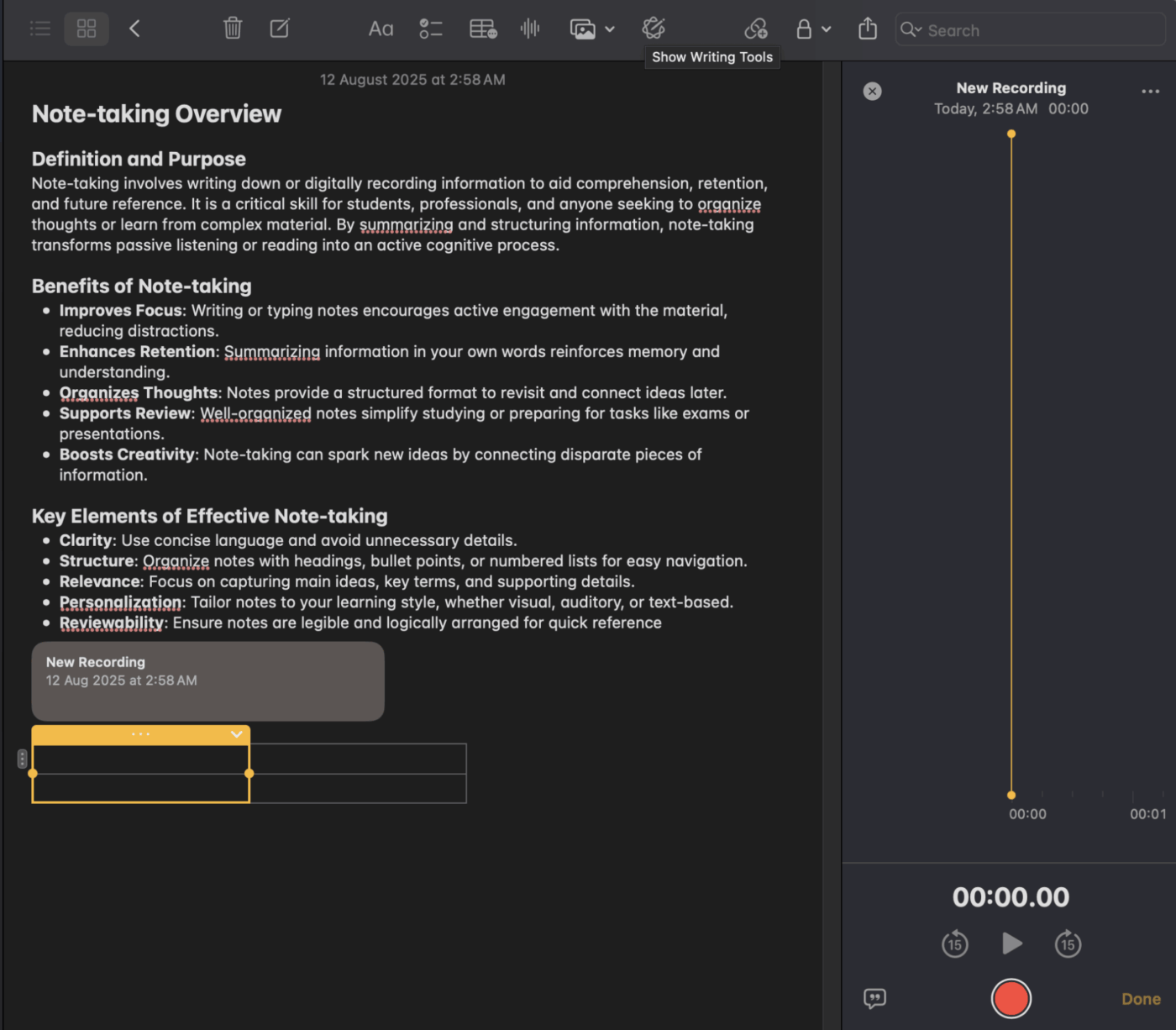
Apple Notes is already on every iPhone, iPad, and Mac, needs no account beyond the one you have, and syncs through iCloud with nothing to set up. That makes it the right first try for anyone inside Apple’s ecosystem.
A corner swipe with the Pencil opens a Quick Note over whatever app you’re in, and the note keeps a link back to the page or document you were reading. Tags typed anywhere in a note will feed Smart Folders that fill themselves based on the criteria you set. Scan a receipt, and the search will be able to find the words inside it even a year later. If you record audio in a note, a transcript appears alongside it, searchable and copyable. Recent updates added a Notes app on Apple Watch, Markdown import and export, and transcription of phone calls straight into a note.
Apple Intelligence adds Writing Tools for proofreading, rewriting, and summarizing. It also adds summaries of those audio transcripts and Image Wand, which turns a rough sketch into a finished image. The feature ships free in the OS update, but only on recent hardware: iPhone 15 Pro and newer, and iPads and Macs with M1 or later.
Where it falls short: iCloud.com gives browser access from a PC, without Pencil input, Quick Note, or Apple Intelligence. Many features also require notes stored in iCloud, so notes synced through a Gmail or Exchange account lose them.
Skip it if: Anyone you share notes with, or any device you own, runs Windows or Android. For a stylus-first alternative on the same system, see our Notability alternatives roundup.
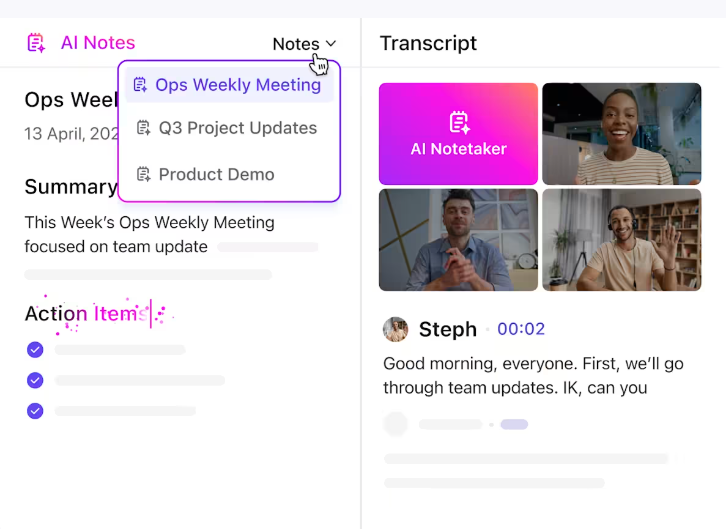
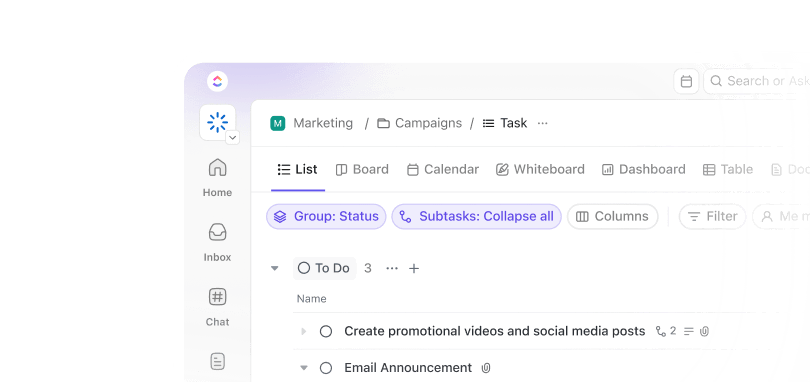
Most people keep notes in one app and work in another. That gap is where commitments disappear. ClickUp puts notes, docs, and tasks on the same underlying data. Write a decision in ClickUp Docs, highlight the sentence, and it becomes a task with an owner and a due date. The Doc stays linked to the task, so the reasoning sits one click from the work it created.
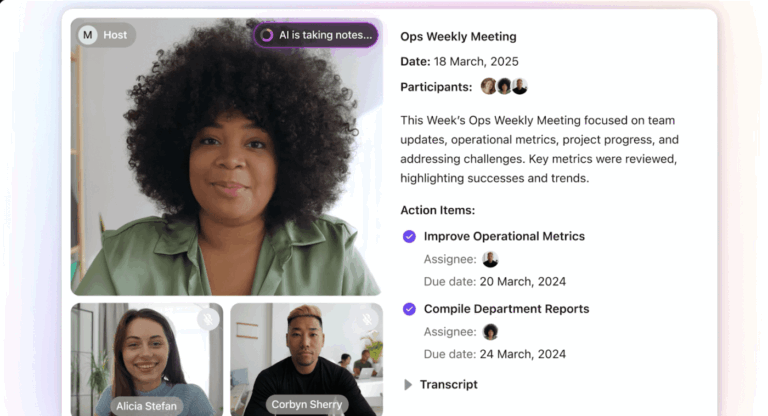
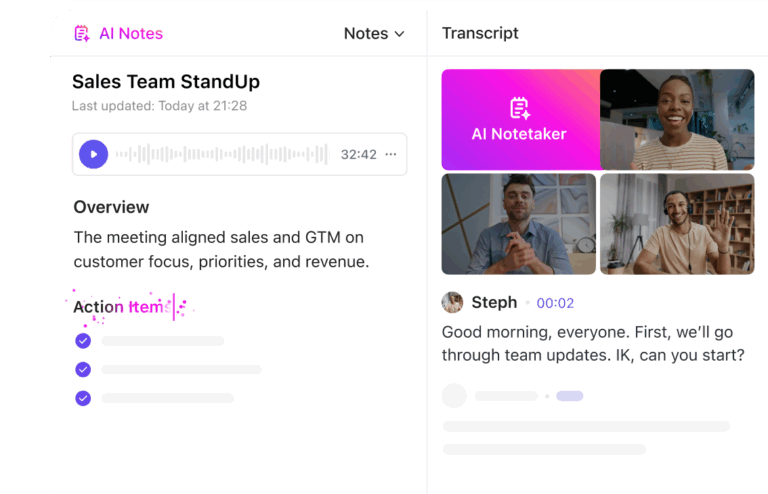
ClickUp AI Notetaker does that for meetings. It joins Zoom, Google Meet, and Microsoft Teams calls, writes a summary with key takeaways and next steps, and saves it in a private Doc. The action items become ClickUp Tasks that the team can pick up. Since those notes live beside the work, Brain² answers a question like ‘what did we decide about the launch date’ from your Docs and comments, with a link to the source. Brain MAX, the desktop companion, extends that search to Google Drive, SharePoint, and GitHub, and its Talk to Text turns dictation into a task or a note in any text box.
Quick capture capabilities run through ClickUp Notepad, a private scratch space attached to your account across every Workspace, available on every plan, and convertible to a task or Doc in one click. Mark a Doc as a wiki, and Brain treats it as the source of truth when it answers queries. When a retro surfaces things to fix, Super Agents pick them up, respond to @mentions, and run multi-step workflows based on triggers.
Where it falls short: The workspace has a lot of surface area. Spaces, Lists, Custom Fields, and permissions greet you before your first note, and a person arriving from a single-purpose notes app spends the first week learning where things live. Capterra reviewers call the learning curve steep and note the UI can feel cluttered.
Skip it if: You want a personal notebook and nothing else. ClickUp is built for teams that want to replace several tools with one, and a solo grocery-list keeper gets no payoff from the setup.
Here’s what a G2 reviewer values about ClickUp for notes:
I love how ClickUp solves pretty much everything for me, from mundane tasks to recurring projects and reminders. I’m so in love with their AI notetaker and ClickUp Brain; they are such a blessing. The AI Agents are fantastic, acting like other apps but native to ClickUp, which is very useful. I created agents with specific tasks, follow-ups, and updates on my knowledge base, making everything so much easier. I use these AI agents to help with reporting, overseeing operations, projects, and movements, which is incredibly helpful.
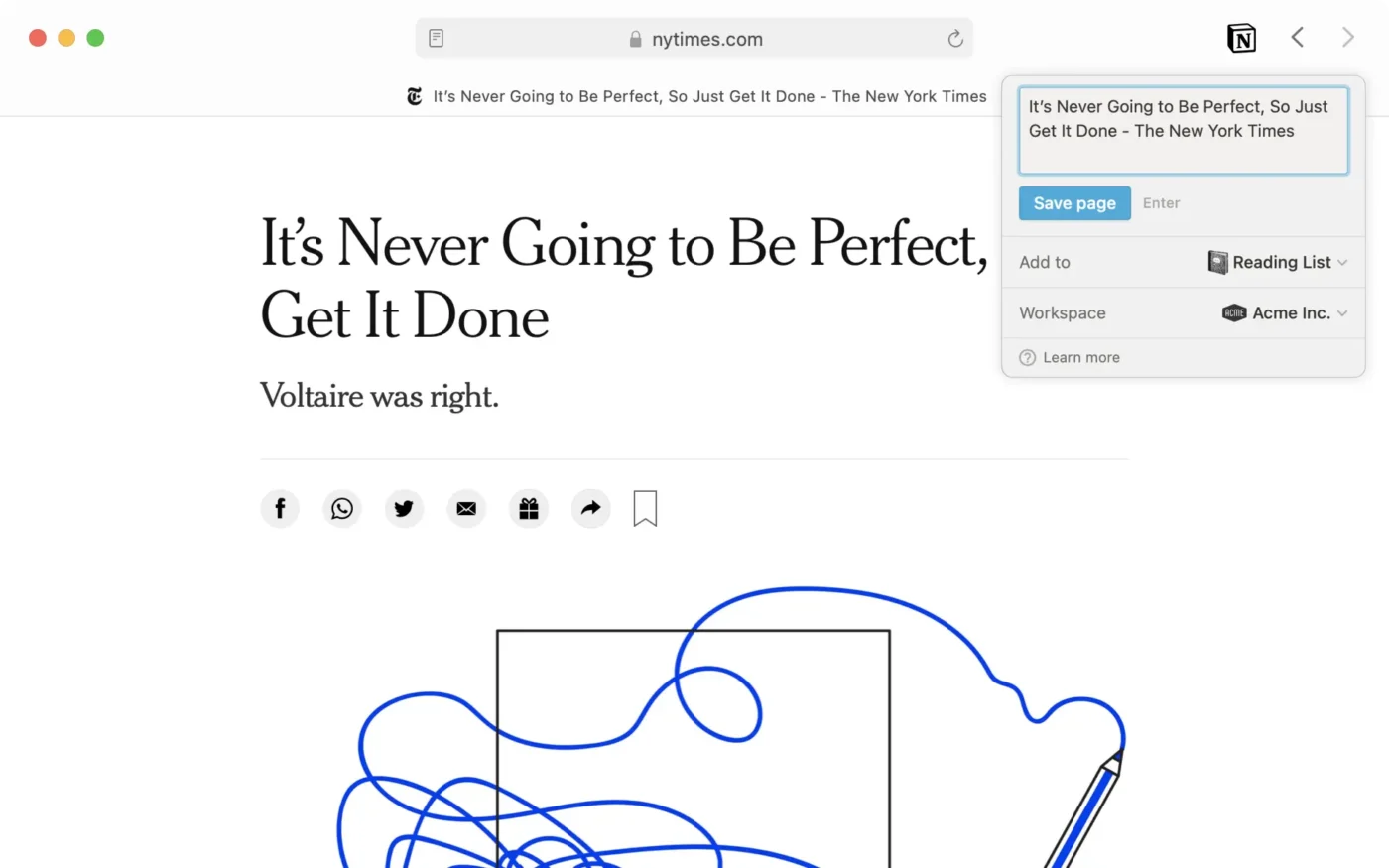
Notion is a document workspace where any page can become a database. Every paragraph, image, and to-do is a block you drag or convert. Put a page of meeting notes in a database, and it becomes a row with properties: date, project, attendees, status. Filter by project, and every meeting about the launch appears, without moving a single page.
Teams building shared knowledge get the most out of it: onboarding docs, product specs, research libraries, and meeting archives that need structure instead of a chronological pile. Relations connect a meeting note to the project it belongs to; rollups sum estimates or count open items across the related pages. Features like the Web Clipper can save a page to a database, capturing the URL as a property, and repeating templates spin up a fresh weekly-notes page every Monday.
AI Meeting Notes records your computer’s audio and microphone and writes a transcript, summary, and action items into a block on the page. Notion Agents can run multi-step jobs for up to 20 minutes, search connected apps, create pages, and update databases within your permissions. Both require the Business plan. Free and Plus users get a limited AI trial only.
Where it falls short: Offline works only in the desktop and mobile apps, subpages don’t download automatically, and a downloaded database includes just the first 50 rows of its first view. Pages with many visible properties or several inline databases load slower.
Skip it if: You want to write a note in three seconds on a train and close the app. The block model is more construction than that job requires.
A G2 reviewer on why Notion:
What I like best about Notion is its flexibility and all-in-one workspace approach. It combines note-taking, documentation, task management, and databases into a single platform, making it easy to organize both personal and team projects. The clean interface, collaboration features, and customizable templates help improve productivity and keep information well structured.
Also Read: Best Notion Alternatives
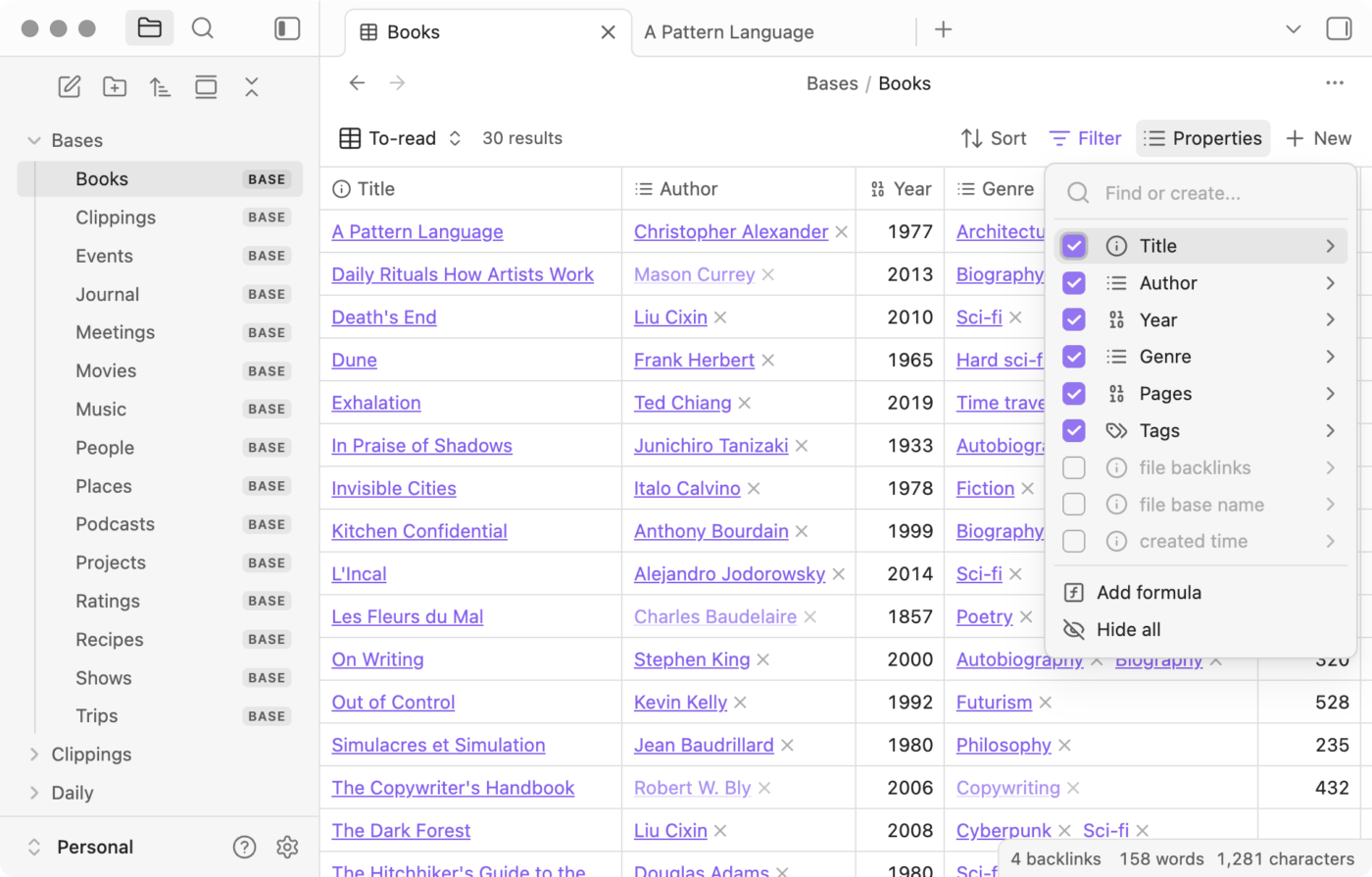
Obsidian stores every note as a plain Markdown file in a folder on your own device. Open a note and the backlinks pane lists everything that points to it, including notes that mention it without linking. The graph view draws the whole web.
The vault is just files, so portability is total. Open it in any text editor, back it up with any tool, and there’s nothing to export when you leave. Canvas spreads notes and images across an infinite board saved in an open JSON format. Bases, added in a recent release, turn a folder of notes into a table where each row is a note, and each column is a property, with formulas for derived values.
Community plugins like Copilot and Smart Connections add chat with your vault and related-note suggestions. You choose which model touches your files, including a local one. The free Web Clipper’s Interpreter can run a local Ollama model to summarize a page into a template before it lands in your vault.
Where it falls short: Community plugins are third-party code that doesn’t auto-update for security. Without Sync or a third-party service, the phone and the laptop hold different vaults.
Skip it if: You want built-in AI and a working system on day one. Best to switch to an Obsidian alternative!
A Capterra reviewer reviews Obsidian as a language instructor:
As a language instructor, I finally found software that handles my chaotic mix of Norwegian, Swedish and Albanian notes. The bidirectional linking helps me connect grammar concepts across languages, when I explain Norwegian verb conjugations, I can instantly reference similar Swedish patterns. The markdown format means I don’t lose formatting when copying between devices. Plus it’s completely free for personal use, which matters when you’re working at a small language center.
A scribbled name from a lecture in March is findable in October if you use Goodnotes. Search indexes handwriting, typed text, and PDFs that carry an OCR layer. Import a PDF, mark it up with pen and highlighter, hold a stroke and it snaps into a clean, exportable shape/element.
If you record during a meeting, every stroke gets a timestamp, so tapping a line later plays back what was said while you wrote it. Study Sets import a CSV of terms and Smart Learn schedules flashcards by spaced repetition. Goodnotes now runs on Windows, Android, and the web too, though library sync between platforms arrives only on the higher plan.
Handwriting spellcheck, shape recognition, and handwriting-to-text run on the device. Math Assist recognizes a handwritten equation, and Solve and Teach Me walk through it step by step or with hints. Create Mode edits and generates inside the notebook, and AI for Meetings connects to your calendar, transcribes the call, and drafts the notes.
Where it falls short: On-device meeting transcription is iOS-only. Advanced AI runs on a monthly credit allowance, and Create Mode is locked on the lower plans, so a heavy AI user hits the ceiling mid-month.
Skip it if: You type everything and never open a stylus. Every distinctive thing Goodnotes does starts with a pen.
A G2 reviewer on Goodnotes:
I use Goodnotes for both work and home notes, which has replaced my numerous physical notebooks with just an iPad and Goodnotes. It’s extremely helpful to be able to quickly jot down notes and then develop them into something more meaningful later. I really like the feature base of Goodnotes, as it allows me to take notes quickly and simply, staying true to its basic offering.
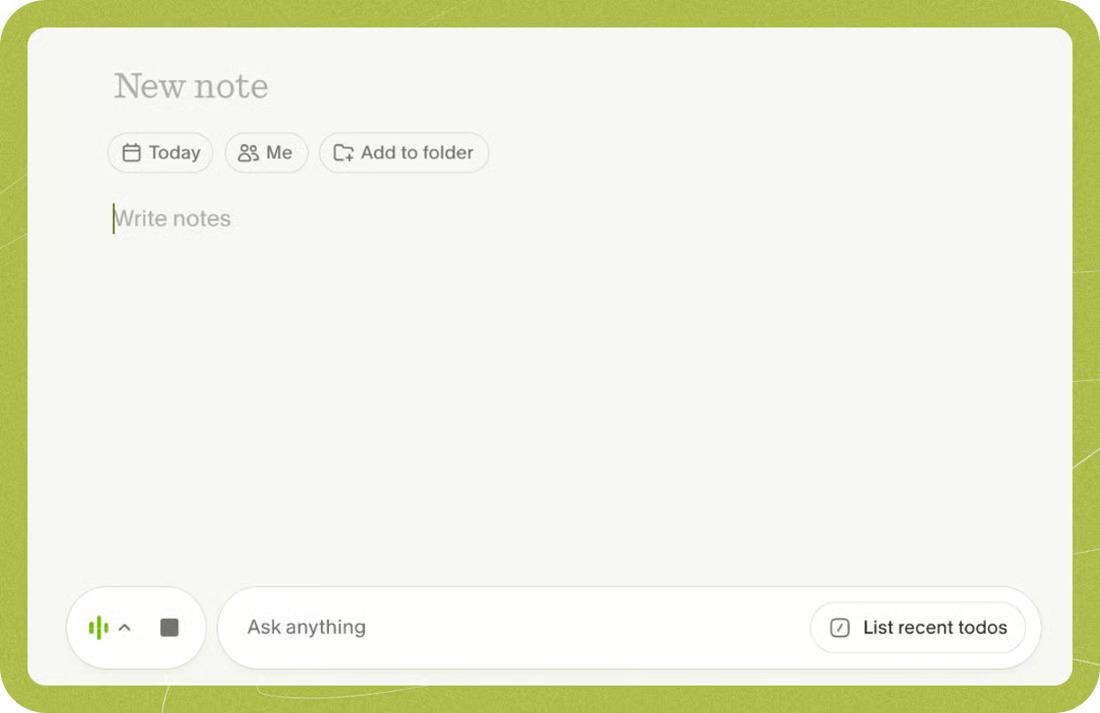
Granola inverts the usual meeting-bot design. The desktop app listens to your computer’s audio and microphone, and you type rough notes during the conversation. When the call ends, it merges your notes with the transcript into a finished summary that follows your structure and emphasis.
Type a slash mid-call to apply a template, and regenerate the note with a different one afterward. Chat works across a single meeting, a folder, or all your meetings. Recipes are saved prompts that run from the slash menu to extract decisions, pull action items, or draft a follow-up email.
Spaces and nested folders hold team meetings with link-level access controls, and an MCP server connects your meetings to Claude, ChatGPT, or Cursor. The iPhone app captures in-person conversations and outbound phone calls, and the Windows app closes the old Mac-only gap.
Where it falls short: It’s built for live meetings only. It can’t import a recording, phones can’t capture virtual calls because of OS restrictions, and Chat is iPhone-only on mobile.
Skip it if: You need one app for every kind of note, or you need a recording as a fallback. Pair Granola with a general notebook rather than replacing one.
This is what a G2 reviewer thinks about Granola:
I like the most the chat function with Granola itself. I can go back in history without having to search for the chat. It’s great to just say, ‘tell me about this interview,’ and get the details. I also appreciate the really good integration between cloud and Granola, allowing full agents to analyze Granola on a daily basis and tell me what my to-dos are and what has been discussed. I am integrated with Claude, and it’s doing pretty much everything for me.
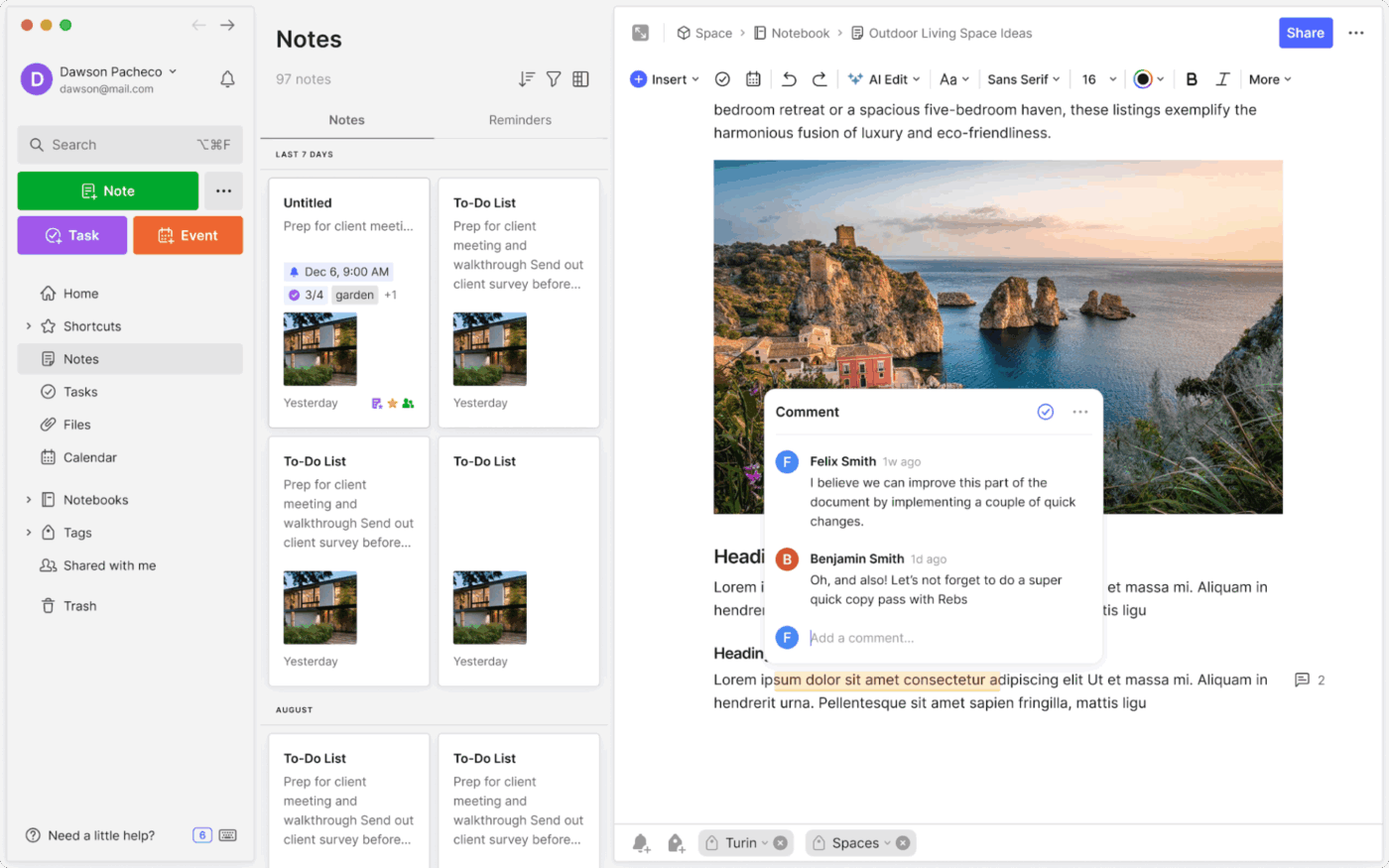
Evernote is a different product under Bending Spoons than the one long-time users remember.
Shareable workspaces, inline comments, and significantly faster sync on large accounts have all shipped since the acquisition. Two things haven’t changed: the Web Clipper still saves an article, simplified view, screenshot, or selection into a notebook you pick before saving, and search still reaches inside PDFs, whiteboard photos, and handwriting in images.
The workflow now goes beyond capture. A task created inside a note rolls up into a dedicated Tasks view with due dates and reminders. The Home dashboard pulls your scratch pad, recent captures, tasks, and a connected Google or Outlook calendar onto one screen, and any calendar event spawns a preformatted note with the attendees already filled in.
On the AI side, the assistant chats across your entire account. Scope a question with @-mentions of notebooks or tags, and it cites the notes it drew from. Semantic Search matches meaning rather than exact keywords. AI Meeting Notes records and transcribes calls up to an hour, AI Transcribe handles uploaded audio and video, and an MCP server (in beta) lets Claude and ChatGPT read, search, and create notes with your permission.
Where it falls short: It has no freehand handwriting canvas like a stylus app; you must add handwriting as a photo or scan. AI Assistant can’t read Word, Excel, audio, or video attachments directly.
Skip it if: You write by hand, or you’re starting a library from zero today and want a free home for it.
A G2 reviewer on Evernote:
What I like best about Evernote is how easy it is to organize and manage notes in one place. I especially like the ability to create notebooks, use tags, add images and files, and quickly search for specific information. It makes keeping track of ideas, tasks, and important information simple and convenient.
Three of the eight note-taking apps turn a line in a note into a task natively: ClickUp, Notion, and Evernote. Two make handwriting searchable without a plugin: Goodnotes and Evernote, with OneNote and Apple Notes close behind. The table shows where a note can go once it’s written.
| App | Capture from the lock screen or a shortcut | Search reaches handwriting and images | A note becomes a task natively | AI on the free tier |
|---|---|---|---|---|
| Microsoft OneNote | Mobile widget and Quick Note on desktop | Yes, handwriting and text in images | Outlook task tag on Windows only | No |
| Apple Notes | Lock screen, Control Center, Pencil corner swipe | Yes, handwriting and scans | No, checklists only | Yes, on supported hardware |
| Obsidian | Mobile app, no native widget | Text only | Checkboxes; tasks via community plugin | None built in |
| ClickUp | Notepad in the Chrome extension and mobile | Text, Doc, and Clip transcripts; no handwriting | Yes, from a Doc, Notepad, or AI Notetaker | Limited usage |
| Notion | Mobile widget and share sheet | Text; connected apps on Business | Yes, via database properties | Trial only |
| Goodnotes | Quick Record opens a new document | Yes, handwriting and OCR’d PDFs | No | On-device spellcheck and Math Assist |
| Granola | Meeting detected from calendar | Transcripts only | Action items sync to Notion or Slack | Yes, enhanced notes and chat |
| Evernote | Home scratch pad and Web Clipper | Yes, PDFs, images, and handwriting | Yes, Tasks inside notes | AI Edit for all accounts |
Note-taking apps fail between writing and retrieving. Microsoft’s telemetry shows the shape of the problem: during the workday, employees are interrupted every two minutes by meetings, emails, or pings, and 60% of meetings are ad hoc.
An unscheduled meeting has no agenda doc, so the note lands in whichever app was open. Three months later, 62% of people say they spend too much time searching for information in their workday.
You can see the gap priced into the plans. Capture is free on every app on this list. Retrieval and handoff cost money. Notion’s AI Meeting Notes and connected search sit on the Business plan. Goodnotes syncs your library across platforms only on a paid tier. Granola’s free plan shows the last 30 days and hides the rest. Evernote’s free tier stops at 50 notes. The part of the workflow that makes a note useful later is behind the paywall.
That’s also why a meeting summary is less trusted than it should be. A summary is only as good as the last time someone checked it against what the room agreed. Plus, a summary that lives in a different app from the tasks never gets checked. Structured methods like the charting note-taking method help at the page level, but they don’t fix an app that stores text and stops.
Either pay for the plan that connects notes to search and tasks, or keep notes inside the tool where tasks already live and accept a plainer editor. Both work. Paying for a beautiful editor that stays disconnected from everything downstream adds cost without closing the gap.
Gartner predicts that 40% of enterprise applications will include task-specific AI agents by the end of this year, up from less than 5% a year earlier. Note-taking apps are ahead of that curve, and the AI they ship falls into four layers that are worth telling apart before you pay for one.
The first layer writes in your notes: rewrite, summarize, fix tone. Apple’s Writing Tools, OneNote’s Copilot, and Evernote’s AI Edit live here, and it’s now table stakes. The second layer listens to meetings: Granola, ClickUp AI Notetaker, Notion’s AI Meeting Notes, Goodnotes AI for Meetings, and Evernote’s AI Meeting Notes all transcribe a call and draft the notes.
The differences are whether a bot joins (ClickUp yes, Granola and Notion no), whether it keeps audio (Granola never), and whether action items become tasks anyone can pick up (ClickUp and Notion yes).
The third layer reads across your notes and answers with a source: Brain² in ClickUp, Notion Agent, Evernote’s AI Assistant with citations, and Granola’s Chat over a folder of meetings.
The fourth layer acts: Notion’s Custom Agents run on a trigger like a finished meeting note, and ClickUp’s Super Agents pick up @mentions and run multi-step work. Obsidian sits outside all four by design and lets community plugins and a local model fill the gap.
Before paying for any of it, ask two things: can the AI read your notes, and can it leave the note as a task?
Start from what’s actually going wrong with your notes today, and the shortlist gets short fast.
No single note-taking app is best. OneNote offers the safest free start. Apple Notes is the fastest capture on Apple hardware. Obsidian is the vault you still own in 10 years. Notion is the wiki a team can browse. Goodnotes makes handwriting searchable, Granola survives a day of calls, and Evernote still clips the web better than anything here.
The one question worth answering before you commit: where do your notes stop being useful? If the answer is ‘when I try to find it,’ fix retrieval. If the answer is ‘when someone else needs to act on it,’ the gap is handoff, and a connected workspace beats a better notebook.
You can try ClickUp for free and test it against one recurring meeting before moving anything else. Let AI Notetaker write the notes, watch whether the action items get picked up, and decide from there. If you’re coming from Evernote, Notion, or OneNote, import one notebook first, run it for two weeks, and only then move the archive.
OneNote for most students. It’s free with no note cap, runs on any laptop or phone, and the infinite canvas fits lecture notes with diagrams and audio on one page. Goodnotes is the pick for iPad owners who write by hand, since search reads the handwriting and Study Sets turn notes into spaced-repetition flashcards. Students building a shared study wiki should consider Notion, which offers its Plus plan for free to anyone with a school email.
Obsidian works fully offline because every note is a file on your device. Apple Notes, OneNote, and Goodnotes also let you write without a connection and sync when you reconnect. Notion works offline only in its desktop and mobile apps, and a database downloads just the first 50 rows of its first view. Evernote downloads notebooks for offline editing, and Granola needs a connection to generate a summary. Test any app with Wi-Fi off before you commit if you write on planes or trains.
OneNote is better for personal notes; Notion is better for notes a team browses later. OneNote is free with no limits, works offline on every platform, and supports handwriting, audio, and typed text on one page. Notion turns each note into a database row you can filter by project, but you have to build the structure first, and quick capture is slower. Pick OneNote if you’re the only reader. Pick Notion if the notes are becoming a wiki.
Apple Notes with locked notes, or Obsidian with a local vault. Apple encrypts any note you lock with a password or Face ID, and accounts with Advanced Data Protection get end-to-end encryption on iCloud notes. Obsidian keeps notes as plain files on your device, and its optional Sync service is end-to-end encrypted. Notion and Evernote encrypt data in transit and at rest but hold the keys themselves. Don’t store passwords or ID numbers in any of them.
Export first, then import one notebook and use it for two weeks before moving the archive. Evernote exports notebooks as ENEX files, which Apple Notes on Mac and Notion import directly. Obsidian’s Importer plugin reads Evernote, Notion, Apple Notes, Google Keep, OneNote, and Bear exports into Markdown. Apple Notes now imports and exports Markdown, and Notion exports Markdown, CSV, HTML, and PDF. Check attachments and internal links after import; those break most often.
Yes. Granola listens through your computer’s audio and microphone, so no bot appears in the participant list. You type rough notes during the call, and Granola merges them with the transcript into a finished summary afterward. Notion’s AI Meeting Notes works the same way, capturing audio from the device instead of joining as a participant. ClickUp AI Notetaker takes the opposite approach: it joins the call in Zoom, Google Meet, or Microsoft Teams, which gives it speaker identification and a full recording but means attendees see it in the room. Pick based on whether visibility matters more than a complete record.
Notion is better when a team needs to browse, filter, and update shared notes. Obsidian is better when you work alone and want to own your files forever. Notion stores everything in the cloud, turns any page into a database row with properties, and bundles AI features into the Business plan at $20/member/month. Obsidian stores plain Markdown files on your device, links them with backlinks and a graph view, and is free to use with optional Sync at $4/user/month. Pick Notion if collaboration and structure matter most. Pick Obsidian if portability and privacy do.

Manasi Nair
Max 26min read
Manasi Nair
Max 20min read

Arya P Dinesh
Max 23min read
© 2026 ClickUp