11 Best Zight Alternatives for Screen Recording & Team Communication

Sorry, there were no results found for “”
Have you ever waited three minutes just for a simple screen recording to upload? Yup, us too.
This is where Zight (formerly CloudApp) can start feeling like a speed bump instead of a shortcut. You’ve probably hit the limits, like slow uploads, lack of deep editing, or not-so-smooth team collaboration. We get it.
That’s why we compiled this list of powerful Zight alternatives. If your team needs a reliable screen recorder to capture and share quick walkthroughs, these tools can do the job.
(Spoiler alert: We’ve included some powerhouse apps like ClickUp that go well beyond what Zight offers.)
👀 Did You Know? Remote workers feel 87% more connected to the workspace when using video (instead of voice-only) since making short clips feels more personal and less overwhelming.
Zight might be your go-to for a basic screen recording application, but when your workflow grows or your team needs more, its limits start to show.
Here are a few reasons you might be ready for something better:
To help you compare and choose the best tool for your needs, here’s a quick overview of the top Zight alternatives along with their key features, ideal use cases, and pricing details.
| Tool name | Key features | Best for | Pricing* |
| ClickUp | Built-in Clips recording, Brain transcription, AI summaries with Brain MAX, Docs & task embedding | Teams that want an all-in-one solution for recording, collaboration, and asynchronous work | Free plan available; Custom pricing for enterprises |
| Loom | Instant screen and webcam recording, Live Rewind, AI summaries and chapters, HQ viewer with analytics | Async communication, quick walkthroughs, fast feedback loops | Free plan available; Paid plans start at $18/month |
| Snagit | Scrolling screenshots, templates, GIF creation, annotations, and quick sharing | Detailed visuals and guides (non-video-heavy workflows) | Free plan available; Paid plans start at $39/month (billed annually) |
| Droplr | Screenshots, recordings, file sharing via short links, redaction, secure sharing | Fast screen captures and file sharing with embedded controls | Paid plans start at $8/month; Custom pricing for Enterprises |
| Vidyard | Personalized video outreach, AI avatar videos, CTAs & overlays, analytics, CRM integration | Sales and marketing teams, needing video-based engagement | Free plan available; Paid plans start at $59/month; Custom pricing for Enterprises |
| Veed.io | Browser-based editing with AI tools (subtitles, background removal, avatars, translations) | Creators needing polished videos in the browser | Free plan available; Paid plans start at $12/month |
| Bandicam | Streamers and creators want free, highly customizable tools | Windows users capturing long sessions or gameplay walks | Free plan available; Paid plans start at $33.26/year |
| Camtasia | 4K screen capture, rich timeline editing, assets library, quizzes/captions | Professional tutorials, training videos with interactive touches | Free plan available; Paid plans start at $179.88 (billed annually) |
| OBS Studio | Open-source, multi-scene recording & live streaming, audio filters, hotkeys | Streamers and creators wanting free, highly customizable tools | Free and open-source |
| ScreenPal | Screen and webcam recording, video editor, unlimited hosting | Solo creators, educators, and small teams that need quick recording, and editing | Free plan available; Paid plans start at $4/month (billed annually) |
| Wistia | Custom video player, marketing CTAs/forms, heatmaps, analytics | Marketing teams and businesses focused on branded video hosting | Free plan available; Paid plans start at $19/month(billed annually) |
Our editorial team follows a transparent, research-backed, and vendor-neutral process, so you can trust that our recommendations are based on real product value.
Here’s a detailed rundown of how we review software at ClickUp.

📚 Read More: How to Video Record Yourself Presenting a PowerPoint?
Here’s a list of tools that let you capture your screen and share your message in seconds, with a few smart features that go beyond what Zight offers.

There’s that moment, you just discovered a bug, figured out a workaround, or need to walk someone through a tricky spreadsheet. You start typing out a message to explain it, and ten lines in, you stop. This would be so much easier to show than to say.
ClickUp Clips makes this easy by integrating screen sharing into your workflow.
With just a click of the record button, you can instantly start to record your browser tab, full screen, or a specific window, along with optional audio narration.

When you’re giving design feedback, explaining how to use a dashboard, or flagging something strange in a report, you can hit record, talk it through, trim the video if needed, and drop it right into the task you’re working on.
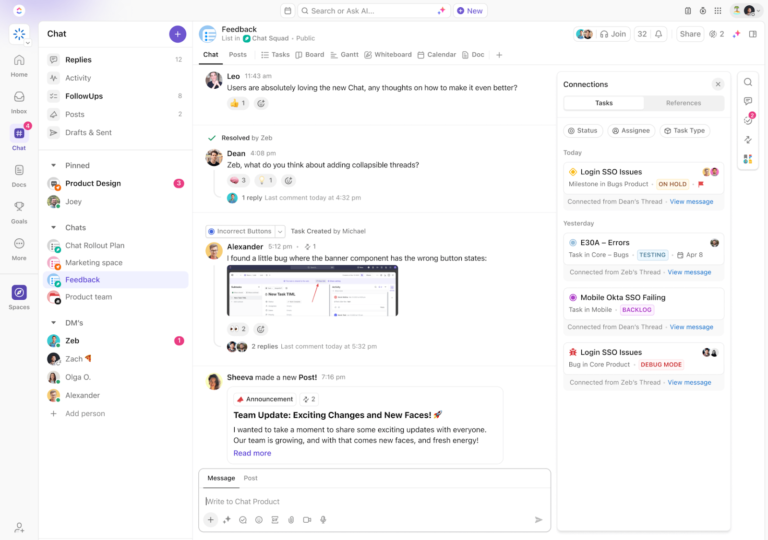
You can even attach it to ClickUp Docs, subtasks, chat, or comments—anywhere your team needs context.
With ClickUp, you avoid unnecessary work sprawl. There is no need for another tool, no uploading, and no switching tabs—just clear communication tied directly to your work.
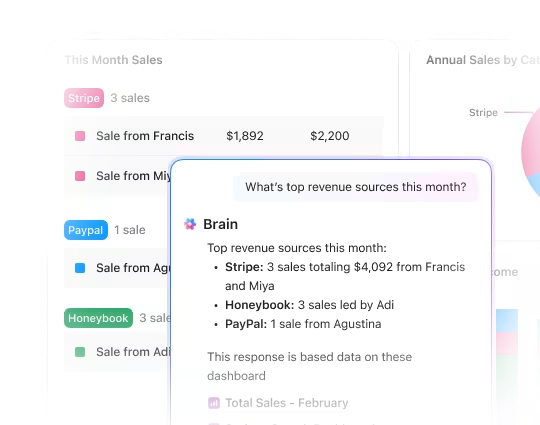
Every Clip is automatically transcribed, including timestamps, with ClickUp Brain. Now you’ve got the visual explanation and the full written version—perfect for anyone who prefers reading, needs to reference something later, wishes to take notes from a video, or just wants to search for that one thing you mentioned without rewatching the full clip.

By combining ClickUp Clips with ClickUp Brain, you get the best of both worlds—quick, visual updates and searchable, actionable transcripts. It’s a smoother, smarter way to communicate, and once you’ve tried it, it’s hard to go back.
Here’s a quick YouTube video demo of how ClickUp Brain transcribes screen recordings.
Once you’ve recorded and shared a Clip, collaboration becomes much easier. ClickUp combines project management with collaboration tools, making it a comprehensive solution for remote, hybrid, or async teams.
You can walk through an idea at the end of your day, and someone else can pick it up first thing in theirs. This async rhythm helps everyone stay aligned without overlooking the context because everything from the video to the transcript and feedback lives right where the work is happening.
Finally, SyncUps in ClickUp are live video meetings that let you collaborate face-to-face, share your screen, and connect tasks without leaving the platform. This way, you can record SyncUps, access the recordings in the Clips Hub, and share or comment on them with your team.
Here’s a ProductHunt review:
Brain MAX is a game-changer!
ClickUp keeps pushing the boundaries of productivity, and this innovation takes it to the next level. It’s not just about managing tasks anymore — it’s about unlocking smarter workflows, faster decision-making, and real clarity for teams. Excited to see how this will reshape the way we work!
💡 Bonus: Want to take your screen recordings and team collaboration to the next level?
Try ClickUp Brain MAX—the AI Super App that truly understands you, because it knows your work. Ditch the AI tool sprawl, use your voice to get work done, create documents, assign tasks to team members, and more.

Loom is a screen recorder and video communication platform that allows you to capture your screen, voice, and camera with just a few clicks. It’s ideal for async communication and client check-ins where clarity is prioritized.
The tool lets you quickly record and send videos to your team, enabling immediate sharing for faster feedback. A free version is available for individuals who need basic features. The desktop app, screen recording Chrome extension, and mobile versions let you create high-quality videos wherever you work.
You can also use Loom to add personal touches like virtual backgrounds, camera frames, and noise suppression for crisp audio without needing any third-party editing tools. With Loom HQ, it’s easy to organize, tag, and retrieve recordings across devices.
Here’s a Capterra review:
I have used Loom to record sales demos and tutorials for my customers, it is also very useful if you need to send videos on sales activities like emails where a customer can click and see a video you recorded few mins ago.
📚 Also Read: Best Loom Alternatives and Competitors

In addition to basic screen recording and print-screen options, Snagit offers diverse capture modes, such as select full screen, a specific region, menus, or panoramic scrolling for grabbing long webpages.
The built-in OCR (Grab Text) lets you extract editable text directly from images, making it easier to repurpose content. Once captured, Snagit’s editor gives you the flexibility to annotate screenshots with arrows, callouts, borders, and add effects like blur or simplify.
The Smart Move tool further enhances editing efficiency by detecting UI elements and letting you move or remove them. Snagit’s content library organizes captures with searchable metadata, tags, filters, and cross-platform compatibility and supports exporting in numerous formats, from PNG and MP4 to PDF and WebP.
Here’s a G2 review:
Snagit allows me to create professional looking screenshots and captures to share with my colleagues. I particularly love the ability to capture webpages while scrolling, so that I can record all the content I need in one image.
📮 ClickUp Insight: 23% of employees feel their feedback is ignored or not acted on, and 8% feel speaking up is pointless. This signals a gap in Challenger safety—the confidence to question or challenge the status quo without fear of being dismissed. When feedback goes nowhere, employees quickly disengage and innovation stalls.
For those who find it hard to express their thoughts, ClickUp’s Brain MAX offers a talk-to-text feature so you can speak naturally. Brain MAX then refines your message, ensuring your ideas are communicated clearly and effectively!
📚 Also Read: Top Free Screen Recorder No Watermark Tools

Droplr is a cloud-based screenshot, file-sharing, screen recording, and snipping tool designed for remote and hybrid teams. It lets you capture annotated screenshots, record screen videos (including GIFs and HD MP4), and share instantly via automatically generated short links copied to your clipboard.
The platform keeps visual communication organized by storing the file you created securely in your Droplr cloud library, making it easy to retrieve, manage, and reuse assets. Password protection and link expiration give you control over who can view your shared content and for how long.
Moreover, Droplr supports quick drag-and-drop file uploads (up to 10 GB), cloud storage, blurred regions for sensitive info, and rich annotation tools with a built-in link shortener to simplify content distribution across channels.
Here’s a Capterra review:
Droplr helps me to share files and pdf with clients and customers easily with my own branded links.
📚 Read More: Best Screen Recorders for Mac

Vidyard is a screen recorder tool that turns your videos into high-converting touchpoints across the entire customer journey. Its features include AI-generated scripts, branded video hubs, and interactive CTAs that drive action.
It easily integrates with marketing automation platforms like HubSpot, Marketo, and Pardot, as well as popular video editors such as Adobe Premiere Pro, Final Cut Pro, and iMovie for advanced customization.
You can create personalized client prospecting videos at scale, embed clear next steps directly inside the video, and plug all performance data into your CRM or marketing platform. Vidyard gives you the infrastructure to track views, optimize performance, and make every video measurable.
Here’s a G2 review:
I love the ability to quickly record a video to send to a prospect or client which builds a deeper connection and stands out apart from an email. I also love the gif thumbnail with the direct link making it easy for the recipient to view.
👀 Friendly Tip: Start with the key takeaway in the first 15 seconds so viewers know immediately why they should keep watching. State the problem you’re addressing, hint at the solution, and show a quick preview of the end result. Use clear visuals or on-screen text to reinforce the message, and make sure your tone and pace grab attention right from the start.
📚 Also Read: Top Vidyard Alternatives

Veed.io is a browser-based video editing suite designed for creators who want to handle everything, from video recording to final editing, with a toolkit that helps make tutorial videos, social media reels, or internal pitch decks.
You can auto-generate subtitles, translate audio, render clean transcripts, and use the cleanup tools to remove filler words, noise, or awkward silences so your audio feels crisp and professional. Use features like background removal, green-screen (chroma key), magic cut (auto trim of silences), and eye-contact correction to polish your videos further.
A comprehensive stock media library offers millions of royalty-free videos and audio tracks, while team collaboration features let multiple users edit or review in real time.
Here’s a G2 review:
What I find most useful about Veed is the layout design for the tools, the responsiveness, and the quality of the functionality. The tools are very intuitive and easy to navigate and use. When I make a change in the timeline it is immediate and doesn’t lag. The quality of the overall functions are great, they just work as expected, no glitches.
📚 Also Read: Top Veed.io Alternatives
👀 Friendly Tip: When cropping a screen recording, focus on removing distractions by zooming in on the key action area. This keeps viewers’ attention on important details and makes your video look polished and professional.

Bandicam is a game and screen recorder for Windows users who need high-quality recordings with minimal performance impact. It is built to handle long sessions and resource-intensive screen captures, enabling users to record gameplay, tutorial walkthroughs, or hour-long demos.
It has three recording modes: screen recording for desktop/application activity, game recording (optimized for DirectX/OpenGL/Vulkan content), and device recording (for external sources like webcams, consoles, or smartphones via HDMI or capture cards).
Hardware-accelerated encoding using Nvidia NVENC, Intel Quick Sync, and AMD APP ensures smooth performance with lower CPU usage and smaller file sizes.
Here’s a G2 review:
Bandicam is a reliable screen recording software with a user-friendly interface and high-quality video capture capabilities. My favorite features are to save audio separately, capture a specific area of the screen, and easily manage hotkeys.
👀 Did You Know? Ubisoft developers encourage players to report bugs by recording screen capture videos showing glitches before submitting them through their Bug Reporter system. This makes reproducing and diagnosing issues far more efficient.
📚 Read More: Best AI Screen Recorders: A Professional’s Guide

With Camtasia, you can record footage from a single-window application, utilize AI noise removal for cleaner audio, and apply advanced cursor effects (like Lens, Gradient, and Burst clicks). Plus, you can use SmartFocus to automatically add zooms and pans based on screen context.
Here’s a Capterra review:
I enjoyed creating my video course and used most of Camtasia functionalities, and even though I had a very low memory RAM size I got a good and smooth product at the end.
🧠Fun Fact: The world’s longest uninterrupted livestream lasted 268 hours (over 11 days) and featured a man documenting his entire daily life.
📚 Read More: Best Camtasia Alternatives for Screen Recording

OBS Studio is an open-source platform built for live streaming and advanced recording. You can create unlimited scenes, each containing multiple sources such as screen captures, webcam feeds, images, text, browser windows, and more.
The built-in audio mixer provides per-source filters like noise gate, noise suppression, and gain control. And using the Studio Mode, you can preview scenes before transitioning them live for smooth and professional broadcasts.
The tool lets you set up hotkeys for nearly every action, such as switching scenes, starting/stopping streams or recordings, muting audio sources, and more, to enhance workflow efficiency.
Here’s a G2 review:
I really like the fact that Open Broadcaster Software has the best full screen recording and multiple cameras that can be added.
📚 Read More: Best OBS Alternatives for Screen Recording

ScreenPal is a cross-platform screen recorder and editor (originally from Screencast-O-Matic) that lets you capture your screen, webcam, or both, with no account required and no watermark.
The tool works across Windows, macOS, iOS, Android, and Chromebooks, and even web browsers, so you can record or annotate without installing bulky software. You can launch the recorder straight from your toolbar or via a one-click button in your browser, making screen capture quick and effortless.
ScreenPal also offers AI tools such as speech-to-text captions, automatic video translations in over 150 languages, and AI-generated video titles, summaries, and chapters.
Here’s a G2 review:
I appreciate ScreenPal for its easy interface that makes it user-friendly for both teachers and students. The short learning curve allows us to quickly become proficient and start using the platform effectively without much hassle.
📚 Read More: Best Screencast Software (Free & Paid)

Wistia is a video marketing platform built to help businesses create, host, and analyze video content with a special focus on branding and lead generation. In addition to basic hosting, it includes customizable player options, multi-language support through AI-powered dubbing, advanced analytics, and flexible organization tools.
The platform includes built-in lead generation features, such as Turnstile email capture forms, to enable businesses to collect viewer information directly from videos. For marketers focused on growth, Wistia’s toolkit includes webinar hosting with live Q&A and polling, integrated lead generation forms, and intelligent SEO features.
Here’s a G2 review:
Wistia is very user friendly. The interface is intuitive, controls are easy to find and organization is straight-forward. It takes no time at all to get a new user ramped up with the editing tools as well. It’s easy to integrate as part of our tech stack.
📚 Read More: How to Improve Collaboration in the Workplace
So, if Zight has been slowing you down or just not doing enough, you’ve got options—and better ones.
Some tools are built for quick feedback. Others make video creation and sharing effortless. The ones we’ve listed here do more than just cover the basics—they fix the exact gaps you’ve likely run into with Zight.
If you want one place to record, edit, organize, and even transcribe videos right where your team works, ClickUp is worth a serious look. It brings everything together without the back-and-forth between tools.
© 2025 ClickUp