120+ Stable Diffusion Negative Prompts to Improve AI Art in 2025

Sorry, there were no results found for “”

You adjust the prompt, hit generate, and the result isn’t quite what you expected—extra details, slight distortions, or elements that feel out of place. If you’ve worked with AI image generation, you’ve likely encountered this before.
This is where Stable Diffusion negative prompts come in. Stable Diffusion generates images based on textual descriptions, known as prompts. Negative prompts, on the other hand, specify what shouldn’t be included—helping you filter out distortions, unwanted objects, or messy artifacts.
Rather than wrestling with AI’s unpredictability, you can refine its output for cleaner, more controlled results. In this guide, you’ll discover over 120 powerful negative prompts to enhance your AI-generated art, minimize flaws, and easily achieve higher-quality images. Let’s get exploring!
Stable Diffusion negative prompts are instructions that tell the AI in Stable Diffusion what not to generate.
Instead of just describing what you want in your image, you should also provide a list of things to exclude—like extra fingers, blurry faces, or distorted backgrounds. This will result in cleaner, more realistic, and visually appealing results.
Unlike regular prompts, which guide the AI toward a certain aesthetic, negative prompts act as a filter, reducing unwanted elements often appearing in AI-generated art. Whether aiming for hyper-realism, anime, or abstract visuals, mastering negative prompts can take your AI art to the next level.
Ever generated an image with creepy hands, floating eyes, or an oddly stretched face? That’s where negative prompts save the day.
Here’s why they’re essential:
Negative prompts tell Stable Diffusion what elements to avoid when generating an image. While your main prompt describes what you want, the negative prompt refines the output by eliminating unwanted artifacts, distortions, or stylistic inconsistencies.
When you enter a negative prompt, the AI assigns a lower probability to those terms, making it less likely to generate them. This is especially useful when dealing with common AI-generated issues like unnatural hands, excessive blur, or unwanted objects in the background.
For example, if you input:
The AI will prioritize high detail and cinematic lighting while avoiding blurry or distorted results.
Here are some common negative prompt engineering examples used to refine AI-generated images:
Crafting the right negative prompts can significantly improve AI-generated images, helping you avoid distortions and achieve more polished results. While there’s no one-size-fits-all formula, a structured approach can enhance image quality and minimize common AI pitfalls.
Before adding a negative prompt, look at the flaws in your generated images.
Ask yourself:
Once you pinpoint what’s wrong, you can build a list of negative keywords to counteract those issues.
Certain problems appear frequently in AI art, and negative prompts can help eliminate them.
Here are some widely used terms for different purposes:
Mixing and matching these keywords can significantly improve image quality.
💡 Bonus Tip: Stack similar terms for better filtering – Instead of just “blurry”, add variations like “out of focus, low resolution, pixelated, smudged” to refine results further.
Stable Diffusion allows you to adjust the strength of a negative prompt using weights. If a specific flaw keeps appearing, try increasing its weight using parentheses () or :X notation.
Example:
(“extra fingers”:1.5, “blurry”:2.0, “distorted”:1.8)
Higher values (e.g., :2.0) will make the AI avoid those elements more aggressively.
➡️ Read More: Best AI Art Generator Tools for Designer
AI art is unpredictable, so refining negative prompts takes trial and error. If unwanted details still appear, add more precise negative keywords or increase their weight.
Mastering Stable Diffusion negative prompts takes some tweaking, but once you get the hang of it, your AI-generated art will look cleaner, sharper, and more professional.
Negative prompts are essential for refining AI-generated images. They help avoid distortions, unwanted elements, and low-quality outputs.
Here are 120+ carefully curated negative prompts, organized by category, to help you fine-tune your AI-generated images in Stable Diffusion and achieve more precise, high-quality results:

AI often struggles with facial symmetry, skin texture, and realism. These negative prompts help eliminate distortions like extra eyes, melted faces, and uncanny features, ensuring a more natural and photorealistic look.

Generating realistic hands remains one of AI’s biggest challenges. The following prompts remove common issues like poorly drawn feet, extra fingers, missing arms, webbed hands, extra arms, and unnatural palm structures, leading to more anatomically correct results.
💡 Pro Tip: Instead of starting from scratch every time, save and reuse structured AI prompt templates. They can help you organize, refine, and standardize prompts for consistent, high-quality AI-generated results—especially when iterating on Stable Diffusion negative prompts.

AI-generated images can sometimes appear pixelated, noisy, or low-res. These prompts improve sharpness and detail by filtering out blurry, normal-quality outputs and enhancing clarity.

To maintain a clean anime aesthetic, it’s important to remove elements that make images look too realistic or distorted. These prompts prevent issues like hyperrealistic textures, 3d renders, and incorrect proportions.
💡Pro Tip: Test negative prompt strength with iterative adjustments—Start simple, then add “distorted:1.5, blurry:2.0” if issues persist. Overloaded prompts can cause unwanted simplifications.

A cluttered background can ruin a composition. These negative prompts help remove unnecessary objects, messy backgrounds, and unwanted text, resulting in a cleaner and more visually appealing image.

For AI-generated images to have a polished, movie-like feel, it’s crucial to avoid unnatural lighting, washed-out colors, and distorted shadows. These prompts refine contrast, depth, and lighting quality.

Landscapes generated by AI can sometimes look too artificial or flat. These prompts remove unrealistic textures, color imbalances, and low-detail environments to create more natural-looking scenery.

AI models sometimes add unwanted text, watermarks, or visual artifacts that ruin the final output. These negative prompts ensure clean, distraction-free images by eliminating unwanted overlays.

Fantasy and sci-fi themes should be vibrant and immersive, but AI can generate generic, dull, or low-detail scenes. These prompts help refine lighting, contrast, and detail for a more engaging composition.

Horror images can lose their eerie effect if AI makes them too cartoonish or well-lit. These prompts maintain the dark, unsettling mood while avoiding unwanted brightness and soft features.

Concept art can look inconsistent if AI introduces unrealistic anatomy, flat shading, or bad brushwork. These prompts help refine AI-generated concept art to be more cohesive and high-quality.

AI-generated portraits often suffer from awkward lighting, skin imperfections, and unrealistic shadows. These negative prompts improve the overall look by refining highlights, shadows, and skin textures.

AI sometimes generates unrealistic structures with warped perspectives and misplaced objects. These negative AI art prompts help create cleaner, more professional-looking architecture and interior designs.

When AI overprocesses food images, they can appear plastic-like or unnatural. These prompts remove artificial textures and excessive smoothing, ensuring more realistic, high-quality food photography.

For those looking to create AI-generated vintage photography, these prompts help remove modern digital effects and ensure the image retains an authentic film-like aesthetic.
💡 Pro Tip: AI art quality depends on how well you structure prompts. Instead of trial and error, leverage prompt engineering tools that analyze and optimize wording, weights, and structure. These tools help refine Stable Diffusion negative prompts by suggesting more precise exclusions and preventing common mistakes.
🎥 Watch this quick explainer to master the art of prompting!
Using negative prompts can drastically improve AI-generated images, but misusing them can lead to unintended results.
Here are some common mistakes to watch out for when refining your prompts:
➡️ Also Read: Dall-E Alternatives to Create AI Images
While Stable Diffusion is a powerful AI tool for generating art, its limitations can affect image quality and control.
Here are three key challenges users should be aware of:
AI-generated hands often have missing fingers, unnatural bends, or missing parts. Faces can appear asymmetrical or distorted, especially in complex compositions. While negative prompts help reduce these errors, they don’t guarantee perfection, and post-editing may still be required.
Stable Diffusion interprets prompts loosely, meaning tiny details (e.g., specific clothing patterns, precise character expressions) might not generate exactly as described. Even with highly detailed prompts, some elements may look random or inconsistent across multiple generations.
Stable Diffusion struggles to generate readable text within an image. AI often produces gibberish characters, distorted letters, or incorrect words, making it unreliable for logos, posters, or any design work requiring precise typography. Using external editing software is often necessary to correct text-based elements.
➡️ Also Read: How to Use AI for Graphic Design
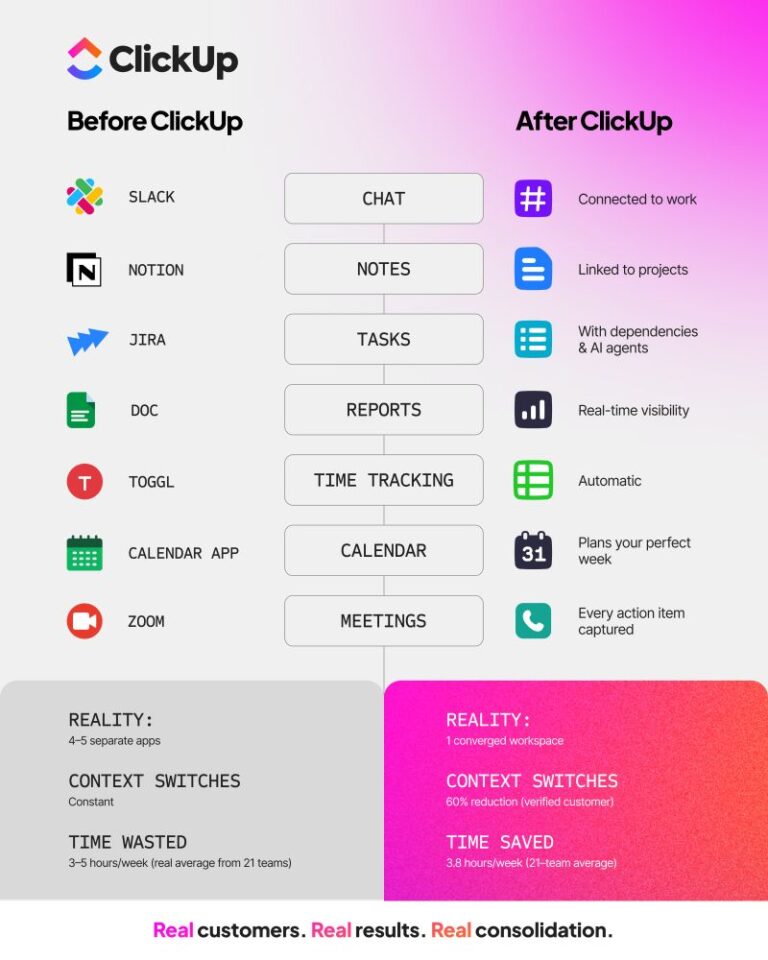
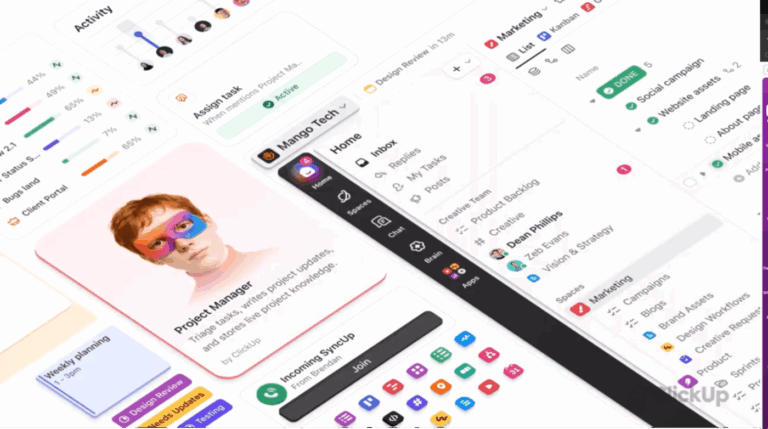
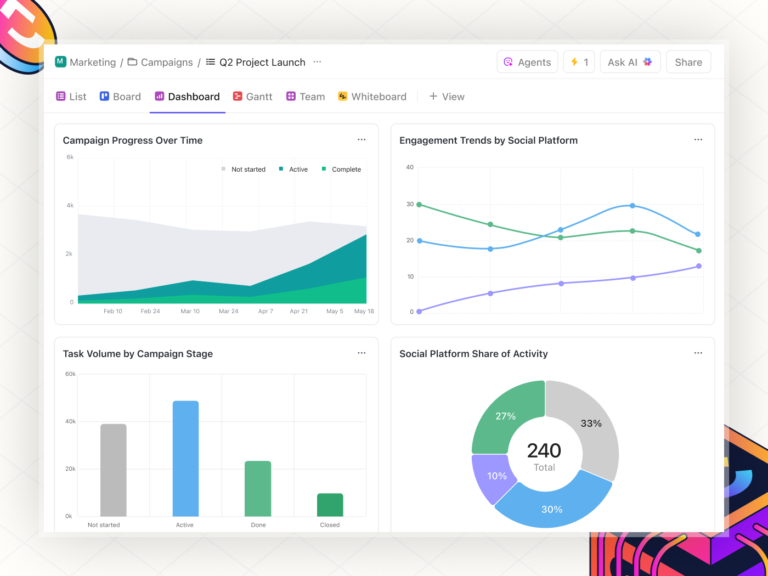
If you’re exploring alternatives to Stable Diffusion to enhance your AI-assisted creativity, one notable option is ClickUp. As the everything app for work, it is designed to replace multiple work apps with one unified platform. It combines task management, document collaboration, AI-powered automation, and brainstorming tools to boost efficiency across teams.
Here’s what makes ClickUp a compelling choice:


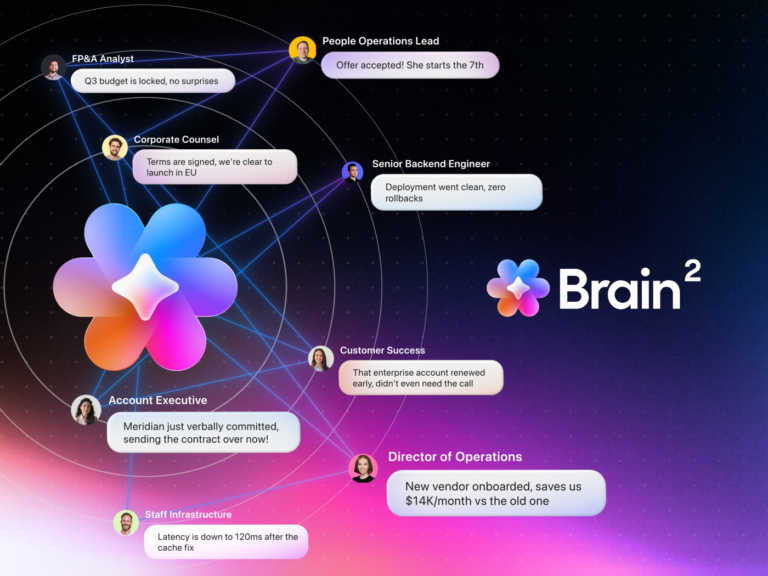
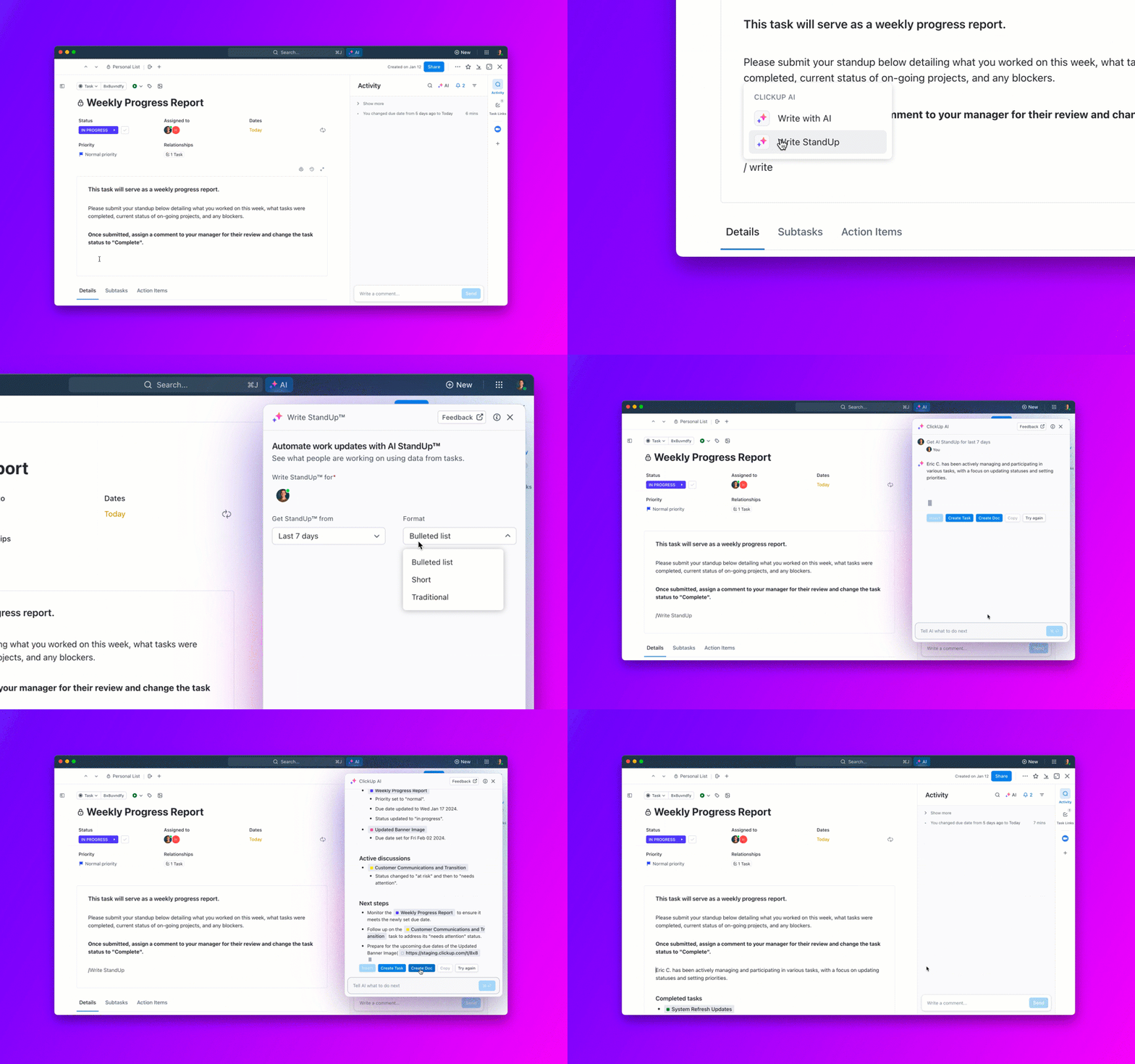
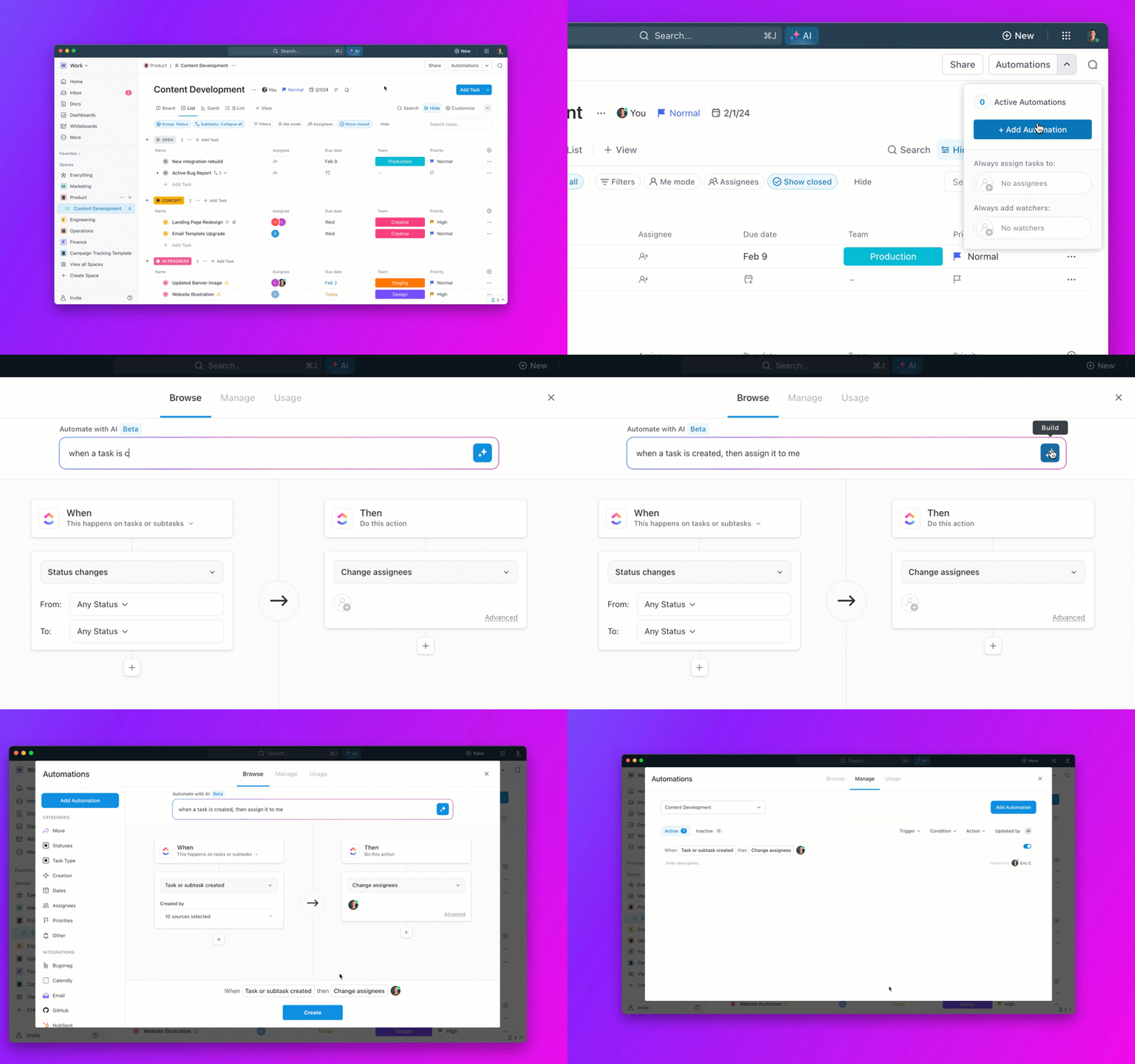
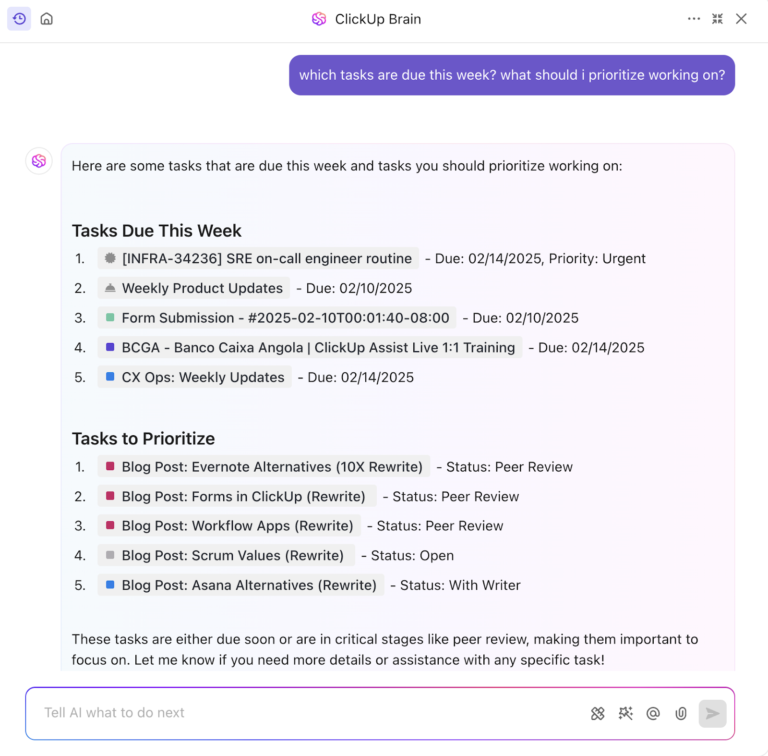
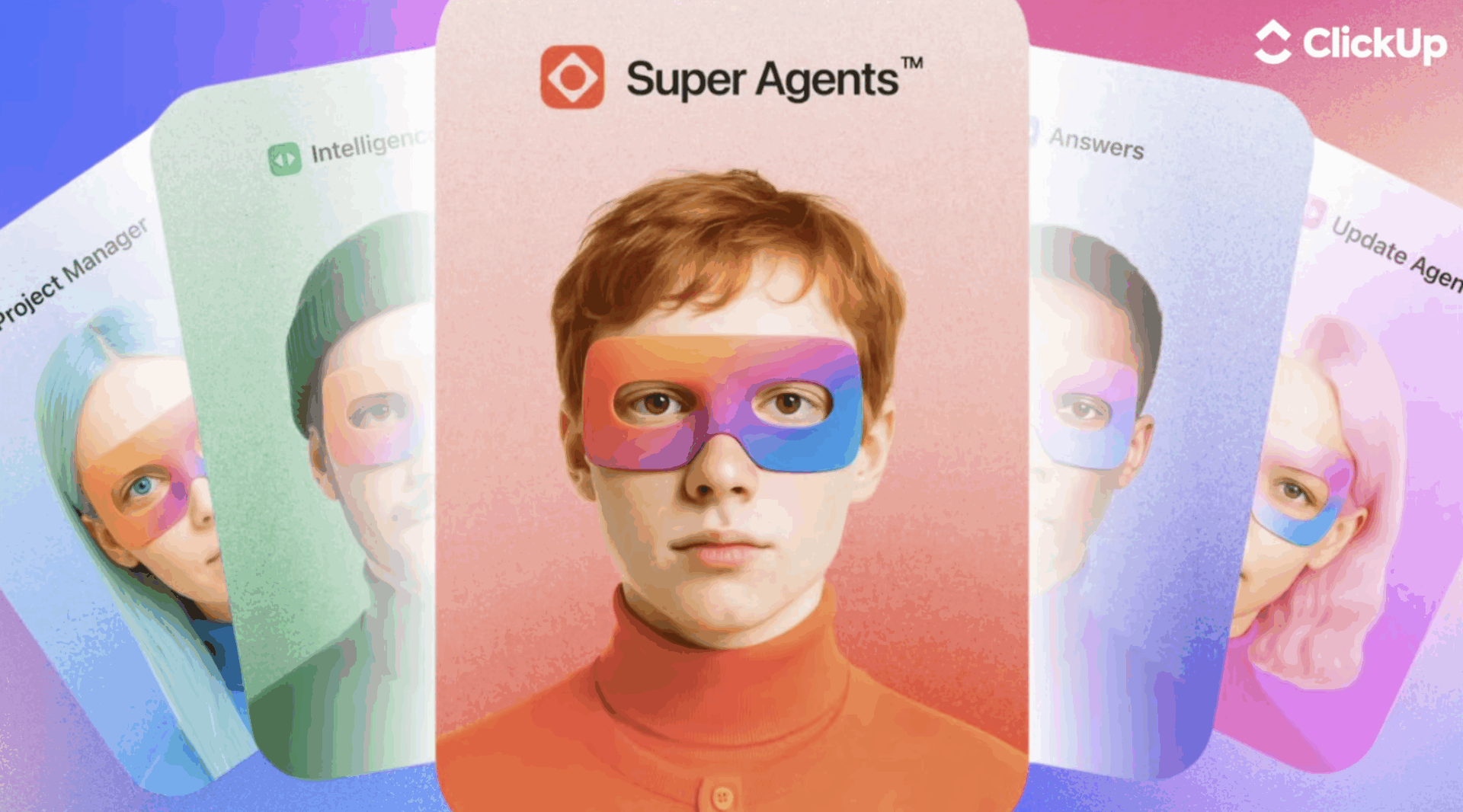
ClickUp Brain is an AI-powered assistant that integrates into every part of your workflow, offering automation, intelligent task management, content generation, and AI image generation.
Here’s how it helps:
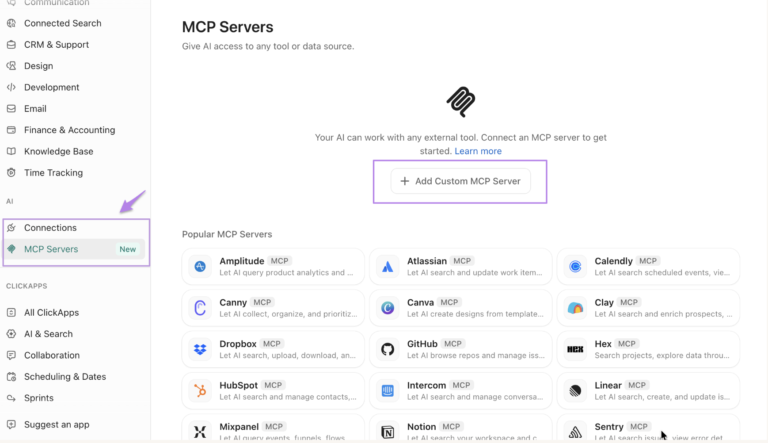
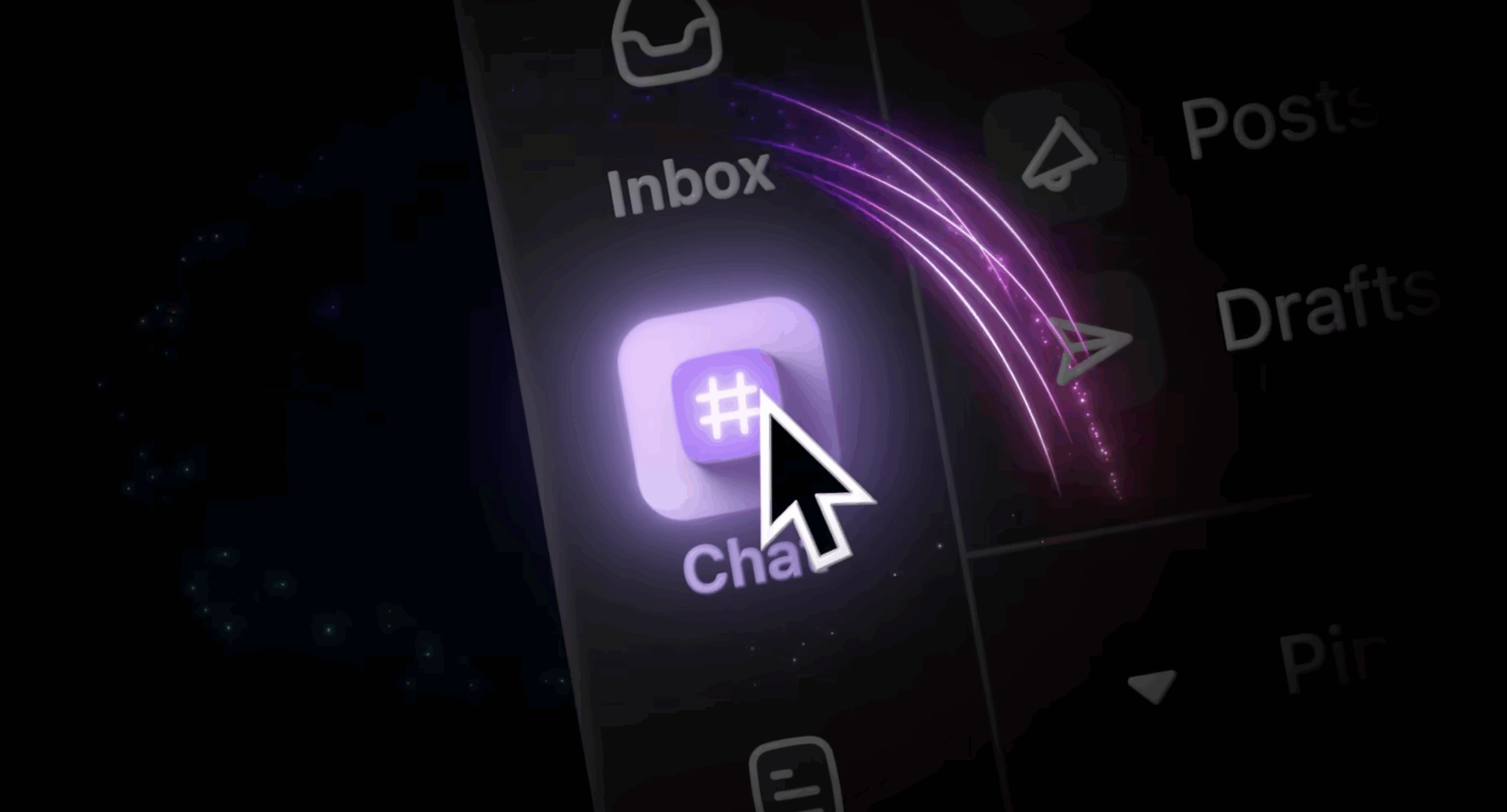
Teams often burn time juggling different AI tools—one for writing, another for summaries, a separate one for search, and yet another for planning. ClickUp Brain MAX changes that. It brings top AI models like ChatGPT, Claude, and Gemini into the very place where your projects, docs, and people already work together. Instead of copy-pasting across apps, you get AI that understands your context right away—so you can stay in one workspace and move work forward faster.

With Talk to Text in ClickUp Brain MAX, you can simply speak to create prompts, capture ideas, or draft documents—up to four times faster than typing. And because Brain MAX already understands your projects, team, and files across ClickUp and connected tools like Zoom, Google Drive, every note you dictate lands with the right context.

ClickUp Whiteboards provide a powerful visual workspace where teams can brainstorm ideas, map out workflows, and collaborate in real time. Unlike traditional digital whiteboards, ClickUp Whiteboards seamlessly connect to tasks, docs, and AI-driven automation, turning ideas into action without switching between tools.
This tool is perfect for AI artists and creative professionals who need to organize AI-generated concepts, refine prompts, draw wireframes, and map out complex projects.
You can sketch initial ideas, attach Stable Diffusion-generated images, and annotate changes directly on the board. With built-in AI image generation, users can create instant visual references without needing separate design tools.
Whiteboards also help teams align in creative direction, allowing multiple users to collaborate on prompt refinement, experiment tracking, and concept development.
Whether you’re storyboarding AI-generated art, organizing inspiration sources, or visually comparing outputs, ClickUp Whiteboards ensures your creative process stays structured and actionable.
Mastering Stable Diffusion negative prompts can dramatically improve the quality of your AI-generated art. You can create cleaner, more controlled, visually striking images by understanding how to filter out unwanted elements, refine prompts, and experiment with different styles.
However, managing AI workflows, tracking successful prompts, and optimizing creative processes can be time-consuming. That’s where ClickUp comes in.
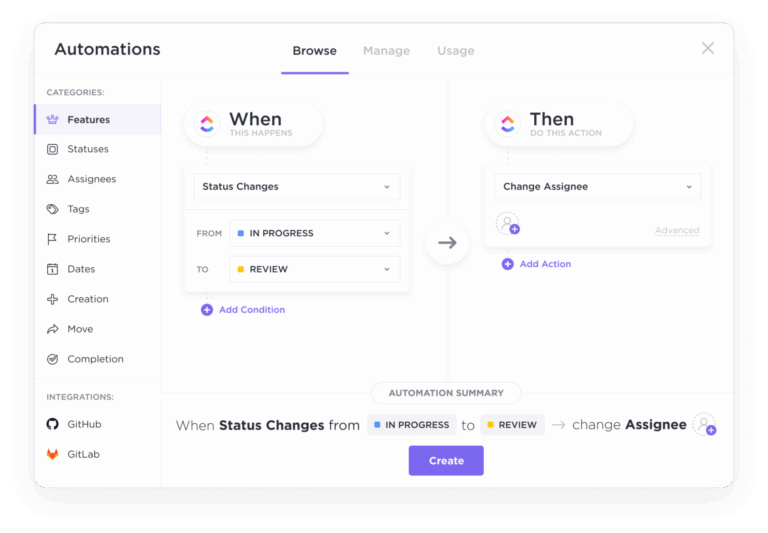
With ClickUp, you can automate task management, summarize AI-generated insights, and streamline your creative process. It also allows you to visually map out ideas, organize prompts, and turn brainstorming sessions into actionable tasks—all in one place.
So why wait? Sign up on ClickUp and take control of your AI art projects today!
© 2025 ClickUp