Sorry, there were no results found for “”
Sorry, there were no results found for “”
Sorry, there were no results found for “”
A project task list template should answer two questions a to-do list doesn’t.
They are “Which tasks need to be completed before the next one can start?” and “What counts as done?” Without a column for each, the dates on the list stop matching the schedule as soon as one task slips. The cost shows up in how teams work.
Microsoft’s 2025 Work Trend Index special report found that the most-pinged 20% of Microsoft 365 users get a meeting, email, or chat every two minutes during core hours. In the same research, 48% of employees said their work feels chaotic and fragmented. A task list that doesn’t show dependencies becomes one more thing for people to check, then ignore.
In short: A project task list template is a reusable table that holds one project’s work at the task level and is shared by the team. Templates built for teams also track dependencies and a definition of done along with dates.
Below are eight free templates from Vertex42, UC Berkeley, and ClickUp. Each gets a use case and an honest “skip it if.” You’ll also learn how to build your own if none of them quite fits your project.
A project task list is the complete set of tasks a project needs, each with an owner, a date, and a status. It differs from a to-do list in scope: a to-do list belongs to one person and may be a one-day checklist, while a project task list belongs to a team and lasts as long as the project does.
That’s exactly why a template built for one person breaks the moment a second person starts updating it.
Every template in this list had to pass one test. It holds a team’s project work at the task level and is meant to be shared by more than one person. Personal daily planners and habit trackers failed that test and were cut. If you want those, our roundup of to-do list templates covers them.
| Template | Download link | Best for | Best features | Format |
| Project Task List by Vertex42 | Get free template | Small teams tracking cost and hours per task | Priority colors, % complete bar (Excel only), budget and hours columns | Excel, Google Sheets |
| Project Plan Template by UC Berkeley IT | Get free template | IT and internal projects run in phases | Predecessors column, RACI columns, pre-filled phases | Google Sheets |
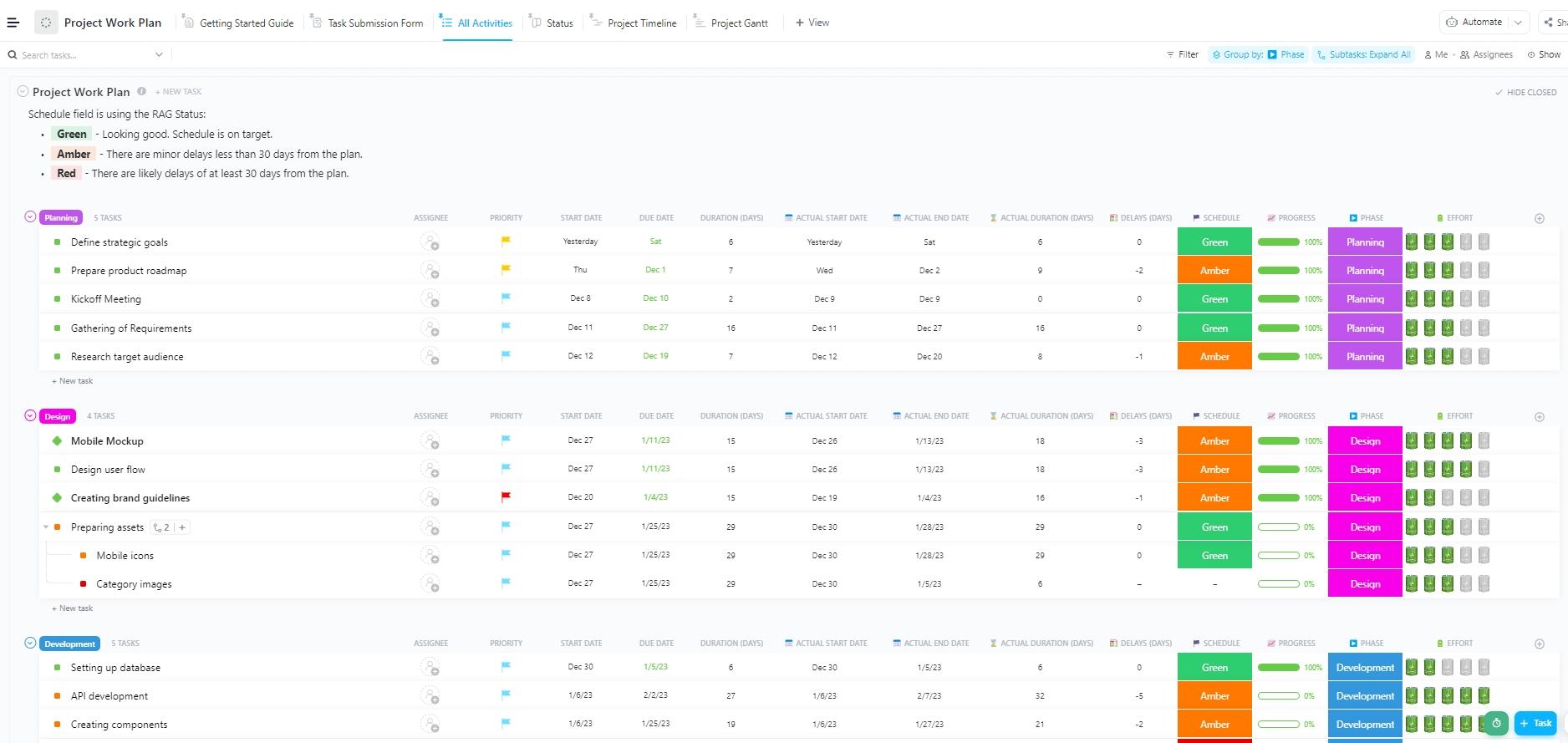
| Project Work Plan Template by ClickUp | Get free template | Cross-functional teams on projects longer than a month | Task submission form, Gantt view, planned vs. actual duration fields | ClickUp List template |
| Work Breakdown Structure by Vertex42 | Get free template | Breaking a vague project into tasks before scheduling | Automatic WBS numbering, level drop-down, Level 1 shading | Excel |
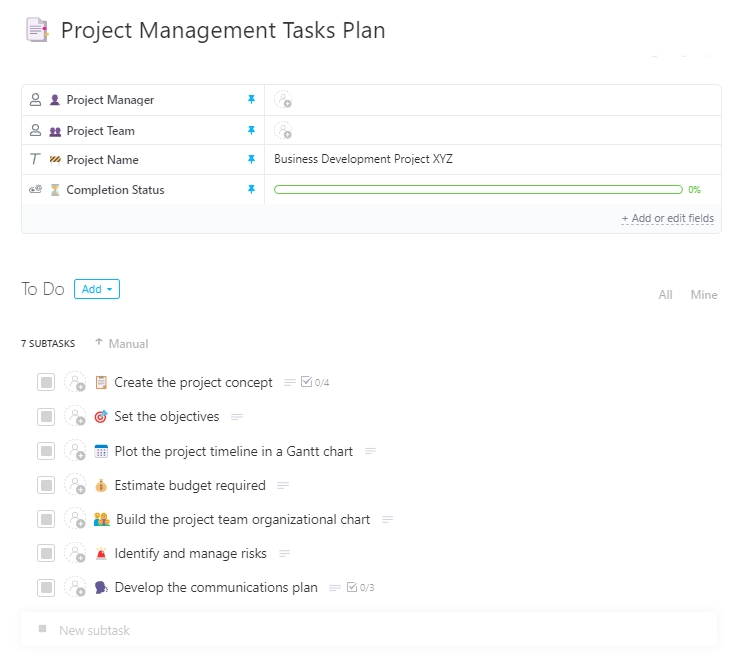
| Project Management Tasks Plan Template by ClickUp | Get free template | Team leads running several short projects at once | Project Name and Project Manager fields, Workload view, subtasks | ClickUp Task template |
| Task List with Gantt Chart by Vertex42 | Get free template | Short projects that need a timeline for stakeholders | Stacked-bar Gantt driven by the task table | Excel |
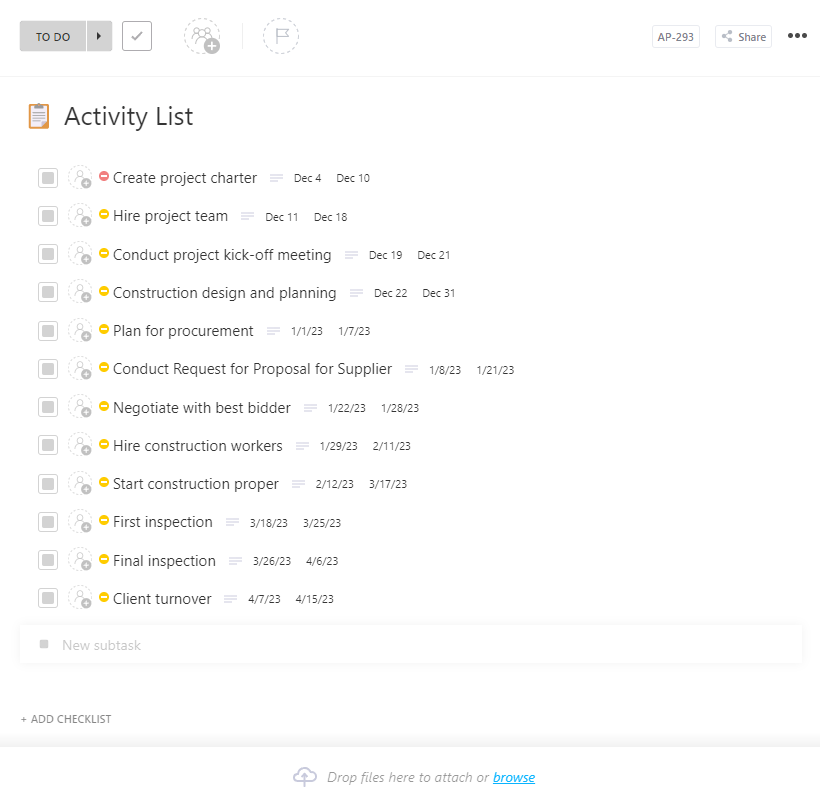
| Activity List Template by ClickUp | Get free template | Ops teams breaking recurring work into steps | Completion Progress field, nested subtasks, custom statuses | ClickUp Task template |
| Action Items Template by Vertex42 | Get free template | Capturing tasks that come out of meetings | Shared Google Sheet, in-cell checkboxes, named owners | Excel, Google Sheets |
Choose based on what breaks first on your projects. Forgotten tasks are the simplest problem, and a plain list like the Vertex42 Project Task List (#1) or Action Items template (#8) handles it. When tasks start late because something upstream slipped, you need a predecessors column (#2) or dependencies you can link in ClickUp (#3). And if the team can’t agree on what the tasks are, break the work down with the WBS (#4) before you list anything.
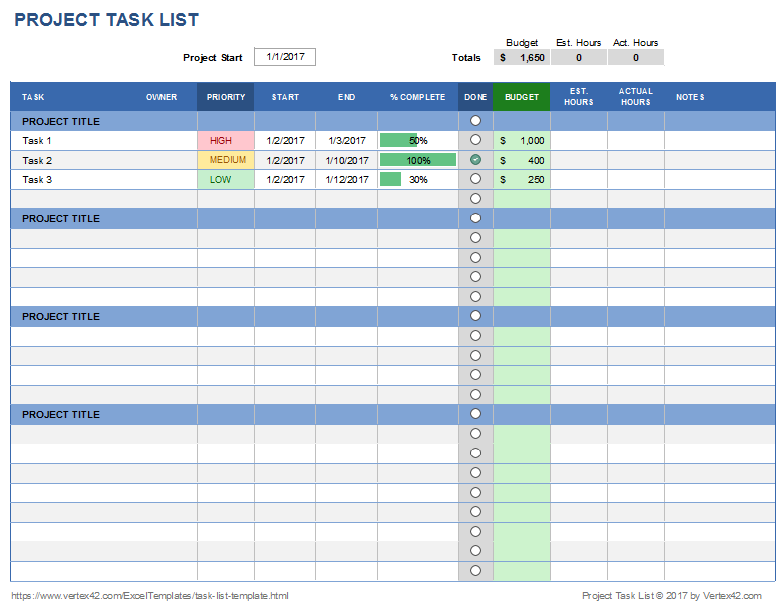
Jon Wittwer built the Project Task List to show what plain Excel can do with a task list. Conditional formatting colors the Priority column, and a data bar turns % Complete into a progress bar. A data-validation drop-down works as a checkbox. Budget and hours columns sit beside each task, so cost and effort stay on the same row as the work.
One detail catches people who switch formats. The Google Sheets version swaps the icon sets for in-cell checkboxes and drops the progress bar, because Sheets doesn’t support Excel’s in-cell data bars. If the visual progress bar matters to your stakeholders, stay in Excel.
Use this template when the project is small, and the team already works in spreadsheets. It also helps a project lead keep tasks, effort, and spend on one sheet without having to learn new software.
Use case: You are an office manager coordinating a 20-task office move with three colleagues. Use this template to list each task, mark priority, log hours and vendor spend, and check tasks off as they close.
Best for: Solo project leads or teams of two to four who want cost and effort beside each task.
Skip it if: Tasks depend on each other. There’s no predecessor column, so a slip upstream won’t show up anywhere. The license is also private use only, so you can’t redistribute it to clients.
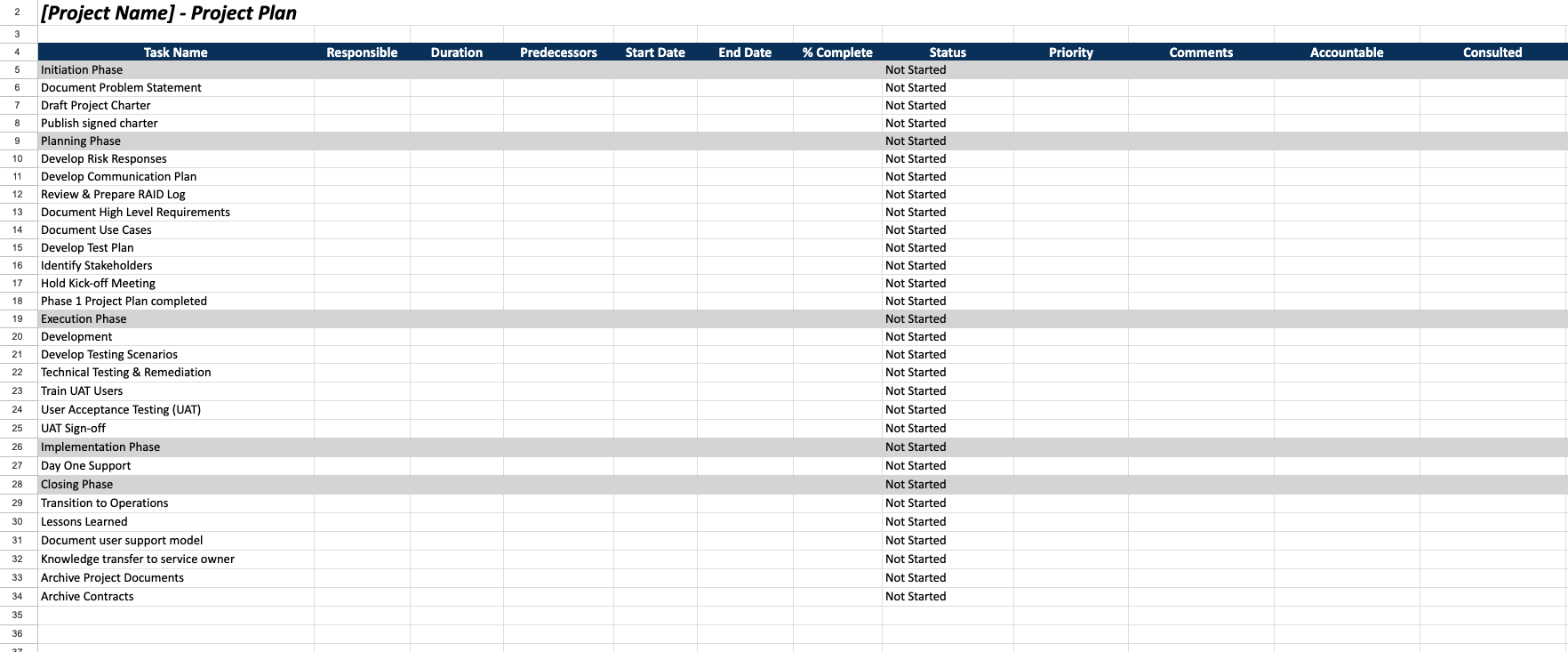
UC Berkeley’s Google Sheet Project Plan Template is the only free spreadsheet in this list that ships with a Predecessors column. Alongside the usual task, owner, dates, status, and priority, you get Duration, Predecessors, and three RACI columns for Accountable, Consulted, and Informed.
Rows come pre-seeded with phases from Initiation through Closing, including easy-to-forget tasks like UAT sign-off, knowledge transfer to the service owner, and archiving contracts. The sheet is view-only, so go to File, then Make a copy before you type anything. Berkeley lists it as one of 13 templates in its IT project toolkit, which also includes a RAID log and a project charter.
Use this template when the project runs in phases, and you need to show who is accountable as well as who does the work. It gives internal project managers a structure that Berkeley’s IT project group recommends for campus projects.
Use case: You are an IT analyst rolling out a new ticketing system to four departments. Use this template to list tasks by phase and record which task each one waits on. The RACI columns then name who signs off on each row. For the other documents a phased project needs, see our guide to project documentation.
Best for: IT, operations, and internal project managers running phased, waterfall-style projects.
Skip it if: You need dates to recalculate. The Predecessors column only records which task comes first, so when a task slips you still move every downstream date by hand.
The Project Work Plan template is a ClickUp List template with six views. The ones you’ll use most are the Task Submission Form, the Project Gantt, and the Status board. Five statuses come preset, including On Hold and Canceled. Nine custom fields hold planning data, such as Duration Days next to Actual Duration Days.
The planned-versus-actual pairing is the useful part. After a few projects, you can see whether your estimates run long. The template also turns on Dependency Warning, so closing a task that’s still waiting on another triggers a prompt. That prompt can be dismissed, so treat it as a reminder.
Use this template when the spreadsheet stage is over and the team is tired of re-dating rows by hand. It helps project leads run a list where tasks, timeline, and intake live in one place.
Use case: You are a project lead at a 40-person agency launching a client website with design, content, and development tracks. Use this template to collect requests through a form, schedule them on a Gantt view, and see which tasks are on hold.
Best for: Cross-functional teams of five or more running projects longer than a month.
Skip it if: The project has 15 tasks and 5 people. The 6 views and 9 fields are more setup than a short list needs, and a spreadsheet will be faster to adopt.
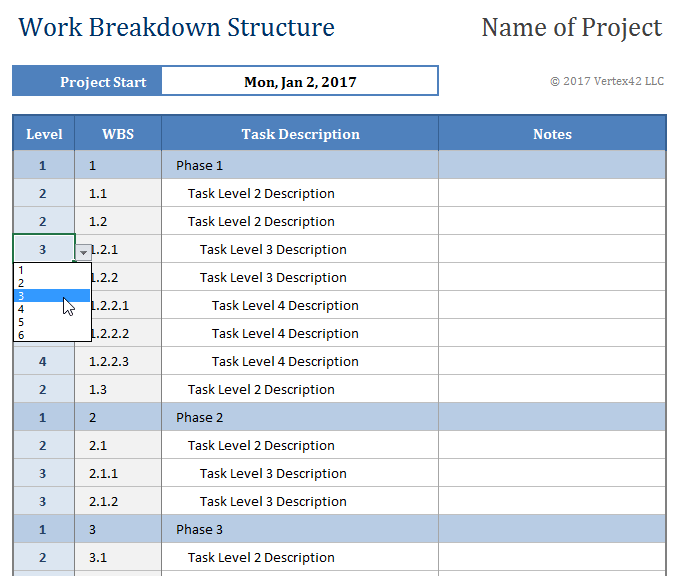
You pick a level from a drop-down and the WBS template writes the outline number for you. Insert a task between two others and every number below it updates, the same way a Word outline does. Level 1 rows get shaded automatically.
Vertex42 itself warns about one trap. Sorting the sheet by any other column scrambles the formula-driven numbers. Use filters or Excel’s Group feature instead, or once the structure is final, copy the WBS column and paste it as values before you sort.
The template has no owner or date columns, so treat it as the skeleton you build a task list from.
Use this template before you have a task list at all, when the project is still a sentence like “launch the partner portal.” It helps a project manager turn a deliverable into numbered, nested tasks that can then be dated and assigned.
Use case: You are a product manager scoping a partner portal with engineering and legal. Use this template to break the portal into deliverables, then work packages, then tasks. The sheet numbers them 1, 1.1, and 1.1.1 as you go.
Best for: Project managers at the scoping stage, before tasks get owners and dates.
Skip it if: You already know the tasks and need to track them day to day. This is a planning sheet, and Template #1 or #2 handles tracking.
The Project Management Tasks Plan template is a Task template, so it adds structure to tasks rather than creating a whole project space. Custom fields for Project Team, Project Name, Completion Status, and Project Manager let one list hold many small projects. The Workload view is the reason to pick this over a spreadsheet. It shows how many tasks each person holds across all projects, which a per-project sheet can’t show.
Subtasks and multiple assignees cover tasks that two people share. Because it’s a Task template, apply it inside a List you already have, or it lands somewhere unexpected.
Use this template when one person is managing several small projects at once and needs to see them side by side. It helps team leads track tasks across projects without one spreadsheet per project.
Use case: You are a marketing operations lead running a webinar, a newsletter redesign, and a landing page test in the same quarter. Use this template to tag each task by Project Name and Project Manager, then filter to one project or view all three together.
Best for: Team leads juggling three or more short projects with overlapping people.
Skip it if: You run one large project with strict phases. The Project Work Plan template above fits that shape better.
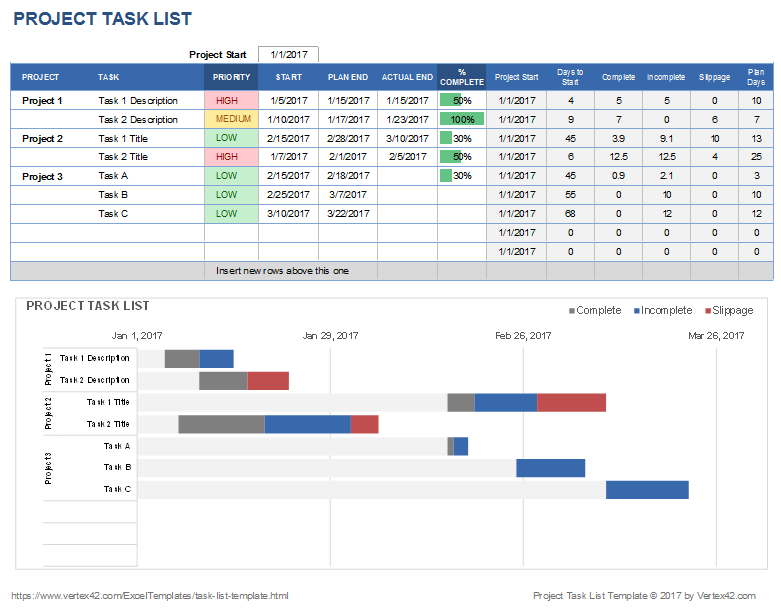
Vertex42 is upfront that its Task List with Gantt Chart exists mainly to show how a data table can drive a Gantt chart. The chart is a stacked bar chart, with an invisible bar for the start offset and a visible bar for the duration. You can follow how it works in a few minutes, and you can also break it by adding rows outside the chart’s data range. Those rows won’t appear until you extend the range.
Each bar reflects only its own dates, so a delay on task 3 won’t push task 4. That works for a sponsor update, where the timeline is a snapshot. Daily scheduling needs dates that move together, which this chart can’t do.
Use this template when a sponsor wants to see the timeline as a picture, and you don’t want to pay for scheduling software. It helps project leads turn a dated task table into a bar chart that updates when dates change.
Use case: You are a nonprofit program coordinator presenting a six-week grant project to your board. Use this template to enter start dates and durations, then paste the chart into the board deck.
Best for: Short projects that need a timeline for stakeholders, not a live schedule.
Skip it if: The schedule changes weekly. You’ll spend more time fixing chart ranges than managing work. Template #3 links dependent tasks so you can see what a slip affects.
ClickUp’s Activity List template is a Task template with custom fields for Project Manager, Project Name, and Completion Progress. Those fields let the same structure work across several runs of the same activity. ClickUp’s setup guide suggests building the list in a Table view and tracking progress on a Board view, both of which you add to the List yourself.
Nested subtasks let one activity hold its own checklist without cluttering the main list. Pair it with recurring tasks and project management automation if the activity repeats on a schedule, so next quarter’s list is created on time. The board works best when each activity is one card, because 60 small steps as separate cards make it too crowded to read.
Use this template when the project is a set of activities that repeat, like quarterly audits or event setup. It helps operations teams break each activity into steps and watch progress on a board.
Use case: You are a facilities coordinator running the same office-opening checklist in a new city each quarter. Use this template to list each activity, nest its steps as subtasks, and move cards across a board as crews finish.
Our guide to visual task management covers board design in more depth.
Best for: Operations and facilities teams with repeatable, multi-step projects.
Skip it if: The project is a one-off with strict dependencies. Template #3’s Gantt view shows sequence better than a board does.
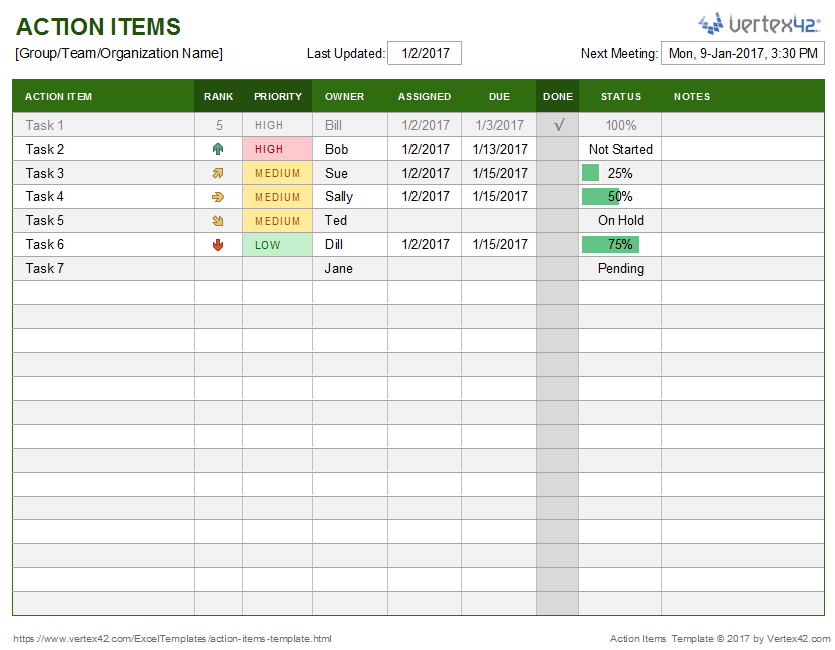
Vertex42 designed the Simple Action Item Tracker as a collaborative Google Sheet first, which puts it in the same family as other Google Sheets to-do list templates. The Sheets version uses in-cell checkboxes, while the Excel version uses a drop-down check mark. On the same page, a separate Action List template ranks items with what Vertex42 calls the JAM method, short for Just-Do-It, Abandon, or Maybe.
Each item gets a Value score and a Difficulty score from 1 to 3, and the sum from 2 to 6 sorts the list. A 6 is easy and valuable, so do it now. A 2 is hard and low-value, so drop it. That scoring is a sharper way to prioritize than marking everything “High.”
Use this template when most of your project’s tasks come out of meetings and get lost in the notes afterward. It helps a team capture who agreed to what while the meeting is still running.
Use case: You are a scrum master running weekly stakeholder syncs. Use this template as a shared Google Sheet that everyone bookmarks and edits during the call, then check items off at the next sync.
Best for: Teams whose tasks mostly come from recurring meetings.
Skip it if: You need the full project plan. Action items carry no phases or sequence, so Template #2 is the better starting point.
Start with the template that fixes your most recent failure. A fuller template only helps if the team will keep it updated.
| If you need to… | Start with |
|---|---|
| Track a small project’s tasks, hours, and spend | Project Task List by Vertex42 |
| Record which task waits on which in a free spreadsheet | Project Plan Template by UC Berkeley IT |
| Link dependent tasks and see what a slip affects | Project Work Plan Template by ClickUp |
| Turn a fuzzy deliverable into tasks | Work Breakdown Structure by Vertex42 |
| See several small projects and team workload together | Project Management Tasks Plan Template by ClickUp |
| Show a sponsor a timeline | Project Task List with Gantt Chart by Vertex42 |
| Run the same multi-step project every quarter | Activity List Template by ClickUp |
| Stop losing tasks agreed in meetings | Action Items Template by Vertex42 |
Project task lists fail because they record tasks as independent rows when project work is a chain. Task 4 can’t start until task 3 ships, but a flat list shows both as “Not Started” with tidy dates. When task 3 slips, task 4’s date stays the same and looks fine until the morning it’s due.
On r/projectmanagement, the recurring complaint about spreadsheet task lists is manual re-dating. When one task runs long, someone has to move every later task by hand and remember which ones were affected. Reporting across projects is the second complaint, because each project manager adds their own columns, so no two sheets roll up the same way.
The other quiet failure is “done.” A task called “Homepage copy” can be marked Complete when a first draft exists, after legal review, or once it’s live. Three people read the same status three ways.
A “Done means” column is that assumption written down. It costs one sentence per task and removes the status argument from every standup.
Create a project task list by breaking the deliverable into tasks first. Then give every task an owner, a predecessor, and a done condition before you set any dates. Work in this order, because dates set before dependencies are guesses.
Here’s what that looks like for a five-person marketing team running a webinar launch. The first table is a basic task list. The second adds the two missing columns.
Before: a basic task list
| Task | Owner | Due |
| Confirm speaker and topic | Priya | Week 1 |
| Build registration page | Marco | Week 2 |
| Write promo emails | Dana | Week 2 |
| Schedule email sends | Dana | Week 3 |
| Run tech rehearsal | Sam | Week 4 |
After: the same list with Waits on and Done means
| Task | Owner | Due | Waits on | Done means |
| Confirm speaker and topic | Priya | Week 1 | Nothing | Speaker confirms the date by email |
| Build registration page | Marco | Week 2 | Speaker confirmed | Page is live and a test registration comes through |
| Write promo emails | Dana | Week 2 | Speaker confirmed | Team lead approves all three emails |
| Schedule email sends | Dana | Week 3 | Registration page and promo emails | Sends are scheduled with the live page link |
| Run tech rehearsal | Sam | Week 4 | Speaker confirmed | Speaker’s slides and audio are tested |
Look at “Schedule email sends.” In the first list, Dana’s send date stays at Week 3 even if the registration page slips, and she finds out when the email goes out with a dead link. In the second, the Waits on column tells her the send date has to move as soon as the page runs late. If you want ready-made rows to start from, our project plan templates roundup has phased examples.
Here’s a quick overview of how project teams pick and adapt planning templates in ClickUp:
A project task list stays useful when it gets a short, scheduled review and every row keeps one owner. Run this check once a week.
| Check | What to ask | What to fix |
|---|---|---|
| Ownership | Does every open task have exactly one owner? | Assign one name and move helpers to a separate column |
| Blockers | Which open tasks are waiting on something late? | Re-date the waiting task or escalate the blocker |
| Done criteria | Could someone else verify each “Complete”? | Rewrite vague done conditions as checkable outcomes |
| Staleness | Which tasks haven’t changed in two weeks? | Close, cancel, or split them |
| Repeat work | Are reminders and recurring tasks typed by hand? | Automate them or move to a tool that can |
Cancel tasks openly, with a Canceled status or a one-line note. Rows that get abandoned are what make teammates stop trusting the list.
Spreadsheet templates from Vertex42 or UC Berkeley work best when the project is short, the team is small, and someone is happy to re-date rows by hand. ClickUp templates work better when tasks depend on each other, several projects share the same people, or the list has to survive more than one project manager.
The two missing columns from earlier map directly onto ClickUp features. “Waits on” becomes a dependency relationship. Each task can be set as waiting on or blocking another, and the link stays visible even after a task closes. Turn on the Reschedule Dependencies ClickApp, give the blocking task a due date and the waiting task a start date, and a change to the blocker’s dates moves the waiting task by the same number of days.
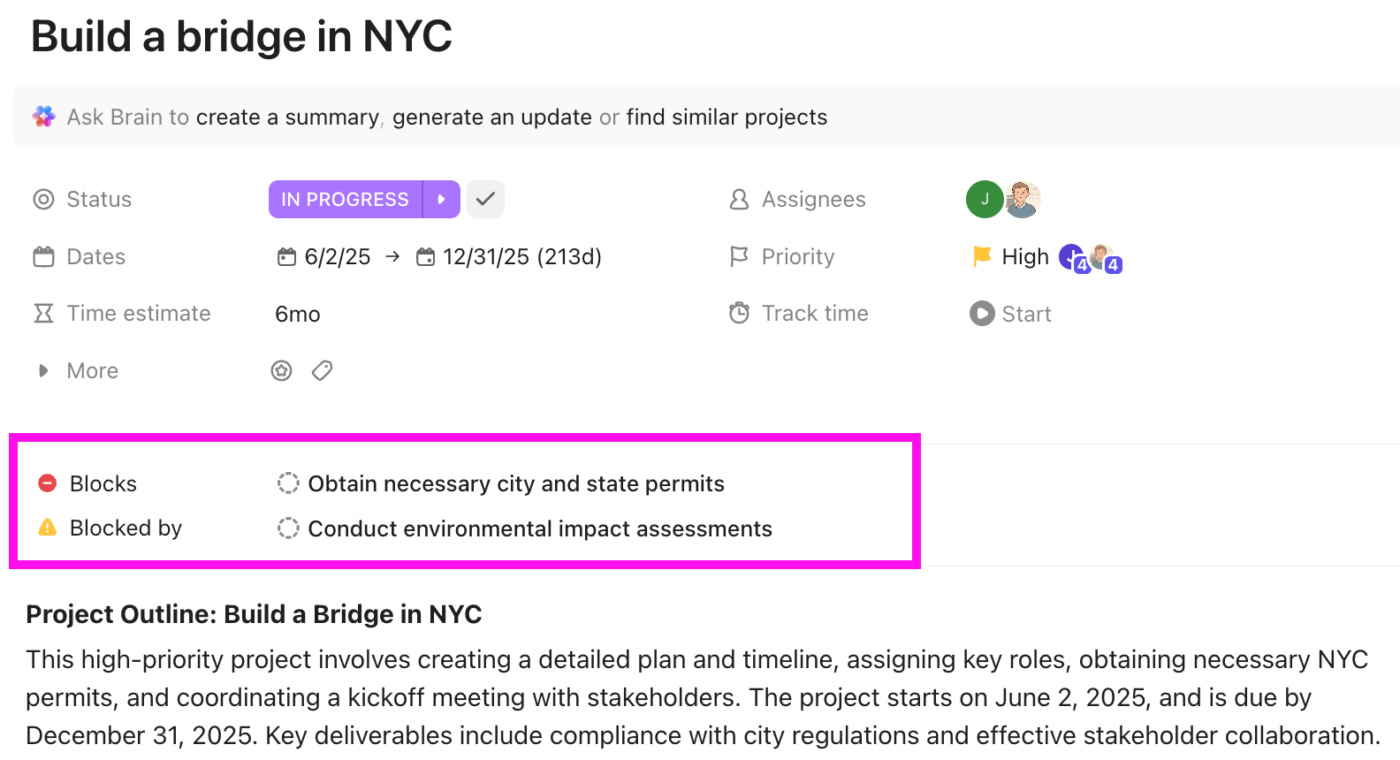
“Done means” fits in the task description or a checklist, so the condition travels with the task. From there, ClickUp Brain handles the reporting a spreadsheet leaves to you. Ask Brain to summarize a task or write an update from inside it.
On a ClickUp Dashboard, an AI Card can run a prompt like “Summarize the last sprint. Include what shipped and what was blocked” across every project list, so the weekly review starts from a written summary instead of a scan of rows. Brain can also find in-progress tasks that haven’t been updated in 15 days, which covers the staleness check from the table above.
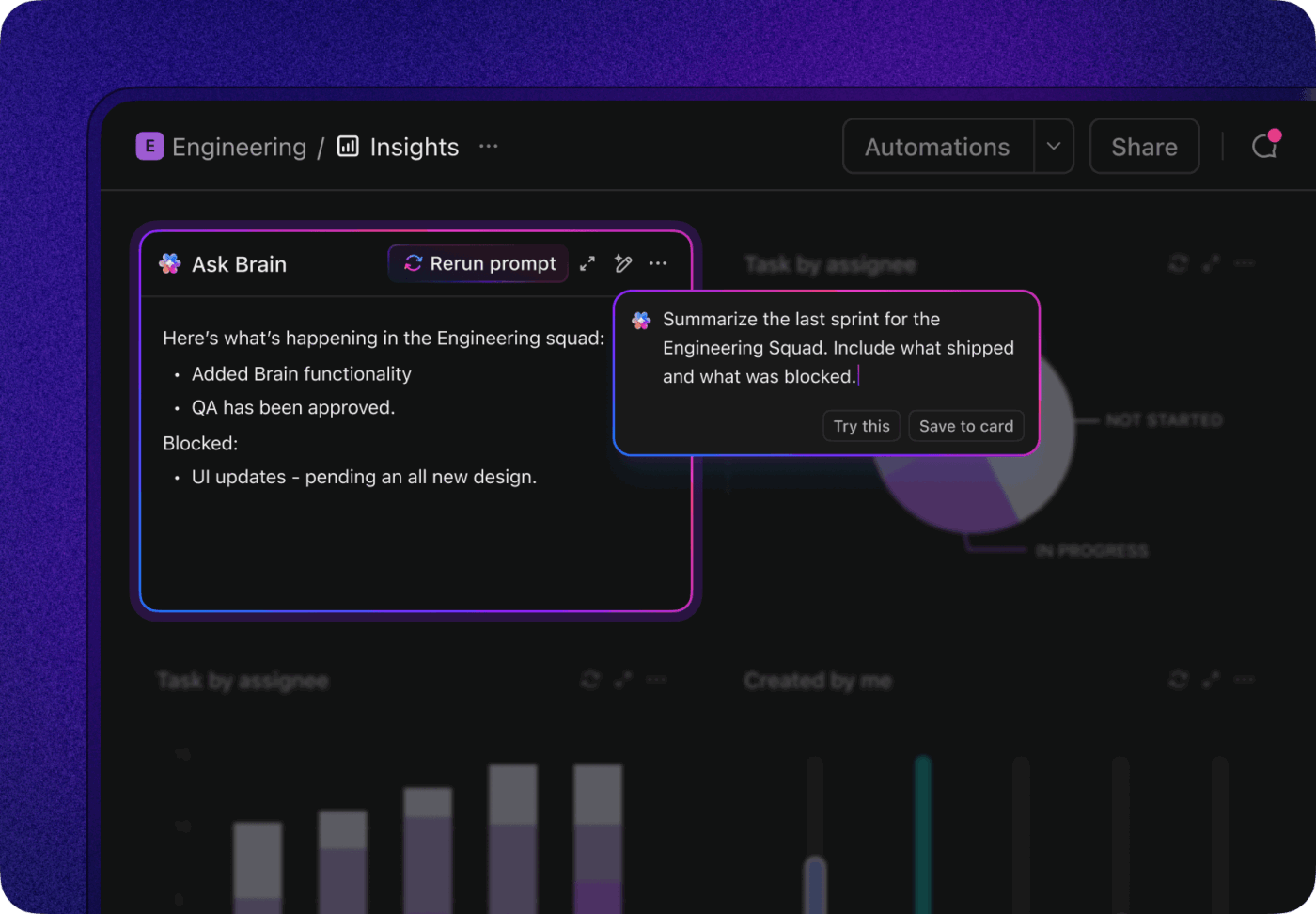
Two limits are worth knowing before you rely on this. Dependency Warning only shows a prompt, so someone can still close a task that’s waiting on another one. And if a task waits on several blockers, check its dates after rescheduling, especially in construction and other heavily sequenced projects.
ClickUp also takes more setup than a single spreadsheet. Statuses, custom fields, views, and ClickApps are more to configure than a sheet with six columns, and for a 15-task project with three people, the spreadsheet templates above will be faster.
ClickUp templates are free to start with, but Gantt and Workload views have 60 uses each on the Free Forever plan, and AI Cards need the Everything AI add-on or AI credits. The setup pays off once tasks start depending on each other across people and projects.
Download one template and try it on a project that’s already running. Add “Waits on” and “Done means” columns, then enter the next 10 tasks and fill in both before you set any dates.
Look at the list again at your next weekly review.
If you had to move dates by hand or couldn’t see which tasks were blocked, that’s the point where a ClickUp template like the Project Work Plan saves you time.
A webinar launch task list might start with “Confirm speaker and topic” and include “Schedule email sends.” Each row carries an owner, a due date, a predecessor, and a done condition. In terms of dependencies, “Schedule email sends” waits on both the registration page and the promo emails.
Yes. Microsoft’s Excel template gallery includes a Project to-do list, a To-do list with progress tracker, and a Gantt project planner, all free. They suit simple projects. None of them recalculates dates from dependencies, so add a predecessors column if tasks depend on each other.
Yes. Vertex42 offers free Excel templates for task lists, Gantt charts, and work breakdown structures under a private-use license. Microsoft’s own gallery has free project planners too. For phased IT projects, UC Berkeley’s free Google Sheets project plan exports to Excel and includes predecessors and RACI columns.
A project checklist is a list of steps or checks to confirm, usually without owners, dates, or dependencies. A project task list schedules work; a checklist verifies it. Teams often attach a checklist to a single task, such as a pre-launch QA check, rather than running the whole project from one. Our checklist templates cover that format, and you can also make a checklist in Google Sheets in a few minutes.
Organize a team task list by deliverable or phase first, then by owner, and give every task one owner and one done condition. Group tasks under numbered phases so the structure stays visible as the list grows. Review blocked and overdue tasks weekly. For shared lists, a tool with per-person views, like a workload view, prevents one teammate from holding half the tasks.

Praburam Srinivasan
Max 21min read
Praburam Srinivasan
Max 10min read
Praburam Srinivasan
Max 19min read
© 2026 ClickUp