



Sorry, there were no results found for “”
Sorry, there were no results found for “”
Sorry, there were no results found for “”
Let’s face it—default font options can be a bit…boring. Firing up another Google Docs file with Arial or the archaic Times New Roman lacks that flair.
Despite the host of default fonts available on the Google Docs app, it may be necessary to look for other fonts. Luckily, the platform offers several easy ways to expand your font library and spice up your document’s style.
Read this guide on multiple methods of adding new fonts to Google Docs. Along the way, we’ll share some Google Docs hacks to help you simplify your workflow.
Plus, stick around as we explore some excellent Google Docs alternatives for those seeking even more customization options.
Fonts are intrinsically linked with identities, not just for actual brands but for individuals, too. From students with a signature style to professionals aiming to boost brand identity by adding custom fonts, the idea remains to make your content stand out.
If you run a business, it could be crucial for you to maintain consistent branding across all your documents. Plus, adding a custom font helps give your work a polished and unique look.
So, let’s look at how you can add extensive fonts to Google Docs.
👀 Did You Know? Google Docs evolved from Writely, a web-based word processor developed by Upstartle in 2005.
Arial is usually the default font option on Google Docs, but the font dropdown menu contains multiple others. And if these available fonts do not work for you, here’s what you need to do:
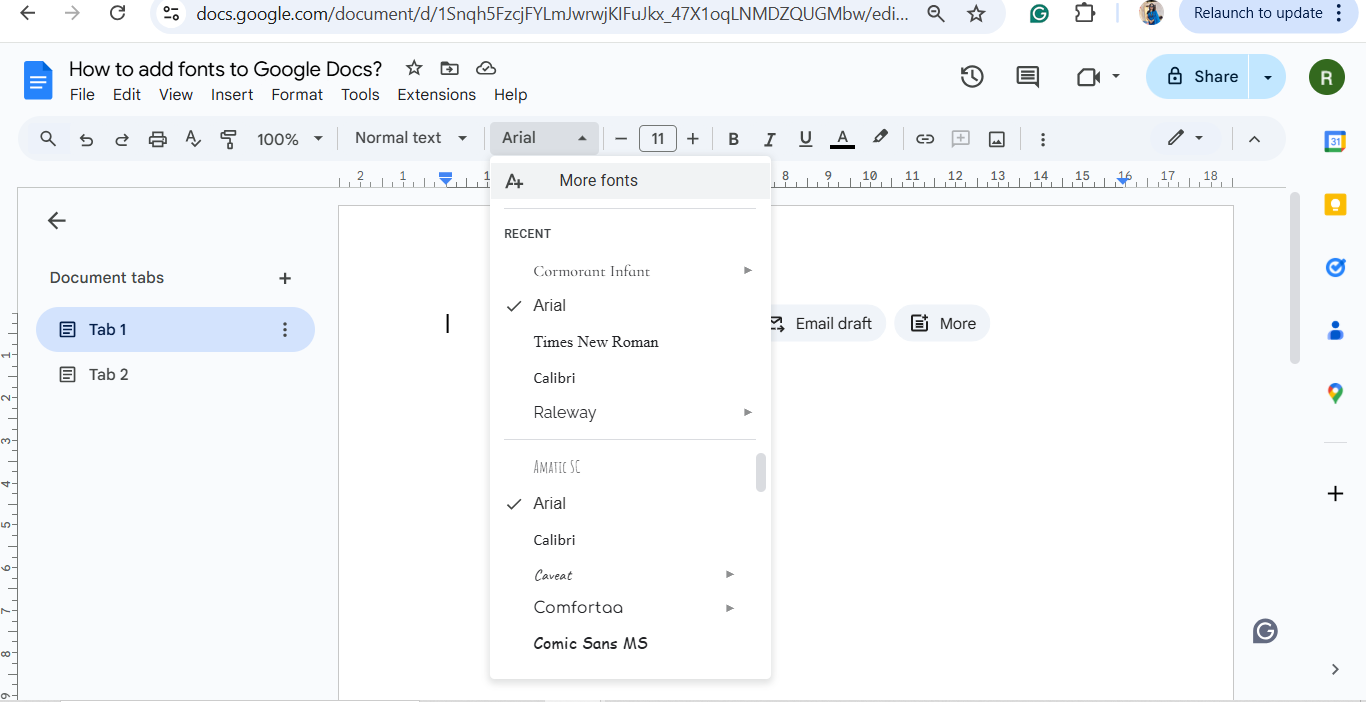
Google Docs already offers an extensive collection of fonts—over 1,400—which can be accessed directly from the toolbar.
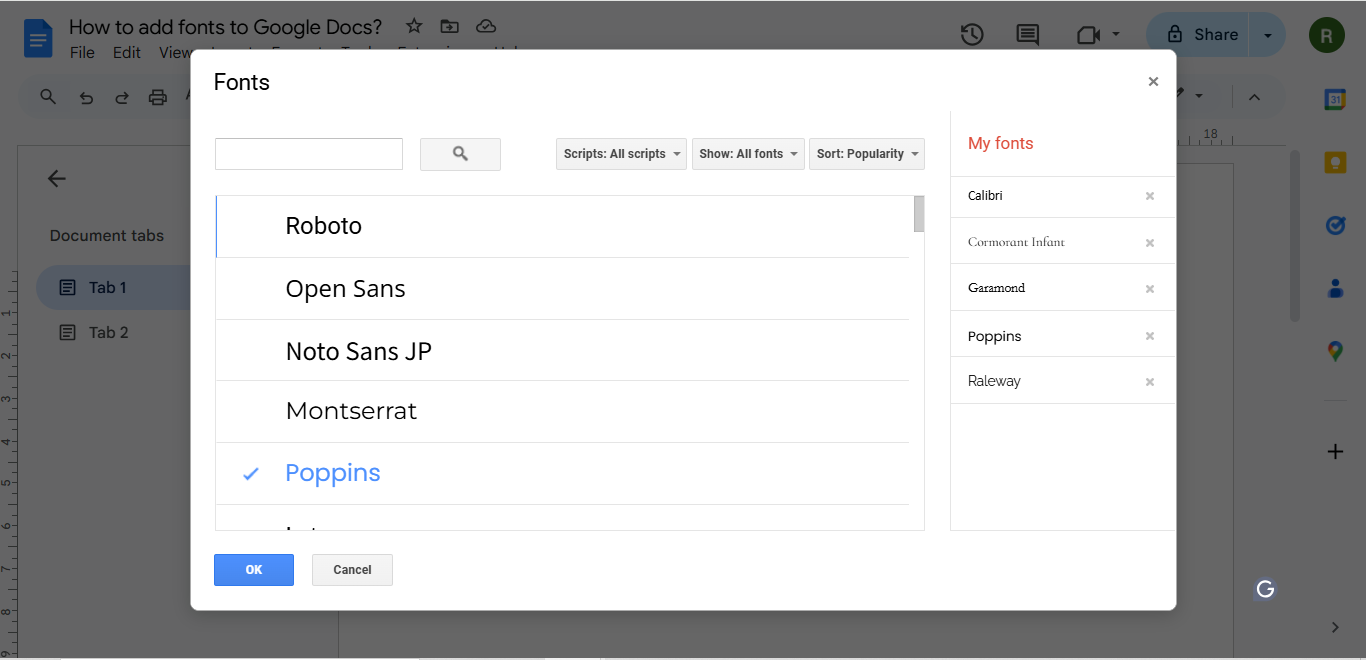
💡Pro Tip: If you have a specific style for your business (fonts and sizes), you’ll want to adjust your settings accordingly. This is beneficial because if you define text as a Heading 2 and later decide to change its appearance, the changes will automatically apply to all text formatted as Heading 2.
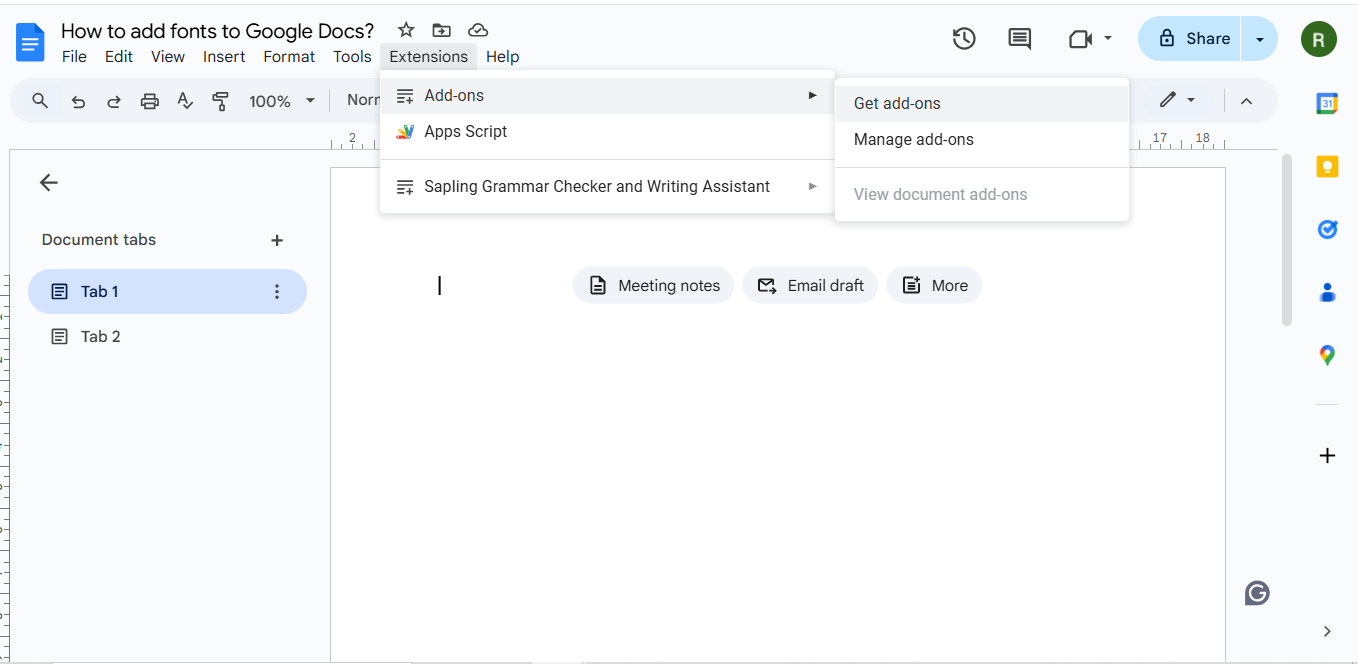
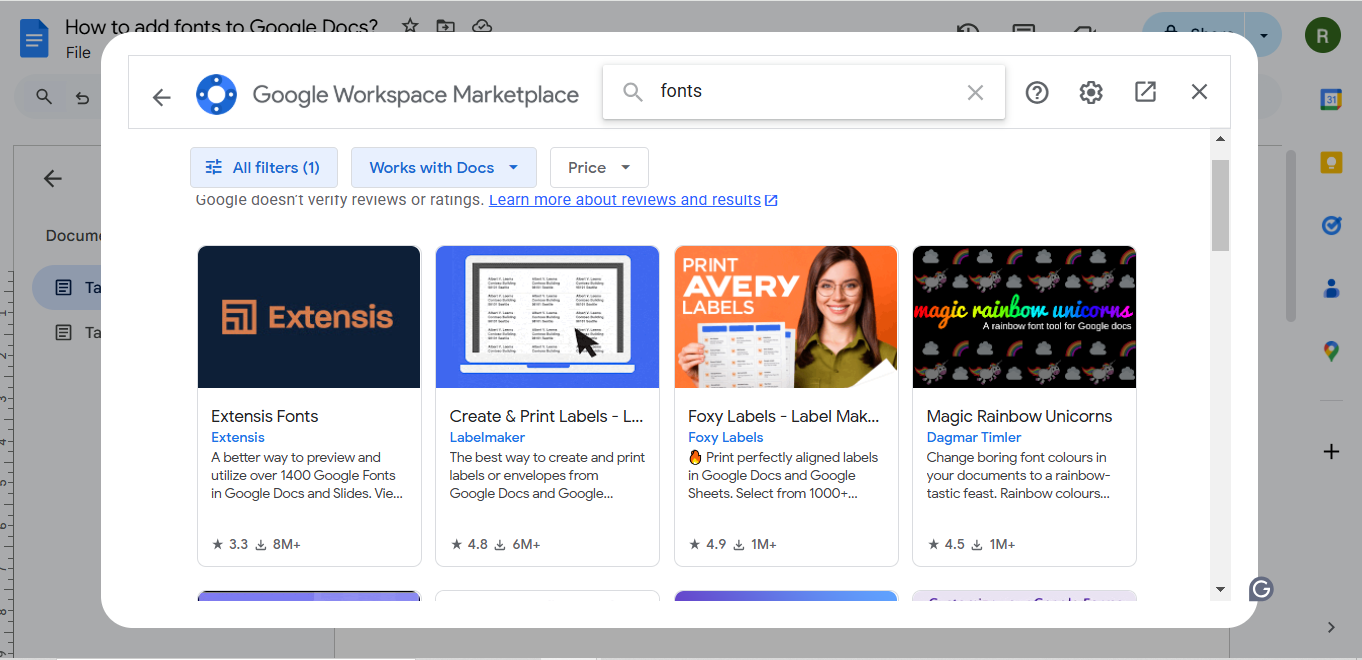
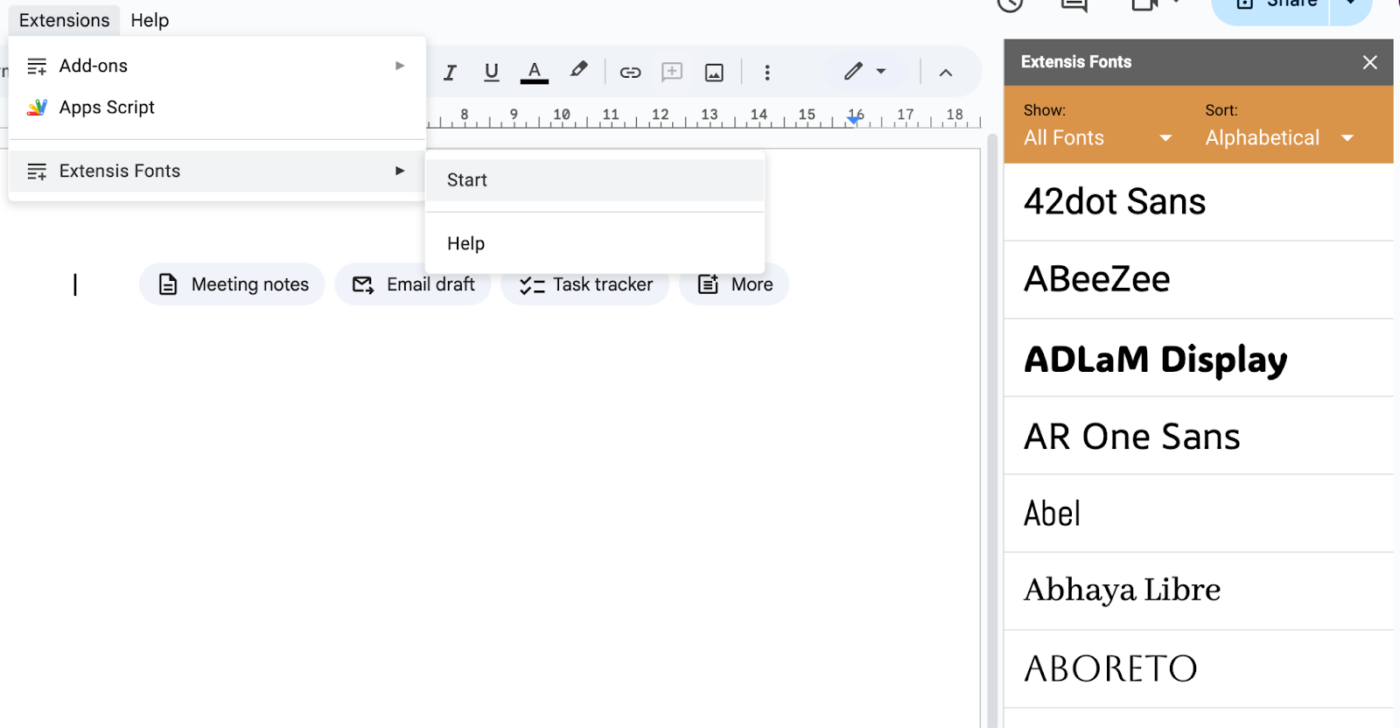
Google Workspace Marketplace offers font-related add-ons that can significantly expand your options.
🧠 Fun Fact: Typing /shrug followed by the Enter key adds the classic shrug emoji ¯\(ツ)/¯ to your document. It’s a fun way to lighten the tone in informal documents.
📖 Also Read: Why Is Document Version Control Important?
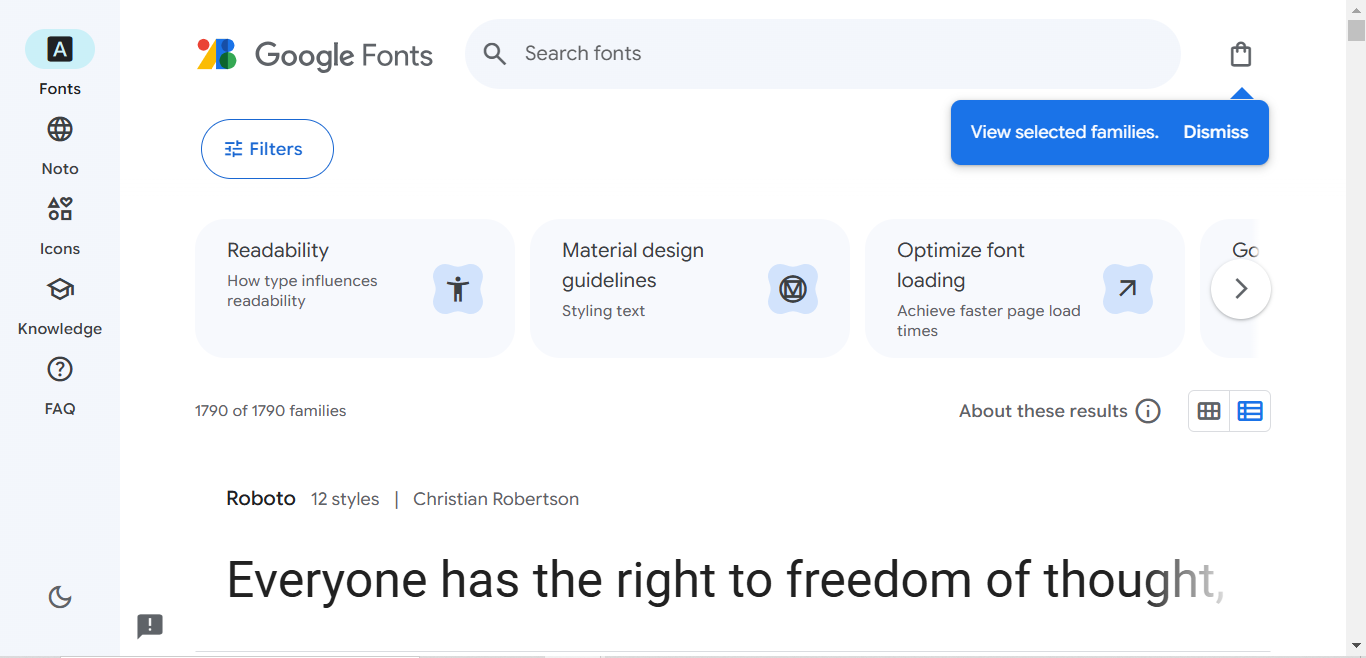
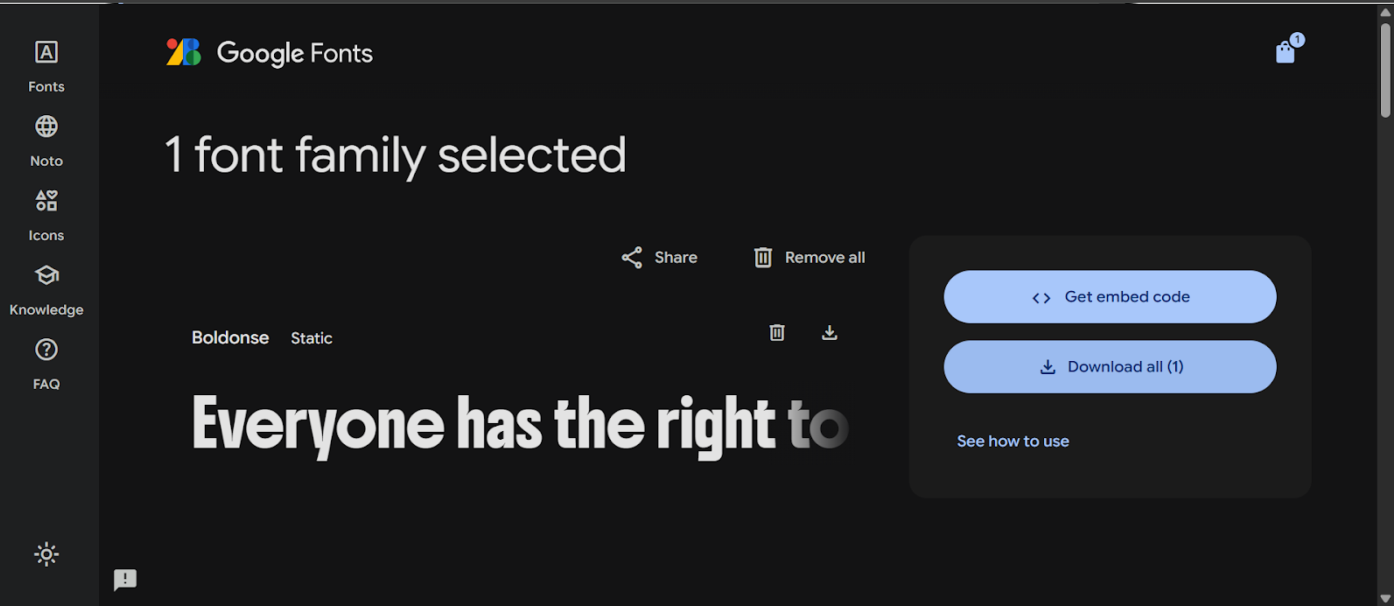
If the built-in fonts and add-ons don’t meet your requirements and you decide to customize Google Docs further, external tools like Google Fonts can help.
💡Pro Tip: Under the Tools menu, activate Voice Typing to dictate your document instead of typing. It’s a lifesaver for multitaskers and fast thinkers!
Although you can add multiple fonts from add-ons and external tools, you can’t add your custom fonts to Google Docs.
📖 Also Read: Style Guide Templates to Amplify Your Brand
Google Docs has some notable limitations that might leave you looking for alternatives.
Here are some of the key limitations you might encounter:
📖 Also Read: How to Add a New Page on Google Docs
📮 ClickUp Insight: We recently discovered that about 33% of knowledge workers message 1 to 3 people daily to get the context they need. But what if you had all the information documented and readily available?
With ClickUp Brain’s AI Knowledge Manager by your side, context switching becomes a thing of the past. Simply ask the question, and ClickUp Brain will pull up the information from your workspace and/or connected third-party apps!
What if you could connect all your Docs, tasks, and Chats in one place without switching contexts?
A great Google Docs alternative, ClickUp is the everything app for work. It combines project management, documents, and team communication in one platform, accelerated by next-generation AI automation and search.
ClickUp offers a way to centralize all of the documentation for a project or a client. It makes it easier for every consultant to get the information they need.
If you’ve ever felt limited by Google Docs when creating flexible, professional, and visually engaging documents, it is time to check out ClickUp Docs.
With ClickUp Docs, you get a full-featured document editor packed with customization options for creating crystal-clear pages and Docs, right in your workspace.
To structure your content visually, you can add tables with custom styling, syntax-highlighted code blocks spanning dozens of languages, color-coded banners and separators, and multiple columns—perfect for drawing attention to important updates or critical information.
But if you’re looking at adding a new font to an image or graphic, ClickUp AI has you covered.
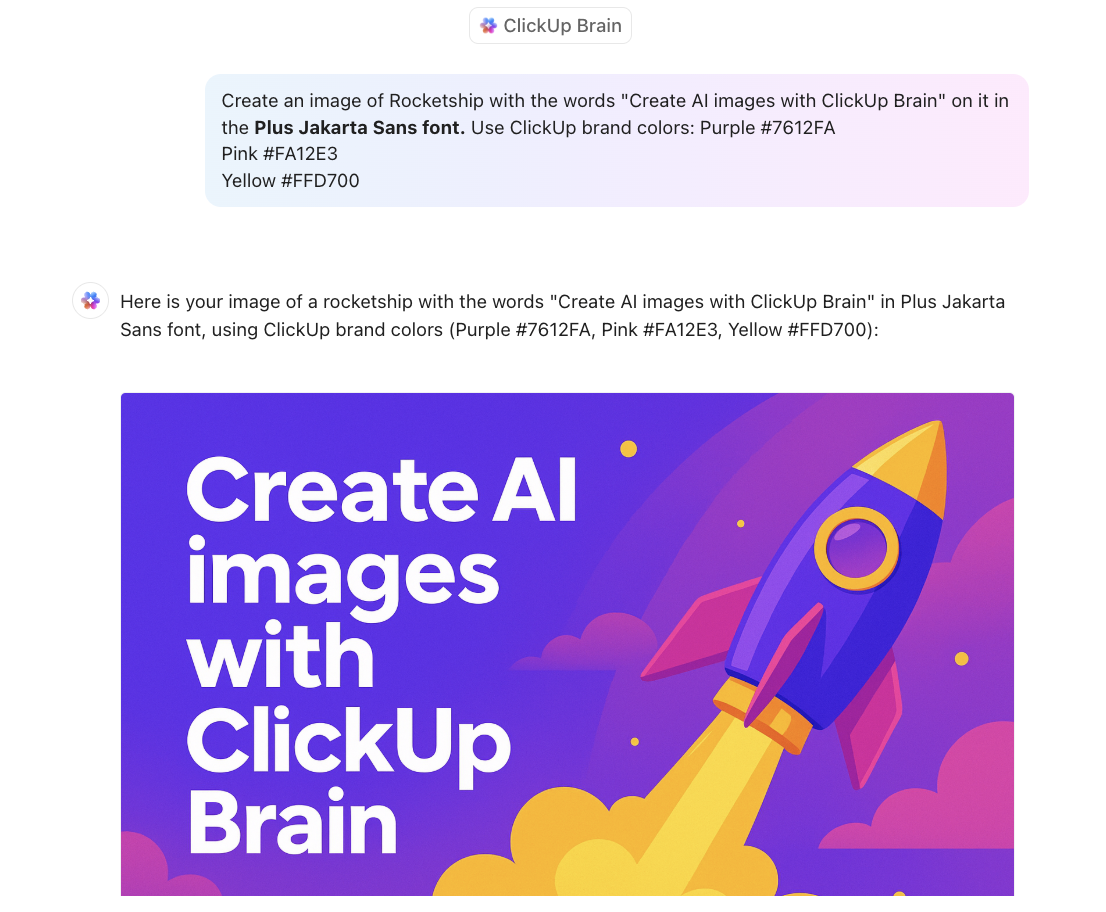
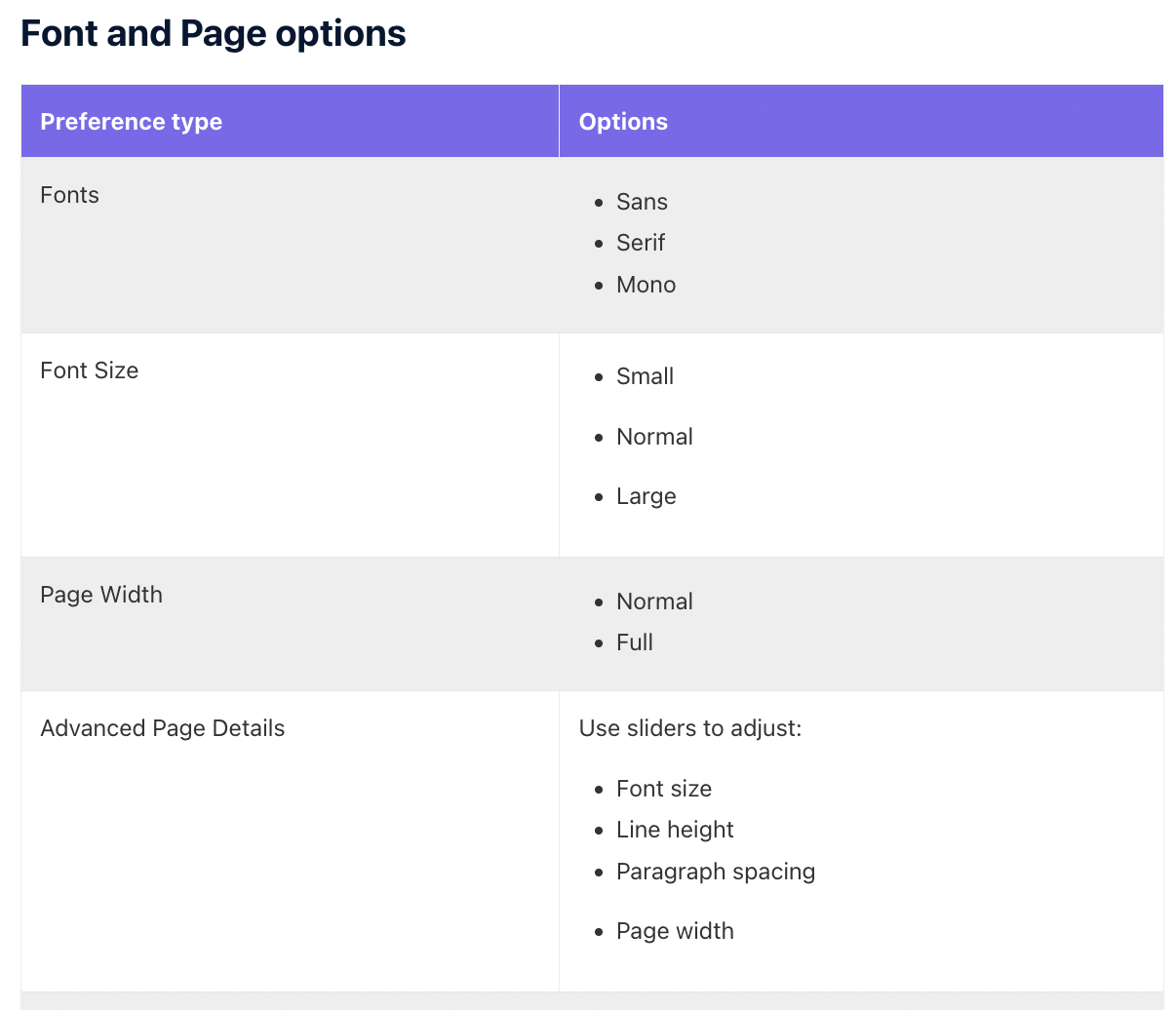
💡Pro Tip: Set font preferences on all pages within a Doc by clicking Apply typography to all pages.
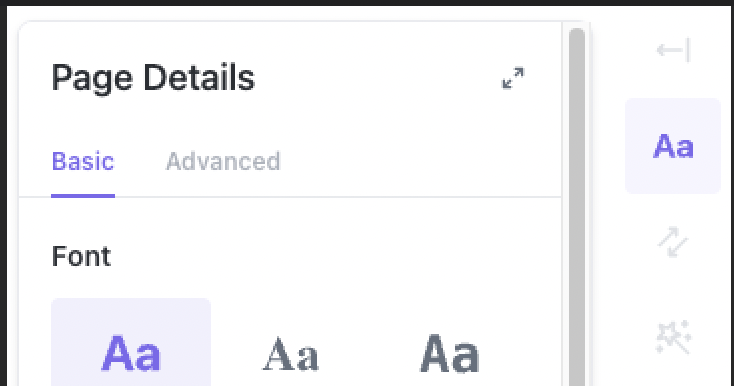
ClickUp Docs lets you do more than just write—you can customize page details to keep documents organized and easy to navigate.
Whether you’re managing project documentation, meeting notes, or team guidelines, ClickUp gives you complete control over page properties.
Here are some key customization features:
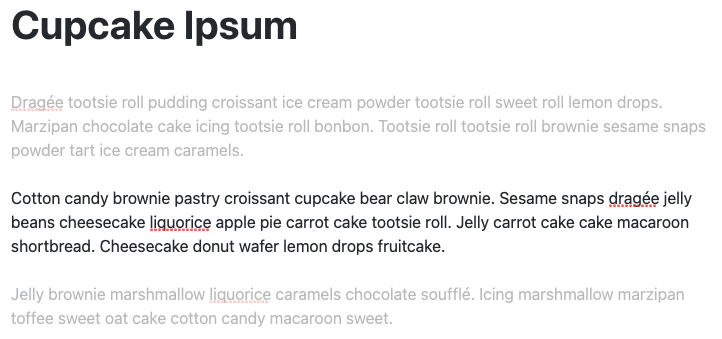
You can also drop in images, YouTube videos, icons, and emojis—positioning and resizing them for perfect presentations.
And there’s more:
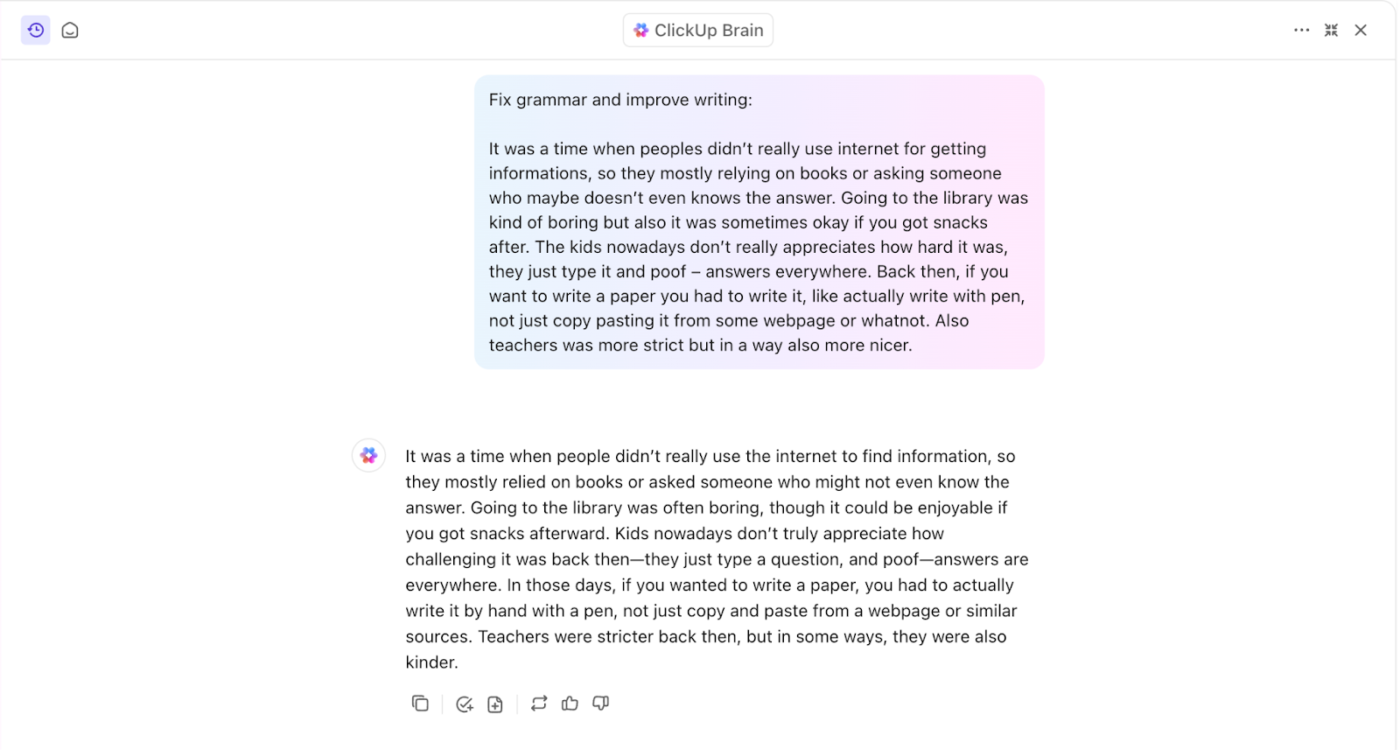
Additionally, combining ClickUp Brain with ClickUp Docs helps you refine your docs with AI Writer for Work.
With ClickUp Brain, you can write smarter, faster, and better—whether drafting from scratch or improving existing content.
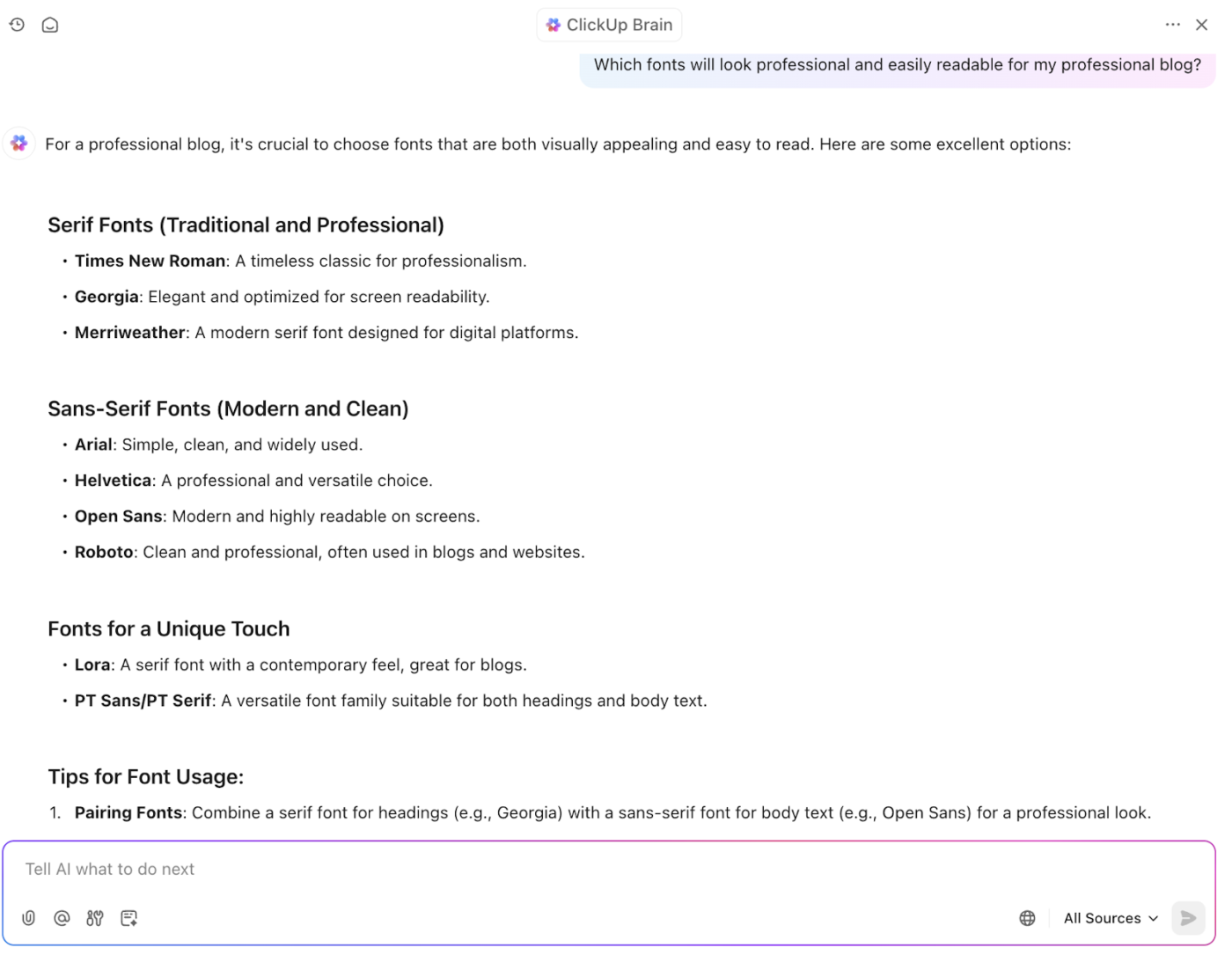
Here’s how you can use it to elevate your writing:
📖 Also Read: How to Create a Style Guide for Your Brand?
Adding fonts to your Google Docs is a straightforward way to elevate your documents, whether you use the built-in options, install add-ons, or incorporate external tools like Google Fonts.
Each method has perks, such as letting you customize your text to match your style. However, as we have explored, Google Docs does have its limitations, especially when it comes to advanced customization and design flexibility.
That’s where tools like ClickUp come into play. ClickUp lets you create fully customized documents while seamlessly linking them to tasks, workflows, and collaboration tools.
From styling options and real-time editing to embedding actionable buttons and assigning tasks directly from your Doc, ClickUp takes document creation to the next level.
Sign up for ClickUp today!

Manasi Nair
Max 26min read

Arya P Dinesh
Max 18min read
Arya P Dinesh
Max 20min read

© 2026 ClickUp




