Sorry, there were no results found for “”
Sorry, there were no results found for “”
Sorry, there were no results found for “”
🔎 Did You Know? Late or inaccurate time-tracking data is one of the top three reasons payroll accuracy nosedives. Safe to say, you’re essentially gambling with your paycheck every time you estimate time without a system.
A raw Google Sheet might feel like a quick fix, but without the right formulas and structure, it’s just expensive payroll disputes. You need a system that forces accuracy and gives you visibility into where your day disappeared.
We’re going to build a time tracking sheet in Google Sheets to handle everything from daily logs to complex biweekly pay periods. You’ll find the exact blueprints to turn a blank grid into a precision payroll asset, along with the templates to do it in seconds.
And because spreadsheets have their limits, we’ll show you exactly when to stop building and start upgrading with ClickUp before your manual system breaks under the weight of your growth.
A time-tracking sheet in Google Sheets is a spreadsheet that logs work hours, calculates totals, and organizes time entries by day, week, or pay period. This means you have a repeatable format for entering when work starts and stops, and the formulas handle the math for you.
A typical Google Sheets timesheet template includes columns for date, employee name, project or task, start time, end time, break duration, total hours, and notes. Some versions also include overtime calculations or billable vs. non-billable flags.
📮 ClickUp Insight: 92% of knowledge workers use personalized time management strategies. But, most workflow management tools don’t yet offer robust built-in time management or prioritization features, which can hinder effective prioritization.
ClickUp’s AI-powered scheduling and time-tracking features can help you transform this guesswork into data-driven decisions. It can even suggest optimal focus windows for tasks. Build a custom time management system that adapts to how you actually work!
Summarize this article with AI ClickUp Brain not only saves you precious time by instantly summarizing articles, it also leverages AI to connect your tasks, docs, people, and more, streamlining your workflow like never before.How to Create a Time Tracking Sheet in Google Sheets
To get started, you just need a Google account and a visit to sheets.google.com. You can start with a fresh blank canvas or duplicate one of the templates we’ve linked later in this guide.
Follow these three steps to build a functional, professional tracker.
Open a new sheet and give it a clear name, like ‘Team Timesheet – June.’ Your first priority is creating headers that capture the right data. In Row 1, enter these column titles:
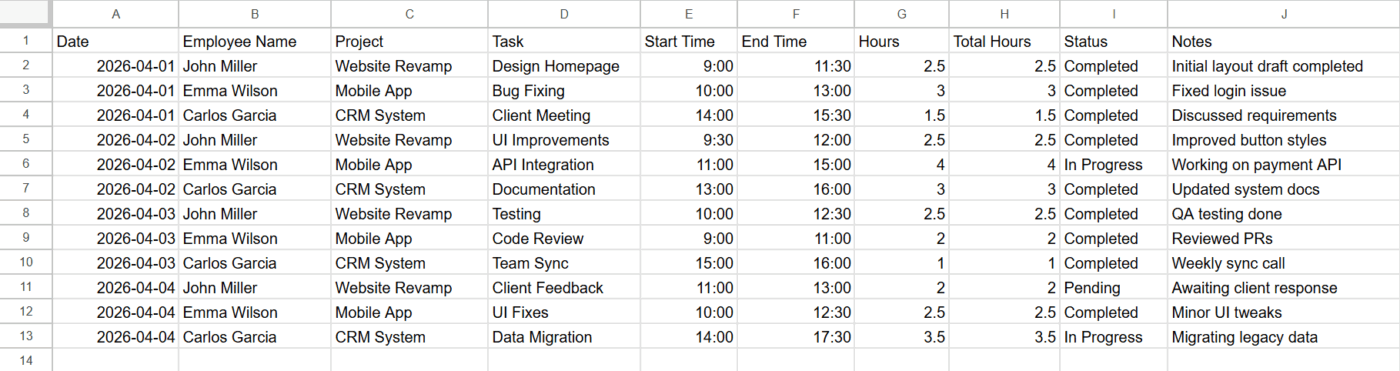
Once your headers are in place:
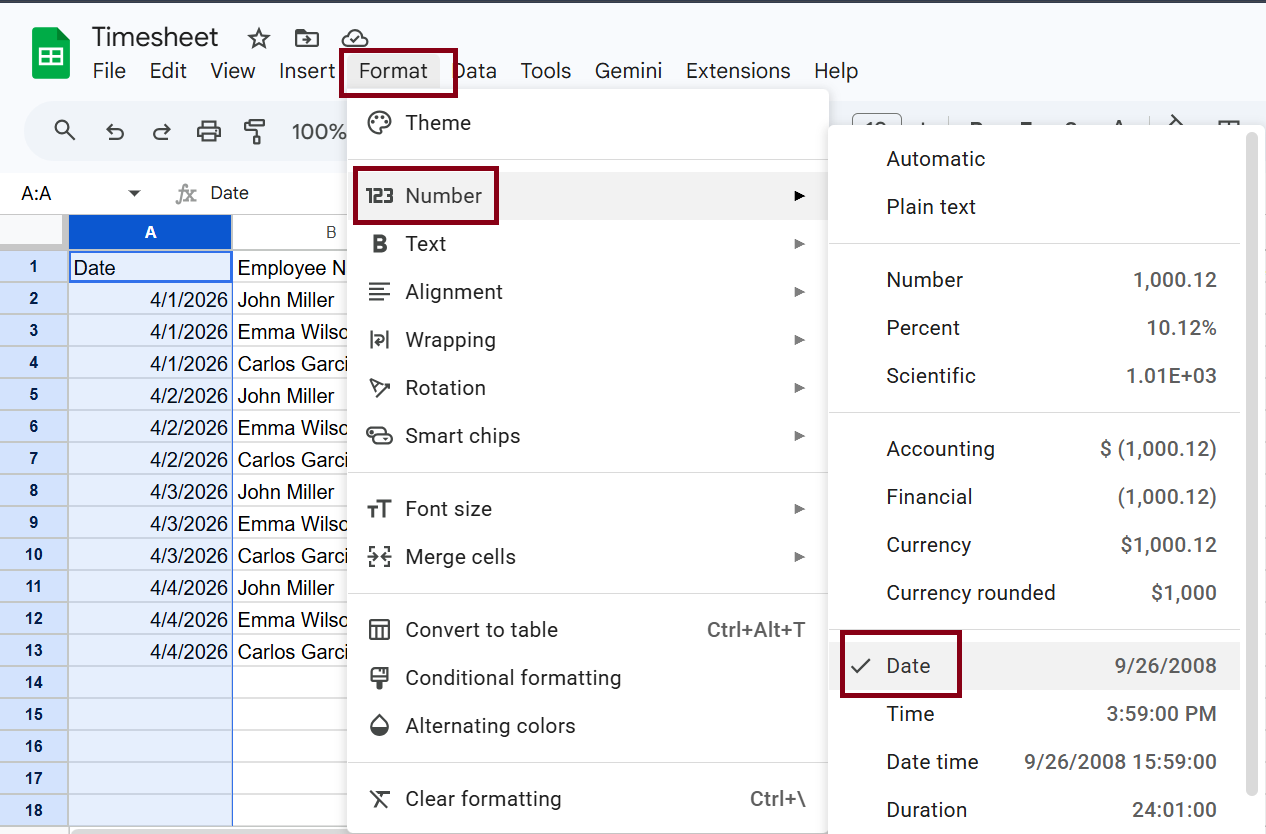
To keep your data clean, use Data Validation on the Project column. This creates a dropdown menu for your team, which eliminates typos. Next:
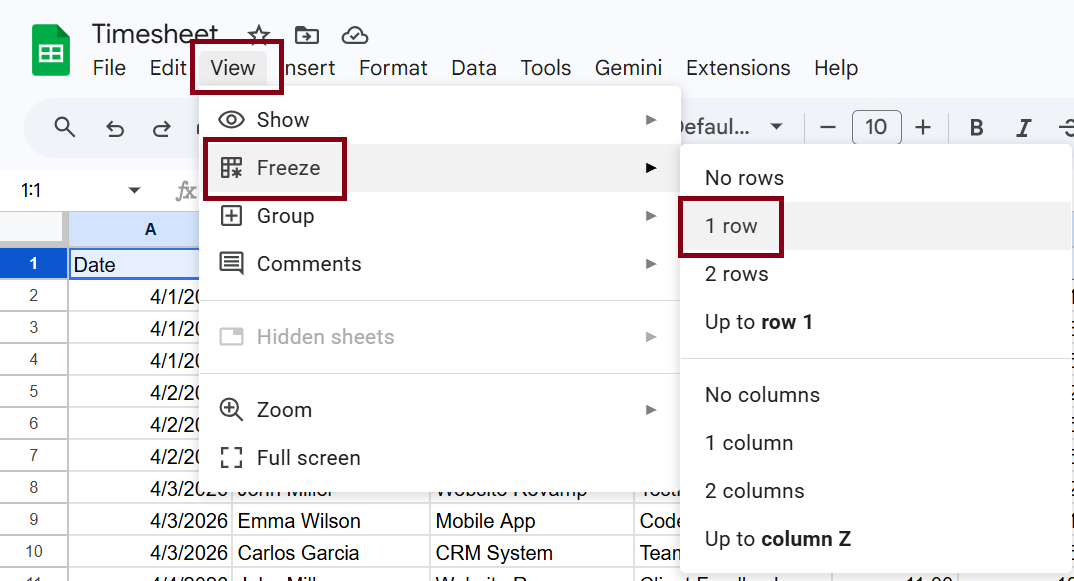
Google Sheets can save you from doing the math manually, but you have to use a specific trick. To calculate the total hours worked, go to the Hours column (Cell G2) and enter:
=(F2 – E2) * 24
This formula subtracts the start time from the end time and converts the result into hours.
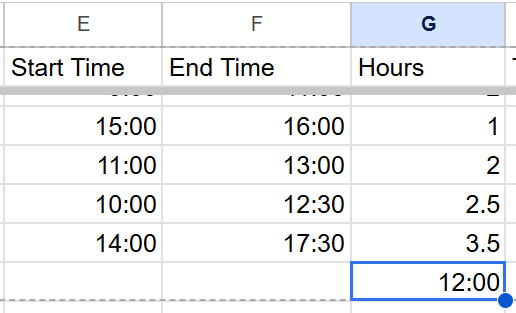
📌 Important: Google Sheets views time as a fraction of a 24-hour day. If you don’t multiply by 24, your 8 hours will show up as 0.33. Multiplying converts that fraction into a decimal number that makes sense for payroll or invoicing.
To wrap up your math:
=SUM(G2:G13) to see the total hours for the month=MAX(G2-8, 0)This formula calculates any time worked during an 8-hour shift and ignores any time below it.
📖 Also Read: Google Sheets Formulas Everyone Should Know
Now that the sheet works, you need to make it user-proof so your team doesn’t accidentally delete a formula.
📖 Also Read: How to Color Code Cells in Google Sheets
You don’t always have to build your system from the ground up. These ready-made Google Sheets timesheet templates provide a solid framework immediately—you just need to make a copy and start logging your hours.
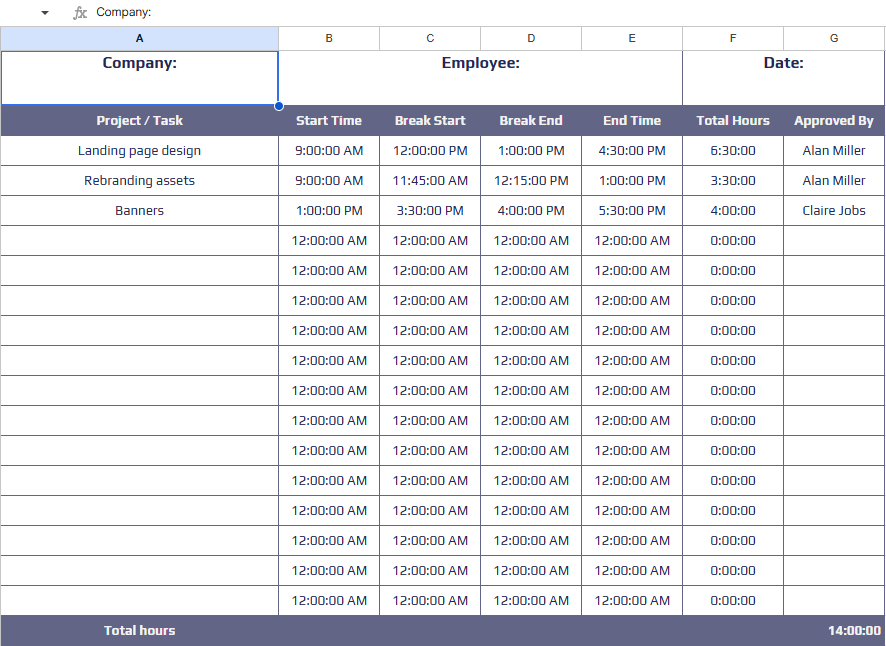
A daily timesheet template works best for shift workers, contractors billing by the hour, or anyone splitting time across multiple projects in a single day. It uses one row per time block, with columns for task, start time, end time, break, total hours, and notes. A summary row at the bottom auto-calculates the day’s total.
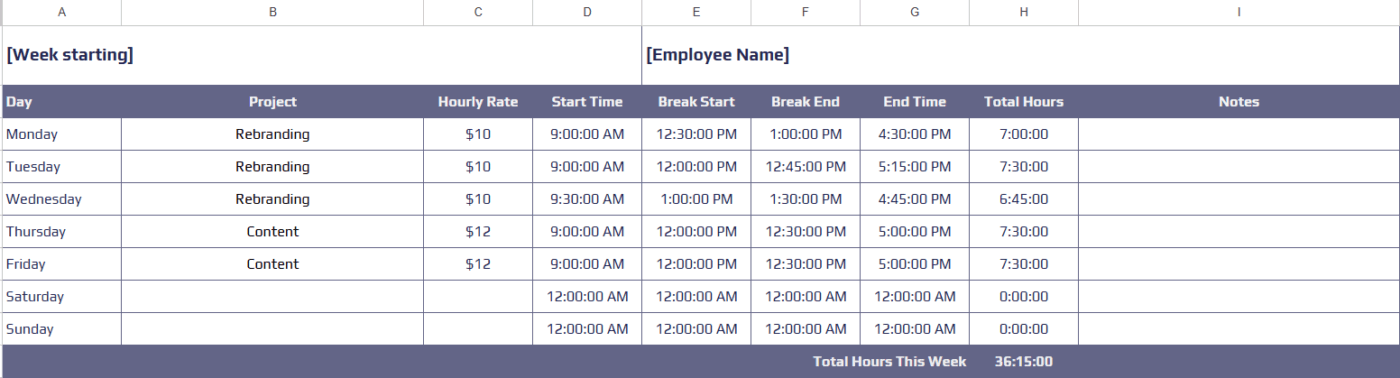
The Weekly Timesheet Template is the classic format most teams prefer. It’s clean, intuitive, and perfect for standard 40-hour workweeks. Each day of the week has its own row. You enter your total daily hours, and the sheet sums them up into a weekly total.
Some versions include a column for manager sign-off, which makes the document into a formal time card for your records.
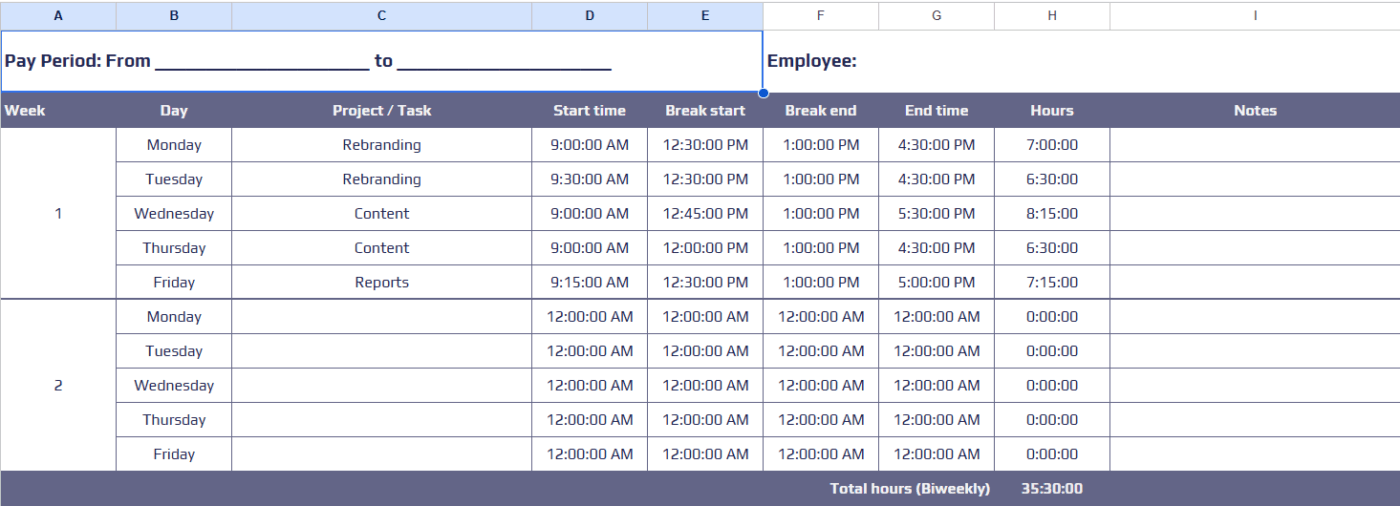
Bi-weekly timesheet templates are a favorite for HR and payroll departments. You get two full weeks of tracking on a single page, including fields for your Employee ID, department, and supervisor. This format works well as a timesheet labor record template in Google Sheets.
🔎 Did You Know? 60% of US and Canadian organizations run payroll biweekly, while 40% run payroll semimonthly.
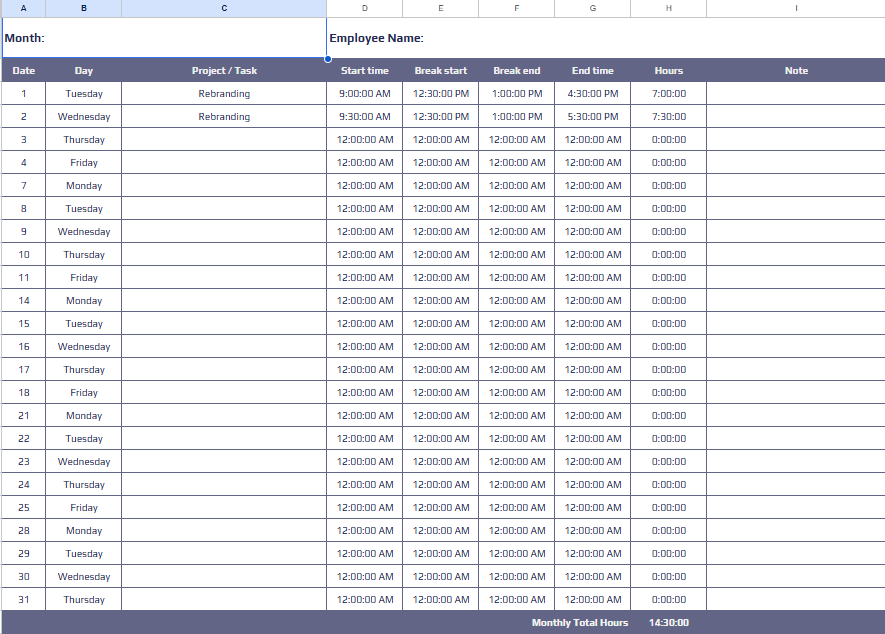
The Monthly Timesheet Template works as an invoice template for freelancers, consultants, and volunteer coordinators. It lists every day of the month as a row. You can also add an extra ‘Billable’ column and an ‘Hourly Rate’ field.
Beyond just tracking time, this sheet acts as a financial summary. It calculates your total earnings for the month, making it easy to see exactly what you should charge on your next invoice.
Since Google Sheets is likely already part of your daily workflow, it eliminates the learning curve associated with complex new software. Here is why it remains a top choice for many managers:
While spreadsheets are a great jumping-off point, they eventually hit a ceiling. Before you commit long-term, consider these common roadblocks:
QUERY or IMPORTRANGE if you want to see high-level data summaries by project or employee🔎 Did You Know? Context Switching is silently eating away at your team’s productivity. Our research shows that 42% of disruptions at work come from juggling platforms, managing emails, and jumping between meetings.
Google Sheets is a reliable starting point for tracking hours, especially for solo freelancers or teams of two. However, there is a clear tipping point at which a spreadsheet stops being a help and becomes a bottleneck.
Look out for these signs that you’ve outgrown your sheet:
QUERY or IMPORTRANGE functions just to see basic project profitabilityIf you have been building a time-tracking sheet in Google Sheets and hitting the limitations we’ve discussed, ClickUp handles it all natively.
ClickUp is a Converged AI Workspace that brings project management, docs, communication, and time tracking into one workspace. For teams that have outgrown manual logs, it replaces the patchwork of Google Sheets and separate chat apps with a single source of truth for your time data.
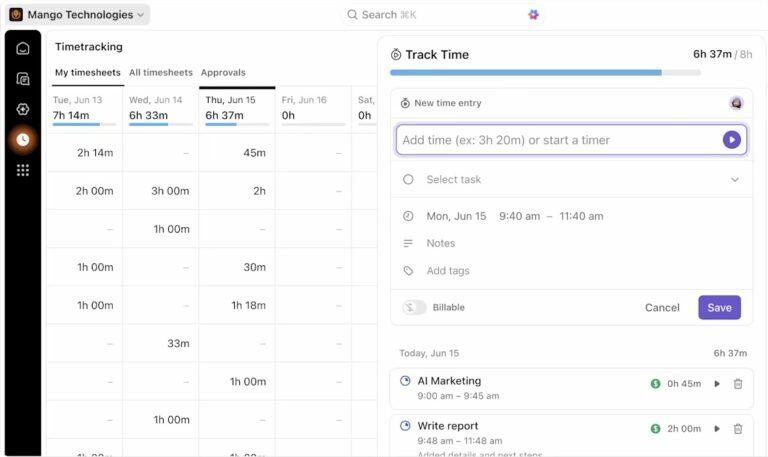
Treating time tracking as a separate chore leads to memory gaps—hours that happen in the flow of work but aren’t reflected on your timesheet. ClickUp Time Tracking tracks time for completed tasks by integrating a global timer directly into your workflow.
This way, you manage your time through the same interface you use to manage your projects. It ensures that every billable second is documented, assigned, and visible in real-time.
Track it all without losing a second using ClickUp’s native features:
When you finish a task in ClickUp, your time is already there. You don’t have to worry about typos or broken formulas; you just move to the next item while the platform handles the data entry for you.
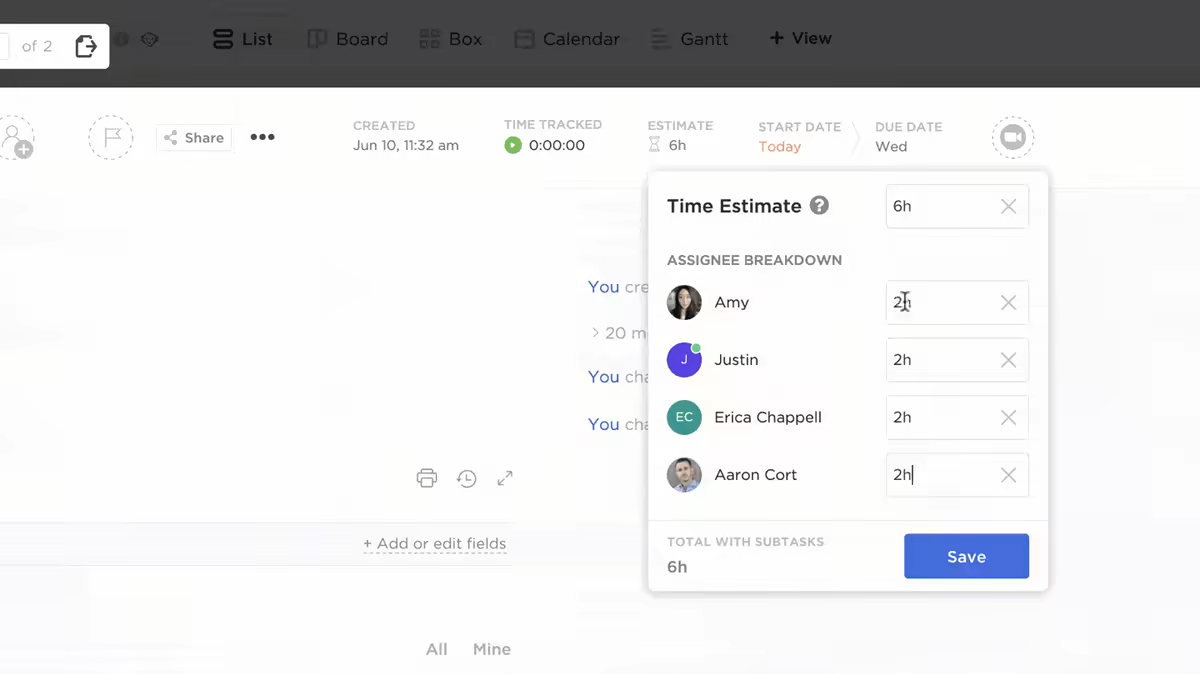
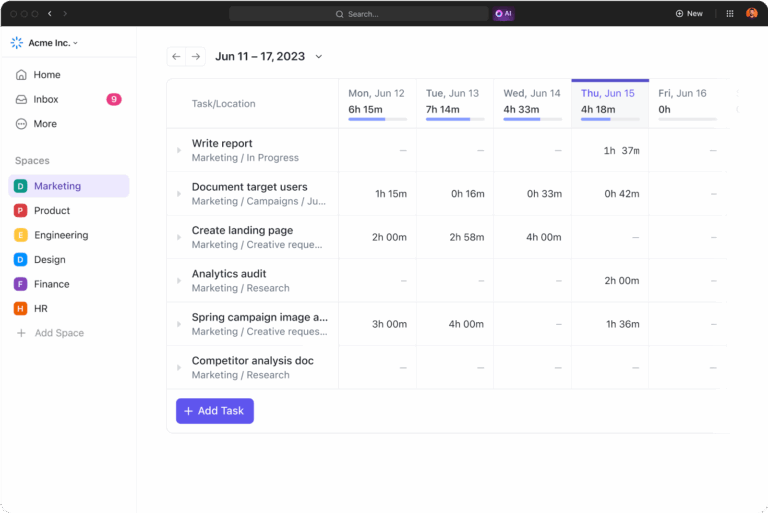
A time tracking sheet in Google Sheets is purely reactive—it tells you what you did, but not what you’re capable of doing. ClickUp Time Estimates create clear timelines and help you manage your team’s workload effectively.
This removes the uncertainty from planning. By comparing your actual time against your predictions, you can improve your forecasting for future projects and ensure your deadlines stay realistic.
Plan your schedule with granular ClickUp Time Estimates:
Setting these expectations ensures your team stays balanced. You’ll know at a glance if someone is over-capacity or if a project is trending toward a late delivery, allowing you to adjust course before a deadline slips.
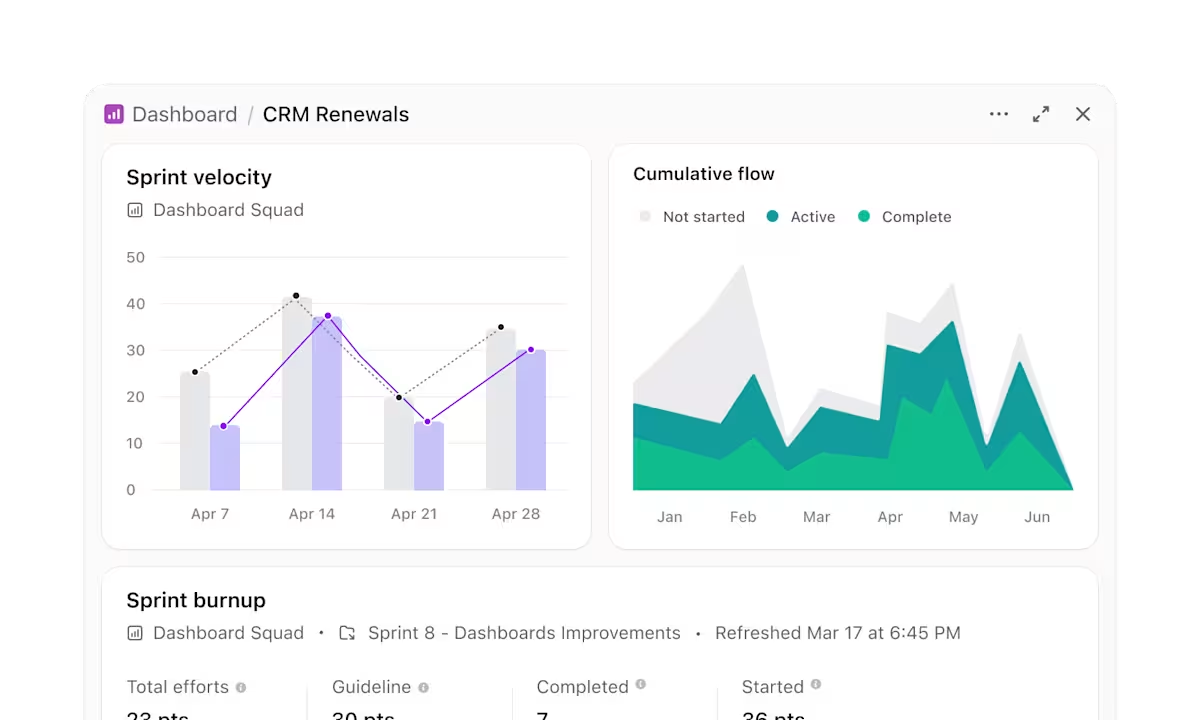
To see how much deep work time you’ve regained or which projects are eating up your budget, you need complete observability. ClickUp Dashboards turn fragmented time entries into simple visuals, giving you a real-time command center for your entire operation.
Visualize complex data and understand repetitive patterns using Dashboard Cards:
💡 Pro Tip: Calculating total hours or hunting for billable gaps in a spreadsheet often involves complex SUMIFS or VLOOKUP formulas that can break with one wrong keystroke. ClickUp Brain replaces this grind and becomes a conversational layer on top of your data.
Instead of building a report from scratch, you simply ask a question in plain English, like ‘Which team members haven’t reached their capacity this week?’ and receive an immediate, data-backed answer.
ClickUp Brain has neural access to every time entry, ClickUp Custom Field, and task status across your workspace; it connects the dots that a static Google Sheet can’t see. You can understand the trends behind them and regain hours of deep work, otherwise spent on manual data administration.
Google Sheets is a fantastic sandbox for building your first tracker, but as we’ve seen, a sandbox has its limits. While the formulas and templates we’ve covered will help you patch the holes in your current process, they can’t fix the fundamental flaw of manual entry: human error.
Every minute you spend debugging a broken =SUM formula is time you aren’t spending on the work that grows your business. Remember, according to the data, these small inaccuracies are exactly what cause payroll to nosedive.
ClickUp eliminates the manual grind entirely. You get native timers that live inside your tasks, AI-powered estimates that predict your deadlines, and automated dashboards that do the math for you—no VLOOKUPs required.
Ready to stop gambling with your paycheck? Get started with ClickUp for free today and turn your time-tracking into a competitive advantage.
Google Sheets does not have a native, built-in stopwatch or automated time-tracking feature. You can either manually enter your start and end times in cells. Or use a third-party Google Workspace add-on to sync live timers with your spreadsheets. Without these external tools, a Google Sheets timesheet remains a manual data entry system.
Multiple employees can use the same Google Sheets timesheet by using the ‘Share’ feature with editor permissions. However, to prevent data overrides and privacy issues, it is best practice to create individual tabs for each employee or use Filter Views. This ensures that one person’s edits do not disrupt the view or data integrity of another team member’s logs.
You should enter 30 minutes in a Google Sheets timesheet using the HH:MM format by typing 0:30. To ensure the software recognizes this as a duration for calculations, format the cell as Time or Duration under the Format menu. If you need to calculate pay based on these entries, you must multiply the total time by 24 to convert it to a decimal.
Google Sheets is mathematically accurate for tracking billable hours as long as your formulas are structured correctly and your cell formatting is consistent. The primary risk to accuracy is not the software itself but manual entry errors, accidental cell deletions, or forgotten logs. To support high-stakes client billing and defensible audit trails, transition to automated systems like ClickUp to eliminate human-driven discrepancies.

Praburam Srinivasan
Max 10min read
Praburam Srinivasan
Max 19min read
Praburam Srinivasan
Max 20min read

© 2026 ClickUp