Sorry, there were no results found for “”
Sorry, there were no results found for “”
Sorry, there were no results found for “”
Every free Google Sheets monthly calendar template is one of two things: A static grid, where the dates are typed into the cells. Or a dynamic grid where one cell update drives the month, and the dates rebuild themselves when you update it.
But the upkeep costs you. A 2026 survey of 1,003 US operations professionals by DOSS found respondents spend 3.6 hours a week fixing spreadsheet mistakes. Manual data entry was the most common error type, at 59%.
By definition, dynamic sounds better, right? Not necessarily. That choice comes down to what you’ll be primarily using it for.

In 2026, there’s an agentic way to get the job done!
Tell us what you’re working on and get AI agents built for the job, ready to set up right away.
| Template | Best for | Rollover | Standout feature |
| Annual Calendar by Google | Anyone who wants a calendar in 30 seconds | Dynamic | Already inside Sheets, no download |
| Monthly Calendar by Vertex42 | Planning a full year at once | Dynamic | 12 month tabs, any year, Monday or Sunday start |
| Editable Blank Calendar by gdoc.io | Habit and task tracking | Dynamic | Month dropdown plus a completion graph |
| Automated Monthly Calendar by gdoc.io | Personal goals alongside dates | Dynamic | Side panel for goals and birthdays |
| Monthly Calendar with Notes by gdoc.io | People who write more than they schedule | Static | Dedicated notes column beside the grid |
| Google Sheet Calendar Planner Template by ClickUp | Color-coded team scheduling | Static | Preset category labels, no formatting needed |
| Digital Family Calendar by gdoc.io | Households sharing one schedule | Static | Built for several people in one grid |
| Monthly Content Calendar by gdoc.io | Blog and newsletter publishing | Static | Rows split by content type |
| Social Media Content Calendar by Vertex42 | Planning posts months ahead | Static | Long planning horizon, not just one month |
| Marketing Calendar by gdoc.io | Campaign scheduling | Static | Public holidays mapped against deadlines |
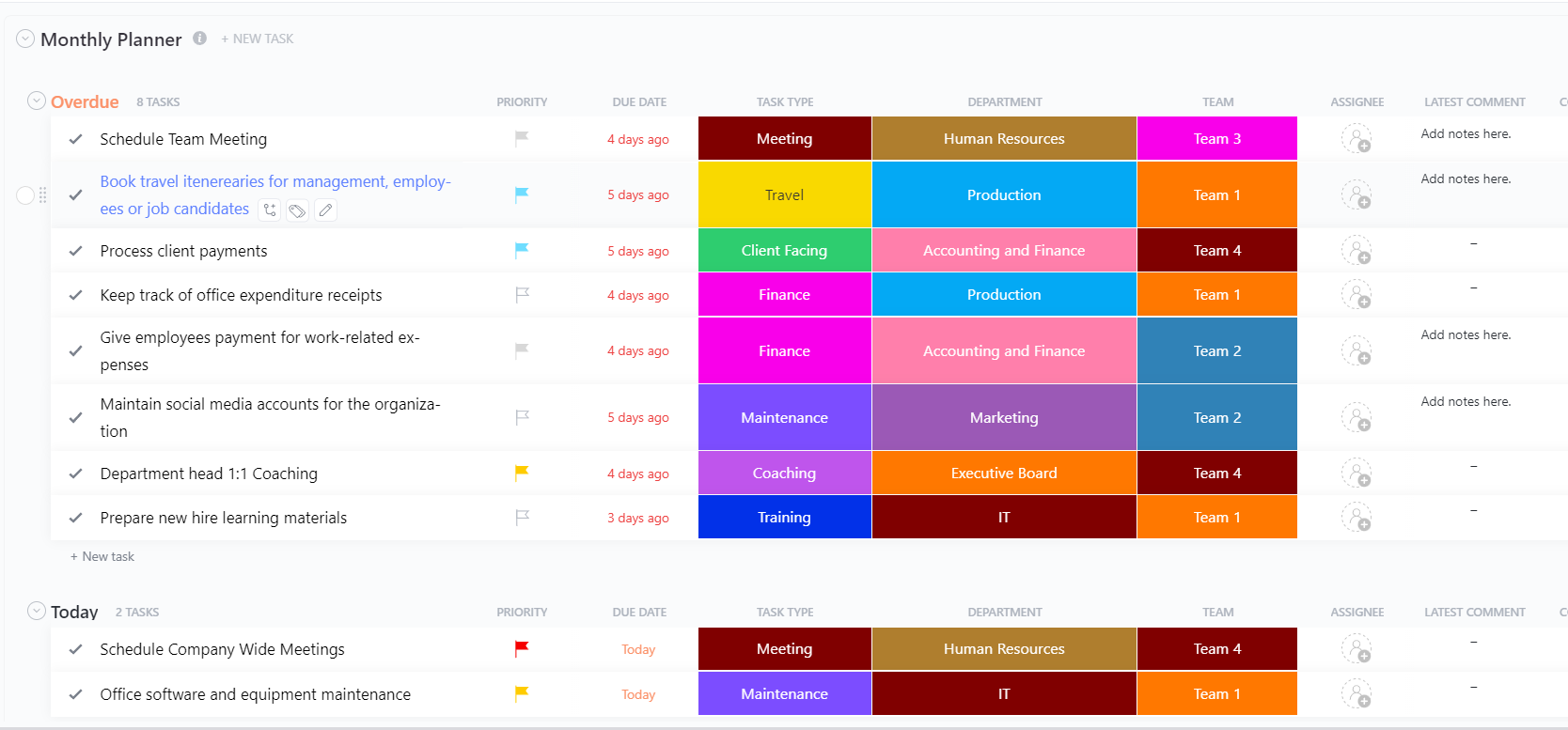
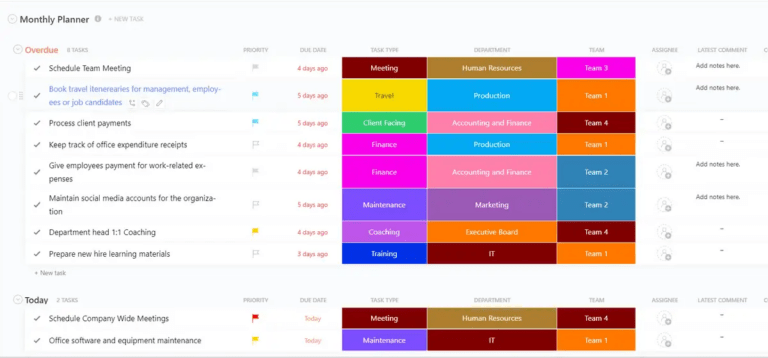
| Monthly Planner Template by ClickUp | Months that need owners and follow-up | Dynamic | Dates attached to assignable tasks |
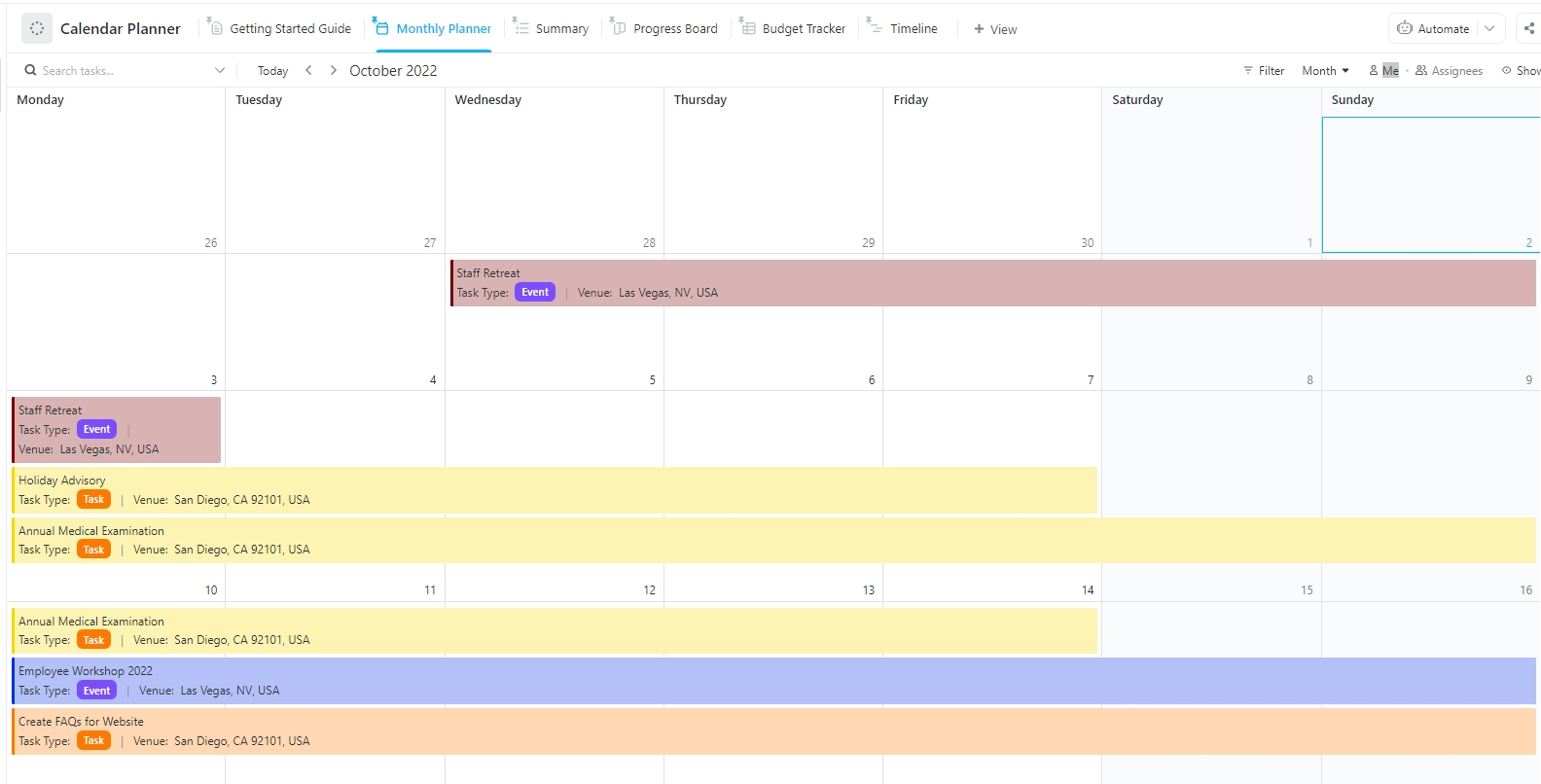
| Calendar Planner Template by ClickUp | Running a calendar and a to-do list together | Dynamic | Same items in calendar and list views |
A good monthly calendar template in Google Sheets survives the month change without manual rebuilding. Four things separate the calendars people keep from the ones they abandon.
That third point is worth a warning. Vertex42 labels every template with its formats, and its Academic Calendar and Shift Work Calendar carry an XLSX badge only. Both still get listed as Google Sheets templates in roundups that copied each other without opening the file. Check the badge before you download.
Start with what you are tracking:
Then check rollover. The comparison table above marks each template as static or dynamic. If you reuse the same file month after month, dynamic saves you the rebuild.
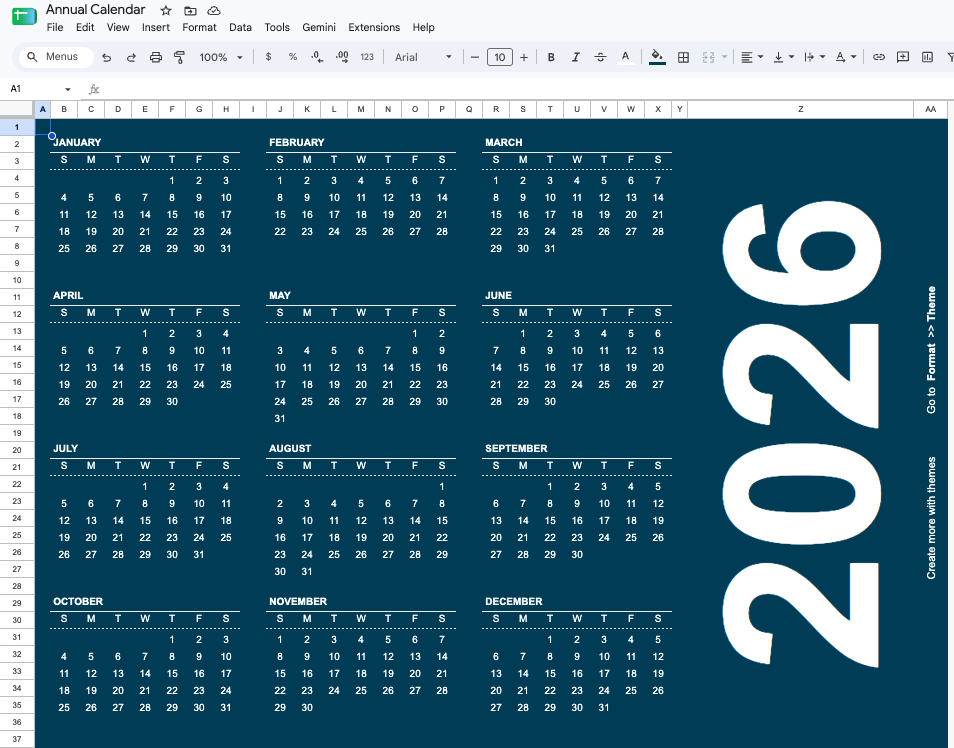
Use this one when you want a working calendar before you finish reading this sentence. It lives in your Google Sheets template gallery, so there is no download, or a copy step, or a third-party file to vet.
Use case: You need a month grid today for personal scheduling, and you do not want to evaluate anything. Open Sheets, click Template gallery, pick Annual Calendar, and you get both a year overview and individual month tabs with space for notes. The month tabs update based on the year you set, rather than on typed-in dates, so January through December rebuild when you change one cell.
It ships inside Sheets. If you want the click path, we wrote it up in our guide to inserting a calendar in Google Sheets.
Best for: Solo planners who value speed over design
Skip it if: You want a specific layout or a designed grid. At that point, one of the purpose-built templates below saves you time
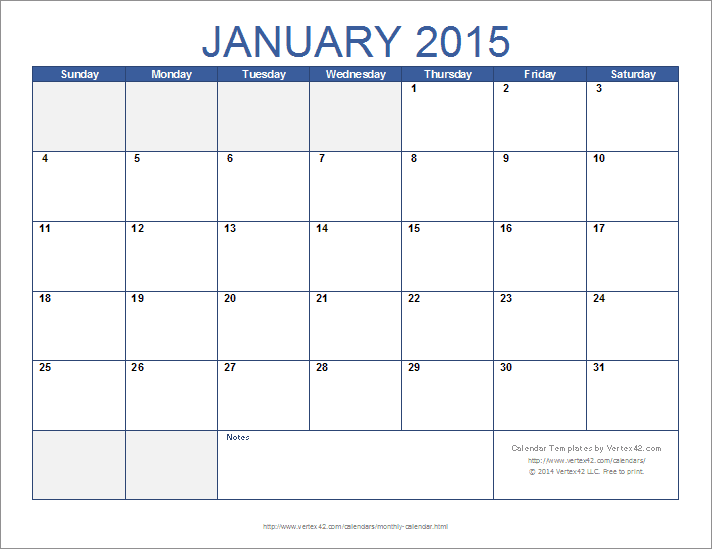
Set a year, and this one builds 12 months across 12 worksheet tabs. The Monthly Calendar Template by Vertex42 is the most full-featured dynamic calendar on the list, and you can switch the week to start on Monday instead of Sunday with one change.
Use case: You are an operations or office manager mapping a full year of recurring dates in January, and you do not want to touch the file again until next January. Set the year, choose your week start, and every month tab populates. Holidays, payroll dates, quarterly reviews: drop them in once, and they stay put as long as the year does.
Two details worth knowing before you click. The Google Sheets version is only the first template on that page, offered in landscape and portrait. The three variants further down are Excel-only. And the file is licensed for private use: check Vertex42’s listed print/PDF exceptions before sharing it with a client.
Best for: Year-ahead planning where the dates matter more than the styling
Skip it if: You need to hand it to a client or redistribute it. The private-use license limits sharing. And the visual design was last updated in 2021, so it looks like it
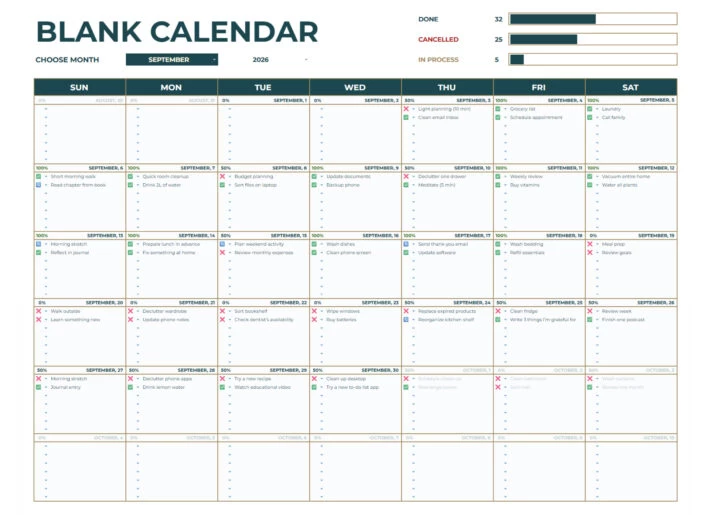
This template treats the month as a scorecard. The Editable Blank Calendar by gdoc.io has a month dropdown, checkboxes for each day, and a small graph at the top that counts what you finished, canceled, or still have coming. It sits close to our daily task tracker templates for Google Sheets in spirit.
Use case: You are tracking something daily and repeating: workouts, medication, study sessions, or client check-ins. You do not care what time it happened, just whether it happened at all. By the end of the month, the completion graph tells you your hit rate without building a formula. 22 out of 30 days? Good month. 14 out of 30? Something slipped around week three, and you can see exactly where.
The completion graph is the part people keep. It is also why this template currently ranks near the top of Google for this search: it gives you something to look at, and not just something to fill in.
Best for: Daily habit and streak tracking with a visual scorecard
Skip it if: You schedule appointments rather than track repeats. The checkbox model gets in the way when a day holds three unrelated meetings. Template #5 or #7 handles varied daily entries better
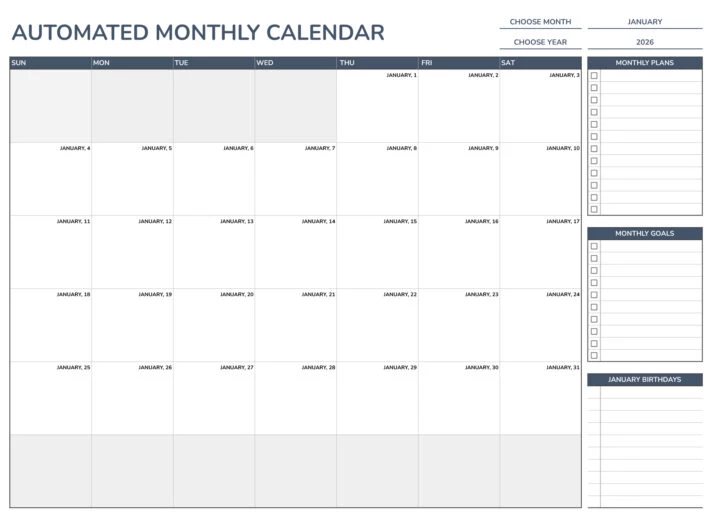
The Automated Monthly Calendar by gdoc.io is a clean single-month grid with a side panel for plans, goals, and birthdays, in white and blue with the Nunito typeface. Its side panel is the real feature.
Use case: You are a freelancer or student who wants the month visible alongside the three things you are trying to achieve in it, on one screen, without switching tabs. Recurring dates like birthdays sit outside the calendar cells, so they survive when you rebuild the month. If your planning looks like “finish thesis chapter 4, run three times a week, remember Dad’s birthday on the 18th,” this layout holds all of that without forcing it into day cells where it gets lost.
Best for: Pairing a month view with personal goals and fixed annual dates
Skip it if: You need more than one month on screen. This is a single-month view, so planning across a quarter means flipping between copies. Template #2 gives you 12 months in one workbook
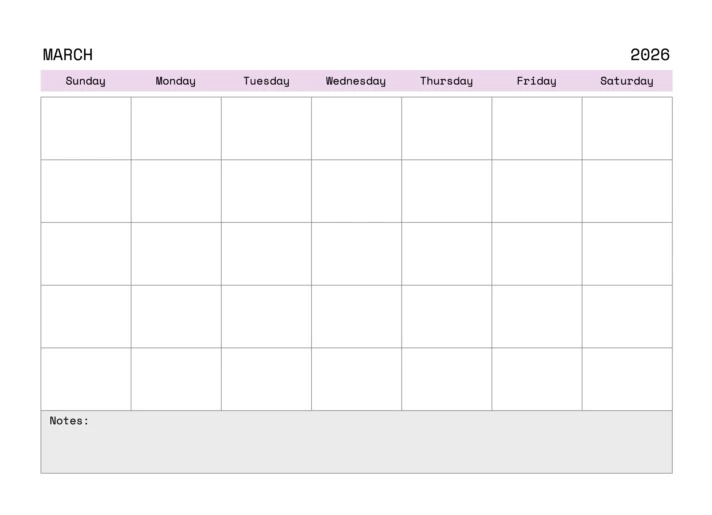
A month grid with a proper notes column running beside it. The Monthly Calendar with Notes by gdoc.io is for the kind of planning that does not belong to a specific date.
Use case: You are a team lead running a monthly cycle where half the thinking is not dated: risks to watch, people to follow up with, decisions still open. Those go in the column, the deadlines go in the grid. Most calendar templates force you to cram that context into a day cell where it does not belong, and then it gets deleted when the date passes. A separate column is a small structural choice that changes how long the calendar stays useful.
Best for: Monthly planning where context matters as much as dates
Skip it if: You print the calendar. The notes column eats horizontal space and pushes the grid narrow on letter paper. Template #1 or #6 prints cleaner
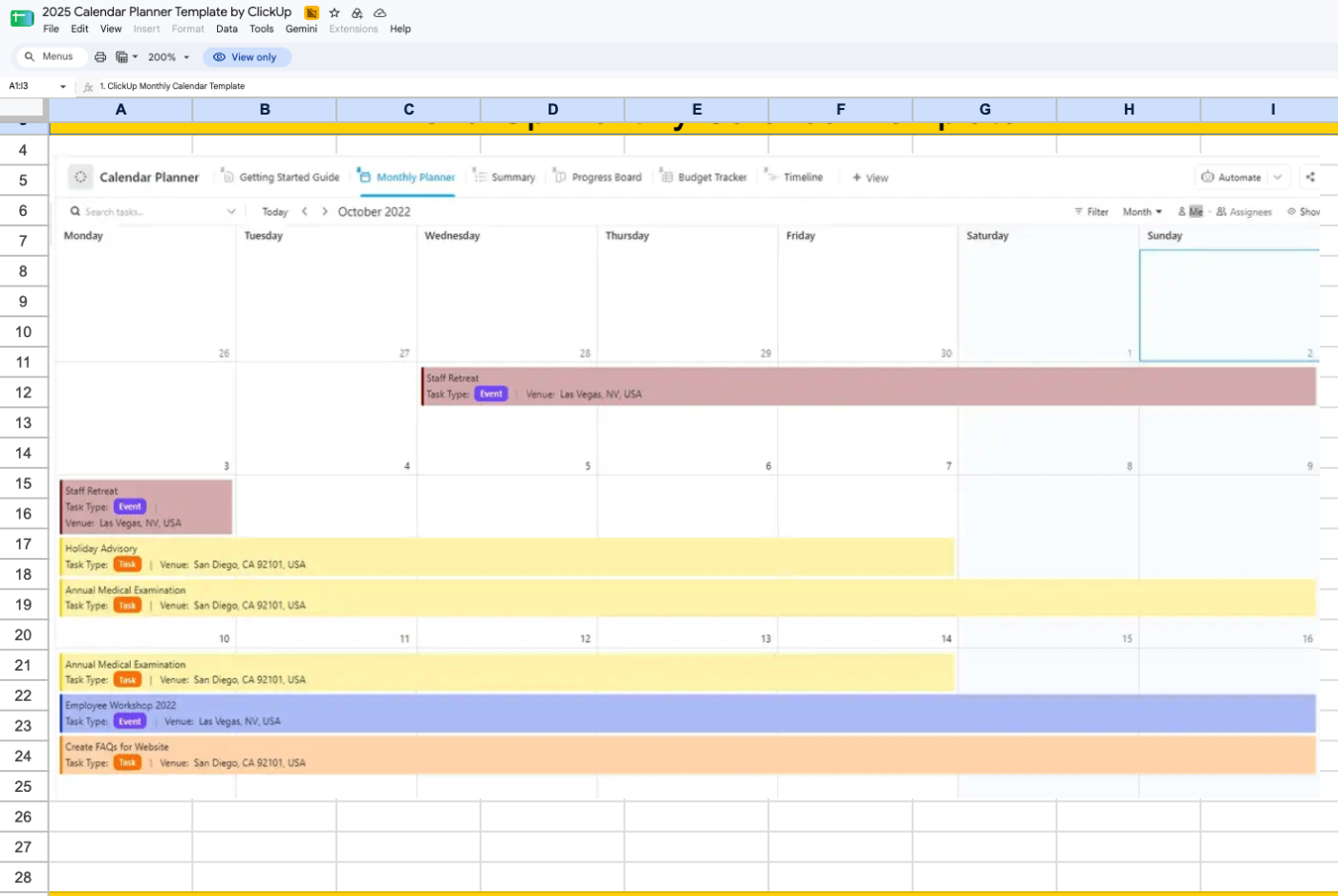
The Google Sheet Calendar Planner Template by ClickUp is a clean month grid with color-coded category labels already set up.
Use case: You are coordinating a small team’s month, and several things land on the same day. Color-code by category, put two or three entries in a single day cell, and the week reads at a glance rather than as a wall of text. The preset labels are a time-saver. Most free grids hand you an empty month and leave the conditional formatting to you, which is the step people skip and then regret in week three when everything looks the same.
Best for: Shared team months with several categories of work
Skip it if: You want the month to roll over on its own. Like most designed grids, it is static, and a new month means duplicating the tab. Templates #1 or #2 handle rollover.
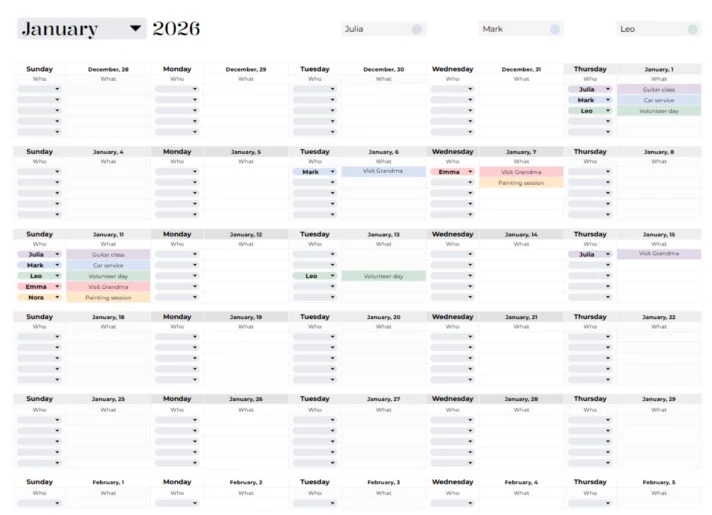
Built for the case where one grid has to hold several people’s lives. The Digital Family Calendar by gdoc.io handles appointments, school activities, and the logistics that come with them in a shared layout designed for households, not teams.
Use case: Two working parents coordinating pickups, practices, and appointments. Everyone reads the same sheet on their phone instead of texting to ask who is driving on Thursday. Dad adds his dentist appointment on the 12th, the kids’ school play goes on the 19th, and the plumber visit on the 22nd is visible to both parents without a forwarded calendar invite.
A shared sheet beats the paper calendar on the fridge because everyone can check it from their phone. It loses to a real calendar app on one thing: your partner or family member never gets a notification. This works if the household has a habit of opening it. If not, pair it with Google Calendar for the time-sensitive entries.
Best for: Households that already live in Google Workspace
Skip it if: You need reminders. Google Sheets will not tell anyone that soccer starts in an hour. Use Google Calendar alongside it for anything time-sensitive
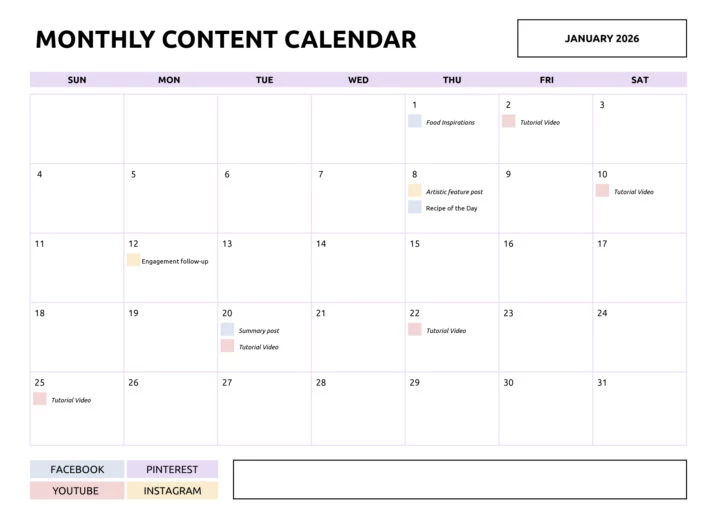
The Monthly Content Calendar by gdoc.io lets you see at a glance whether the blog, the newsletter, and social are spaced out or all stacked on the 14th. It organizes a month view by content type rather than personal preferences.
Use case: You are a solo marketer or a two-person content team planning next month’s publishing. Lay the formats side by side, and the gaps become obvious before they become a quiet week. Tuesday has a blog post and a newsletter going out, but nothing is scheduled for the rest of the week. Thursday and Friday are empty. That imbalance is invisible in a task list but obvious in a content-type grid.
Publishing cadence is very often a spacing problem, and a grid split by format shows spacing better than a list does. If you want deeper options for this specific job, we compare several in our roundup of content calendar templates for Google Sheets.
Best for: Editorial planning across two or three channels
Skip it if: Your content needs approval stages. There is no status field, and bolting one on turns the calendar into a tracker with a calendar stuck to it. Template #9 or the ClickUp alternatives handle workflow better
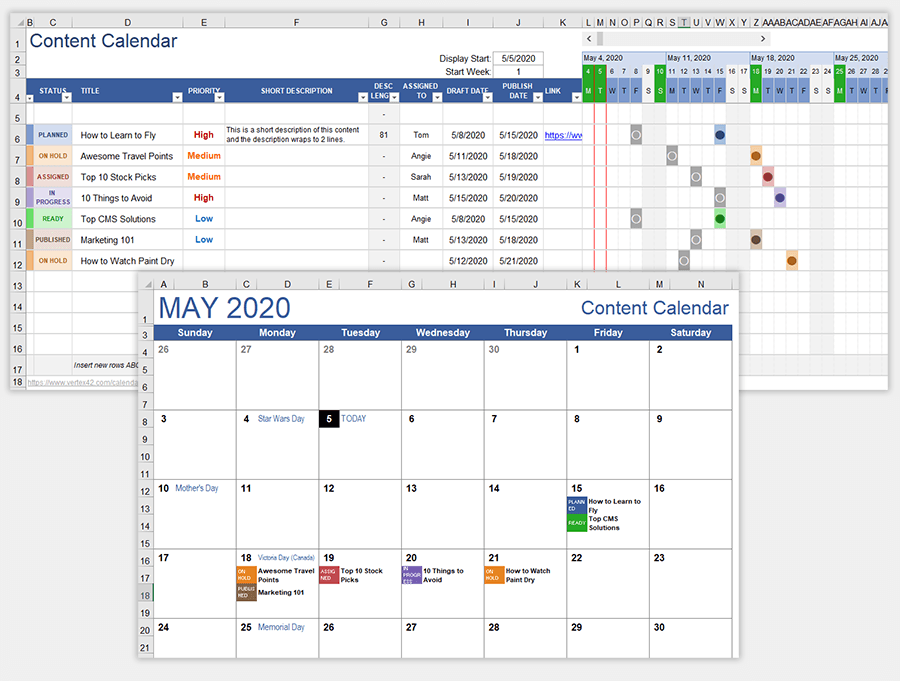
Every other content template on this list plans one month at a time. The Social Media Content Calendar by Vertex42 plans months ahead. It is built to hold a quarter or more of social posts, mapped against the fixed anchors your campaigns revolve around.
Use case: You are planning a quarter of social around a product launch in February, a conference in March, and a seasonal push in April. You need to see all three months while scheduling January’s lead-up content. A single-month template forces you to guess what is coming. This one shows you March while you are still writing January’s posts, so the build-up actually builds up instead of arriving as a last-minute scramble.
That long view is the thing single-month templates cannot give you, and it is why campaign planning tends to outgrow them first. For the narrower per-channel job, our list of social media calendar templates in Google Sheets goes deeper on format-specific options.
Best for: Quarter-scale social and campaign planning
Skip it if: You wanted a traditional month grid. This is a planning spreadsheet. And the same Vertex42 private-use license applies, so check before sharing externally
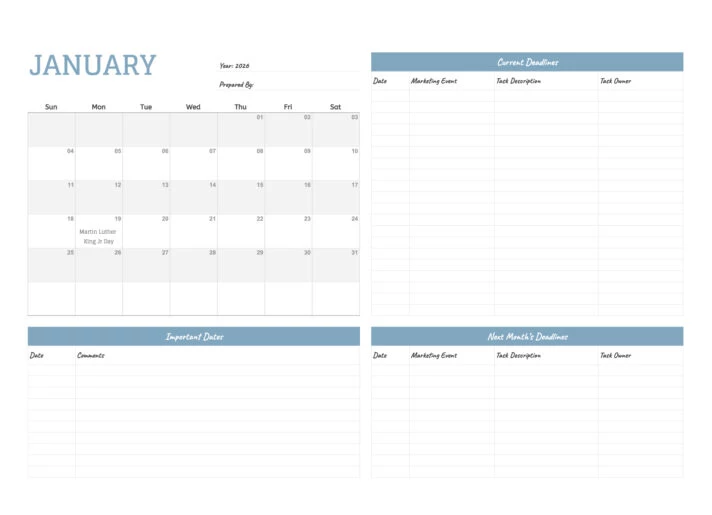
The distinguishing feature is small until it saves a launch. The Marketing Calendar by gdoc.io puts public holidays on the same grid as your campaign deadlines.
Use case: You are scheduling an email campaign, and the send date you picked lands on a public holiday. Most marketing calendars assume you already know the holiday map. You don’t, because it’s not realistic to memorize regional holidays across a full quarter. This template catches the collision at planning time, which is the only time it is cheap to fix. Finding out after open rates come back flat costs you a send and a week of momentum.
Best for: Campaign scheduling in markets with a busy holiday calendar
Skip it if: You run campaigns across several countries. The holiday list covers one region, and maintaining three versions by hand defeats the purpose. At that point, a tool with multi-region calendar support saves more time than the template costs
Google Sheets works well when the calendar is a document one person maintains or a team shares for reference. ClickUp templates fit months that need assigned tasks, statuses, reminders, and recurring work connected to the same items.
The Monthly Planner Template is not a spreadsheet, and that is the point of including it. The dates are attached to tasks that have an owner and a status. The calendar updates as work moves through dates.
Use case: Your monthly grid keeps drifting out of date because three people keep editing it. Assign each item to one dedicated owner, and the month reflects reality without a weekly cleanup pass. Rollover is handled for you: a task with a date appears in the right month on its own, so there is no February rebuild. The dynamic spreadsheet templates solve that same problem from the formula side. This one solves it from the task side.
Best for: Shared months where every item needs ownership and status
Skip it if: You want a printable wall calendar or your whole workflow already lives in Sheets. There is a learning curve coming from a single-purpose grid, and for a personal month, a spreadsheet is faster to set up
The main difference here from the previous template is the second view. The Calendar Planner Template shows the same items as a calendar and as a working to-do list, so you can plan the month in the grid and work the day from the list.
Use case: You are a project manager who plans in months and executes in days. Set deadlines in the calendar on Monday, then work from the prioritized list the rest of the week without maintaining two documents. Both views read from the same data, so marking a task complete in the list updates the calendar. That sync is the usual reason a spreadsheet calendar gets abandoned: the month grid is a planning surface, the daily list is a working surface, and keeping both in sync by hand remains a manual chore.
Related options sit in our time blocking templates collection and in our to-do list templates for Google Sheets.
Best for: Anyone maintaining a monthly calendar and a task list in parallel
Skip it if: You only need the month view. The extra structure is more than a simple grid requires. Template #1 or #6 gets you there faster
| If you need to… | Start with |
|---|---|
| Get a calendar working in under a minute | Annual Calendar by Google |
| Map an entire year in one sitting | Monthly Calendar by Vertex42 |
| Track a daily habit and see the streak | Editable Blank Calendar by gdoc.io |
| Keep undated context next to dated work | Monthly Calendar with Notes by gdoc.io |
| Share one month across a small team | Monthly Calendar Template by ClickUp |
| Coordinate a household | Digital Family Calendar by gdoc.io |
| Plan publishing across channels | Monthly Content Calendar by gdoc.io |
| Give every item an owner and a status | Monthly Planner Template by ClickUp |
Build a seven-column week grid and drive the dates from one month cell. This is the only version that rolls over on its own, and it takes about 15 minutes.
2026-10-01). Every other date will reference this cell=SEQUENCE(6,7,$B$1-WEEKDAY($B$1,1)+1,1). This fills a 6-row, 7-column grid with consecutive dates starting from the Sunday before your month begins=MONTH(A3)<>MONTH($B$1). Set a light grey text colorChange B1 to a new month, and the whole grid redraws. Our step-by-step walkthrough of how to create a calendar in Google Sheets covers the formatting in more detail, and the same date logic underpins how to make a schedule in Google Sheets.
If you want to see how the tool choice plays out before committing, this walkthrough covers what to weigh:
Spreadsheet calendars fail for maintenance reasons. Four checks keep it alive.
| Check | What to ask | What to fix |
|---|---|---|
| Ownership | Who updates this when it is wrong? | Name one person, a single owner |
| Rollover | What happens on the first of next month? | Move to a dynamic template or set a recurring reminder to duplicate the tab |
| Version drift | Has anyone pasted a copy into a chat thread? | Delete the copies, share one link |
| Reminders | How does anyone find out a date is tomorrow? | Accept that Sheets will not send them, and put deadlines with notifications on some other platform with reminders |
The maintenance cost is real and measurable. Parseur and QuestionPro surveyed 500 US professionals in July 2025. Respondents reported spending more than nine hours a week moving data by hand between emails, PDFs, spreadsheets, and other systems.
The study priced that at roughly $28,500 per employee per year. A monthly calendar is one piece of that maintenance. And a dynamic template removes the manual date entry part.
But the structure is what makes the upkeep worth it in the first place.
As Cal Newport, computer science professor at Georgetown University and author of Deep Work, puts it:
“A 40 hour time-blocked work week, I estimate, produces the same amount of output as a 60+ hour work week pursued without structure.”
One person maintaining a calendar in Google Sheets is a solved problem.
Pick a template, fill it in, and done. But your workflow may get complicated as more people become involved.
Google Sheets handles shared viewing well. Two or three people reading the same grid works fine. The trouble starts when those same people edit it. There is no cell-level ownership, or notification when someone changes a date, and you cannot really track who moved what. Version drift is quiet: the calendar looks correct until someone misses something.
ClickUp templates connect each date to a task with an owner, a status, and a reminder. If you are the only person using the calendar, that is more structure than you need. When there are three people adding and changing entries on the same month, that structure is what keeps the calendar accurate: every change has a name on it, and deadlines notify the right person instead of sitting silently in a cell.
For adjacent formats, our collections of Google Calendar templates and schedule templates cover the weekly and yearly ends of the same problem.
Run the rollover test first. Change the month or year in a copy of the template and check two things: do the dates regenerate, and do any notes or entries you typed survive the change?
That takes 30 seconds and tells you more than the template’s description will.
After that, the choice is straightforward. Dynamic template for reusing the same file month after month. Static grid if you print, file, and start fresh.
ClickUp can help when dates need owners and reminders that a spreadsheet cannot provide.
Yes. Open the Google Sheets template gallery and choose Annual Calendar. It provides a year overview and monthly views with space for notes.
Yes. A dynamic calendar rebuilds dates when you change the month or year. Google Annual Calendar, Vertex42’s monthly calendar, and gdoc.io‘s Editable Blank Calendar are candidates. Verify the behavior in your copy before relying on the label.
Not natively. Google Sheets has no built-in notification for a date in a cell. Reminders require Apps Script or a connected tool. This is the most common reason a spreadsheet calendar gets abandoned.
A Google Sheets calendar is a grid you control and format freely. Google Calendar is a scheduling system with invitations, reminders, and time zones. Use Sheets when you need a custom layout. Use Google Calendar when the dates involve other people’s time.
Open the template and choose File > Make a copy to create your own editable file. Templates opened through Google’s Template Gallery create a copy automatically. Keep the provider’s original unchanged and follow its license.
Select the calendar cells, then choose File > Print > Selected cells. Match the paper size and orientation to the layout. Adjust margins and page breaks until the preview fits one page with readable text.
Yes. Use the template’s week-start setting when it has one. For a formula-built calendar, change both the weekday headers and the date offset. Google Sheets’ WEEKDAY(date,2) treats Monday as day one. Renaming Sunday to Monday without changing the date calculation puts dates under the wrong weekdays.
Use a template with separate input rows per day, or add line breaks inside a cell with Ctrl+Enter (Cmd+Enter on Mac). Turn on text wrapping (Format → Wrapping → Wrap) and increase the row height so entries stay visible. Do not type over formula-generated dates.
Protect the formula ranges and leave the event-entry cells editable. Go to Data → Protect sheets and ranges, select the date cells, and set editing permissions. A warning alone does not prevent edits.

Praburam Srinivasan
Max 21min read
Praburam Srinivasan
Max 10min read
Praburam Srinivasan
Max 19min read

© 2026 ClickUp