Sorry, there were no results found for “”
Sorry, there were no results found for “”
Sorry, there were no results found for “”
You walk Claude through your sprint process on Monday. By Friday, you’re doing it again, and next week, again. Every chat starts from zero, and for anyone running projects daily, that reset tax quietly eats hours.
Claude Skills end the reset: write your workflow down once, and Claude loads it on its own whenever the task shows up. But the real discipline isn’t building Skills, it’s knowing which ones still deserve to run. A stale Skill hides its own decay, handing you the right format long after the process underneath has moved on.
TL;DR: A Skill is a folder with a SKILL.md file that teaches Claude one repeatable task, loaded automatically when your request matches its description. They shine on structured, recurring work: PRDs, weekly status rollups, intake scoring, and retrospectives. They don’t replace agents, MCP servers, or your system of record, and they only shape data you hand them.
Best fit: Teams that repeat the same PM workflows and want an identical structure every time.
Claude Skills are folders of instructions that teach Claude how to handle specific, recurring tasks. Anthropic’s official name for the feature is Agent Skills.
Each Skill contains a file called SKILL.md. This file starts with a short block called YAML frontmatter, which holds the Skill’s name and a description of when to use it. The rest of the file holds the instructions Claude follows. A Skill can also include templates, reference documents, and scripts.
From the team behind Skills: The Anthropic engineers who introduced the feature, Barry Zhang, Keith Lazuka, and Mahesh Murag, compare building a Skill to writing “an onboarding guide for a new hire.” You capture the procedural knowledge a task needs once, and Claude picks it up whenever the task comes around.
Claude Skills work through automatic detection. Claude reads the name and description of every installed Skill at the start of a session. When your request matches a Skill’s description, it loads the full instructions and applies them. No need to mention the Skill or paste anything into the chat.
This design is called progressive disclosure, and it keeps Skills lightweight. Claude only loads the short description until a task calls for more. The full instructions stay out of the way until they become relevant. This means you can install many Skills without slowing Claude down or cluttering ongoing conversations.
A Skill built for sprint retrospectives includes your meeting structure, action item format, and follow-up rules. When someone asks Claude to summarize a retro, it detects the match, loads the Skill, and produces the summary in the expected format. Same structure, every time, across every conversation.
Skills differ from prompts in one key way: persistence. A prompt applies to one conversation. A Skill applies to every conversation where the task appears.
They work across Claude’s products. You can add them in Claude.ai settings, use them in Claude Code, or upload them through the API. The same Skill file works in all three places.
Did you know? A 2025 Association for Project Management survey of 1,000 project professionals found 70% say their organization now uses AI, nearly double the 36% reported two years earlier. Adoption isn’t the question anymore. How you encode your process is.
Claude Skills, AI agents, Model Context Protocol (MCP) servers, and CLAUDE.md files solve adjacent problems. But project managers tend to conflate them.
A Skill teaches Claude how to do a recurring task. An AI agent is an autonomous system that does multi-step work. An MCP server connects Claude to an external system. A CLAUDE.md file holds persistent, always-on rules. These four stack rather than compete.
| Capability | What it is | When a PM reaches for it |
|---|---|---|
| Skill | A Claude Skills folder built around a SKILL.md file that teaches Claude a repeatable task | You do a task the same way every time: PRDs, status rollups, or RICE scoring |
| Agent | An autonomous system that runs multi-step work on its own | You want the work to run start to finish without needing to check each step |
| MCP Server | A connection between Claude and an external tool or data source | Claude needs to read or write in your tracker, docs, or feedback tool |
| CLAUDE.md | A file that stores persistent project memory and always-on rules | You want standing context (‘always cite the metric,’ ‘this project uses two-week sprints’) applied every time |
Skill vs. CLAUDE.md, the two you can mix up easily: The difference is when each one loads. A CLAUDE.md file is always on. Claude reads it on every message without a trigger, which is why it should hold only a small set of standing facts. For example, ‘we run two-week sprints.’
A Skill is the opposite. It stays dormant until your request matches its description, then loads the full instructions on demand. That is why a Skill can be long and detailed without slowing anything down, and why CLAUDE.md should stay short.
The rule of thumb: CLAUDE.md is context Claude should always know; a Skill is a procedure Claude should follow only when a specific task comes up. And they work together: CLAUDE.md says ‘we run two-week sprints,’ and your retro Skill inherits that fact automatically when it triggers.
Note: If you already run an MCP server, you have done the hard part. MCP gives Claude the connection. The Skill tells Claude how to use that connection for your workflow. The two are complements, and it’s ideal to use both.
Claude Skills give a project team five concrete gains: consistent output across every person, institutional memory that survives turnover, context you stop re-supplying, judgment that compounds, and onboarding measured in days.
Here’s what you get in detail:
Why most Claude Skills stop being right
A Claude Skill demands upkeep, and its failures arrive without warning. The Skill captures how your team works the day you write it, and the work keeps changing after that.
You move to a new tracker, reshape the team, and revise what belongs in a PRD. The Skill takes in none of those shifts and keeps running the old process, returning the same output. That is what makes a stale Skill worse than no Skill: the stale version looks right long after it stopped being right.
A weak prompt is simple to catch, because you read the poor answer and correct it. But an old Skill hides the problem by giving you the format you asked for. Naturally, no one checks it once the process underneath has moved.
In fact, 35% of workers review AI output only sometimes before they use it. A Skill widens that gap by making weak output appear more trustworthy.
The scarce discipline is not writing more Skills but judging which ones still deserve to run. Give every Skill an owner and a review date. Otherwise, it decays into a record of a workflow your team has left behind.
This is also the honest answer to when a Claude Skill should be retired: when the work moves faster than you are willing to keep the Skill current.
You build a Claude Skill in one file, with no separate app or code required. The five steps below walk you through scoping the workflow and writing the SKILL.md, adding reference material, keeping the file lean, and testing it on real work.
Before you write a single instruction, take a beat to identify the workflow you keep repeating. A Skill only earns its place by closing a gap you can already name.
Run Claude on a representative task and watch for the moment you supply the same background you gave it the previous time. That recurring context is the material a Skill should absorb. Teams that skip this evaluation tend to build a polished Skill for a problem they were never struggling with.
Create a folder containing a SKILL.md file and open with YAML frontmatter that carries a name and a description. Then write the instructions underneath in ordinary Markdown. The three parts do different jobs:
The quality of a project management Skill shows in the examples you provide far more than the cleverness of the instructions themselves. Let’s understand this with an example:
Sachin Rekhi, the founder of Notejoy and a former head of product at LinkedIn, built a Skill to critique product strategy. It succeeded because he supplied his own course material alongside models of strong strategy. This handed Claude a firm standard to grade drafts against.
To-do for you: Bundle two or three of your strongest past PRDs or status reports and reference them directly from the SKILL.md.
A sprawling SKILL.md buries the instructions that carry the most weight, so divide it as it becomes unwieldy.
Move occasional material, such as a detailed formatting spec, into separate files the SKILL.md links to. Claude reads those linked files only when the situation demands them, which keeps your context costs contained. This way, the core file stays short enough that the guidance you need most stays visible.
Run the Agent Skill on in-progress work instead of a tidy demonstration sample. This will tell you whether the Agent Skills perform well only on sample projects or can handle the workload under a stressful situation.
When the output drifts, don’t rewrite the Skill from scratch. Ask Claude to explain where it went wrong. Its answer usually reveals a missing constraint you assumed was obvious. For example, it can call out a field it didn’t know to include or a priority order it guessed at.
Fold that constraint back into the SKILL.md as a concrete line. Expect two to three iterations before the Skill stabilizes. Each fix should make the file more specific instead of longer.
Cue: If a correction adds more than two sentences, it probably belongs in a referenced file rather than the core instructions.
For actionable tips on how to get the best results from your Claude app, watch this video.
There are three ways to share Claude Skills: zip and send, share inside Claude, and use a shared GitHub repository. The right method depends on your plan and your team’s size.
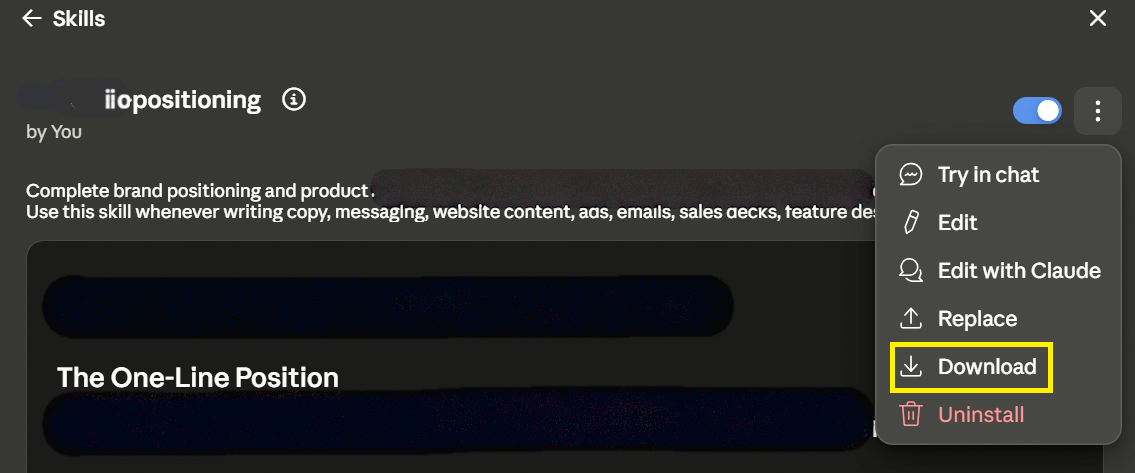
A Skill is a folder. Zip it and send it to the relevant team member so they can upload it to their Claude settings. This works on any plan.
To send a Skill:
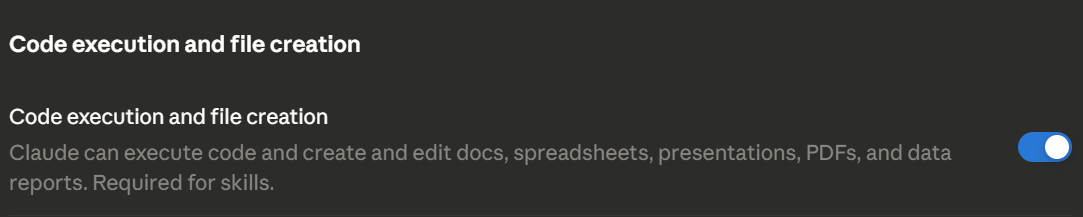
To upload a received Skill:
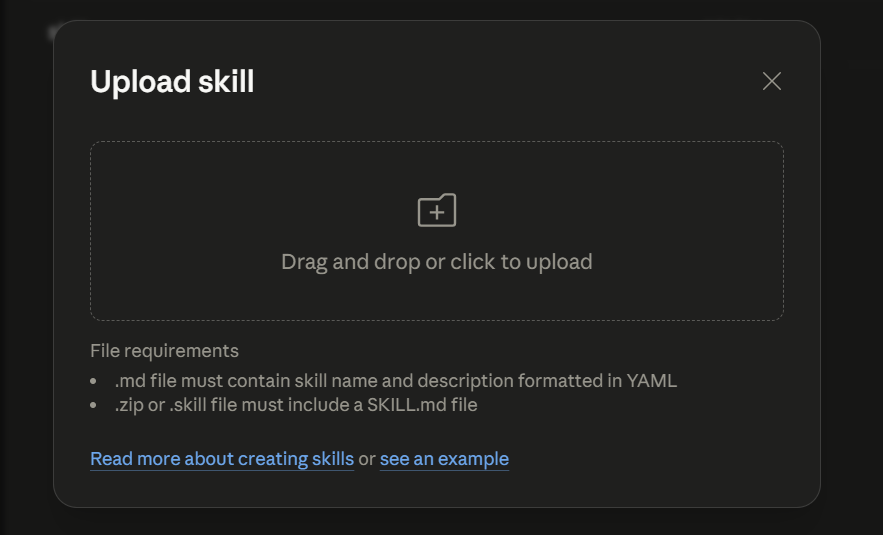
Use this method for one-off handoffs, such as sending a Skill to a client or a freelancer. Avoid it for teams. Every update means a new zip, a new upload, and no way to check who runs the current version.
Claude has built-in sharing on Team and Enterprise plans. You can share a Skill with specific colleagues or with your whole organization. Owners can also upload a Skill once in Organization settings and push it to everyone. Members get it automatically, with no upload step.
Before anyone can share, an organization owner must turn the feature on:
To share a Skill you created with colleagues (select individuals or the entire company):
To provision a Skill to the entire organization (owners only):
Here’s how Anthropic explains the difference between shared and provisioned Claude Skills
| Aspect | Owner-provisioned | Shared with a peer | Shared org-wide |
|---|---|---|---|
| Who has the right to share? | Owner only | Any member (if sharing is enabled) | Any member (if sharing is enabled) |
| Where do shared Skills appear? | Every member’s Skills list | The recipient’s ‘Shared with you’ tab | The organization’s Skills directory |
| Can recipients remove the Skills? | Can’t remove; can only disable for themselves | Can remove or disable | Can’t remove; can only disable for themselves |
| Is owner approval needed? | The owner uploads them | No | No |
Use this method if your team is on a Team or Enterprise plan. It is the simplest option that keeps everyone on the same version.
Store each Skill as a folder in a shared GitHub repository that tracks every change. Teammates download a synced copy and get the full library. Changes go through review before they reach anyone. Two conventions keep the library in order:
# Version: 1.3) to the top of every SKILL.md and raise it on each changepm- or eng- so that ownership stays clear as more teams contributeUse this approach if your team works across multiple tools, needs a record of who changed what, or already uses Claude Code.
Which one should you pick?
Sending a Skill to one person: zip it. Standardizing a team on Claude’s Team or Enterprise plan: share inside Claude. Managing a growing library across teams or tools: use GitHub.
Start with Anthropic’s built-in skill-creator, copy a production Skill from their open repo, then refine it on live work. Here are the four steps to follow:
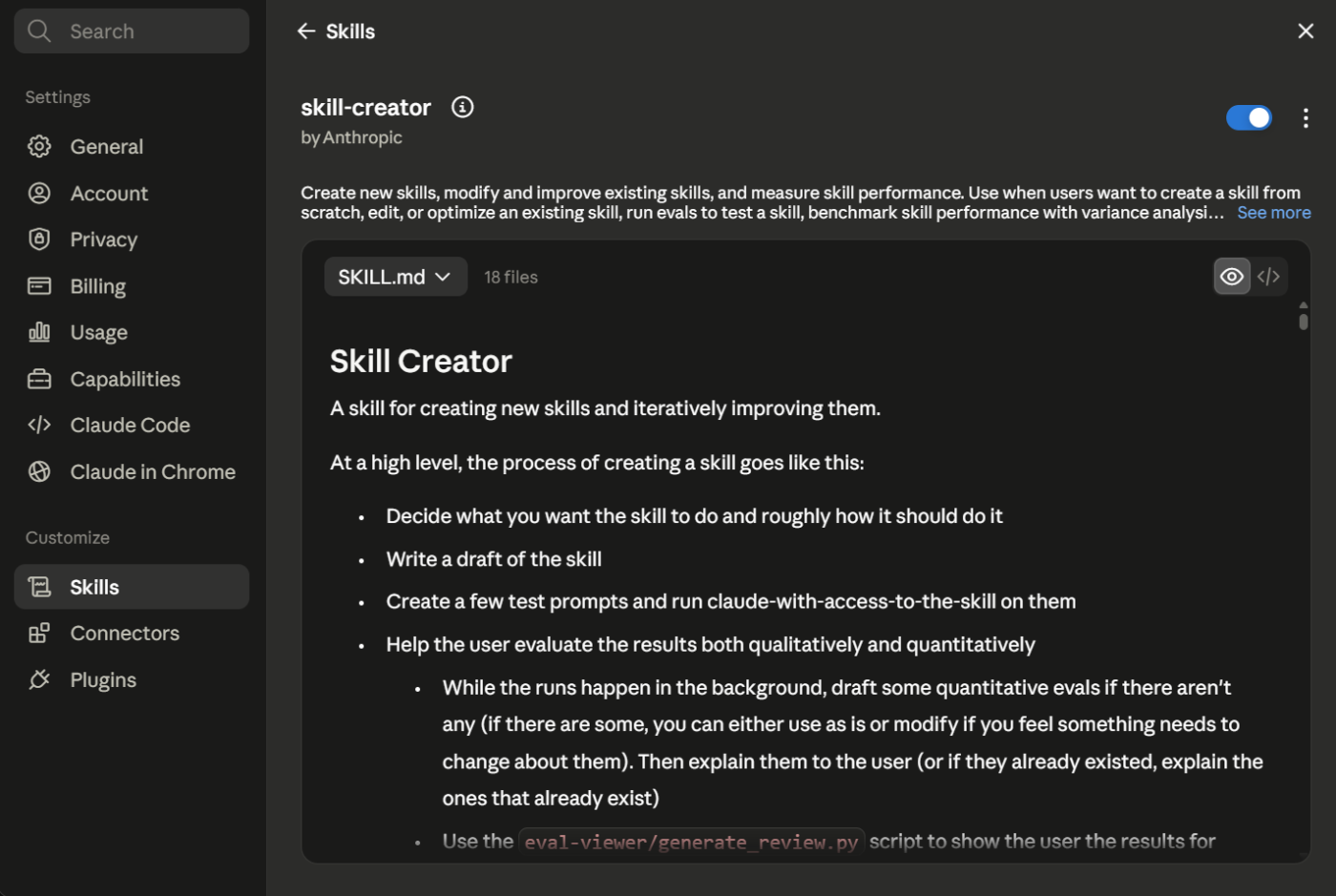
The skill-creator is a Skill whose job is to help you write other Skills. Anthropic’s help center recommends it for your first few. Here is how it works:
For a project manager, this means you can turn ‘the way I write a status update’ into a working Skill without writing any structure by hand.
The anthropics/skills repository holds the production Skills behind Claude’s own document work: Word, PDF, PowerPoint, and Excel files. Reading one shows you how a real Skill is organized:
Copy the pattern, swap in your workflow, and you have skipped the hardest part.
Anthropic’s own guidance is to work on a single tough task until Claude succeeds, then capture that winning approach in the Skill. A status-rollup Skill gets good because you ran it on last week’s unstructured data, saw the gaps, and folded the fix back in. Reading more guides will not do that for you.
Every broken Skill fails in one of two ways, and each has its own fix:
Keeping these two apart in your head is most of what mastering Skills means.
Ethan Mollick, Wharton professor and author of Co-Intelligence, offers wisdom on working with AI.
The skills that make you good at AI are not prompting skills, they’re people skills. If you’re good at understanding what someone might be confused about, if you’re good at breaking down tasks into steps, if you’re good at troubleshooting when someone goes wrong, you’re going to be good at AI.
If you followed the build steps above, you already have most of these. Use this to spot-check before you share:
weekly-status-rollup, not pm-helper)# Version: 1.3)The last three (owner, review date, scope) are what keep a Skill from quietly going stale, the failure mode covered in Common Mistakes below.
Three workflows make the payoff concrete: a PRD or brief Skill, a weekly status-rollup Skill, and a retrospective Skill. Each comes from work that a project team already repeats every cycle. Here’s what each one looks like in practice.
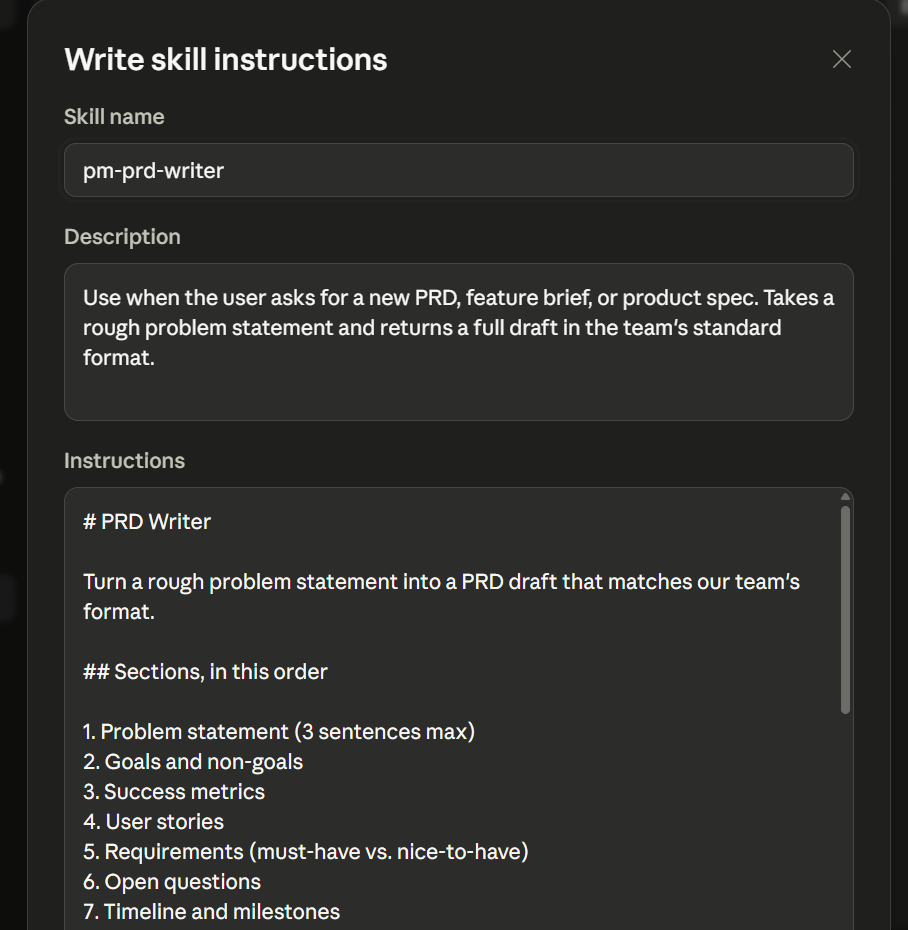
Say a product team writes a PRD at the start of every initiative. A product manager triggers the Skill with a rough problem statement, and the SKILL.md carries a few components that do the work:
The critical seam: The reference PRDs. The Skill can only meet your standard if you supply real examples, so a thin or missing example set is where this workflow breaks down.
What makes this one different: It’s the best first Skill to build. A brief follows the same structure every time, so it’s the format you end up re-describing to Claude on every new initiative. Writing it down once removes the most repeated work.
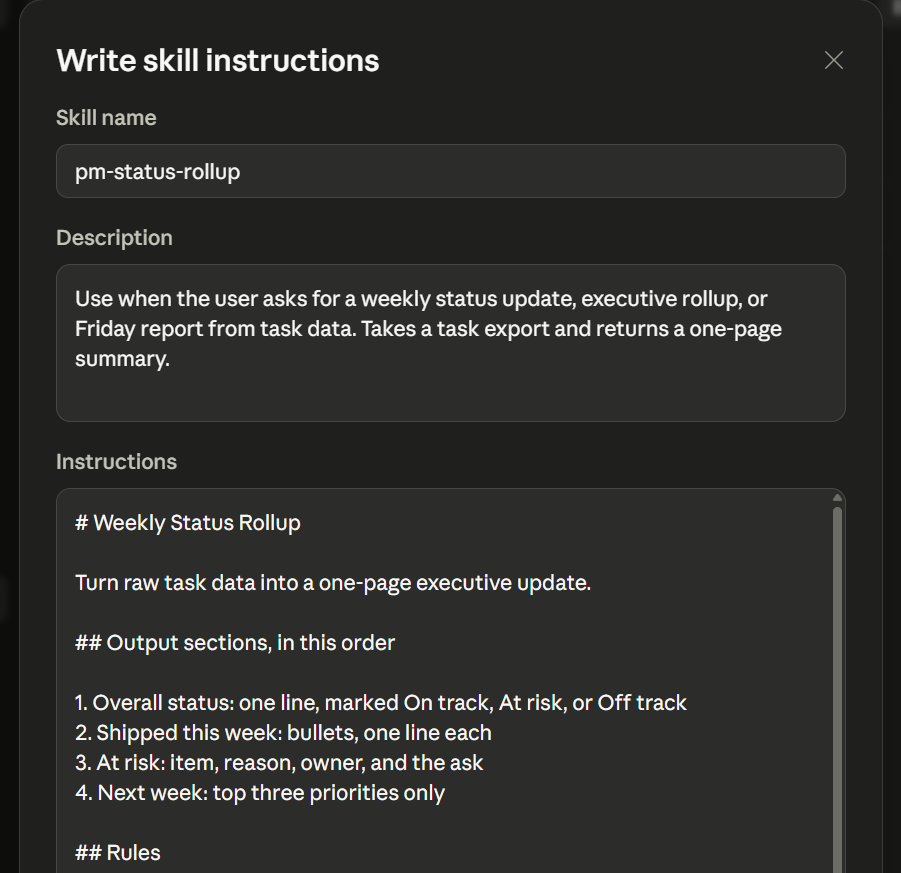
Imagine a program lead sends an executive update every Friday. The Skill takes the week’s task data and returns a single report in a fixed format. The components break down like this:
The critical seam: The input data. The Skill summarizes whatever you give it and doesn’t fetch it on its own. Feed it stale data, and you receive a polished report of stale facts.
What makes this one different: This is the point where a Skill and an agent separate. If you want the update to pull its own data from the tracker, that becomes agent work. The Skill only shapes the numbers once they sit in front of it.
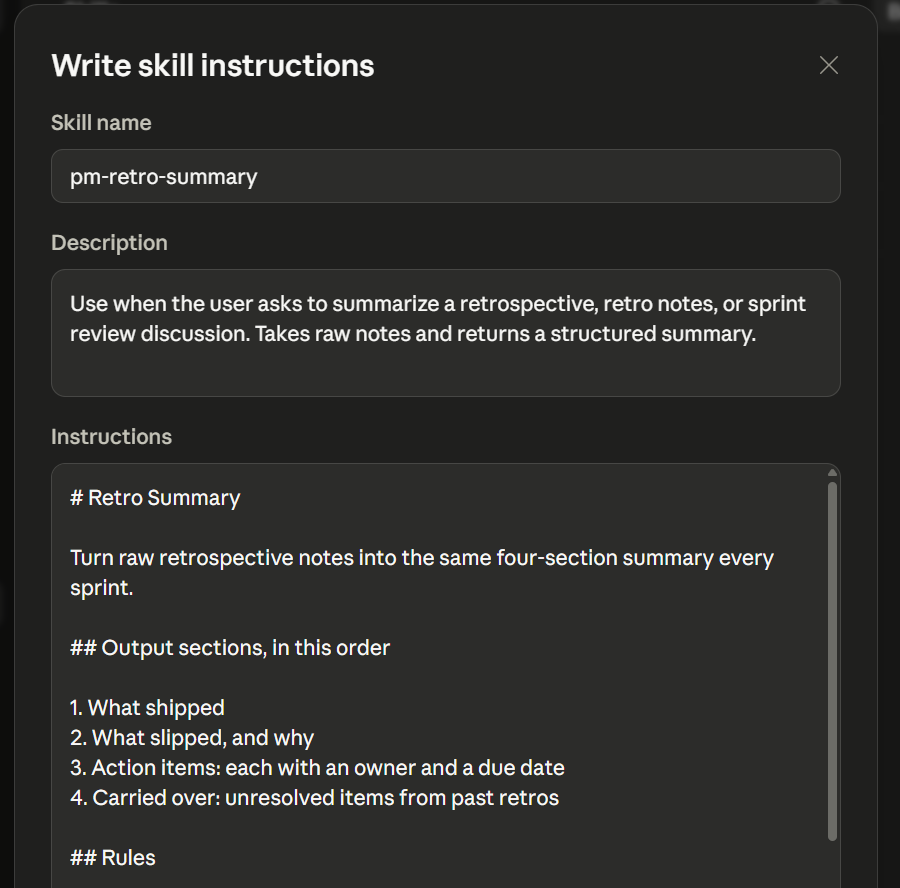
For a delivery team that runs a retro at the end of each sprint, this Skill turns raw notes into a structured summary in one repeatable format. The components are straightforward:
The critical seam: Consistent input. The less labeled the notes, the harder the Skill works to sort them, so a light note-taking convention upstream pays off downstream.
What makes this one different: The value is long-term rather than single-use. A retrospective from March and one from September read the same way, so a pattern across sprints surfaces instead of hiding inside six different note styles.
Claude Skills fail for five common reasons: building one mega-Skill instead of several, a vague description that never fires, no examples of the expected output, no version line on a shared Skill, and installing Skills from untrusted sources. Each has a symptom you can name and a fix you can apply today.
A single ‘product manager Skill’ tries to write PRDs, score requests, and write release notes at once. As a result, it never triggers cleanly, because the description is too broad for Claude to match to one task. On the other hand, the body is too long to stay lean.
The fix: Split it into three sharp Skills, and give each description one job.
A well-written Skill sits unused while Claude keeps passing over it. Why? Because the description names a theme instead of a trigger, and nothing tells the model when to load it.
The fix: Rewrite it around the exact phrase that should trigger the Skill, since that line decides when it loads, not the instructions inside.
The output comes back correct in structure but generic in substance. This happens because the Skill carries rules with no standard to measure against, so Claude settles for the average version of the work.
The fix: Bundle two or three of your strongest past artifacts and reference them, so the model grades new work against your bar.
Two teammates get different outputs from what they think is the same Skill. It can happen because someone edited the file, and no one can tell which copy each person runs.
The fix: Add a version line to the top of every SKILL.md and bump it on each change, so a mismatch shows up in seconds.
Someone grabs a Skill off the internet and runs it unread, which matters because its instructions and bundled scripts execute with whatever access Claude already has.
The fix: Use only Skills you trust, and audit every bundled file first.
A Claude Skill works because it gives the model context it would otherwise lack. ClickUp solves the same problem from the other direction: the AI already lives where the tasks, docs, and deadlines are. Which means it never needs a separate instruction file to know what your team is working on.
This becomes an important measure for everything this article just covered. A Skill requires you to author and maintain a SKILL.md. ClickUp Brain, the workspace AI, skips that step because it reads your actual project data in real time.
The knowledge is already structured and connected.
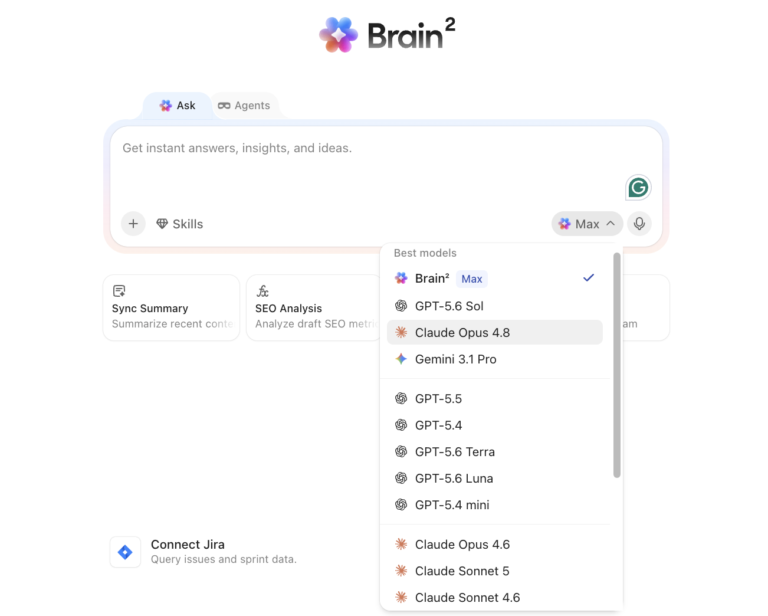
Brain runs Claude, GPT, and Gemini through one subscription. You pick the model per conversation or let Brain route automatically based on the task. Need Claude’s reasoning for a complex spec? Switch to it. Need fast summarization across fifty updates? Let Brain choose.
You can run Claude’s reasoning for a dense spec, then switch to a faster model to summarize fifty updates, without leaving the doc or juggling logins.
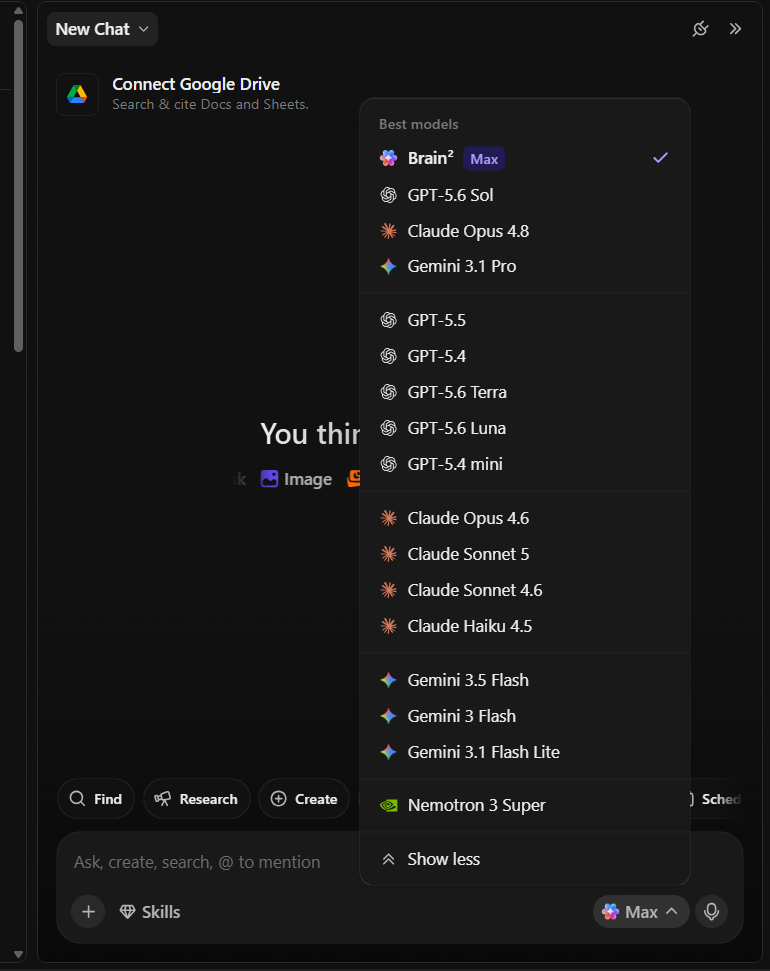
Generate slides, build dashboards, and manage projects without hand-authoring a single instruction file, using Brain’s built-in Skills.
The difference from a hand-authored Claude Skill is that these Skills already have the full workspace context. You never bundle reference files or maintain a folder. The Skills improve as Brain learns from corrections, outcomes, and usage patterns across your team.
What works well for these workflows specifically:
The honest limitation: This is the no-build path. If your workflow lives outside ClickUp, a portable Claude Skill with custom scripts gives you more control. ClickUp Brain works best when the work and the coordination happen in the same place.
Who it fits: Cross-functional teams managing real project complexity: multiple workstreams, shifting priorities, stakeholders who need visibility without doing the asking. For a solo freelancer tracking five tasks, it is more tool than the job needs.
Here’s what happens when your AI already has the context of all your work:
Zero manual summaries: How Rillsoft Sistemas runs 5 departments on AI-powered workflows
Rillsoft Sistemas, a Brazilian ERP company, runs five departments in one ClickUp workspace. Four Super Agents handle sprint summaries, status updates, and post-call task lists with zero manual input.
During a client rollout, one Super Agent caught a blocked dependency between two modules before anyone on the team did. It saved the launch from getting delayed. No one had to write a Skill file or export task data for that to happen. The AI already had the context because it lived where the work lived.
Rodrigo Nascimento, Developer, Rillsoft Sistemas, said:
It was the first moment the team really felt the AI was acting like an active project assistant instead of just a text-generation tool.
The gap this article exists to close is simple: a generic assistant knows project management, but it does not know how your team runs projects. A Claude Skill turns tacit knowledge into infrastructure. The team stops depending on the person who knows how it’s done and starts depending on the file that says how it’s done.
The catch is reach. A Skill only executes what it can access. It shapes data you hand it, but can’t pull its own. That means the payoff compounds when the process and the work live in the same place, where the AI doesn’t need an export or a paste to act on tasks.
Encode the judgment. Put it next to the work. The AI stops drafting a plausible plan and starts running yours. Get started with ClickUp for free and build your project setup before you layer AI on top.
No. A Skill only shapes the data you give it; it can’t fetch anything itself. Connecting Claude to an external tracker is the job of an MCP server, and running multi-step work autonomously is agent territory. For project teams, the strongest setup pairs a Skill (the how) with MCP (the connection). (Claude Platform Docs)
No, Claude Skills don’t replace MCP servers or your project management system. MCP gives Claude access to external systems, while Skills tell Claude how to use that access for a repeatable workflow. For project teams, the best setup is usually Skills plus live task and document context, not Skills in isolation.
Skills are available on all Claude plans, and you must turn on ‘Code execution and file creation’ in settings for them to run. On Team and Enterprise, admins can provision Skills organization-wide from admin settings, enabled by default for every user.
A Claude Project is a persistent workspace that holds shared context and knowledge for an ongoing body of work. A Skill is a portable, on-demand procedure that loads only when a task matches its description. Use a Project to keep related chats and reference material together; use a Skill to make Claude perform a specific recurring task the same way every time.
There’s no practical cap, because of progressive disclosure. Claude reads only each Skill’s short name and description at the start of a session and loads the full instructions only when a task matches. That design lets you keep a large library installed without cluttering conversations or adding context cost.
A Claude Skill is a portable, on-demand procedure that loads only when a task matches its description, so you can keep many installed without slowing Claude down. A Custom GPT is a separately configured chatbot you deliberately switch into. Skills stack invisibly inside normal conversations; a Custom GPT is a standalone assistant you choose per task.
No. A SKILL.md is written in plain Markdown, and Anthropic’s built-in skill-creator generates the folder and file for you from a plain-language description of your workflow. Scripts are optional; most PM Skills (PRDs, status rollups, retros) are instructions and examples only.

Praburam Srinivasan
Max 17min read

Manasi Nair
Max 22min read
Manasi Nair
Max 15min read
© 2026 ClickUp