

Sorry, there were no results found for “”
Sorry, there were no results found for “”
Sorry, there were no results found for “”
A digital planner app can mean two opposite things: a PDF you handwrite on inside GoodNotes, or a task-and-calendar app like Todoist or ClickUp that schedules your day. The first is a digital notebook. The second is an operating system for your week.
Choosing between them depends on whether you want to plan by hand or automate. This guide reviews nine digital planner apps split along that line, each with current pricing, user reviews, and honest limitations. Get the type right, and the specific pick is easy.
TL;DR: Which digital planner software should you pick?
Here’s the quick summary before the full reviews:
The two types of digital planner apps (note-taking vs. a full-scale planner) differ on five things that matter daily: input, reminders, calendar sync, best device, and whether the plan updates itself.
The main point of difference: A note-taking planner is passive. It waits for you to open it and write. A planning app is active. It tracks due dates, fires reminders, and updates itself as you work.
That gap shows up fast in daily use. Here’s how the two types compare:
| Dimension | Note-taking planners (PDF + app) | Planning apps (task and calendar) |
|---|---|---|
| Core job | Plan by hand, reflect, journal | Schedule, track, and complete tasks |
| Examples | GoodNotes, Notability, Noteshelf | Todoist, TickTick, Sunsama, Notion, ClickUp |
| Input | Handwriting with a stylus on a tablet | Typing, on any device |
| Reminders | None native; the planner is passive | Automatic, with notifications |
| Calendar sync | Rarely, and one-way at best | Yes, often two-way |
| Best device | iPad or Android tablet with a stylus | Phone, desktop, and web |
| Updates as you work | No; you redraw or recheck by hand | Yes; progress tracks itself |
| Feels like | A paper planner | A command center |
One more way to tell them apart: think about what you want planning to feel like. If you want a calm, hands-on routine like journaling? Then you should go with a note-taking app. If you want the tool to chase you, you want a planning app.
Find out more: For the handwriting side specifically, our guide to aesthetic planner apps goes deeper.
We judged each app on four things: capture speed, scheduling and time blocking ability, learning curve, and the price you pay for what you get. The list below doubles as a checklist for organizing your planner once you’ve picked one.
| Tool | Best for | Standout feature | Starting price* | Honest limitation |
|---|---|---|---|---|
| Todoist | Fast capture without losing ideas | Natural-language input that reads dates, times, and repeat patterns on its own | Free; Pro from $7/mo | No native time blocking or task dependencies |
| TickTick | Juggling tasks and habits in one app | Built-in Pomodoro timer and habit streaks next to your task list | Free; Premium $35.99/yr | Tuned for personal use, lacks team roles and permissions |
| Sunsama | Intentional daily planners who want ritual | Guided morning planning and end-of-day shutdown routines | Free; Pro $17/mo/user (billed yearly) | Time blocking is manual, no AI auto-scheduling |
| Notion | Builders who want a fully custom system | Every task set becomes a checklist, Kanban, or calendar with one toggle | Free; Plus from $12/mo/user | Setup effort; weak native reminders |
| ClickUp | Teams whose plan and actual work are inseparable | Tasks, calendar, and goals update in one view as work moves | Free forever; Paid from $7/member/mo | More setup than a simple personal checklist needs |
| Google Calendar | Anyone who needs free, universal scheduling | Color-coded calendars with appointment booking built in | Free with a Google account | Task management is an afterthought |
| GoodNotes | Handwriters who plan on a tablet with a stylus | Handwriting search finds any scrawled note by typing the word | Free; Essential from $11.99/yr | No reminders, no recurring tasks, no calendar sync |
| Notability | Note-takers in lectures and back-to-back meetings | Audio recording tied to each handwritten line for tap-to-replay | Free; Plus from $7.99/mo/user | Audio recording locked behind the paid tier |
| Any.do | Families and groups sharing a simple plan | Daily ‘My Day’ prompt plus WhatsApp and Siri capture for non-app-openers | Free; Premium $7.99/mo/user | Fewer power features than Todoist or TickTick |
How we review software at ClickUp
Our editorial team follows a transparent, research-backed, and vendor-neutral process, so you can trust that our recommendations are based on real product value.
Here’s a detailed rundown of how we review software at ClickUp.
Nine apps made this list: Todoist, TickTick, Sunsama, Notion, ClickUp, Google Calendar, GoodNotes, Notability, and Any.do. Some let users plan their day by hand, while others automate it with tasks and reminders. Every pick below includes who the app is best for and when to skip it.
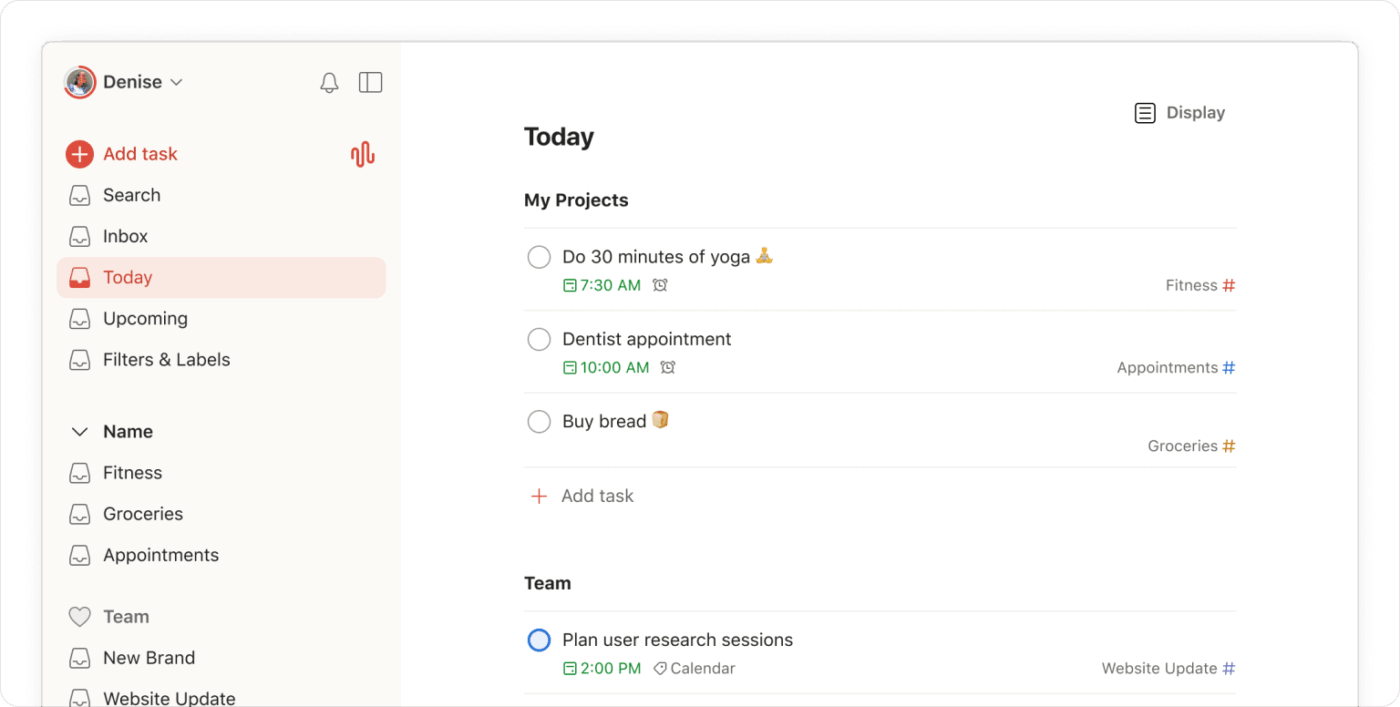
If you lose ideas because you didn’t write them down immediately, Todoist might help. It gets the task out of your head and into a trusted spot first, the sorting comes later.
The signature move is natural-language input. Type ‘Submit report every second Thursday at 2 pm’ and Todoist reads the date, time, and repeat pattern on its own. That capture speed is the one thing it does better than almost anything else in this category, and it’s why list-first planners keep coming back to it.
Pricing
Where Todoist falls short: Time-blocking isn’t native. It can sync tasks to your calendar as scheduled events, but only after you connect a calendar integration and set durations. The planning canvas lives in Google Calendar rather than in Todoist itself. It also has no task dependencies, which means big, multi-stage projects will outgrow it.
Skip Todoist if: You want to plan your day as time blocks on a calendar rather than a running list without wiring up a separate calendar first.
Ratings
What are users saying about Todoist?
Hear about Todoist from a G2 reviewer who loves the universal keyboard shortcut feature:
In all honesty, the best piece of Todoist is the universal keyboard shortcut. I love that no matter what program I am in or who I am talking to, I can quickly add a task with natural language input, have it show on my calendar, and be on the date that I need in a flash. In my workplace, distractions come often, so being able to do this quickly makes sure I don’t miss anything. The two-way calendar sync is also really a great feature that pairs well with this.
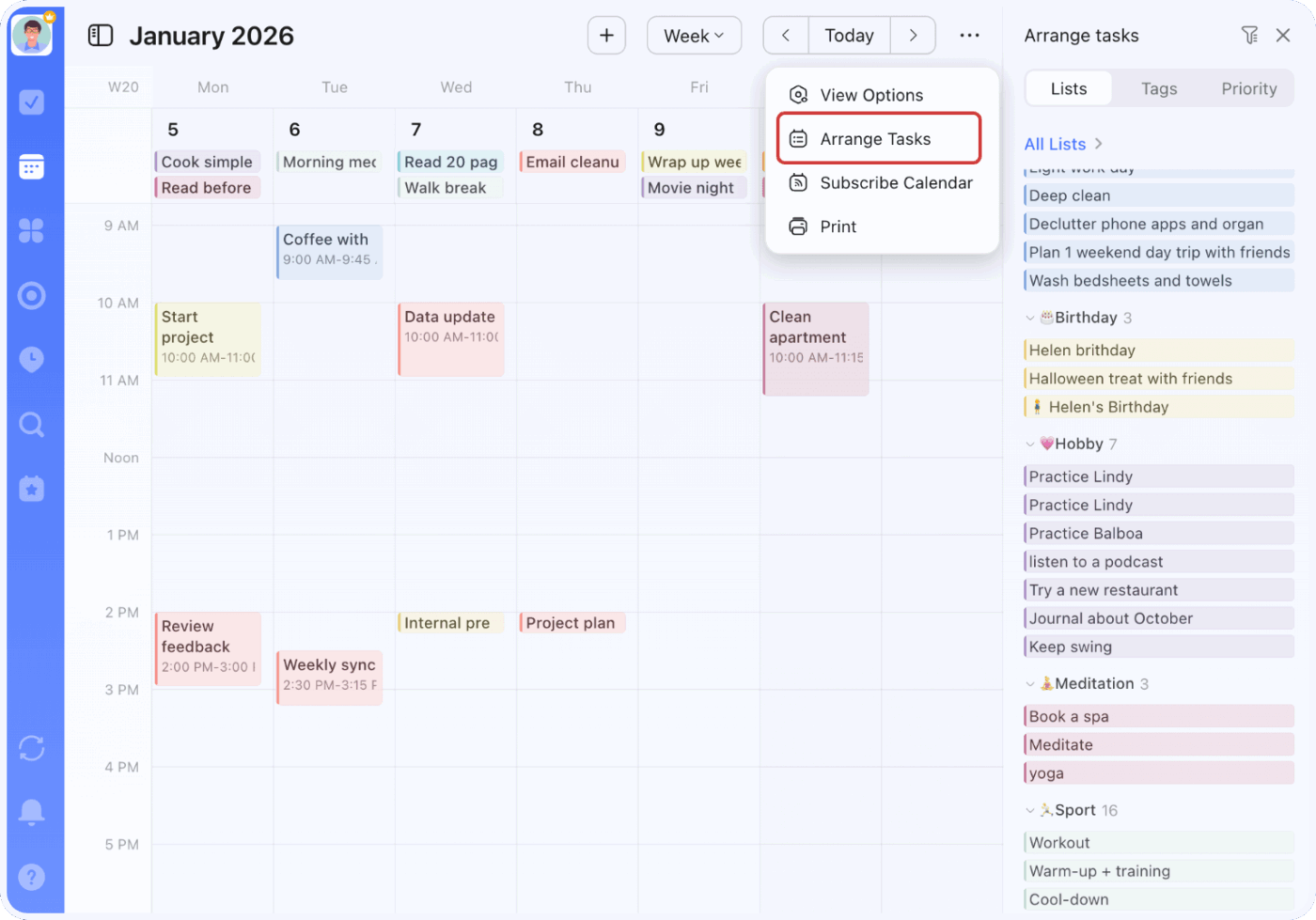
TickTick puts your tasks, habits, and a focus timer in one app. So your daily work and personal routines run off a single plan. Your habit streaks sit right next to your tasks, not in a separate app you quit using by February.
It fits students and busy people who juggle work and personal goals at once. You also get the basics done well: list and calendar views, plain-language entry, and reliable sync across phone, desktop, and web.
Pricing
Where TickTick falls short: It’s tuned for personal and lightly shared planning. You can share lists and assign tasks, but it lacks the roles, permissions, and large-project structure a full work platform offers. This can be a problem once your team gets involved.
Skip TickTick if: You need team project management with shared projects and defined roles.
Ratings
What are real users saying about TickTick?
This is what a G2 reviewer thinks about TickTick:
I appreciate the range of sophisticated organizing tools that TickTick provides, including the capability to make detailed checklists and the flexibility to set custom due dates and reminders. Additionally, the calendar connection guarantees an overview of activities, and the “Today” feature aids in the efficient prioritization of daily duties.
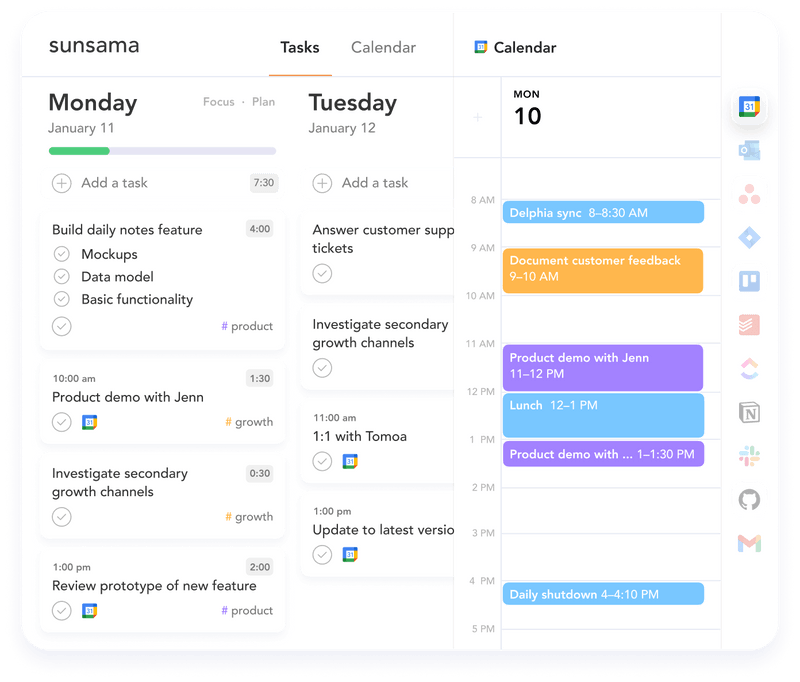
The catch with Sunsama is also its whole point: it asks for ten to fifteen minutes of your day, every day. If that sounds like a chore, this isn’t your app. If it sounds like the structure you’ve been missing, nothing else here is built around the ritual the way Sunsama is.
It walks you through a morning planning routine and an end-of-day shutdown. You pull tasks from the tools you already use into one daily view, then drag them onto a timeline. Over-stack the day and the app will flag it before you commit.
Pricing
Where Sunsama falls short: The time blocking is manual, run by keyboard shortcuts, not AI. You will have to manually manage your deadlines.
Skip it if: You’d rather let AI auto-schedule your day than place each task yourself.
Ratings
What are real users saying about Sunsama?
A Reddit user shared their thoughts on Sunsama:
I use it both for work and personal stuff. I use channels for personal areas such as Family, Finances, etc. and it works great! I find the weekly objectives and backlog particularly useful.
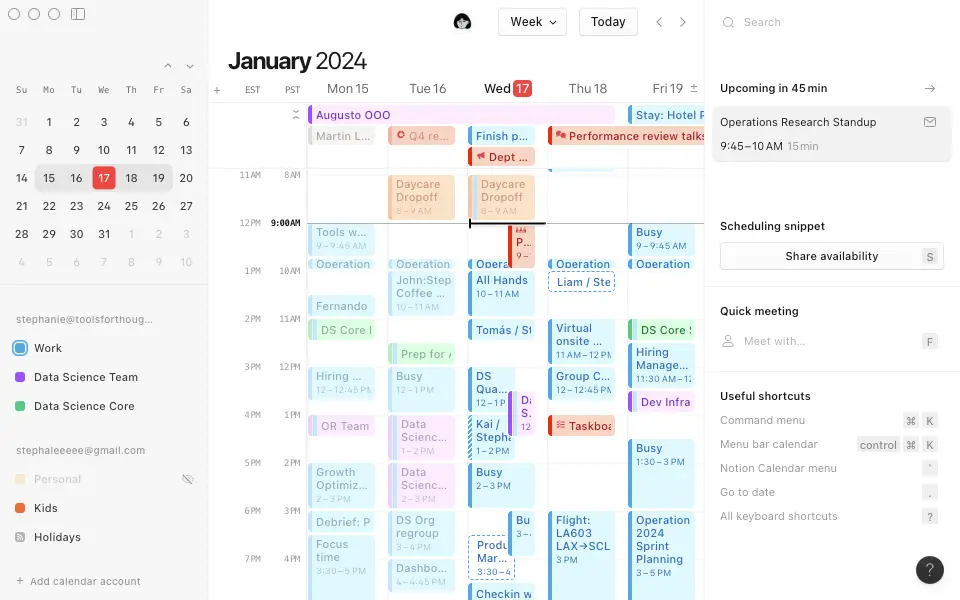
Every other planner here hands you a finished structure. Notion hands you the parts. It’s the pick for people who’d rather build their own system than live inside someone else’s. You can have your notes, tasks, and databases share one home instead of three apps.
The trick is that everything is a block you rearrange. The same set of tasks can show up as a checklist today, a Kanban board tomorrow, a calendar next week. Tuck notes and docs inside a task, build databases that filter and sort themselves, and link Notion Calendar to Google Calendar or iCloud.
Pricing
Where Notion falls short: The flexibility cuts both ways. Setup takes effort, and native reminders and notifications are lighter than those in a dedicated task app. Your planner can quickly become outdated if you stop updating it.
Skip Notion if: You want something that works well out of the box, with strong reminders, rather than a system you assemble and maintain yourself.
Ratings
What are real users saying about Notion?
How a G2 reviewer uses Notion:
The database views are what made me stick with it. I run a blog calendar for content work, and being able to switch between a flat list, views by status, by writer, or by content type—all from the same set of data—is something I didn’t realise I needed until I had it. Before this, I was tracking blog posts in a spreadsheet, and it just didn’t offer that kind of flexibility.
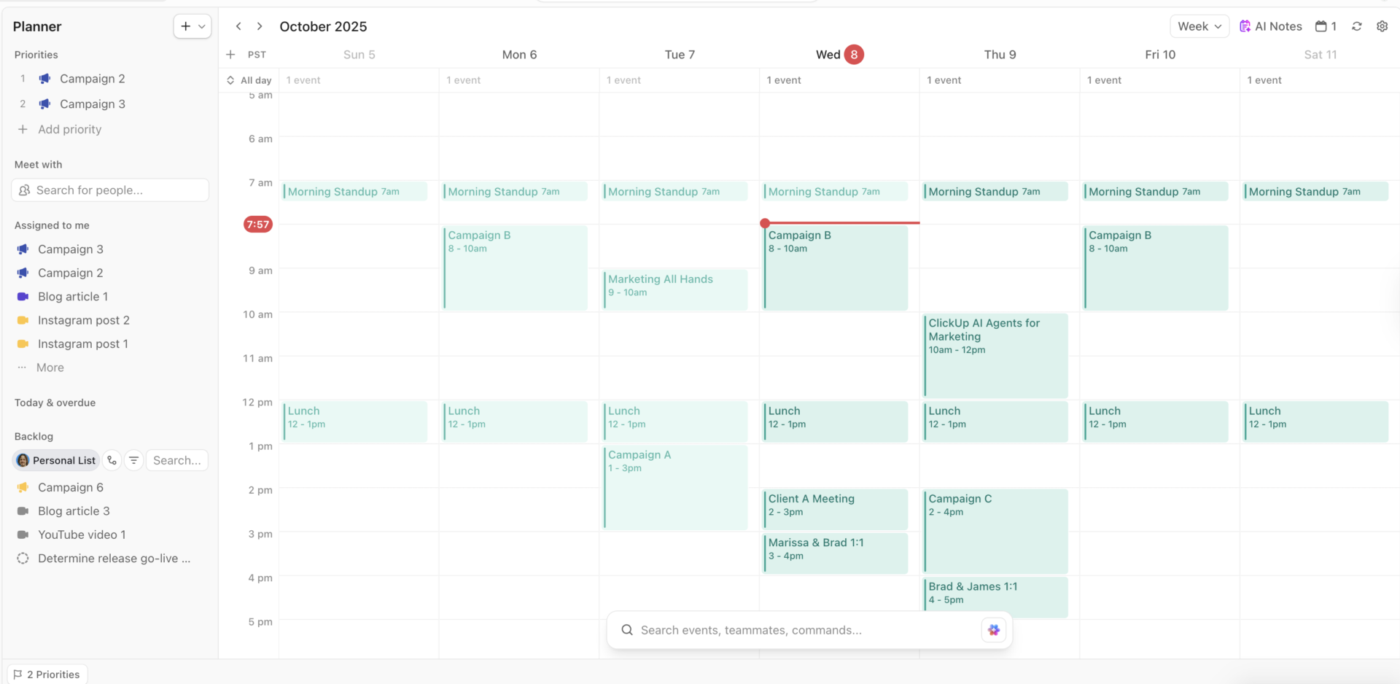
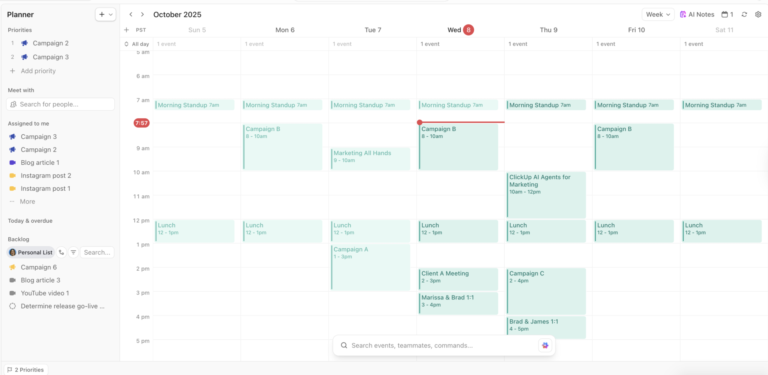
Most planners ask you to keep a separate list of what you hope to do. ClickUp skips that step because it already holds what you are doing: tasks with due dates, projects with linked steps, and a calendar with definite timelines. Your plan updates as things move, not when you remember to fix it.
It works best when your daily plan and your work are one and the same. ClickUp Calendar combines tasks, time blocks, and synced Google or Outlook calendars into a single view. AI can drop tasks into open slots for you, and built-in time tracking shows whether your planned day matched reality. This way, you can re-adjust priorities before tomorrow starts.
Pricing
Where ClickUp falls short: ClickUp fits best when planning is tied to projects, deadlines, and meetings. A solo user who only wants a simple daily checklist will find more here than they need
Skip ClickUp if: You only want a lightweight personal checklist with no project layer underneath it.
Ratings
What are real users saying about ClickUp?
Why this G2 reviewer likes ClickUp:
More recently, they’ve rolled out a few AI features that have been genuinely useful for the team.
We’ve been using them a lot to speed things up across the board. Creating tasks, updating tasks, taking notes, and even small things like the calendar integration that surfaces upcoming events. It saves a surprising amount of time and helps make sure everyone is turning up to meetings on time.
It’s also relatively cost-effective for everything it offers. Honestly, our business wouldn’t be the same without ClickUp. We’d still be able to operate, but we’d be running far less efficiently.
Bonus: The ClickUp Daily Planner Template gives you a pre-built daily structure with time blocks, priorities, and a notes section. You can start planning immediately rather than configuring from zero. Drop it into a Space and customize as your routine takes shape.
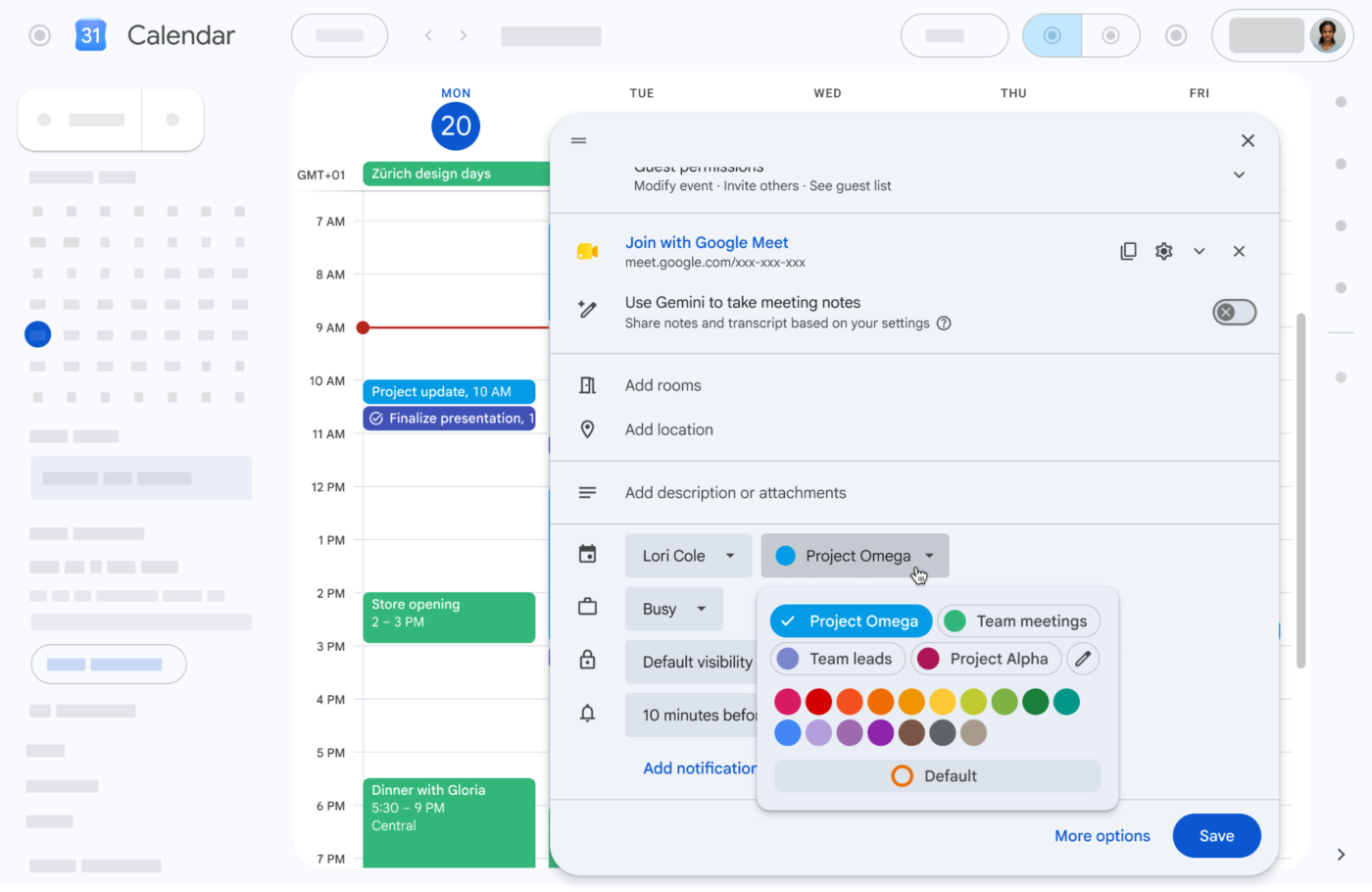
Google Calendar shows you your time, and does it for free. It’s for people who live in a Google account and want scheduling they can trust without paying a cent. It also happens to be the calendar that almost every other app on this list syncs to, a testament to its ubiquity.
Your Google Calendar handles events, recurring appointments, and several overlaid calendars with ease. You can share a calendar, layer a work one over a personal one, and let it send reminders on its own. Because so many planners plug into it, it often runs as the backbone of a setup even when it isn’t the main tool.
Pricing
Where Google Calendar falls short: It’s a scheduler first, and task management is an afterthought. The built-in tasks and reminders cover the basics, but there’s no room for projects, dependencies, or detailed to-do workflows. It works best paired with a native task app.
Skip Google Calendar if: You need task and project management, not just a clean view of your events.
Ratings
What are real users saying about Google Calendar?
Hear from a G2 reviewer about Google Calendar:
Everything I need is right at hand. I can access my calendar, chat, and Google Meet quickly and easily. It was also very easy to show my interviewees how to use Google Meet. Any questions I have Gemini can answer for me.
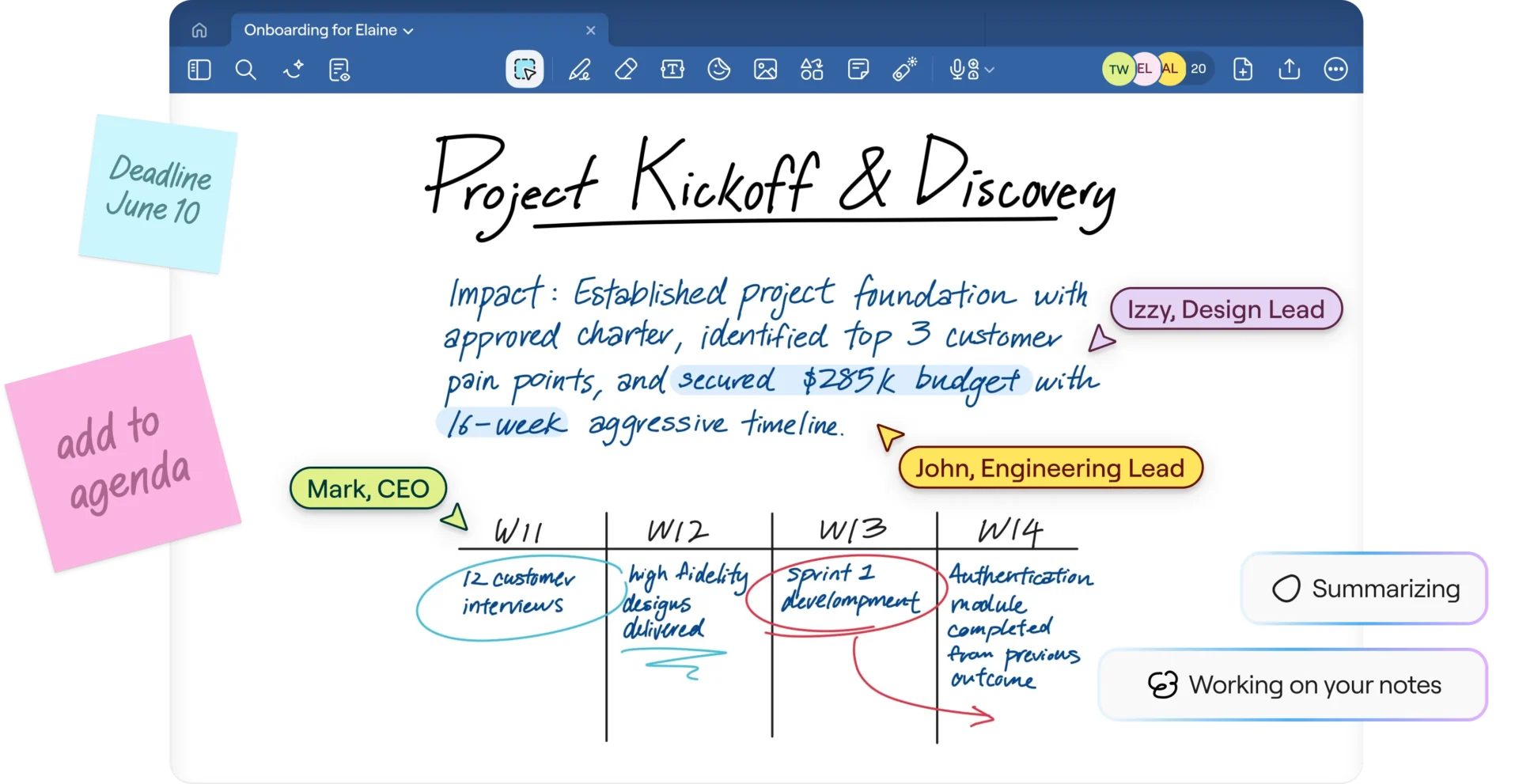
GoodNotes is primarily a note-taking app that many users find convenient to jot down plans and project breakdowns. It turns your iPad into a paper planner you write on, by hand, with a stylus. It’s for students, creatives, and anyone who thinks better with a pen than a keyboard.
Here’s how it works: you import a hyperlinked PDF planner, write on the pages with an Apple Pencil, and jump between months and weeks through tappable links. Handwriting search means your scrawl is still findable later. Its deep template library lets you swap layouts until one clicks. It runs on iPad, iPhone, and Mac, with Windows and Android offered separately.
Pricing
Where GoodNotes falls short: It’s a note-taking app, so the planner is passive by design. There are no automatic reminders, no recurring tasks, and no calendar sync that updates as you tick things off.
Skip GoodNotes if: You need reminders, recurrence, or a calendar that syncs as your day changes.
Ratings
What are real users saying about GoodNotes?
Hear from a G2 reviewer who loves GoodNotes:
I love how many color options Goodnotes has and how it really makes note-taking fun. Additionally, I love that I can import different documents, which is quite convenient. The initial setup was very easy for me, which was a plus. Also, a lot of my friends at college use Goodnotes and from what I can tell, they really enjoy it.
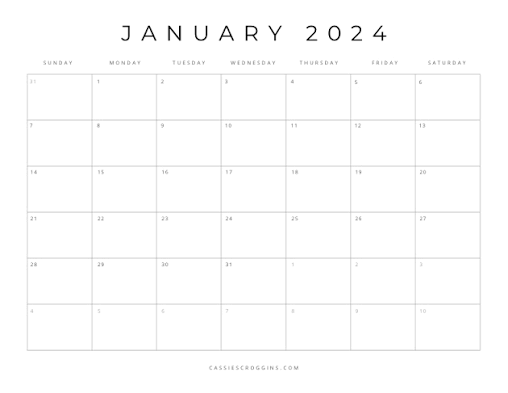
Notability solves a specific problem for those in the market for a new digital planner app: you’re writing notes while someone is still talking, and you can’t catch it all. It records the audio as you write, then ties the two together. Tap a line later, and it replays what was being said when you wrote it. Ideal for students in lectures and professionals in back-to-back meetings.
It sits next to GoodNotes in the handwriting-first camp, but the audio link is what sets it apart. You still get PDF planner templates, freehand writing, and a multi-note view for laying two days side by side. Plus, it syncs across iOS, Mac, and the web.
Pricing
Where Notability falls short: The audio recording that sets it apart isn’t free. Starter gives unlimited editing on the web, but recording with transcription starts on the paid Plus tier. So the feature you’d choose Notability for sits behind a subscription.
Skip Notability if: You won’t pay for the audio recording. Or you want native reminders or calendar sync. A free, reminder-driven planner will serve you better.
Ratings
What are real users saying about Notability?
This is what a G2 reviewer thinks about Notability:
Notability if multi-functional and allows for many options in how you handle your note taking and what you do with them after-the-fact. It integrates easily into my LMS and is very easy to use for just about any type of scribbling and note taking. I use it on a daily basis in my teaching because it has so many options.
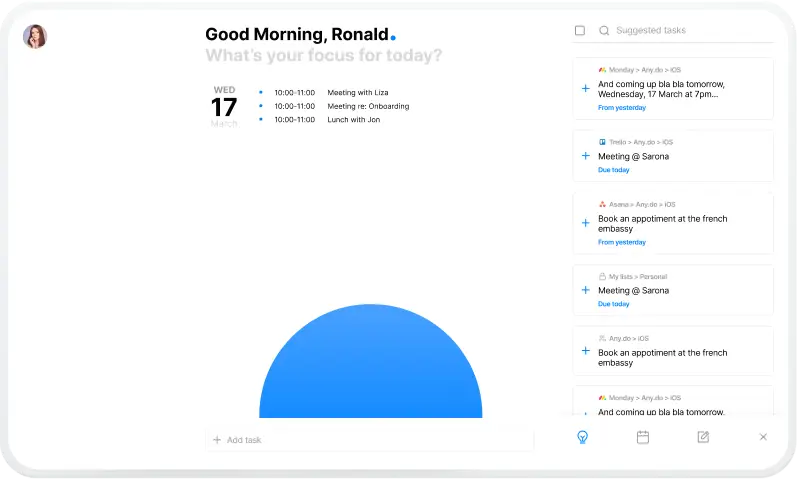
Any.do is a clean, simple list a household or small group can share, with nothing on screen to intimidate anyone. That makes it compatible with families syncing schedules and for individuals who just want lists, reminders, and a calendar in one app.
You get task lists, a calendar view, reminders, and color-coded priorities, plus shared lists and family plans for joint coordination. It links to Google Calendar, turns emails into tasks, and syncs across all your devices. A daily ‘My Day’ prompt nudges you to pick what matters before the list grows stale.
Pricing
Where Any.do falls short: There are fewer power features than Todoist or TickTick offer, no deep customization or advanced task logic.
Skip Any.do if: You want deep customization or advanced task features, and you’re planning solo rather than with a group.
Ratings
What are real users saying about Any.do?
This is what a G2 reviewer likes about Any.do:
I like how easy it is to utilize Any.do. It’s great for organizing work tasks and keeping everything in one place, making it easy to keep track of tasks. I really enjoy being able to leave notes and chat with my team under the tasks. This helps everyone stay informed and reduces repetitive questions to clients. It’s also very easy to set up.
Most people quit digital planners because they picked a tool built for the wrong job. A handwriting planner feels great until you need reminders, recurring tasks, and calendar sync. A task app looks powerful until what you really wanted was a quiet, paper-like planning ritual. The tool fights how you work, so you stop opening it.
The second reason is work sprawl. Your plan lives in one app. Your work lives in another. So you copy tasks back and forth by hand. Over time, the plan becomes outdated, and you stop trusting it.
We found workers switch between apps about 1,200 times a day. That adds up to nearly four hours a week, just spent reorienting.
There’s a focus cost too. Research by Sophie Leroy on attention residue shows that when you switch tasks, part of your mind stays stuck on the last one. So a plan scattered across apps doesn’t just waste time; it also makes it harder to stay on track. It chips away at your focus for everything after.
The bottom line: Pick the type of digital planner that fits how you plan. Then keep your plan close to your work.
Want handwriting and reflection? Go with GoodNotes or Notability. Want tasks, deadlines, and a plan that tracks real work? Pick a planning app like Todoist, TickTick, Sunsama, Notion, or ClickUp.
If your plan and your work keep drifting apart, fix the distance. Start with ClickUp for free and build your day around tasks, deadlines, and the calendar in a single ecosystem.
The best digital planner app for most people depends on whether they want handwriting or task automation. GoodNotes and Notability are stronger for handwriting-first planning. Todoist, TickTick, Sunsama, Notion, and ClickUp are better for tasks, reminders, and calendar planning. The key decision is format before brand. People are more likely to stick with a planner when the tool matches the job they need done.
A digital planner is a PDF planner used in a note-taking app like GoodNotes or Notability. A planner app is software like Todoist, Google Calendar, or ClickUp that automatically manages tasks, reminders, and schedules. One recreates paper planning while the other automates it. If you need reminders or recurring tasks, a PDF planner will not replace a task app.
Digital planner apps are better than paper planners for reminders, recurring tasks, search, and cross-device sync. Paper planners are often better for people who think visually or want a handwriting-based routine. The right choice depends on whether planning is mainly reflective or operational.
Sunsama and ClickUp are two of the stronger digital planner apps for time blocking because they help you place tasks onto a calendar. Google Calendar also works well for pure scheduling, but it is weaker for deeper task management. Todoist and TickTick are faster for capture, while Sunsama and ClickUp are stronger for planning a realistic day. The best fit depends on whether you want a lightweight list or a fuller planning workflow.
Yes, several free digital planner apps are worth using. Google Calendar is free for scheduling, while Todoist, TickTick, Notion, Any.do, and ClickUp all offer free tiers for testing and everyday use. GoodNotes and Notability also offer limited free access for handwriting-based planning. Free plans are usually enough to validate your planning style before you commit to a paid tool.
The best digital planner app for iPad depends on how you plan. GoodNotes and Notability are top options if you want to write by hand with an Apple Pencil and use PDF planner templates. If you want typed planning, reminders, and synced tasks, Todoist, TickTick, and ClickUp have stronger iPad workflows.

Manasi Nair
Max 26min read
Manasi Nair
Max 20min read

Arya P Dinesh
Max 23min read

© 2026 ClickUp




