

Sorry, there were no results found for “”
Sorry, there were no results found for “”
Sorry, there were no results found for “”
Visual task management is the difference between a status update you have to ask for and one you can see. Instead of tracking work in text lists and inboxes, you lay it out as boards, timelines, calendars, and dashboards, so what’s blocked, late, or unowned is obvious at a glance. The method predates the software: it’s the same instinct behind a whiteboard covered in sticky notes.
Done well, it cuts the time a team spends interpreting work and chasing each other for updates. Done with the wrong tool, it just adds another app nobody opens.
This guide covers how visual task management works, when it beats a plain to-do list, and how to pick the tool that matches the view your team already works in.
Visual task management organizes work as boards, timelines, calendars, and dashboards instead of text lists, so status, owners, and blockers are visible at a glance. Choose by your team’s dominant view: Kanban for continuous flow, Gantt/Timeline for dependencies, Calendar for deadline-driven work, Dashboards for oversight.
Single-view tools (Trello, Kanban Tool) are the fastest to adopt; multi-view platforms (ClickUp, monday.com, Wrike) fit teams whose work spans several views on the same tasks. Before committing, test on a real project on the free tier and confirm the views and AI you need aren’t locked behind a higher plan.
Visual task management is the practice of organizing work as boards, timelines, calendars, and dashboards instead of text-based lists, so a team can see status, ownership, and what comes next at a glance. Each task becomes a card or bar you move as work progresses, which turns an abstract to-do list into a picture of where everything stands.
It works because a visual layout communicates status faster than a column of text. MIT neuroscientists found the brain can identify an image seen for as little as 13 milliseconds.
A glance at a board tells you what’s blocked, late, or unowned without anyone writing a status update. That speed matters most in cross-functional work, where marketing, product, and operations teams need a shared view of progress without another status meeting. It’s the same reason teams reach for a whiteboard and sticky notes: the method predates the software.
A few core techniques do most of the work, no matter which tool you choose:
The software in this guide simply takes these techniques digital, then adds timelines, dependencies, automation, and AI on top. The principle comes first; the tool is how you scale it.
Use it when work changes hands often, deadlines shift, or several people need visibility into the same workflow. Marketing calendars, sprint planning, creative review, client delivery, and operations handoffs all benefit from being able to quickly see status, dependencies, and blockers.
Traditional task management records work in static lists; visual task management makes workflow visible in real time. The table below captures the practical difference across six dimensions.
| Traditional task management | Visual task management |
|---|---|
| Tasks live in long lists or spreadsheets | Tasks are displayed in boards, timelines, or calendars |
| Progress is shared during meetings | Progress is visible in real time |
| Dependencies are easy to miss | Relationships between tasks are easy to spot |
| Priorities require manual explanation | Priorities are visually obvious |
| Bottlenecks are discovered late | Bottlenecks become visible early |
| Managers spend time chasing updates | Teams can self-serve information |
The shift is from recording tasks to making work visible. When a team can self-serve status without a meeting or a Slack ping, coordination costs drop, and decisions happen closer to the work.
The right visual task management software matches your team’s dominant view, whether that’s a Kanban board, timeline, calendar, or dashboard. Weigh these against your own workflow, in roughly this order of impact.
The best visual task management tool depends on which of the four views your team works in most: Kanban boards for continuous flow, Gantt or Timeline for dependencies, Calendar for deadline-driven work, and Dashboards for oversight. Match the tool to that dominant view first, then check it clears your automation, integration, and pricing needs. On that logic, ClickUp fits teams spanning several views on the same tasks, Trello fits simple Kanban, Asana fits timeline-heavy planning, and Smartsheet fits spreadsheet-driven operations.
Before we review them in detail, here’s how the top ten tools compare on what matters most: what each does best, the visual views you get, and where pricing starts.
| Tool | Best for | Key visual views | AI add-on | Starting price |
|---|---|---|---|---|
| ClickUp | Multiple views on one task set | List, Board, Gantt, Timeline, Calendar, Dashboard | ClickUp Brain + AI Super Agents (all tiers) | Free; from $7/user/mo |
| Trello | Simplest Kanban | Board; Calendar, Timeline, Dashboard via Power-Ups | Atlassian Intelligence (Premium+) | Free; from $5/user/mo |
| monday.com | Customizable, color-rich boards | Board, Timeline, Calendar, Dashboard | monday AI + agents | Free (2 seats); from $9/seat/mo |
| Asana | Timeline-driven task management | Board, Timeline, List, Calendar | Asana AI Studio (paid plans) | Free (2 users); from $10.99/user/mo |
| Notion | Docs plus boards | Table, Board, Calendar, Timeline, List, Gallery, Dashboard (Business+) | Notion AI (Business+) | Free; from $10/seat/mo |
| Kanban Tool | Board-first teams that track time | Board with swimlanes + analytics | None built in | Free (2 boards); Team from $6/user/mo |
| Teamhood | Kanban with Gantt-style timelines | Kanban, Gantt, Timeline, Workload | Teamhood AI (all plans, light) | Free (10 users); from $10.44/license/mo |
| Miro | Board as a brainstorming canvas | Infinite canvas, Kanban, Timeline, Table | Miro AI | Free (3 boards); from $8/member/mo |
| Wrike | Reporting-heavy visual PM | Board, Table, Gantt, Calendar | Wrike Copilot + AI Agents | Free; Team from $10/user/mo |
| Smartsheet | Spreadsheet lovers who want views | Grid, Table, Board, Gantt, Calendar | Smartsheet AI | No free plan; Pro from $9/user/mo |
Note: Pricing and features reflect what was available at the time of writing and can change. Always verify the current details on the tool’s official website before making a decision.
Our editorial team follows a transparent, research-backed, and vendor-neutral process, so you can trust that our recommendations are based on real product value.
Here’s a detailed rundown of how we review software at ClickUp.
Here are the ten tools worth shortlisting, ranked by the visual approach each does best. The strongest all-rounder is ClickUp for multi-view depth; Trello for the simplest board; Asana for timeline-driven work.
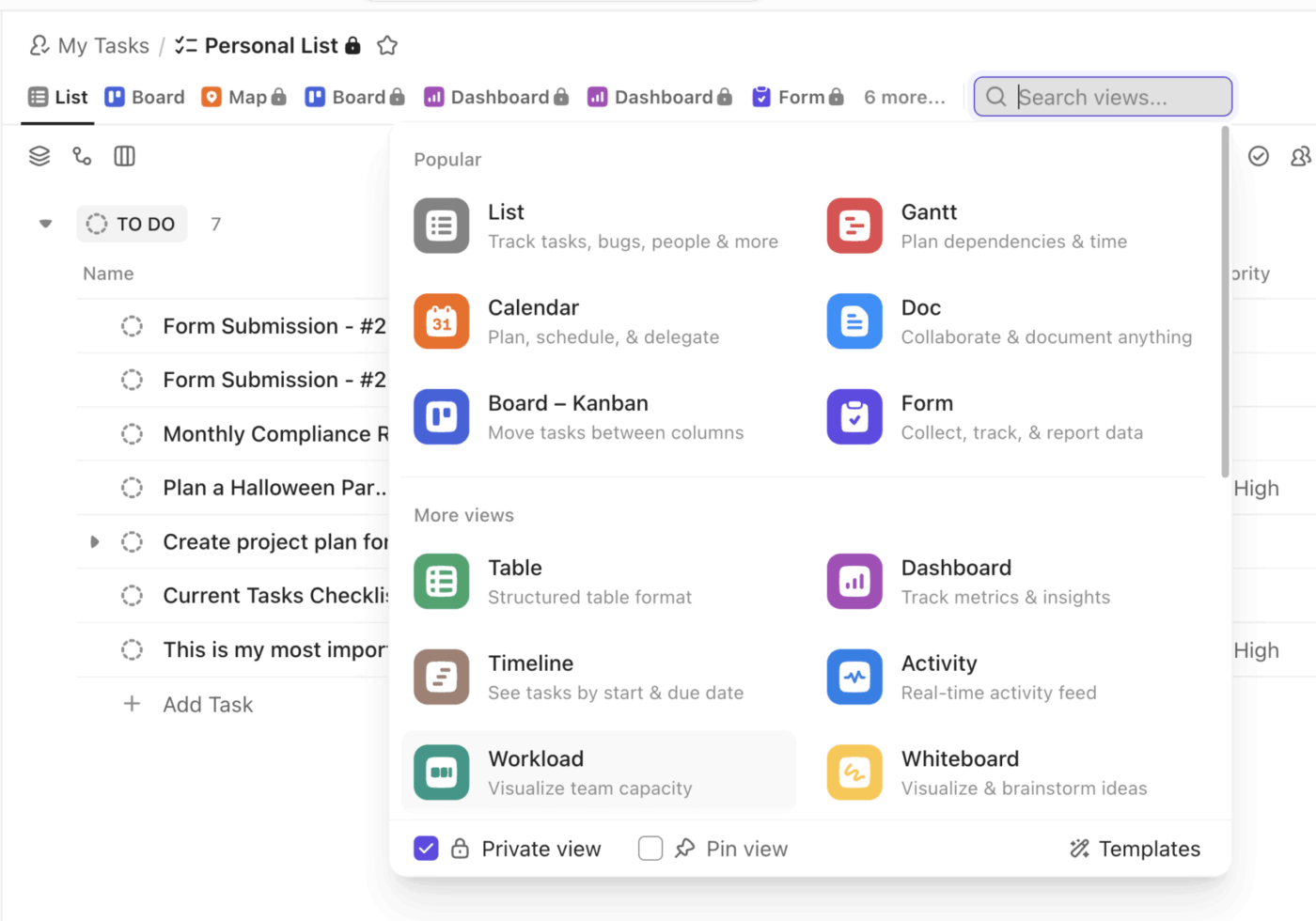
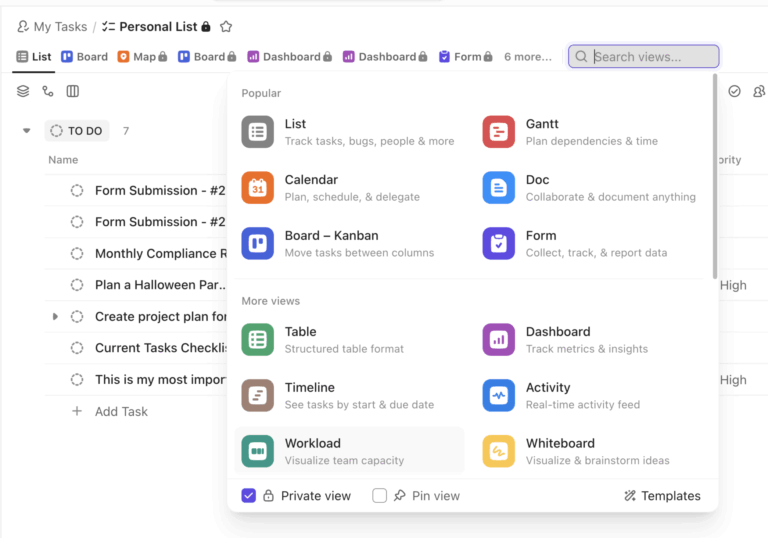
ClickUp takes the top spot because it renders the most visual views on a single set of tasks. The same tasks appear as a Kanban Board, Gantt chart, Timeline, Calendar, List, Whiteboard, and Dashboard, with no re-entry.
It fits teams that have outgrown a single-view tool. A marketing team can run a campaign on a Board, a project manager can track dependencies on a Gantt, and a team lead can watch all of it roll up on a Dashboard, all from the same underlying tasks. Board View supports drag-and-drop status changes, custom statuses, and WIP limits, while color-coded Custom Fields keep every view scannable.
The Free Forever plan includes Kanban boards, Calendar View, and sprint management, so small teams get genuine visual planning at no cost.
ClickUp Brain adds the AI layer from the free tier. It summarizes task threads, drafts project updates, and autofills properties like assignee and priority. Super Agents go further, acting autonomously inside the workspace on tasks you assign or @mention them on.
For teams running campaigns, launches, sprints, or client delivery, the advantage is not just that ClickUp has more views. The advantage is that each team can work in its preferred view without breaking alignment or duplicating work.
A G2 user appreciated that ClickUp provides control over their workflow:
Honestly, what I love most about ClickUp is how it just gets out of my way and lets me run my life the way I want to. Like, I can have my whole week laid out in a list view, then flip to a calendar and suddenly everything makes visual sense same tasks, totally different perspective. That flexibility is kind of addictive. And the customization! I’ve set up my personal space exactly how my brain works priorities, due dates, little color tags, and now opening it in the morning feels less like a chore and more like having a game plan. It actually makes me want to stay on top of things, which honestly says a lot.
Where it taps out: The breadth that makes ClickUp powerful also means more setup than a single-view tool, and new teams report a learning curve while configuring their first Spaces. If your team only ever needs one simple board and doesn’t plan to grow just yet, that depth is more than the job requires.
Best for: Teams that need several visual views on the same tasks, plus built-in AI.
Skip it if: You want one minimal board and nothing more.
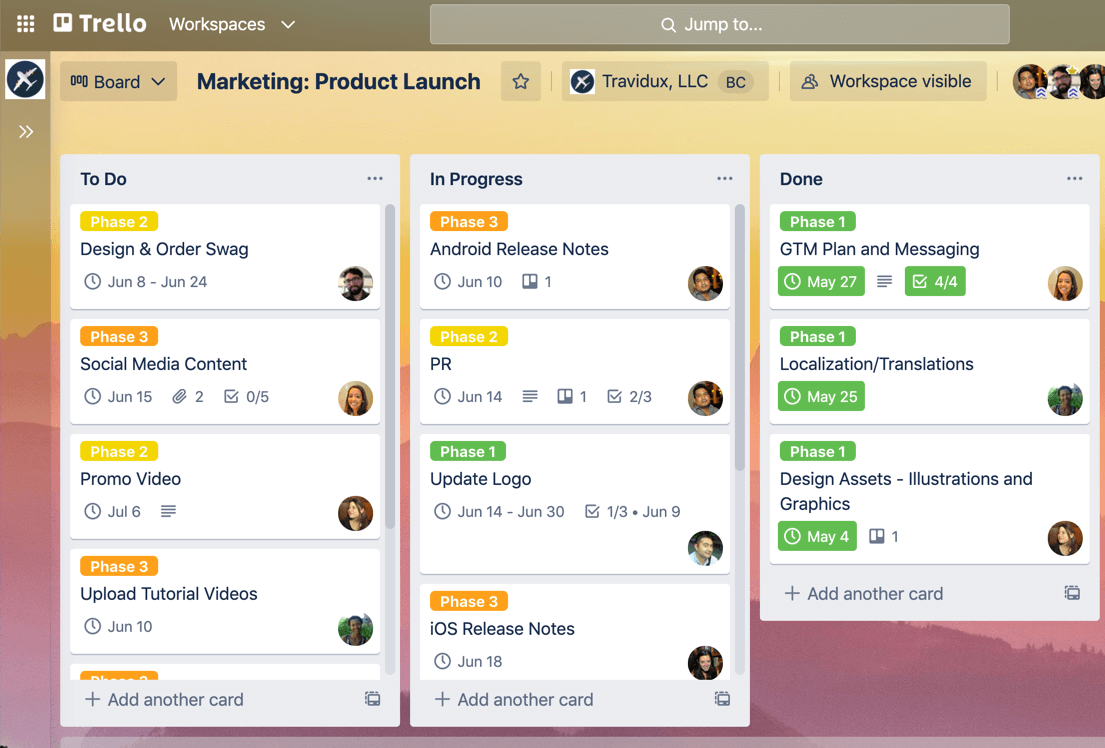
Trello is the most approachable visual task manager. Its board-list-card model is the clearest entry point to visual work for an individual or small team, with no training required. This Atlassian product treats every project as a digital whiteboard where cards move across columns as work progresses, giving an instant status snapshot.
It fits freelancers and small teams who want visual clarity in minutes. A freelance designer can run client work as columns for Briefed, In Progress, In Review, and Delivered, dragging each card forward as it moves. Cards hold checklists, labels, due dates, and attachments.
The board is the native view. Calendar, Timeline, and Dashboard arrive through Power-Ups or higher tiers.
Butler, Trello’s built-in automation, applies no-code rules and scheduled commands. Atlassian Intelligence, Trello’s AI layer, drafts and summarizes card content, but it sits on Premium and Enterprise plans.
A G2 user valued how Trello scales from simple to complex without losing its clean, scannable layout:
I use the free version of Trello for both personal task management and game tracking. I like how clean the UI is, allowing it to be as simple or complex as I want. The drag-and-drop mechanic is extremely useful for moving tasks between statuses, and the details of a task being under the title keep the screen visually clear and easy to scan. The initial setup was very easy, thanks to the clean UI and easy-to-follow instructions. I still have a lot to explore with Trello as I work on using its built-in integrations with the other apps I use.
Where it taps out: Trello stays board-first, so timelines, calendars, and dashboards require Power-Ups or an upgrade. Plus, Butler automation is scoped to single-board actions. It also lacks native dependencies. The moment a project needs cross-board reporting or dependency tracking, you’ll feel the ceiling. For those, see our Trello alternatives guide.
Best for: Individuals and small teams who want the simplest possible board.
Skip it if: You need multiple views, dependencies, or cross-board automation.
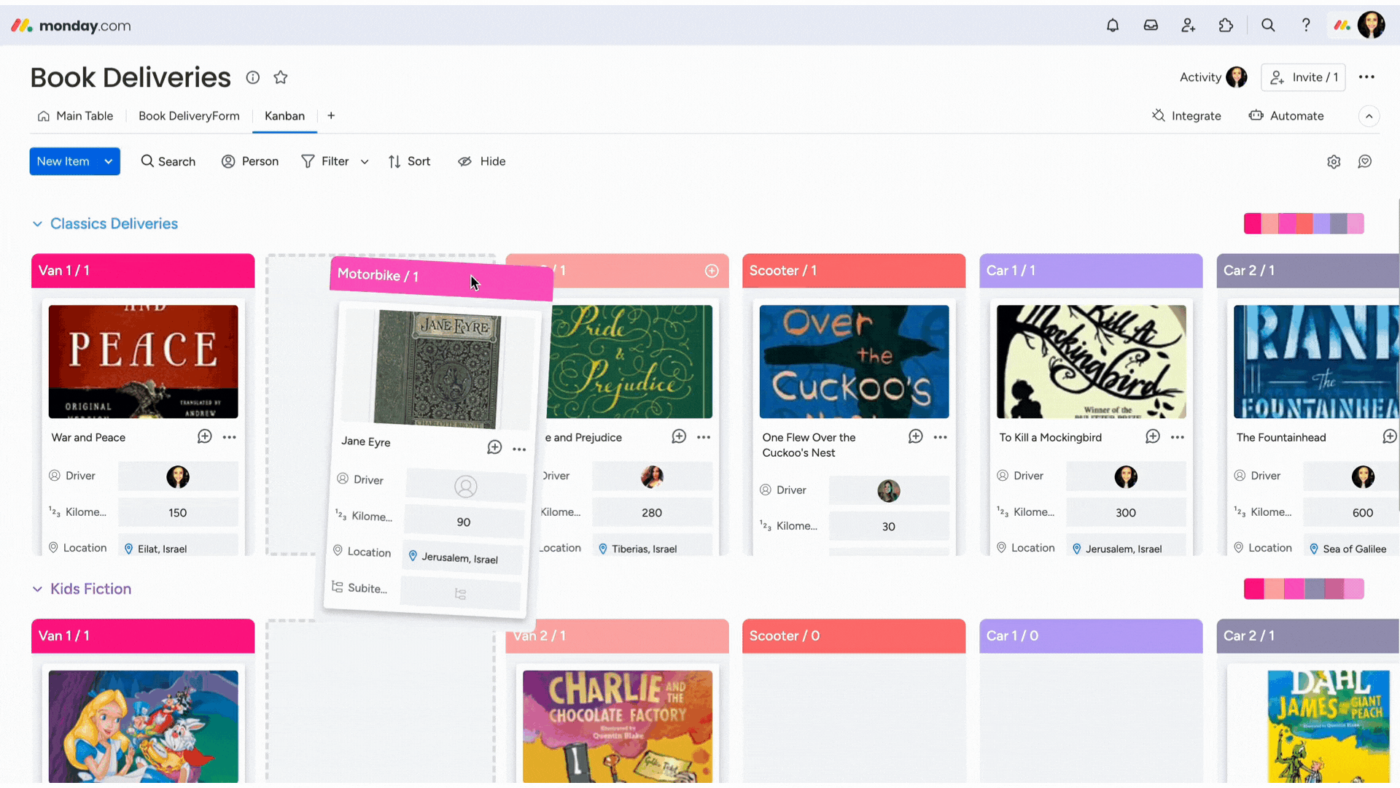
monday.com wins on visual clarity. Statuses, priorities, groups, timelines, and owners are easy to scan on a board, which makes it friendlier for non-technical teams. Glance at a campaign board, and you can usually tell what is blocked, late, owned, or moving.
The customization comes from the Column Center. It includes columns such as Status, People, Timeline, Formula, Dependencies, Dropdown, Tags, Progress Tracking, etc. That gives teams enough structure to shape a board around a real process.
Dashboards are the stronger layer. They pull data from connected boards and display it through over 30 widgets. The Standard plan supports dashboards across 5 boards, the Pro plan across 20, and the Enterprise plan across 50.
monday’s AI layer is also improving. Workload View shows who is over capacity, and monday AI agents can act inside boards and workflows, though agents are still in gradual release.
A G2 user highlighted how monday’s customizable boards and status colors keep a whole pipeline visible at a glance:
What I like best about monday Work Management is how easy it is to manage and track leads throughout the sales process. We use it as a central place to capture enquiries, assign leads to team members, track follow-ups, and monitor pipeline progress. The customisable boards and status updates give us clear visibility into where every lead sits, helping ensure opportunities don’t get missed. It has improved organisation, accountability, and response times while giving management a real-time view of the sales pipeline.
Where it taps out: The 3-seat minimum makes solo users and pairs pay for capacity they won’t touch. The column and dashboard depth also takes real setup time before a board earns its keep. For a team that just wants one quick board today, it’s heavier than the job needs.
Best for: Teams that want colorful, customizable boards with reporting and AI.
Skip it if: You want a minimal, low-setup board, or you’re a team of one or two.
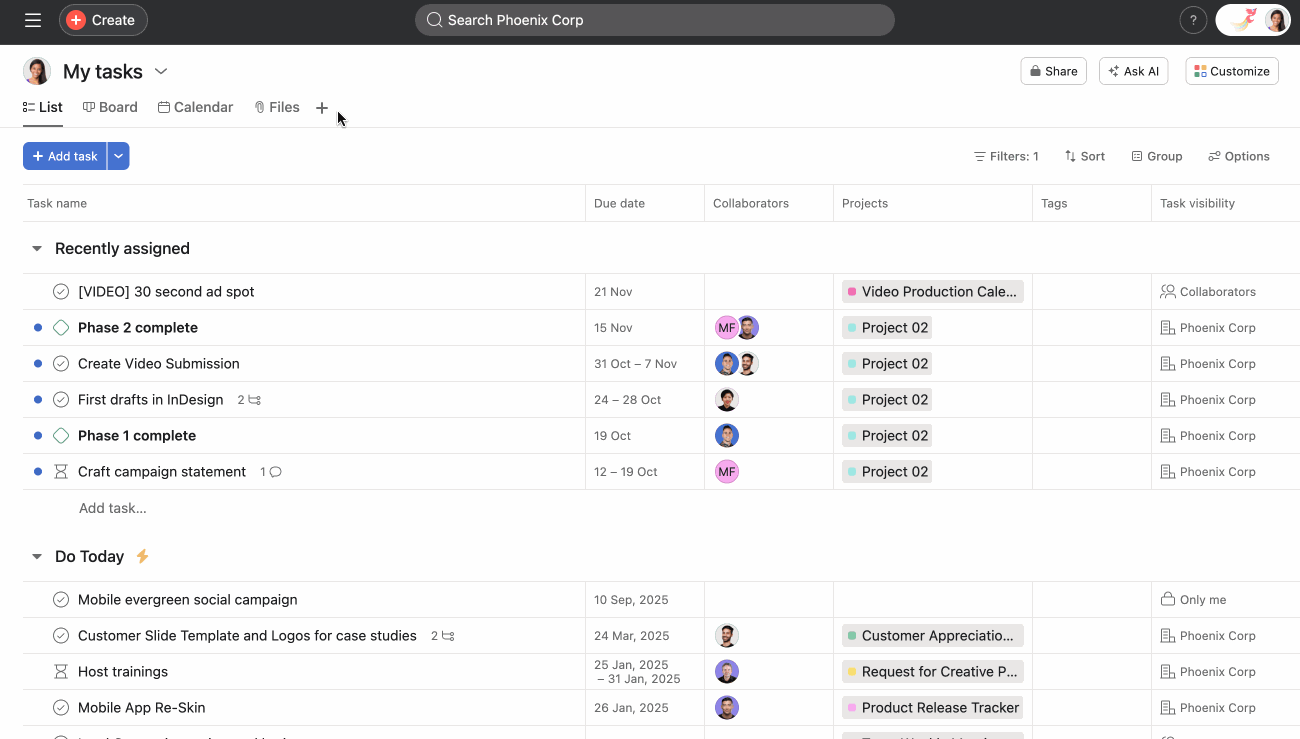
Asana is the strongest pick when due dates and sequence drive the work. Like Trello is board-first, Asana is structure-first. It treats a project as a set of tasks with owners, due dates, dependencies, a hierarchy, and multiple views underneath.
Timeline is the real draw. It works like a Gantt-style planning layer, with task bars, date ranges, and dependency lines. Teams can draw dependencies by hovering over a task, using the connector, and dragging it to the dependent task. Asana now supports four dependency types: finish-to-start, start-to-start, finish-to-finish, and start-to-finish.
The same tasks are also rendered as Board, List, and Calendar. Critical path is available on paid plans and highlights the tasks that directly affect the project deadline.
AI Studio Basic is included on paid plans, with credits based on tier. It is a no-code builder for Smart workflows, useful for intake, routing, classification, and risk checks.
A G2 user explained how Asana’s multiple views keep work organized and teams aligned, even for larger projects:
What I like best about Asana is how it makes it easy to organize and track work in a clear, visual way that keeps teams aligned without needing constant check-ins. Its UI is intuitive, with multiple views like lists and boards; integrations with tools like Slack and Google Workspace are smooth; and performance is generally fast and reliable, even with larger projects. It offers strong ROI for teams managing complex workflows since it reduces missed tasks and improves accountability.
Where it taps out: Per-user pricing climbs fast as a team grows, and the most useful planning features sit behind paid tiers. The structure-first approach also requires more onboarding than a plain board does. A team that just wants a quick visual board can try Trello.
Best for: Teams whose work runs on timelines and dependencies.
Skip it if: You want board-only simplicity or free advanced planning.
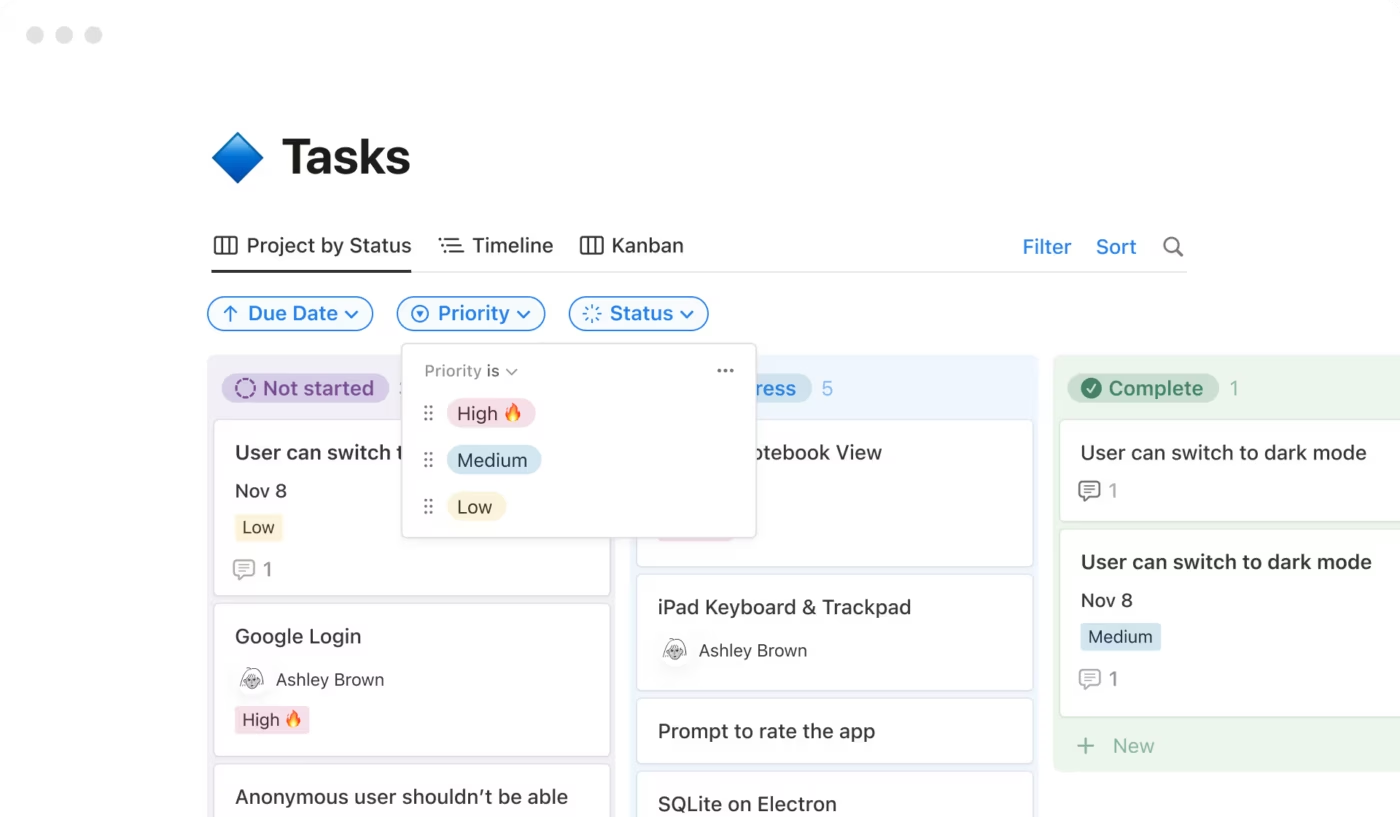
Notion is the pick when visual tasks need to live beside notes, briefs, wikis, and project docs. It is less a pure task manager than a flexible workspace where one database can power several layouts. The same entries can appear as a Table, Board, Calendar, Timeline, List, Gallery, or, on Business and Enterprise, a Dashboard.
That single-database model is the draw. Build a tasks database once, then filter and group it by status, owner, deadline, campaign, or priority. A content team can keep briefs, drafts, due dates, and approvals in one system.
Notion’s newer Dashboard view adds a stronger reporting layer. It combines charts, boards, tables, calendars, timelines, KPIs, and key properties into one control panel.
Notion AI is also useful because it sits close to the docs. It can draft, summarize, autofill database properties, and search workspace content, plus connected apps like Slack and Google Drive on Business and Enterprise plans.
A G2 user valued how Notion’s databases bend to fit the way they work:
What I like most about Notion is how flexible it is without ever feeling overly technical. I use it for notes, task lists, project planning, and keeping all my documents in one place. The databases and templates are especially helpful because they let me set things up in a way that genuinely fits how I work, rather than forcing everything into a rigid, fixed structure.
Where it taps out: It has a learning curve, and its task-specific features, like automation and dependency handling, are lighter than a dedicated PM tool’s. It taps out when task management, not documentation, is the main job.
Best for: Teams that want task boards beside docs, briefs, and wikis.
Skip it if: You need deep automation, dependencies, or reporting on lower-tier plans.
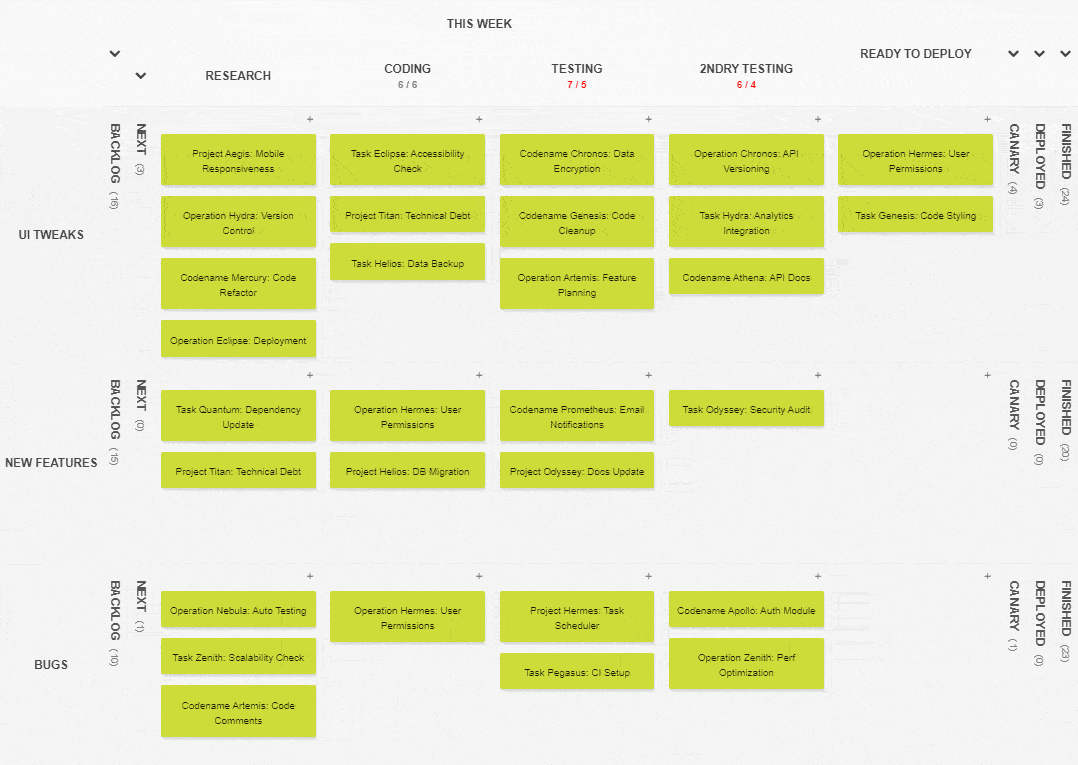
Kanban Tool is built for teams that want just a focused board, without the burden of a broad platform. It is purpose-built around the Kanban method, so the board is the product rather than one view among many. That narrow focus is the whole point.
The board itself is deep where it counts. Horizontal swimlanes split work by project or team, and WIP limits can cap either card count or total estimated hours per lane. Analytics come standard on every plan, with a cumulative flow diagram plus lead and cycle time charts to surface bottlenecks.
Time tracking is the signature feature: drag a card into a working column, and the timer starts on its own, no buttons. One catch worth knowing upfront is that time tracking and reporting live on the Enterprise tier, not the Team plan.
Kanban Tool also runs self-hosted through Kanban Tool On-Site, which suits teams with strict data-control rules. And as for built-in AI, there’s none as of now.
A G2 user admired the ease of use and customization:
When I add new employees to a board, they can immediately figure out how to work the basics. Being able to send tasks to the board directly from my email has been a lifesaver for me because it can be so hard to find the email you need. I use the filters daily, checking to see what’s overdue, due that day, or due that week. It helps me plan my schedule.
Where it taps out: It stays board-centric, so there’s no timeline, calendar, or dashboard breadth, and no AI assistance. The headline time-tracking feature also sits behind the Enterprise tier. When you need multiple view types or AI, you’ve outgrown it.
Best for: Small teams with a single board needing flow analytics, cycle time, and bottleneck detection without large platform overhead.
Skip it if: You need timelines, calendars, or dashboards beyond the board, or you want AI built in.
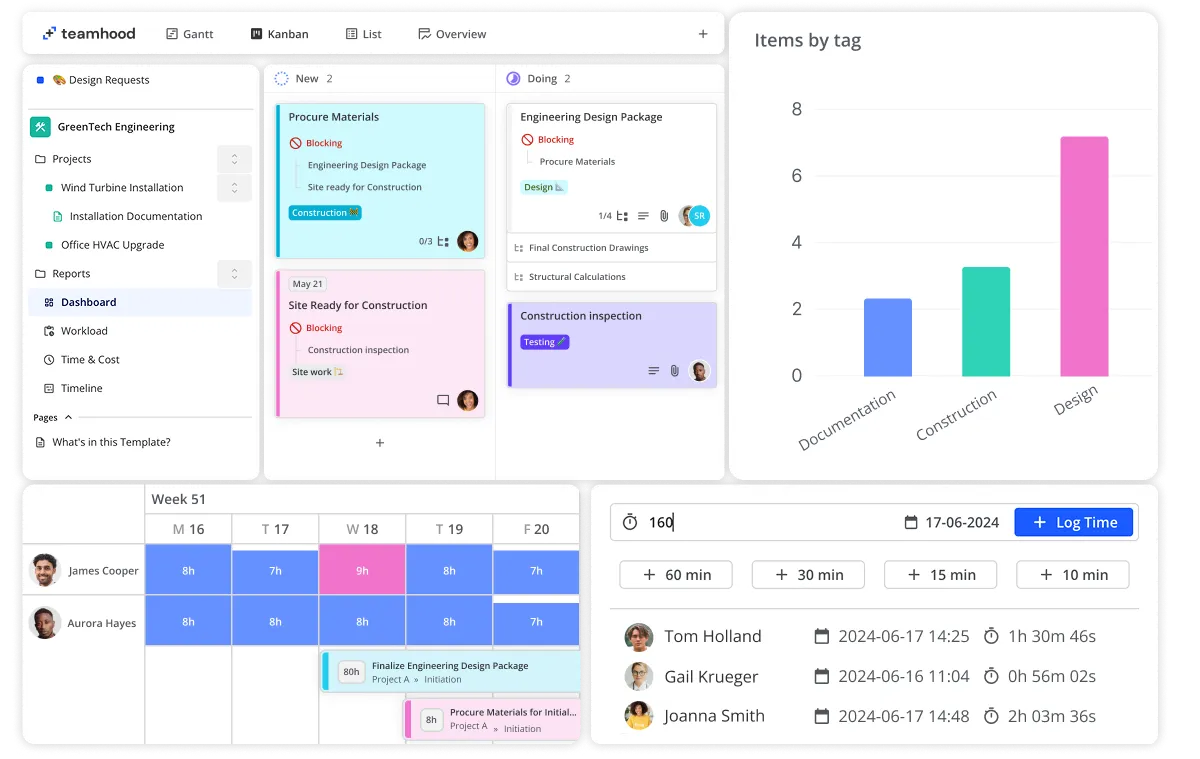
Teamhood earns its place with an unusually deep visual layer for a tool of its size. The Kanban board carries swimlane rows, WIP limits, sub-statuses, and color layers, so even a busy board stays readable at a glance. The same tasks flip to a Gantt with dependencies, milestones, critical path, and a baseline that tracks your plan against actual progress.
It suits visual teams who want both daily flow and a clear delivery schedule on the same work. A separate Timeline view stacks every board into one schedule and lets you draw dependencies across them, useful when several projects share people.
Workload views color how busy each person is to ensure overload shows up visually. Teamhood AI is included on every plan, including the free tier. However, it remains a light assistant rather than a deep automation engine.
(Pricing converted from Euro to USD)
A G2 user found Teamhood’s Gantt planning more intuitive than other tools, down to dragging tasks and linking dependencies:
Teamhood is so simple to use. I use it for basic Gantt project planning, and I can’t fault it. The ability to drag tasks around, link/unlink dependencies, and add team members to the tasks. It just works. A lot more intuitive than other project-based tools, and the entry-level free plan is good enough to get you started if you are just a casual planner. I would highly recommend.
Where it taps out: It’s a small player, so its integration library and template gallery are thinner than those of major platforms. Additionally, the AI add-on is lighter than the heavyweights. When you lean on a big app marketplace or want AI doing real work, you’ll outpace it.
Best for: Visual teams who want a deep, polished Kanban board paired with full Gantt planning on the same tasks.
Skip it if: You need a broad integration ecosystem or AI that does the heavy lifting for you.
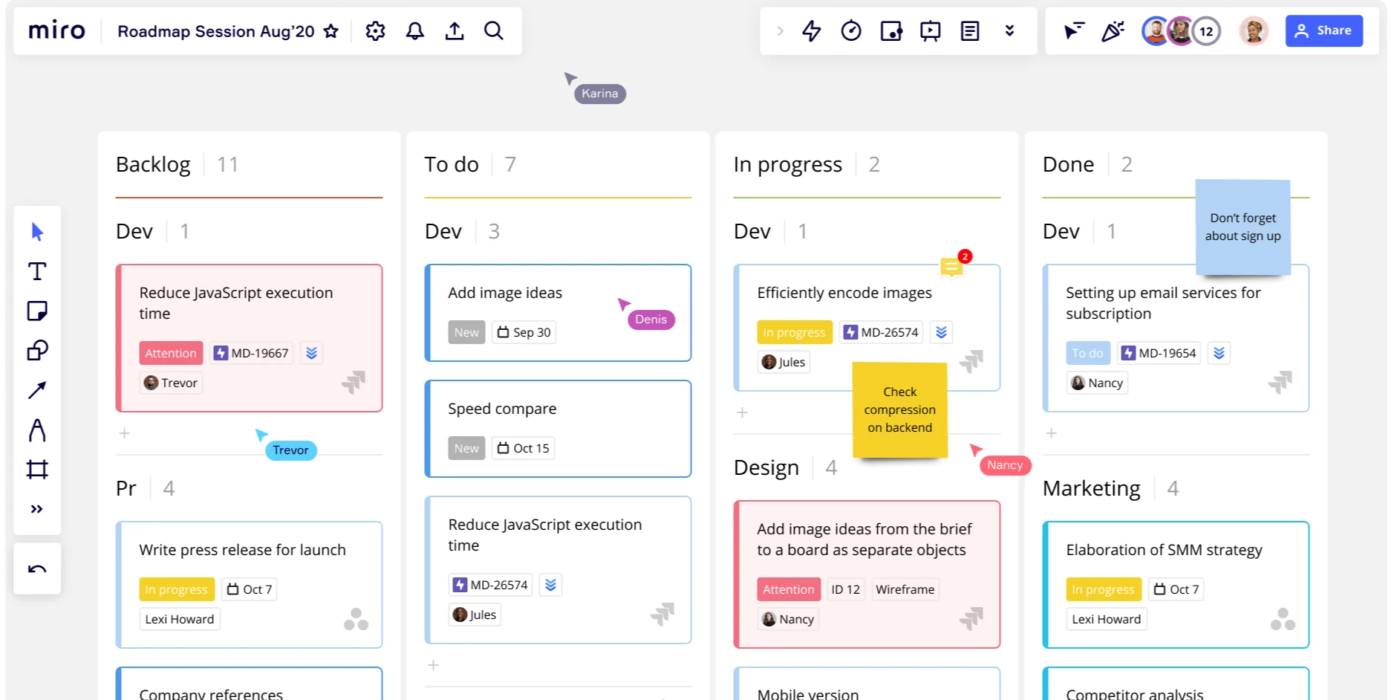
Miro is whiteboard-first, and it carries that brainstorm straight into execution without forcing a tool change.
The link between thinking and doing is the real strength. You sketch and drop sticky notes on an infinite canvas, then turn those same notes into task cards inside Miro’s Kanban view. Because each card stays connected to the sticky, sketch, or doc that spawned it, the team keeps the “why” behind every task.
The same cards switch between Kanban, Timeline, and Table layouts, so a rough plan gains columns, dates, or structure as it firms up. For teams that track work elsewhere, cards sync with Jira and Asana.
Miro AI adds support on the canvas, generating diagrams from a prompt and summarizing crowded boards.
A G2 user liked how Miro’s infinite canvas mimics a physical whiteboard without the limits:
I like Miro’s infinite canvas and real-time collaboration features—they make brainstorming and task visualization feel effortless and fun. I appreciate how they mimic a physical whiteboard but without limits, making complex ideas easier to explore and share instantly. The initial setup is straightforward and quick, often taking under 30 minutes to get started with boards and invites. These aspects make Miro a solid choice, and I’d rate it a 9/10 for recommendation due to its visual power and collaborative capabilities.
Where it taps out: Miro is built for the canvas, so it’s lighter on structured task fields, dependencies, and reporting than a dedicated task manager. When tracking execution matters more than planning, you’ve reached its edge.
Best for: Design, product, and workshop teams that plan and brainstorm visually, then carry that work into early task cards.
Skip it if: You need structured task management with fields, dependencies, and detailed reporting.
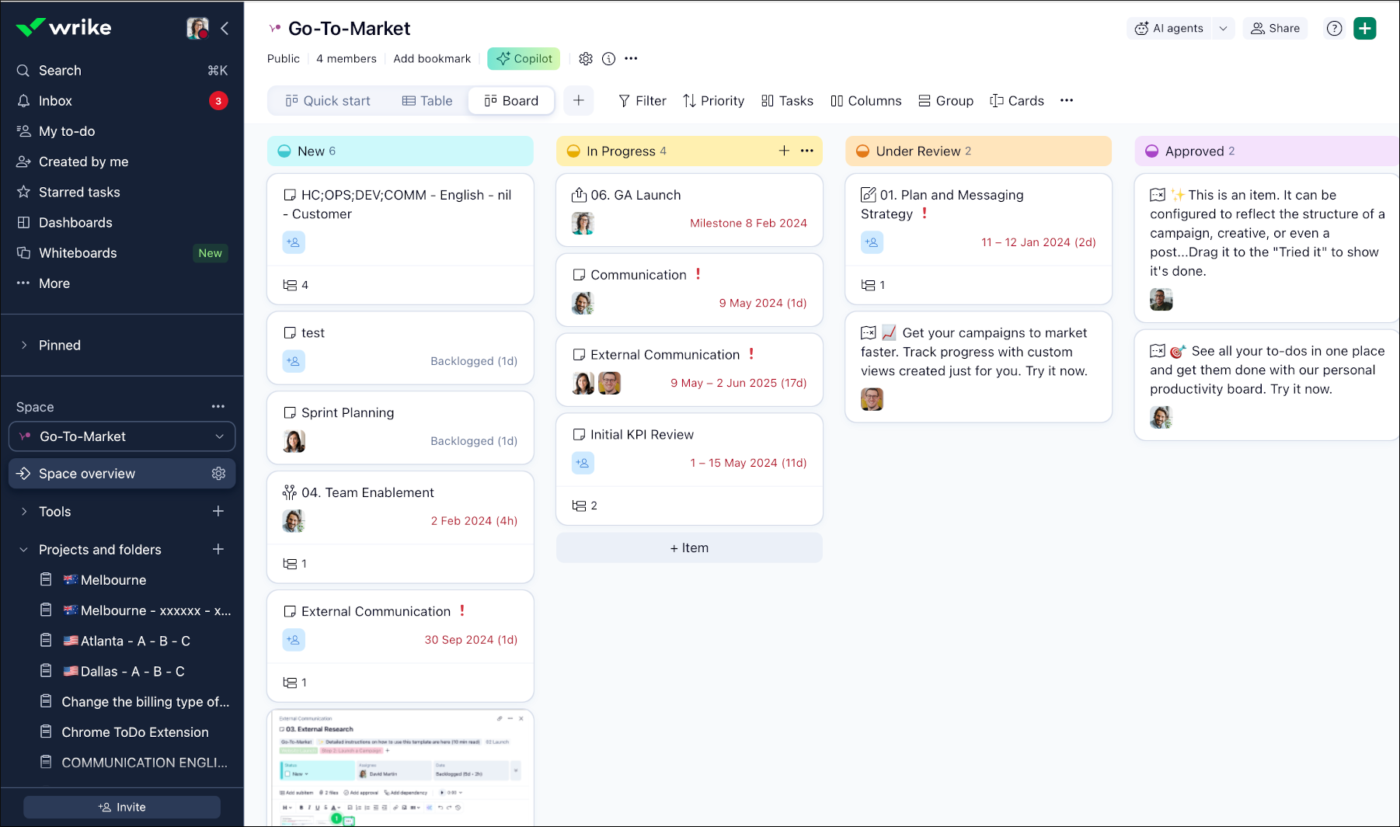
Wrike fits teams whose visual task management has to feed serious reporting and resource planning. It pairs the standard visual views with analytics built for larger, process-heavy teams. It’s aimed at agencies and mid-to-large operations that need oversight as much as a board.
The depth of reporting is what sets it apart. The same work appears in Board, Table, Gantt, and Calendar views. Above the Business tier, Workload and Resources views map capacity across the team and flag who’s overbooked before a project slips.
Custom request forms route intake, and built-in proofing handles creative review. Wrike Copilot further answers questions and summarizes work within a project, while Wrike’s AI Agents monitor projects and handle repetitive tasks.
A G2 user pointed to the visibility Wrike gives across projects, tasks, and team workload:
What I like most about Wrike is the visibility it gives me across projects, tasks, and my team’s workload—all in one place. The dashboards, reports, and task updates help me stay organized, follow progress more quickly, and keep team coordination running smoothly.
Where it taps out: Wrike’s breadth can feel heavy for a small team. The best resource features sit behind the Business tier, and the jump from Team to Business roughly doubles the per-seat cost. When you just want a quick, simple board, it’s more machine than you need.
Best for: Mid-to-large teams and agencies that need visual views plus deep reporting and resource management.
Skip it if: You want a lightweight, low-setup board.
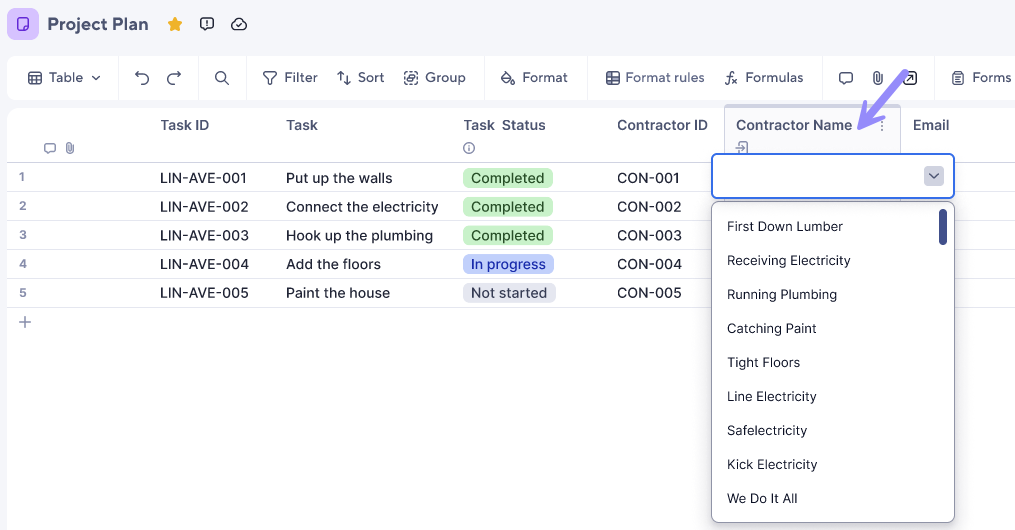
Smartsheet earns its spot for teams that think in spreadsheets but need visual views on top. It starts with a familiar grid, then layers Gantt, card, and calendar views on top of the same rows.
Formulas, cross-sheet references, and a dedicated formula editor give it real structure underneath, which suits large, dependency-heavy projects. The same rows then render as a Board view for agile flow, a Gantt for timelines, or a Calendar for deadlines.
For client and vendor work, the Dynamic View add-on shares a filtered slice of a sheet without exposing the source, letting you control which rows and fields each person can see or edit. Plus, Smartsheet AI generates formulas, drafts and summarizes text in cells, and builds charts.
A G2 user valued how Smartsheet handles formulas and pulls data across sheets without a VLOOKUP, even at a large scale:
I like all of Smartsheet’s capabilities and how it’s easy to do formulas and have information shared across sheets. I also really like that you can make a dropdown for rows/columns but easily override that if needed. I like that it has a very large capacity and does not get slow with more information being on it. We use the feature that allows us to pull information from one sheet to the other without needing a VLOOKUP, which makes for fewer errors and less work.
Where it taps out: The spreadsheet base feels less fluid than a native board for pure Kanban work, and there’s no free plan to test it long-term. When you want a visual-first experience over a grid-first one, it’s working against its own grain.
Best for: Spreadsheet-comfortable operations, finance, and PMO teams that need visual views plus secure, controlled sharing on structured data.
Skip it if: You want a board-first, low-structure tool without an Enterprise plan.
Most visual task management lists rank tools as if they’re interchangeable. They aren’t. That’s because visual task management isn’t a single thing. The right choice follows from one question: which view does your team actually work in most of the day? Map the tool to that view first, then confirm it clears your other requirements (automation, integrations, pricing tier).
There are really only four shapes work takes, and the tools sort cleanly into them:
Lists and tables sit alongside these for structured, field-heavy work, where formulas and sorting matter more than cards: Smartsheet, ClickUp, and Notion live in that lane.
And two tools are hybrids worth calling out: Notion when tasks need to sit beside docs and wikis, and Miro when work starts as a brainstorm on a canvas.
The common mistake is choosing a tool locked to a single view, only to outgrow it as the work changes shape. If your work spans more than one of these, a multi-view platform that renders them all on the same tasks (ClickUp, monday.com, Wrike) would fit you better.
Industry is a rough proxy, not a rule.
However, a finance team that lives in boards may still prefer monday.com over Smartsheet, so let your dominant view trump your vertical.
For a side-by-side look at how the top boards compare, watch the quick walkthrough video below:
Also Read: Gantt Chart vs. Kanban Board
Visual task management works best when the tool matches the shape of the work. Two rules hold no matter which tool you’re leaning toward.
First, test it with a real project on the free tier, because a polished demo board tells you nothing about your actual workflow. Second, confirm the views and AI you want aren’t locked behind a higher plan, because the calendar or Gantt that sold you may sit two tiers up.
If your team only works in one view and values simplicity, a single-view tool (Trello, Kanban Tool) will serve you well. If your work spans boards, timelines, and dashboards on the same tasks, a multi-view platform (ClickUp, monday.com, Wrike) is worth testing on a real project before you commit to a narrower tool.
Get started with ClickUp for free.
Visual task management focuses on making work visible through boards, timelines, calendars, and dashboards. Project management software goes further by adding dependencies, resource planning, reporting, and portfolio oversight across many related tasks. Tools like ClickUp, Asana, and Wrike do both, which is why they often appear in both categories
Teams implement visual task management by mapping their workflow into clear stages, assigning each task an owner and due date, and choosing the visual view that matches how work moves. Most teams start with a Kanban board, then add a timeline, calendar, or dashboard once dependencies, deadlines, or reporting become harder to manage in one board alone.
A marketing team running its content calendar as a Kanban board is a common example: each article is a card that moves through Draft → Editing → Scheduled → Published, with color labels for channel and an owner on every card. Anyone can see what’s stuck in editing without asking. Other everyday examples include a sprint board for engineering, a Gantt timeline for a product launch, and a calendar view for a campaign schedule.
A Kanban board shows work as cards move through stages such as To Do, In Progress, and Done, and is designed for continuous workflow. A Gantt chart shows tasks as horizontal bars across a timeline with dependency lines and dates, and is built for sequencing and deadlines. Use Kanban when flow matters most; use Gantt when order and due dates drive the project. Tools like ClickUp and Smartsheet offer both on the same tasks.
A to-do list shows tasks as text in a single sequence. Visual task management shows the same work as cards, bars, or events you move across boards, timelines, calendars, and dashboards, so status and what’s next are clear at a glance. This reduces the missed deadlines and miscommunication common when work lives in inboxes or spreadsheets, and it scales better as projects gain dependencies and owners. A visual task board is better than a to-do list when several people need to track the same work because it shows status, blockers, and task movement in real time. A to-do list records work; a board makes workflow visible.
Yes, free visual task management software is often enough for a small team if the workflow is simple and the team only needs a board or basic calendar. The tradeoff is that advanced automations, timelines, dashboards, and AI usually sit behind paid plans. ClickUp, Trello, Asana, and Notion all offer free entry points, but feature gating varies by product.
You can, but they’re grid-first, not visual-first. A spreadsheet handles status columns and conditional-format color coding, yet it can’t natively drag cards across a Kanban board or draw dependency lines on a Gantt. Smartsheet is the bridge for spreadsheet-minded teams: it starts as a grid, the

Sudarshan Somanathan
Max 22min read
Sudarshan Somanathan
Max 23min read

Praburam Srinivasan
Max 22min read

© 2026 ClickUp




