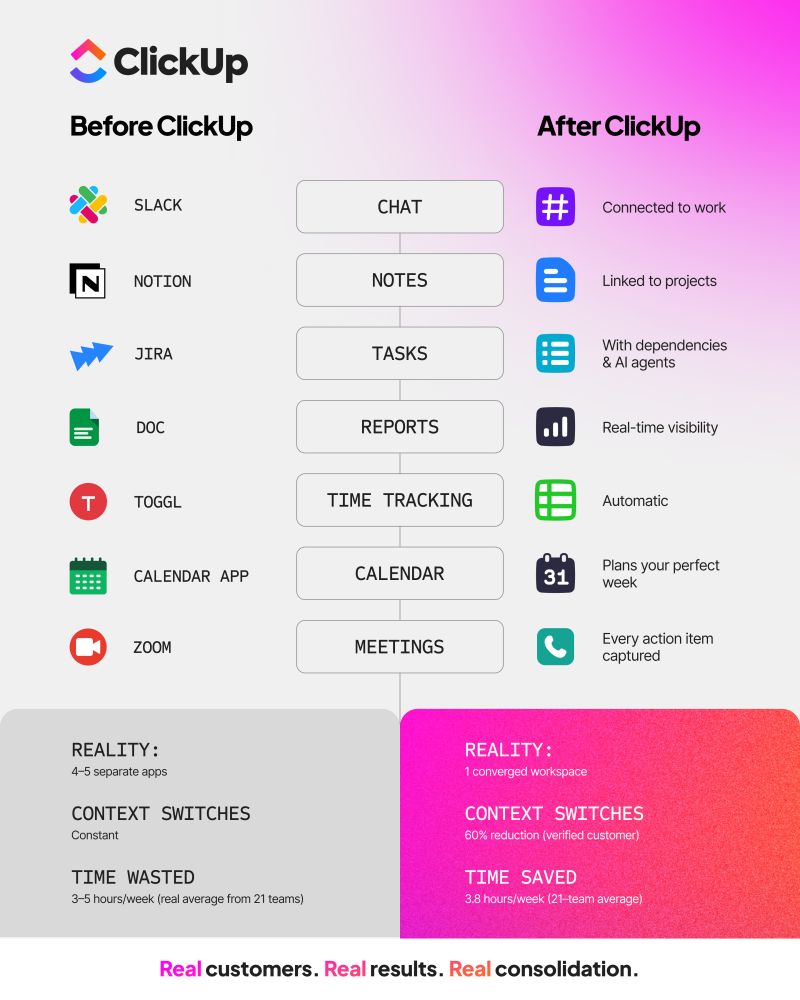
And for larger enterprises? That number soars to an average of 660.
While these tools were meant to solve problems, they’ve created a “fragmentation tax”—where teams spend more time switching tabs than finishing tasks. The biggest hurdle to cleaning up this mess? The fear of losing the historical data and context trapped inside those aging apps.
This guide walks you through how to move your operations into a single, unified workspace without losing a single line of data.
🧠 Fun Fact: A “silo” was originally a literal pit or structure for storing grain. It only later became the perfect metaphor for teams and data cut off from the rest of the business.
Summarize this article with AI
ClickUp Brain not only saves you precious time by instantly summarizing articles, it also leverages AI to connect your tasks, docs, people, and more, streamlining your workflow like never before.
Summarize this article for me please
Why Multi-Tool Migrations Risk Data Loss
Tool consolidation only works if every task, comment, attachment, and custom field makes it across. Miss one, and you’ve lost data and immediate work context.
The problem: each tool stores data in its own way, and none of them talk to each other natively. That’s context sprawl. Your work is scattered across so many systems that no single one holds the full picture. Your team ends up switching apps, hunting for files, and re-entering the same update in three places just to check a project’s status.
That same disconnect is what causes data to vanish during a migration. Here’s what you’re up against:
Incompatible data models mean dropped fields: A “project” in one tool doesn’t exist in another. Custom fields, hierarchies, and metadata don’t survive the move
Attachments and comments don’t travel together: Files live in drives, comments inside docs, and conversations stuck in chat. They rarely migrate as a package
Duplicate records create conflicting versions: The same task lives in multiple systems with different statuses, owners, or due dates. You won’t know which one is right
Automations break without warning: Workflows connecting two tools silently fail the moment one of them disappears
No source of truth means no accountability: When data lives everywhere, no one knows what’s current, and nothing can be trusted
The rest of this guide shows you how to neutralize each of these risks before your data ever leaves the source system.
📮 ClickUp Insight: 1 in 4 employees uses four or more tools just to build context at work. A key detail might be buried in an email, expanded in a Slack thread, and documented in a separate tool, forcing teams to waste time hunting for information instead of getting work done.
ClickUp converges your entire workflow into one unified platform.
With features like ClickUp Email Project Management, ClickUp Chat, ClickUp Docs, and ClickUp Brain, everything stays connected, synced, and instantly accessible. Say goodbye to “work about work” and reclaim your productive time.
Replace 20+ tools with one powerful workspace inside ClickUp
💫 Real Results: Teams are able to reclaim 5+ hours every week using ClickUp—that’s over 250 hours annually per person—by eliminating outdated knowledge management processes. Imagine what your team could create with an extra week of productivity every quarter!
Summarize this article with AI
ClickUp Brain not only saves you precious time by instantly summarizing articles, it also leverages AI to connect your tasks, docs, people, and more, streamlining your workflow like never before.
Summarize this article for me please
Audit Your Current Tools and Data Before Migration
You need a complete inventory of every tool, data type, and workflow your team touches before you export a single file. Skipping this step is how teams discover mid-migration that an entire quarter of client notes lived in a tool nobody remembered to include.
Here’s how to run the audit:
List every tool in active use, including official apps and shadow IT such as personal boards and one-off spreadsheets. Ask each team directly rather than relying on IT’s license list. People build workarounds that never get documented
Catalog what data each tool holds: Tasks, projects, documents, comments, attachments, time logs, custom fields, automations, and integrations. If it lives in the tool, it belongs on the list
Identify the source of truth for each data type: If two tools track project status, decide now which one wins. Ambiguity here creates duplicate records later
Classify each tool as keep, consolidate, or sunset: Not everything needs to migrate. Some data is simply obsolete, and moving it carries the mess forward
Assign an owner to each tool: You need a point person per tool who can verify the data is complete after migration. Without ownership, gaps go unnoticed
This audit also reveals tool sprawl—the accumulation of overlapping apps that fragment context and slow teams down. You can’t consolidate what you haven’t cataloged. 🛠️
💡 Pro Tip: Before migrating, run a “last active” report in each tool. Most platforms show when a record was last edited. Anything untouched for 6-plus months is a candidate for archiving, not migrating. It cuts migration scope and reduces the noise your team inherits in the new system.
Summarize this article with AI
ClickUp Brain not only saves you precious time by instantly summarizing articles, it also leverages AI to connect your tasks, docs, people, and more, streamlining your workflow like never before.
Summarize this article for me please
Map Data Models and Workflows Across Platforms
Every tool has its own vocabulary.
What one app calls a “Section” might be a “Group” in another and a “List” in a third. Field mapping is the process of pairing each property in your source tools with its equivalent in the destination.
Data model mapping
Field-to-field mapping: Pair every custom field, status, tag, and property with its equivalent in the destination platform using a spreadsheet
Hierarchy mapping: Document how projects, tasks, and subtasks translate across systems (nesting depth varies by tool)
Relationship and dependency mapping: Linked tasks, blockers, and parent-child connections need explicit handling, or they’ll break silently
Workflow and automation mapping
List every active automation: Triggers, conditions, and actions per tool
Decide which workflow automations to rebuild vs. retire: Some workflows exist only because of tool limitations and won’t be needed after consolidation
💟 ClickUp Advantage: Want to rebuild your workflows systematically? Use ClickUp Automations. It gives you a single dashboard to view all active and inactive automations across your workspace, by location.
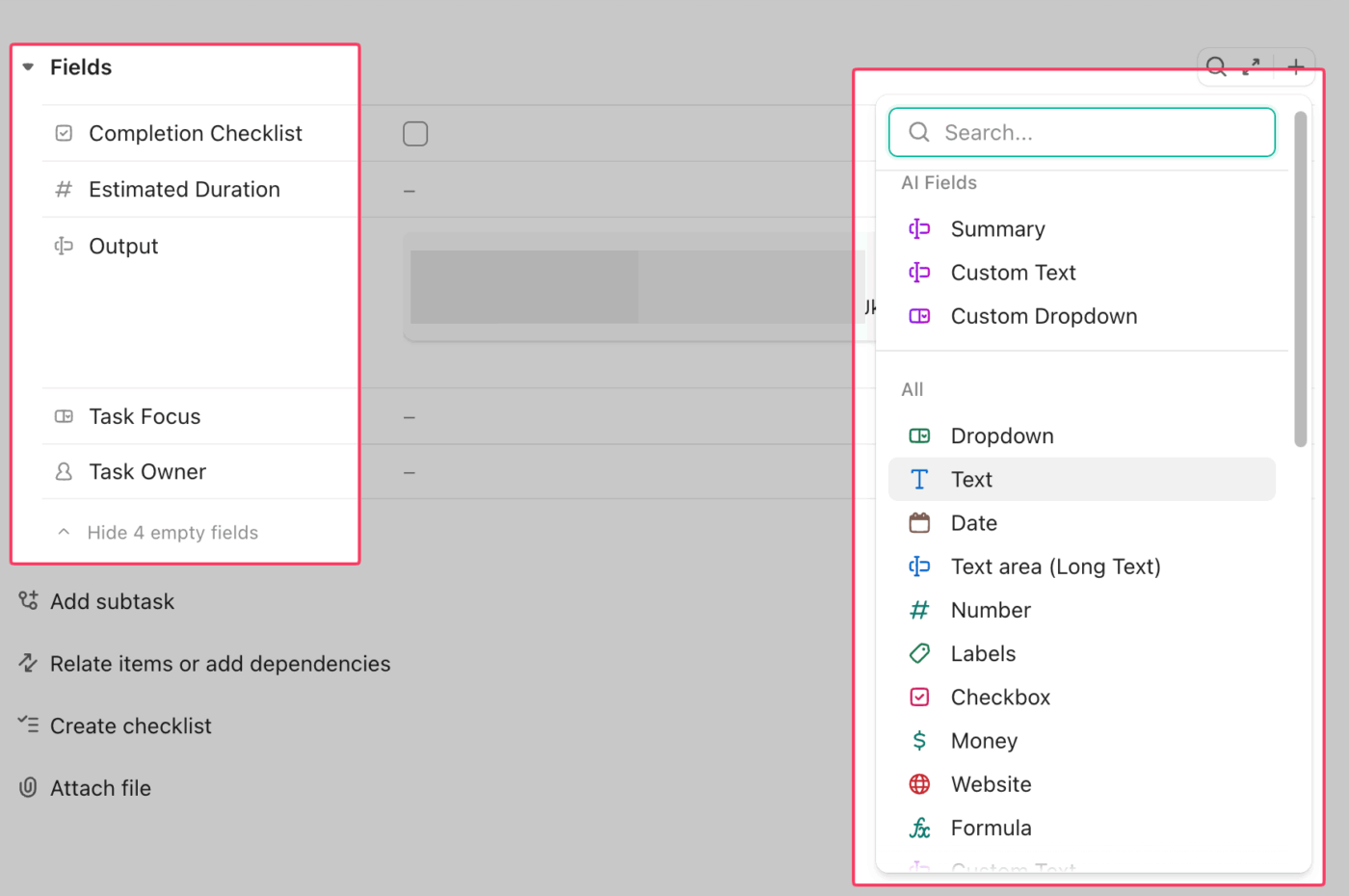
And if you’d rather not build from scratch, ClickUp Brain, the most contextual AI layer, lets you describe what you want to automate in plain English. It can then created custom AI fields for you!
Customize the details you want to monitor in your projects with ClickUp’s AI Fields
Summarize this article with AI
ClickUp Brain not only saves you precious time by instantly summarizing articles, it also leverages AI to connect your tasks, docs, people, and more, streamlining your workflow like never before.
Summarize this article for me please
Clean and Deduplicate Your Data Before You Move It
Migrating dirty data just moves the mess to a new address, which is why maintaining proper data hygiene is essential. Data deduplication means finding and merging records that appear in multiple places, so you’re only transferring a single, clean version.
Remove obsolete records: Archived projects with no future reference value, test tasks, placeholder entries
Merge duplicate records: Pick the most complete version when the same task exists in multiple tools
Standardize naming conventions: Inconsistent project names and status labels cause mapping failures during import
Normalize field values: Dates should use one format, and dropdown options should match the destination platform’s options
Verify attachment integrity: Confirm linked files still exist and are accessible—broken links won’t survive migration
🛑 The scariest part of a tool audit
By the time you finish listing every rogue spreadsheet and siloed project boards, you’ll probably realize you are paying for dozens of disconnected apps.
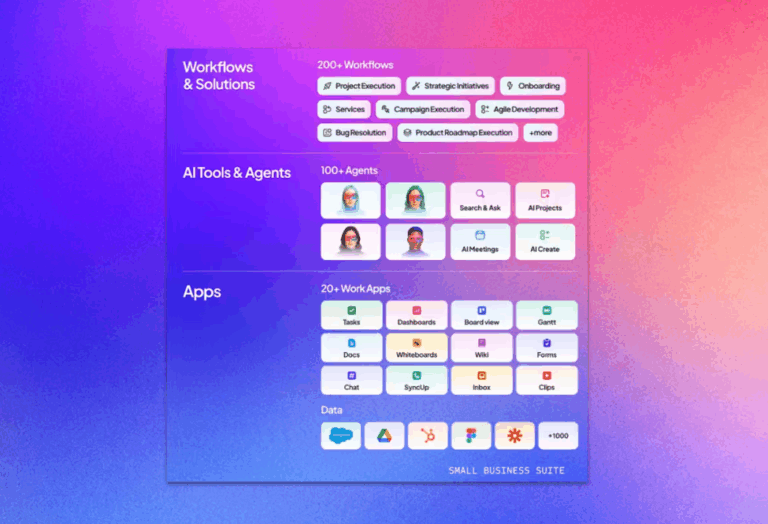
If your audit reveals a giant tech stack—and you know you’re a growing business—start with the ClickUp Small Business Suite.
Instead of just moving old data into new silos, the Suite lets you consolidate your operations into a single Converged AI Workspace. In a nutshell:
Replace 6+ apps instantly: Projects, Docs, Chat, Whiteboards, CRM, and Time Tracking all live natively in one place, giving your team a true single source of truth
Stop paying for standalone AI: No need to audit or manage separate $20/month AI tools. You get instant access to premium models like Claude, Gemini, and ChatGPT right inside your workspace
Get enterprise-level migration help: You don’t have to manage the transition alone. The suite includes dedicated support hours and onboarding guidance
Summarize this article with AI
ClickUp Brain not only saves you precious time by instantly summarizing articles, it also leverages AI to connect your tasks, docs, people, and more, streamlining your workflow like never before.
Summarize this article for me please
Pick a Migration Strategy That Limits Disruption
A data migration plan outlines when and how data will be moved from old tools to the new platform. The best choice depends on your team size, data volume, and tolerance for downtime:
Strategy
How it works
Best for
Risk level
Big bang
Move everything at once over a short cutover window
Small teams with simple data
Higher: if something breaks, everything is affected
Phased/incremental
Migrate one tool or team at a time over weeks
Larger orgs, multiple source tools
Lower per phase: requires parallel systems temporarily
Parallel run
Run old and new systems simultaneously, then cut over
Mission-critical workflows
Lowest data risk: highest operational overhead
Hybrid
Combine approaches per tool based on complexity
Multi-tool consolidations with mixed complexity
Moderate: requires clear planning per tool
Whichever you pick, keep these data migration best practices in mind:
Always pilot first: Pick one team or one tool, migrate it, validate, and use lessons learned to refine the process
Set a rollback plan: Define exactly how you’d revert if the migration fails, including keeping source tool access active
Communicate the timeline: Use a change management template so every stakeholder knows when their tool goes read-only and when the new platform goes live
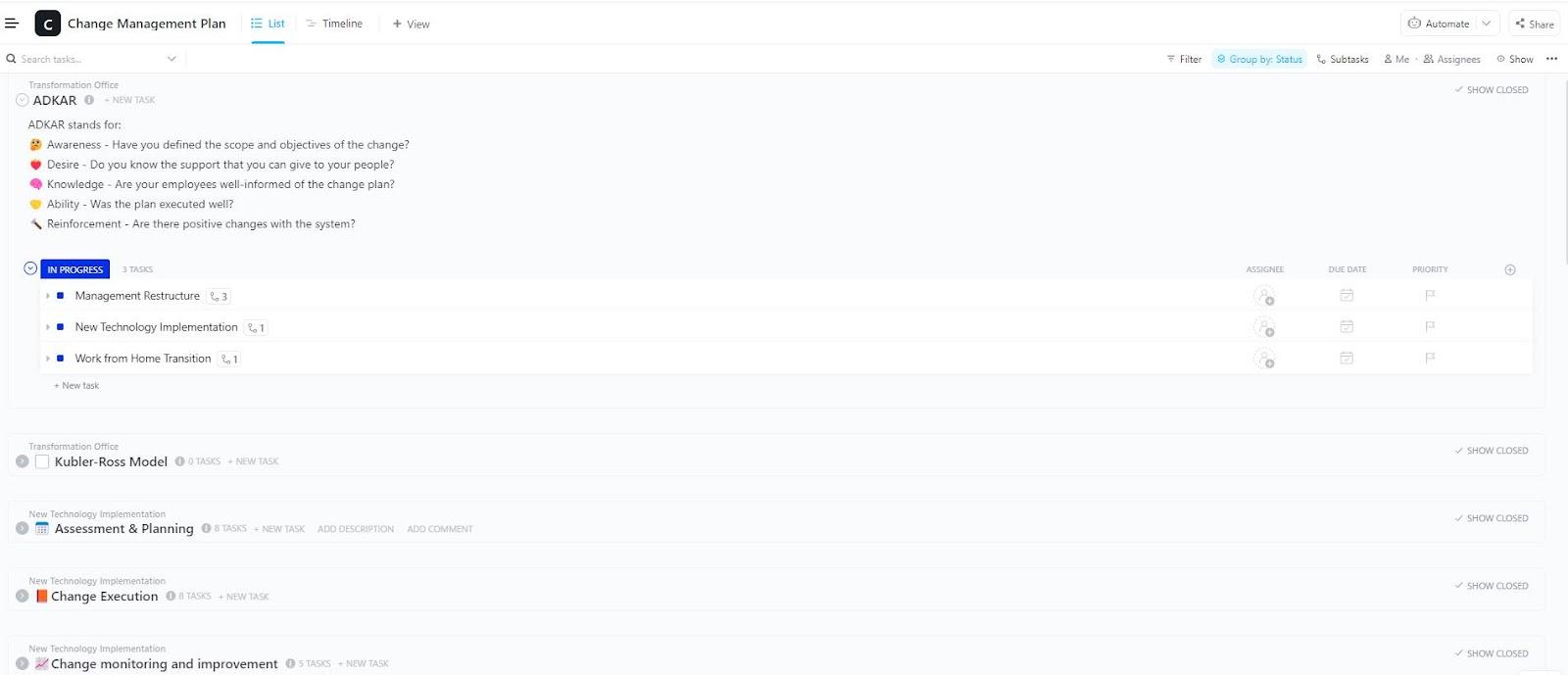
Track every phase of your migration with the ClickUp Change Management Plan Template
It’s structured around the ADKAR model, one of the most widely used frameworks for managing organizational change. Each stage, Awareness, Desire, Knowledge, Ability, and Reinforcement, maps directly to where your team is in the migration process.
The template comes pre-loaded with task groups for Assessment & Planning, Change Execution, and Change Monitoring & Improvement. Each group holds its own tasks, subtasks, assignees, and due dates, so every workstream has an owner and a deadline.
Summarize this article with AI
ClickUp Brain not only saves you precious time by instantly summarizing articles, it also leverages AI to connect your tasks, docs, people, and more, streamlining your workflow like never before.
Summarize this article for me please
Protect Your Data During Export, Transfer, and Import
The actual move (export, transfer, import) is where data loss physically happens. Files get truncated during export, encoding breaks during transfer, and field mismatches silently drop records during import.
Export safeguards:
Back up every source tool completely before exporting—store backups separately so you have a clean copy if the import corrupts data
Export in the richest format available (API export preserves more metadata than CSV)
Verify export completeness by comparing record counts against the source tool’s totals
Transfer safeguards:
Use encrypted transfer methods for sensitive data
Avoid manual copy-paste for anything beyond trivial datasets because it otherwise introduces human error at scale
Import safeguards:
Run a test import with a small dataset first to check field mapping and attachment linking
Use the destination platform’s native import tools when available because they handle edge cases better than generic uploads
Log every import error rather than skipping them—skipped errors become invisible data loss
👀 Did You Know? In Auvik’s IT Trends Report, 61% of organizations said they discover unauthorized SaaS apps at least monthly, and 23% said they do so weekly. That means a migration audit often uncovers tools the official stack never listed in the first place.
Summarize this article with AI
ClickUp Brain not only saves you precious time by instantly summarizing articles, it also leverages AI to connect your tasks, docs, people, and more, streamlining your workflow like never before.
Summarize this article for me please
Validate Migrated Data With Reconciliation
Migration isn’t done when the import finishes. Reconciliation is the process of confirming every record, attachment, and relationship made it across intact, often using an internal audit checklist.
Compare record counts: Total tasks, projects, and documents in the source vs. destination—mismatches indicate dropped records
Spot-check critical records: Manually open high-priority projects to verify all fields, comments, and subtasks transferred correctly
Test automations: Trigger every rebuilt automation and confirm it fires correctly with real data
Review exception logs: Check line by line for skipped records, field truncation warnings, and format mismatches
Get stakeholder sign-off: Have each tool’s point person confirm their team’s data looks complete before sunsetting the source
Do this while source tools are still accessible. Once you deactivate old accounts, recovering missed data gets much harder.
💡 Pro Tip: Spot-checking thousands of migrated records line by line is a surefire way to miss something. Instead of burning hours looking for blank fields or broken workflows, deploy a ClickUp Super Agent to do the heavy lifting for you.
Because these department-specific agents (like Project Management Super Agents) have full workspace context, you can ask them to find the anomalies in your imported data.
It turns a painstaking, days-long manual audit into a quick conversation, ensuring your new workspace is spotless before the rest of the team joins.
Summarize this article with AI
ClickUp Brain not only saves you precious time by instantly summarizing articles, it also leverages AI to connect your tasks, docs, people, and more, streamlining your workflow like never before.
Summarize this article for me please
Align Your Team and Prevent Future Tool Sprawl
A technically perfect migration still fails if you don’t have a change management strategy to help the team adopt the new platform. And tool sprawl creeps back unless you put data governance in place from day one.
Adoption and change management:
Communicate the “why” early: Share the cost of context sprawl—lost time switching apps, duplicated work, missed updates—so migration feels like relief
Run hands-on training: Let people build their actual workflows in a collaborative workspace, not watch someone else’s demo
Assign migration champions per team: A go-to person who can answer questions in the first few weeks
Governance to prevent re-sprawl:
Establish an IT governance and tool approval process: New app requests go through a review to confirm the need isn’t already covered
Schedule quarterly stack reviews: Check whether shadow tools have crept back in to avoid the hidden costs of app sprawl
Sunset old tools with a hard deadline: Leaving legacy tools active “just in case” guarantees some team members will keep using them
📮 ClickUp Insight: Low-performing teams are 4 times more likely to juggle 15+ tools, while high-performing teams maintain efficiency by limiting their toolkit to 9 or fewer platforms. But how about using one platform?
As the everything app for work, ClickUp brings your tasks, projects, docs, wikis, chat, and calls under a single platform, complete with AI-powered workflows. Ready to work smarter? ClickUp works for every team, makes work visible, and allows you to focus on what matters while AI handles the rest.
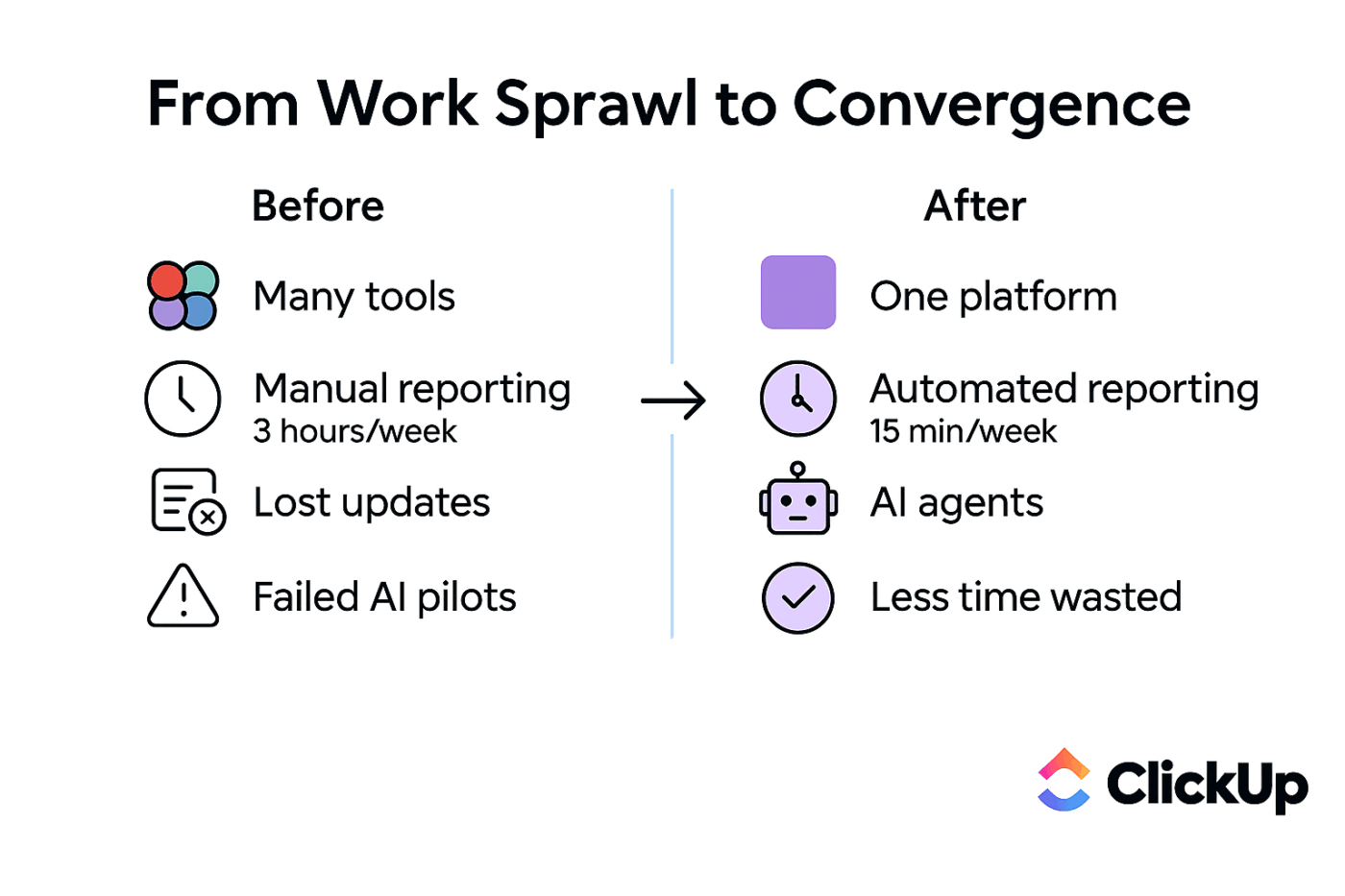
Move from work sprawl to converged workflows with ClickUp
Summarize this article with AI
ClickUp Brain not only saves you precious time by instantly summarizing articles, it also leverages AI to connect your tasks, docs, people, and more, streamlining your workflow like never before.
Summarize this article for me please
How To Migrate Multiple Tools Into ClickUp Without Data Loss
Migrating from multiple tools to one platform without data loss is simpler when the destination already covers every function your old tools handled separately.
Consolidate all your work into one place with ClickUp’s converged AI workspace. It combines project management, docs, chat, and reporting. Plus, it has contextual AI and agents built into every one of your workflows.
Here’s how each step of the process above works inside ClickUp:
1. Preserve hierarchies with native importers
ClickUp features Native Importers for Asana, Trello, Monday.com, Jira, Wrike, Todoist, and Basecamp.
Deep mapping: Automatically syncs boards, statuses, assignees, Custom Fields, comments, and attachments, keeping your history intact
Universal compatibility: Use the Spreadsheet Importer for Excel, CSV, or JSON files, with guided mapping, to support tools without a direct API
2. Mirror complex data with Custom Fields
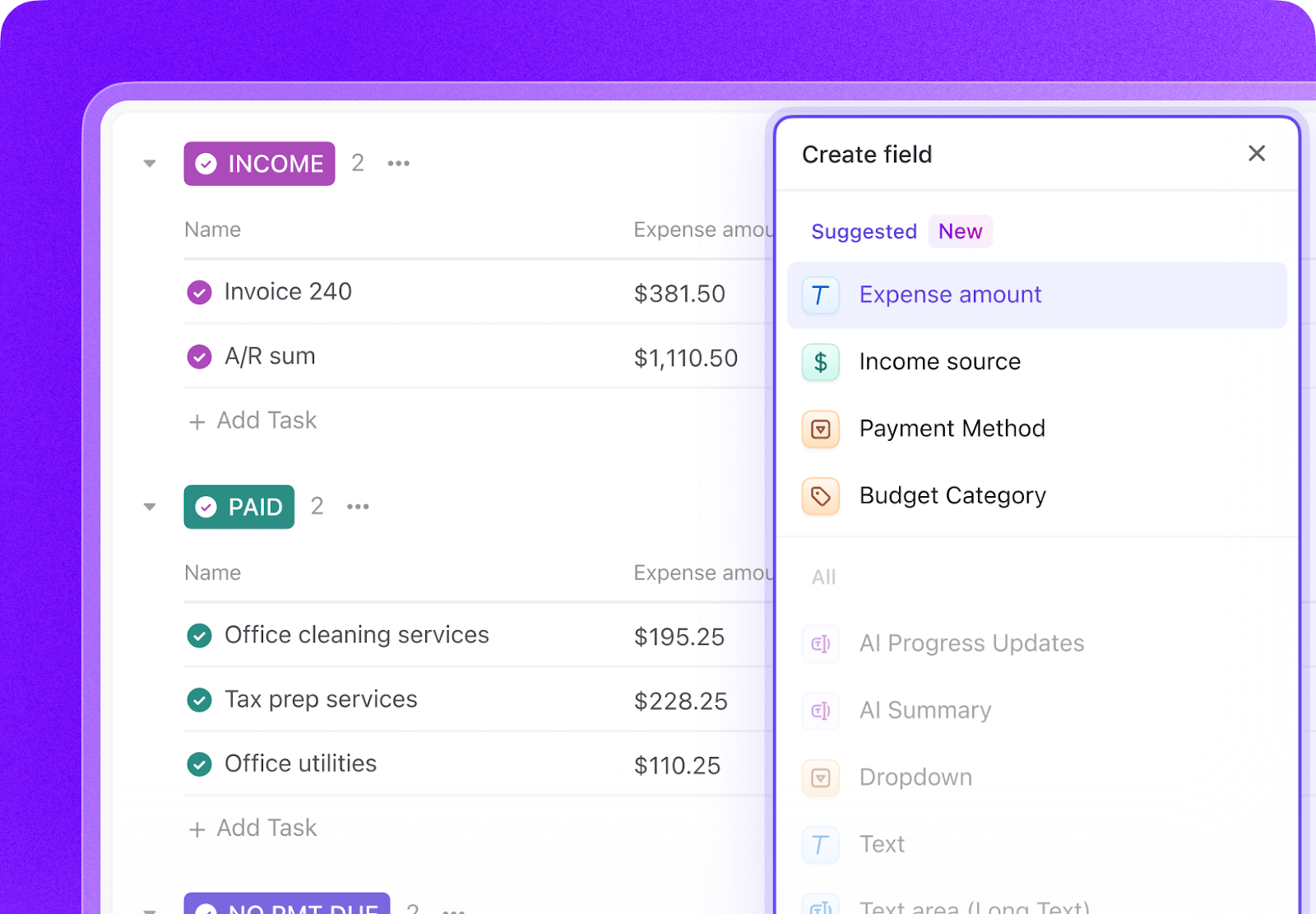
Replicate your existing data structure perfectly. Before you import, recreate your unique data points using ClickUp Custom Fields.
Replicate unique data structures before import with ClickUp Custom Fields
Data parity: Recreate dropdowns, formulas, dates, and relationships to ensure your legacy data has a perfect home in the new system
Automatic creation: The Jira importer, for example, detects your existing Jira fields and builds the corresponding ClickUp fields for you during the migration
3. Rebuild workflows with native automations
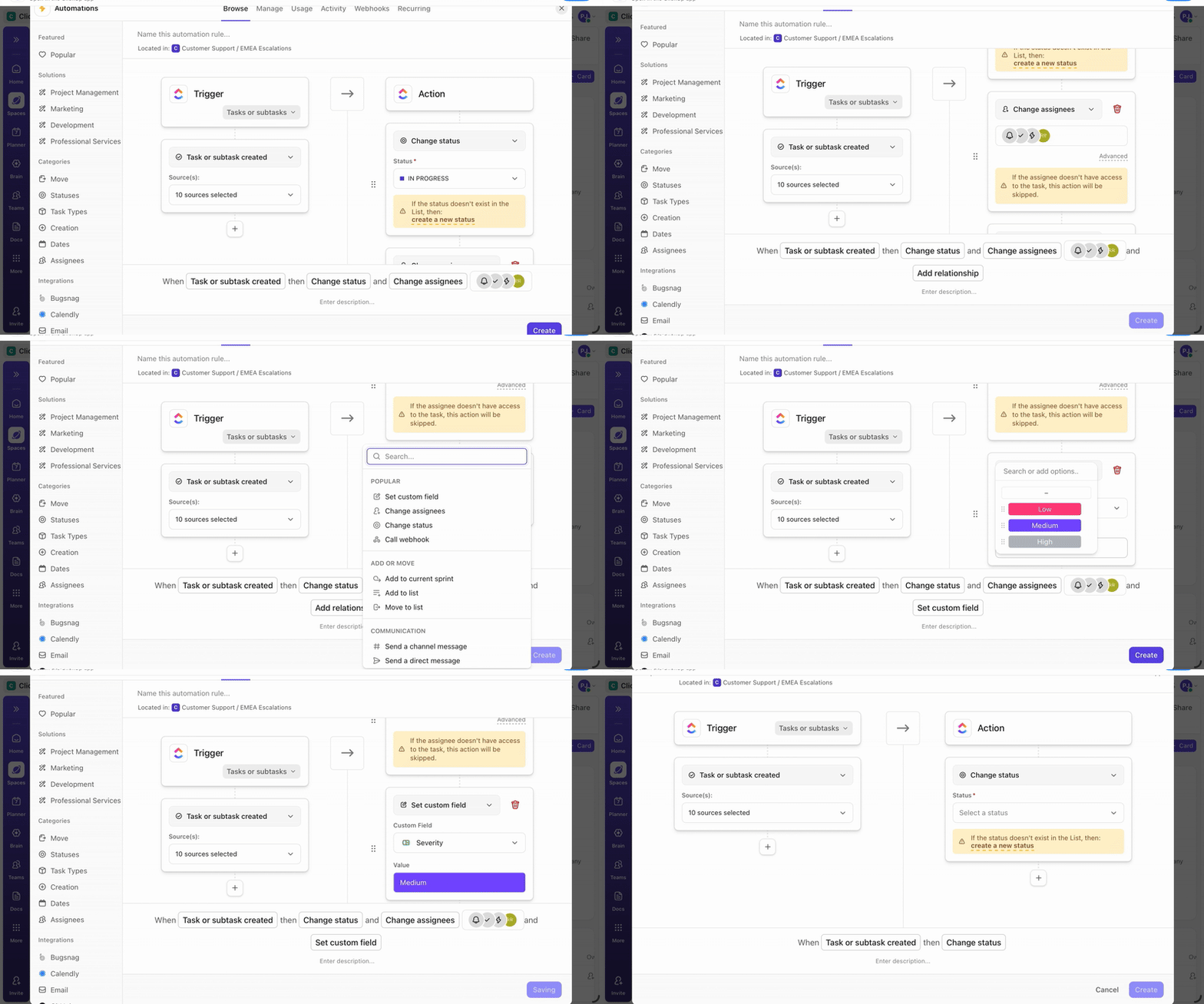
Eliminate the need for third-party middleware and manual handoffs. Use ClickUp Automations to breathe life into your migrated data.
Automate handoffs and activate migrated workflows with ClickUp Automations
Inherited logic: Set triggers at the Space or Folder level to automatically apply rules to every migrated task, saving hours of manual setup
Seamless Handoffs: Automatically change assignees or priorities based on status updates, mimicking the behavior of your old specialized tools
4. Centralize knowledge with ClickUp Docs
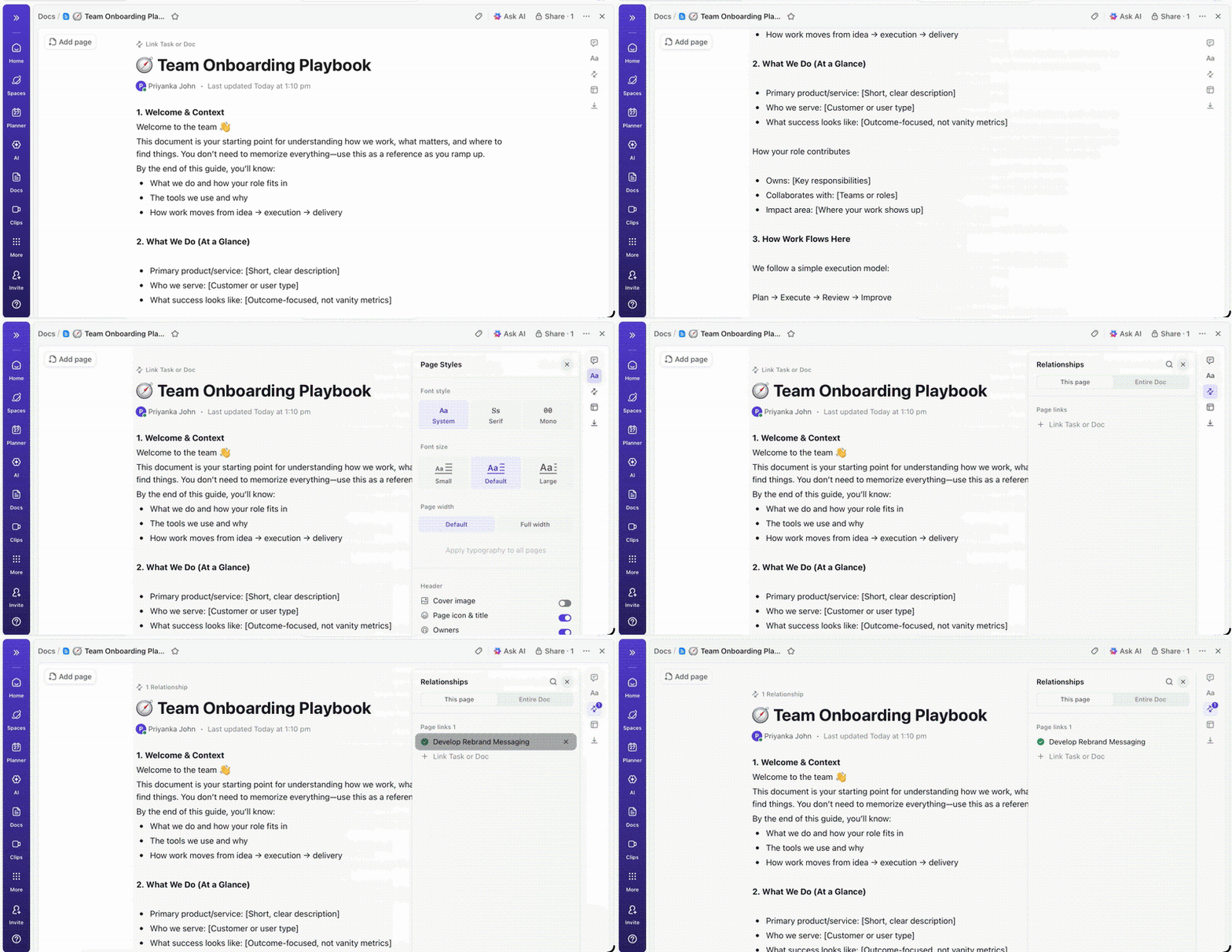
Stop the “tab-switching” fatigue. Instead of keeping a separate documentation app, bring your content directly into ClickUp Docs.
Centralize team knowledge and reduce tab switching with ClickUp Docs
Contextual knowledge: Nest docs into Wikis and link them to the ClickUp Tasks they reference
Rich media embedding: Import your Notion or Google Docs content without losing formatting, embedded videos, permissions, or live tables
Minimize the post-migration “where is everything?” phase. ClickUp Brain, our built-in contextual work AI, connects your workspace’s people, work, and knowledge.
Intelligent summarization and search: Use AI to distill months of migrated comments into instant summaries and use natural language to find decisions buried in imported docs or chat history
Auto-generation: Instantly generate task descriptions or subtask lists based on the unstructured notes you brought over from legacy tools
6. Verify integrity with ClickUp Dashboards
Trust, but verify. Build a Reconciliation Dashboard to monitor your migration’s progress in real time.
Quality control: Create visual cards on ClickUp Dashboards to compare expected record counts against actual imports and flag tasks with missing metadata
Stakeholder reporting: Export your migration progress and data health reports as a PDF to keep leadership informed of the transition status
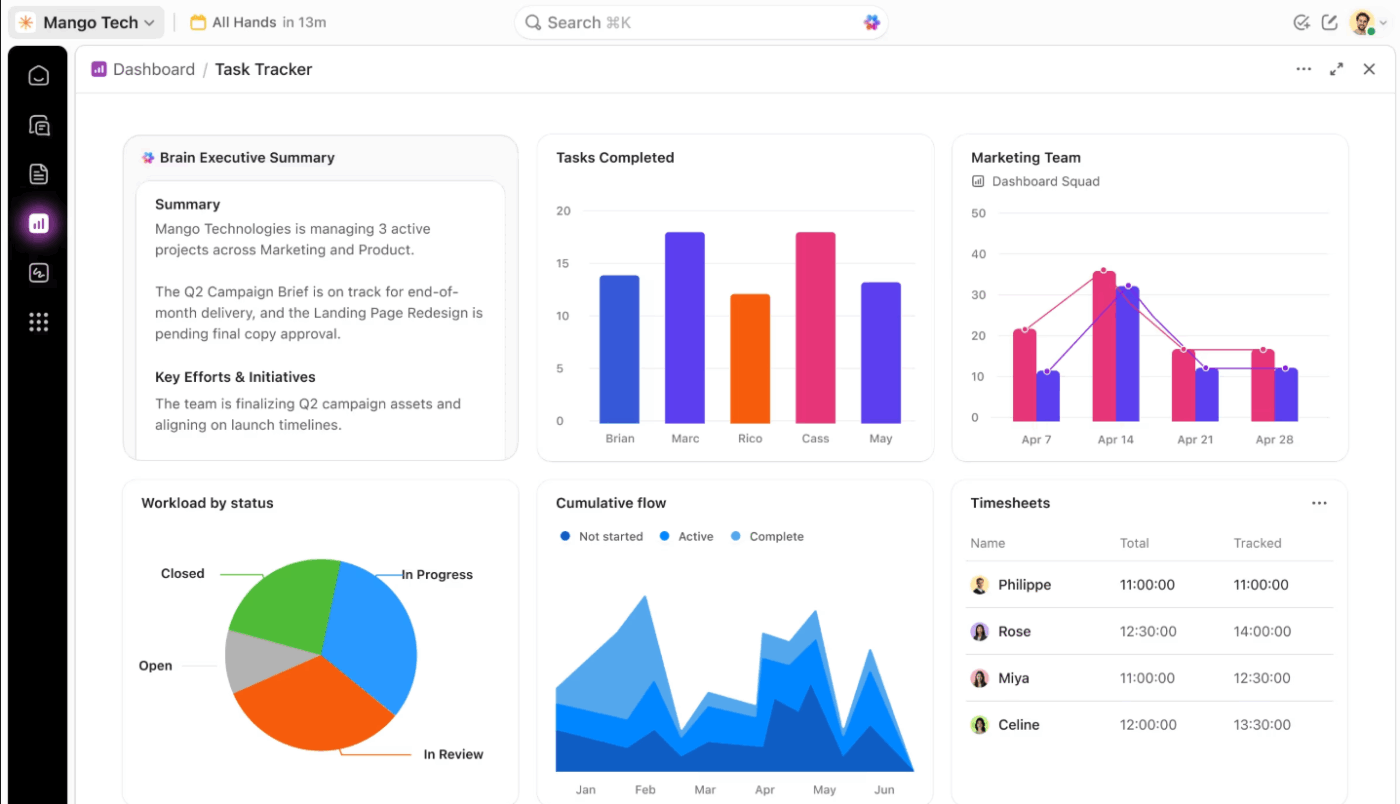
Verify migration quality and report progress with ClickUp Dashboards
Summarize this article with AI
ClickUp Brain not only saves you precious time by instantly summarizing articles, it also leverages AI to connect your tasks, docs, people, and more, streamlining your workflow like never before.
Summarize this article for me please
Converge And Consolidate With ClickUp
The real value isn’t just having a destination for your data—it’s that software convergence eliminates the root cause of tool sprawl.
Once project management, documents, communication, and AI live in one place, you won’t need this kind of migration again.
Get started with ClickUp and run this entire consolidation process in a single workspace. ✨
Summarize this article with AI
ClickUp Brain not only saves you precious time by instantly summarizing articles, it also leverages AI to connect your tasks, docs, people, and more, streamlining your workflow like never before.
Summarize this article for me please
Frequently Asked Questions
How long does it take to migrate from three or four tools into one platform?
Small teams with clean data undergoing SaaS consolidation can finish in a few days, while larger organizations running phased migrations across departments may need several weeks.
What is the difference between big bang and phased data migration?
Big bang moves all data at once during a single cutover window: faster but riskier. Phased migration transfers data incrementally, one tool or team at a time, allowing you to catch and fix issues between rounds.
Can automated data migration tools fully replace manual validation?
Automated tools handle the bulk of structured data transfer reliably, but manual review is still necessary for edge cases like complex field mappings and attachment verification.
How do you recover data if something goes wrong during a platform migration?
Restore from the full backup you created before starting, review import error logs to identify which records failed, fix the root cause, and re-run the import for only the affected dataset.
Everything you need to stay organized and get work done.