

Sorry, there were no results found for “”
Sorry, there were no results found for “”
Sorry, there were no results found for “”
A Google Calendar task is a dated to-do from Google Tasks (Google’s free, built-in to-do app). It surfaces on your calendar alongside your events. The difference that trips everyone up: an event is time you owe other people, a task is time you owe yourself.
These two share one grid. This guide covers how to add tasks to Google Calendar and where this native setup falls short.
TL;DR: To add a task to Google Calendar, open the Tasks panel (or click an empty slot and switch the toggle from Event to Task). Then give it a title, a date, and a time. The one rule that makes it work: always set a time, not just a date. Otherwise, the task drops into the all-day strip, making it harder for you to act on it.
Also remember, Task = time you owe yourself, Event = time you owe others
A Google task and an event both sit on the same calendar grid. But they behave differently, each impacting your to-dos in specific ways. Here’s how they compare.
| Criteria | Task | Event |
|---|---|---|
| Definition | A dated to-do from Google Tasks you’re accountable for finishing | A scheduled block of time, usually shared, that you’ve committed to |
| Completion | Check it off when done; it stays as a record | None; it simply passes once the time is up |
| If missed | Rolls over until you complete or delete it | Gone; the slot passes whether you showed or not |
| Deadline | Separate from your work time, set both | The start time is the only time |
| Assignment | Workspace accounts only, via Google Chat Spaces | Invite anyone by email as a guest |
| Examples | Draft a budget, prep for a call, write a report | A client call, a dentist visit, a flight |
How to choose which one to create:
Run the thing through three quick questions.
Still unsure? Default to a task, because you can always block time for it later. One rule covers most cases: if someone else is counting on the time, it’s an event. If only you are, then it’s a task.
Adding tasks to Google Calendar puts your to-dos and your meetings on a single grid, so you schedule work against the time you actually have. It’s free, it syncs across every device, and it works inside the Gmail and Calendar you already use.
Here’s what you get:
Fun Fact: The reason why you should add tasks to G Calendar is also rooted in psychology. In the 1920s, Soviet psychologist Bluma Zeigarnik noticed something odd in a busy restaurant. Waiters could remember incredibly complex orders perfectly. But after the bill was paid, they completely forgot the order. It showed that our brains are hardwired to remember incomplete tasks better than completed ones. This is why an unwritten, uncalendared to-do list creates mental anxiety—your brain is actively screaming at you not to forget it.
The #1 productivity method is a to-do list on a calendar
The most useful work habit ever measured is not a better to-do list. It is the move that removes the list. In 2018, Filtered.com searched the web for the 100 most popular work hacks. They ranked them all by how well they work and how easy they are to use. The winner was timeboxing.
You take each thing you mean to do, give it a slot on your calendar, and stick to that slot. Filtered’s CEO, Marc Zao-Sanders, says it won the top spot because it covers most of the other tips on the list. Inc. magazine even tested it to prove it works.
The reason lists fail is how we use them. A to-do list grows too big for any single day. It does not rank tasks for you. It also rewards the wrong habits. You knock out three easy items just to cross them off.
Meanwhile, the work that matters sits untouched. Zao-Sanders notes that a list shows what you want to do, but it gives you no plan for doing it. A calendar does. It can only hold for a few hours, so you have to choose a time.
Adding a task to your calendar on Google takes six steps. Start by turning on the Tasks layer, creating the task, giving it a time, and blocking real working time. Capture to-dos on your phone or add them from Gmail and Chat, and organize them with lists, subtasks, and repeats. Done right, each task holds protected time on your grid instead of sitting in a list. It works the same on desktop or mobile.
Tasks and Calendar are separate Google tools. Before a to-do can appear on your grid, you must turn on the Tasks layer. If you leave it off, your tasks stay hidden. That forces you to open a second app to track them.
On the desktop, open Google Calendar and either:
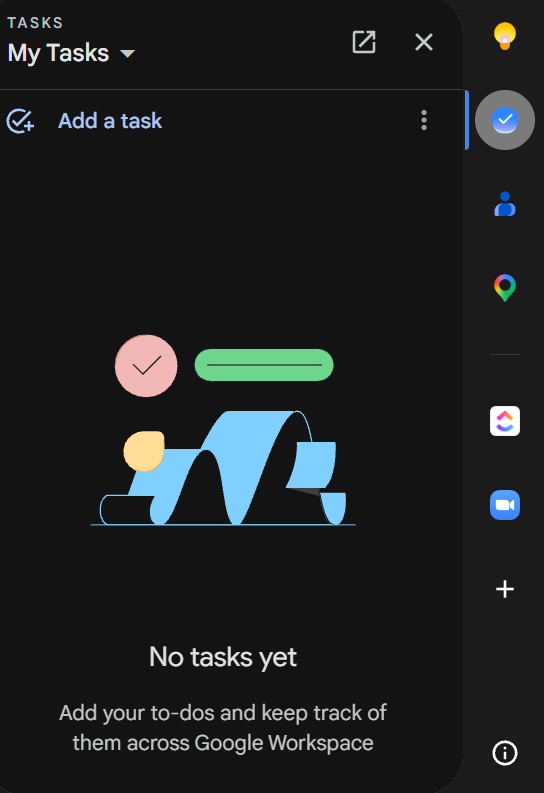
This step makes or breaks the whole system. A task with a date but no time sits in the all-day bar at the top. This is why people often ask, ‘Why are my tasks not showing up?’ Giving a task a specific time puts it right on your grid, where you will do the work.
There are two ways in:
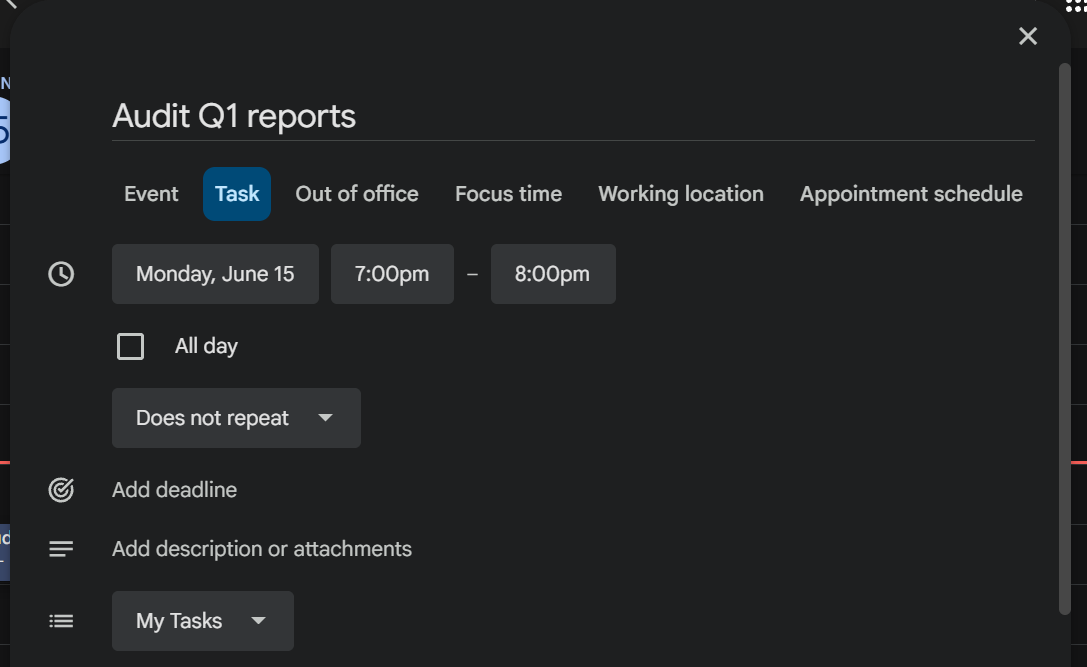
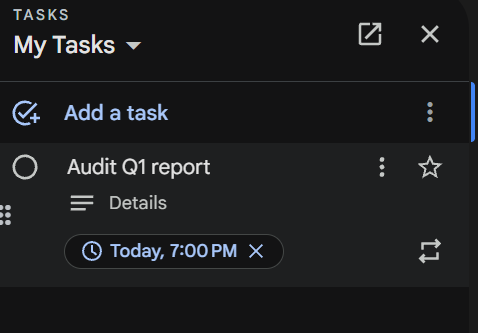
To find old tasks later, open your Tasks view or click Pending tasks at the top. This shows everything from the past year.
GCal has made it easier to block your working time. You no longer have to create fake events. The task appears as a solid block on your grid. It fights for space against your meetings instead of pretending you are free.
Click an empty slot and choose Focus Time. You will automatically turn on the Do not disturb setting this way. Feel free to decline meetings that try to take over that slot.
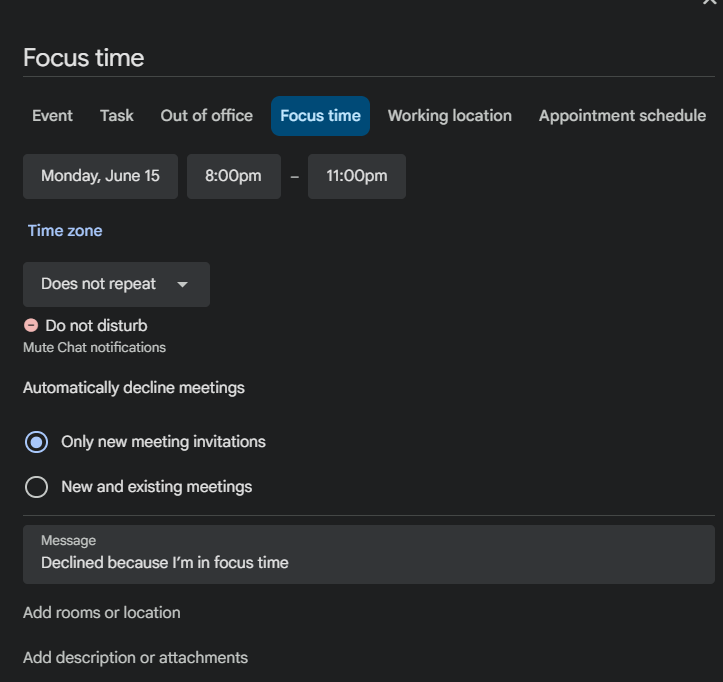
Important note: Focus Time, Do Not Disturb, and Automatically Decline are Workspace (work or school) features. On a personal account, you can still set up a timed block and mark yourself Busy.
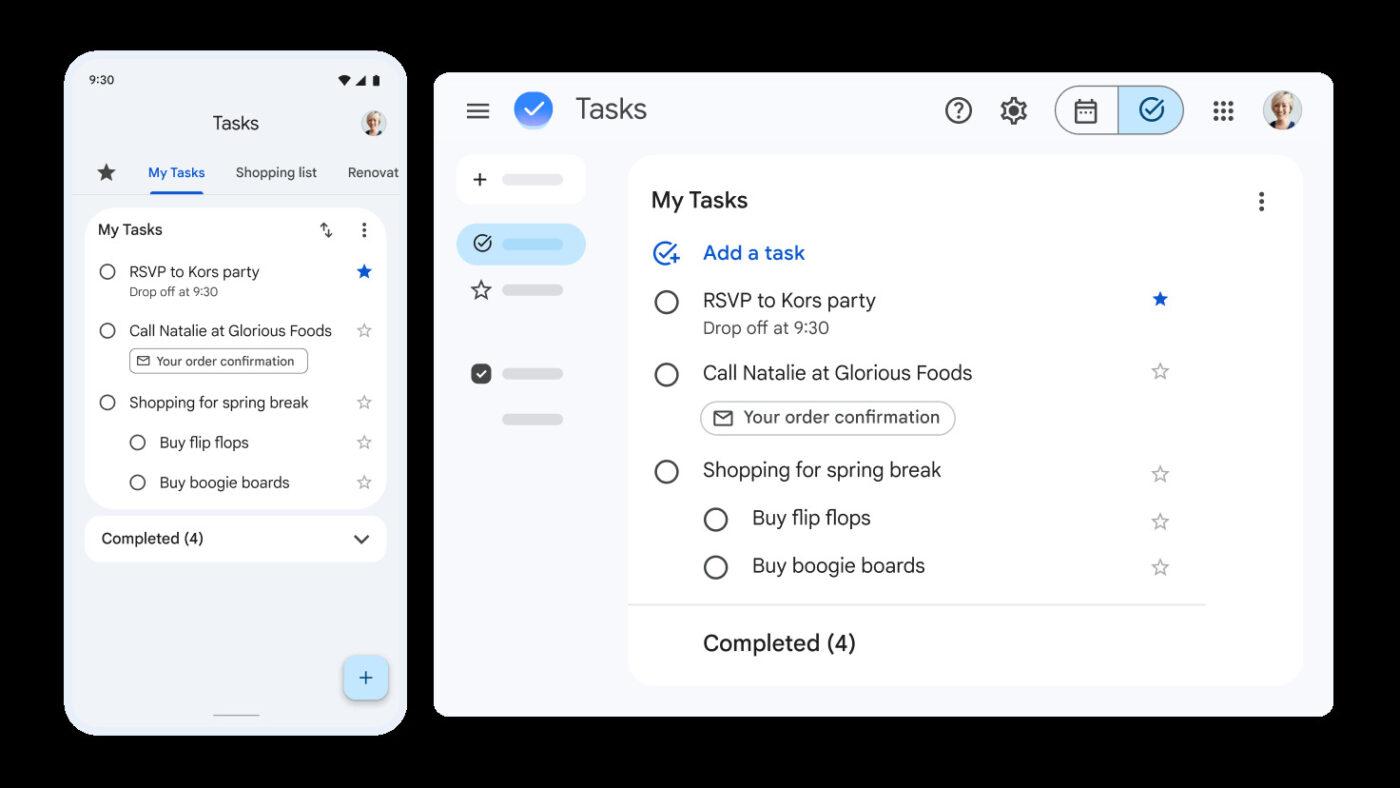
Most to-dos hit you away from your laptop, so if mobile capture is clumsy, they never make it into the system at all. Google keeps it to a couple of taps.
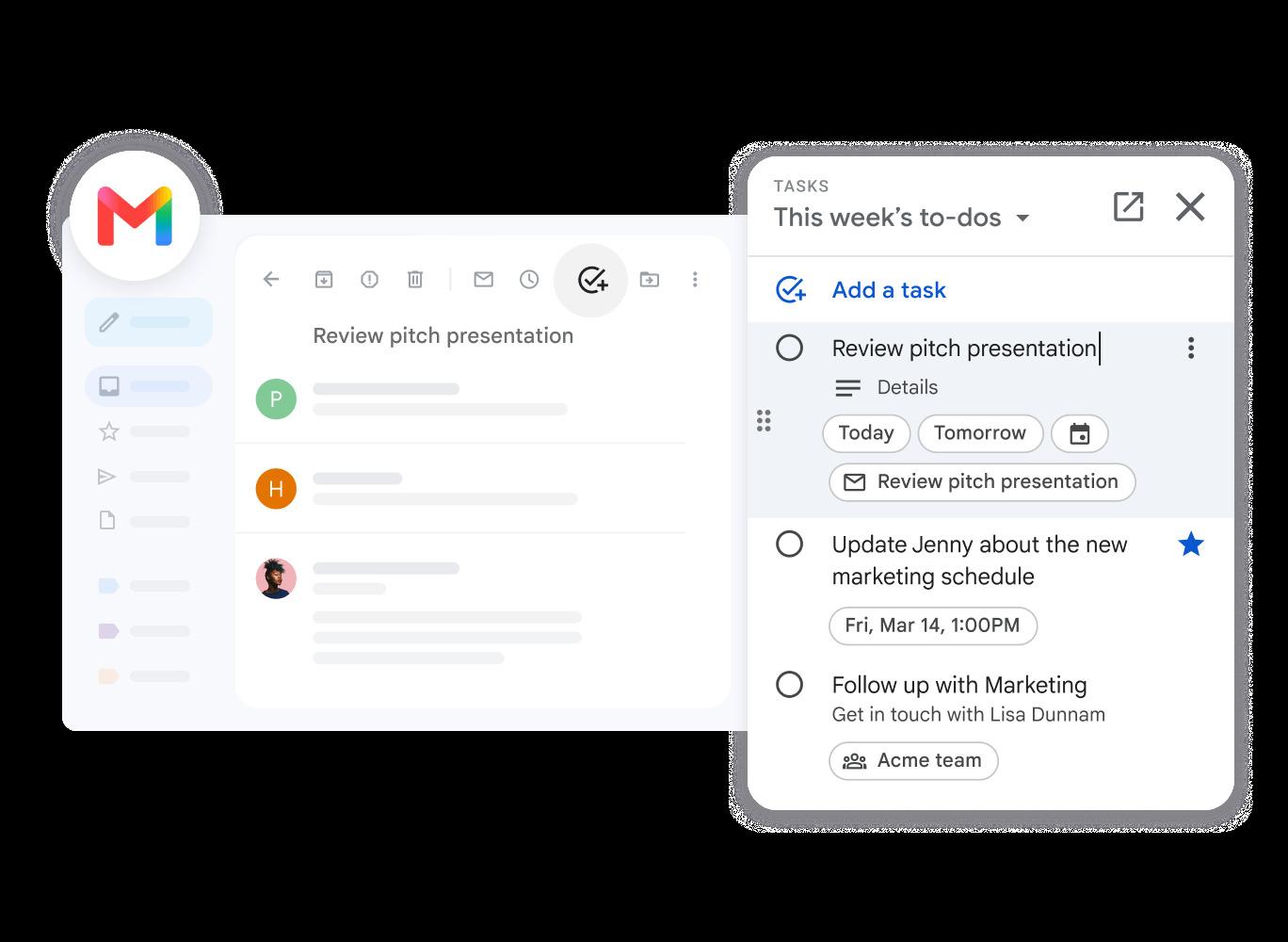
Many to-dos come from email. Saving them right where they land is the easiest way to move your work into Google Tasks. You don’t need extra tools; it is already built in.
Give any of these a date and time, and they will flow straight onto your GCal grid.
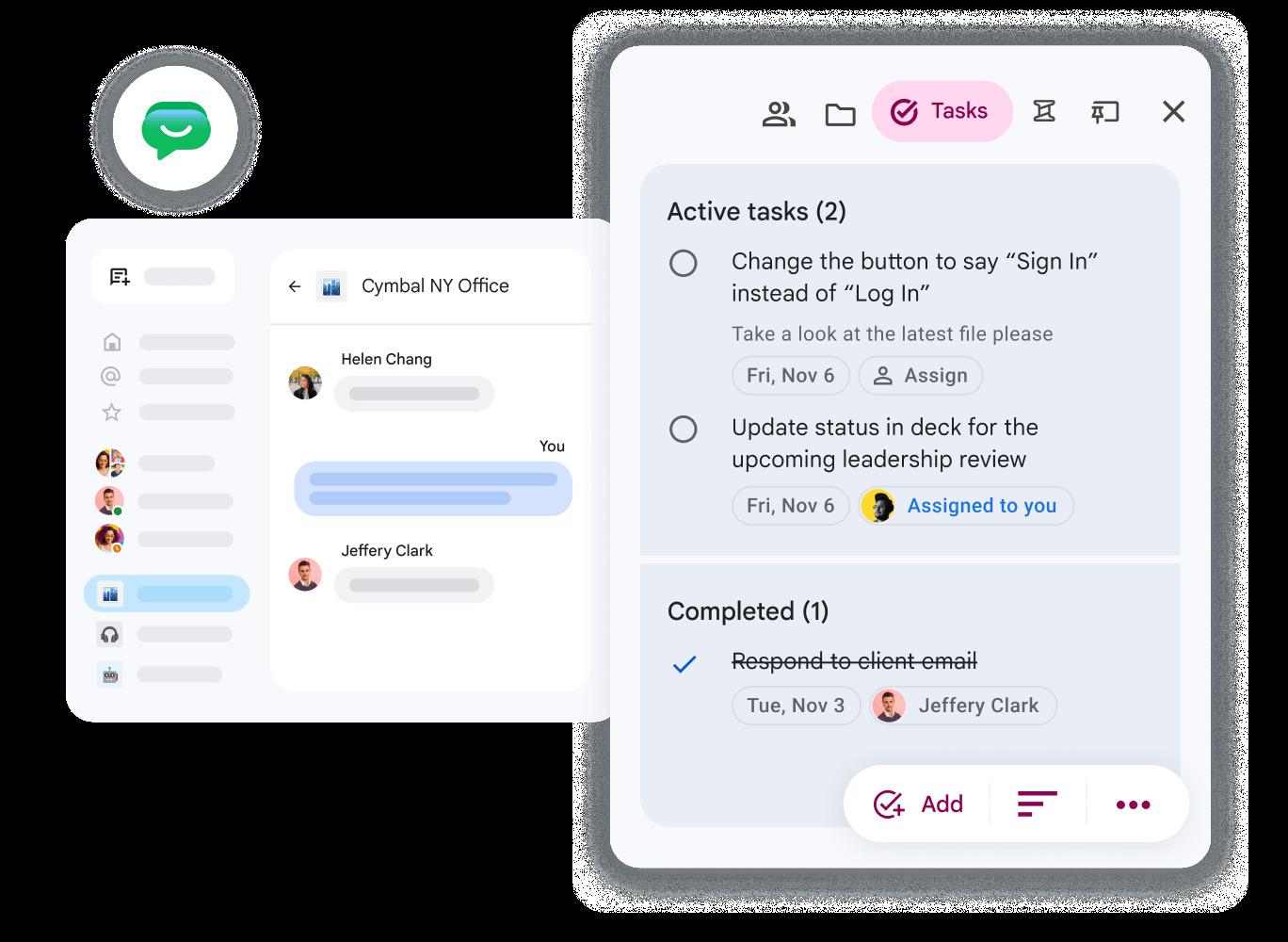
Pro Tip: Assigning tasks to others only works on school or work accounts via Chat Spaces. If you tried to find this on a personal account and saw no option, that is why.
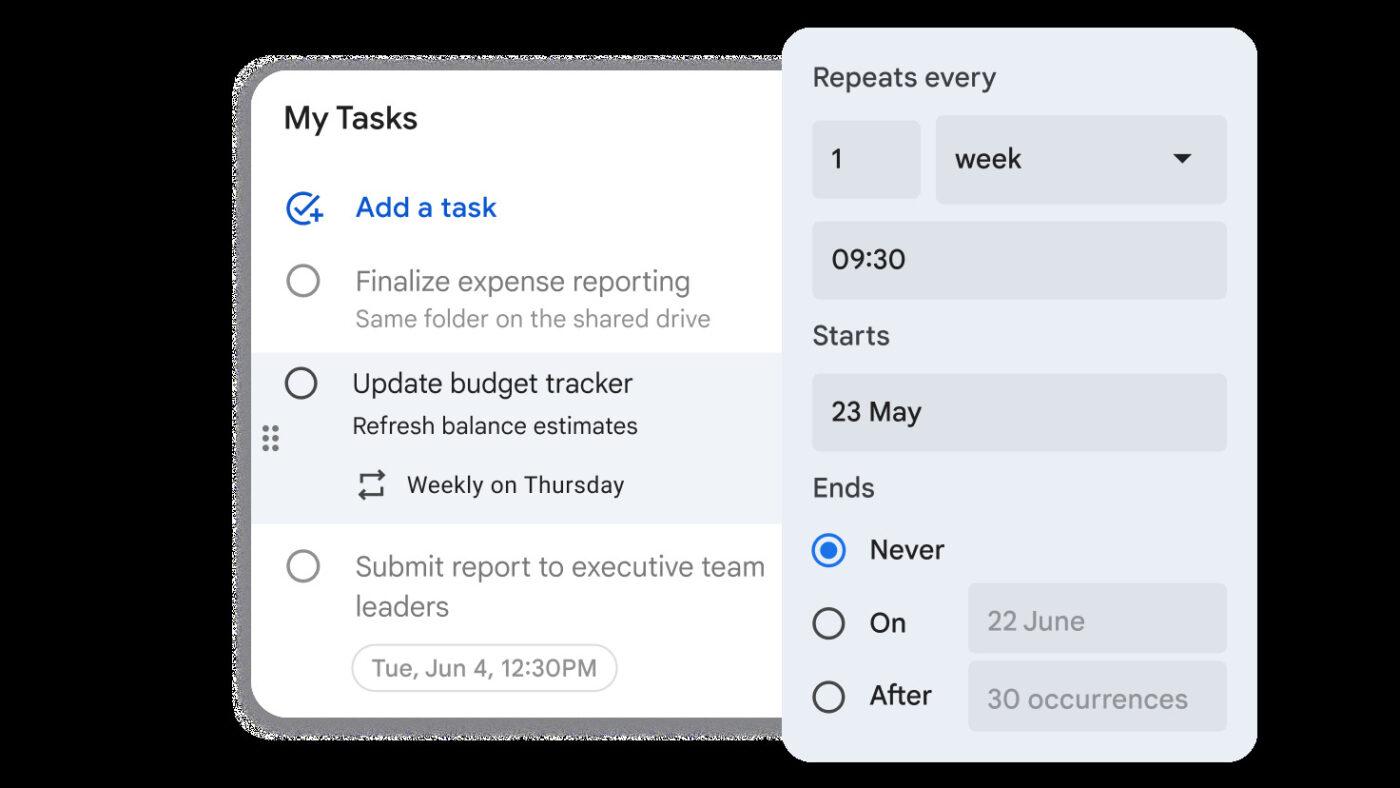
A flat stack of 40 tasks with no dates just causes stress. Three simple tools keep the system clean as your to-dos grow past a dozen items:
Pro Tip: Google Tasks can hold up to 100,000 tasks total, and 20,000 open items per list. You will not run out of room, though you might hit a limit on advanced features.
Stuck managing multiple calendars? It needn’t be a headache. Watch this video to learn how to manage them all in one place.
You have three ways to run a to-do list alongside your Google Calendar. It includes native Google Tasks, third-party to-do apps like Todoist and TickTick, and dedicated project management tools like ClickUp and Asana. The right one depends on how much structure you need and how many people touch the work. Here’s how they compare.
| Type | Pros | Cons | Best for |
|---|---|---|---|
| Native Google Tasks | Free, zero setup, syncs everywhere your Google account goes | Deliberately simple; no labels, priorities, or personal-account assignees | Individuals living in Gmail and Calendar who want their to-dos in one place |
| Third-party to-do apps (Todoist, TickTick) | Richer features, real prioritization, and natural-language input | You maintain a sync connection, and two-way reliability varies by app | People who want a powerful to-do app but still want it on Google Cal |
| Dedicated PM tools (ClickUp, Asana) | Assignees, statuses, dependencies, and two-way calendar sync | Learning curve, and more tool than a personal checklist needs | Teams coordinating shared work, not just personal to-dos |
Google Tasks works as your to-do layer when the list is your own and the structure is simple. It’s even better when you already live in Gmail and Calendar. There’s nothing to install or procure. You open the Tasks panel, add a task, and set a date and time. It syncs on the same grid as your meetings.
What works well for Google Tasks specifically:
Limitations:
Skip it if: You need to assign work to other people, track dependencies, or manage anything more structured than a checklist.
Best for: Solo professionals and students who want their to-dos and their schedule in one place without buying or learning anything new.
A dedicated to-do app works when you want real task features but refuse to give up the single-calendar view. You manage tasks in the app, and connect it to the calendar in Google through its integration. This way, your dated items show up on the grid alongside your events.
What works well for synced to-do apps specifically:
Limitations:
Skip it if: You’d rather not babysit an integration. Or you want one undisputed source of truth instead of an app plus a connector.
Best for: People who want a robust to-do app’s features but still want everything visible on a single Google Calendar.
A project management calendar tool is ideal when the to-dos have outgrown you. It should include owners, stages, dependencies, and calendar sync on top of the task structure. You manage work in the platform, assign it, and track it through statuses. Then sync it two-way with G Calendar so the grid stays up to date.
What works well for project management tools specifically:
Limitations:
Skip it if: The only person who ever touches these to-dos is you, and the list is short.
Best for: Cross-functional teams, recurring workflows like sprints and content calendars, and any project with more than 10 to 20 tasks or handoffs between people.
A task that actually gets done has a clear, verb-first title and a real block of time on your grid, not just a due date. Everything else (lists, subtasks, deadlines, recurrence, context) exists to keep that block honest as your workload grows.
Whichever tool you picked above, a task only holds up with these in place.
Keeping the system alive comes down to six habits. You should complete tasks instead of deleting them, capture everything to one list first, and block time instead of just dates. Also, review the whole list weekly, re-date work when it slips, and keep tasks and events distinct.
Here’s what tasks on Google Calendar look like in practice for three common use cases. Each example shows how to-dos, time blocks, and deadlines come together in a real workflow.
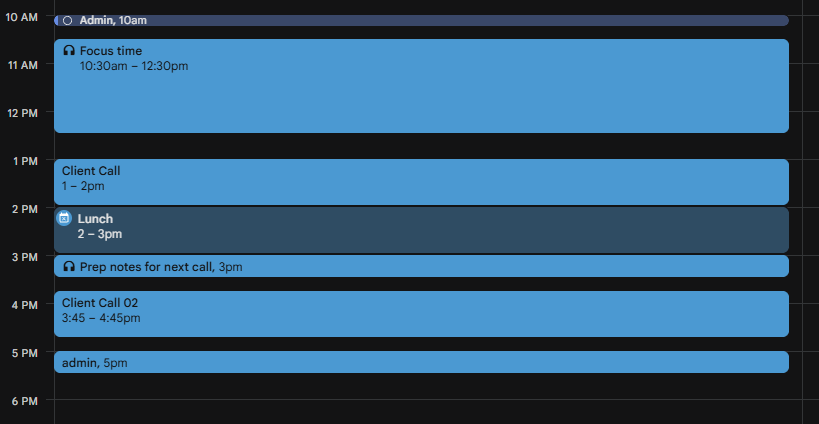
A solo designer runs a daily routine. Check the day’s work, block out time around fixed client calls, do the deep work, then wrap up and bill. There is no one else to hand work to. The main goal is to protect focus time before the day fills up. The only people involved are the freelancer and their clients.
The setup uses heavy time-blocking and just two clean lists: Client Work and Admin. Each morning, they drag the day’s tasks onto the grid as timed blocks around their calls. They mark the deep-work blocks as Busy. This shows them at a glance if they have taken on too much work for the day.
Here’s a sample day:
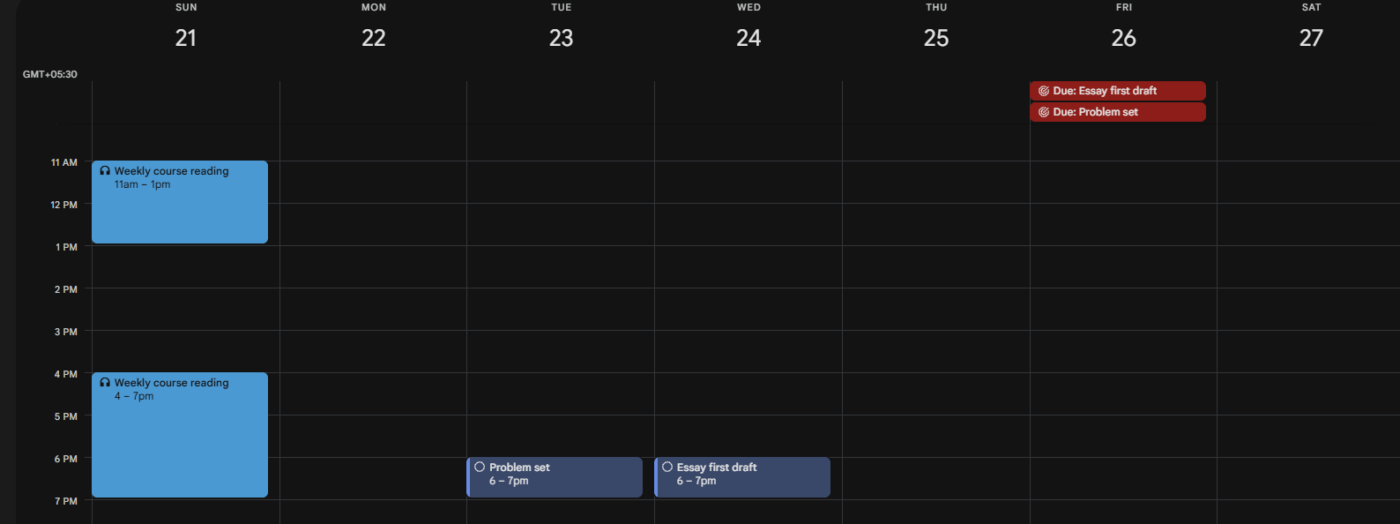
A student manages a steady school load. Weekly readings, problem sets, and a fixed deadline for each test or paper. Each week looks a lot like the last. The goal is less about daily planning and more about seeing the term’s rhythm next to class times. The only guides are the student and their syllabus.
This setup relies on recurring tasks and deadlines, with very little manual time blocking. Repeat tasks handle weekly readings independently. Each school paper gets a single task with a deadline tag. The student views the Tasks calendar to balance the week’s workload against classes.
Here is a sample week:
A three-person team uses Google Workspace to track light group work without a heavy project tool. The workflow runs through a Google Chat Space. They catch a to-do in a text chat and assign it as a group task. Then, each person dates the item on their own calendar. The group includes the three team members and the team leader.
Here, knowing who owns the task matters more than the plan itself. This is right where Google Tasks starts to feel a bit weak.
Here is a sample handoff:
It works, up to a point. It’s missing a shared status board, linked tasks, and a single view to see who is behind. The team must rely on the Chat Space and a good memory to keep from dropping the ball.
Five things that break Google Tasks setups: expecting a task to alert like an event, burying work in subtasks, confusing the deadline with the scheduled time, expecting tasks to appear outside Google, and assuming a checked-off repeat task is done for good. None are obvious blunders; they’re built into how Google Tasks works, so you only catch them after they’ve cost you time.
Google Tasks works until the work involves other people, multiple stages, or anything that needs to move when something upstream slips. ClickUp Calendar fills that gap. It is an AI-powered calendar built on top of a full task engine. The best part? It also includes two-way Google Calendar sync on every plan.
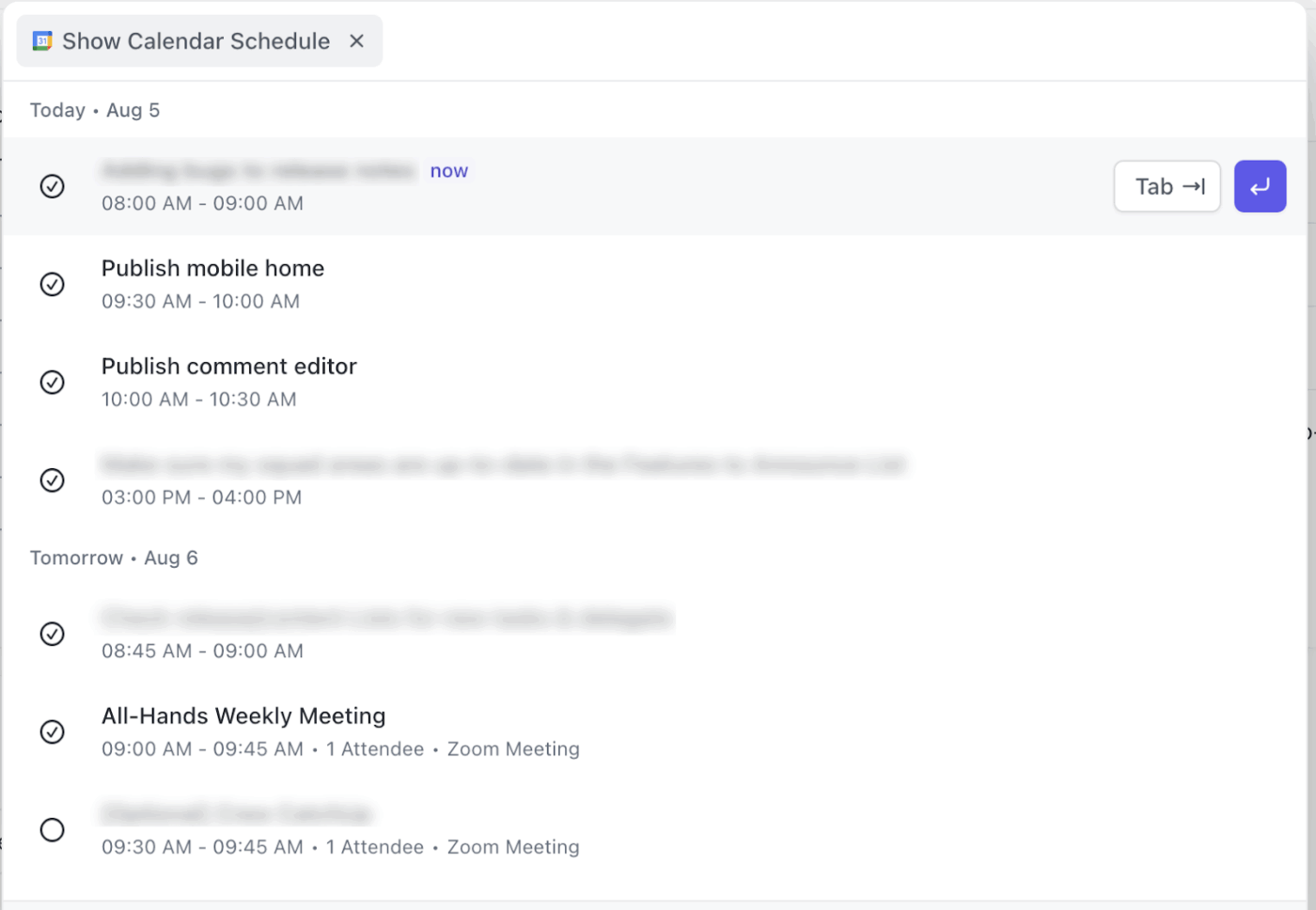
What works well for this specifically:
You can also use the ClickUp Calendar’s AI Notetaker to capture meetings. Watch and learn here:
Honest limitations: There’s a learning curve coming from Google Calendar’s bare-bones simplicity. If your entire system is a dozen solo to-dos, the native Google setup above will be faster to live in day to day.
Who it’s for: ClickUp fits best when more than one person touches the work. Or when your to-dos have grown into projects with owners, stages, and handoffs. For a short personal checklist on a calendar, the Google approach we covered above is the lighter, faster choice.
The people who stay consistent treat their calendar as a living thing. They capture to one place, block real time instead of just picking a date, and re-date work the moment it slips. That’s the whole trick: not a perfect setup, but an honest one you trust enough to open every day.
And when the work outgrows you (other people, handoffs, dependencies in the mix), that’s your signal to graduate. A tool like ClickUp keeps tasks, assignees, and timelines in one place. It also syncs two-way with Google Calendar, holding every view in step as the work scales.
Get started with ClickUp for free.
The most common reason why your task isn’t showing up on your Google Calendar is that your task exists without a time. This put it in the all-day strip rather than the grid. Plus, the Tasks layer might not be toggled on. Open the Tasks panel or Tasks view, and assign a specific time to the task. Confirm you’re signed into the account where the task was created.
Essentially, yes, Google Tasks and reminders are similar. Google migrated Reminders into Google Tasks, so what used to be a calendar reminder is now a task. Older reminders were moved over, and new to-dos should be created as tasks. They appear on your Google Calendar the same way once dated.
Completed Google Tasks are moved to a ‘Completed’ section at the bottom of their list. They drop off your calendar grid. To find them, open the Tasks panel and click the Completed dropdown beneath your active items. Every finished task stays listed there. Unchecking any one of them sends it straight back to active and, if it’s dated, back onto your GCal.
A deleted Google Task generally can’t be recovered, because Google Tasks has no trash folder or version history. Your only safety net is the brief ‘Undo’ prompt that appears for a few seconds right after you delete. Catching it immediately is the only solution.
No, Google Tasks does not let you move a recurring task from one list to another. The same limitation applies to shared tasks and subtasks. If you need a repeating task to live in a different list, the only workaround is to stop the original series. Then, recreate the task fresh in the list you want. This catches a lot of people out because regular one-off tasks can be moved between lists with a simple drag.
The Google Tasks mobile app (Android/iOS) caches your list locally. So you can view and add tasks offline, and they sync once you reconnect. The web-side panel in G Calendar and Gmail requires an active connection to load and sync. The catch is that Google Tasks isn’t built for offline use. Changes made without a connection can occasionally fail to sync or duplicate on reconnect. If guaranteed offline capture matters, a dedicated app with a true offline mode is more reliable.
No, Google Tasks has no native list-sharing. You cannot hand a personal task list to a teammate the way you share a Google Doc. The only built-in option is assigning individual shared tasks inside a Google Chat space or Google Doc, and only on eligible Workspace plans (shared tasks can’t have subtasks or recurrence). For true shared lists, teams use a tool like ClickUp or a third-party layer.
Google Tasks is for action items with due dates that flow into Gmail and Google Calendar; Google Keep is for notes, ideas, voice memos, and color-coded checklists. Tasks tracks follow-through, Keep handles capture. They aren’t rivals: many people capture in Keep and act in Tasks, and a Keep note with a reminder now creates a Google Task automatically.

Manasi Nair
Max 24min read
Manasi Nair
Max 30min read
Manasi Nair
Max 28min read

© 2026 ClickUp




