Confluence and Google Docs overlap more than they first appear to. Both help teams create, share, comment on, and maintain documents, which is why the Confluence vs. Google Docs choice often comes down to how you want that content to live and scale.
Google Docs works inside Google Workspace, with files stored and organized in Google Drive alongside Sheets, Slides, PDFs, and shared folders. Confluence keeps content inside its own workspace, organized through spaces, pages, live docs, databases, and attachments. It also links tightly to tools like Jira.
The real comparison goes deeper than “writing tool vs. knowledge base.” What matters is where your team’s priorities sit: editing experience, structure, search, permissions, integrations, AI, ecosystem fit, or cost.
This guide breaks this down to show where each tool has the advantage and which trade-offs matter most. We’ll also look at a third option worth considering if neither tool fully matches your criteria.
Confluence vs. Google Docs: Which Should Your Team Use?
Summarize this article with AI ClickUp Brain not only saves you precious time by instantly summarizing articles, it also leverages AI to connect your tasks, docs, people, and more, streamlining your workflow like never before.
Summarize this article for me please
Confluence vs. Google Docs at a Glance
Compare
Confluence
Google Docs
Best for
Structured team knowledge, technical docs, SOPs, runbooks, and documentation tied to Jira
Collaborative writing, reviews, proposals, briefs, reports, meeting notes, and everyday business docs
Core model
Knowledge workspace built around spaces and connected content
Document editor backed by Google Drive
How content is organized
Spaces, nested pages, live docs, databases, labels, and synced blocks
Drive folders and Shared Drives; tabs and subtabs organize individual documents
Writing and editing
Strong, especially when documentation needs structure around it
Stronger for fast drafting, editing, commenting, and review-heavy workflows
Real-time collaboration
Live editing, comments, page history, and collaborative docs
Live editing, Suggesting mode, comments, @mentions, assignments, and version history
Knowledge management
Stronger for large, structured documentation sets
Works for lightweight knowledge sharing, but lacks a native wiki layer
Search
Confluence search plus Rovo across Confluence and Jira
Google Drive search plus Gemini across eligible Workspace content
AI
Rovo drafts, summarizes, answers questions, and searches Atlassian knowledge
Gemini drafts, rewrites, summarizes, creates content, and pulls context from Workspace apps
Structured information
Databases, page hierarchies, synced blocks, whiteboards, and Jira-linked content
Smart chips, building blocks, variables, dropdowns, tables, and document tabs
File handling
Files usually live as attachments within Confluence content
Drive stores Docs alongside Sheets, Slides, PDFs, folders, and other files
External collaboration
More controlled, but guest access and permissions can require more setup
Easy link sharing and familiar access for clients, contractors, and external reviewers
Offline work
More dependent on the online workspace
Selected Docs can be edited offline and synced later
Ecosystem advantage
Strongest with Jira and the wider Atlassian stack
Strongest with Drive, Gmail, Sheets, Slides, Calendar, Meet, and the rest of Workspace
Starting price*
Free for up to 10 users; Standard from $5.42/user/month
Docs is free personally; Workspace Business Starter from $7/user/month annually
Main trade-off
More structure, but some of that value fades outside an Atlassian-heavy workflow
Easier document collaboration, but less built-in structure across a large body of knowledge
*Pricing and features reflect what was available at the time of writing and can change.
How we review software at ClickUp
Our editorial team follows a transparent, research-backed, and vendor-neutral process, so you can trust that our recommendations are based on real product value.
Summarize this article with AI ClickUp Brain not only saves you precious time by instantly summarizing articles, it also leverages AI to connect your tasks, docs, people, and more, streamlining your workflow like never before.
Confluence is Atlassian’s team workspace for creating and maintaining shared knowledge. Teams use it for project documentation, technical specs, meeting notes, policies, onboarding material, and other information that needs a consistent home.
Content is organized inside spaces, which act as dedicated areas for teams, departments, or projects. Confluence also connects closely with Jira and the wider Atlassian ecosystem.
Who it’s built for: Product, engineering, IT, operations, and cross-functional teams that need shared documentation to stay organized as company knowledge grows.
Pros
Builds navigable information hierarchies: Confluence uses a structured content tree where teams nest related pages under broader topics and browse documentation without leaning on search alone
Reuses the same source content in multiple places: Synced blocks let you maintain text, tables, images, and other elements once, then surface the same block on other Confluence pages, live docs, or Jira work items without creating separate copies
Handles structured data alongside long-form documentation: Confluence databases store information such as owners, statuses, links, dates, notes, and Jira data, then display it as tables, cards, or boards
Turns documentation into Jira work: The Jira integration surfaces issues and project information inside Confluence and moves ideas from pages or whiteboards into tracked work
Supports more than text pages: Teams can switch between pages and live docs, brainstorm in whiteboards, maintain databases, and embed Loom recordings or third-party content inside the same workspace
Uses Rovo across the knowledge already in your workspace: Rovo, Atlassian’s AI, drafts and rewrites content, summarizes pages, answers questions, searches across connected sources such as Confluence and Jira, and runs AI-assisted actions from within Confluence
Cons
Permissions and archiving start on paid plans: The Free plan has no space or page restrictions, so everyone on the site can see everything, and pages can’t be archived. Both unlock on the Standard plan, and larger sites still accumulate overlapping global, space, and content rules that admins need to track
Rovo and automation run on monthly allowances: The Standard plan includes 25 Rovo credits per user per month, and Premium includes 70; credits pool across the org and don’t roll over. Automation is capped at 100 rule runs per site per month on the Standard plan, moving to 1,000 per user on Premium. The Free plan has no Rovo and 50 automation runs
Content brought in from other editors needs a tidy-up: Pasting from Word or Google Docs can carry over stray formatting, and the mobile app is geared toward reading and commenting more than drafting long pages
Search rewards people who learn its syntax: On larger sites, exact-title matches can sit below loosely related pages, so quoted phrases, labels, and CQL filters become everyday habits. Rovo’s natural-language search on paid plans helps with questions, though it treats attachments as metadata rather than reading their contents
What I like most about Confluence is that it centralizes all of our project documentation and technical specs in one place, so everything is easy to find and reference. It also integrates seamlessly with Jira, which makes it straightforward to link requirements directly to tickets and follow development progress. On top of that, the real-time collaborative editing is a big plus—it’s much easier for the team to brainstorm together and keep documentation current without running into version-control headaches.
Where Confluence taps out
Confluence is strongest within the Atlassian stack, especially for product, engineering, IT, and technical documentation closely tied to Jira. Outside that setup, features like Jira-linked pages, databases, and synced blocks have less to connect to. Teams that mainly need lightweight document collaboration, broad file handling, or a workspace built around everyday business docs may find Confluence carries more structure than they’ll use.
Summarize this article with AI ClickUp Brain not only saves you precious time by instantly summarizing articles, it also leverages AI to connect your tasks, docs, people, and more, streamlining your workflow like never before.
Summarize this article for me please
What Is Google Docs?
via Google Docs
Google Docs is Google’s cloud-based document editor for creating, editing, reviewing, and sharing written content. Documents live in Google Drive alongside Sheets, Slides, PDFs, folders, and other Workspace files.
Several teams use Docs for briefs, reports, proposals, meeting notes, policies, drafts, research, and other documents that need frequent input from multiple people.
Who it’s built for: Individuals and teams that need fast document collaboration, flexible sharing, and easy access across the wider Google Workspace ecosystem.
Pros
Handles review-heavy workflows well: Suggesting mode, comments, @mentions, assigned action items, version history, and Compare documents make it easy to review changes without creating separate copies
Structures longer documents with tabs and subtabs: Document tabs split one file into distinct sections, while nested subtabs organize larger documents without breaking them into multiple files
Connects documents to live Workspace context: Smart chips surface people, Drive files, Calendar events, dates, places, dropdowns, and placeholder fields directly inside a document. Building blocks add reusable structures for projects, meeting notes, and other recurring work
Shares cleanly with people outside the org: Anyone with a Google account, or just a link if the owner allows it, can view, comment on, or edit a Doc, with access expiration and download restrictions available on Workspace plans
Keeps selected documents available offline: Files enabled for offline access can still be created, opened, and edited, then sync back to Drive after reconnecting
Uses Gemini with wider Workspace context: Gemini can draft, rewrite, summarize, create content, and pull relevant context from Drive, Gmail, Chat, and other connected sources when the account supports it
Cons
Offline editing has browser and setup requirements: On desktop, offline access works through Chrome or Edge with the Google Docs Offline extension enabled. Only one Google account per browser profile can have offline access turned on, and very large files can fail to sync offline
Some newer document features aren’t universal: Variable chips require eligible work or school accounts, while eSignature is limited to specific Workspace subscriptions and Workspace Individual
Page layout controls are fairly restrained: Docs handles everyday business formatting well, while complex publishing layouts, precise typography, and heavily designed pages usually call for another tool
Smart chips don’t grant access to what they reference: Linking a Drive file, Calendar event, or person through a chip doesn’t give collaborators permission to open the underlying item
Pricing
Google Docs is free with a personal Google account. Business users get it through Google Workspace:
Business Starter: $7/user/month (annual), $8.40/user/month monthly
Business Standard: $14/user/month (annual), $16.80/user/month monthly
Business Plus: $22/user/month (annual), $26.40/user/month monthly
Enterprise: Custom pricing
Ratings
G2: 4.6/5 (48,000+ reviews for Google Workspace); Docs has no standalone G2 listing
What stands out most about Google Workspace is how seamlessly it integrates everyday productivity tools—like custom-domain Gmail, Docs, Drive, and Meet—into a single connected ecosystem that makes real-time collaboration effortless. Being able to manage files, coordinate projects, and communicate from any device without switching platforms keeps operations smooth and efficient.
Where Google Docs taps out
Google Docs is strongest when your work revolves around creating, reviewing, and sharing individual documents inside Google Workspace. Tabs, smart chips, variables, and Gemini make those documents much richer, and Docs still treats the file as the center of the experience. Teams that need a deeper system for connecting large bodies of knowledge, maintaining complex content relationships, or building documentation around structured work may eventually need something beyond Docs and Drive.
Summarize this article with AI ClickUp Brain not only saves you precious time by instantly summarizing articles, it also leverages AI to connect your tasks, docs, people, and more, streamlining your workflow like never before.
Summarize this article for me please
Confluence vs. Google Docs Pricing
Category
Confluence
Google Workspace (Google Docs included)
Free option
Free for up to 10 users; 2 GB storage; no space or page permissions
Docs is free with a personal Google account; no permanent free Workspace business tier
Entry paid plan
Standard: $5.42/user/month; 250 GB storage; Rovo included (25 credits/user/month)
Business Starter: $7/user/month (annual); 30 GB pooled storage per user, Gemini in Gmail only
Higher business plan
Premium: $10.44/user/month; unlimited storage
Business Standard: $14/user/month (annual); 2 TB pooled storage per user
Confluence has the lower entry price. What each dollar buys is where the comparison gets tricky. A Confluence subscription covers the Confluence workspace, while Google Workspace bundles Docs with Drive, Gmail, Meet, Calendar, Sheets, Slides, and the rest of the suite.
Summarize this article with AI ClickUp Brain not only saves you precious time by instantly summarizing articles, it also leverages AI to connect your tasks, docs, people, and more, streamlining your workflow like never before.
Summarize this article for me please
Confluence vs. Google Docs: Which Makes Team Knowledge Easier to Find?
Confluence makes team knowledge easier to find once documentation grows past a few hundred pages. Its spaces, page trees, and labels give every page a fixed address, and Rovo search covers Confluence and Jira together.
Google Docs is faster to find things in when a team is small, because Drive search and recent-files views do most of the work without anyone organizing anything.
The gap widens with scale: Drive folders depend on people filing consistently, while Confluence’s hierarchy holds shape even when contributors don’t.
Neither tool makes documentation findable on its own, though. Both strain when outdated files sit next to current ones, and a page hierarchy or folder only tells you where a document lives. It can’t tell you whether that document is still current, whether a newer version replaced it, who owns it today, or whether the decision behind it changed last quarter.
Coveo’s Employee Experience Relevance Report, a survey of 4,000 employees at companies with 5,000+ staff, found that people search an average of four data sources to do their jobs, and 42% of what they dig up is irrelevant to their role. Nearly half have also caught an AI tool hallucinating. Better search helps. It can’t fix a knowledge base nobody maintains.
The better choice between Confluence and Google Docs comes down to three questions. How well does each fit the systems your team already works in? How quickly can people surface current information? And how much ongoing effort does it take to keep that information trustworthy?
Summarize this article with AI ClickUp Brain not only saves you precious time by instantly summarizing articles, it also leverages AI to connect your tasks, docs, people, and more, streamlining your workflow like never before.
Summarize this article for me please
Can Confluence and Google Docs Work Together?
The two tools work together more than most teams expect. Paste a Google Docs, Sheets, or Slides link into a Confluence page, and Smart Links render it as a live embed, with view and edit permissions carried over from Google.
Migration runs in either direction, and moving the words is the easy part. Confluence imports Google Docs directly, and space admins can export whole spaces to PDF, HTML, CSV, or XML. One catch when leaving Confluence: its Word export opens only in Microsoft Word and won’t load in Google Docs. A move to Docs usually goes through HTML, PDF, or page-by-page copy.
What needs rebuilding is everything around the content: permissions and ownership, internal links and attachments, and the naming and archiving rules that kept the old system tidy.
Migration Tip: Audit first. Archive stale or duplicate content before moving anything, or the same clutter will follow you into the new system.
Summarize this article with AI ClickUp Brain not only saves you precious time by instantly summarizing articles, it also leverages AI to connect your tasks, docs, people, and more, streamlining your workflow like never before.
Summarize this article for me please
How to Choose Between Confluence and Google Docs
Choose Confluence if:
Your documentation needs a clear hierarchy across teams, projects, or technical areas
You maintain long-lived content such as technical specs, runbooks, SOPs, policies, or internal knowledge
Different groups need different levels of access to different parts of the documentation
Jira is central to how work gets planned and tracked
Choose Google Docs if:
Writing, reviewing, commenting, and approvals make up most of the workflow
You collaborate often with clients, contractors, or other external contributors
Your documents need to move easily between Docs, Word, PDF, and email
Your team already lives in Drive and the rest of Workspace
If the feature gap feels small, pick whichever tool your team already opens every morning. Switching costs and habits will outweigh most feature differences.
Both tools share one blind spot: the documentation lives in one system, and the work it describes lives in another. A spec in Confluence still points to tasks in Jira; a project plan in Docs still tracks nothing on its own. If that split is the real problem, the fix is a platform that keeps both in one place.
Summarize this article with AI ClickUp Brain not only saves you precious time by instantly summarizing articles, it also leverages AI to connect your tasks, docs, people, and more, streamlining your workflow like never before.
Summarize this article for me please
What Real Users Say on Reddit: Confluence vs. Google Docs
We found several Reddit comments split on one question: how much structure does the team need around its documents?
Confluence supporters point to hierarchy and connected work. In one r/ProductManagement thread, a user summed up that Confluence gets far more useful once you lean on certain features instead of treating it as a plain-text editor.
Confluence becomes much more powerful when you start incorporating macros like JIRA filters and Trello boards into pages. It comes with a number of those out of the box, and there are a number that you can add on. It’s also much easier to create a hierarchy of pages and establish links between them than what you can do in Google Docs.
Google Docs gets the opposite praise. Users reach for it when writing matters more than building a formal knowledge base. In a different thread, a Reddit user recommended Google Docs for drafting RFCs and PRDs because of its collaboration and version control features.
We see this often in newer discussions, too. A thread straight from a team running both Google Workspace and Confluence described Workspace as hard for information discovery once content spreads across functions. Needless to say, creating documents was easy, but finding the right one later was a struggle.
Summarize this article with AI ClickUp Brain not only saves you precious time by instantly summarizing articles, it also leverages AI to connect your tasks, docs, people, and more, streamlining your workflow like never before.
Summarize this article for me please
ClickUp as an Alternative to Confluence vs. Google Docs
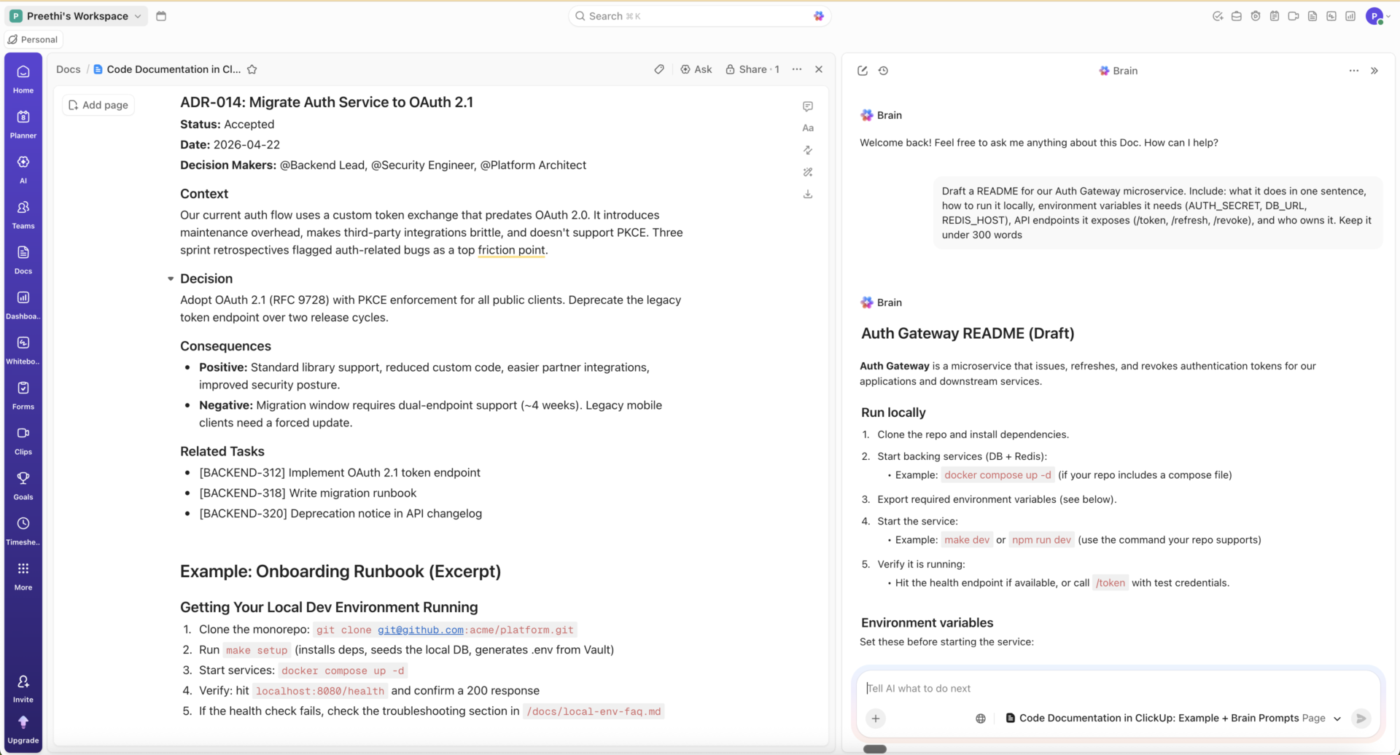
Use ClickUp Docs to maintain docs, wikis, and knowledge bases, with connected AI on top
ClickUp brings documentation, knowledge, and execution into the same workspace. For starters, ClickUp Docs handles collaborative writing, while Wikis turn selected Docs into recognized sources of truth. ClickUp Brain works across that content, along with tasks, comments, Chat, and connected apps.
Pros
Keeps documentation next to the work it supports. Docs can live alongside projects and tasks, and text or comments can be turned into actionable work without copying information into another system
Turns important Docs into a real knowledge base. Any Doc can become a Wiki, giving teams a clearer source of truth
Searches beyond ClickUp.ClickUp Enterprise Search can reach Google Drive, Confluence, Jira, Slack, SharePoint, OneDrive, Gmail, Microsoft Teams, and other supported apps, subject to each connection’s permissions. Existing knowledge doesn’t have to be migrated before it becomes searchable
Uses AI across the same context. ClickUp Brain can answer questions from Docs and Wikis, summarize content, generate action items, and work with project information already in the workspace
Produces finished deliverables from workspace data. ClickUp Brain can turn project context, uploaded files, and analysis into slide decks, dashboards, reports, landing pages, charts, and interactive artifacts without rebuilding the source material somewhere else
Cons
Carries more setup than a standalone document editor. ClickUp covers tasks, Docs, Wikis, Chat, dashboards, automations, and AI, so teams have more workspace structure to configure before everything feels settled
Enterprise Search depends on permissions and supported integrations. A connected app doesn’t automatically expose every file. For example, Google Drive Workspace Connected Search only surfaces files available to everyone in the connected organization; private files require Personal Connected Search
Trinetix, a design and technology consultancy, ran into the exact problem we described. The problem of context being lost at the seams of two or more tools.
Trinetix cobbled together Jira, Confluence, Gmail, Docs, and Spreadsheets, and the result was information loss and frustrated designers.
We didn’t want to adopt a new tool for one function and a different tool for another function. We wanted to have projects, internal operations, and goals all in one place. ClickUp had all of the functionality our teams needed.
Kateryna Sipakova, Portfolio Manager
Where ClickUp taps out
ClickUp is a full work platform, so it carries more structure than either tool if all you need is document editing or a standalone wiki. Google Docs is quicker for opening a file and collaborating immediately, while Confluence remains a focused choice for teams that mainly want an Atlassian-centered knowledge base.
Summarize this article with AI ClickUp Brain not only saves you precious time by instantly summarizing articles, it also leverages AI to connect your tasks, docs, people, and more, streamlining your workflow like never before.
Summarize this article for me please
Confluence vs. Google Docs, or ClickUp?
Most teams reading this already know which they’d pick between Confluence and Google Docs. The harder question is whether that pick still works once the page count hits four digits. Documentation tools don’t fail at launch. They fail when the fourth version of a spec sits next to the third, and nobody can say which one engineering built from.
That’s the case for looking at ClickUp. Docs and Wikis sit beside the tasks they describe, Brain answers questions across both, and Enterprise Search reads the Confluence and Drive content you already have. For teams that want the shortest path from “where’s the answer” to “who’s doing it,” that’s one workspace, not three.
Summarize this article with AI ClickUp Brain not only saves you precious time by instantly summarizing articles, it also leverages AI to connect your tasks, docs, people, and more, streamlining your workflow like never before.
Summarize this article for me please
Frequently Asked Questions About Confluence vs. Google Docs
Is Confluence a replacement for Google Docs?
Only partly. Confluence covers documentation, wikis, and knowledge management, and its editor handles most everyday writing. It doesn’t replace Drive as file storage, and it lacks the export flexibility, external sharing, and formatting depth that Docs offers. Teams that switch usually keep Google Workspace for email, storage, and client-facing documents.
Can Google Docs work as a company wiki?
It can work for small teams, with discipline. Drive folders, consistent naming, and a pinned index doc get a team of 20 a long way. Past that point, the setup starts to strain: there’s no page hierarchy, permissions live on each file, and outdated documents sit in search results next to current ones. Teams that stay on Docs for knowledge management usually add strict folder rules or a separate wiki tool.
Which is easier to learn, Confluence or Google Docs?
Google Docs, by a wide margin. Most people with a Google account already know it, and it requires almost no onboarding. Confluence, by contrast, has a learning curve, especially around permissions and space setup.
Does Confluence have a track changes or suggesting mode like Google Docs?
No. Confluence has inline comments, version history, and a compare-versions view, but nothing like Suggesting mode where a reviewer proposes an edit the author accepts with one click. Reviewers either edit the page directly or leave a comment describing the change. Teams that depend on suggest-and-accept workflows usually keep drafting in Docs for that reason.
Which one is better for version control of long-lived documents?
Confluence, for pages that need to stay authoritative. Every page keeps a full version history with a side-by-side diff between any two versions, and Premium adds bulk archiving. Google Docs keeps version history too, but it shows one document’s edit timeline rather than a controlled release of a spec or policy. Neither tool flags when a document has gone stale; that still takes a human owner.
Does Google have an equivalent to Confluence?
Not directly. The closest is Google Sites, a no-code site builder inside Workspace that can embed Docs, Sheets, and Drive folders into a navigable intranet. It provides page hierarchy and a shared front door, but no page-level version control, databases, or the Jira-style work linking that Confluence is known for. Teams that want a true wiki on Google usually pair Drive with a third-party tool such as Guru, Slite, or ClickUp Docs.
Everything you need to stay organized and get work done.