Sorry, there were no results found for “”
Sorry, there were no results found for “”
Sorry, there were no results found for “”
Google Calendar tells you what’s next. It won’t protect your focus time, rebuild your day when a meeting moves, or turn a to-do list into a real plan. You’re still the scheduling engine, and that’s the leak. Calendly’s State of Scheduling report found 89% of workers burn up to four hours a week just booking meetings.
The mistake is shopping for “the best AI calendar tool.” There isn’t one. There are five different jobs, and the right pick depends entirely on where your week actually breaks. Defending focus time is a different problem than planning your day, which is different again from tying your calendar to the work behind it. Match the tool to your specific failure point, not the longest feature list.
Below, we compare eight of the top tools across strengths, limitations, pricing, and best-fit use cases, based on real scheduling work, so you can match one to your specific leak.
| Tool | Type | Best for | Standout feature | Starting price | Where it taps out |
|---|---|---|---|---|---|
| Reclaim.ai | AI schedule optimizer | Defending focus time on Google Calendar | Flexible “Habits” plus a priority matrix that auto-reshuffles tasks around new meetings | Free; paid from $10/seat/mo | Assumes a separate task manager; team orchestration is lighter than its individual features |
| Motion | AI schedule optimizer | Deadline-driven auto-scheduling | The most aggressive auto-scheduler, rebuilding your day the moment a meeting moves | No free tier; from $29/mo (individual, billed annually) | No risk-free trial, credit metering, and a 2-4 week trust ramp |
| ClickUp | AI work hub | A calendar tied to tasks and projects | True two-way Google Calendar sync, plus Brain to plan your day from real work | Free Forever; paid from $7/user/mo | Full-scale work platform with a setup curve |
| Vimcal | AI-first calendar tool | Keyboard-first scheduling | Sub-100ms speed, NL event creation, and standout time-zone handling | Free (iOS only); from $16.67/mo | Built for individual speed, not team coordination; keyboard flow is paid-only |
| Akiflow | AI daily planner | Turning scattered tasks into time blocks | Universal Inbox pulls to-dos from Gmail, Slack, Notion, Asana and 50+ apps | No free tier (7-day trial); from $7.60/mo (billed yearly) | Personal planner, not a shared scheduler; you commit before testing |
| Saner.ai | AI daily planner | Chat-first daily planning | Braindump to Skai, say “plan my day,” get a time-blocked calendar back | Free; paid from $8/mo (billed annually) | Younger product with a smaller ecosystem; less manual control |
| Trevor | AI daily planner | Free-friendly daily planning | “Plan My Day” with unlimited free task scheduling and accept/reject control | Free; Pro from $5/mo (billed annually) | Recommends times rather than rebuilding your day; individual-only |
| Google Gemini | Native AI assistant | Native, zero-setup scheduling | “Suggested times” scans every invitee’s availability, hours, and time zone | Bundled w/ Workspace; from $4.99/mo (Google AI Plus) | Shallow vs. standalone schedulers; web-only and internal attendees only |
Note: Pricing and features reflect what was available at the time of writing and can change. Always verify current details on the tool’s official website before deciding.
How we review software at ClickUp
Our editorial team follows a transparent, research-backed, and vendor-neutral process, so you can trust that our recommendations are based on real product value.
Here’s a detailed rundown of how we review software at ClickUp.
AI tools for Google Calendar help you plan, protect, and act on your schedule with less manual work.
At a basic level, these tools can help you:
But not every AI tool does all of these equally well. Most AI tools for Google Calendar specialize in one of five areas, from protecting focus time to connecting your calendar with your broader workflow. These are the five broad categories:
These tools continuously adjust your calendar to make space for deep work, habits, and high-priority tasks. They’re ideal if meetings constantly crowd out time for actual work. Examples include Reclaim.ai and Motion
These tools, including ClickUp, connect your calendar to your projects, tasks, and documents. This keeps your schedule aligned with the work you’re responsible for delivering. They’re best for people who want their calendar and work management system in one place.
Tools like Vimcal rethink the traditional calendar experience. They offer faster workflows, keyboard shortcuts, and AI features that make scheduling easier. They’re especially useful for executives, recruiters, sales teams, and anyone who manages dozens of meetings every week.
These tools turn scattered tasks into a realistic daily plan by automatically assigning time blocks on your calendar. They’re a good fit if your challenge is prioritizing work, not managing meetings. Tools in this category include Akiflow, Trevor, and Saner.ai
These tools, such as Google Gemini, are built into the Google ecosystem. They add AI features to the tools you already use, so you don’t need another app. They’re often the easiest place to start for Google Workspace customers.
The real value depends on where your calendar breaks down. For someone managing client calls, an AI scheduling tool can reduce email back-and-forth. For a manager, an AI daily planner may help protect time for focus between team meetings. For a project-heavy workflow, an AI work hub can connect tasks, deadlines, and calendar blocks so work doesn’t sit outside the schedule.
Not every AI calendar tool is built for the same job. The difference shows up in the details, the stuff that bites you a week in. Here are the five things worth pressure-testing before you commit:
Below, we break down eight of the best options and group them into the five categories above. For each one, we’ll cover how it fits into a real workday, what it does best, and the trade-offs to consider before you choose.
AI schedule optimizers make sure important work doesn’t get crowded out. They sit on top of Google Calendar and reshuffle tasks, habits, and focus blocks whenever new meetings are added.
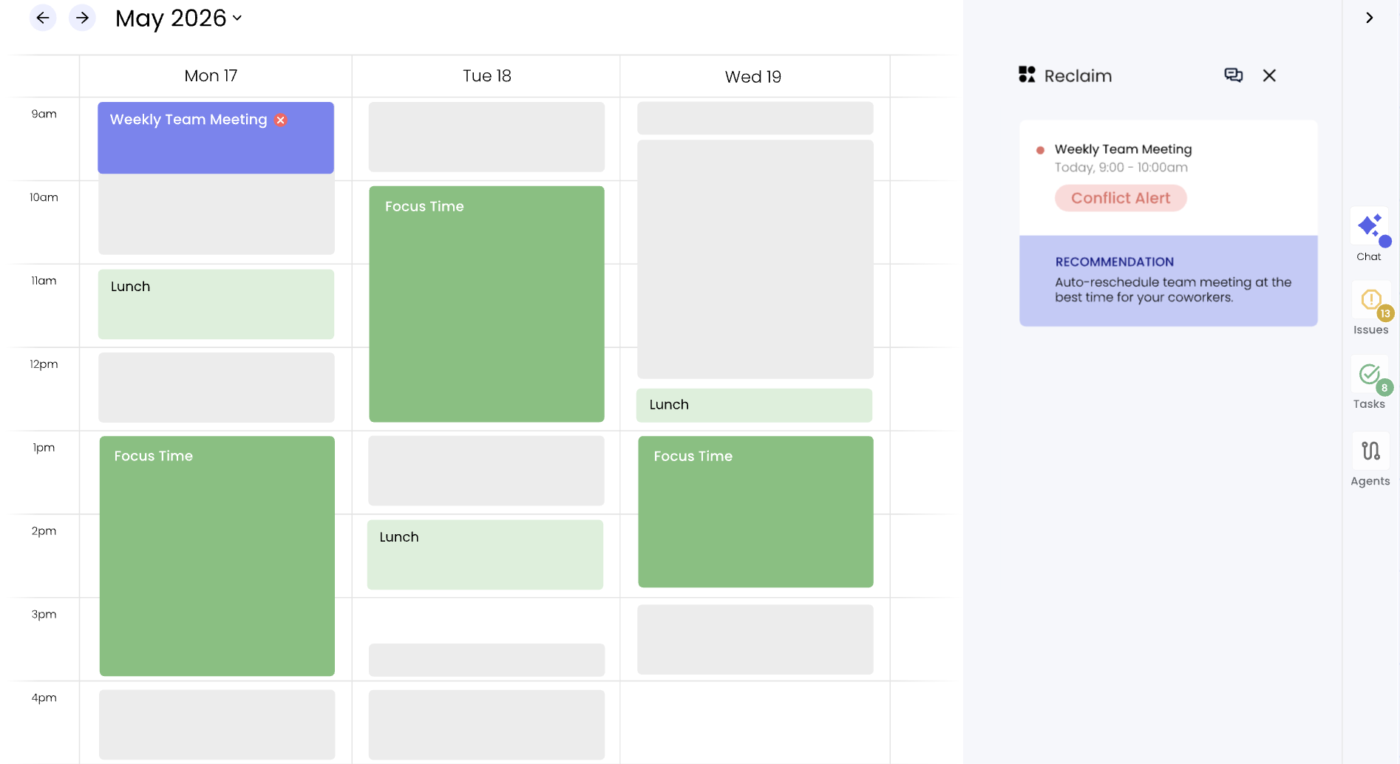
Reclaim.ai is one of the best calendar management tools because it adds an intelligent scheduling layer to your existing Google Calendar. Instead of making you switch to a new project management app, it automatically creates, protects, and adjusts time blocks throughout your day.
It fits professionals and hybrid teams with packed schedules. You can set up flexible “Habits,” like a lunch break, catching up on email, or a gym session. Reclaim books as tentative blocks first. As new meeting requests roll in, the app shifts your habits around. But if a habit risks being entirely dropped, Reclaim locks it down as “Busy.” This defends your personal time from getting wiped out.
The true power of Reclaim comes from its AI-driven scheduling agents and priority matrix. Reclaim evaluates your tasks by priority, from critical to low. If an urgent, high-priority meeting is scheduled over your planned focus time, the AI automatically reshuffles lower-priority tasks later into the week. All that without manual dragging and dropping of your deadlines.
A G2 user praised how Reclaim defends focus time automatically:
I use Reclaim.ai for managing my daily schedule, and it pulls across multiple calendars, both personal and work. I move tasks in, prioritize them, set deadlines, and Reclaim.ai ensures they are scheduled in time as prioritized activities that can’t be easily overridden. I really like the ease of use and find the multiple calendar syncing very helpful. Having multiple separate calendars is useful for viewing on other apps and for sharing, and Reclaim.ai syncs these to avoid conflicts. Setting it up was easy.
Where it taps out: Reclaim assumes you already run a separate task manager, and its team-wide calendar orchestration is lighter than its individual features. If you want one tool to also run your projects, you’ve reached its edge.
Best for: Individuals on Google Calendar who already use a task manager and want focus time protected on autopilot.
Skip it if: You want one system to store tasks and run projects, or you need robust team-wide scheduling, which only really comes together on the paid Business and Enterprise tiers.
Also Read: Time Blocking Apps
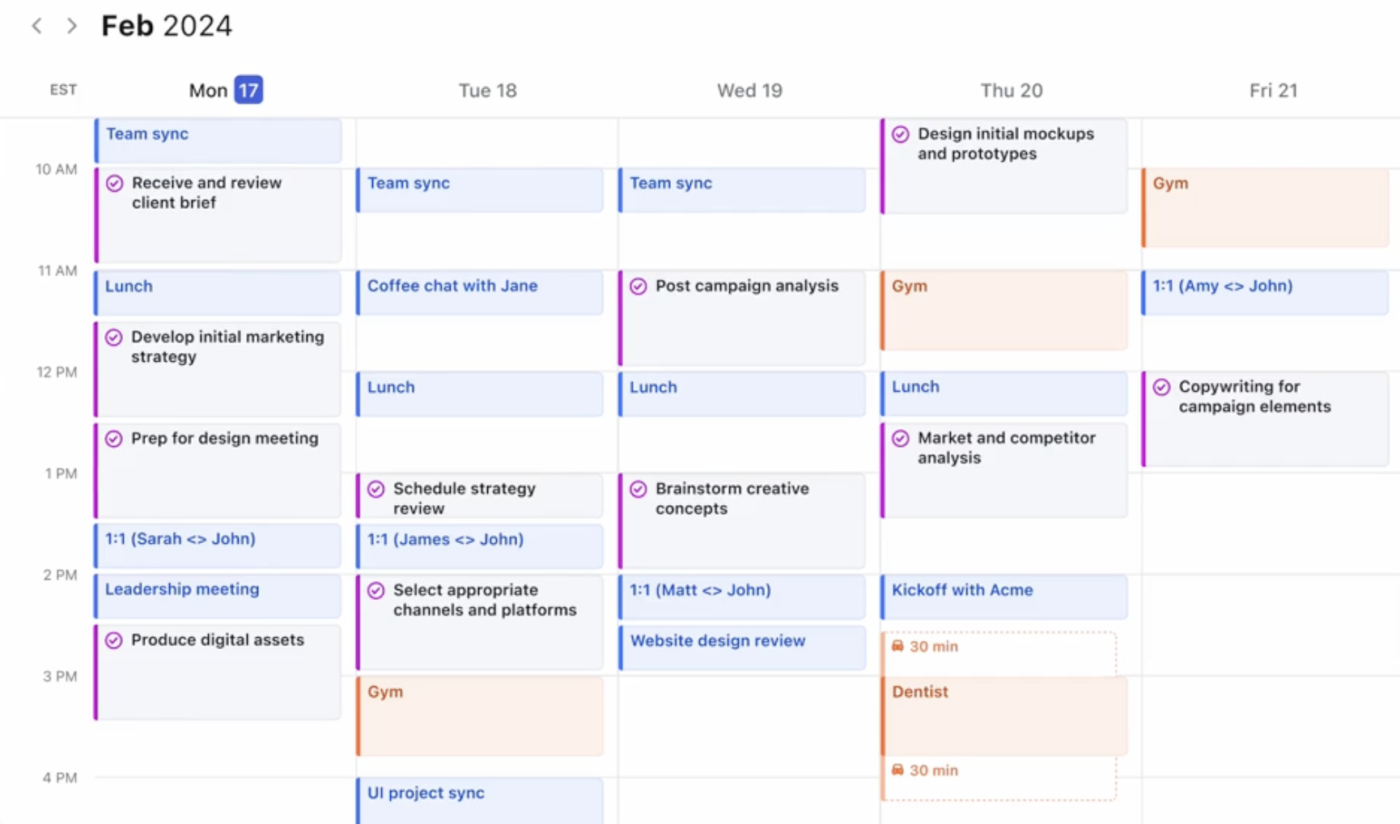
Motion has one of the most hands-off auto-schedulers in this category. Instead of helping you plan your day manually, it constantly reorganizes your calendar based on deadlines, priorities, and changing meeting schedules.
Give a task a deadline and a duration, and it finds the perfect slot on your Google Calendar. It then rebuilds the plan the moment a meeting moves or a task runs long. It acts almost like an autonomous assistant, building a realistic daily plan from your to-dos.
It fits deadline-driven freelancers, agency owners, and busy managers with fast-paced days. When you add a task, the AI engine handles the math. It works backward from your deadline to find the perfect open slot on your schedule. Say if a sudden meeting pops up, the app instantly reshuffles your week. It also moves your remaining tasks to open slots in real time.
Its scheduling engine is what sets it apart. Every task gets a deadline, duration, and priority level. Motion uses that information to manage your calendar, pushing lower-priority work back when urgent tasks come up and moving it forward when meetings are canceled.
It syncs with Google Calendar, Outlook, and iCloud. It also follows your meeting preferences to protect focus time.
Motion has also expanded beyond scheduling. It now includes project management, docs, and AI Employees that help teams track timelines, summarize conversations, and balance workloads automatically.
A G2 user pointed to the automatic rescheduling as the reason nothing slips:
I really find Motion easy to use and simple to set up, making getting tasks into the calendar a breeze. Syncing it with my work calendar is really simple as well. What I like most is that when I don’t complete a task, it doesn’t just fall away or get lost. Motion moves everything around in my calendar so that each task that’s supposed to be done actually gets done and doesn’t get forgotten. It also notifies me if a task has passed its deadline, allowing me to make it the highest priority to get it finished.
Where it taps out: There’s no free tier, so you can’t test it risk-free. The credit metering means power users pay more the harder they lean on the AI. And the auto-scheduler needs a two- to four-week trust ramp before it feels reliable, which is a real ask if you want results day one.
Best for: Solo operators and small teams with tight, deadline-driven workloads who want the calendar rebuilt automatically.
Skip it if: You want flat, predictable pricing, a free plan, or scheduling that works well from day one without a learning curve.
AI work hubs solve a different problem: calendars that are disconnected from the actual work. Instead of sitting on top of Google Calendar, they bring your tasks, projects, and docs into one place. This makes your schedule reflect what you need to deliver, not just the meetings on your calendar.
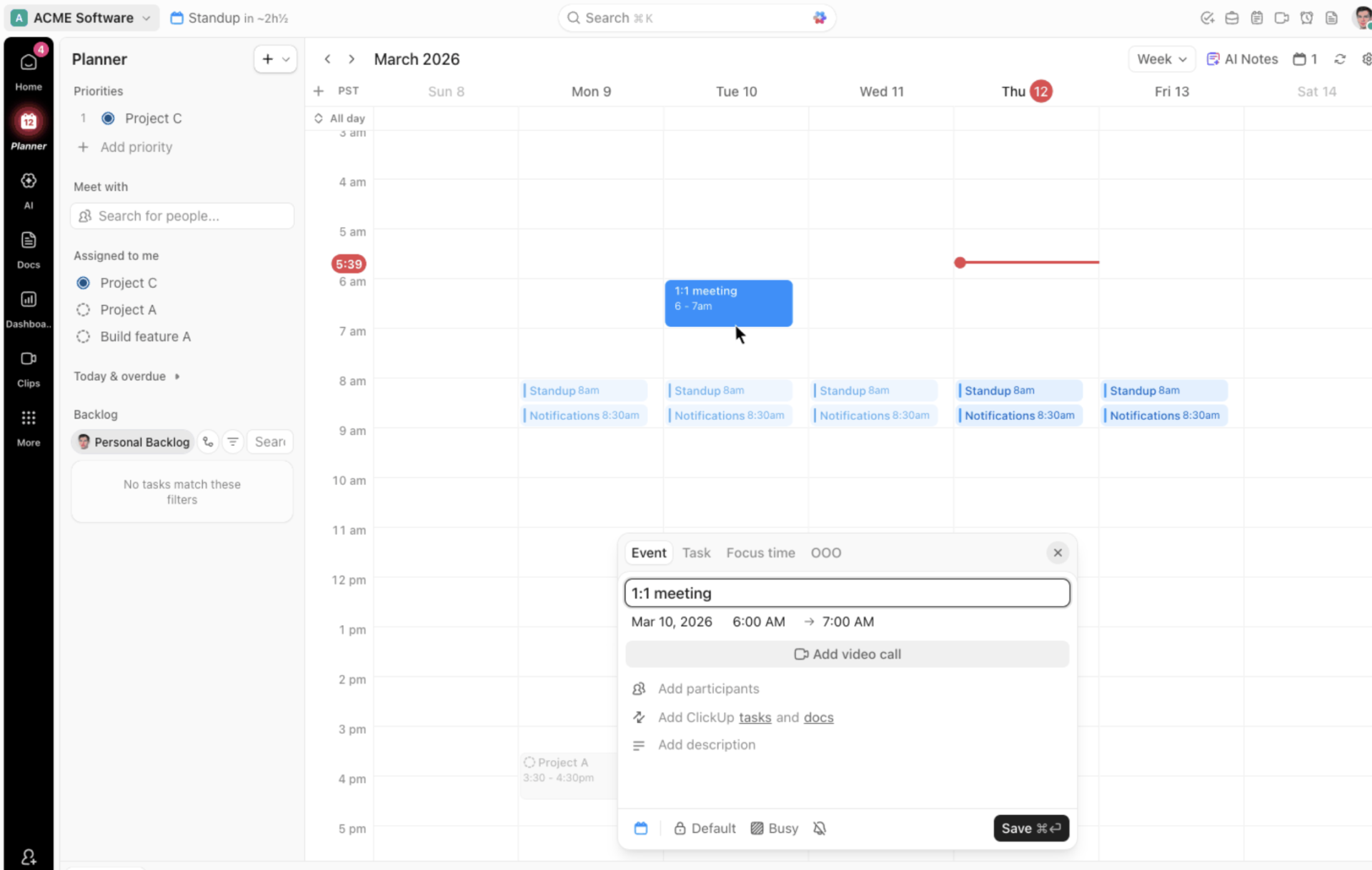
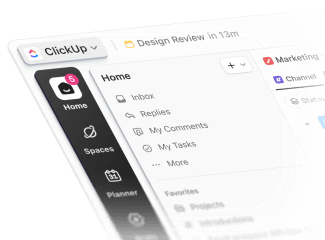
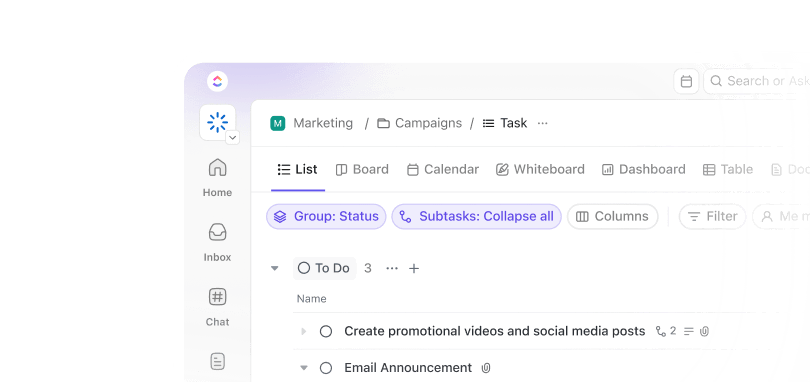
ClickUp represents a different approach from the tools above. Instead of optimizing a standalone calendar, it turns your calendar into an extension of your work. Tasks, projects, docs, and meetings all live in the same workspace, with a two-way sync that keeps Google Calendar updated automatically.
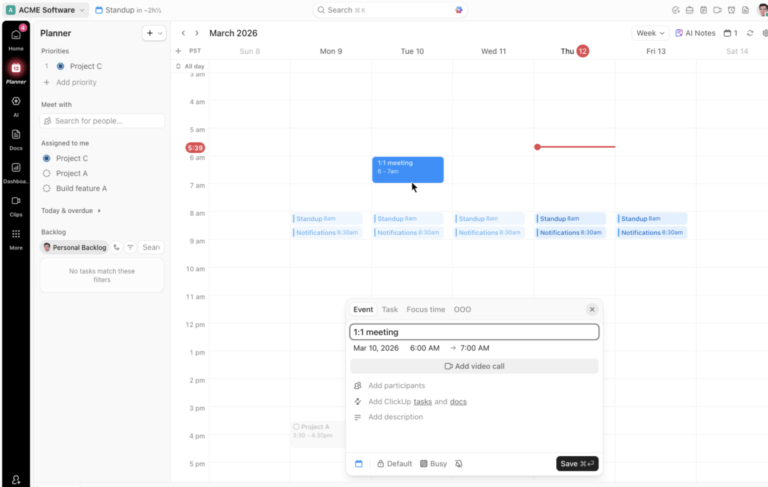
It is a full workspace where your calendar fills itself from your real work. When you sync your Google Calendar with ClickUp, tasks with due dates flow straight onto the former as events. At the same time, meetings you add in Google flow right back into ClickUp. The tool reflects changes on both sides within minutes. Just drag a task into a time slot on the calendar, and it appears on both schedules at once, keeping all your project context intact.
ClickUp Brain adds a powerful AI layer directly on top of this schedule. It reads the plain language you type to create and update events. For example, you can type “block two hours for the draft Thursday morning,” and the AI instantly creates the block.
Brain also drafts a daily plan from your actual workload. Beyond scanning for empty calendar spots, it understands the work behind the scenes. This way, your daily schedule reflects what needs to be done, keeping everything clear and organized.
For professionals managing deep pipelines, the big win is total alignment. You no longer have to jump between a project board and a calendar app to see if you’re on track. Your schedule shifts automatically as your tasks move.
One G2 reviewer pointed to the all-in-one workspace and the Google Calendar tie-in:
It is very easy to organize tasks and spaces, share with different teams, and the chat usage that creates tasks from there is amazing also. The navigation is amazing, it is cost-effective for the business as we have one tool for all. AI integration is also a plus, helping us navigate through tasks quicker. Integration with Google Calendar helps with day-to-day tasks in addition to task management. The app performs quickly, there is no delay, and if there is something wrong with performance in any way, the support team is quick to help.
Where it taps out: ClickUp is a full work platform, so if all you want is a slicker AI layer on top of Google Calendar, it’s more than you need. And there’s a setup curve the single-purpose tools skip.
Best for: People who want a calendar, tasks, and projects in one system, with the schedule updating itself as the work progresses.
Skip it if: You only want a lightweight AI tool bolted onto Google Calendar and don’t care about managing the work underneath it.
If you want a deep dive into ClickUp’s Calendar, watch this video:
AI-first calendars rebuild the calendar interface itself for speed. Every action has a keyboard shortcut, natural language creates events in one line, and time-zone math happens for you. They’re built for people who live in their calendar all day.
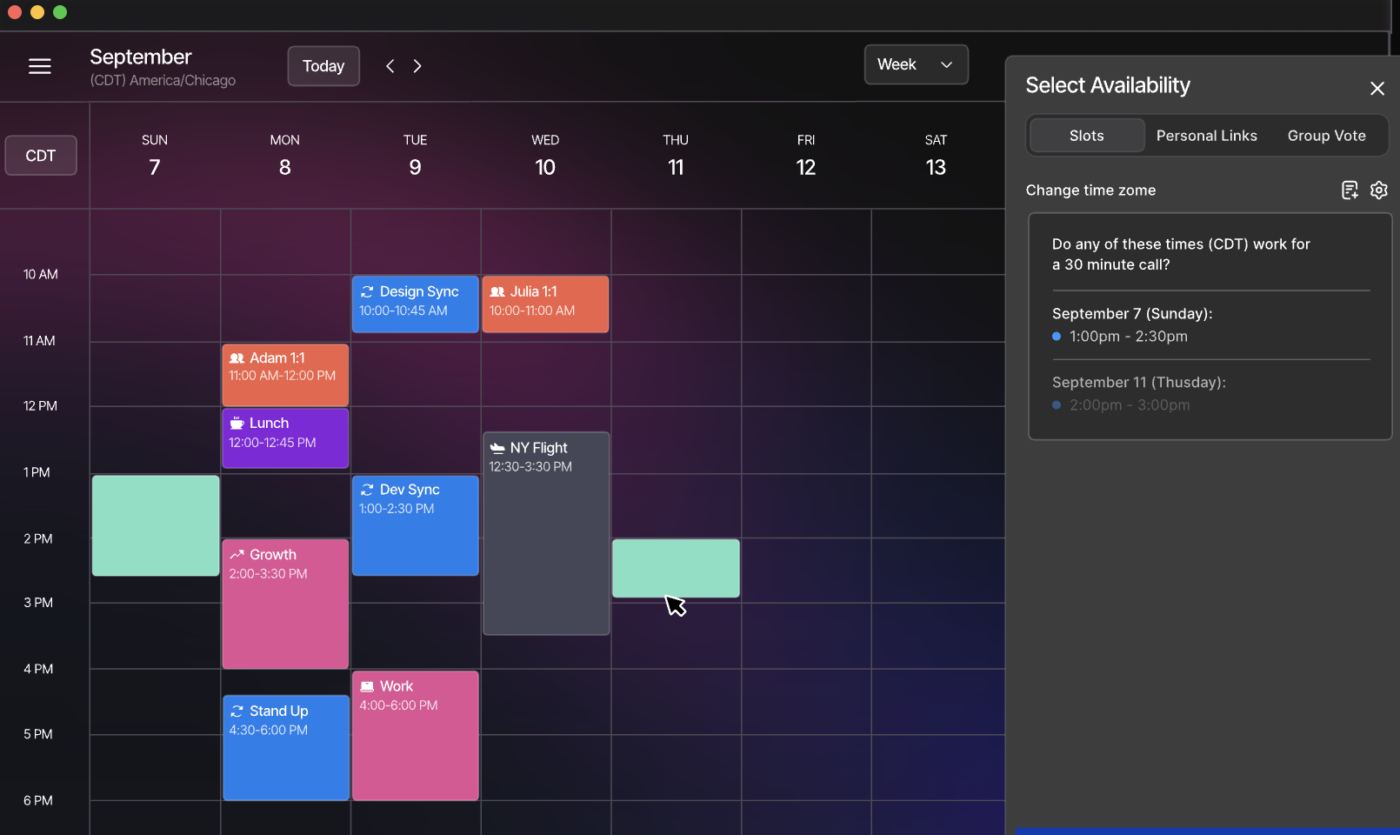
Vimcal is built for people whose days are packed with meetings. Designed for founders, executives, and executive assistants, it offers sub-100ms response times and keyboard shortcuts for almost every action. The focus is simple: help you do everything you’d normally do in Google Calendar, but in fewer steps.
Natural language does the creating. Type “Coffee tomorrow at 3 pm with John” and Vimcal fills in every field, time zone included, no clicking through forms.
Its timezone handling shows overlapping work hours worldwide, making regional booking effortless. Drop in a Calendly link or a list of times someone sent, and Vimcal instantly overlays your own availability to show what works.
The AI is assistive, not autonomous. An AI scheduler finds slots for group meetings in one tap, and GPT-powered dossiers brief you on every attendee right inside the invite, so you walk in with context.
Vimcal reads and writes to Google Calendar directly (and to Outlook in a unified view), so everything you do stays live on the grid your team sees.
A G2 user listed a few things:
Support for multiple calendars with M365 integration.
Powerful command center with lots of abilities.
Intuitive workflow to schedule meetings with teammates, and share the availability calendar.
Beautiful appearance of calendar events with clear information visible
Where it taps out: Vimcal is great for scheduling meetings, but it doesn’t manage the work behind them because it doesn’t have a shared task backlog. Also, the full desktop experience is only available on paid plans, while the free version is limited to iOS. That means you can’t try its keyboard-first workflow—arguably its biggest advantage—unless you upgrade.
Best for: Founders, executives, VCs, and EAs booking dozens of meetings a week who want raw speed and flawless timezone handling.
Skip it if: You need task management baked in, or you want the calendar to auto-schedule work rather than just book meetings fast.
AI daily planners answer one question: what should I actually work on today? They pull your scattered to-dos into one view and drop them onto the calendar as realistic time blocks, so prioritizing beats managing meetings.
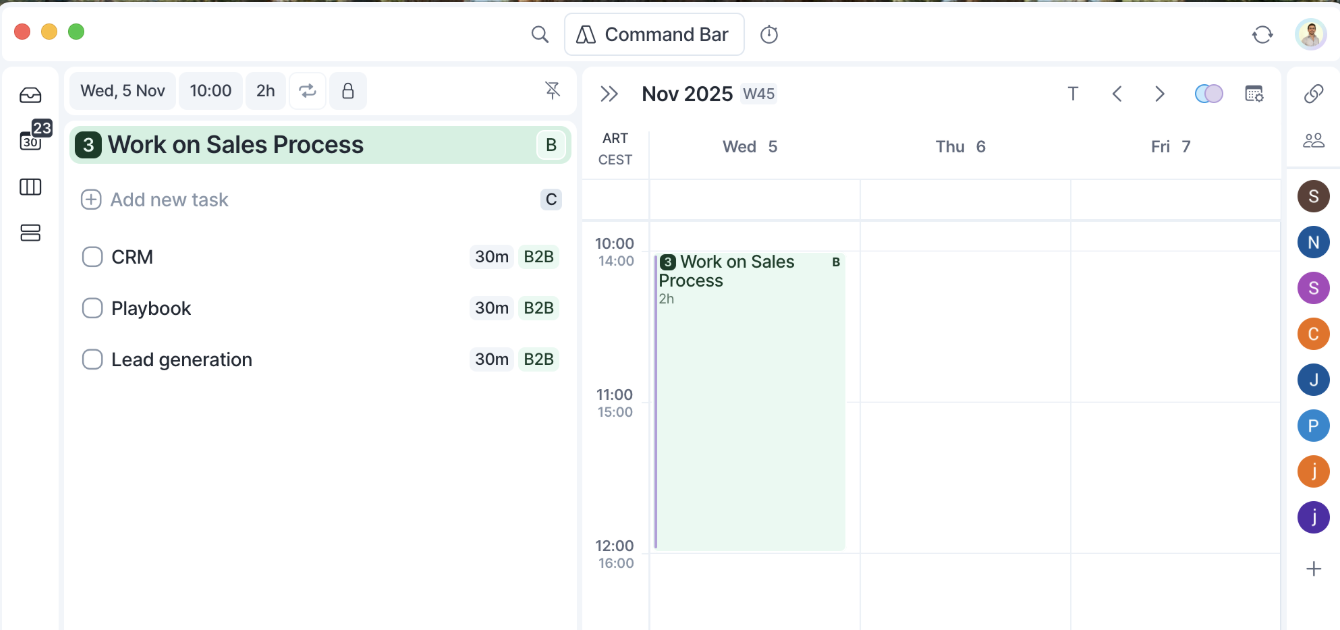
Akiflow stands out because it connects directly with your Google Calendar to build a single capture-to-calendar pipeline. If you’re drowning in tasks across a dozen different apps, this tool pulls them all into one view. Its Universal Inbox brings in to-dos from Gmail, Slack, Notion, Asana, and 50 other platforms.
The Google Calendar integration features a fast, two-way sync. When you drag a task from your sidebar onto the calendar grid, it instantly becomes a scheduled event. Any changes you make on either side show up live within seconds.
The built-in AI assistant, called Aki, adds a smart layer to your task planning. Talk or type to Aki in plain language to adjust your schedule. For instance, you can tell it to “clear my afternoon and push everything that is not on fire to tomorrow.” Aki handles voice notes, processes commands via WhatsApp, and reads forwarded emails to automatically create calendar events.
It works like a personal secretary, organizing your daily routines before your schedule overloads.
A G2 user pointed to how Akiflow pulls tasks and calendars from scattered tools into one clean space:
I really appreciate the visual layout and how easy it is to use. Akiflow lets me consolidate my tasks and calendars from various programs into a single, clean, and easy-to-read space. With my busy schedule and tasks coming from so many different sources, I find that Akiflow helps me manage everything more effectively. It enables me to view all my obligations at a glance and organize them in a more thoughtful and mindful manner.
Where it taps out: Akiflow organizes your tasks, not your team’s, so it’s a personal planner rather than a shared scheduler. And with a 7-day trial and no free plan, you commit before you’ve really tested it.
Best for: People consolidating tasks from many tools into one daily plan, who want keyboard speed and a single capture-to-calendar flow.
Skip it if: You want a free tier, team-wide scheduling, or mature hands-off AI rather than a fast manual planner.
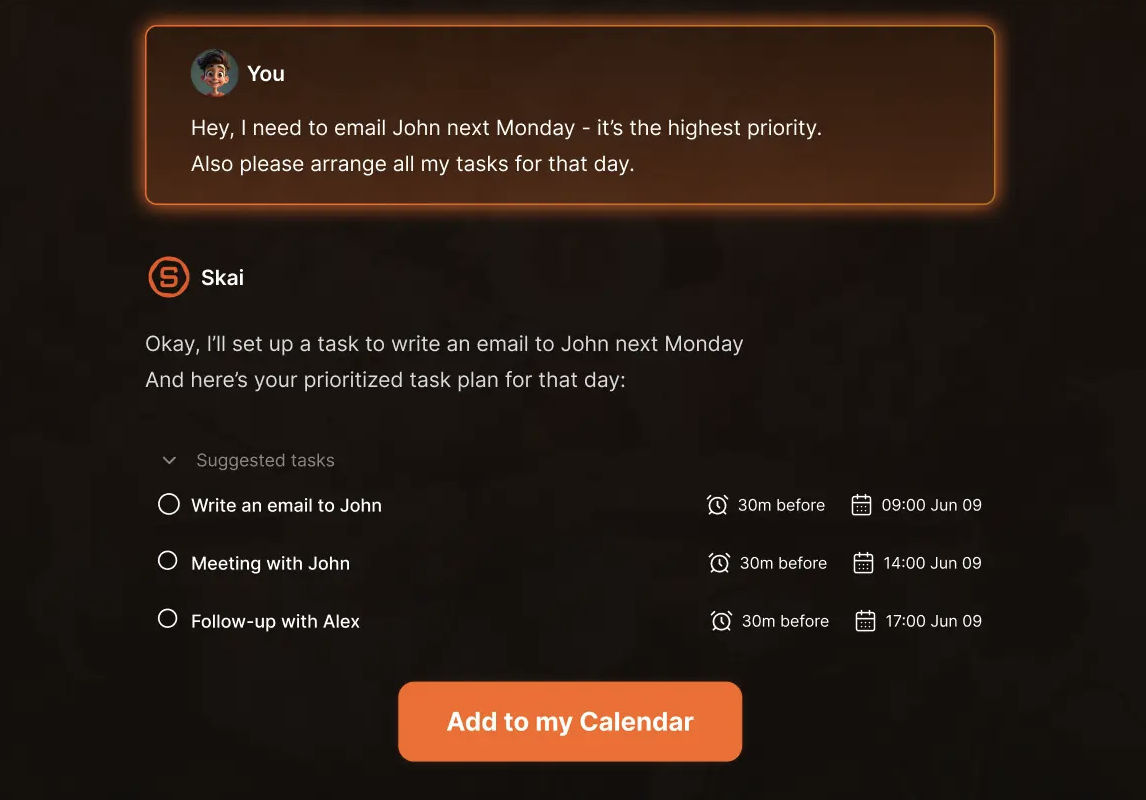
Saner.ai is for people who would rather talk to their calendar than configure it. Its assistant, Skai, lets you dump everything on your plate into a quick note. Then, you simply say “plan my day,” and the AI instantly lays out a time-blocked schedule directly on your Google Calendar.
It goes beyond a basic planner by building a personal knowledge graph. This graph automatically links your notes, uploaded files, and calendar events together so you can easily recall them later.
The platform relies on deep context. Skai scans your synced emails, Slack messages, and documents to pull out hidden action items. It then maps them onto your calendar grid and highlights your most urgent follow-ups.
A major differentiator here is the multi-AI integration. Just pull up top models like GPT-4o, Claude, or Gemini Pro to draft quick email replies or break complex projects down into small, actionable subtasks.
You can capture ideas instantly through a Chrome extension side panel or by recording a quick voice note on your phone. There are no complex folders or labels to organize manually, as the AI handles backend sorting for you. For anyone who finds traditional calendar setup a chore (and especially the ADHD crowd it’s designed for), that low-friction, just-tell-it flow is the whole appeal.
Note: Saner.ai hasn’t accumulated a meaningful pool of public G2 or Capterra reviews yet, so we’re leaning on our own testing.
Where it taps out: Saner.ai is a younger product with a smaller ecosystem and fewer integrations, so it’s better as a personal planning assistant than a deeply connected hub. And because the experience runs through chat, you trade fine-grained manual control for conversational ease, which won’t suit everyone.
Best for: People who want a true chat-first planning assistant and knowledge workers who find manual calendar setup draining.
Skip it if: You need deep integrations, team scheduling, or hands-on manual control over every block.
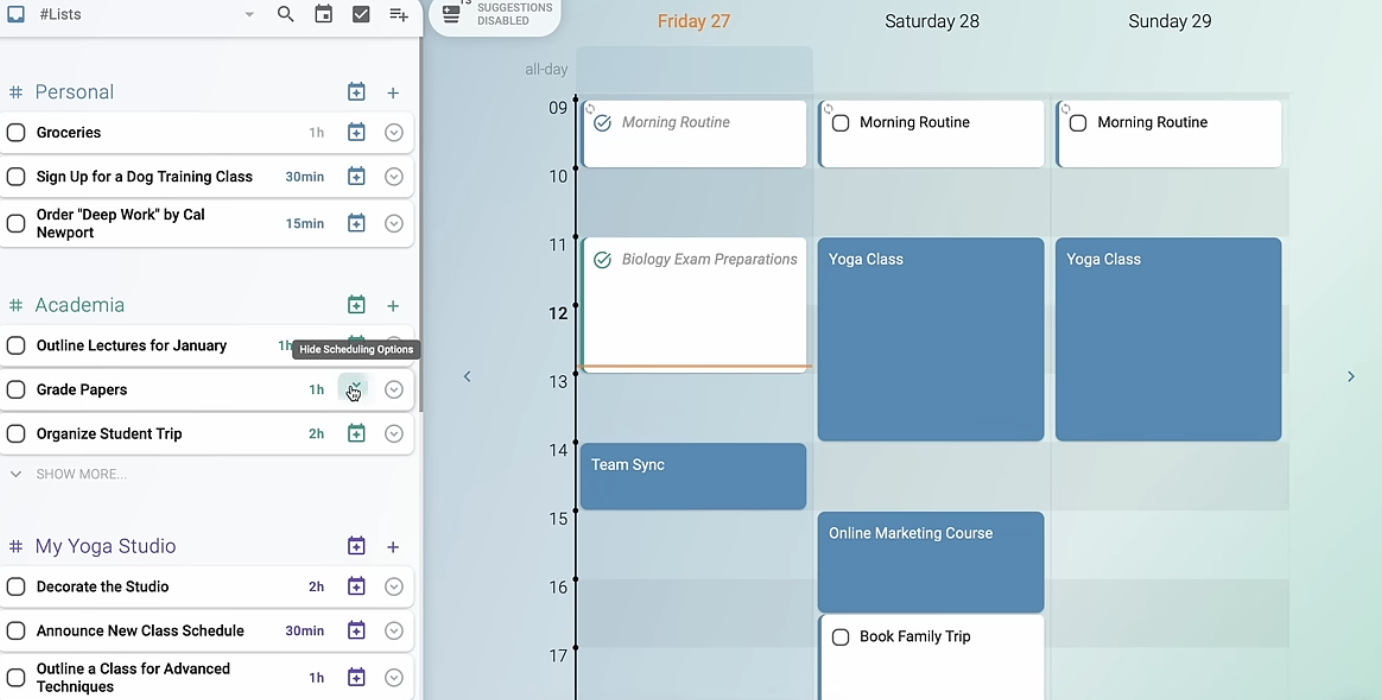
Trevor hooks directly into your Google Calendar via a real-time, two-way sync. And its free plan covers unlimited task scheduling, which is very rare in this software category. This generosity makes it a top choice for users who want to try time blocking without a financial commitment.
It is perfect for remote workers, digital nomads, and solo professionals who want a structured day without the bloat of a massive project platform.
Its “Plan My Day” feature and “Ask Trevor” chat assistant let you add and reschedule items in plain language. The AI reads your inputs, automatically predicts how long each task will take, and searches for optimal open slots on your schedule.
Instead of using aggressive, hands-off automation that moves things without your permission, Trevor gives you smart recommendations. You stay in the driver’s seat and accept or reject the AI’s suggestions, allowing you to maintain full control over your daily layout.
You can pull in tasks from external lists like Google Tasks, Microsoft To-Do, or Todoist, bringing all your obligations into a single hub. Plus, it also includes a dedicated Focus Mode to fight daily distractions. When you tap on a scheduled task, it opens a clean window with a built-in timer and notes section.
Note: Trevor hasn’t accumulated a meaningful pool of public G2 or Capterra reviews yet, so we’re leaning on our own testing.
Where it taps out: Trevor recommends setting times rather than automatically rebuilding your day, so the automation is lighter than Motion’s or Reclaim’s. It’s also built for individual planning, not team scheduling.
Best for: Individuals who want simple, free AI time blocking that syncs cleanly with Google Calendar.
Skip it if: You want fully automatic, deadline-aware scheduling, or team-wide coordination.
Native AI assistants add AI scheduling features without requiring another app. They’re built directly into Google Workspace, so there’s nothing to install or connect. You simply get AI help in the tools where your calendar already lives.
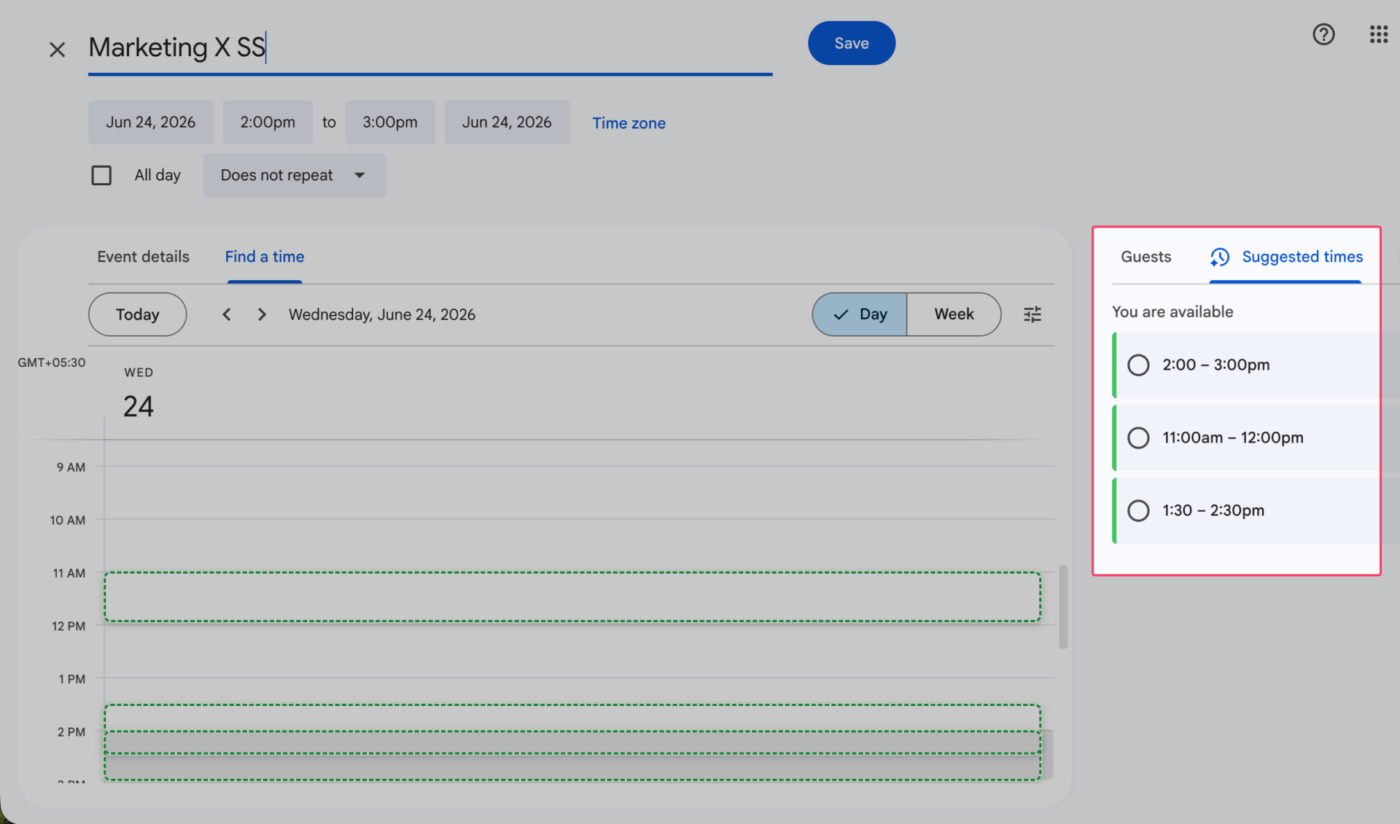
Google Gemini is the native choice that lives directly inside Google Workspace. This makes it the lowest-friction option on this list. There is no new app to download, and you don’t need to authorize any external integrations. For teams who want a smart assistant without adding another subscription to their stack, this zero-setup approach is the main appeal.
The feature set received a major upgrade with the rollout of “Suggested times.” When you create or edit a group event, Gemini scans the calendars of all your invitees. It checks their availability, time zones, and exact working hours to find slots that work for everyone. If plans change and multiple colleagues decline your invite, Google Calendar automatically pops up a banner. This banner displays a new alternative time, letting you reschedule the entire meeting with a single click.
Because Gemini connects deeply across your entire ecosystem, it reduces constant app switching. It matches the logic of Gmail’s “Help me schedule” feature. This means you can pull data straight from email threads into a calendar invite.
You can also use the side panel to draft agendas, summarize your day, and look up details from past meeting invites using plain language chat commands.
One G2 reviewer pointed to the cross-app integration as the biggest draw:
What I like most about Gemini is its deep integration with Gmail, Google Docs, Drive, and Calendar which helps in summarize gmail threads, pull information from Google Docs, Sheets, Drive, and Calendar directly when connected.
Where it taps out: Gemini’s “Suggested times” feature is strictly web-only, meaning you can’t use it on the mobile app. It also only works for internal colleagues whose calendar availability you can already see. If you need to manage complex task lists or book meetings with external clients, you will still need a specialized tool.
Best for: Google Workspace users who want native AI scheduling with zero setup and mostly coordinate internal team meetings.
Skip it if: You need a fully automatic task scheduler, deep mobile support, or advanced calendar booking links for external clients.
Also Read: Time Blocking Google Calendar
Four questions decide which tool fits. Answer each one, and your shortlist gets obvious fast.
Ask yourself If yes If no Do you want the tool to plan your day for you? Motion or Reclaim rebuild your schedule automatically Trevor just suggests times and waits for your okay Do your tasks already live in another app you trust? Use a layer like Reclaim, Vimcal, or Gemini that arranges the calendar around them Use ClickUp, where the calendar fills itself from your work, so you’re not juggling two apps Does more than one person depend on this schedule? Be careful: Reclaim, Vimcal, Akiflow, and Trevor are built for individuals. Gemini handles internal team coordination, and ClickUp scales to team scheduling Vimcal and Akiflow are built to make your own day fast Do you want a predictable bill? Pick flat per-seat pricing Credit-metered tools cost more the harder you use them; it depends entirely upon usage
You can usually set up an AI calendar tool in about 10 minutes. But if you rush the process, you may end up with double-booked meetings or events that move without warning. Most tools use the same five setup steps, and spending a few extra minutes upfront can prevent problems later.
Before you trust it fully, run the tool alongside your normal routine for a few days rather than going all in on day one. And remember, you stay in control. You can revoke a tool’s access at any time, instantly removing its calendar permissions.
A calendar that only stores meetings makes you do the rest: defending focus time, reshuffling when plans move, and turning tasks into blocks. Each tool here takes one of those jobs off your plate, so the question is, which job is the one wrecking your week?
Match it to your specific leak. Focus time bleeding away? Reclaim. Deadlines slipping? Motion. Drowning in meeting requests? Vimcal. Tasks scattered across ten apps? Akiflow. Already paying for Workspace and just want the basics handled? Gemini. Whatever you shortlist, open a real week in it and confirm changes sync both ways before you commit.
Most of these tools are built to optimize the calendar in isolation. The meeting gets booked, and the block gets created, but the work driving it still lives in another app. ClickUp closes that gap: your tasks flow straight onto the calendar, and every change syncs back to Google.
You either connect a dedicated AI scheduler or switch on Google’s native Gemini features. Reclaim.ai, Motion, and Akiflow link through a one-click Google authorization, then read your calendar and create or move events for you. If you’re on an eligible paid Workspace or Google AI plan, Gemini’s scheduling is already built in, no extra app needed.
Yes, ChatGPT can manage your Google Calendar once you connect the two. You can link them through official OpenAI Connectors (which require a paid ChatGPT plan) or via third-party tools like Zapier and IFTTT. Once connected, ChatGPT can read your schedule, create events, and reschedule conflicts. The difference from dedicated schedulers is that ChatGPT acts when you ask, while tools like Motion and Reclaim.ai rearrange your day automatically.
Generally, yes, as long as you use established tools and review the permissions they request. Reputable schedulers connect through Google’s official OAuth flow, are SOC 2 compliant, and let you revoke access at any time from myaccount.google.com > Data & privacy. The key thing to check is the level of access each tool needs. Some only require calendar access, while chat-first tools like Saner.ai also need access to emails and documents to identify action items.
Yes, through a two-way sync. ClickUp sends tasks with due dates to Google Calendar and brings your Google Calendar meetings back into ClickUp. Updates in one tool automatically appear in the other. The biggest advantage over a standalone scheduler is that your calendar is built around your work, so you don’t have to manually manage a separate to-do list.
Yes. Motion and Reclaim.ai build a full daily plan from your task list, slotting each item into open time by deadline and priority, then rebuilding the day when a meeting moves. Saner.ai does it conversationally: you braindump your to-dos, say “plan my day,” and it lays out a time-blocked schedule. This is the line between true auto-scheduling and tools that only create events you type in.
Reclaim.ai and Trevor have the most usable free plans, with ClickUp’s Free Forever tier close behind. If you already pay for Google Workspace, Gemini’s scheduling is effectively free because it’s included.
Coverage varies. Motion, Reclaim.ai, and Akiflow have full mobile apps; Gemini creates events by voice or text on Android and iOS, but its “Suggested times” group scheduling is web-only. For other calendars, Reclaim, Vimcal, and Trevor support Outlook, and Trevor also supports Apple iCloud. Always verify two-way vs. read-only sync on the vendor’s integration page.
Google Calendar reminders only notify you about upcoming tasks or events. An AI calendar assistant goes a step further. It automatically schedules tasks, moves events when conflicts arise, and protects time for important work without requiring manual input.

Manasi Nair
Max 27min read
Manasi Nair
Max 17min read

Arya P Dinesh
Max 20min read
© 2026 ClickUp