Grok Imagine renders a six-second, 720p video in about 25 seconds, according to xAI’s Video 1.5 release notes. That speed kills the old bottleneck of waiting on a render. It creates a new one: knowing how to use Grok Imagine well means shipping something on-brand before you burn through your usage limit on near-misses.
Most people open Grok Imagine, type a prompt, and generate straight to video. That’s the wrong order. Video eats far more of your usage limit than images do, and a rushed attempt can cost several tries before you even see whether the concept works. People who get good results treat video as the last step.
TL;DR
The working loop: generate a batch of cheap stills to pressure-test the concept, pick the strongest, and refine it with plain-language edits, switching to Quality Mode for anything with text or fine detail. Only then animate, with a restrained motion prompt, and extend the clip in single steps, carrying clothing, lighting, and camera cues forward so the scene holds together. Save the prompt with every keeper. On paid plans, Imagine shares one weekly pool with Chat and Voice, so every video misfire you skip is capacity you keep.
Summarize this article with AI ClickUp Brain not only saves you precious time by instantly summarizing articles, it also leverages AI to connect your tasks, docs, people, and more, streamlining your workflow like never before.
Grok Imagine is xAI’s tool for making images and videos. It turns text prompts into images, edits existing images using plain-language instructions, and animates stills into short clips with sound generated in a single pass. It isn’t the Grok chatbot, though. The two share a brand and a login, but Imagine is its own creative space, with its own interface, models, and limits.
Images run on Grok Imagine Image 2.0, built on Aurora, xAI’s own image engine. Video runs on Grok Imagine Video 1.5, which became generally available in June 2026. It began as an image-to-video model. You hand it a starting frame and a motion prompt, and it moves the scene while holding the light and detail of your source image. A July 2026 update added text-to-video, so you can skip the starting image now. It also brought native 1080p plus image and voice references. You also get an Agent Mode canvas, projects, parallel runs, and a searchable library.
If you want to see how Grok Imagine’s output style compares with other AI art generator tools, watch this walkthrough:
Summarize this article with AI ClickUp Brain not only saves you precious time by instantly summarizing articles, it also leverages AI to connect your tasks, docs, people, and more, streamlining your workflow like never before.
Summarize this article for me please
How to Access Grok Imagine (Free and Paid)
You can access Grok Imagine through the web at grok.com/imagine, the Grok app on iOS or Android, and through Grok on X. You don’t need a separate Imagine account: Grok supports signing in with either an X account or an email. Developers can also use the xAI API, where grok-imagine-video-1.5 is generally available.
Grok Imagine pricing
Free (Limited access to Grok, including capped image generation)
SuperGrok (Individual): $30/month (Includes image and video generation with higher usage limits across Grok features)
SuperGrok Plus (Individual): $100/month (Adds significantly higher usage, priority access, and 1080p video generation)
Business (Team): $30/month (Includes Grok build access, team seat management, user analytics, etc.)
If you’re generating assets regularly, a paid tier gives you more room before you hit usage limits.
What are Grok Imagine’s limits and video lengths?
In the Grok app and on the web, you pick the clip length and resolution in the composer before you generate: 6, 10, or 15 seconds, at 480p or 720p. Through the xAI API, grok-imagine-video-1.5 accepts any whole-second length from 1 to 15, and reaches 1080p on image-to-video, while reference-to-video tops out at 720p.
In the consumer app
The composer shows the length and resolution buttons to everyone, but your account tier decides which ones actually run. Free accounts can’t generate videos, and image generation is capped heavily. On a standard SuperGrok plan, 480p and 720p are the two options you’ll see. 1080p output is a SuperGrok Plus feature.
Paid plans also draw from a shared weekly usage pool that covers Imagine, Chat, Voice, and Build together. Higher-compute jobs like long 720p video eat a bigger share of it than a quick image does. Your remaining usage and reset date live in your account’s usage settings.
Through the API
API access is metered per generation and billed separately from any subscription, so it sidesteps the weekly pool entirely. That makes it the better path for batch work, though you give up the interactive edit loop that the app gives you.
A few limits are worth planning around:
Resolution is a per-generation choice, not a setting you forget about: Check which button is active before you generate, and confirm the output resolution before dropping a clip into a final asset
Longer sequences need multiple generations: One clip caps at around 15 seconds, so use video extension to continue a scene past that point
Your usage pool covers more than Imagine: A heavy afternoon of 720p video can leave you rate-limited in Grok chat later that week
Safety rules can stop a generation: Grok may block prompts that fall outside its safeguards, and violating xAI’s Acceptable Use Policy can result in action against your account, up to suspension or termination
Summarize this article with AI ClickUp Brain not only saves you precious time by instantly summarizing articles, it also leverages AI to connect your tasks, docs, people, and more, streamlining your workflow like never before.
Summarize this article for me please
Grok Imagine Modes Explained
Grok Imagine has a few different generation settings, but they don’t all do the same job. Quality Mode controls image quality and editing, while faster generation and video presets change how quickly or creatively Imagine produces a result.
Mode or setting
What it does
Best for
Quality Mode
Runs Imagine Image 2.0 with stronger prompt following, typography, visual detail, and precision editing
Product images, ads, infographics, design assets, and detailed edits
Fast generation
Prioritizes speed when you want to explore ideas or produce quick variations
Early concepts, prompt testing, and high-volume experimentation
Normal
Keeps video movement relatively restrained and close to the source
Realistic animations and straightforward image-to-video clips
Fun
Pushes video toward more playful or exaggerated movement
Memes, stylized clips, and casual social content
Custom
Gives you more direct control through written motion and scene instructions
Camera moves, choreographed action, and directed sequences
Spicy
Applies a more permissive creative setting where the option is available, while remaining subject to moderation
Adult-oriented experimentation where the mode is available
Quality Mode carries most of the useful controls for image work. xAI made Imagine Image 2.0 the default Quality Mode in August 2026, with tools such as Magic Wand edits, segmentation, background removal, Smart Resize, and support for up to five reference images per generation.
The other labels are more fluid. Video presets such as Normal, Fun, Custom, and Spicy have changed across versions and platforms, and xAI now places greater emphasis on prompt-driven control in Video 1.5. If the interface offers Custom, that is usually the best choice when you already know how the subject, camera, and scene should move.
Summarize this article with AI ClickUp Brain not only saves you precious time by instantly summarizing articles, it also leverages AI to connect your tasks, docs, people, and more, streamlining your workflow like never before.
Summarize this article for me please
How to Use Grok Imagine: Step-by-Step
To use Grok Imagine, open it on the web or in the app, generate a batch of images, edit the strongest one with custom instructions, animate it into a video with a motion prompt, then download it and save the prompt. In detail:
Step 1: Open Imagine and pick your starting point
Go to grok.com/imagine or open Imagine in the Grok app. From there, you can start a new generation from the prompt bar and browse examples in the Imagine interface. Before writing your own prompt, look at a few generations close to what you want and study how their prompts describe the subject, style, framing, and lighting.
Grok Imagine interface
Step 2: Generate a batch of images
Enter a descriptive prompt and generate a few variations. Use the first batch to check whether Imagine understood the subject, setting, composition, theme, lighting, and overall style. Choose the result that best matches your idea, then refine that version in the next round.
Batch-create images with Grok Imagine
A few choices here can save you time later:
Set the aspect ratio early: Pick the format based on where the image will appear. Use 16:9 for wide layouts or video frames, 9:16 for vertical content, and 1:1 for square posts. Choosing the shape early helps keep later edits focused on the image itself
Give the model visual direction: Include details such as setting, mood, framing, lighting, and style when they matter. Image 2.0 is designed to follow detailed, multi-part instructions, which makes a prompt like “woman reading in a quiet café, soft window light, waist-up portrait, natural photography” more useful than a broad subject description
Step 3: Edit the best image with plain language
Open the strongest image from your batch and describe what you want to change in everyday language. You can ask Imagine to adjust the background, lighting, colors, objects, or people while keeping the rest of the image intact.
xAI says Image 2.0 is designed to preserve source content across edits, which makes this useful when the composition is already close to what you need.
Describe precise edits to Grok Imagine
A few habits make the edit loop more predictable:
Name what should change and what should stay: A prompt such as “replace the office background with a warehouse, but keep the person, pose, clothing, and camera angle unchanged” gives the model clear boundaries
Group related edits together: You can combine changes that belong to the same revision, such as brightening the scene, warming the color temperature, and removing an object from the background. For a larger creative shift, make one change first and review the result before adding more
Switch to Quality Mode for tougher edits: Imagine Image 2.0 is available as “Quality Mode” on the web, iOS, and Android. Use it when you need tighter instruction following, cleaner text, or more detailed edits
Use “Quality Mode” on Grok Imagine
If you need ideas for phrasing edits or building stronger visual prompts, our guide to AI image prompts includes 50+ examples you can adapt.
Step 4: Animate the image into a video
Once the still looks right, turn it into a video and describe what should happen next. Grok Imagine Video 1.5 uses the image as the starting frame and carries its lighting, composition, and visual details into the generated clip.
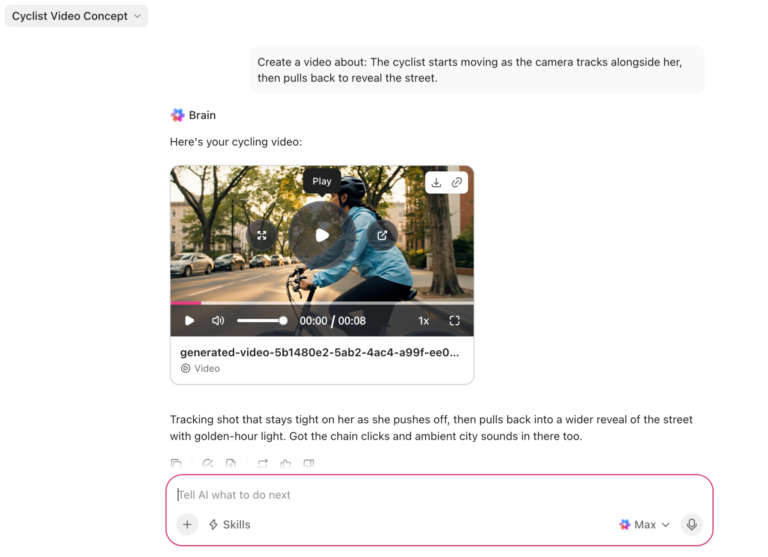
Animate stills in Grok Imagine
This is where your prompt should shift from describing appearance to describing action. Spell out what the subject does, how the camera moves, and what happens in the background.
For example: “The cyclist starts moving as the camera tracks alongside her, then pulls back to reveal the street.”
You can also write sound into the same prompt. Video 1.5 generates dialogue, ambiance, and sound effects with the visuals, which means a café scene can include low conversation and cups clinking, while a street shot can carry traffic and footsteps.
Quick Hack: Keep the first motion prompt fairly restrained. One clear subject action plus one camera move is easier to steer than a prompt packed with pans, zooms, dialogue, background action, and scene changes. Once the movement looks right, build complexity in the next generation.
Step 5: Extend clips into longer sequences
When one clip is too short, extend it from where the action ends. Grok Imagine supports video extensions, which continue an existing clip from its final frame and combine the new footage with the original. That gives you a cleaner path to longer sequences without having to manually export a frame and rebuild the scene.
Extend the scene with Grok Imagine
Continuity depends heavily on what you repeat in the prompt. Keep recurring details like clothing, lighting, location, camera style, and time of day consistent from one extension to the next. If the first clip says “warm evening light, handheld camera, crowded market,” carry those cues into the next prompt unless you want the scene to change.
For a longer sequence, plan each extension around one new beat. Let the first clip establish the scene, use the next to add movement or dialogue, and save any major camera or setting change for a later segment. This gives the model fewer moving parts to reconcile at once.
Step 6: Download, log the prompt, and check the rights
Download the versions you want to keep and save the prompt alongside each file. That makes it easier to reproduce a look, create matching assets later, or trace which wording produced a strong result.
Before publishing commercial work, check xAI’s current terms and usage rules. The data policy also matters if you upload reference images. For consumer Grok, xAI says prompts and other content you submit may be used to improve its models unless you turn off training in Data Controls or use Private Chat. The production API follows a different policy: xAI says data sent through its enterprise API isn’t used to train its models.
For sensitive work, treat reference uploads with the same care you would any external AI service. Client mockups, unreleased product shots, internal campaign assets, and other confidential material should only go into Grok when your organization’s data policy allows it.
Summarize this article with AI ClickUp Brain not only saves you precious time by instantly summarizing articles, it also leverages AI to connect your tasks, docs, people, and more, streamlining your workflow like never before.
Summarize this article for me please
How Do You Write Grok Imagine Prompts That Work?
Effective Grok Imagine prompts usually cover five things: subject, action, environment, camera, and style. For video, add sound and pacing when they affect the scene. The point is to separate what the scene contains from how the model should shoot it.
Here’s the difference:
Subject: Who or what is in the scene
Action: What the subject is doing
Environment: Where the scene takes place and what surrounds it
Camera: How the shot is framed or moves
Style: The visual treatment, such as film stock, lighting, or illustration style
Sound: Dialogue, ambiance, or effects for video
Applied to a work asset, that becomes:
“A barista in a green apron [subject] pouring latte art in slow motion [action] at a sunlit café counter with plants in the background [environment]. Slow push-in toward the cup [camera]. Warm film look with soft grain [style]. Espresso machine hiss and low café chatter [sound].”
Camera direction is especially useful for video because it controls how the viewer experiences the action. “A cyclist riding through a city street” leaves the shot open to interpretation. “A cyclist riding through a city street, tracked from the side at handlebar height” gives Grok a much clearer visual plan. Terms like “static tripod shot,” “slow push-in,” “tracking shot,” and “camera orbit” can all steer movement and framing.
Consistency matters when the same character or product appears across several scenes. Repeat the details that define it: jacket color, hairstyle, product finish, lighting, camera angle, or other visual anchors. When text starts to drift, use reference images.
Skip vague filler such as “4K,” “masterpiece,” or “high-quality” when a concrete visual instruction can do more.
For example: “A silver smartwatch rotating slowly on a black stone pedestal, dark studio background, close-up product shot with a slow camera orbit, soft rim lighting and glossy reflections, faint mechanical hum.”
Grok Imagine creating images
Pro Tip: Start with the details that most affect the frame. A camera angle, lighting direction, or specific action changes the result more than piling on adjectives such as “beautiful,” “stunning,” or “high-quality.”
Summarize this article with AI ClickUp Brain not only saves you precious time by instantly summarizing articles, it also leverages AI to connect your tasks, docs, people, and more, streamlining your workflow like never before.
Summarize this article for me please
How Does Grok Imagine Compare to Sora 2, Veo 3.1, and Kling 3.0?
Grok Imagine wins on speed, cost, and fidelity to a source image. Veo 3.1 leads in quality and camera control; Kling 3.0 goes furthest in resolution and multi-shot sequences; and Sora 2 is history. If your job is a high volume of short social clips built from stills you already have, Grok is the most affordable option on this list.
Area
Grok Imagine Video 1.5
Sora 2
Veo 3.1
Kling 3.0
Max clip length
1 to 15 seconds
4, 8, or 12 seconds; up to 25 seconds on Sora 2 Pro
8 seconds per pass, extendable to about 148
15 seconds
Resolution ceiling
1080p on image-to-video, 720p on reference-to-video
720p standard, 1024p and1080p on Pro
1080p native, 4K tier available
Native 4K at 60fps
Native audio
Yes, generated in the same pass
Yes, dialogue and effects synced
Yes, dialogue and ambience in-pass
Yes, varies by mode
API cost, 720p
$0.08 per second
$0.10 per second; $0.30 and up on Pro
Premium tier, roughly half the cost with audio turned off
$0.075 per second
Strongest at
Animating a locked still while holding its light and detail, at about 25 seconds per 6-second 720p clip
Physics and weight in complex motion
Cinematic look and granular camera direction
Multi-shot scenes, up to six shots with reusable characters
Summarize this article with AI ClickUp Brain not only saves you precious time by instantly summarizing articles, it also leverages AI to connect your tasks, docs, people, and more, streamlining your workflow like never before.
Summarize this article for me please
Selection Is the Real Bottleneck Now
Grok Imagine makes it easy to produce more options than you can realistically use. A single working session can leave you with dozens of images, edits, and short clips. At that point, generation speed matters less than deciding which version is accurate, on-brand, worth refining, and safe to publish.
That challenge extends beyond creative AI. McKinsey’s 2025 State of AI survey of 1,993 respondents found that 88% of organizations use AI in at least one business function, yet nearly two-thirds still haven’t begun scaling AI across the enterprise. The same report found that companies seeing the strongest results are more likely to redesign workflows around AI, building new processes instead of bolting tools onto old ones.
Ethan Mollick, Professor at the Wharton School, articulates the human side of that challenge:
Knowing when to use AI turns out to be a form of wisdom, not just technical knowledge. Like most wisdom, it’s somewhat paradoxical: AI is often most useful where we’re already expert enough to spot its mistakes, yet least helpful in the deep work that made us experts in the first place.
For Grok Imagine, that means the useful workflow doesn’t end when the model produces a good-looking asset. Someone still has to compare versions and catch warped text or continuity errors. They need to check brand details, choose the strongest take, and keep a record of what was approved.
For teams, a simple review system helps. Save promising outputs with the prompt that created them. Keep rejected variants out of the final asset library. Define who gives the last approval before an image or clip ships. The faster generation gets, the more valuable that layer of judgment becomes.
Summarize this article with AI ClickUp Brain not only saves you precious time by instantly summarizing articles, it also leverages AI to connect your tasks, docs, people, and more, streamlining your workflow like never before.
Summarize this article for me please
How Teams Manage Grok Imagine Work in ClickUp
Once a team starts generating dozens of images and clips, the problem shifts from creation to coordination. Someone has to know which prompt produced the current version, who is reviewing it, what needs changing, and which file is actually approved.
Give each asset a home
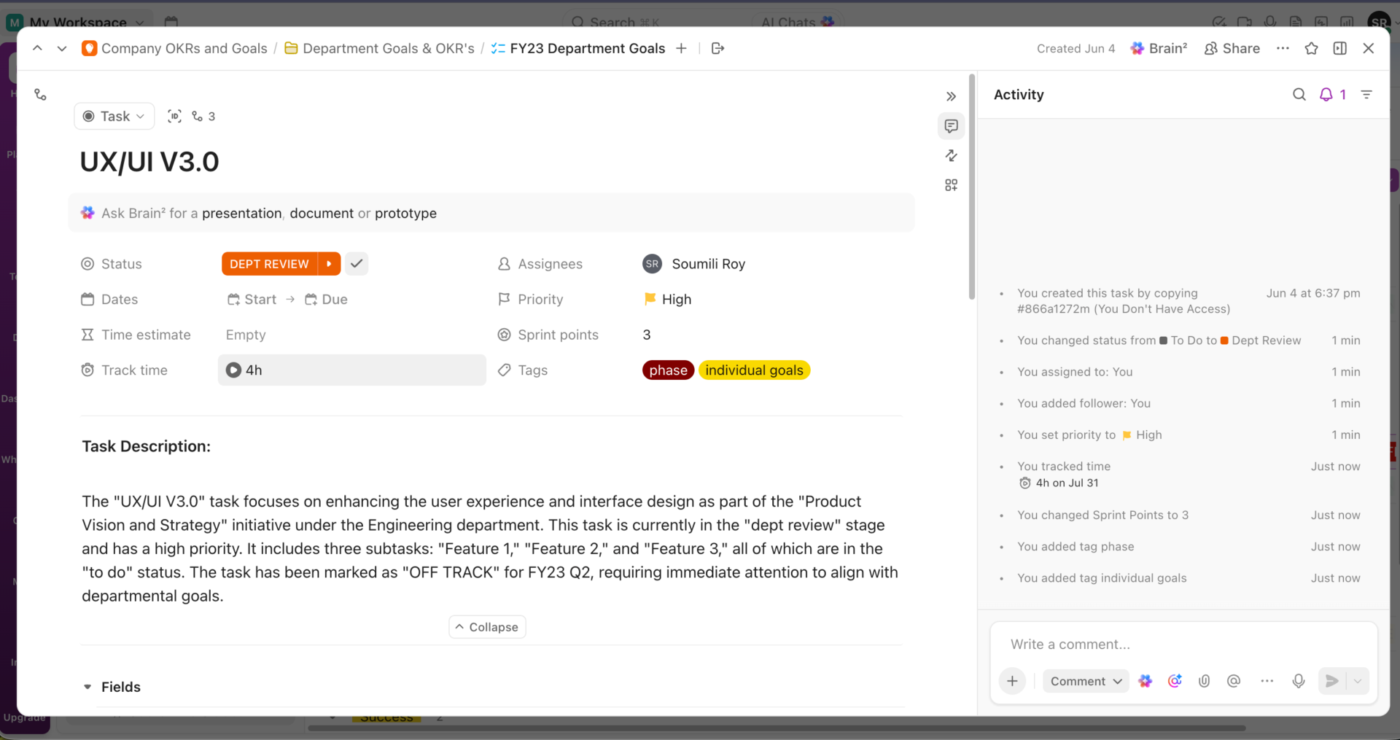
A simple setup is to treat each batch of images, videos, or assets as a ClickUp Task. Keep the brief, prompt, references, due date, and final export there. Then, use Custom Fields for details you’ll want to filter later, such as campaign, format, aspect ratio, or approval stage.
Assign, review, and manage work with ClickUp Tasks
That’s helpful when a campaign has several versions of the same asset. You can see which one is in review without opening five folders named final_v2_revised.
Keep feedback attached to the version it refers to
Generated media gets confusing when comments live in chat and files live somewhere else. But with ClickUp Proofing, you can leave feedback directly on images and videos. Video comments can tie back to specific timestamps, too.
Leave behind reviews on your files with ClickUp Proofing
This gives you a reliable trail from the first prompt to final approval. If someone revisits the campaign three months later, they can still see why one version was chosen and another was dropped.
Make approval visible
You don’t need an elaborate creative-ops system. Use ClickUp Custom Statuses like Generating, Review, Revisions, and Approved to show the stage the asset is in at the moment.
For repeatable handoffs, ClickUp Automations can trigger when a status or Custom Field changes. That can cover actions like assigning a reviewer when an asset enters Review or moving approved work to the next stage.
When you need generation and project management in one place
The gap most teams hit with standalone generators is everything that happens after the asset exists. You download it, upload it to a task tracker, tag the right campaign, ping the reviewer in a separate chat, and hope nobody overwrites the approved version with an older file.
The more assets you produce, the more that stitching eats into the time you saved generating them.
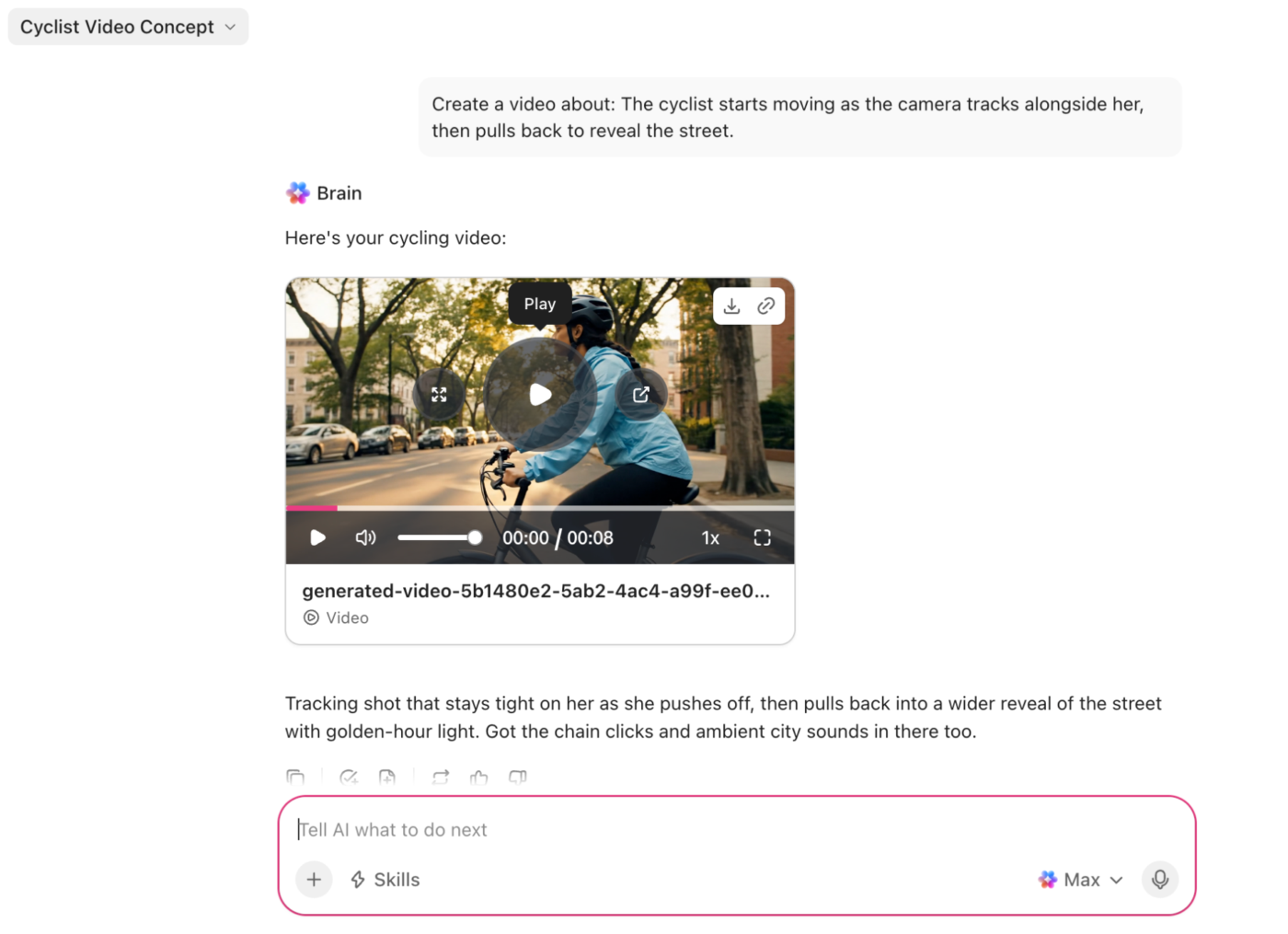
If that friction sounds familiar, ClickUp Brain can produce images, videos, slide decks, interactive prototypes, dashboards, and visual artifacts directly inside the workspace where your briefs, feedback, and campaign data already live.
Create image and video assets with ClickUp Brain
The output stays tied to the task that requested it. No downloading, re-uploading, or reconciling across tools.
Where it taps out: ClickUp is a project and work management platform with built-in converged AI. If your workflow already has a home and you only need a generation tool, adopting an entire platform for that alone doesn’t make sense. This fits teams that want the generation and coordination layers in one place.
Summarize this article with AI ClickUp Brain not only saves you precious time by instantly summarizing articles, it also leverages AI to connect your tasks, docs, people, and more, streamlining your workflow like never before.
Summarize this article for me please
Five Grok Imagine Mistakes That Waste Your Generations
The five most common Grok Imagine mistakes that waste generations are: asking one clip to do too much, extending a clip before checking its final frames, describing a reference image you could upload, using the highest-quality setting for every experiment, and approving the thumbnail without reviewing the full asset.
1. Asking one clip to do too much. Three character actions, two camera moves, dialogue, a lighting change, and a scene transition in a single prompt give the model too many things to reconcile at once. Instead, break complex sequences into smaller beats. Get one action and camera move working, then continue the scene in the next clip.
2. Extending a clip before checking its final frames. Video extension continues from what you already generated. If the character’s face, product shape, lighting, or background starts drifting near the end, that error becomes the starting point for the next segment. To prevent this, watch the last few seconds closely before extending. Regenerate the weak section while it’s still cheap to replace.
3. Describing a reference image you could simply upload. Text handles broad direction well but falls short when a specific product, character, or visual identity needs to survive several generations. Image 2.0 supports multiple reference images. Video 1.5 also has reference-based generation. Give Grok the visual information directly when you can.
4. Using the highest-quality setting for every experiment. Early generations are usually about finding the idea, framing it, and setting the direction. Save Quality Mode and higher-resolution video for versions that are already close to usable. On consumer Grok, higher-resolution generations have tier-based allowances.
5. Approving the thumbnail, not the asset. With a quick glance, you miss more AI errors than you’d expect. Open images at full size. Watch every video through with sound before approving it. Check text, hands, logos, reflections, background faces, object continuity, lip sync, and the final frames. A polished first impression can hide the defect that becomes obvious once the asset ships.
Summarize this article with AI ClickUp Brain not only saves you precious time by instantly summarizing articles, it also leverages AI to connect your tasks, docs, people, and more, streamlining your workflow like never before.
Summarize this article for me please
Make Grok Imagine Useful Beyond the First Generation
Grok Imagine is easy to start using. Getting consistent, usable work from it takes more discipline: locking a composition in image mode before animating it, writing camera moves as explicit directions (not hoping the model infers them), and saving the prompt alongside every output you’d consider reusing.
For teams, the bigger challenge starts after generation. Someone still has to review the options, collect feedback, approve the right version, and keep the final asset easy to find later. Try ClickUp for free to keep that entire workflow (prompts, files, and approvals) in one place.
Summarize this article with AI ClickUp Brain not only saves you precious time by instantly summarizing articles, it also leverages AI to connect your tasks, docs, people, and more, streamlining your workflow like never before.
Summarize this article for me please
Frequently Asked Questions About Grok Imagine
Is Grok Imagine free?
Partly. Free Grok accounts get capped image generation but no video. Video requires SuperGrok at $30/month, and 1080p video requires SuperGrok Plus at $100/month (x.ai/pricing). Developers can skip subscriptions entirely and pay per generation through the xAI API, where grok-imagine-video-1.5 is billed per second of output. If you only need occasional stills to test prompts, the free tier is enough to start.
Does Grok Imagine add a watermark?
Grok Imagine applies a small corner watermark to generated images and videos as a provenance marker, and it appears on consumer outputs by default. Behavior differs across tiers, platforms, and the API, so check an actual export from your own account before you build a client deliverable around it.
Can I use Grok Imagine output commercially?
Yes, under xAI’s general Terms of Service, but unlike Adobe Firefly or Midjourney, xAI hasn’t published explicit commercial-use guidance, so rights questions fall back to broad ToS language. Separately, the US Copyright Office holds that purely AI-generated work isn’t copyrightable, meaning you can publish an asset but may not be able to stop others from reusing it. For client work, document your prompts and human edits, and re-check the terms at delivery.
Can I generate images of real people or brands?
Technically, sometimes; practically, don’t. xAI tightened moderation after the January 2026 deepfake controversy, and prompts that name public figures are blocked inconsistently, meaning passing moderation isn’t the same as being cleared. xAI’s Acceptable Use Policy governs the account, and any exposure of likeness and trademarks rests with you regardless of what the tool renders. For campaign work, use licensed talent, your own reference photos, or original characters.
How do I use Grok Imagine on iPhone or Android?
Install the Grok app, sign in with your X account or email, then open Imagine from the app’s generation surface and pick Image or Video in the composer. The mobile composer carries the same core controls as the web: aspect ratio, quality setting, clip length, and resolution. Reference uploads pull from your camera roll, which makes the phone the faster path for product and location shots you already have.
What is Spicy mode, and can I turn it off?
Spicy is a more permissive creative setting that xAI shipped with Imagine in 2025, and The Verge documented it producing NSFW output from uploaded photos. It’s a per-generation mode, not an account default, so leaving it unselected keeps it inactive. Availability varies by platform and region, and all output stays subject to moderation. For anything work-related, treat it as off-limits: the reputational risk outweighs any stylistic upside.
Everything you need to stay organized and get work done.