Sorry, there were no results found for “”
Sorry, there were no results found for “”
Sorry, there were no results found for “”
You ask Claude Code to fix a checkout error. It changes the right file and reports that the tests pass. But the tests never covered the expired coupon that caused the error, so you still don’t know whether the fix works.
A useful prompt gives Claude Code enough information to address that gap: the behavior you expect, the relevant files, any limits on the change, and evidence you can review. For a bug fix, that might mean reproducing the failure before changing the code. For a codebase question, it might mean citing the files and functions behind the answer.
The 25 Claude Code prompts below cover planning, debugging, code review, migrations, and other recurring tasks. Each gives you a starting point to adapt to your repository, with guidance on what to provide and how to assess the result.
TL;DR: Give Claude Code a defined task, relevant repository context, and clear limits on what can change. For code changes, specify tests or other checks; for research and planning, request cited findings or a reviewable plan. Adapt the 25 templates to your project’s requirements and permissions, then review the evidence before accepting the work.
A Claude Code prompt can authorize work in your repository, rather than simply request an explanation. Depending on its tools and permissions, Claude can inspect files, run commands, edit code, and check the results. Your instructions therefore need to define both the task and the boundaries of the work.
Chat assistants can also use tools and take actions, so the distinction is not “chat replies, Claude Code acts.” The practical difference is the environment and access you give the assistant. Asking for a suggested fix in a chat leaves you to apply it; asking Claude Code to implement that fix can change your working files.
That changes the consequences of an unclear request. “Fix checkout” leaves decisions about scope, expected behavior, and acceptable changes unresolved. Claude may produce a plausible implementation that you then have to inspect or undo. A more useful request identifies the failing case, what must remain unchanged, and whether Claude should investigate, plan, or edit.
| Aspect | Chat used for advice or draft code | Claude Code working in a repository |
| What the request enables | An explanation or proposed code for you to assess and apply | File inspection, commands, and edits through available tools and permissions |
| Available context | The conversation, supplied files, and any connected sources | Repository files, applicable project instructions, and connected tools |
| Consequence of an unclear request | An unsuitable answer or suggested implementation | Changes that may miss the requirement or affect unrelated code |
| How you control the work | Refine the question and decide what to use | Set scope, choose a permission mode, and review plans and changes |
| Useful evidence to request | Sources, assumptions, or an explanation of the proposed code | Relevant file references, diffs, actual test results, and unresolved issues |
Anthropic’s analysis of 500,000 coding-related interactions illustrates this difference in use. Using data from April 2025, it classified 79% of Claude Code conversations as automation, compared with 49% of Claude.ai conversations. These figures describe observed usage patterns, not fixed limits on either product.
The same study classified 35.8% of Claude Code interactions as feedback loops, where people validated the work and supplied further input, such as error messages. Giving Claude a relevant test command can help it investigate failures directly. You still need to assess whether those checks cover the behavior you requested.
For Claude Code, a prompt should make the intended level of action clear: explain the code, propose a change, or implement it within a defined scope. Configure permissions separately, then review the evidence appropriate to that task.
Pro Tip: If you’re still comparing coding tools, see Claude Code vs. Copilot and Claude vs. ChatGPT for coding. For browser-based prompting, use the Claude AI prompts guide. If you need setup instructions first, start with how to use Claude Code.
A strong Claude Code prompt explains the result you want, the context needed to produce it, and how you’ll assess the work. A question about one function may need only a file reference and a requested explanation. A change across several files needs clearer scope and constraints.
Include these six details where they apply:
@ when you know themHere’s how those details improve three common requests.
Instead of: “Fix the checkout bug.”
Customers using an expired coupon receive a 500 error at checkout. Inspect @src/checkout/coupons.ts and its tests. The expected behavior is an invalid-coupon message without creating an order. Write a failing test that reproduces the error, then fix it without changing valid-coupon behavior. Run [checkout test command] and show the results before and after. If you cannot reproduce the error, report what you checked before changing the implementation.
Instead of: “Add a date picker.”
Add a date picker to [booking form path]. Follow the component and validation conventions in @src/components/TimeSelect.tsx. Users must be able to select [allowed dates], while [unavailable dates] remain disabled. Don’t add libraries. Run [component test command] and [type-check command], and report any criteria those checks do not cover.
Instead of: “Clean up this file.”
Split @src/reports/export.py into smaller functions while preserving its inputs, output format, and error behavior. Run [export test command] before editing and report any existing failures. After refactoring, rerun the tests and show both results. Don’t change the public interface or unrelated files.
Replace the example paths and commands with values from your repository. Passing tests provide evidence for the cases they cover; review the diff and confirm those cases match the requirement.
These examples adapt the scoped-request approach in Anthropic’s Claude Code best practices. For guidance beyond coding, see these AI agent prompting best practices.
A detailed prompt can still produce code that solves the wrong problem. You might specify the files, coding style, and desired output, yet leave out the condition that determines whether the change is useful. For an expired-coupon bug, “the checkout tests pass” is incomplete evidence unless those tests cover the failing coupon and confirm that no order was created.
Wording helps Claude understand the request. Verification lets you assess whether its implementation meets it. That distinction matters when Claude can edit files and run commands: a convincing explanation of the change is not evidence that the behavior is correct.
Anthropic’s Claude Code best-practices guide recommends giving Claude a way to verify its work through tests, screenshots, or expected outputs. The check should reflect the requirement. A build checks whether the project compiles; a focused test checks a particular behavior; a screenshot comparison helps assess the rendered interface. Each answers a different question.
Boris Cherny, the creator of Claude Code, describes using a browser-based feedback loop in his own workflow:
“Claude tests every single change I land to claude.ai/code using the Claude Chrome extension. It opens a browser, tests the UI, and iterates until the code works and the UX feels good.”
InfoQ’s account of Cherny’s workflow reports his view that verification can improve result quality by a factor of two to three. That is an attributed assessment of his workflow, not a controlled measurement or a guaranteed improvement.
Delegating implementation still leaves you responsible for deciding what the software should do. Claude can suggest tests, but those tests need to reflect your business rules, including exceptions that may not be obvious from the code.
In its study of about 400,000 Claude Code sessions, Anthropic found that people made about 70% of planning decisions but only about 20% of execution decisions. The study also associated higher apparent task-specific expertise with higher verified-success rates: about 15% for sessions rated novice, compared with 28% to 33% for intermediate or expert sessions.
Those figures need context. Expertise was assessed from transcripts, and “verified success” required evidence of success within the session. Anthropic did not observe users’ real-world outcomes. Sessions without that signal were not necessarily failures, and the study does not establish that changing prompt wording alone improves results.
The practical implication is to contribute the knowledge Claude cannot safely infer. An accountant reconciling invoices must specify how partial payments, refunds, and rounding should work. A developer changing checkout behavior must identify which existing behaviors must remain intact. Those decisions determine whether the resulting tests check the right thing.
Before accepting a change, review the requirement, the implementation, and the evidence together. Ask which cases were tested, which checks failed or were skipped, and what remains uncertain. This gives you a basis for accepting the work beyond Claude’s statement that it is finished.
Choose a prompt based on the task you need to complete, then replace the bracketed details with your repository’s paths, requirements, and commands. For code changes, specify a test or build command. For research and planning, ask for source references and a clearly defined deliverable.
These templates describe the work you want Claude to do. Configure Claude Code’s permissions separately; an instruction such as “don’t edit files” is not a substitute for access controls.
Before changing unfamiliar code, establish where the relevant behavior lives and how it works. These prompts focus on reading files and history without making edits.
1. Get an overview of an unfamiliar repository
Use this when joining a project or working in a repository for the first time. Start with the README, project configuration, and directory structure rather than asking Claude to read every file.
Inspect the README, project configuration, and top-level directory structure of this repository. Follow references only as needed to explain:
What the application does
Its main entry points and major components
Where tests live and which commands the repository defines for running them
Cite the file paths supporting your explanation. Distinguish documented behavior from your own inferences, and flag anything you cannot determine. Don’t read secrets or environment files, inspect installed dependencies, or change any files. End with the three files I should read first and why.
2. Understand why an implementation changed
Use Git history to investigate a design decision before replacing it. Ask for recorded evidence rather than assuming the current code reveals the original author’s intent.
Review the Git history of [file, function, or class], focusing on [behavior or design question]. Identify the commits that introduced or substantially changed this behavior.
For each relevant commit, provide its hash, summarize the change, and explain any rationale documented in the commit message or linked discussion you can access. Label inferred reasons as inferences. If the history does not explain a decision, say so. Don’t modify files or Git history.
3. Trace a specific application flow
Use this before touching behavior that crosses multiple components, such as authentication, checkout, or notifications.
Trace what happens when [user action or system event], starting in [known route, handler, or folder]. Follow the relevant calls through validation, business logic, and any database writes or external requests.
List the files and functions in execution order, with line references where available. Explain the main failure paths and identify existing tests covering the flow. Flag any connection you cannot confirm from the code. Don’t execute the flow, call external services, or edit files.
For changes that span several files or leave important requirements unresolved, review a plan before implementation. These prompts help you define the work, clarify decisions, and identify affected code.
4. Plan a feature before changing code
Use this when you know the desired behavior but need to understand the implementation. Start in Plan mode so Claude can inspect the repository before proposing changes.
Plan how to implement [feature] in [repository area]. The expected behavior is [requirements], and these areas must remain unchanged: [constraints].
Inspect the relevant code and existing tests. Identify the files that need to change, the implementation order, and any compatibility or data-migration risks. Map each requirement to a proposed test or other verification step.
List unresolved questions and assumptions separately. Don’t implement the feature yet. Return the plan for my review.
5. Clarify requirements before writing a specification
Use this when the feature request leaves decisions about user behavior, data, or edge cases unanswered. The resulting specification should give a later implementation session enough context to proceed.
I want to build [short description] for [users and use case]. Read [relevant files or requirements] first, then use AskUserQuestion to clarify decisions that would materially affect the implementation.
Focus on edge cases, data handling, permissions, expected UI behavior, and trade-offs. Don’t ask questions the supplied context already answers.
Once the key decisions are resolved, draft a specification covering requirements, acceptance criteria, constraints, and what is out of scope. Mark any remaining assumptions. Show me the specification before saving it to [specification path], and don’t overwrite an existing file without approval.
After reviewing and saving the specification, reference it in the implementation session. Include the relevant repository paths so Claude can check the specification against the existing code.
6. Identify what a shared-code change could affect
Use this before changing a shared function, component, or interface. A caller inventory helps you assess the scope, but it may not reveal consumers outside the repository.
Assess the impact of changing [function, component, or interface] from [current behavior] to [proposed behavior].
Search [repository or directory scope] for its definition, direct callers, imports, and related tests. List the files likely to need changes and explain how each could be affected, with file and line references where available.
Flag dynamically resolved calls, external consumers, or other dependencies you cannot verify. Identify any compatibility questions that need an answer before implementation. Don’t change files; return the impact assessment and wait for my review.
Feature-building prompts should describe the expected behavior and connect it to the code already in your project. Include relevant examples, constraints, and checks so Claude can implement the change without making unrelated decisions.
7. Build a feature using an existing pattern
Use this when a similar feature already exists in your repository. Point Claude to the implementation you want it to follow, including data access, error handling, and tests.
Add [feature] to [file or page] with this behavior: [acceptance criteria].
Inspect [existing implementation] and follow its conventions for fetching data, handling errors, and organizing components. Use only libraries already installed in the project. Keep changes within [scope] and preserve [existing behavior or public interface].
Add or update tests for the acceptance criteria. Run [test command] and [type-check or lint command], then report the changed files, results, and any checks you could not complete. If the existing pattern conflicts with a requirement, explain the conflict before proceeding.
8. Write tests before implementing a function
Use this for behavior you can express through defined inputs and outputs. The initial test failure should demonstrate missing behavior, rather than a broken test setup.
Implement [function name] in [file] to satisfy [requirements]. Cover [normal case], [edge case], and [invalid-input behavior].
Run [relevant test command] first and report any existing failures. Write tests for the requested behavior, then run them before implementation. Confirm that the new tests fail for the expected reason.
Implement the function and rerun the tests. Don’t weaken assertions, skip tests, or change the expected behavior to make them pass. If the requirements conflict with existing tests, stop and explain the conflict. Show the before-and-after results.
9. Implement a UI from a reference image
Use this when you have a design screenshot and a working way to capture the implementation. Supply the route, viewport, and UI state so Claude compares equivalent screens.
Implement the attached design in [component or page], using the project’s existing components and styles. Preserve [required behavior] and avoid changes outside [scope].
Use [configured browser or screenshot tool] to capture [local route] at [viewport dimensions] with [test data and UI state]. If the tool or application is unavailable, report what is needed rather than claiming a visual check.
Compare the capture with the reference, focusing on [layout, spacing, typography, or other acceptance criteria]. Make up to [number] correction passes, then report the remaining differences. Don’t alter the reference image.
Run [relevant component tests] and [type-check or build command]. Include the captured screenshot and actual check results in your summary.
Give Claude the observed failure, the expected behavior, and the evidence you already have. A reproducible example helps distinguish a fix for the reported problem from a change that merely removes the error message.
10. Reproduce a bug before fixing it
Use this when you can describe what triggers the failure. Include relevant logs or example inputs, with credentials and sensitive data removed.
Users encounter [symptom] when [trigger or input]. The expected behavior is [expected result]. Start by inspecting [folder, function, or flow] and the related tests.
Create a failing test that reproduces the reported behavior. If you cannot reproduce it, explain what you checked and what information is missing before changing the implementation.
Once reproduced, fix the cause without changing [behavior that must remain intact]. Run the new test and [related test command]. Show the failure before the fix, the results afterward, and any remaining failures.
11. Diagnose a failing build without bypassing checks
Use this when a build fails locally or in CI. Provide the exact command and relevant error output so Claude can investigate the same failure.
[Build command] fails in [local or CI environment] with this output: [sanitized error log].
Inspect the relevant code and configuration to identify the cause. Check for environment or dependency differences if the failure does not reproduce locally.
Make the smallest change that addresses the cause. Don’t disable checks, suppress errors, skip tests, or loosen compiler settings merely to get a passing build.
Rerun the build after the change. If it still fails after [number] fix attempts, stop and report what you tried, the current error, and the next diagnostic step. Summarize the cause and include the actual build result.
12. Narrow down a bug through questions
Use this when the symptoms are unclear or several explanations seem plausible. Answering focused questions can help establish a reproduction case before anyone edits code. For a longer walkthrough, see debugging with Claude.
Help me narrow down a bug before proposing a fix.
Observed behavior: [what happens]
Expected behavior: [what should happen]
When it occurs: [conditions or frequency]
What I’ve tried: [steps and results]
Ask one question at a time, choosing the question that would best distinguish between the likely causes. Don’t repeat questions the supplied information already answers.
Once there is enough evidence, summarize the leading explanation, what remains uncertain, and the smallest test that could confirm or rule it out. Don’t edit files yet.
Review the implementation against the requirements, rather than asking Claude to find problems without a defined scope. Request evidence for each finding and distinguish confirmed defects from questions that need further investigation.
13. Review a change against its approved plan
Use this after implementation to check whether the diff satisfies the agreed requirements. Specify the branch comparison or files to review so unrelated work stays outside the assessment.
Use a subagent to review [diff or branch compared with base] against [approved plan or requirements file]. If the requirements are missing or ambiguous, report that before assessing completeness.
Check whether each requirement is implemented, relevant edge cases have tests, and any changes fall outside the agreed scope. Inspect surrounding code where needed to understand the diff.
Report correctness issues and unmet requirements with file and line references, their impact, and the evidence supporting each finding. Separate confirmed issues from unresolved questions. Don’t invent findings to fill a quota or include unrelated style preferences. Don’t edit files.
14. Check a change for specific security risks
Use this for a focused review of security-sensitive code, such as authentication, request handling, or database access. It can supplement a general code review, but it does not establish that the application is secure.
Review [files or diff] for injection risks, missing authorization checks, exposed secrets, and unsafe handling of user input. Inspect the relevant callers and validation logic before reporting a finding.
For each issue, identify the affected file and lines, the conditions needed to trigger it, the likely impact, and a suggested fix. Distinguish a confirmed vulnerable path from a concern that needs further testing.
Don’t reproduce secret values in the report, modify files, or test against live services. State which areas you reviewed and what remains outside scope.
15. Request a verification summary before accepting a change
Use this after a code-changing task to see what was actually checked. It helps distinguish a successful test run from an unsupported “done” message.
Summarize how you verified the completed change against [acceptance criteria].
For each criterion, list the check performed, the exact command where applicable, and the observed result. Include relevant output, with secrets and sensitive data redacted. Identify any pre-existing failures separately.
Clearly distinguish checks that passed, checks that failed, and checks that were not run. Explain any skipped checks or limits in coverage. Don’t describe the entire change as verified if some criteria remain unchecked.
Refactoring should preserve existing behavior, while migrations should account for the differences between the old and new implementation. Start with a limited scope and establish which checks will reveal unintended changes.
16. Refactor without changing behavior
Use this when the implementation needs restructuring but its inputs, outputs, and public interface should stay the same.
Refactor [file or module] to [specific goal, such as splitting a large function or removing nested callbacks]. Preserve its public interface, return values, error behavior, and side effects.
Run [relevant test command] before editing to establish a baseline. If it fails, report the failures before proceeding. Identify any behavior the existing tests do not cover and add focused tests where needed.
Make the refactor without unrelated changes or new dependencies. Don’t weaken existing assertions to accommodate the implementation.
Rerun the tests and [type-check or lint command]. Show the before-and-after results, summarize the structural changes, and flag any behavior you could not verify.
17. Test a migration on a small set of files
Use this before replacing an API or library across a repository. A small pilot helps reveal compatibility issues before the same change reaches every caller.
Find uses of [old API or library] within [directory scope], excluding generated and vendored files. List the affected files and any shared configuration or dependencies the migration may touch.
Propose three representative files for a pilot migration to [new API or version], using [migration guide or existing example]. Explain why you selected them and flag any required behavior changes. Wait for my approval before editing.
After approval, migrate only the pilot files and any explicitly approved shared dependencies. Run [relevant tests] and [build or type-check command]. Don’t expand the migration to other files.
Report the diff, test results, compatibility issues, and any changes needed to the migration approach. Stop for review before continuing with the remaining files.
After reviewing the pilot, migrate the rest in controlled groups. Claude Code’s /batch can distribute approved work across isolated Git worktrees; a script that loops over claude -p does not provide that isolation automatically. Check for shared-file changes before parallelizing, then review and test the combined result. For more on choosing tasks that can run independently, see multi-agent workflows.
Use these prompts to prepare changes for review and explain how the code should be used. Keep commits limited to the intended work, and base documentation on commands and behavior you can verify in the repository.
18. Prepare a commit and pull request
Use this when the implementation is ready for review. Claude needs to distinguish the intended changes from any unrelated work in the same working directory.
Inspect the current branch, Git status, and diff for [feature or fix]. Identify the files belonging to this change and list unrelated or untracked files separately.
Draft a commit message following the format of the last 10 commits. Prepare a pull request description covering what changed, why, tests actually run, and any remaining limitations.
Show the proposed file list, commit message, and PR description before staging or publishing anything. Wait for my approval.
After approval, stage only the agreed files, commit on [feature branch], push to [remote], and open a pull request against [base branch]. Don’t amend existing commits, force-push, or merge. Return the commit hash and PR link.
19. Write documentation for a specific reader
Use this when a module needs setup or usage instructions. Naming the reader helps Claude choose the right level of detail; pointing to project scripts helps prevent invented commands.
Draft a README section for [module] aimed at [reader, such as a backend engineer joining the project].
Cover prerequisites, setup, the three commands they will use most, and common errors supported by the code or existing documentation. Verify command names and options against [package scripts, Makefile, CLI help, or CI configuration]. Flag anything you cannot confirm.
Test safe local commands in [test environment] where available. Before running commands that install dependencies, delete files, migrate data, deploy, or access external services, explain their effects and ask for approval.
Clearly distinguish commands you ran successfully from commands checked only against configuration or documentation. Show the proposed README section before editing [documentation path], and preserve unrelated content.
Use these prompts to maintain repository instructions, automate a recurring check, and assess an unfamiliar command-line tool. Review configuration changes before applying them, especially when they affect which commands run automatically.
20. Review and simplify CLAUDE.md
Use this when the instruction file has accumulated duplicate rules, outdated commands, or advice already apparent from the code. Keep the project-specific information Claude needs to work correctly.
Review [path to
CLAUDE.md] against the repository’s current structure, scripts, and conventions. Don’t edit the file yet.
Identify outdated instructions, duplicates, contradictions, and rules that could be inferred reliably from the code. Explain each proposed removal rather than cutting instructions solely to shorten the file.
Suggest missing build or test commands only when you can verify them in project scripts, a Makefile, CI configuration, or existing documentation. Cite the source for each addition.
Return a proposed diff that preserves important project constraints. Flag task-specific instructions that would fit better in a skill or path-scoped rule, and wait for approval before applying changes.
21. Configure a formatting hook
Use this when a formatter should run automatically after supported file edits. Keep the hook limited to relevant files and test its behavior before relying on it.
Propose a Claude Code command hook that runs [existing formatter command] after Edit or Write changes to [file patterns]. Inspect the existing configuration in .claude/settings.json and the formatter’s configuration first.
Use the appropriate PostToolUse configuration for the installed Claude Code version. Format only the affected file, handle paths safely, and exclude [generated files or other excluded paths]. Don’t install dependencies or replace existing hooks.
Show the proposed settings diff and explain how formatter failures will be reported. Wait for approval before applying it.
After approval, test it with a temporary file in the project and report the result. State which edit paths it covers and which it does not, including changes made through shell commands.
22. Assess an unfamiliar CLI before using it
Use this when a task requires a command-line tool you haven’t worked with before. Inspecting its help output establishes supported options, but you still need to understand the effects of the proposed commands.
Inspect [tool] –help and the help for subcommands relevant to [task]. Don’t install the tool if it is missing; report that prerequisite instead.
Propose the exact commands needed to complete the task. Explain their inputs, outputs, and whether they write files, change remote resources, or use credentials. Include a dry-run option if the tool documents one.
Flag missing configuration or permissions, and ask for clarification rather than guessing resource names or destinations. Wait for approval before running the task commands.
After approval, run only the agreed commands and report their actual results, including any errors or incomplete steps.
Claude Code can help with file-based analysis, recurring reports, and source-backed documents. Supply the business rules and examples needed to assess the output, and use copies of approved data rather than production records.
23. Reconcile invoices and payments
Use this when payments and invoices don’t have a simple one-to-one relationship. Define how partial payments, duplicate records, and unmatched payments should be handled before comparing totals.
Compare [invoices.csv] and [payments.csv] using [invoice ID or matching key]. Don’t modify the source files.
Apply these rules: [currency and rounding tolerance], [partial-payment allocation], and [handling of refunds, credits, and overpayments]. If a rule is missing or a match is ambiguous, flag it rather than assigning the payment automatically.
Preserve source row IDs. For each invoice, show the invoiced amount, payments applied, and remaining balance. Report duplicate IDs, unmatched invoices, unmatched payments, and balances outside the tolerance.
Reconcile invoice and payment totals separately. Account for each source row without double-counting; if a payment is split across invoices, show each allocation and confirm the allocations do not exceed the payment. Write the results to [new output paths] and summarize exceptions requiring review.
24. Generate a weekly operations report
Use this for recurring reports built from exported data. Specify the reporting window and category definitions so the script applies the same rules each week.
Write a script that summarizes [export.csv] for [start date and time, inclusive] through [end date and time, exclusive], using [time zone] and [date column].
Group records by [category rules] and calculate [required metrics]. Handle duplicate IDs and missing values according to [rules]. Don’t modify the input file.
Run the script on [exact input file]. Report the included and excluded row counts, category totals, and records that could not be classified.
Compare the results for [three categories] with the independently checked counts in [reference file]. If those counts are unavailable, say that independent validation remains outstanding. Show discrepancies and save the report to [new output path].
25. Draft a document from source files
Use this when you need an explanation grounded in approved documents or code. Ask for references specific enough that a reviewer can check each material claim.
Read [specified files or folder] and draft a [document type and length] for [audience], covering [questions or topics].
Support each material factual claim with a file name and a page, section, or line reference where available. Distinguish direct quotations from paraphrases, and don’t treat a proposal or outdated document as a confirmed current decision.
Flag conflicting sources, missing information, and claims you cannot verify. Don’t fill gaps with assumptions or edit the source files.
Return the draft with its references and a short list of unresolved questions for the reviewer.
Read More: Using Claude AI
Summarize this article with AI ClickUp Brain not only saves you precious time by instantly summarizing articles, it also leverages AI to connect your tasks, docs, people, and more, streamlining your workflow like never before.How to Write a Claude Code Prompt in Five Steps
To adapt a template, replace its placeholders with details from your project and decide what Claude should do before making changes. Use these steps to prepare the request and review the result.
Step 1: Decide whether the task needs a plan
For a small, well-defined change, you can ask Claude to implement it directly. For unfamiliar code, changes across several files, or unresolved requirements, start with a plan.
Press Shift+Tab until Plan mode appears, or launch Claude Code with
claude --permission-mode plan. In this mode, Claude can inspect files and run read-only commands without editing your source code. Review the proposed files, dependencies, and tests before approving implementation. Press Ctrl+G to open the proposed plan in your editor.Step 2: Supply the relevant source material
Give Claude the evidence needed to understand the task: a file reference, a sanitized error log, a screenshot, or a requirements document. Use
@followed by a file path to include that file’s contents.Choose the smallest useful set of sources. Including an entire log or directory can add irrelevant material and consume context. Remove credentials and sensitive data before sharing logs, and check that Claude has the tools needed to retrieve any documentation URLs you provide.
For example,
cat error.log | claude -p "Explain this error"submits a log with a non-interactive request. Use it only after checking the file’s contents. This is the practical value of contextual AI: giving the model relevant information for the task.Step 3: Point to an existing implementation
When adding a feature, identify a similar component or function in the repository. Tell Claude which conventions to follow, such as the API client, validation logic, error handling, or test structure.
“Follow how @src/widgets/Weather.tsx fetches and caches data” gives Claude a concrete reference. Also name any differences the new feature requires so it does not copy behavior that no longer fits. These conventions should reflect your team’s software development workflow.
Step 4: Define what evidence you need
For code changes, specify the relevant test, build, or lint command and the behavior it should check. For research, request file references or commit IDs. For UI work, provide a reference image and a configured way to capture the implementation at the same viewport.
Ask Claude to report what it actually checked, including failures and skipped checks. Review whether the evidence covers the requirement; a passing build does not establish that every requested behavior works.
For longer tasks, Claude Code also offers a
/goalcondition and Stop hooks. The goal evaluator assesses evidence surfaced in the conversation rather than independently inspecting files or running tests. A configured Stop hook can block completion, but it has limits on repeated blocking. Neither replaces appropriate tests and human review.Step 5: Reset a session that keeps repeating the same mistake
If repeated corrections are not resolving an issue, stop and identify what the original request left unclear. Save the useful findings, current Git status, and remaining work before clearing the conversation.
Anthropic’s best-practices guide recommends starting fresh after two unsuccessful corrections on the same issue. Use
/clear, then provide a revised prompt that includes what you learned. Clearing the conversation does not undo file changes.Press Esc to interrupt a running response. With the prompt input empty, press Esc twice to open the rewind menu and choose what to restore. Rewind does not undo every external effect, so use Git checkpoints and separate recovery procedures for changes to databases or remote services.
Summarize this article with AI ClickUp Brain not only saves you precious time by instantly summarizing articles, it also leverages AI to connect your tasks, docs, people, and more, streamlining your workflow like never before.Where Should You Save Reusable Claude Code Instructions?
Save project-wide guidance in
CLAUDE.md, repeatable procedures in skills, and instructions for particular files in path-scoped rules. Use hooks for actions tied to specific events, such as running a formatter after an edit.Choose based on when the instruction should apply:
- A prompt: Use for the current task, including its requirements, scope, and acceptance criteria
- CLAUDE.md: Use for project-wide information, such as build commands, repository conventions, and constraints Claude cannot reliably infer
- Path-scoped rules: Use for conventions that apply to particular files or directories, such as frontend components or database code
- A skill: Use for a repeatable procedure, such as investigating an issue or preparing a release summary
- A hook: Use for an event-triggered action or check, such as formatting an edited file or checking a tool call before it runs
- A custom subagent: Use for a specialist task that benefits from its own instructions, tool access, and separate context, such as a focused code review
Keep project guidance separate from task instructions
A requirement for one feature usually belongs in its task prompt or specification, rather than in
CLAUDE.md. Adding temporary instructions to a project-wide file makes them harder to distinguish from conventions that should apply throughout the repository.For example, keep the project’s test command in
CLAUDE.md, place component-specific conventions in a path-scoped rule, and save a recurring review procedure as a skill. Review these files when commands or conventions change, just as you would other project documentation.Distinguish guidance from enforcement
Prompts,
CLAUDE.md, and skills guide Claude’s behavior; they do not guarantee that an instruction will be followed. Hooks can run checks at configured events, but their reliability depends on the hook type and implementation.A command hook runs a script. A prompt or agent hook relies on a model’s judgment. As Anthropic’s best-practices guide explains: “A
promptoragenthook asks another model to decide, so it isn’t deterministic either.” For a rule that must be enforced, use appropriate permission controls and test the relevant command or HTTP hook, including how it handles failures.Custom subagents are another way to organize recurring work. Define a specialist in
.claude/agents/when it needs a distinct review role or tool scope, rather than adding every specialist instruction to the main session. These guides to the best Claude model for work and types of AI agents provide additional context.If your team maintains prompts across several AI products, see these prompt engineering tools for managing libraries beyond Claude Code.
Summarize this article with AI ClickUp Brain not only saves you precious time by instantly summarizing articles, it also leverages AI to connect your tasks, docs, people, and more, streamlining your workflow like never before.Common Claude Code Prompt Mistakes
When a session produces an incomplete or unsuitable result, check whether the request left important decisions unresolved. These five mistakes can make the work harder to diagnose and review.
1. Asking for an investigation without a clear question
“Investigate the repository” gives Claude little direction about which files matter or when to stop. You may receive a broad summary without an answer to the problem that prompted the request.
Name the behavior or decision you need to understand, identify a starting location, and define the expected output. For example: “Trace how this endpoint checks permissions and cite the relevant functions.” If you use subagents, give each one a bounded question rather than delegating the same unrestricted search.
2. Mixing unrelated tasks in one session
Switching between a feature, an unrelated bug, and a documentation request leaves the conversation carrying context that may not apply to the current task. References such as “that file” or “the earlier approach” become ambiguous.
Use separate sessions for unrelated work. If multiple sessions will edit the repository, use separate Git worktrees so they do not modify the same working directory. For a brief side question, Claude Code’s
/btwcommand keeps the exchange out of the main conversation history.3. Accepting a passing check that does not cover the requirement
A build can pass while a feature behaves incorrectly. A test suite can pass because it never exercised the failing input. Asking Claude to “run the tests” does not establish which requirement those tests verify.
Map the acceptance criteria to specific checks. For a bug fix, request evidence that the reproduction test failed before the change and passed afterward. Keep untested criteria visible rather than treating one successful command as verification of the entire change.
4. Adding more instructions without resolving conflicts
An expanding
CLAUDE.mdcan contain outdated commands, duplicate rules, and instructions that contradict task-specific requirements. Adding stronger wording does not resolve those conflicts.Review the file against the current repository. Remove obsolete guidance, clarify conflicting rules, and move narrowly applicable instructions into path-scoped rules or skills. If a requirement needs enforcement, configure and test the appropriate controls instead of relying on repeated reminders.
5. Treating every review finding as a confirmed bug
A review can return genuine defects, uncertain concerns, and optional refactoring suggestions together. Applying every suggestion can expand the change without improving the requested behavior.
Ask for the evidence and impact behind each finding. Prioritize correctness issues and unmet requirements, investigate uncertain claims, and keep unrelated improvements out of the current diff. A reviewer should be able to report no actionable findings when the evidence supports that conclusion.
When a feature request already has agreed requirements in ClickUp, use that task as the brief for Claude Code. Keep the expected behavior, constraints, and acceptance criteria together so the implementation can be reviewed against the same request.
There are two ways to connect that brief to development work: read it from a Claude Code session through ClickUp MCP, or assign it to a ClickUp Cloud Agent. These are separate workflows.
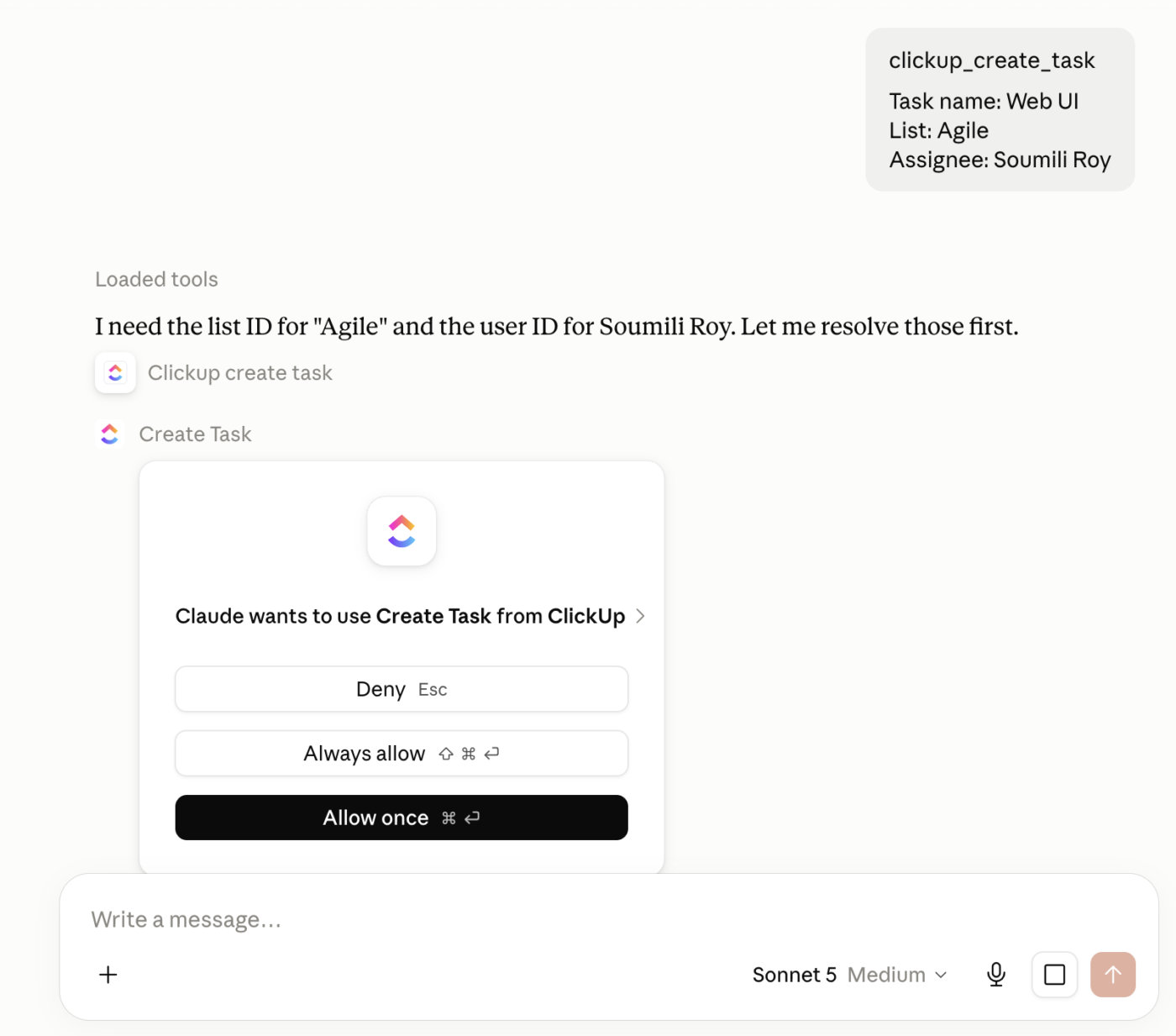
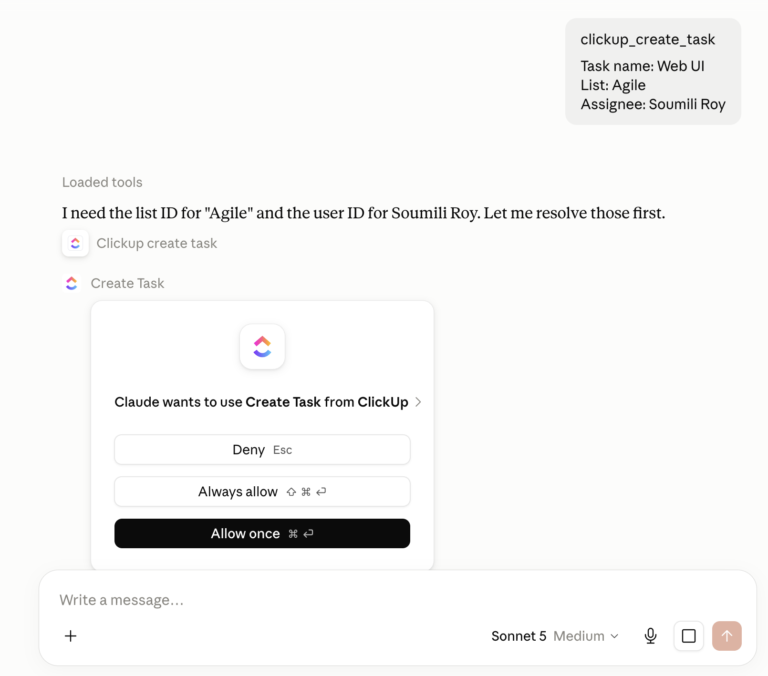
The ClickUp MCP server lets Claude Code access supported ClickUp tools using your account’s permissions. You can retrieve task details and relevant context, then use Claude Code’s repository tools to inspect files, make changes, and run tests. MCP provides access to ClickUp; it does not perform the local coding work itself.
Follow the help center guidance, authenticate your account, and open the correct repository in Claude Code. Before implementation, check that the task identifies the intended behavior, relevant constraints, and acceptance criteria. Our Anthropic MCP guide explains how the connection works.
For example, a checkout task might require expired coupons to display an error without creating an order, while valid coupons continue to work. An illustrative prompt could read:
- Use ClickUp MCP to read [task ID or URL] and summarize its requirements, constraints, and acceptance criteria. Confirm that the repository and branch in this session match the task.
- Inspect the relevant code and propose a plan that maps each acceptance criterion to an implementation step and a test. Flag missing or conflicting requirements, and wait for approval before editing.
- After approval, implement the agreed changes and run [test command]. Report the checks actually completed, their results, and anything still unverified.
- Draft a task comment summarizing the changes, criterion-by-criterion results, and the PR link if one exists. Show it to me before posting. Don’t merge changes.
Review the diff and test evidence before accepting the implementation. Once approved, add the results and PR link to the task so reviewers can follow the work from the original request through to the proposed change.
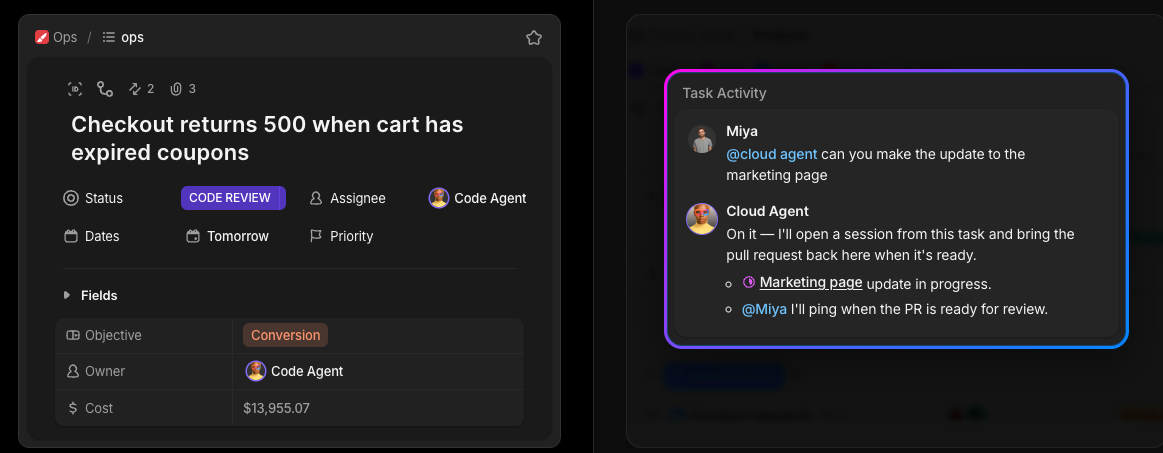
ClickUp Cloud Agents provide a separate option for working from a task without running a local Claude Code session. Connect GitHub, select or confirm the repository, and assign the task. The agent reads the brief, works in the cloud, and returns a pull request in the task thread.
Use the same quality bar for the task: explain the expected behavior, identify constraints, and make the acceptance criteria reviewable. A person still reviews the diff and checks before approving a merge. A returned PR is a proposal for review, not proof that every requirement has been met.
Choose the workflow that fits how you want to supervise the work. MCP lets you bring ClickUp context into your Claude Code session; Cloud Agents let you delegate through ClickUp and review the returned work there. Neither removes the need to resolve an ambiguous brief.
Read More: How to get more from Claude with ClickUp AI
The 25 prompts above are starting points. As you use them, keep the versions that fit your repository and record what you had to clarify: a missing business rule, an unexpected dependency, or a test that failed to cover the requirement.
Those corrections make a reusable prompt more useful to your team. Update it when the code or workflow changes, and keep unresolved limitations visible so the next person knows where review is still needed.
If the work starts in ClickUp, keep the requirements, decisions, and implementation results attached to the task. That gives the next developer or agent a record of what was requested, what changed, and what remains open.
Plan mode lets Claude inspect files and run read-only commands to prepare an implementation plan without editing your source code. Press Shift+Tab until Plan mode appears, or start a session with claude --permission-mode plan. Review the proposed approach before approving implementation; Ctrl+G opens the proposed plan in your editor.
Press Ctrl+J, or type a backslash (\) followed by Enter. Both methods work across terminals without additional setup. Shift+Enter also works in supported terminals; some integrated terminals require running /terminal-setup first. Check the terminal configuration guide for your environment.
Reduce the amount of content being sent in the conversation. For a session that has reached its context limit, /compact summarizes the history, while /clear starts a fresh conversation. If a single oversized message cannot be compacted, shorten it or provide selected excerpts. For large files, ask Claude to inspect specific sections rather than loading the entire contents. Clearing the conversation does not undo file changes.
Yes. The CLI flag --append-system-prompt adds instructions to the default system prompt, while --system-prompt replaces it entirely. Appending preserves the default instructions; replacing them requires more care because those instructions are no longer included. For recurring repository conventions, CLAUDE.md is usually a more practical choice. Neither approach replaces configured permission controls. See the CLI reference for supported options.
Yes. Claude Code can help with tasks such as reconciling files, generating reports, and drafting documents from local sources. You still need to define the business rules and review the output. Start with copies of approved data and a result you can independently check. If the task produces code you cannot assess, get a qualified reviewer before using it with production data or systems.

Manasi Nair
Max 31min read

Praburam Srinivasan
Max 22min read
Praburam Srinivasan
Max 10min read
© 2026 ClickUp