Sorry, there were no results found for “”
Sorry, there were no results found for “”
Sorry, there were no results found for “”
“AI dashboard generator” is a broad label.
Some tools can take a prompt, a spreadsheet, or live business data and build the V1 of a dashboard in one pass. Others handle one part of the job, such as creating charts, performing calculations, or explaining what changed in a report.
Whichever kind you pick, the result depends on the underlying data. Gartner found that organizations with successful AI initiatives invest up to four times more in data and analytics foundations, including data quality and governance, than those seeing poor results. Dashboards follow the same rule. Clean inputs, clear metric definitions, and steady refreshes decide how far you can trust what the AI produces.
The tools below start from very different places. Some run on governed BI platforms or live warehouses. Others start with spreadsheets, survey data, or work already happening in a team’s workspace.
Short version: Zoho Analytics is the broadest fit for prompt-built BI dashboards. Power BI and ThoughtSpot work well with governed enterprise data, while ClickUp connects reporting to live project and team work. Coefficient and Polymer suit spreadsheet-heavy workflows, Displayr is built around research data, and Tableau gives analysts more control over the final output.
| Tool | Best for | Standout feature | Starting price* | Where it taps out |
| Zoho Analytics | Generating complete BI dashboards from prompts | Ask Zia, conversational dashboard editing, Zia Insights, Data Stories, Action Skills, and GenAI controls | Free; paid from $24/mo | AI dashboard generation is only on Premium or Enterprise, so the entry price won’t cover it |
| Microsoft Power BI | AI-generated reporting on governed enterprise data | Copilot report creation, semantic models, narrative summaries, DAX generation, web modeling, and permission-aware analysis | Free; paid from $14/user/mo | Copilot can’t build pages for real-time streaming models or live Analysis Services connections |
| ClickUp | Generating AI-powered dashboards from live work context | Brain², AI Cards, Dashboards, Artifacts, Super Agents, AI Skills, and scheduled reports | Free Forever; paid plans available | Dashboards are only as complete as the statuses, fields, and owners teams set on their tasks |
| ThoughtSpot SpotterViz | Prompt-generated dashboards on live warehouse data | One-prompt Liveboards, Spotter, AI insight tiles (Early Access), prompt-based editing, drill-down, and configurable LLMs | Paid from $25/user/mo | Needs Liveboard edit mode, Spotter-enabled models, and TML edit permission, so it can’t start from a raw file |
| Coefficient | Building live AI dashboards from spreadsheets | Prompt-built dashboards, 150+ data connections, row-level security, free viewers, Slack and email previews, and source-level KPI tracing | Free; paid from $49/mo | Snowflake, BigQuery, Databricks, and SQL Server connectors require Enterprise |
| Polymer | Turning spreadsheets into shareable AI dashboards fast | Auto-built dashboards from uploads, PolyAI chat, auto-detected filters, templates, and branded embeds | Paid from $20/mo (7-day trial) | Built around one dataset at a time, so cross-system joins and SQL-style logic fall outside it |
| Displayr | AI-generated survey and market research dashboards | Research Agent, data cleaning, significance testing, survey weighting, advanced research methods, and recurring-report refreshes | Free; paid from $3,359/user/year | The first Research Agent report doesn’t regenerate when the data changes |
| Tableau | AI-assisted dashboard building with deeper analyst control | Tableau Agent, AI-generated calculations, Tableau Prep Agent, Pulse, and full analyst authoring controls | Paid from $15/user/mo | Tableau Agent in Dashboards (beta) can’t assemble the finished dashboard |
Our editorial team follows a transparent, research-backed, and vendor-neutral process, so you can trust that our recommendations are based on real product value.
Here’s a detailed rundown of how we review software at ClickUp.
The easiest way to narrow the field is to start with the reporting job itself.
A tool that beautifully handles a simple monthly spreadsheet might struggle at scale. Once you ask that same dashboard to pull from a warehouse, refresh every hour, and serve three distinct teams, the workflow quickly breaks down. To avoid that scramble, map the following:
Also Read: ClickUp Dashboard Examples for Teams
The eight strongest picks are Zoho Analytics, Microsoft Power BI, ClickUp, ThoughtSpot SpotterViz, Coefficient, Polymer, Displayr, and Tableau. Together, they cover the main ways teams build AI dashboards in 2026.
The entries below show what each tool can build, what data it works with, key features, pricing, user reviews, and where you still need to step in.
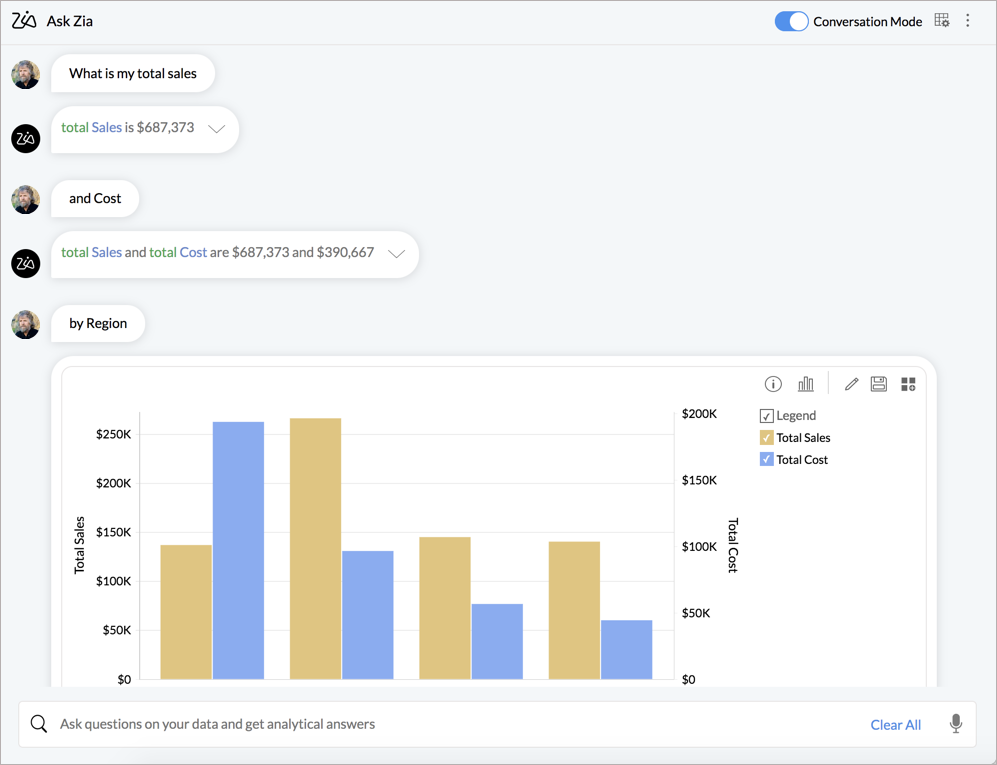
Zoho Analytics takes first place because Ask Zia, its AI capability, handles both the initial build and the subsequent refinement. It can generate a complete dashboard from a prompt, then keep reshaping it through conversation while staying connected to Zoho Analytics’ broader BI environment. Explain what you want to track, and it selects the right fields, chooses the visualizations, and assembles them into a dashboard.
The AI can add or remove views, change the theme, and respond to new instructions as the dashboard takes shape. If one chart needs more attention, you can open the report behind it and edit the fields, filters, or visualization yourself.
The dashboard also stays connected to the surrounding reporting environment. Zoho Analytics can bring in files, databases, cloud drives, and business apps, then refresh those sources on a schedule. Once you build the first draft, you’re working with a live BI dashboard that keeps updating as fresh data streams in.
A G2 user said:
It stands out for its intuitive drag-and-drop interface, the powerful AI assistant (Zia), and seamless integration with the Zoho ecosystem and third-party apps. It’s often used for making self-service BI accessible to non-technical users.
Where it taps out: The feature that makes Zoho relevant here isn’t included in its lower-priced tiers. GenAI skills require you to upgrade to Premium or Enterprise. Teams comparing Zoho by its lower starting price can therefore end up budgeting for a considerably higher tier once AI dashboard creation becomes a requirement.
Best for: Business, finance, and operations teams that want AI to generate dashboards but still need a full BI environment for ongoing reporting.
Skip it if: You only need occasional dashboard generation from a file and don’t need the broader analytics platform around it.
Power BI works differently from the file-first generators on this list. Copilot builds from a Power BI semantic model, where you can set relationships, measures, and business definitions before the report takes shape. Describe the page you need, and Copilot creates the visuals. You can then ask it to add, remove, or change single visuals.
The semantic model gives Copilot more to work with when it reads a request. It can draw on the schema, measures, descriptions, data types, and other details. So when Copilot charts revenue, it uses the same revenue calculation your finance team already set up, not a new one it made up.
The model still needs some preparation before it works reliably. Microsoft recommends human-readable names, clear field descriptions, well-defined relationships, and a simpler schema without unused or ambiguous objects. Copilot also needs a workspace on a paid Fabric capacity or Power BI Premium. Pro and Premium Per User workspaces don’t support it.
A G2 user said:
Honestly the one that got me was the Desktop Bridge — Microsoft basically let AI agents hook into a live Power BI session and loop through editing/checking reports on their own, feels very “agentic AI meets BI.” Also liked that TMDL view finally works on the web now, so you can tweak your data model as plain text without even opening Desktop.
Where it taps out: Copilot can create and edit report pages, but it cannot create pages for real-time streaming models or live Analysis Services connections. It also does not support custom visuals or styling changes.
Best for: Enterprise analytics teams that already have governed Power BI or Fabric models and want AI to reduce the work of building and refining reports.
Skip it if: You need Copilot to build or format dashboards around unsupported model types or custom visuals.
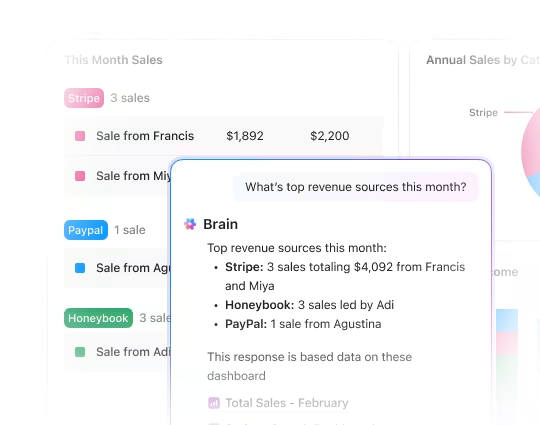
Brain² can build an interactive dashboard from a single prompt, drawing on your workspace tasks, docs, wikis, and connected third-party apps.
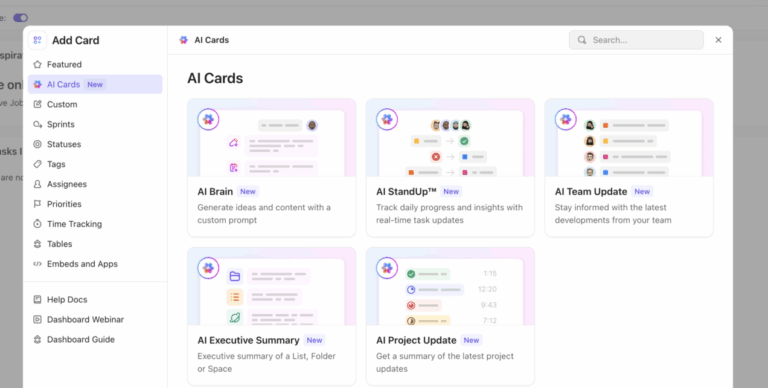
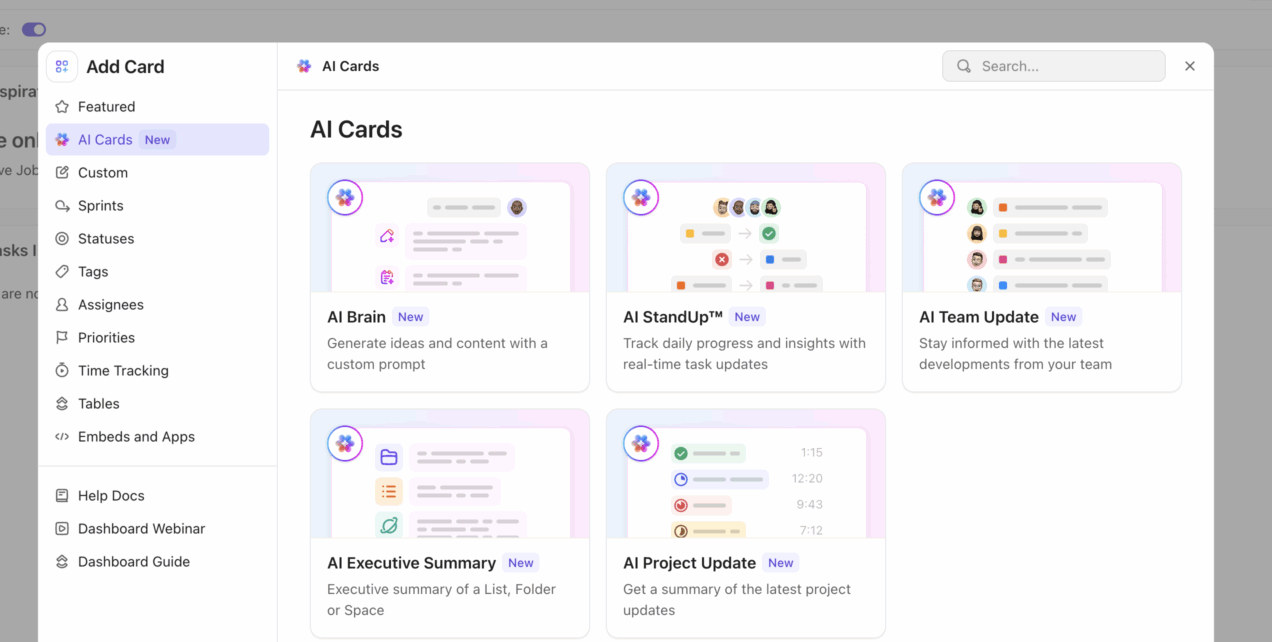
For ongoing reporting, native ClickUp Dashboards pair AI with live Workspace metrics. Cards can refresh every 30 minutes, and AI Cards add Brain² analysis next to workload, task status, time tracking, and goals. You can generate StandUps, Project Updates, and Executive Summaries for chosen people, teams, and time periods, or build a custom AI card with saved prompts and attached files. Even better, the AI Team Center and AI Personal Center templates give you a head start.
Brain² can also work with outside data. Upload or link a spreadsheet, and it can calculate exact totals and trends, clean up rows, build charts, and check the file against Workspace tasks. That helps compare campaign spend with delivery progress or spot gaps between a dataset and the team’s real workload.
When a report needs to travel, Brain² can turn it into an Artifact, like a dashboard, HTML report, or slide deck. You can refine it, restore earlier versions, comment with your team, and share it through a published link for executive readouts or investor updates.
A G2 user said:
I love how customizable ClickUp is. The true value, for me, comes from the democratization of dashboards and reporting, which are powerful tools if you have good inputs. I also find the planner to be amazing because it lets me set priorities and block out time on my calendar using estimated time, which is incredibly helpful. Additionally, I appreciate the feature called Brain, which assists me in numerous ways and gets more helpful every day. Artifacts are also awesome and getting better each day.
Where it taps out: ClickUp dashboards read from the structure of your Workspace. If teams use inconsistent statuses, fields, owners, or task conventions, the dashboard can report the work accurately while still telling an incomplete story.
Best for: Project, marketing, product, and operations teams whose reporting data already lives alongside the work they manage.
Skip it if: You need warehouse-scale BI with dedicated semantic models, multidimensional financial analysis, and analyst-owned measures.
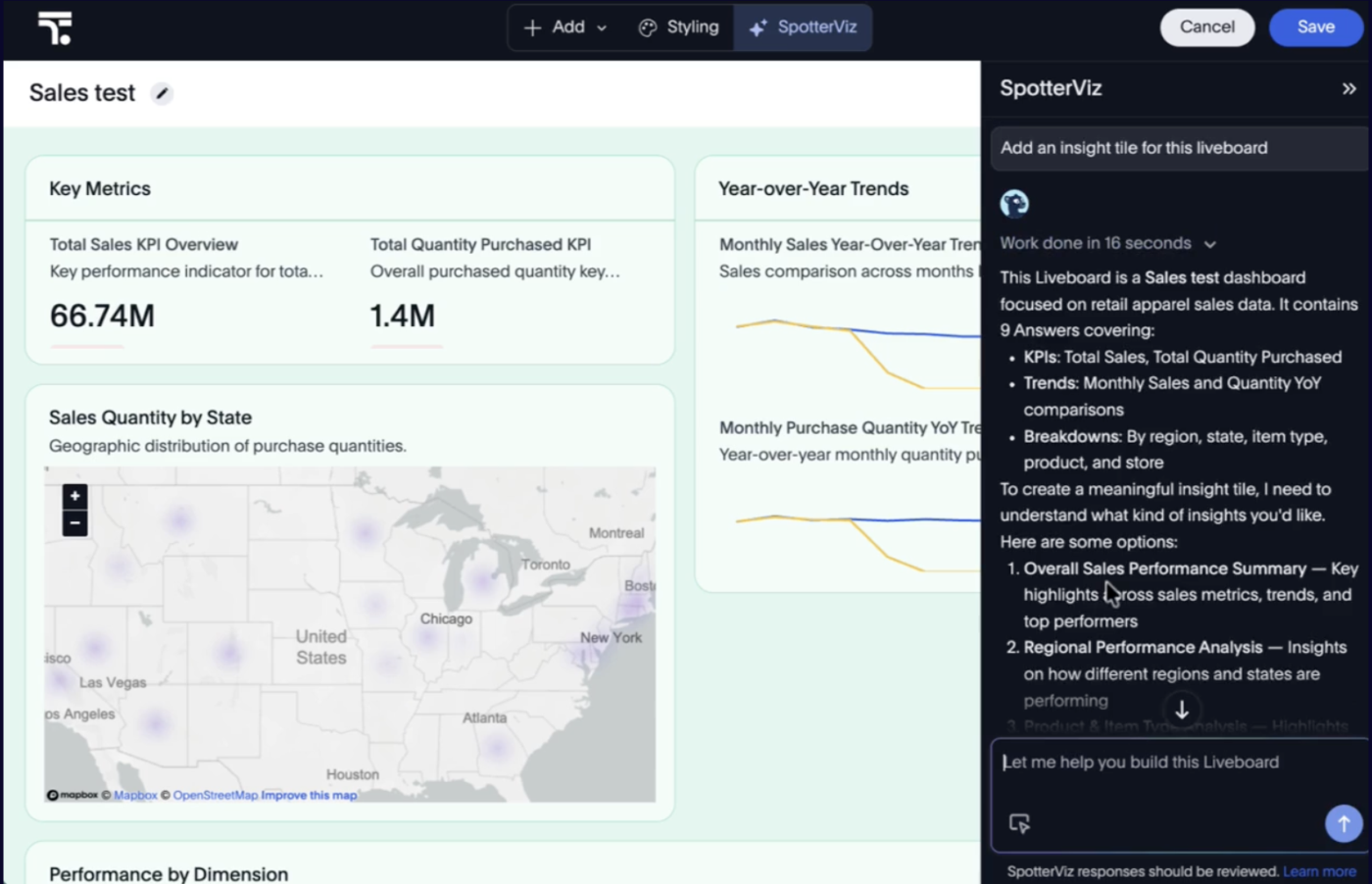
ThoughtSpot calls its dashboards “Liveboards,” and SpotterViz can build one from a single prompt.
Give it a business goal, and SpotterViz takes it from there. It searches the data sources you can access, picks the right model, and works out which questions the Liveboard needs to answer. The tool then creates the KPIs and charts, groups related answers, and chooses a layout. A sales leader could ask for a pipeline-health Liveboard and get KPIs, trend charts, and regional breakdowns in one pass.
This is a good fit for companies that already have a warehouse and a governed analytics layer in place. SpotterViz-built Liveboards query the warehouse in real time, so the numbers stay current every time someone opens the dashboard.
SpotterViz can also add AI-generated insight tiles that explain what’s happening in the data. You can tell the AI which signals or conditions to look for, and it reruns that analysis against current data whenever the Liveboard loads. The output respects each viewer’s row-level and column-level access. So each person sees an interpretation based on the data they’re allowed to view.
A G2 user said:
I think the Spotter tool is really cool at interpreting prompts and producing answers/liveboard tiles that match well with what I wanted. Huge time saver when making charts and tables. I also use the SpotterCode MCP regularly to understand and make API calls as we build out our integration – its awesome!
Where it taps out: SpotterViz works in Liveboard edit mode and requires Spotter to be enabled on the underlying models, plus TML edit permission. It is a poor fit for teams that want to upload a raw file and build a dashboard immediately.
Best for: Organizations that want AI-generated dashboards over governed warehouse data without giving up their existing security and modeling layer.
Skip it if: Most of your analysis starts with local Excel or CSV files and you don’t have a modeled analytics environment yet.
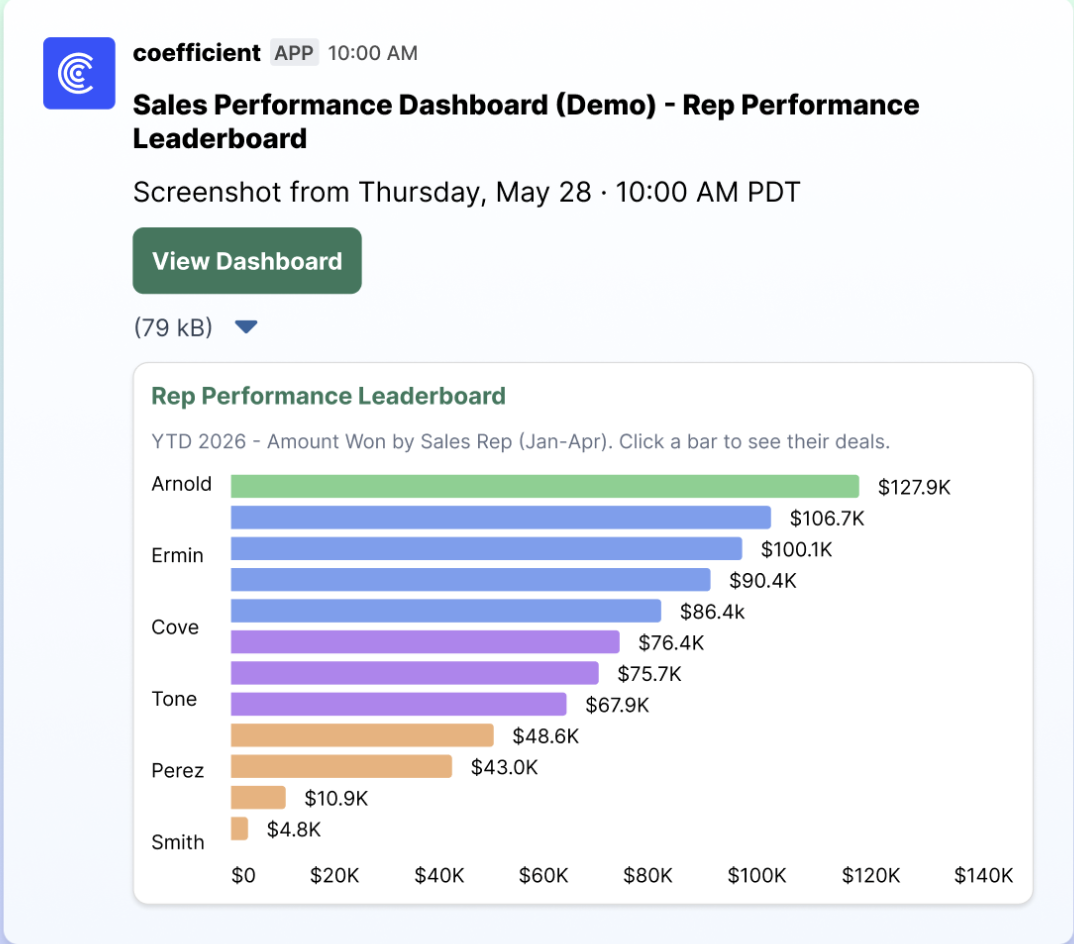
Coefficient is built for teams that still do most of their reporting in Excel or Google Sheets. It lets you describe a dashboard in one prompt, then builds the charts and blocks from the spreadsheet. You can edit each block yourself or ask the AI to change it. The data stays tied to the spreadsheet, while the finished dashboard lives in a shareable web view.
This setup becomes more valuable when the spreadsheet connects to live business systems. Coefficient can refresh data from more than 150 sources on a schedule, so the dashboard updates without someone having to replace a CSV every week.
The numbers are also easy to inspect. Click into a chart to trace it down to the source records, or ask Coefficient to explain a number’s definition, calculation, and filters. You can then prompt it for further analysis from the same dashboard, which gives teams a way to check an AI-generated KPI before it reaches a client or executive review.
A G2 user said:
Set it and forget it – link all your disparate sources of data to one sheet and then use AI to form into dashboards, triggers, and workflows.
Where it taps out: Some warehouse connectors sit behind Coefficient’s Enterprise tier. Snowflake, BigQuery, Databricks, and SQL Server are classed as Premium data sources and require Enterprise access. That can raise the cost if your spreadsheet dashboards depend on warehouse data rather than standard business-app connectors.
Best for: Finance, RevOps, marketing, and operations teams that already work in Sheets or Excel and want live dashboards without moving into a conventional BI authoring workflow.
Skip it if: Your organization wants the dashboard layer governed primarily through a centralized semantic model rather than spreadsheets.
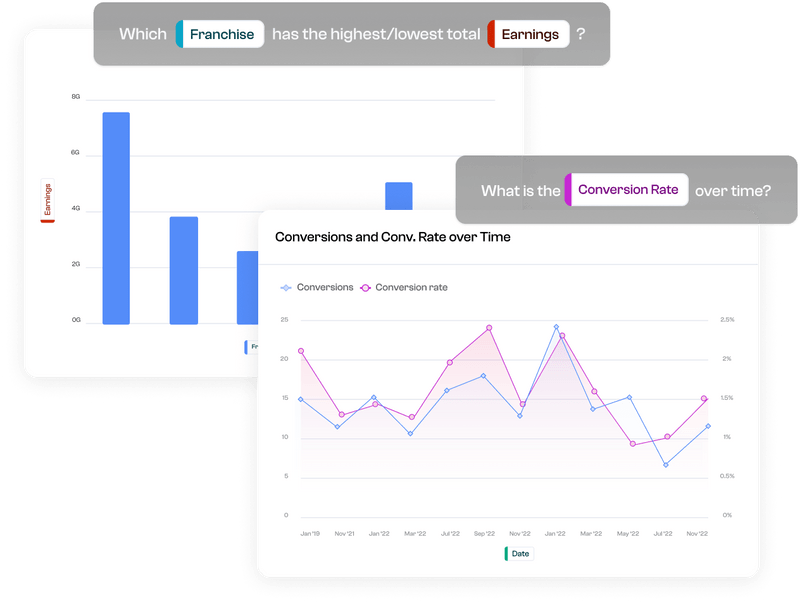
Polymer goes from a spreadsheet to a shared dashboard with no setup. Upload a CSV or Excel file, or connect a Google Sheet. Polymer reads the columns, works out which questions the data can answer, and builds a dashboard with charts, KPI cards, and filters.
Say a marketer exports last month’s Google Ads data. Polymer turns it into a dashboard of spend, clicks, and conversions by campaign. The marketer then asks PolyAI, its chat assistant, which campaigns cost the most per conversion. Polymer answers with a chart and a short explanation.
The dashboard can stay connected to its source. Polymer pulls from Google Sheets, Google Analytics, Google Ads, Facebook Ads, Shopify, Airtable, Jira, and Zendesk, and higher plans sync on a schedule. You can share the finished dashboard through a link or embed it in a website or client portal.
Note: Polymer has no free plan, only a 7-day trial
A Reddit user said:
Very fast output – charts are generated in seconds
Beginner-friendly – no coding required
Multiple data formats supported
Reasonable default chart choices for quick analysis
Export options like PNG/SVG are useful for reports
For quick exploration or presentations, it saves a lot of setup time.
Where it taps out: Polymer is built around one dataset at a time. Reports that need joins across several systems, or SQL-style calculations, go past what it handles comfortably, so it fits quick reporting better than a central reporting layer.
Best for: Marketers, agencies, and small teams that have data in spreadsheets or ad platforms and need a polished, shareable dashboard quickly.
Skip it if: Your reports need to combine many systems or run on warehouse data with analyst-defined metrics.
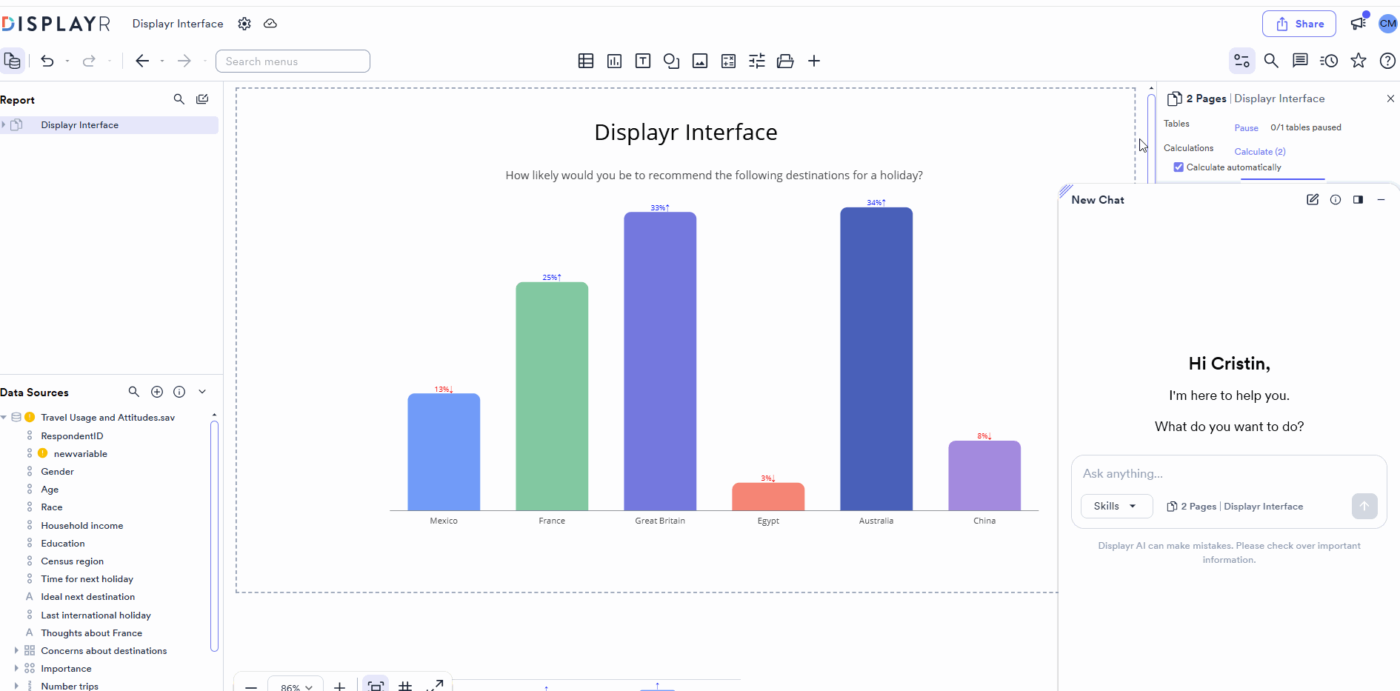
Displayr is the specialist on this list. It’s built for survey data that needs real research work before a dashboard can make sense of it.
Give its Research Agent a survey dataset and your goals, and it picks the questions to explore, builds the tables and charts, runs the analysis, and puts together a report you can edit. If the data needs work first, you can hand the file to Displayr’s Data Preparation Agent to check and clean it.
That depth matters, since survey reports rarely stop at totals and averages. Displayr handles weighted crosstabs, significance tests, multi-response questions, segmentation, and driver analysis. Research Agent can choose and run many of these based on the data and the question. Then it builds the charts and dashboard around what it finds.
The reports stay tied to that work, too. Displayr supports live dashboards, and recurring studies can refresh their data, tables, and charts as each new wave comes in.
A G2 user said:
It takes care of cleaning my data, charting, and reduces the time that I spend in my team spends on doing a lot of the Grant work in the analysis. Definitely saves time in reporting and allows us to do sophisticated analysis as well.
Where it taps out: The first report created by Research Agent doesn’t automatically regenerate when its data changes because Displayr preserves any manual edits you’ve made. The underlying dashboard data and analyses can refresh, and you can add auto-updating AI commentary. But the initial AI-generated interpretation layer needs to be updated or configured separately.
Best for: Market research and insights teams that need statistical survey analysis to happen before the dashboard is assembled.
Skip it if: You’re tracking ordinary sales, project, finance, or operational KPIs and have no need for research-specific analysis.
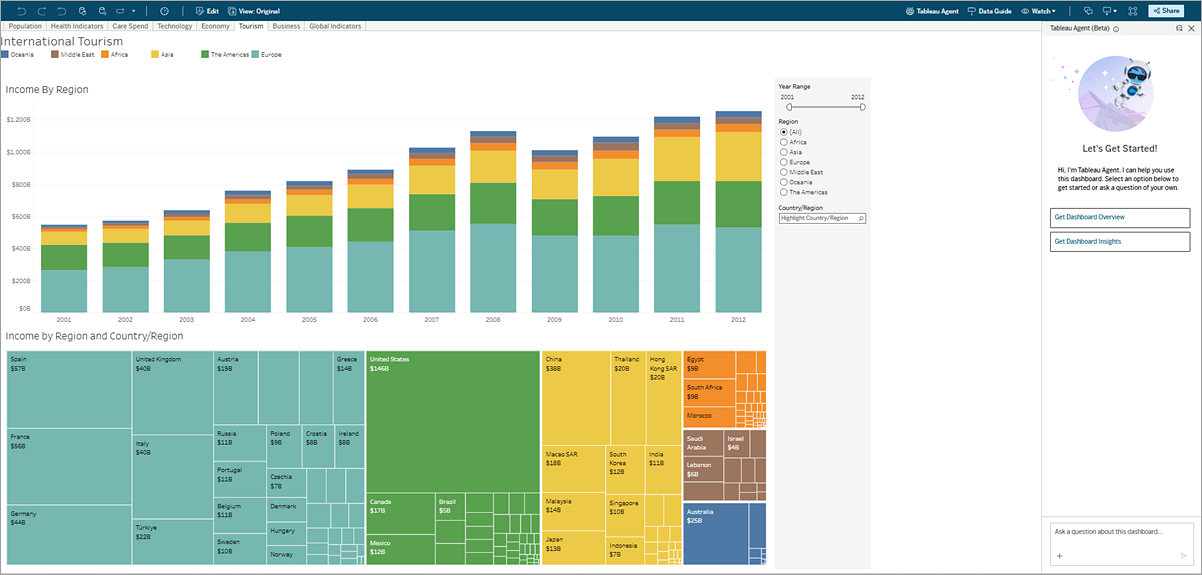
Tableau Agent can take a natural language request and turn it into a visualization using the data you’ve connected. For example, ask it to compare sales and profit by region, and it can select an appropriate chart, apply filters and sorting, and refine the view as you keep prompting.
The agent can also create calculated fields from plain-English instructions and explain the formula it wrote. That gives analysts a starting point without taking away Tableau’s deeper authoring controls. Once the AI creates a view, you can keep working with Tableau’s calculations, relationships, parameters, filters, and visualization settings to shape the analysis yourself.
For messier source data, Tableau Agent also extends into Tableau Prep, where it can help filter, split, pivot, aggregate, rename, and otherwise clean data through natural language instructions. Tableau also connects to Salesforce CRM and Data 360, with Tableau Cloud creating ready-to-use data sources and starter workbooks from Salesforce Sales, Service, and other cloud data.
Note: Tableau Agent comes with Tableau Cloud+ or the Tableau+ Bundle, so budget for those editions if the AI is the reason you’re buying.
A G2 user said:
Tableau is a highly effective tool for data analysis and creating interactive, insightful dashboards. It offers an intuitive and easy-to-use interface that makes data visualization and analysis straightforward. It also supports integration with a wide range of software applications and data sources through various connectors, making it easy to bring data from multiple sources into one place for analysis and reporting.
Where it taps out: Tableau Agent can create individual visualizations and calculations, but its Dashboard Agent still can’t assemble the finished dashboard for you. Tableau lists dashboard building as unsupported in the current beta, so you still need to arrange the sheets, layout, and dashboard experience yourself.
Best for: Analysts and BI teams that want AI to speed up the first pass while keeping detailed control over the analysis and final dashboard.
Skip it if: You want to upload a file or write one prompt and have the AI assemble the complete dashboard with minimal manual authoring.
Want to see how AI-powered dashboard tools differ once you start working with real data? This walkthrough looks at several approaches to AI-assisted visualization and reporting, including some of the tools covered above.
These tools came close. Each one overlaps with AI dashboard generation, but the AI either stops at single charts or leans on an analytics setup you’ve already built.
Data Studio remains one of the easiest ways to build free dashboards around Google Sheets, Analytics, Ads, Search Console, and BigQuery. On Data Studio Pro, Gemini-powered Conversational Analytics can answer questions, generate charts and tables, refine them through follow-up prompts, and show the fields, calculations, and filters behind each result. The gap is the handoff. A chart created in Conversational Analytics can’t go straight into a Data Studio report. That means you have to rebuild it by hand. This keeps Data Studio closer to AI-assisted analysis than full dashboard generation.
Qlik gets much closer. Qlik Answers can create KPIs, charts, and full sheets from natural language requests, and Insight Advisor can generate several charts or a dashboard-style sheet from an existing Qlik app. Both respect the permissions and data model already defined in that app. That’s also why it lands here. The AI works best once the Qlik app and model are in place, which makes it a strong boost for teams already on Qlik and a slower start for anyone who wants to upload data and get a finished dashboard right away.
Metabot can turn a natural language question into a chart, write or fix SQL, analyze an existing chart, and explain the data behind it. You can save the charts it creates directly to a Metabase dashboard. That cuts down the work of querying a database and building charts one by one. It misses the main list because Metabot builds the pieces, and you still arrange the dashboard yourself.
Read More: How to Build a Google Sheets Dashboard
AI can take a large chunk of work out of building a dashboard. What it can’t decide for you is the next step, i.e., what the dashboard should help people do. That part still takes human judgment.
So start with the metrics. Pick the measures that should change a decision, define them clearly, and give each audience the level of detail it needs. A sales leader, a finance team, and a project manager can look at the same business and need very different views of it.
Next, think about how fresh data reaches the dashboard. A generator that connects straight to the systems where work happens cuts out exports and repeated uploads. If someone still has to move new data into the tool each week, that upkeep stays part of the reporting job.
Once the dashboard is live, a few signals will tell you whether it’s holding up:
Once a dashboard becomes part of how a team works, data access, metric definitions, refresh behavior, and the ability to trace a number to its source carry more weight than build speed. For more on choosing the right metrics, see this guide to building a KPI dashboard.
Start with where the data already lives, then look at how much of the dashboard you want AI to build for you. A spreadsheet-heavy workflow needs something very different from a governed BI setup, and teams reporting on live project work have an entirely different set of needs.
| If this sounds like your setup | Choose | Why it fits |
|---|---|---|
| You want to describe a dashboard and have AI build most of it inside a full BI platform | Zoho Analytics | Ask Zia can create the dashboard, choose fields and visualizations, then keep refining it through conversation. It also works across files, databases, cloud drives, and business apps |
| Your company already runs on governed Power BI or Fabric models | Microsoft Power BI | Copilot works from the semantic model your team already uses, so generated reports can follow established measures, relationships, and business definitions |
| The data you care about is tied to projects, workload, tasks, Docs, and team activity | ClickUp | Brain² can build dashboards from Workspace context and outside files, while native Dashboards keep operational metrics and AI-generated updates close to the work itself |
| Your analytics team works from a warehouse and governed data models | ThoughtSpot SpotterViz | SpotterViz can turn a business goal into a full Liveboard and keep it querying warehouse data in real time |
| Most reporting starts in Excel or Google Sheets, but the sheet also pulls live business data | Coefficient | It builds dashboards from spreadsheet data, keeps them connected to the source, and can refresh data from more than 150 systems on a schedule |
| You already have an Excel or CSV file and need a dashboard quickly | Polymer | It reads the file, builds the charts and filters, and lets you ask follow-up questions in plain English |
| You work with surveys, market research, or statistical research data | Displayr | Its Research Agent can handle the analysis before building the report, including weighted crosstabs, significance tests, segmentation, and other research methods |
| You want AI to speed up analysis but still want deep control over calculations and visual design | Tableau | Tableau Agent can create visualizations, calculations, and data-prep steps, while the analyst keeps control over the final workbook and dashboard structure |
Pro tip on switching: Before migrating a dashboard, describe every metric in one sentence, including its formula, filters, time window, and owner. Then get the people who rely on each number to agree on that definition. Much of the pain in a migration comes from discovering that two teams have been using the same label for different calculations.
Before you choose a dashboard generator, list the decisions the dashboard should support.
Then pick the metrics that inform each one. A delivery dashboard needs metrics that flag risk early, like overdue tasks. A revenue dashboard needs one pipeline definition that sales and finance agree on.
A dashboard only helps if someone acts on what it shows.
When a metric flags a problem, someone needs to own the fix and follow up. That’s easier when the dashboard and the work live in the same tool. In ClickUp, Brain² builds dashboards from the tasks, Docs, and conversations behind your numbers. When a metric changes, AI flags it, and the follow-up becomes a task in the same Workspace, with a notification sent to the right person.
Yes. In a regular ChatGPT conversation, you can upload a spreadsheet and generate tables, charts, calculations, and data analysis. You can also explore some chart types interactively. ChatGPT Work goes further through the Data plugin. It can connect to approved business data, turn an analysis into an interactive dashboard, refine the layout through follow-up prompts, refresh the analysis, and share the finished result through ChatGPT Sites when available.
Yes. Copilot in Excel can create charts, PivotTables, formulas, and dashboard-style workbook content from natural language instructions. The charts and PivotTables remain linked to the workbook data, so they can refresh as the source changes. The quality of the first result still depends on the sheet. Clear headers, one record per row, and consistent data types give Copilot a much cleaner base to work from.
They can be, as long as the source data and metric definitions are clear. The bigger risk is interpretation. A tool may calculate a number correctly while using the wrong field, date range, filter, or definition for the question being asked.
Often, no. Many current tools let you describe the metric, comparison, or chart in plain language and handle the query or calculation behind the scenes. SQL still matters when the source data needs joins, transformations, or business logic that the AI can’t safely infer. Enterprise tools may hide much of the query writing while still relying on a prepared data model behind the scenes.
Some can. The key detail is where that combination happens. A BI tool may join sources through its data model. Spreadsheet-first tools may merge several sources into one sheet before generating the dashboard. Other products support cross-source analysis only on higher plans. Before buying, test one metric that genuinely needs two systems, like revenue from a CRM against delivery data from a project tool. That exposes cross-source limitations quickly.

Manasi Nair
Max 23min read
Manasi Nair
Max 29min read
Manasi Nair
Max 14min read

© 2026 ClickUp