
Google Jamboard was an interactive whiteboard app for students. It was shut down on December 31st, 2024, across Web, Android, iOS, and Google Meet devices.
Ever since then, the searches for free online whiteboard apps within the Google Workspace have surged.
If you’re a Jamboard user who is looking for alternative third-party whiteboard tools, this post is for you.
Let’s take you through Jamboard alternatives that empower you to collaborate with your teams within Google Workspace!
What Should You Look for In Jamboard Alternatives?
Jamboard users would collaborate visually inside the Google Workspace. And that demands more than plain drawing tools.
When choosing a Google Jamboard alternative, look for the following advanced features:
- Real-time collaboration: If you work remotely, look for live team collaboration features like comments, live cursors, and shared editing to stay on the same page with your colleagues, literally
- Google Workspace integration: Your tool must integrate with Google Drive, Docs, Meet, and Classroom. That way, you can share boards as assignments, attach them to classwork, or present live during a Meet session
- Ease sharing and access control: You’ll want to control who can view, comment, or edit—just like in Google Docs and Google Slides
- Use flexible visual tools: To map your ideas, the free online whiteboard should allow you to add sticky notes, shapes, connectors, and drawings of your liking
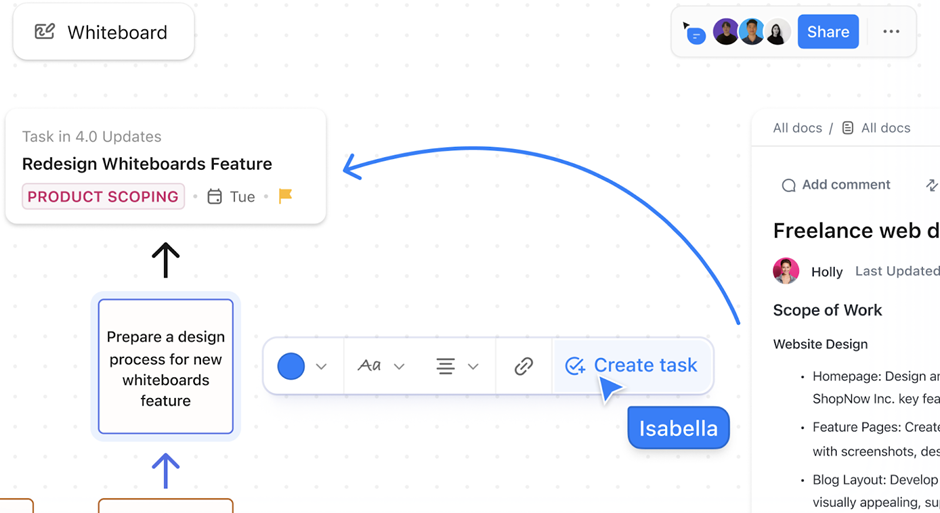
- Turn ideas into action: Look for the ability to convert whiteboard elements directly into tasks so your collaborative work doesn’t get stuck on the board
- Pre-built templates: The best whiteboard software offers ready-made templates so you can jump right into brainstorming or planning without spending time setting up the board for different types of process diagrams
- Sketch naturally on touch devices: If you use tablets or touchscreen laptops, find a tool that supports stylus input, interactive displays, and finger gestures for easy drawing and annotation
- AI-powered: Speed up planning with premium features that let you generate whiteboard content, images, or summaries using natural language prompts
👀 Did You Know? The modern whiteboard (also known as a dry-erase board) was invented by Martin Heit, a photographer and Korean War veteran, in the late 1950s.
Around the same time, Albert Stallion, working at Alliance (a steel and coatings company), noticed that enameled steel could be written on and cleaned easily. In 1960, he broke off from Alliance and started Magiboards, a company that commercially manufactured whiteboards.
Jamboard Alternatives At a Glance
With Jamboard gone, you need a replacement that feels just as intuitive. All the tools in this list are strong contenders.
| Tool name | Key features | Best for | Pricing* |
| ClickUp | AI-powered whiteboard, task conversion, live collaboration, templates, infinite canvas, deep Google Workspace integration | Small businesses, mid-sized companies, and enterprises looking for an all-in-one workspace | Free Forever; Customization available for enterprises |
| Miro | Real-time collaboration, integrations (Jira, Slack), AI features, presentation mode, creative facilitation tools | Individuals, small businesses, and enterprises for design-first workflows | Free plan available; Paid plans start at $8/user/month |
| Lucidspark | Frames & containers, Azure/Jira integration, voting tools, sticky notes, Zoom/Teams integration | Small businesses and mid-sized companies looking for a structured collaboratin tool | Free plan available; Paid plans start at $9/user/month |
| FigJam | Bitmoji avatars, templates library, live chat/audio, sticky note organization, spotlight tool | Individuals, designers, and small teams to power creative work | Free plan available; Paid plans start at $5/user/month |
| Microsoft Whiteboard | Infinite canvas, Teams integration, live reactions, Copilot AI summarization, loop components | Educators, enterprises, and remote teams already embedded in the Microsoft ecosystem | Free plan available; Paid plans start at $7. 20/user/month |
| Mural | Super Lock, Summon, facilitation tools, template creation, integrations with GIPHY and Noun Project | Individuals, small to mid-sized teams | Free plan available; Paid plans start at $12/user/month |
| Creately | Markdown editing, data linking, universal search, Kanban boards, secure access control | Individuals and small to mid-sized teams looking to integrate whiteboards and wikis | Free plan available; Paid plans start at $8/user/month |
| Stormboard | Embedded Docs, file co-editing (Google, Office), AI templates, deep search, sticky note hyperlinks | Mid-sized companies and enterprises that love brainstorming with sticky notes | Free plan available; Paid plans start at $10/user/month |
| Canva Whiteboard | Magic Resize, Magic Write AI summary, rich media library, easy exports | Individuals and small businesses that love readymade templates | Free plan available; Paid plans start at $12. 99/month |
| Conceptboard | GDPR-compliant, built-in chat/video, board versioning, intuitive UI | Client collaboration for small teams, mid-sized companies, and enterprises | Free plan available; Paid plans start at $6/user/month |
| Zoom Whiteboard | Real-time whiteboarding during meetings, reusable templates, smart connectors, AI, voting tools | On-call whiteboarding for remote teams, enterprises | Free plan available; Paid plans start at $2. 49/user/month |
The Best Jamboard Alternatives
If you’re looking to bring back the visual collaboration Jamboard made so easy, this list is worth exploring.
How we review software at ClickUp
Our editorial team follows a transparent, research-backed, and vendor-neutral process, so you can trust that our recommendations are based on real product value.
Here’s a detailed rundown of how we review software at ClickUp.
Let’s start with our in-house favorite.
1. ClickUp (Best all-in-one workspace for visual collaboration)
Collaboration is hard to define and easy to feel. When the right people work together with the right tools, conversations flow easily, ideas move faster, and almost everything works right.
ClickUp is the world’s first Converged AI Workspace that combines your projects, docs, tasks, and chat into one. On top of that, it allows you to work faster and smarter, not harder, with built-in, context-aware AI functionalities.
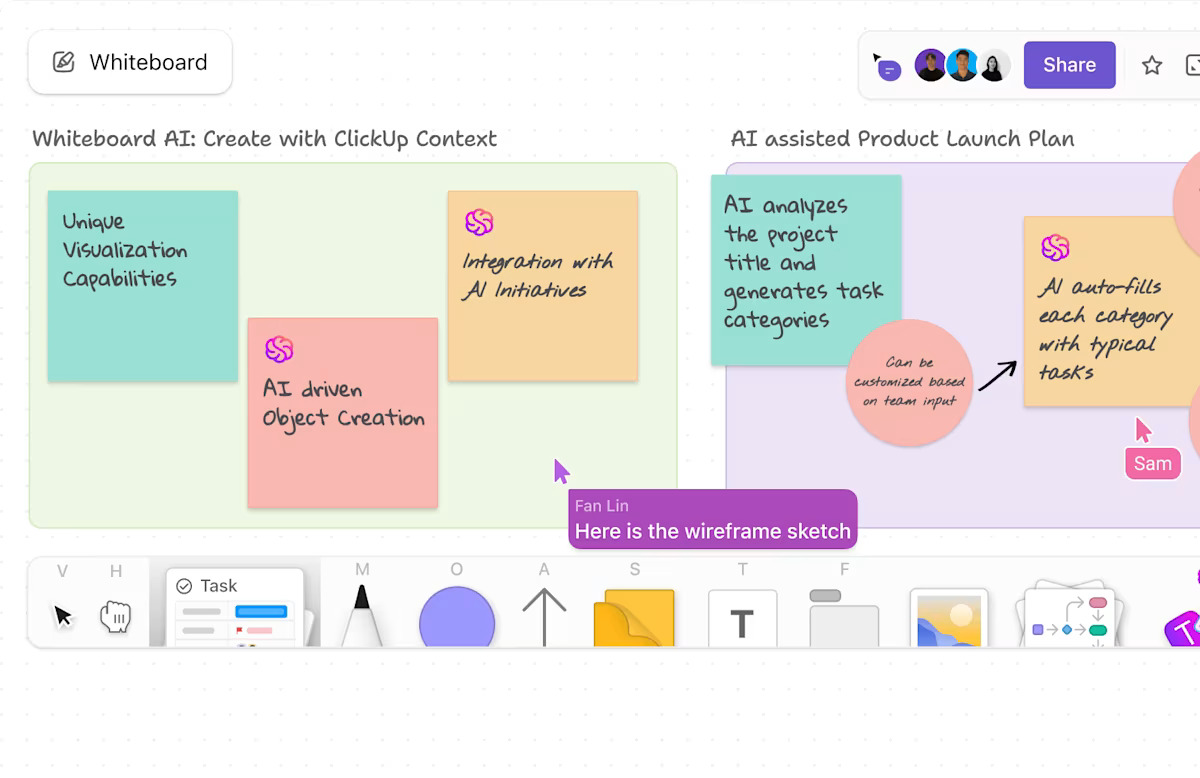
ClickUp Whiteboards are an interactive canvas for you to brainstorm, plan, and make ideas actionable. Bring your team to the whiteboard and collaborate with text, sticky notes, shapes, and connectors to express ideas visually.
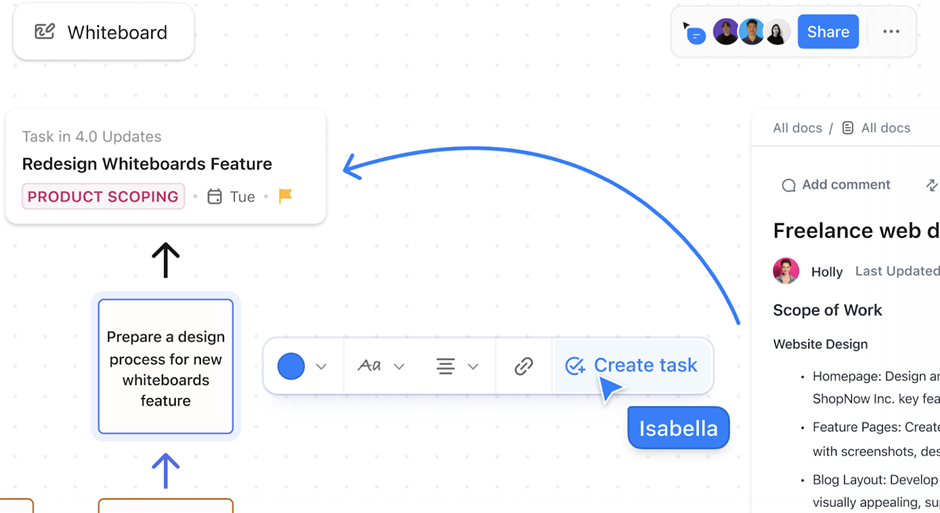
With live cursor tracking, comments, and stylus support, everyone can see who is contributing to the board—remotely and on-site.
This video shows you how you can use ClickUp Whiteboards to chalk out the best ideas and bring them to life:
This whiteboard app also works beautifully on touch devices, so you can draw freehand, move elements, or annotate with a stylus, perfect for tablets during standups or in-person workshops.
⏩ Quick Hack: Type /whiteboard inside any task’s description to quickly create and embed a new whiteboard right inside ClickUp Tasks. This keeps your brainstorming and planning directly connected to the task, without leaving ClickUp.
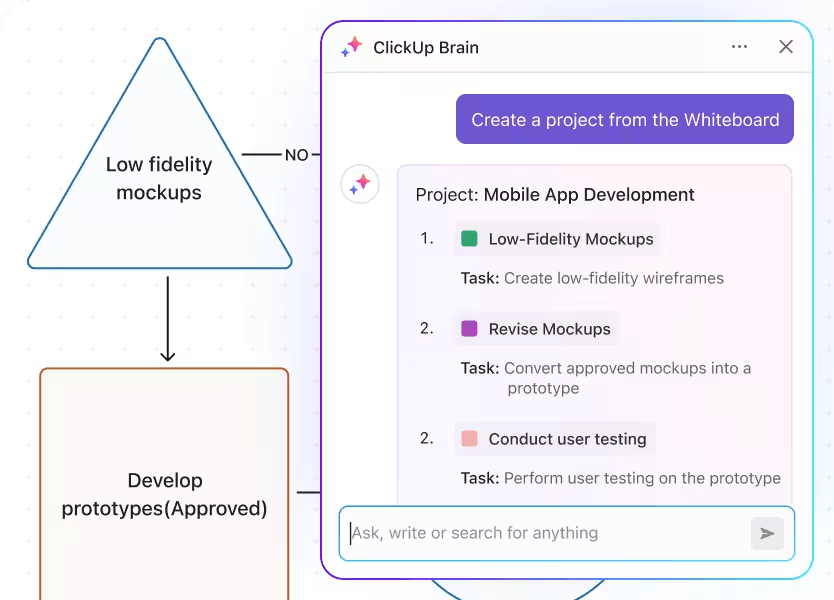
Building on the creative freedom of ClickUp Whiteboards, ClickUp Brain supercharges your sessions with AI-driven assistance.
It can analyze your workspace, suggest breaking down unstructured ideas into specific tasks, assign priorities, or summarize notes into clear action items. It also helps generate meeting summaries based on your whiteboard discussions.
💡 Pro Tip: Easily transform text prompts into eye-catching visuals right inside your Whiteboard using Brain’s built-in AI image generation capabilities.
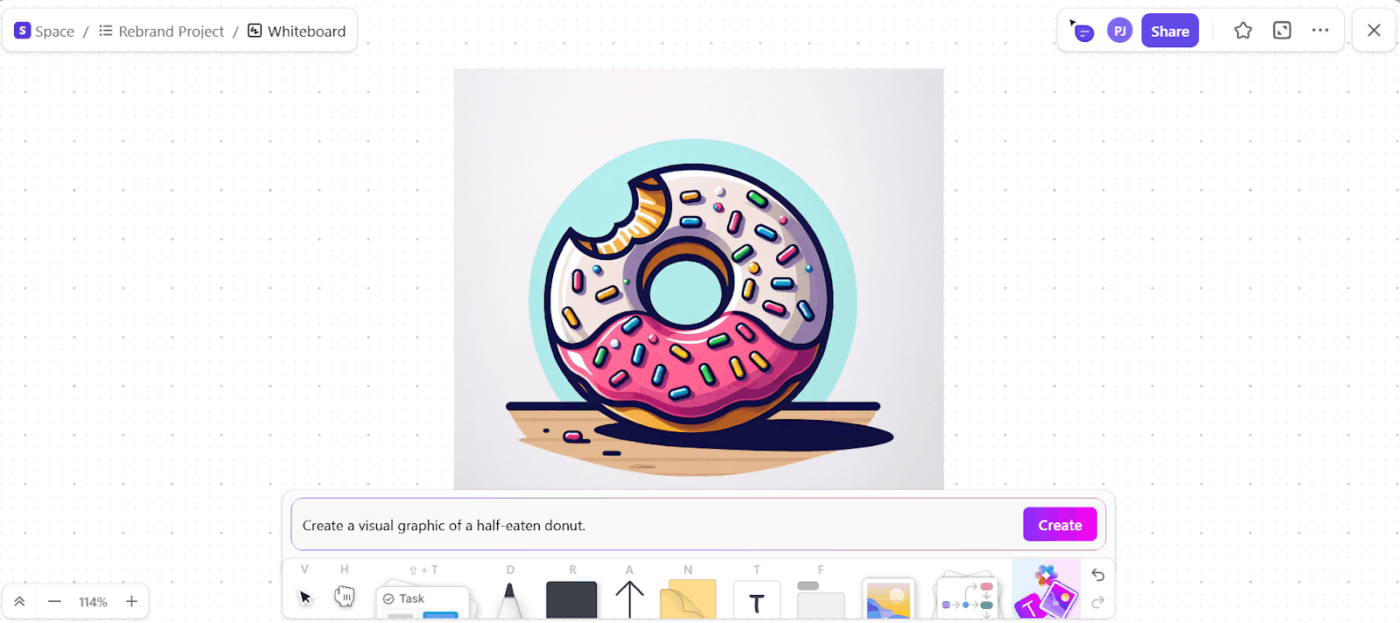
You can also break down ideas from your whiteboard into ClickUp Tasks with due dates, assignees, priorities, and checklists. This means when you map out workflows, you don’t need to manually recreate them later; your whiteboard content becomes actionable instantly.
Invite collaborators with a link, control permissions, and even embed your whiteboard in ClickUp Docs or add a Doc to your whiteboard for complete context.
Plus, ClickUp offers a variety of whiteboard templates, including process maps, process flow charts, sprint planning boards, team brainstorming layouts, and more, so you can get started quickly and customize as you go.
💡 Pro Tip: If your team often uses the same whiteboard setup, save it as a template. This lets you replicate the exact structure instantly, keeping your sessions consistent and speeding up your workflow.
ClickUp best features
- ClickUp Dashboards: Visualize how ideas from your whiteboard are progressing with AI Cards for task status, team workload, velocity, burndown charts, and more
- ClickUp Automations: Turn your whiteboard output into efficient workflows with rules that auto-assign tasks, apply priorities, move statuses, or send notifications based on triggers you set
- ClickUp Integrations: Connect ClickUp Whiteboards with popular apps like Slack, Google Drive, Zoom, and Microsoft Teams for seamless integration to streamline communication and keep all your work in sync across platforms
- ClickUp Super Agents: Build AI-powered assistants who can act autonomously with infinite memory and contextual knowledge about your workspace
ClickUp limitations
- New users might find ClickUp overwhelming due to its extensive functionality
ClickUp pricing
ClickUp ratings and reviews
- G2: 4. 7/5 (10,000+ reviews)
- Capterra: 4. 6/5 (4,000+ reviews
What are real-life users saying about ClickUp?
A G2 review says:
What I love most about ClickUp is how seamlessly everything works together. The combination of Chat, Whiteboards, and Spaces allows us to brainstorm, assign, and track work all in one place. It’s flexible, visual, and highly customizable perfect for managing multiple teams and projects across departments.
What I love most about ClickUp is how seamlessly everything works together. The combination of Chat, Whiteboards, and Spaces allows us to brainstorm, assign, and track work all in one place. It’s flexible, visual, and highly customizable perfect for managing multiple teams and projects across departments.
2. Miro (Best for scalable team collaboration and diagramming)
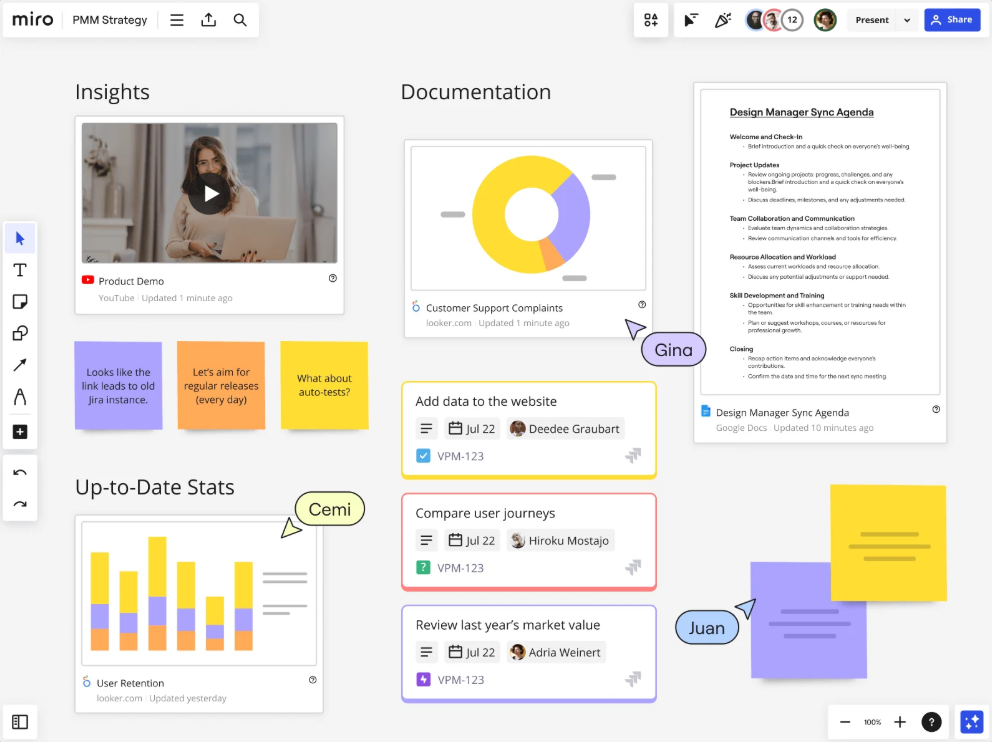
Miro is a cloud-based, infinite whiteboard platform designed for visual collaboration across distributed and hybrid teams. It goes beyond drawing and is purpose-built for design project management.
With Miro AI, you can turn ideas on your Miro board into product briefs, prototypes, or roadmaps.
To ensure everyone on your team is visually collaborating, you can use features like quick-fire polls, dot voting, dynamic sliders, and surprise spinners. These are all good ways to turn passive viewers into active contributors.
Miro best features
- Create unlimited boards with infinite space to brainstorm, plan, and visualize ideas without restrictions using the Infinite Canvas
- See live cursors, chat, voice/video calls, and comments as team members work together
- Mimic physical whiteboarding with drag-and-drop tools to cluster ideas, run retros, or organize flowcharts
Miro limitations
- Performance issues on large boards with lots of content
Miro pricing
- Free
- Starter: $8/month per member
- Business: $16/month per member
- Enterprise: Custom pricing (from 30 members)
- Enterprise Guard: Custom pricing
Miro ratings and reviews
- G2: 4. 7/5 (8100+ reviews)
- Capterra: 4. 7/5 (1600+ reviews)
What are real-life users saying about Miro?
A G2 review says:
I like Miro because it’s a tool that brings people closer together during workshops. Even when working on a global project, people from different countries can collaboratively contribute to the workshop’s outcome. I work in an agile environment, so this tool is particularly valuable during various types of workshops, conceptual work, or PI Planning.
I like Miro because it’s a tool that brings people closer together during workshops. Even when working on a global project, people from different countries can collaboratively contribute to the workshop’s outcome. I work in an agile environment, so this tool is particularly valuable during various types of workshops, conceptual work, or PI Planning.
📮 ClickUp Insight: 11% of our respondents leverage AI primarily for brainstorming and ideation. But what happens to these brilliant ideas afterward? This is where you need an AI-powered whiteboard, like ClickUp Whiteboards, which helps you instantly turn ideas from the brainstorming session into tasks.
And if you can’t quite explain a concept, simply ask the AI image generator to create a visual based on your prompt. It’s the everything app for work that enables you to ideate, visualize, and execute faster!
📚 Also Read: Best Miro Alternatives and Competitors
3. Lucidspark (Best for brainstorming with structured collaboration)
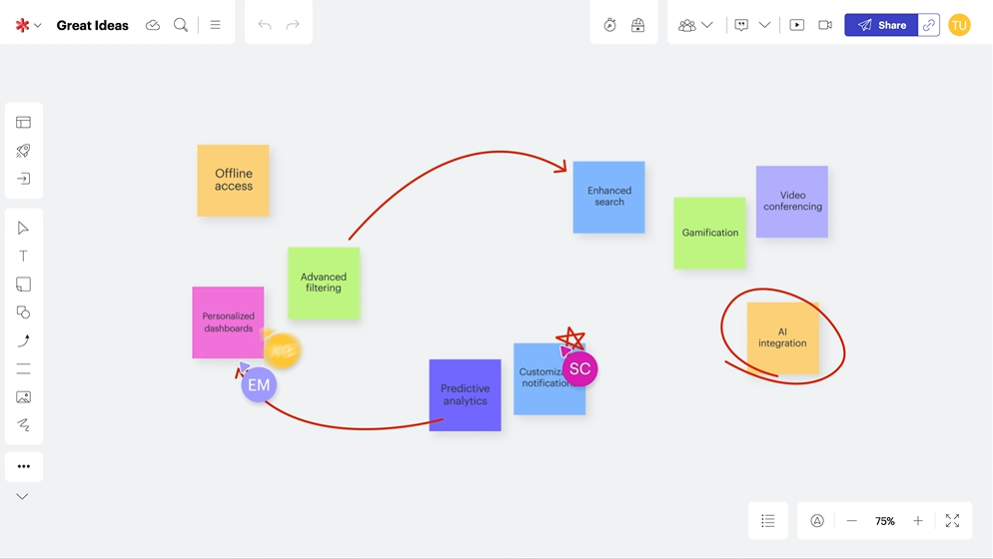
Lucidspark is a cloud-based virtual whiteboard that makes project planning easier when you’re working with a cross-functional team.
Start by creating a virtual space where everyone can share and organize their ideas. Through commenting and tagging, everyone in your hybrid teams can contribute to the discussion.
Some popular use cases of Lucidspark for collaboration include Agile development, meeting facilitation, strategic visioning, user research, and brainstorming.
With visual tools like sticky notes, containers, and color-coded clusters, it’s easy to map out tasks, timelines, and workflows; Lucidspark supports these core techniques of visual project management.
Unlike Jamboard, Lucidspark works smoothly with Zoom, Microsoft Teams, and WebEx.
Lucidspark best features
- Visualize your thoughts by adding dynamic mind maps to any project with a few clicks
- Integrate Lucid Cards with task management tools like Jira and Azure DevOps, and convert ideas into actions
- Import Miro content into Lucidspark with multiple options, including vector PDFs, copy-paste, static images, and CSV files
Lucidspark limitations
- Lucidspark supports visual connections between elements, but it isn’t built for formally defining or modeling variable relationships or dependencies
Lucidspark pricing
- Free
- Individual: $9/month
- Team: $10/month per user
- Enterprise: Custom pricing
Lucidspark ratings and reviews
- G2: 4. 5/5 (6500+ reviews)
- Capterra: 4. 7/5 (370+ reviews)
What are real-life users saying about Lucidspark?
A Capterra review says:
Its quick and easy to build ideas, diagrams and helpful to communicate especially for remote and hybrid teams. The quick ability to go into the “Lucid” mode to draw more complex diagrams and images is great.
Its quick and easy to build ideas, diagrams and helpful to communicate especially for remote and hybrid teams. The quick ability to go into the “Lucid” mode to draw more complex diagrams and images is great.
⚡ Template Archive: Not everyone has a designer’s eye. Brand guideline templates provide built-in best practices for layout, hierarchy, spacing, and composition. Even non-designers (marketing and sales teams) can create polished, on-brand materials.
4. FigJam (Best for designers and creative brainstorming)
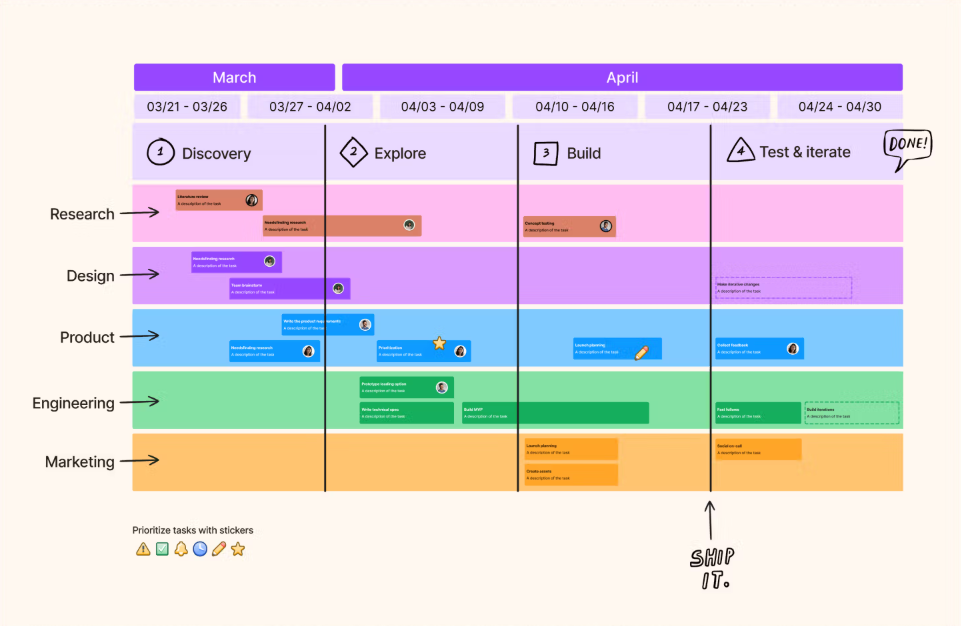
With FigJam as your whiteboard tool, you can define ideas, align on decisions, and move work forward.
When you’re brainstorming, the tool offers templates within the Figma community to help you get started.
For collaborative work management, you can use the built-in timer, audio chat, and cursor chat. This saves you from having to switch to video conferencing for communication. Fellow team members can leave feedback however they want, in the form of doodles, stickies, text, or stamps.
For intelligent diagraming, you can use sitemaps or user flows to bridge the gap between ideation and implementation.
FigJam best features
- Get 300+ pre-built templates to kickstart conversations and projects, including mindmap templates, customer journey maps, flowcharts, etc
- Sort stickies into themes or summarize your team’s output into summaries instantly
- Guide meeting participants to the most important content using the Spotlight mode
FigJam limitations
- Lacks support for custom shapes, gradients, and patterns, otherwise found in Figma’s main design environment
Figma pricing (FigJam included)
- Starter: Free
- Professional: Collab seat: $5/month Dev seat: $15/month Full seat: $20/month
- Collab seat: $5/month
- Dev seat: $15/month
- Full seat: $20/month
- Organization: Collab seat: $5/month (billed annually) Dev seat: $25/month (billed annually) Full seat: $55/month (billed annually)
- Collab seat: $5/month (billed annually)
- Dev seat: $25/month (billed annually)
- Full seat: $55/month (billed annually)
- Enterprise: Collab seat: $5/month (billed annually) Dev seat: $35/month (billed annually) Full seat: $90/month (billed annually)
- Collab seat: $5/month (billed annually)
- Dev seat: $35/month (billed annually)
- Full seat: $90/month (billed annually)
- Collab seat: $5/month
- Dev seat: $15/month
- Full seat: $20/month
- Collab seat: $5/month (billed annually)
- Dev seat: $25/month (billed annually)
- Full seat: $55/month (billed annually)
- Collab seat: $5/month (billed annually)
- Dev seat: $35/month (billed annually)
- Full seat: $90/month (billed annually)
FigJam ratings and reviews
- G2: 4. 6/5 (440+ reviews)
- Capterra: 4. 8/5 (30+ reviews)
What are real-life users saying about FigJam?
A G2 review says:
Collaborating with team members is seamless, allowing us to turn thoughtful ideas into reality. This tool supports our UX research activities, such as mapping user journeys, brainstorming sessions, and conducting design critiques.
Collaborating with team members is seamless, allowing us to turn thoughtful ideas into reality. This tool supports our UX research activities, such as mapping user journeys, brainstorming sessions, and conducting design critiques.
🧠 Fun Fact: The first whiteboard pen wasn’t invented until 1975, nearly 20 years after Martin Heit discovered the whiteboard. Until then, all whiteboards were considered wet-erase, meaning ink could only be erased with a damp cloth.
5. Microsoft Whiteboard (Best for Microsoft 365 users and enterprise integration)
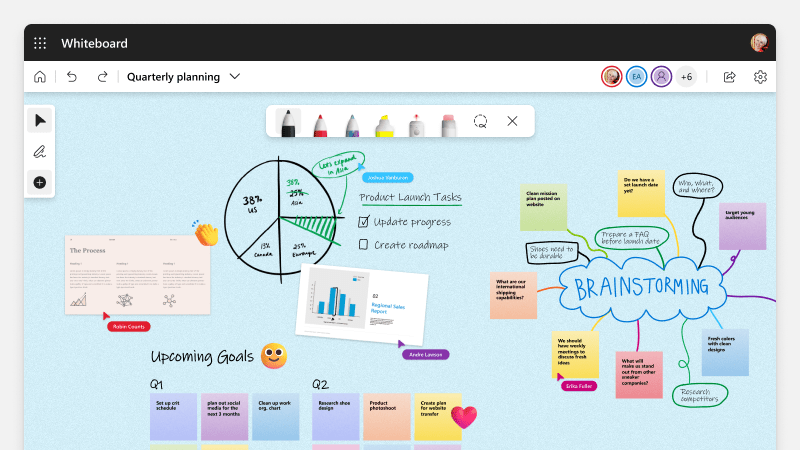
Microsoft Whiteboard is a digital collaboration tool that provides an infinite canvas for brainstorming, planning, and working together. Educators use it to make lessons more interactive and collaborative.
Use it to sketch concepts, guide group discussions with visual organizers, or have students contribute ideas in real time. It integrates directly with Microsoft Teams, allowing you to launch a Whiteboard during class and enabling students to interact from their own devices.
For students, the built-in loop comments enable managing group work.
You can also track progress across platforms like Teams or OneNote, and everything stays synced.
When you’re pressed for time, Copilot can help summarize class input or even suggest how to turn spontaneous ideas into a polished lesson.
Microsoft Whiteboard best features
- Enable read-only mode to prevent edits during key moments
- Add reactions to vote, give feedback, and boost engagement
- Jumpstart your session with 60+ free customizable templates for scenarios like brainstorming, planning, compare and contrast, or icebreakers like ‘two truths and a lie’
Microsoft Whiteboard limitations
- The software doesn’t allow creating or saving custom templates, limiting design personalization and reuse
Microsoft Whiteboard pricing
- Microsoft 365 Business Basic: $7. 20/month per user
- Microsoft 365 Business Standard: $15/month per user
- Microsoft 365 Business Premium: $26. 40/month per user
Microsoft Whiteboard ratings and reviews
- G2: 4/5 (40+ reviews)
- Capterra: 4. 4/5 (140+ reviews)
What are real-life users saying about Microsoft Whiteboard?
A G2 review says:
The best part about using Microsoft Whiteboard is the ability of multiple users to make suggestions in one place. The templates, the sticky notes and the comments make collaboration much more accessible and fun. I also like the reacting and voting features.
The best part about using Microsoft Whiteboard is the ability of multiple users to make suggestions in one place. The templates, the sticky notes and the comments make collaboration much more accessible and fun. I also like the reacting and voting features.
⚡ Template Archive: Free Microsoft Planner Templates for Productivity
6. Mural (Best for design thinking and agile workshops)
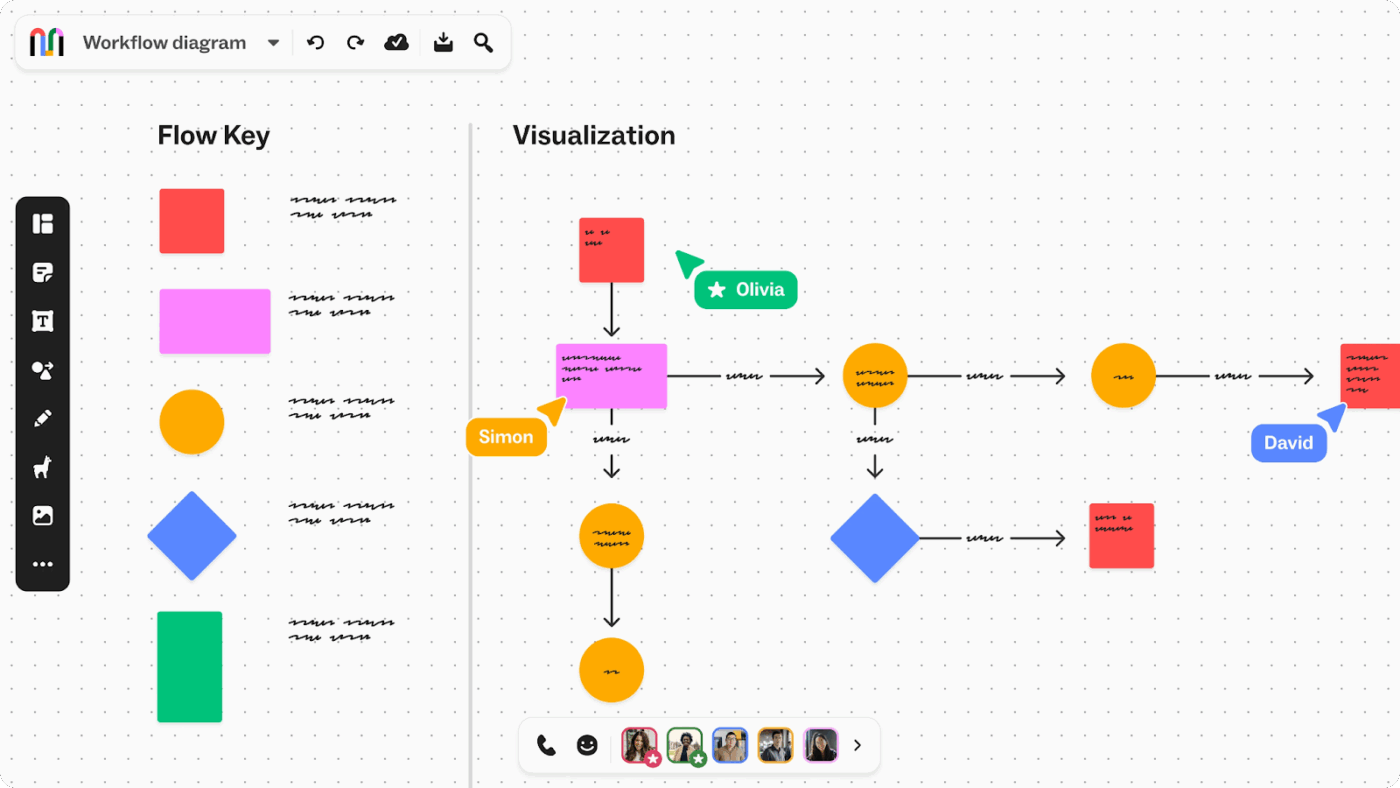
Mural is a visual collaboration platform for ideation and brainstorming, whether you’re working together in real time or asynchronously.
Gather your team and guide them through the Facilitation Superpowers feature, private mode, and anonymous voting. Give everyone the power to have their voice heard, not just the loudest ones, with Mural.
You can even collect ideas and feedback through sticky notes, mapping, and images. Use this web-based brainstorming software to make sure the best ideas don’t get lost in emails or messages.
Mural best features
- Use drag-and-drop sticky notes, GIFs, and images to share complex ideas
- Create workflows, charts, and brainstorming boards with customizable templates
- Add feedback, comments, and ideas directly on the board to shape clearer, more collaborative outcomes
Mural limitations
- Defaulting to infinite canvases can be frustrating, especially since switching back to fixed takes multiple steps
Mural pricing
- Free
- Team+: $12 per month per user
- Business: $17. 99 per month per user (billed annually)
- Enterprise: Custom pricing
Mural ratings and reviews
- G2: 4. 6/5 (1400+ reviews)
- Capterra: 4. 5/5 (130+ reviews)
What are real-life users saying about Mural?
A Capterra review says:
Mural’s accessibility is second to none. Easy group work, ideation, and coordination are just some of the benefits. I’ve used it successfully both in-person and over the internet with a large group of people.
Mural’s accessibility is second to none. Easy group work, ideation, and coordination are just some of the benefits. I’ve used it successfully both in-person and over the internet with a large group of people.
⚡ Template Archive: Free Graphic Design Templates for Creative Teams
7. Creately (Best for visual project planning and wiki integration)
In many organizations, planning happens in silos. Product teams sketch workflows in slides, engineers build separate diagrams, and operations map processes in documents. It leads to fragmented knowledge (aka Work Sprawl ) and version control issues.
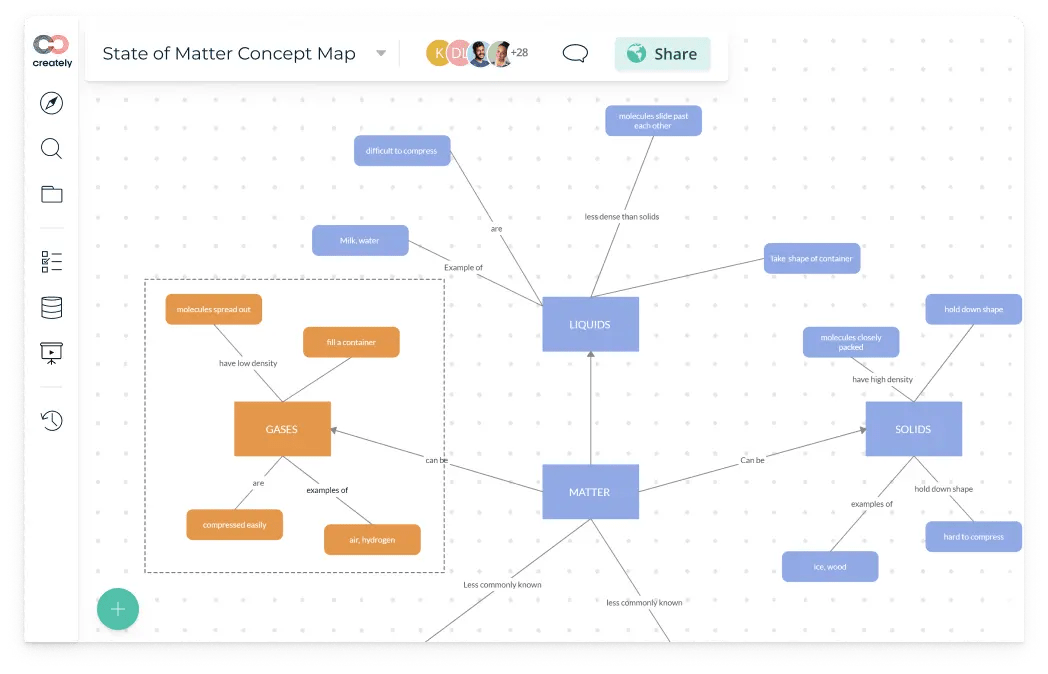
The visual collaboration platform Creately enables your teams to build, update, and share advanced diagrams (such as flowcharts, org charts, process maps, and UML) on an infinite canvas.
With real-time editing, data-linked shapes, and cross-functional templates, everyone works from the same visual source of truth. The result is faster and more aligned planning.
Unlike Jamboard’s limited toolset, Creately includes threaded comments, real-time sync, and integrations with MS Teams, Confluence, and Slack.
Creately best features
- Get support for 50+ technical and business diagrams
- Drag and drop items from any data source to the canvas through 2-way data linking
- Illustrate or make annotations with freehand drawing without leaving the keyboard with markdown shortcuts
Creately limitations
- Integration limitations with specific JIRA and Confluence versions can hinder diagram access
Creately pricing
- Free
- Personal: $8/month
- Team: $8/month per user
- Business: $149/month
- Enterprise: Custom pricing
Creately ratings and reviews
- G2: 4. 4/5 (1300+ reviews)
- Capterra: 4. 4/5 (200+ reviews)
What are real-life users saying about Creately?
A G2 review says:
With an intuitive platform, you can get ideas, debate on them, come to consensus and get results. Through multi faceted option, including automation, mind mapping, flow chart, notes…not limited to these…you may come up with best of the best ideas.
With an intuitive platform, you can get ideas, debate on them, come to consensus and get results. Through multi faceted option, including automation, mind mapping, flow chart, notes…not limited to these…you may come up with best of the best ideas.
8. Stormboard (Best for real-time sticky note brainstorming)
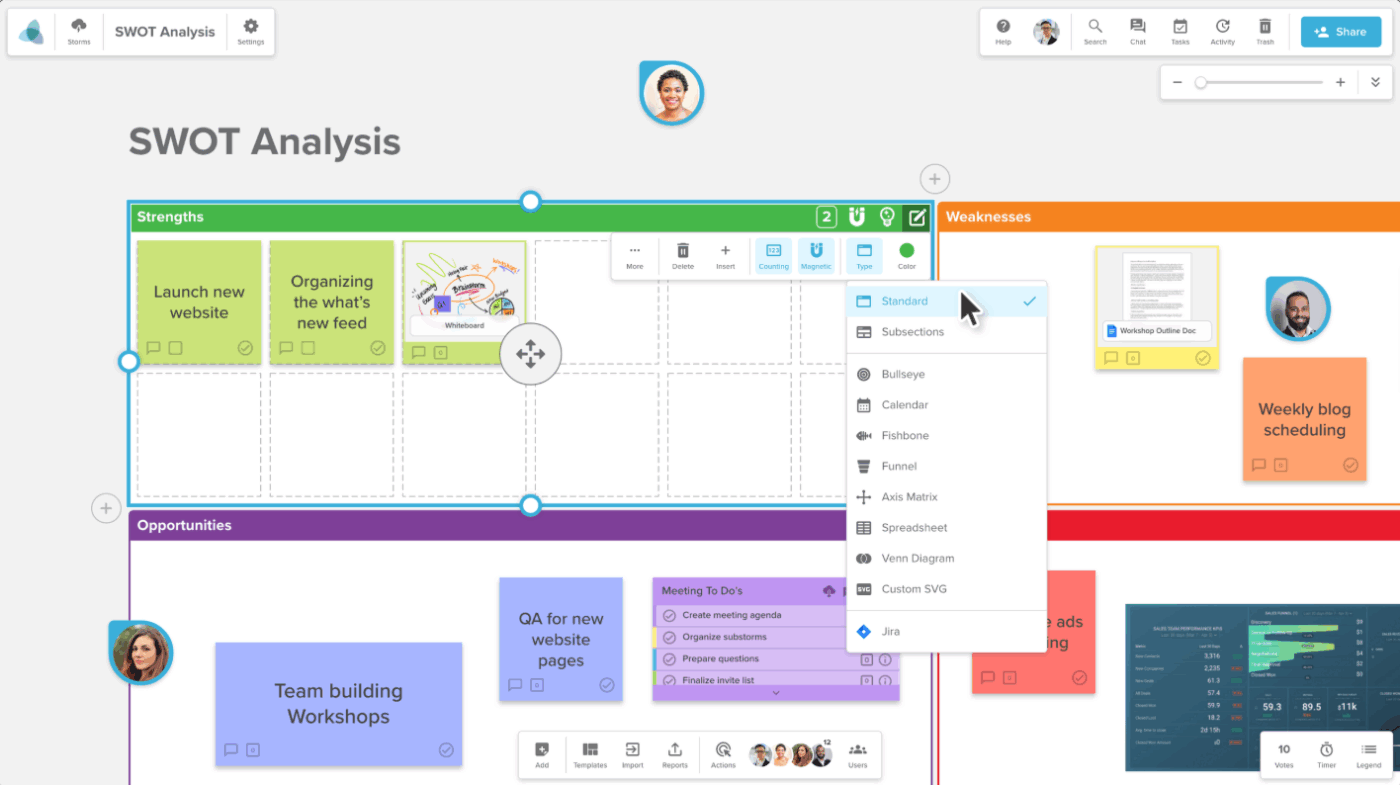
Jamboard alternative Stormboard is an online workplace for agile teams. It brings the whiteboard into a collaborative digital environment where everyone can pitch their ideas.
You can organize and visualize plans in a way that works for you. Think images, text, and videos.
Use this digital canvas as a means for your global team to turn unstructured conversations into productive workspace meetings.
After the meeting, you can export these ideas into documents, spreadsheets, and images. Turn your chats into shareable files.
Stormboard best features
- Embed Storms into websites or apps to share and collaborate easily without switching platforms
- Add hyperlinks on sticky notes to connect ideas with external resources quickly
- Use Storm AI to generate templates, summarize ideas, and organize your board automatically
Stormboard limitations
- Navigating notes can be difficult due to small, hard-to-resize text and unclear scroll indicators
Stormboard pricing
- Personal: Free
- Business: $10/month per user
- Enterprise: Custom pricing
Stormboard ratings and reviews
- G2: 4. 4/5 (70+ reviews)
- Capterra: 4. 5/5 (40+ reviews)
What are real-life users saying about Stormboard?
A Capterra review says:
As a market researcher, it’s my job to distill a huge amount of information into focused and actionable insights and recommendations. Storyboard helps me bring structure to the effort, which saves a ton of time.
As a market researcher, it’s my job to distill a huge amount of information into focused and actionable insights and recommendations. Storyboard helps me bring structure to the effort, which saves a ton of time.
9. Canva Whiteboard (Best for visually engaging whiteboards with templates)
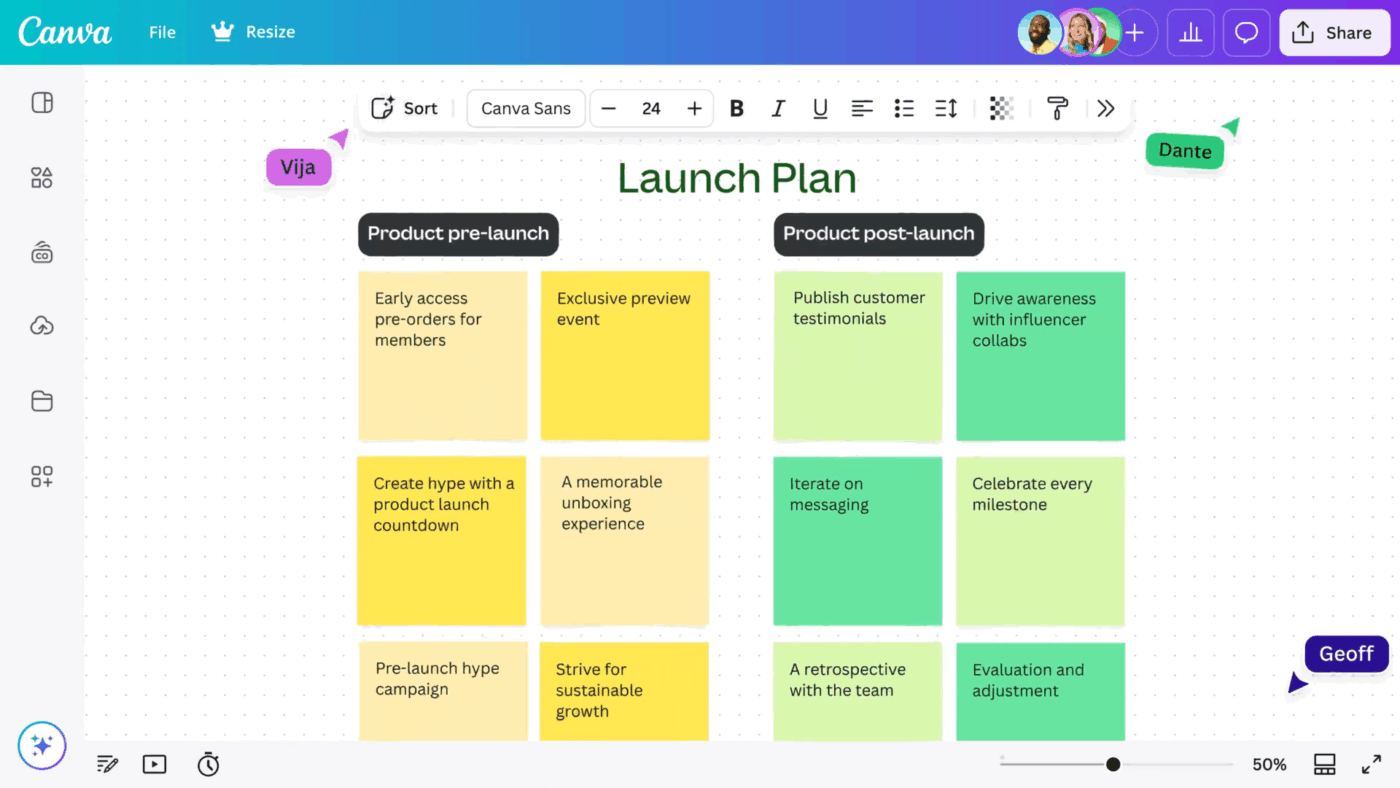
Canva’s Whiteboard is a digital, infinite-canvas tool built into Canva’s design ecosystem. It offers real-time collaboration, sticky notes, shapes, lines, videos, images, timers, and access to Canva’s vast library of templates and media.
Use this free online whiteboard to create interactive workshops and brainstorming sessions.
You also get AI tools for designers like Magic Design for auto-generated templates and Magic Write for assistance with text prompts.
Whereas Jamboard supported simple drawings and sticky notes, Canva lets you embed images, videos, audio, and interactive elements directly from its in-built content library.
Canva Whiteboard best features
- Use Magic Resize to turn your whiteboard into a doc, resize for any platform, and translate in one click
- Summarize your whiteboard content instantly with Magic Write’s Summary tool
- Access millions of photos, icons, graphics, and audio from Canva’s full media library
Canva Whiteboard limitations
- Since Canva doesn’t integrate with project management tools, you cannot convert whiteboard items into actionable tasks
Canva Whiteboard pricing
- Free
- Pro: $12. 99/month per user
- Business: $20/month per user
- Enterprise: Custom pricing
Canva Whiteboard ratings and reviews
- G2: 4. 7/5 (5,400+ reviews)
- Capterra: 4. 7/5 (12,800+ reviews)
⚡ Template Archive: Studies show that using a visual calendar can reduce the planning fallacy, our tendency to underestimate how long tasks take.
Canva calendar templates offer plug-and-play layouts that keep your plans clear, consistent, and visually aligned with your brand.
10. Conceptboard (Best for visual collaboration with clients and remote teams)
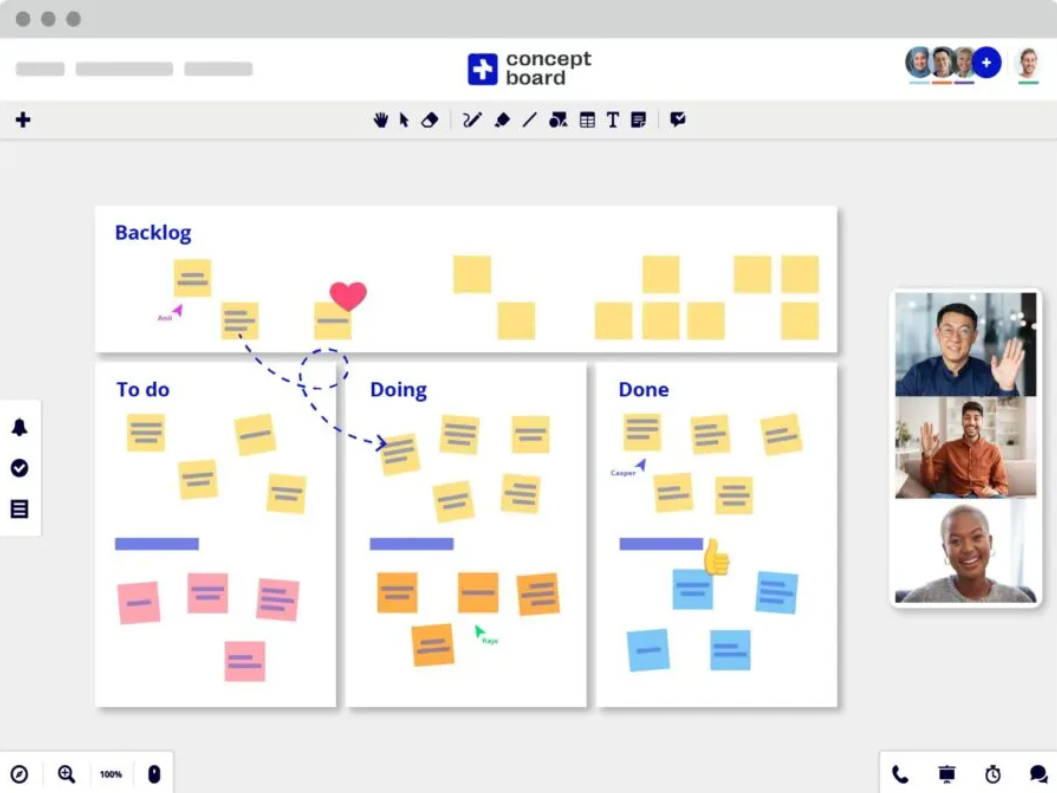
Conceptboard turns complex projects into clear visual journeys. It enables real‑time collaboration with live cursors and structured feedback through comments and sticky notes.
Conceptboard also supports enterprise needs with GDPR compliance, ISO certification, and secure hosting in Germany.
Conceptboard best features
- Track changes and restore previous versions of your boards to keep your work safe and organized
- Ensure data security with GDPR compliance, single sign-on (SSO), and data encryption
- Export your boards in formats like PDF, PNG, or SVG for easy sharing and presentations outside the platform
Conceptboard limitations
- Conceptboard lacks a built-in table feature, requiring users to manually draw tables instead of creating them like in Excel
Conceptboard pricing
- 30-day free trial
- Starter: €5/month per user (~ $6 /month per user)
- Advanced: From €10/month per user (~$12/month per user)
- Corporate and Government: From €14/month per user (~$16/month per user)
- Special Plans: Custom pricing
Conceptboard ratings and reviews
- G2: 4. 6/5 (90+ reviews)
- Capterra: 4. 6/5 (40+ reviews)
What are real-life users saying about Conceptboard?
A G2 review says:
We are an architecture firm and we use conceptboard every day. All our drawings, specs, sketches, photos, etc. are being put on a dedicated project board and we review, mark-up, discuss, etc. in real time. It is so easy, user friendly and intuitive. We started using conceptboard in 2019 and we could not function at 100% without it at this point.
We are an architecture firm and we use conceptboard every day. All our drawings, specs, sketches, photos, etc. are being put on a dedicated project board and we review, mark-up, discuss, etc. in real time. It is so easy, user friendly and intuitive. We started using conceptboard in 2019 and we could not function at 100% without it at this point.
11. Zoom Whiteboard (Best for collaborative whiteboarding during video calls)
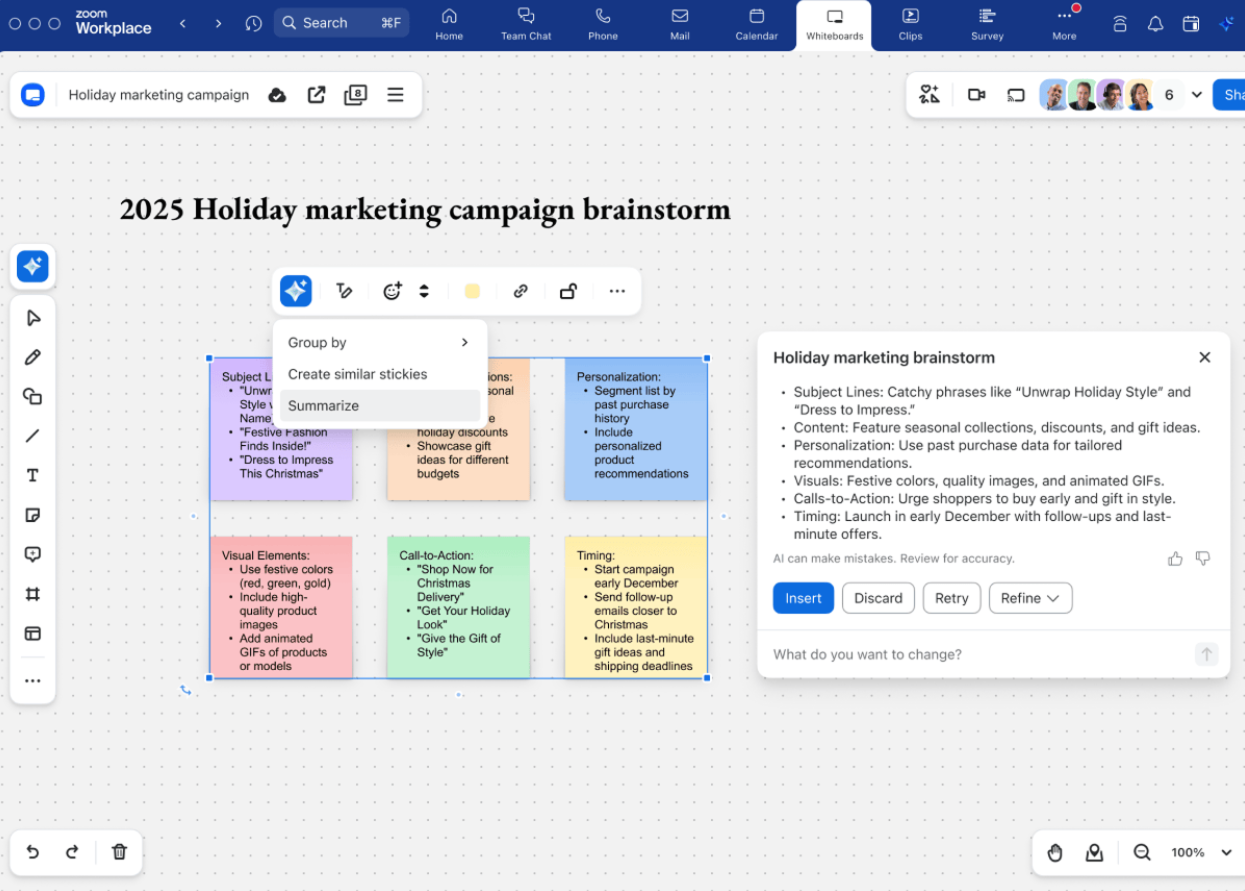
If you’re using Zoom for meetings, Zoom Whiteboard is an extension that helps you collaborate visually without leaving the platform. You can start a whiteboard before the meeting, co-create during it, and continue building on it afterwards, all within the Zoom platform.
Once you’ve built a layout or process that works, you can turn it into a reusable template and share it with your team for future use. As ideas take shape, create more advanced diagrams using smart connectors, a rich shape library, and intuitive layer controls.
And when you’re ready to increase engagement, you can add timers, voting tools, action buttons, or even code blocks to turn your whiteboard into a dynamic collaboration space.
Zoom Whiteboard best features
- Save your go-to shapes and icons with ‘My saved shapes’ for quick reuse across whiteboards
- Export frames to PowerPoint (PPTX) with high-quality visuals intact
- Connect third-party task management tools to sync and simplify your workflow
Zoom Whiteboard limitations
- Export options are somewhat basic, typically allowing export as images or PDFs
Zoom Whiteboard pricing
- Basic: Free
- Whiteboard: $2. 49/month per user
- Whiteboard Plus: $7/month per user
Zoom Whiteboard ratings and reviews
- G2: 4. 5/5 (54000+ reviews)
- Capterra: 4. 6/5 (14300+ reviews)
What are real-life users saying about Zoom Whiteboard?
Here’s what a Reddit user shares:
It’s a lot more than just a whiteboard. You can do collaborative diagrams, task boards, whiteboarding, sticky notes, add votes and reactions, all kinds of things. And with AI built in, you can use AI to pre-build your whiteboard.
It’s a lot more than just a whiteboard. You can do collaborative diagrams, task boards, whiteboarding, sticky notes, add votes and reactions, all kinds of things. And with AI built in, you can use AI to pre-build your whiteboard.
The Best Jamboard Alternative, ClickUp, Goes Beyond Sticky Notes
Jamboard’s sunset gives you a chance to upgrade your visual collaboration.
When choosing a Jamboard alternative, you should ask yourself:
- Does your team need just visuals, or task execution too?
- Will the tool work on tablets and touch devices?
- Does the whiteboard integrate with the tools in your tech stack?
- Does it allow you to summarize, assign, and automate from the same space?
ClickUp brings it all together. You can sketch on a Whiteboard, turn any sticky note into a task, assign it with due dates, and track progress in the same canvas. With built-in AI, Google Workspace integration, and live collaboration features, ClickUp doesn’t just replace Jamboard—it levels it up.
To try the #1 Jamboard alternative today. Sign up on ClickUp for free.