
Gantt Chart Template for ClickUp
The Detailed Task Gantt framework built natively in ClickUp. Dependencies auto-link, the critical path updates in real time, and the schedule stays current when anyone changes a task.
Gantt Chart Template for ClickUp
A live Gantt timeline built from your ClickUp task data with automatic dependency arrows and critical path highlighting. No formulas, no file maintenance.
Free, ungated, opens in ClickUp
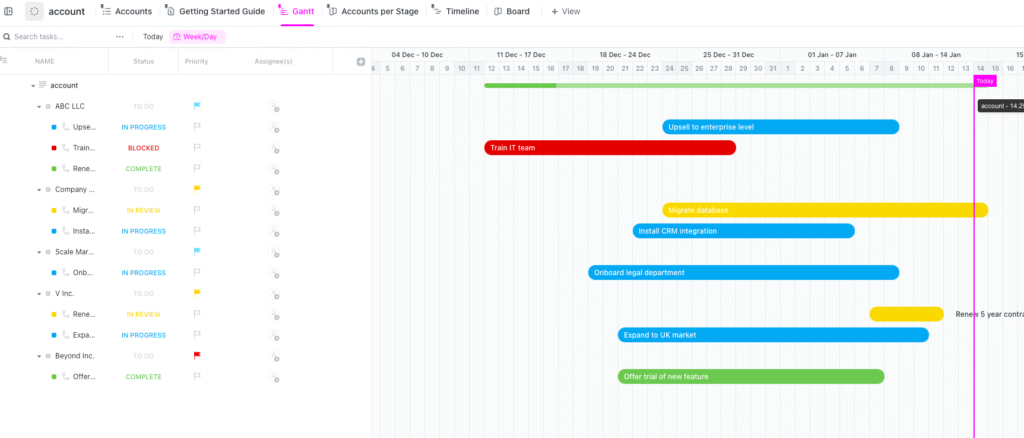
- Automatic timeline bar generation from task start and due dates
- Dependency arrows with four linking modes (FS, SS, FF, SF)
- Critical path highlighting with slack time visibility
- Milestone markers for key deliverables
- Color coding by status, priority, or assignee
- Timeline zoom (day, week, month, quarter)
- Saved view sharing with direct URL and Dashboard embedding
How to Use This in ClickUp
Create a Gantt View
In your ClickUp List or Folder, click the + View button at the top, then select Gantt from the view options. The view opens immediately with any scheduled tasks already rendered as timeline bars.
Add Dates to Your Tasks
Open each task and set a Start Date and Due Date. Tasks without both dates appear in the Unscheduled panel on the right side of the Gantt view. Drag them from the panel onto the timeline to assign dates visually.
Link Dependencies Between Tasks
Hover over any task bar until a small circle appears on the right edge. Click and drag from that circle to the dependent task bar. ClickUp draws the dependency arrow and enforces the sequence when you reschedule either task.
Enable Critical Path
Click the filter icon in the Gantt toolbar and toggle Critical Path on. ClickUp highlights the longest chain of dependent tasks that determines your project end date. Tasks not on the critical path show lighter segments representing available slack time.
Save and Share Your View
Click the view name dropdown and select Save As to create a named Gantt view. Share the view URL directly with stakeholders, or add it to a ClickUp Dashboard as an embedded widget for live project reporting.
Who This Is For
Teams Already Using ClickUp
Project managers and team leads who have tasks in ClickUp and want visual timeline planning without switching to a separate tool or maintaining a static spreadsheet.
Cross-Functional Teams
Teams with members across departments who need a single, live timeline that updates when anyone changes a task. No file attachments or version merging required.
Agile Teams with Fixed Deadlines
Scrum or Kanban teams that run sprints but still need to track a macro-level project timeline for stakeholder reporting and release planning.
Frequently Asked Questions
Yes. The Gantt view is available on all ClickUp plans, including Free. You can create unlimited Gantt views and link dependencies at every plan level. Advanced features like Workload views for resource capacity tracking require the Business plan or higher.
Not directly from the Gantt view. You can use the browser’s print function to save the visible timeline as a PDF, but there is no dedicated export with configurable page layout. For formal schedule documents, many teams maintain a one-page summary in Excel or Sheets alongside their live ClickUp timeline.
ClickUp does not have a built in baseline comparison feature for Gantt charts. You can create a Custom Field to store original due dates and compare manually, but there is no visual planned-versus-actual overlay on the timeline.