
Statement of Work Template for Word
The Fixed Deliverable SOW framework built in Microsoft Word with styled headings, an autogenerated Table of Contents, deliverables tables, milestone payment schedule, and Track Changes for contract negotiations.
Statement of Work Template for Word
The Fixed Deliverable SOW framework built in Microsoft Word with styled headings, a Table of Contents, deliverables tables, milestone payment schedule, and Track Changes for contract negotiations.
Free, ungated, opens in Word
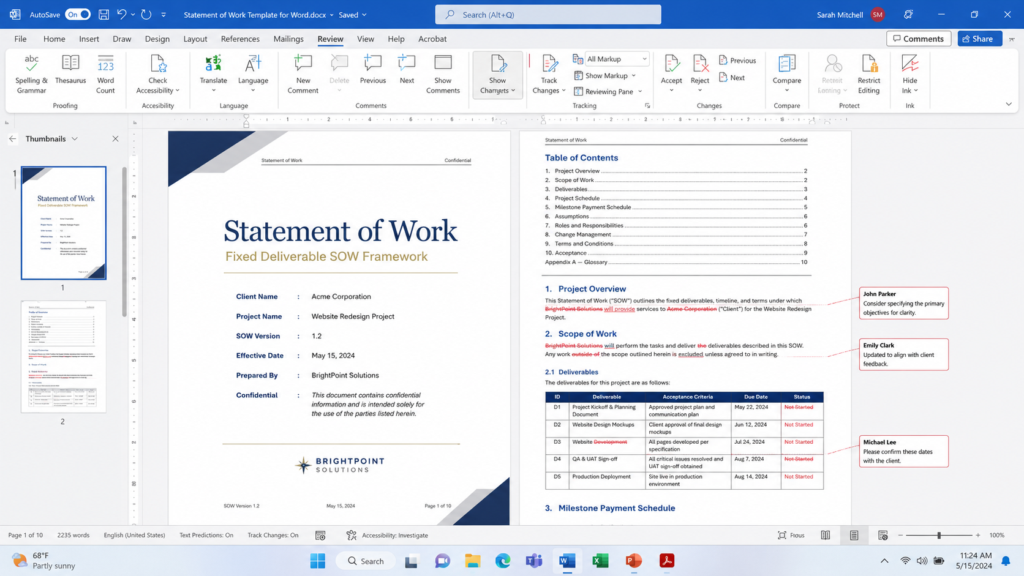
- Autogenerated Table of Contents from Heading styles
- Deliverables table with ID, description, acceptance criteria, and status columns
- Milestone payment schedule with trigger conditions and invoice dates
- Cover page with document metadata (client, project, version, date)
- Preconfigured headers with document title and version number
- Page numbering with Confidential footer on all pages
- Section break separating cover page from body content
How to Use This in Word
Download and Open the Template
Download the .docx file and open it in Word 2016 or later. If prompted about macros, this template does not use macros. Click Enable Editing if the file opens in Protected View.
Update the Cover Page and Headers
Replace the placeholder text on the cover page: Client Name, Project Name, SOW Version, Effective Date, and Prepared By. Double click the header area on page 2 to update the running header with the project name and version number.
Fill In the Scope and Deliverables Table
Write the Scope of Work narrative in Section 2. In the Deliverables table, add one row per deliverable. Enter the Deliverable ID (D.001, D.002), a specific description, measurable acceptance criteria, and the target due date. Add rows by pressing Tab in the last cell.
Build the Milestone Payment Schedule
In the Pricing and Payment section, enter one row per payment milestone. Specify which deliverables trigger each payment, the dollar amount, and the payment condition. Use Layout > Formula > =SUM(ABOVE) in the Total cell to autocalculate.
Enable Track Changes and Send for Review
Go to Review > Track Changes > All Markup. Save the file and send to the client. Their edits appear as redlines. Accept or reject each change after negotiation. When finalized, accept all remaining changes and export to PDF for signatures.
Who This Is For
Procurement Teams Requiring .docx Submissions
Organizations where procurement departments require SOW submissions in Word format for internal redlining, legal review, and archival in their document management system.
Contractors and Vendors Responding to RFPs
Companies that submit SOWs as part of formal proposals, where the client specifies the document format and expects Track Changes for negotiation rounds.
Legal and Compliance Teams Reviewing Contract Language
Internal counsel who need to redline specific clauses (liability, IP, termination) using Track Changes, with Comments for questions that need the project team's input.
Frequently Asked Questions
You can open the .docx file in Google Docs, but the Table of Contents, header/footer formatting, and page number fields will not render correctly. Use the Google Docs template from this collection if your team works in Google Workspace.
Yes. Go to File > Save As > PDF. The exported PDF preserves all tables, formatting, headers, and footers. Archive both the .docx source and the signed PDF. The .docx preserves editing capability for future amendments.
Place your cursor in the last cell of the table and press Tab. Word creates a new row with the same style. Do not copy and paste rows from other documents, as this imports conflicting styles. If formatting breaks, select the full table and reapply the table style from Table Design.