
Statement of Work Template for Google Docs
The Time and Materials SOW framework built in Google Docs with real time collaboration, Suggesting mode for contract redlining, named version history, and shareable links for client review without file attachments.
Statement of Work Template for Google Docs
The Time and Materials SOW framework built in Google Docs with real time collaboration, Suggesting mode for contract redlining, named version history, and shareable links for client review.
Free, ungated, opens in Google Docs
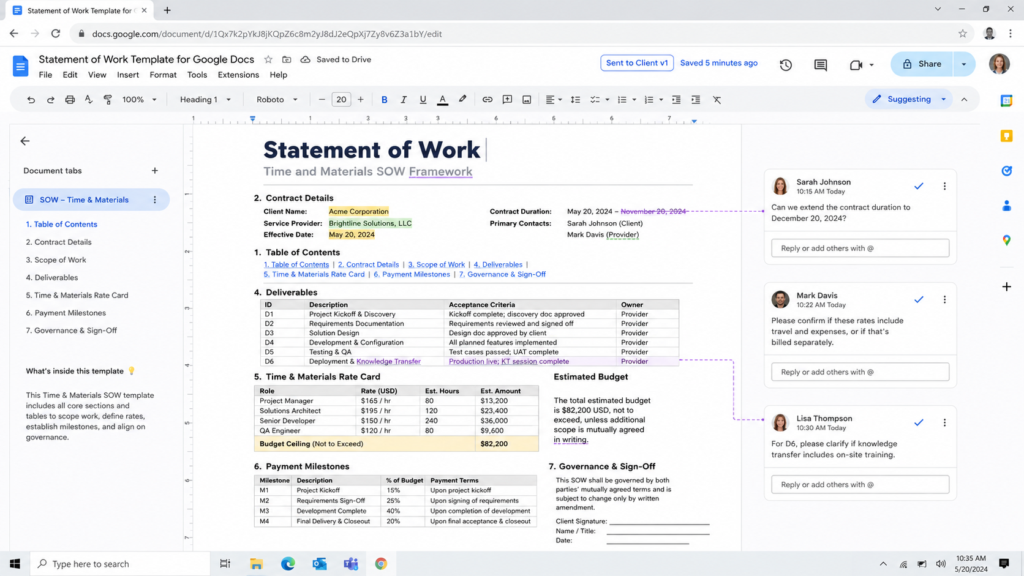
- Linked Table of Contents with heading navigation
- Deliverables table with ID, description, acceptance criteria, and owner columns
- Payment milestone table with rate card and budget ceiling rows
- Suggesting mode for client redlining (Track Changes equivalent)
- Named version history for audit trail at each negotiation stage
- Shareable link with Commenter or Viewer permissions
- Paginated layout mode for print and PDF export
How to Use This in Google Docs
Make a Copy of the Template
Click the template link, then go to File > Make a copy. Your personal copy opens in Google Drive with all formatting and tables intact. Rename it with the client name, project name, and “SOW” (e.g., “Acme Corp Website Redesign SOW”).
Fill In the Contract Details
Replace the placeholder fields on the first page: Client Name, Service Provider, Effective Date, Contract Duration, and Primary Contacts for both parties. These appear in the document header and the Introduction section.
Define the Rate Card and Estimated Hours
In the Pricing section, fill in the Rate Card table with role titles, hourly or daily rates, and estimated hours per role. Enter the Not to Exceed ceiling in the Budget row. The Total row requires manual calculation since Google Docs tables do not support formulas.
Set Up Suggesting Mode for Client Review
Click the pencil icon in the top right corner and switch to Suggesting. Share the Doc with the client using Commenter access. Their edits appear as suggestions you can accept or reject. Name the current version (“Sent to Client v1”) before sharing.
Finalize and Export for Signatures
Accept all agreed suggestions. Name the final version (“Final Agreed”). Go to File > Download > PDF Document to create the signable copy. Add signature blocks at the bottom of the Governance section before exporting. Archive the PDF and keep the Google Doc as the editable source.
Who This Is For
Teams on Google Workspace
Organizations that standardize on Google Workspace and want SOW drafting, review, and approval to happen without leaving the Google ecosystem or downloading file attachments.
Distributed Teams Negotiating Across Time Zones
Remote teams where the drafting, legal review, and client negotiation happen asynchronously. Real time collaboration and Suggesting mode eliminate version conflicts.
Freelancers and Small Agencies
Independent professionals who need a professional SOW without Microsoft 365 licensing. Google Docs is free, shareable via link, and accessible from any browser.
Frequently Asked Questions
You control the access level. Share with Commenter access so the client can view and leave comments but not edit text. If they need to make edits, share with Editor access and ask them to work in Suggesting mode. Their changes appear as suggestions you can accept or reject.
Only in Chrome with offline mode enabled in advance. Go to Google Drive settings and check Make available offline. Edits sync when you reconnect. Safari and Firefox do not support offline editing. If offline access is critical, use the Word template from this collection instead.
Yes. Go to File > Download > Microsoft Word (.docx). The tables and heading structure transfer correctly. Suggesting mode history does not transfer. Export to Word after finalizing all suggestions if you need to deliver a .docx file to the client.