
How to Take Meeting Minutes in ClickUp
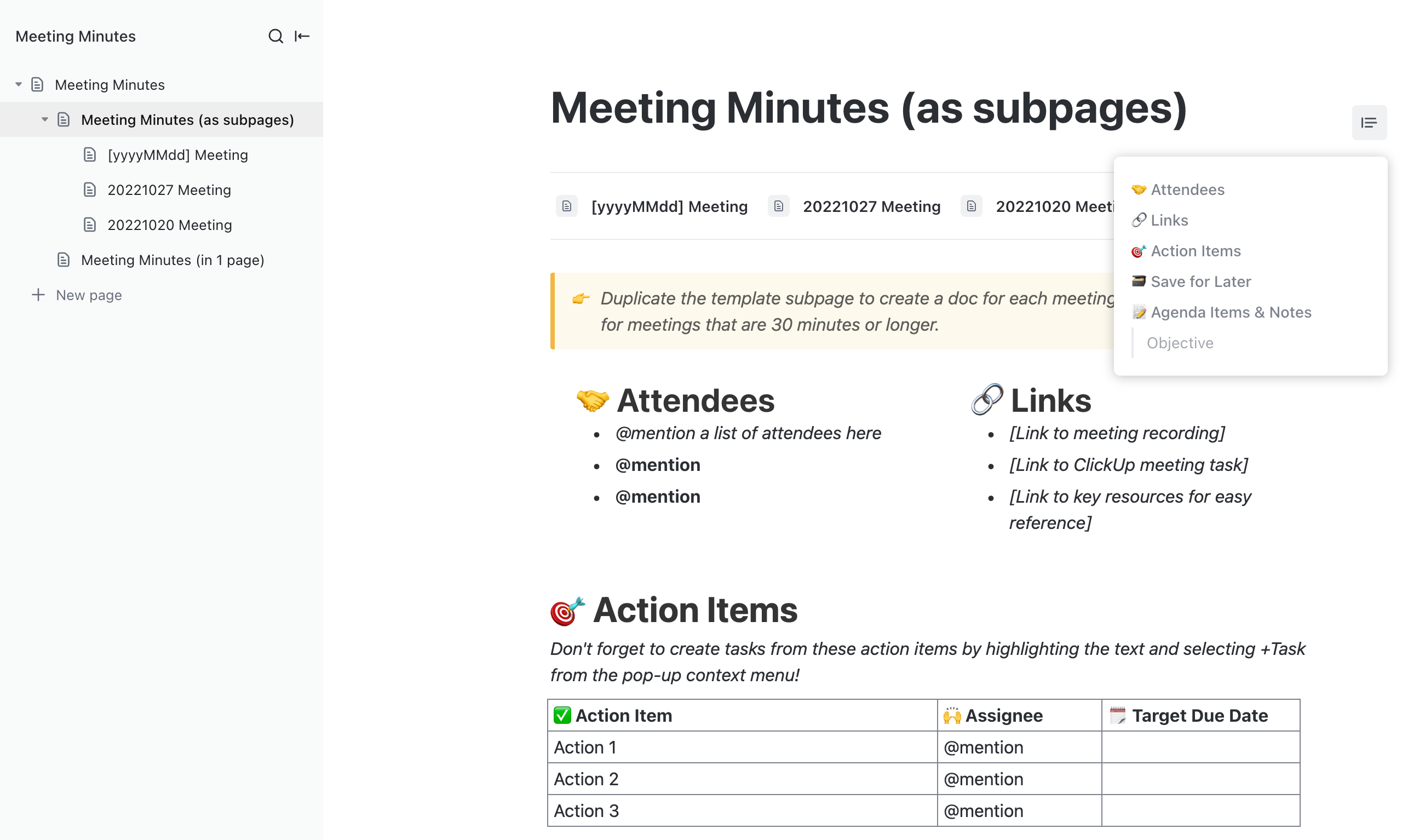
What you’ll need
Guests can’t create Docs by default. They can use Doc templates if they have edit or full permissions. Share the Doc with attendees before you mention them in it. Docs can be shared with specific people, including guests. See Create a Doc, Create, apply, and update Doc templates, Use @mentions, and Share Docs.
How to Take Meeting Minutes in ClickUp in 9 Steps
Create a Doc
In Global Navigation, select Docs. In the upper-right corner, click New Doc, then choose Create Doc. The Docs Hub article shows this path.
You should now see: The new Doc opens and automatically saves.
Apply the Meeting Minutes template
In the upper-right corner of the Doc, click the ellipsis … icon. Select the Entire Doc tab, then click Apply template. Search or browse the Template Center, select Meeting Minutes, and click Use Template. A Doc template duplicates an entire Doc, including its settings and pages. See Create, apply, and update Doc templates.
You should now see: The Doc now has the template’s settings and pages.
Name the Doc
In the upper-right corner of the Doc, click the ellipsis … icon, then choose Rename. Give the Doc a name that identifies this meeting. The Doc settings article covers the rename option.
You should now see: The Doc has the name you entered.
Share it with attendees
For a private Doc, click Share. In Invite by name or email, enter each attendee’s name or email, then turn on the Share toggle. The Share Docs article shows the steps.
You should now see: The selected attendees are among the people the Doc is shared with.
Mention the attendees
After sharing the Doc, type @ followed by a person’s initials to mention them. The Use @mentions article explains the requirement to share first.
You should now see: The attendee names are included as people mentions in the Doc.
Link related work
From the Doc page, open Relationships. Under Page Links, click Add relationship, search or browse recent tasks or Docs, then select the item. See See and create Doc Relationships.
You should now see: The task or Doc appears as a page link.
Take notes during the meeting
Write your notes in the Doc. You can @mention relevant tasks or add comments; see ClickUp for meetings. The Meeting Minutes template can help you organize attendees, agenda, and action items, and track key learnings and outcomes for stakeholders.
You should now see: The Doc holds the meeting’s notes.
Give each action item an owner
Option 1: assign a comment. Select the action-item text in the Doc to turn it into an assigned comment. Click Assign, then search or browse for the owner. Assigning the comment notifies its owner. Each owner can find their assigned comments in the Assigned to me section of Docs Hub. Check with each owner; when they resolve an assigned comment, you’re notified. Read Assign comments.
You should now see: The action item is an assigned comment, and its owner is notified.
Option 2: create a task. Highlight the action-item text, click the dropdown next to + Task on the toolbar, then select + Task. If the Doc is saved in Docs Hub, select a location for the new task. Add an Assignee, then click Create. See Create a task from a Doc or wiki.
You should now see: The task is created in the location you selected.
Create a fresh Doc for the next meeting
In Docs Hub, click New Doc, choose Browse Templates, then select the Meeting Minutes template. The Docs Hub article describes creating a new Doc from a template.
You should now see: A new Doc is created using the selected template.
Tips and limits
Use the Meeting Minutes template again when another meeting needs a similar note structure. You can relate Docs and tasks by mentioning them or copying and pasting an internal link. Each owner can find assigned comments in the Assigned to me section of their Docs Hub, and you’re notified when an owner resolves an assigned comment. One limit to keep in mind: page history is not included in Doc templates. See ClickUp for meetings, See and create Doc Relationships, and Assign comments.
If it goes wrong
Can’t @mention an attendee? Share the Doc with them first.
Task creation asks for a destination? If the Doc is saved in Docs Hub, select a location in the Create modal. Click the current location name to choose a different one, then set any required Custom Fields.
A guest can’t use the template? Check that they have edit or full permissions.
Check your result
In Docs Hub, check the Sharing column to confirm who the Doc has been shared with. Ask each owner to check the Assigned to me section of their Docs Hub. When an owner resolves an assigned comment, you’re notified. If you used the task route, confirm each task was created in the location you selected.
Do this in ClickUp
Start with the Meeting Minutes template, a ClickUp Doc with pre-built pages for organizing teams, individual meeting notes, and instructions. Use its structure to organize attendees, agenda, and action items, track key learnings and outcomes for stakeholders, and assign action items to teammates as new tasks.
Common Questions About How to Take Meeting Minutes in ClickUp
Can I keep using the same Doc for the next meeting?
Create another Doc from the Meeting Minutes template in Docs Hub.
Can I mention attendees before sharing the Doc?
No. Share the Doc with them first.
Does the template include page history?
No. Page history is not included in Doc templates.