
How to Set and Track Goals in ClickUp
What you’ll need
Choose a Space for the cycle you want to track, and check that your role allows the setup. Guests and limited members can’t create and add Custom Fields. Guests can’t edit statuses or use status templates. Guests with Edit permissions can’t create or delete subtasks. Those limits matter when adding fields, changing List statuses, or nesting work.
How to Set and Track Goals in ClickUp in 6 Steps
Create a List for the cycle
Create a new List in your Space for the cycle you are tracking. In the Spaces Sidebar, hover over the Space, click the plus icon, and select List. Name the List, then click Create.
You should now see: A List for the cycle you are tracking.
Make each goal a task
Create one task for each goal. In List view, below any group of tasks, click + Add Task, name the task, then click Save. For objectives and key results (OKRs), make the objective a task and each key result a subtask. Use the Add subtask button to the right of the task name. Assign an individual or Team to each goal task and set a due date.
You should now see: Each goal is a task with an assignee and a due date; an OKR objective has its key results as subtasks.
Add fields to measure progress
In List view, click the plus icon or Add above the task table, choose a field type, name the field, then click Create. Add Target Value (Number), Current Value (Number), and Unit (Short Text or Dropdown). Target Value records what you are aiming for. Current Value records where you stand now, and Unit tells the team what the number measures. Use the task’s own status and assignee for status and ownership, not extra Status or Owner fields.
You should now see: The new Custom Field is added to the List view as a column.
Set the List's statuses
In the Sidebar, hover over the List, click the ellipsis … icon, and select List statuses. Choose custom statuses. For each one, click Add status under a status group, then click Apply changes. The Help Center recommends To Do, Needs attention, Off track, On track, Department review, Owner review, and Completed, or a variation that fits how you monitor progress.
You should now see: The goal tasks in the List use the statuses you created.
Group the goals and add a Gantt view
List view is already there. Click Group by at the top of the view and group goals by Status or Assignee. Then click + View in the Views Bar and select Gantt. Gantt view allows you to track goal and OKR progress by quickly visualizing dependencies, Milestones, start dates, and due dates.
You should now see: The goals grouped in List view, and a Gantt view that shows dependencies, Milestones, start dates, and due dates.
Review progress every week
For goals tied to outside numbers, update the Current Value field. For goals that depend on finishing tasks, check how many linked tasks are complete. Then update each goal’s status: click the current status name and, in the Search Statuses modal, choose a new status.
You should now see: Each goal shows this week’s Current Value and status.
Tips and limits
Link work that moves a goal forward. Add a Relationship or Dependency between the result and the tasks contributing to it; completed linked tasks can help track work-based progress. In List view, change grouping by clicking the column header you want and selecting Group. To see only one team’s goals, click the Filter button at the top of the view.
For numbers that come from outside ClickUp, this setup relies on a manual update: change Current Value each week.
If it goes wrong
If you can’t add a field, check your role: guests and limited members can’t create and add Custom Fields. If a new goal task starts with a status you didn’t choose, check the filters on the view. A status filter sets its selected value on new tasks. If goals look split up and you want one list again, remove the grouping by clicking the delete icon to the right of the grouping selection.
Check your result
Confirm the List shows every objective and its key results with current progress, targets, and ownership.
Do this in ClickUp
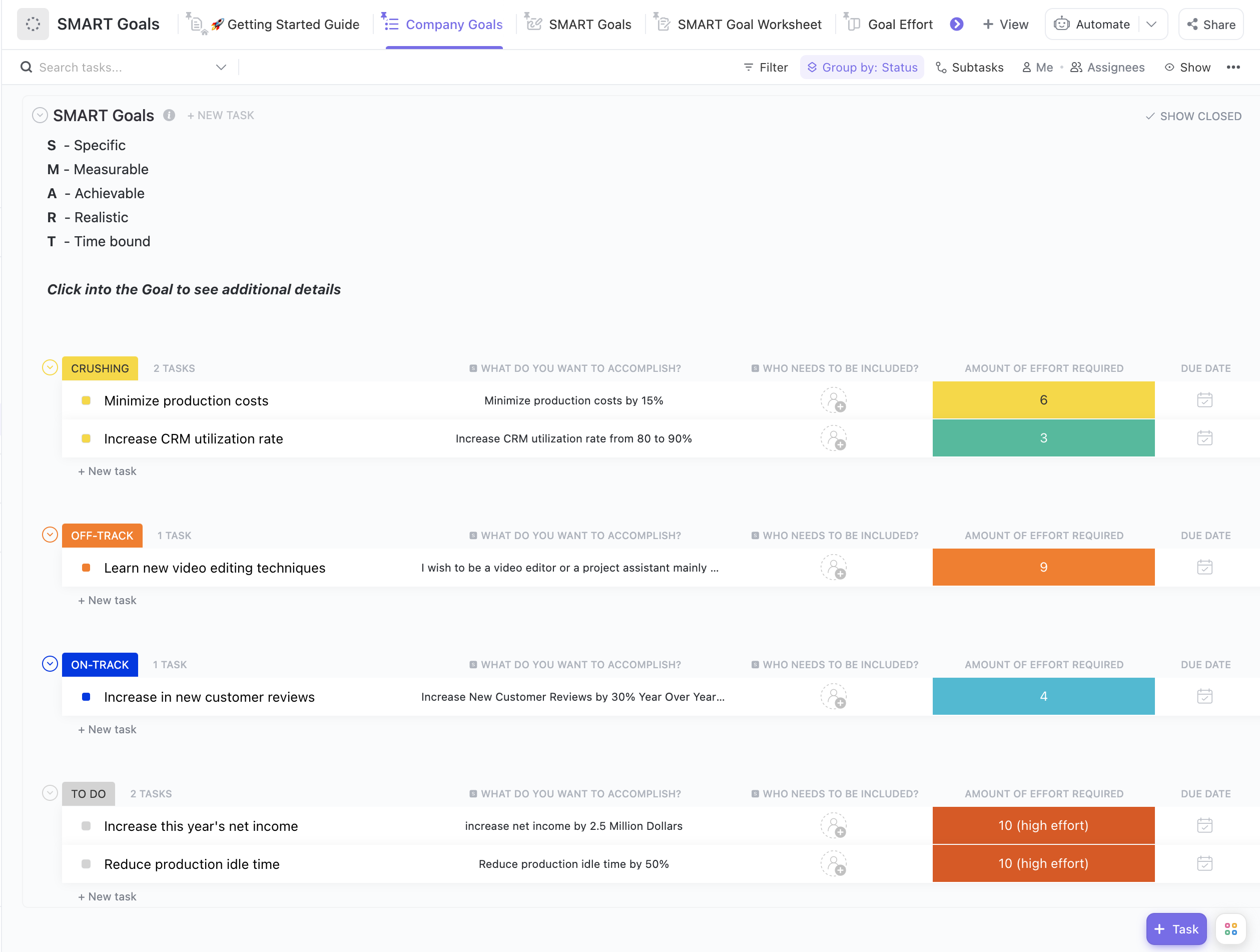
If you want a ready-made starting point, the SMART Goals page calls it a List template. It shows views named SMART Goals, Goal Effort, SMART Goal Worksheet, Company Goals, and Getting Started Guide. The page names Custom Fields such as “Do you have the skills required to achieve this,” “Why am I setting this goal right now,” and “Amount of Effort Required.” Its status examples are Complete, Crushing, Off Track, On Hold, and On Track. Using the template gives you its listed views, fields, and statuses as a starting point, instead of adding them by hand.
Common Questions About How to Set and Track Goals in ClickUp
How often should I update a goal tied to a metric?
Update its Current Value once a week.
What should I check for a goal tied to finished work?
Check how many linked tasks are complete.