
How to Block Out Focus Time
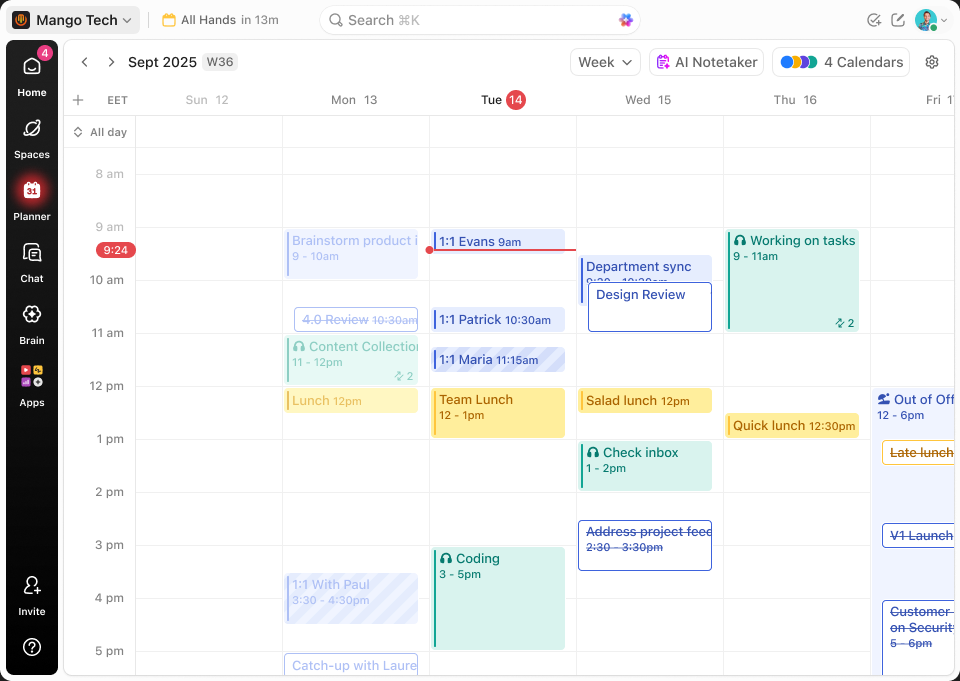
What you’ll need
- Planner, with a Google Calendar or Outlook Calendar connected. See Open your Planner.
- A task to schedule.
- A time estimate. Owners or admins need to enable the Time Estimates ClickApp, and a Workspace owner or admin must give users permission to use estimates. See Set time estimates.
How to Block Out Focus Time in 4 Steps
1Open Planner
In Global Navigation, click Planner. If it is not pinned, click More and select Planner. See Open your Planner.
2Set the task's estimate
Open the task, click Time Estimate, enter an amount of time, then press Enter on Windows or Return on Mac. The estimate is added to the task. See Set time estimates.
3Schedule the task
Drag it from the Planner Sidebar to the Calendar. It becomes a focus time block, and the time allotted is based on the task’s estimate. See Schedule tasks from your Planner.
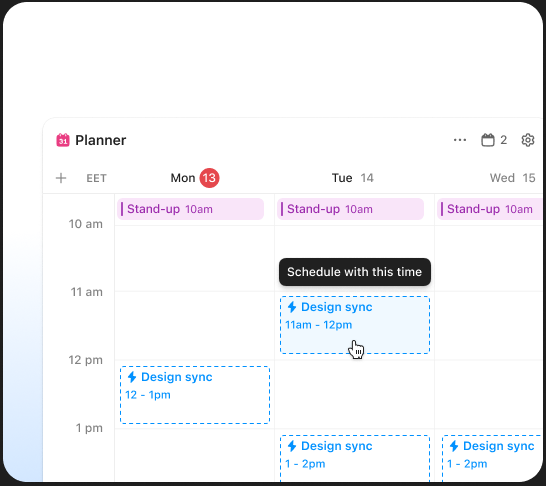
4Ask ClickUp Brain AI for a suggested time, if you want one
In the Planner Sidebar, hover over the task and click the lightning icon. Recommended times are outlined on the calendar. To confirm a time block, click the time block and select Confirm work session. See Schedule tasks from your Planner.
Tips to make it easier
- Use the Planner dock at the bottom: press / or click its search bar, find a task, then click a time slot. See Schedule tasks from your Planner.
- Set your working schedule in Planner settings under Time blocking. Times outside your working hours will not be recommended when using AI Time-Blocking. See Customize your Planner.
- Planner task blocks stay in ClickUp and are not displayed as events in your integrated calendar. See Open your Planner.
If you cannot set an estimate
Check the prerequisites: an owner or admin needs to enable the Time Estimates ClickApp, and a Workspace owner or admin must give users permission to use estimates. See Set time estimates.
Do this in ClickUp
Check your result
The task appears in Planner as a focus time block. For a task scheduled by dragging it from the Planner Sidebar, the time allotted is based on its estimate.
Common Questions About How to Block Out Focus Time
How long will a focus time block last?
For a task scheduled from the Planner Sidebar to the Calendar, the time allotted is based on its time estimate.
Can ClickUp suggest a time for a task?
ClickUp Brain AI can outline recommended times using the task’s estimate. Select a recommendation and confirm the work session.
Time Blocking
3 lessons
Next lessonHow to Get Control of Your Hours
The task has an estimate and a scheduled Planner block. When you track time from a view, the progress bar compares tracked time with the estimate if the Time Estimate ClickApp is enabled and the task has an estimate.