AI Hub
  • Glossary
  • Templates
  • Courses
  • Jobs
  • Impact of AI
    • How AI is Changing Work
    • AI Stats
  • Resources
    • Tools
    • Use Cases
    • Automations
    • Workflows
    • Prompts
    • Examples
    • Browse by Role
Log In Get Started
Log In Get Started
Skip to content

Learn

  • Glossary
  • Templates
  • Courses
  • Jobs
  • Impact of AI
    • How AI is Changing Work
    • AI Stats
  • Resources
    • Tools
    • Use Cases
    • Automations
    • Workflows
    • Prompts
    • Examples
    • Browse by Role
ClickUp Learn
Project Management Methodologies, tools, certifications, and career paths Productivity Time management, goals, focus techniques Task Management Prioritization, kanban, dependencies, and workflows Operations Management Workflows, SOPs, change management, onboarding AI for Work Prompts, tools, automations, and agents by department
Tools
Asana Jira Monday View all tools →
Comparisons
ClickUp vs Asana ClickUp vs Notion ClickUp vs Monday View all comparisons →
Buying Guides
Features How to Choose
Buyer's Guide

How to Choose PM Software

8 feature categories, real pricing at 10, 50, and 200 seats.

Read the buying guide →
Methodologies
Agile Kanban Lean View all methodologies →
Terms
Project Charter RACI Matrix Gantt Chart View all terms →
Most Popular

Agile vs Waterfall: Which Fits Your Project?

Two dominant approaches compared on flexibility, cost, and team fit.

Read the comparison →
Roles
Project Coordinator Project Manager Scrum Master View all roles →
Certifications
CAPM CSM PMP View all certifications →
Resources
Courses Podcasts Books View all resources →
Industries
Agencies Marketing Remote Teams View all industries →
Curated

The 12 Best Project Management Courses in 2025

Free and paid options ranked by depth, credential value, and time.

Browse courses →
← All Domains
Get Started Free
Learn / Project Management / Project Management Terms / Gantt Chart / Gantt Chart Templates

Gantt Chart Templates

Free Gantt chart templates for ClickUp, Excel, and Google Sheets. Each format page covers setup, customization, and honest limitations so you pick the right tool for your timeline.
CT
By ClickUp Editorial Team·Staff Writers at ClickUp
Updated May 30, 2026
← Gantt Chart

Prioritize in ClickUp

Open any matrix as a ClickUp view and sort your real tasks into it.

Try ClickUp Gantt View Free

Which Framework Fits Your Decision

Each template scores tasks on a different set of factors. Match the framework to the call you're making, then grab it below.

FrameworkBest forHow you scoreWhat you get
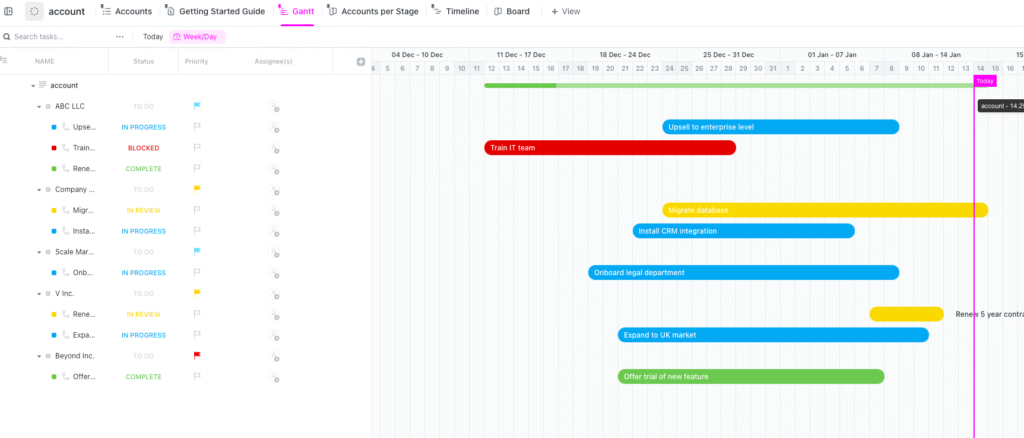
ClickUp Gantt View↓ Teams already using ClickUp Add dates to tasks, drag to link dependencies Live timeline with auto-rescheduling and critical path
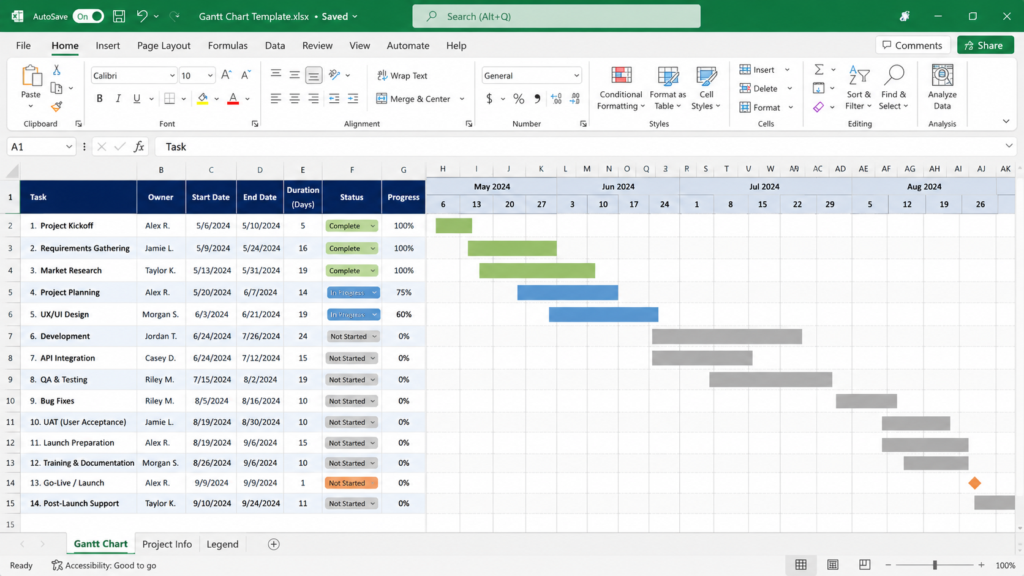
Excel Gantt Template↓ Offline access, resource capacity Enter dates and durations, set predecessor rows Offline schedule with resource histograms
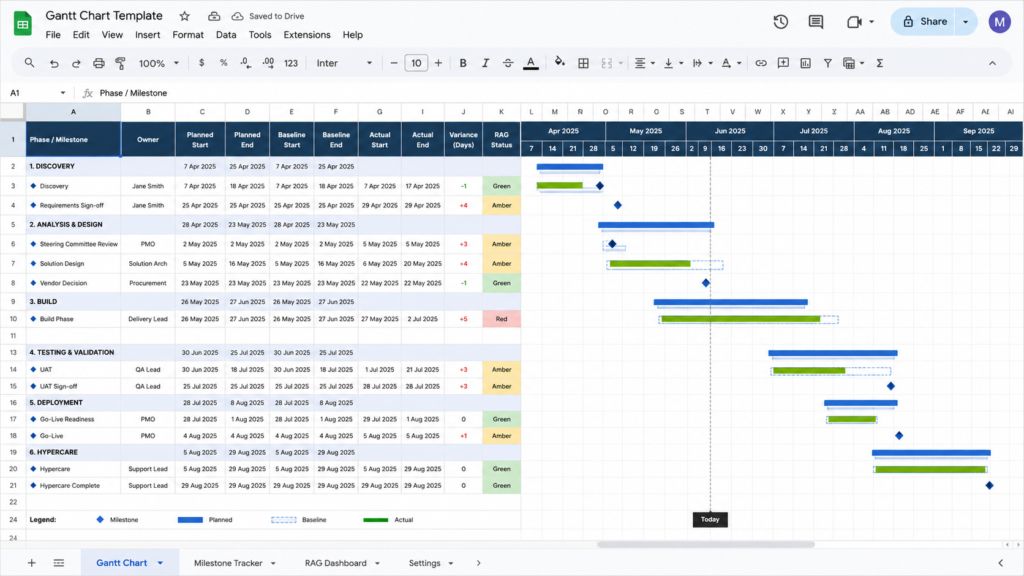
Google Sheets Gantt Template↓ Executive reporting, Google Workspace Enter phase dates, set RAG status per row One-page status view with baseline tracking

Browse the Frameworks

Every framework, ready to open. Preview the layout, scan how it scores, and grab the one that fits.

ClickUp Gantt View

Most used

ClickUp Gantt View

ExcelGoogle SheetsClickUp

Best for Teams already using ClickUp

A live timeline that generates from your ClickUp task data. Dependencies auto-link, critical path updates in real time, and the schedule stays current when anyone changes a task.

Use This Template Learn More
Excel Gantt Template

Excel Gantt Template

ExcelGoogle SheetsClickUp

Best for Offline access, resource capacity

A downloadable template with conditional formatting timelines, predecessor formulas, and resource workload histograms. Works offline in Excel 2016 and later.

Use This Template Learn More →
Google Sheets Gantt Template

Google Sheets Gantt Template

ExcelGoogle SheetsClickUp

Best for Executive reporting, Google Workspace

A collaborative, milestone-focused timeline for executive updates. Phase gates, RAG status indicators, and baseline comparisons on a one-page layout with real-time multi-user editing.

Use This Template Learn More →

How to Choose the Right Gantt Framework

The Standard Timeline Gantt works for most projects. It handles the three things every schedule needs: task durations, dependency logic, and milestone visibility. If you are starting your first Gantt chart or managing a project under 50 tasks, start here.

Switch to the Resource Loaded Gantt when your team shares people across workstreams. The workload histogram catches overallocation that a standard timeline hides. A 10 person team running three concurrent projects will see conflicts weeks before they stall delivery.

The Summary Milestone Chart is not a planning tool. It is a communication tool. Use it when your audience is a steering committee, a client, or a VP who needs the schedule in 30 seconds, not 30 minutes. Build your real plan in one of the other two frameworks, then roll it up into the milestone view for reporting.

Combining Frameworks

Most teams of 15 or more end up using two: a Standard Timeline Gantt for the project team and a Summary Milestone Chart for stakeholders. The milestone chart pulls its dates from the detailed plan, so both stay in sync without double entry.

The Resource Loaded variant is worth the extra setup when your organization runs a PMO with shared resource pools. Individual project managers rarely need it, but portfolio managers who allocate people across 5 to 10 active projects will find it pays for itself in avoided conflicts.

Already picked a framework?

Open it in ClickUp and sort your real tasks. Free, no credit card.

Use This Template →

Frequently Asked Questions

Open one of the templates above and replace the sample tasks with your own. In ClickUp, tasks automatically generate the Gantt bars. In Excel or Google Sheets, the templates use conditional formatting to draw bars from your start and end date columns. Either way, you have a working Gantt in under 10 minutes.

Yes, but manually. The Google Sheets template uses a predecessor column where you reference the row number of the upstream task. The conditional formatting then adjusts bar positions. It works for 20 to 30 tasks. Beyond that, a dedicated tool like ClickUp handles dependency logic without formula maintenance.

Keep it under 50 tasks for a single view. Beyond that, group tasks into phases and show summary bars at the phase level, with the ability to drill into detail when needed. The Summary Milestone Chart variant is specifically designed for this rolled up view.

ClickUp Learn

Free guides, honest tool reviews, and real career data. Independent editorial from ClickUp.

Domains

  • Project Management
  • Productivity
  • Task Management
  • Operations Management
  • AI for Work

Editor's Picks

  • Best PM Software
  • AI Tools Compared
  • Agile Guide
  • AI Concepts
  • PM Methodologies

ClickUp

  • Features
  • AI Brain
  • Pricing
  • Templates
  • Blog
© 2026 ClickUp Status Security Privacy Terms
4.7 · 19,704 reviews · G2 · Capterra · GetApp
© 2026 Learn • Built with GeneratePress